Normal view

There are new articles available, click to refresh the page.
Before yesterdayMain stream

Einarex introduces airflow-focused Pulse PM300 compact PC case

20 May 2026 at 07:00

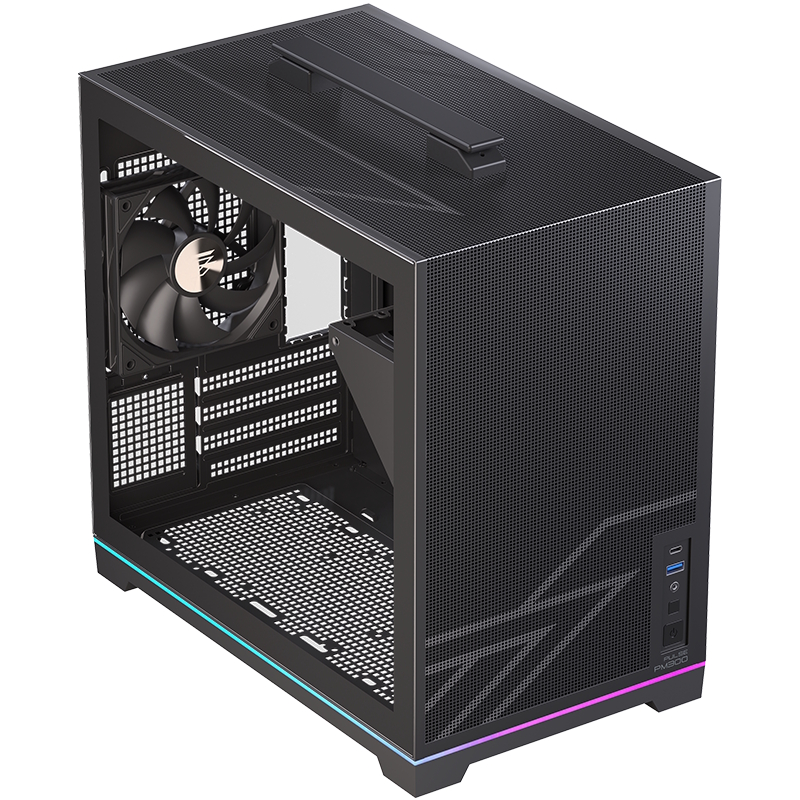
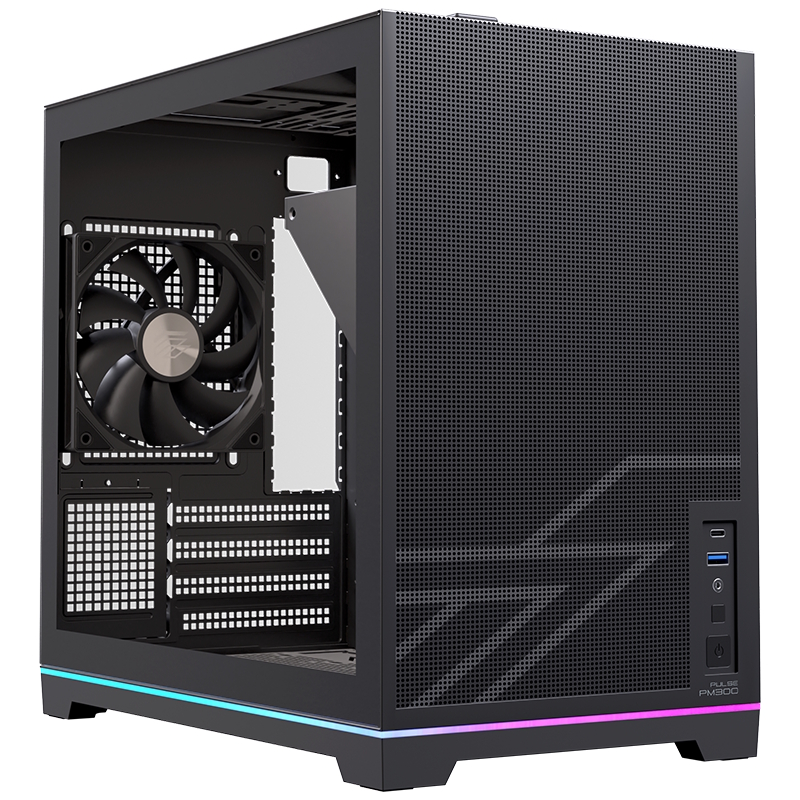
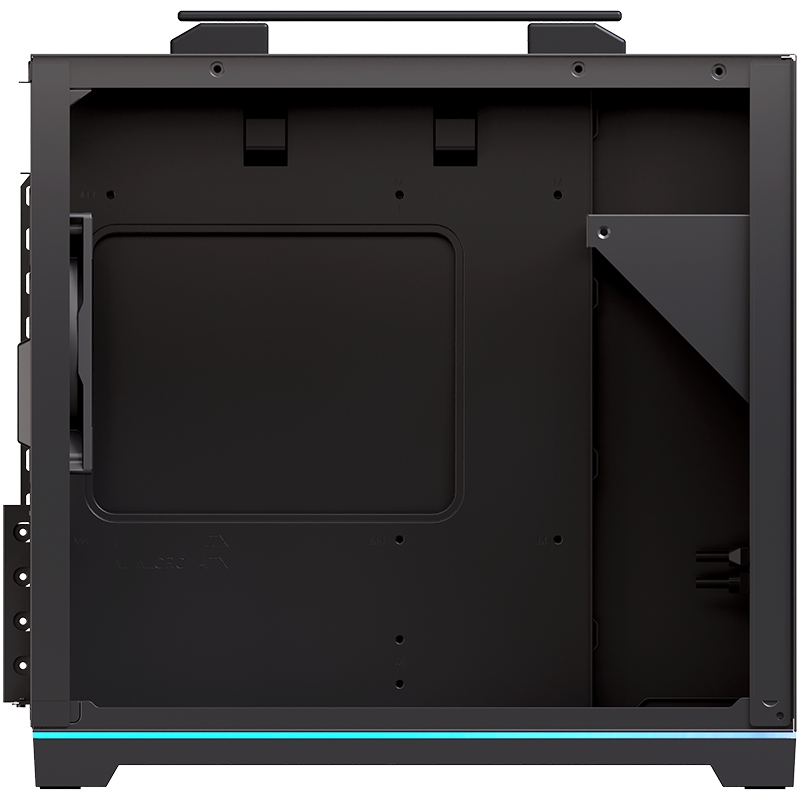
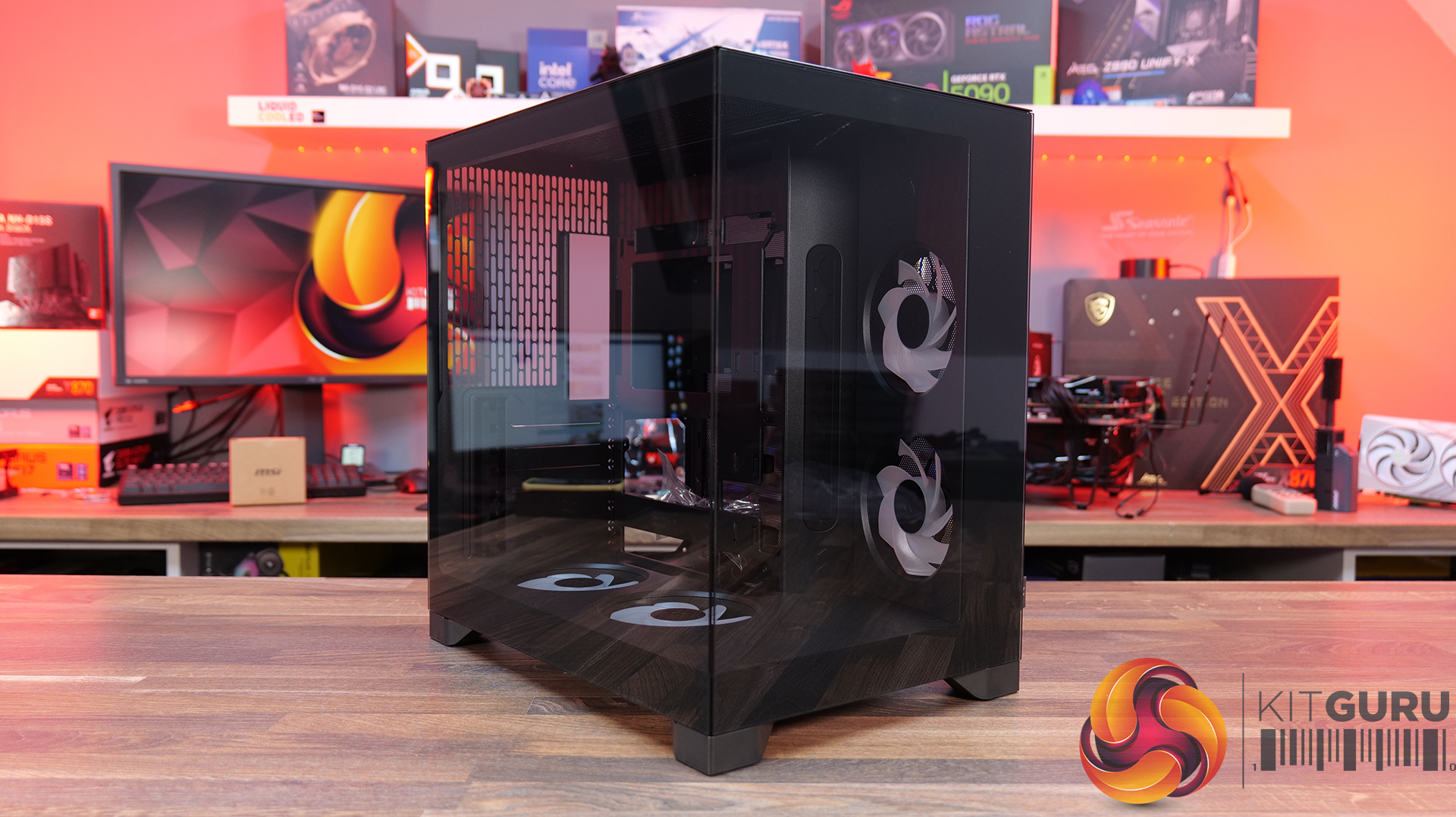
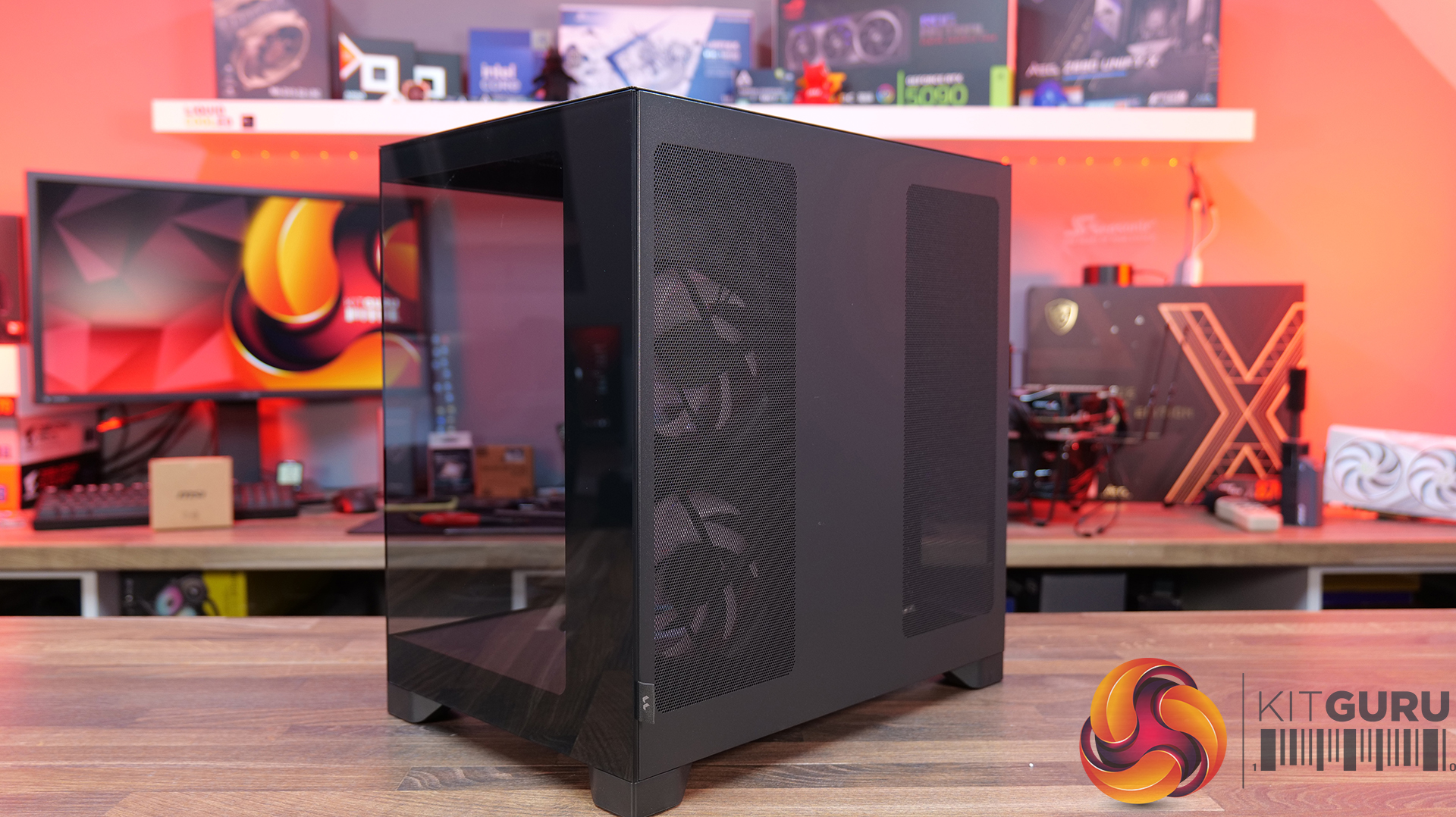
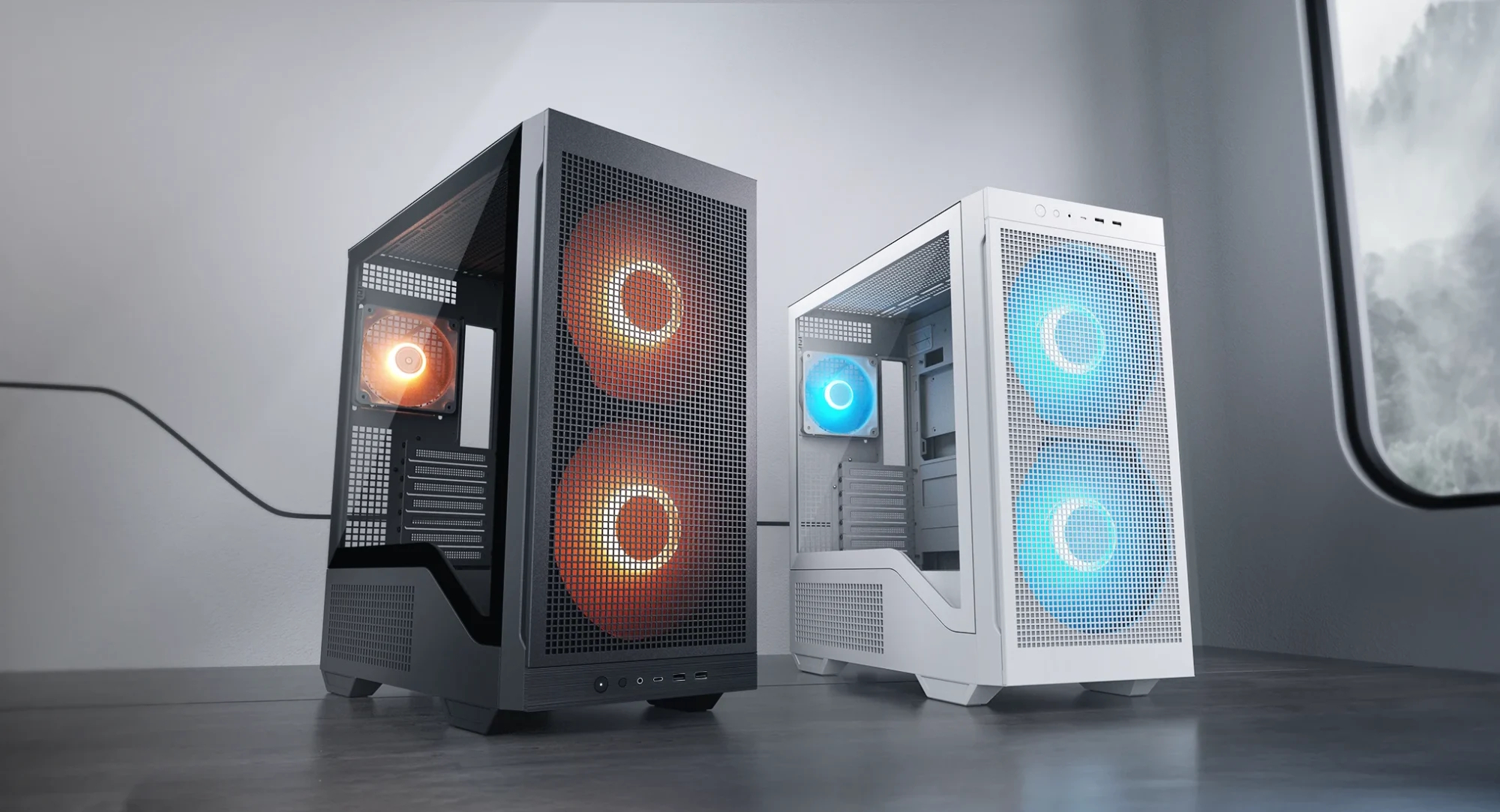
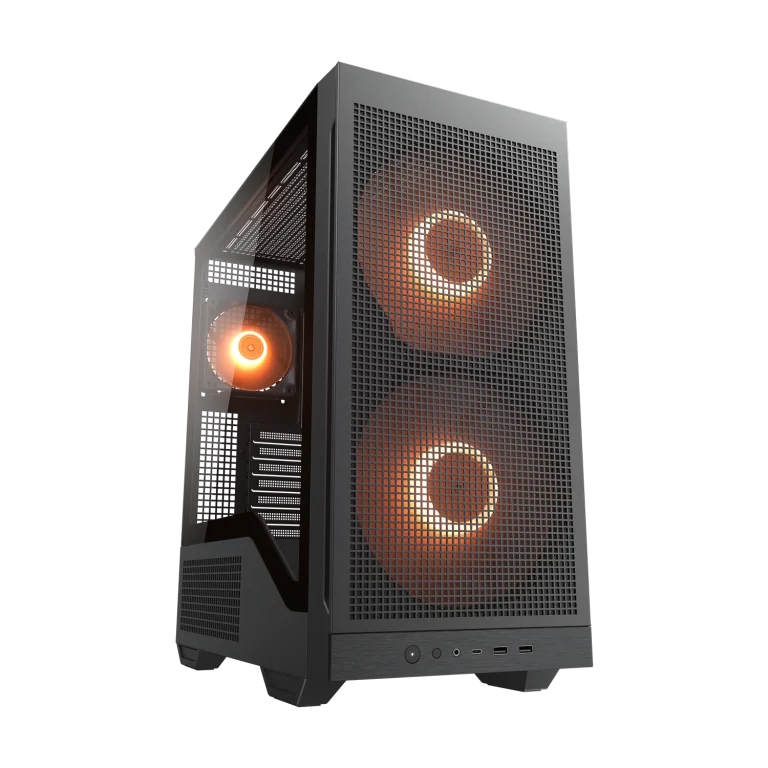
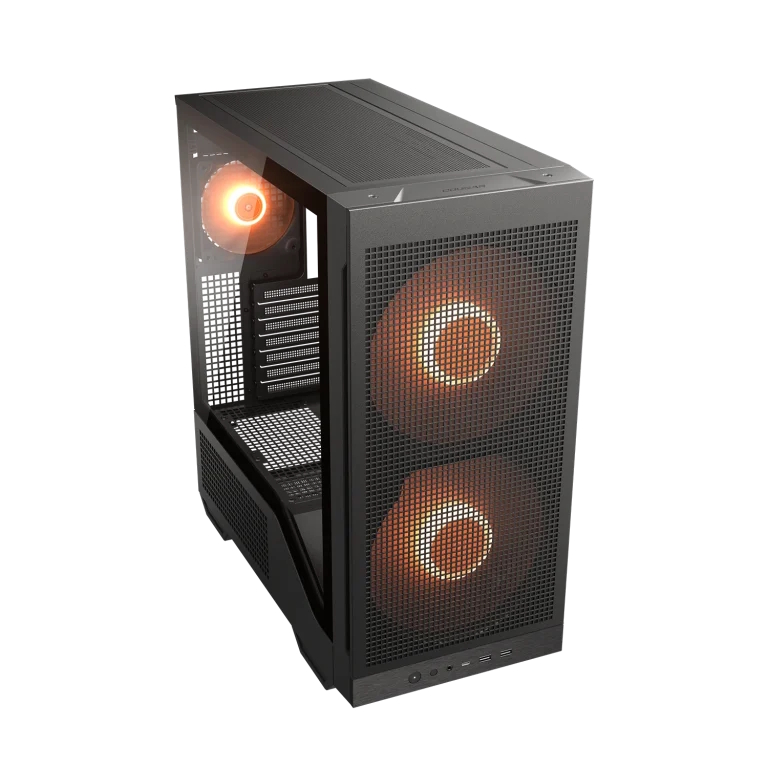
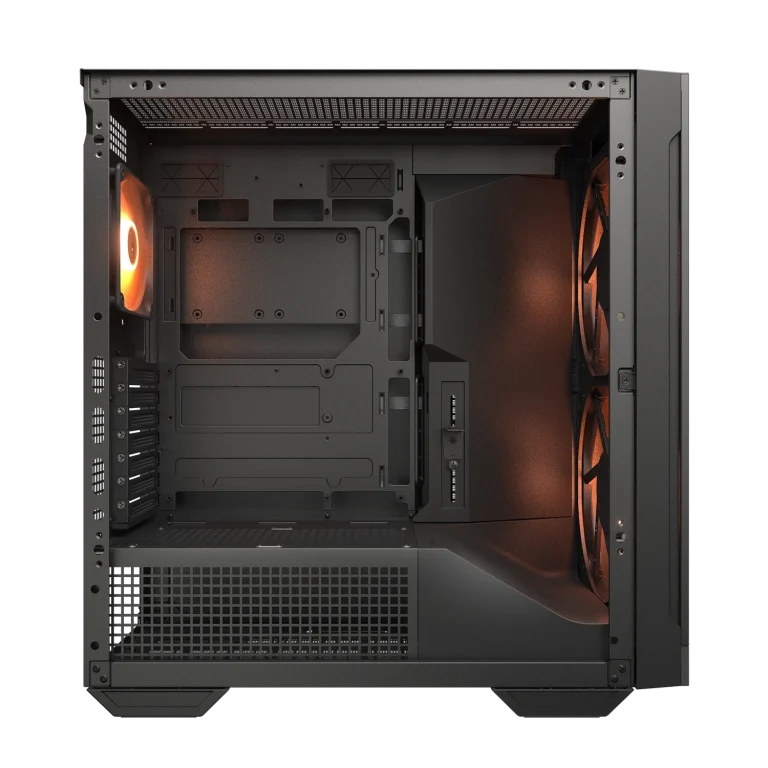
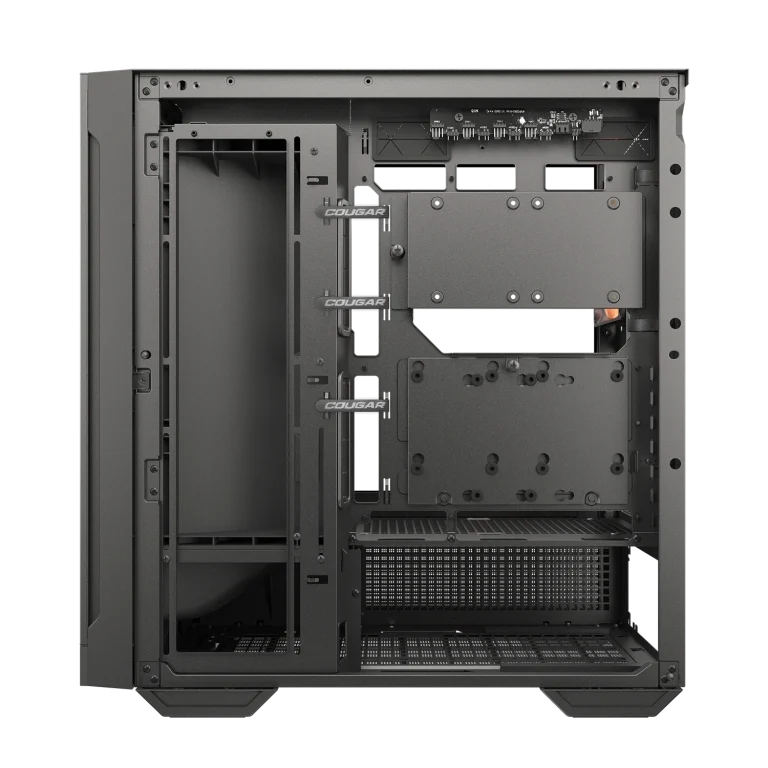
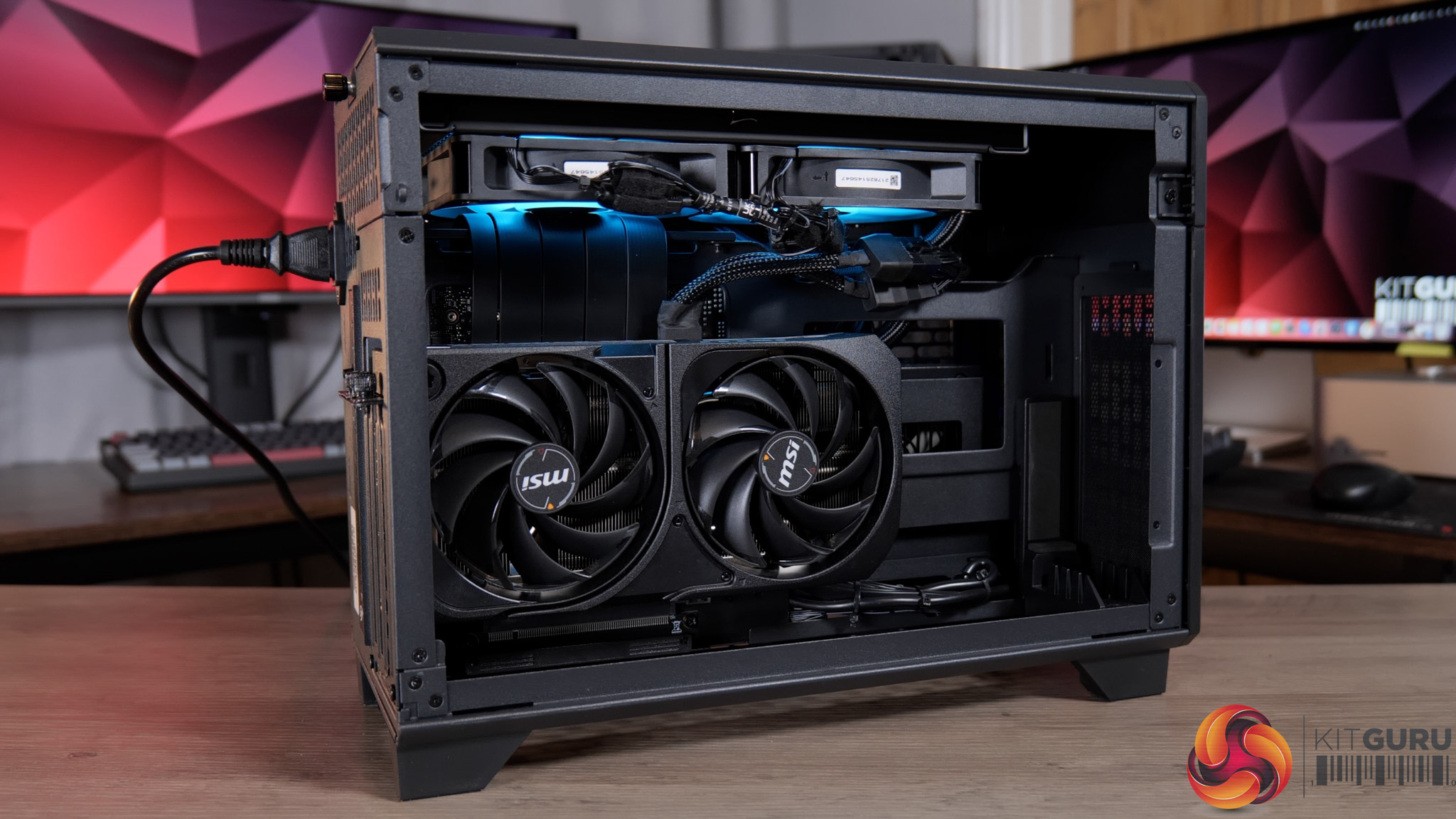
Einarex has officially announced the Pulse PM300, a microATX case designed for high-performance setups that require a smaller footprint. Expanding the company's airflow-focused Pulse series, the new enclosure is engineered to reduce unnecessary volume while maintaining compatibility with modern hardware standards.

The Pulse PM300 supports both microATX and Mini-ITX motherboard form factors. According to the manufacturer, the internal space is optimised to accommodate graphics cards up to 340mm long, standard ATX power supplies up to 150mm long, 240mm radiators (top only), and tower air coolers up to 175mm tall. There's also space for up to 6x 120mm fans, 2x 2.5-inch drives, and another 2x 3.5/2.5-inch drives.

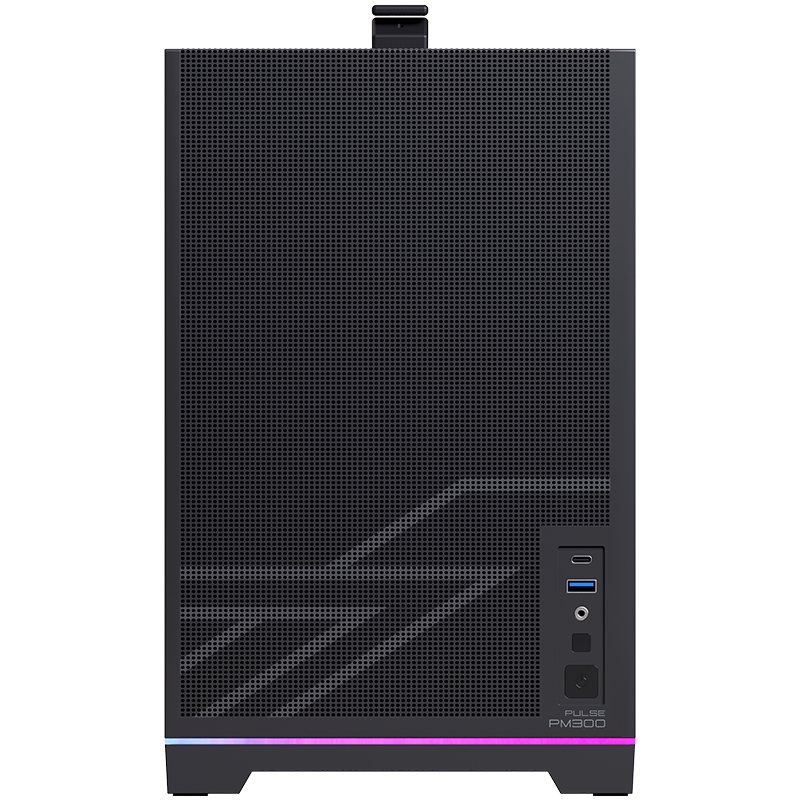
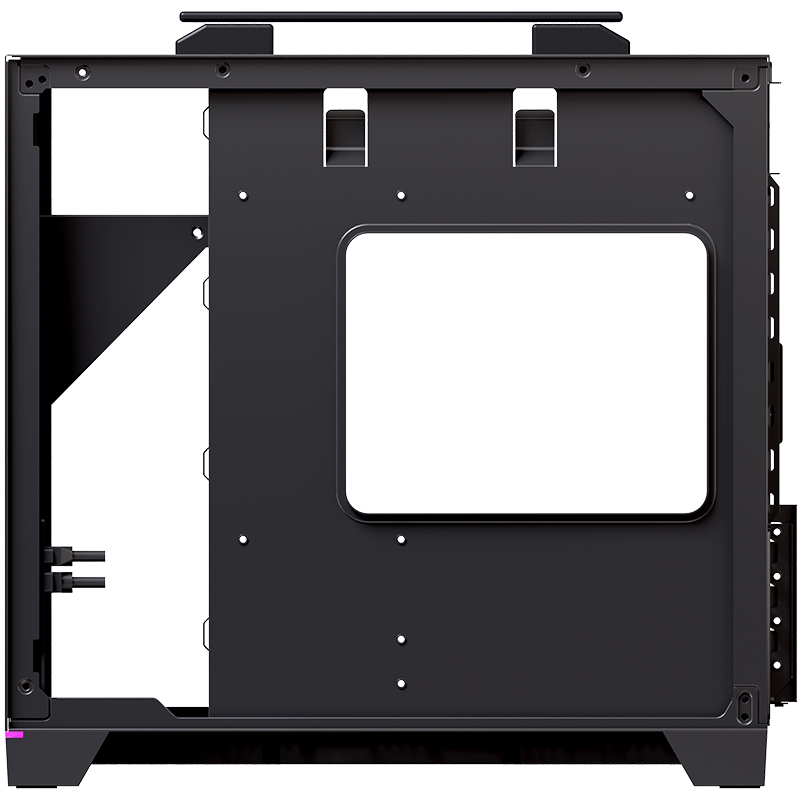
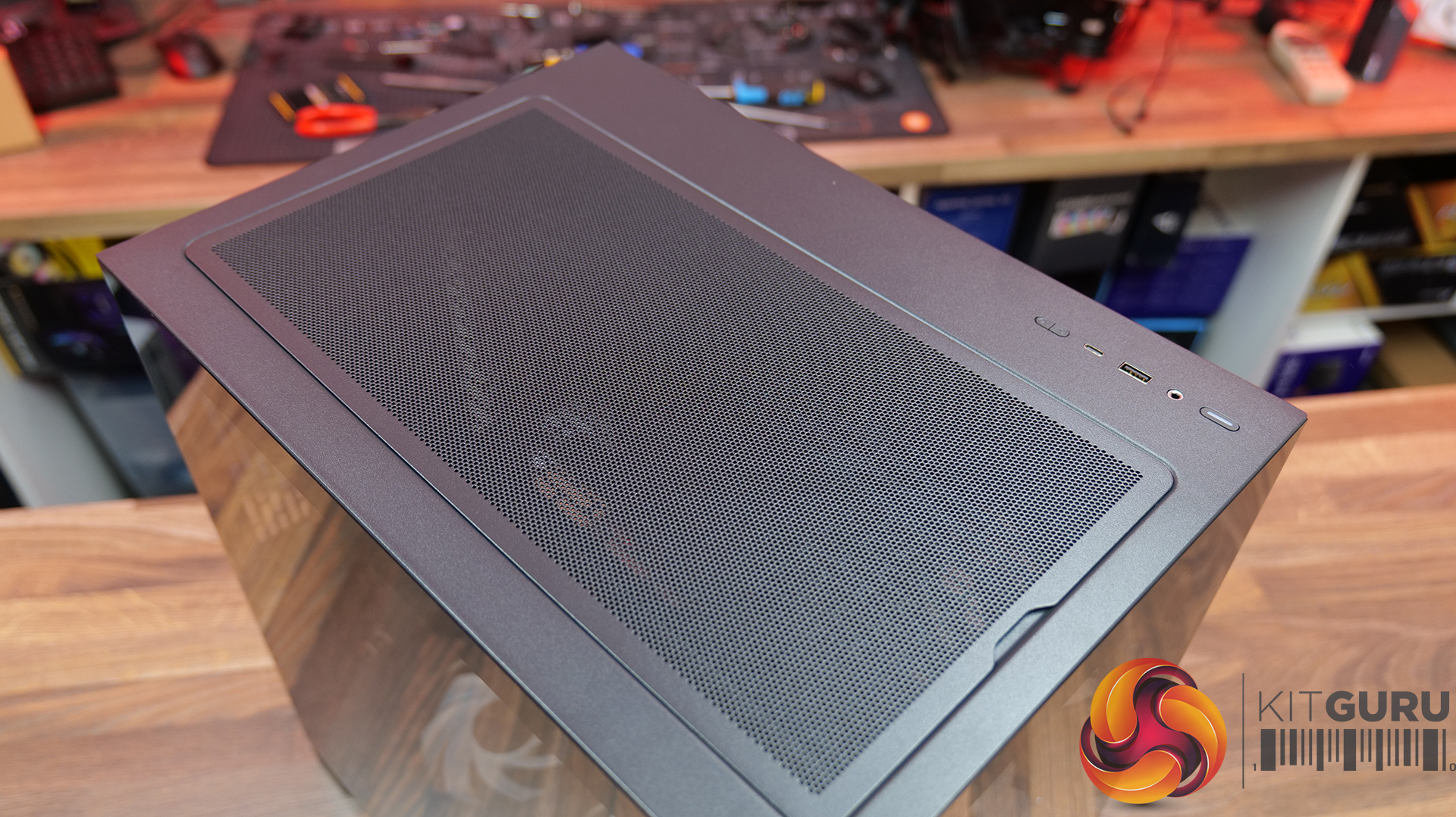
To address the thermal challenges common to smaller enclosures, the Pulse PM300 features a mesh-focused ventilation design that maximises continuous airflow over critical system components. The ventilation design accommodates multiple fan configurations and radiator placements, along with a dedicated routing structure for organised cable management.

According to Einarex, the case is intended for gaming setups, creator workstations, and portable systems that require frequent transport.

KitGuru says: Einarex might not be as well-known as other case brands, but the new Pulse PM300 sure looks like an interesting competitor in the compact case market.

The post Einarex introduces airflow-focused Pulse PM300 compact PC case first appeared on KitGuru.

Fractal Pop 2 Vision Case Review

29 April 2026 at 13:00

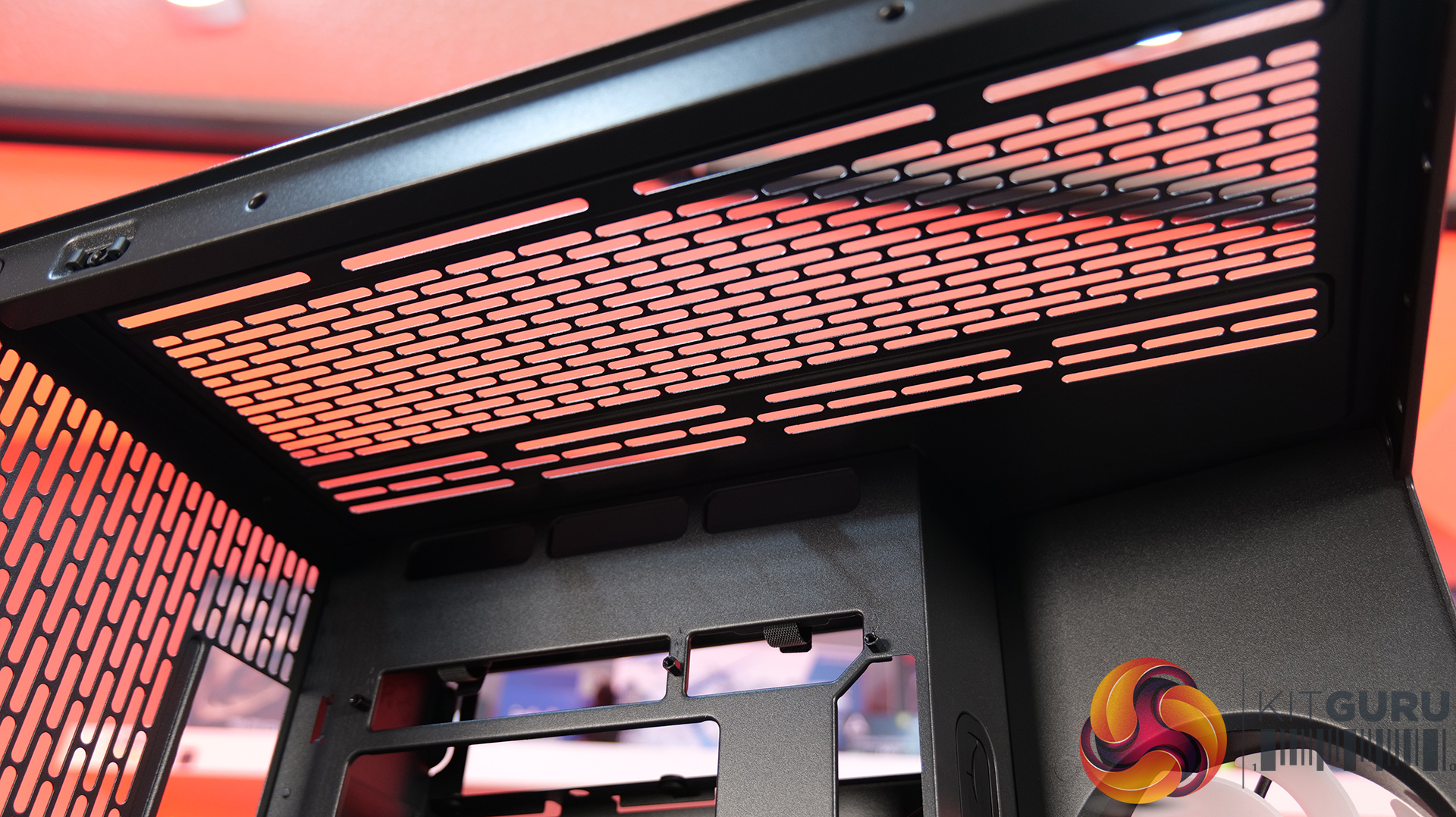
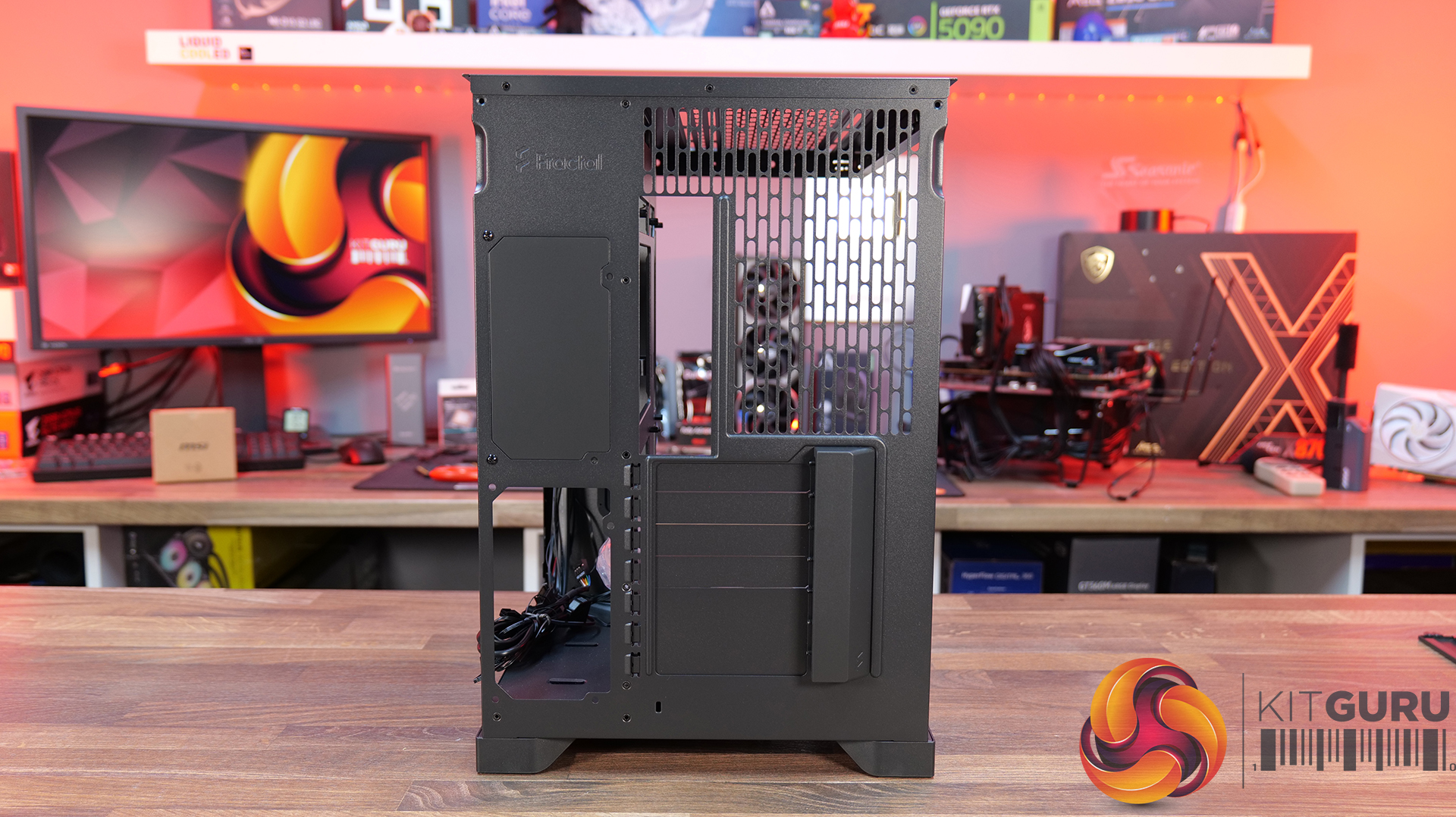
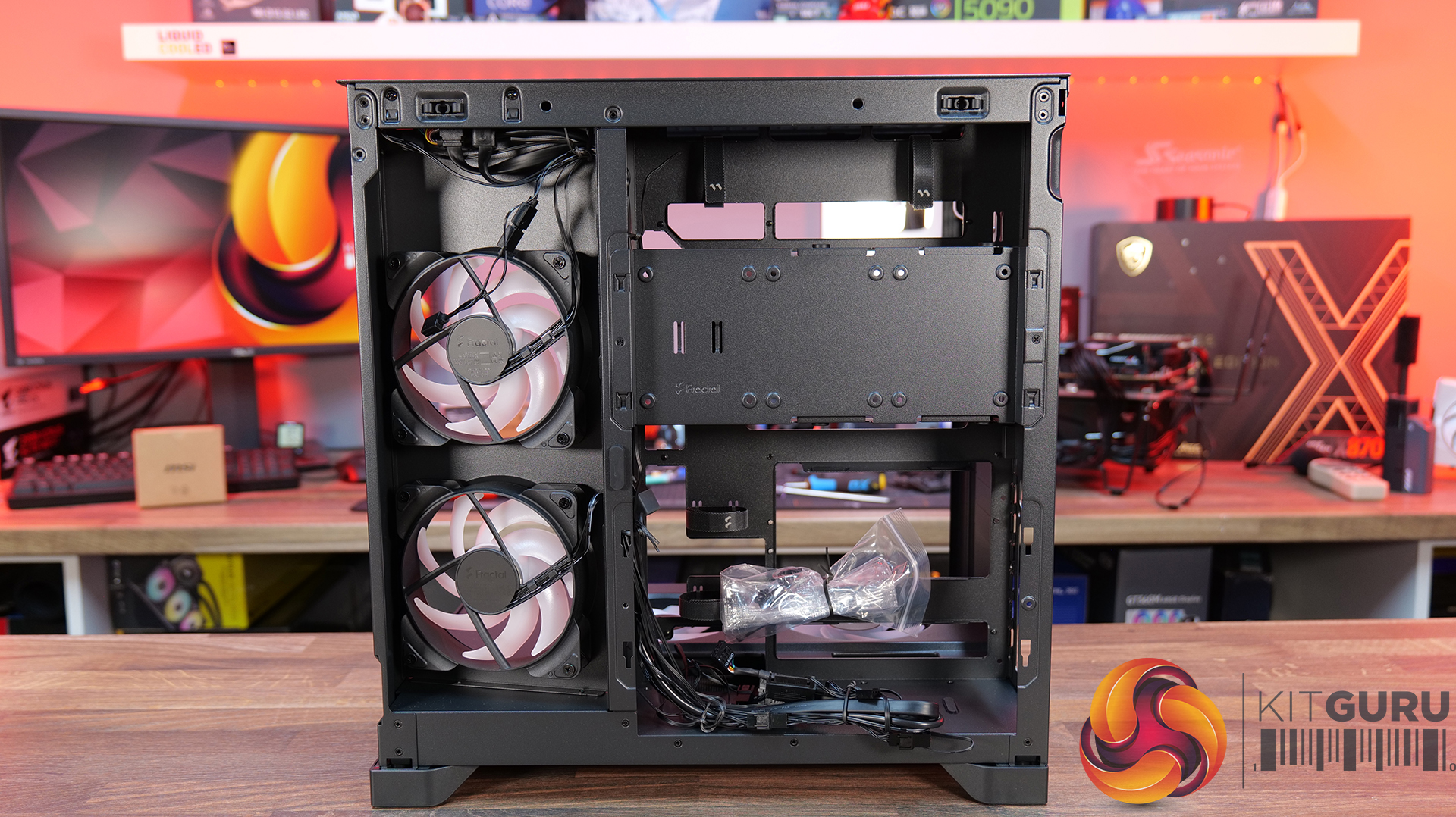
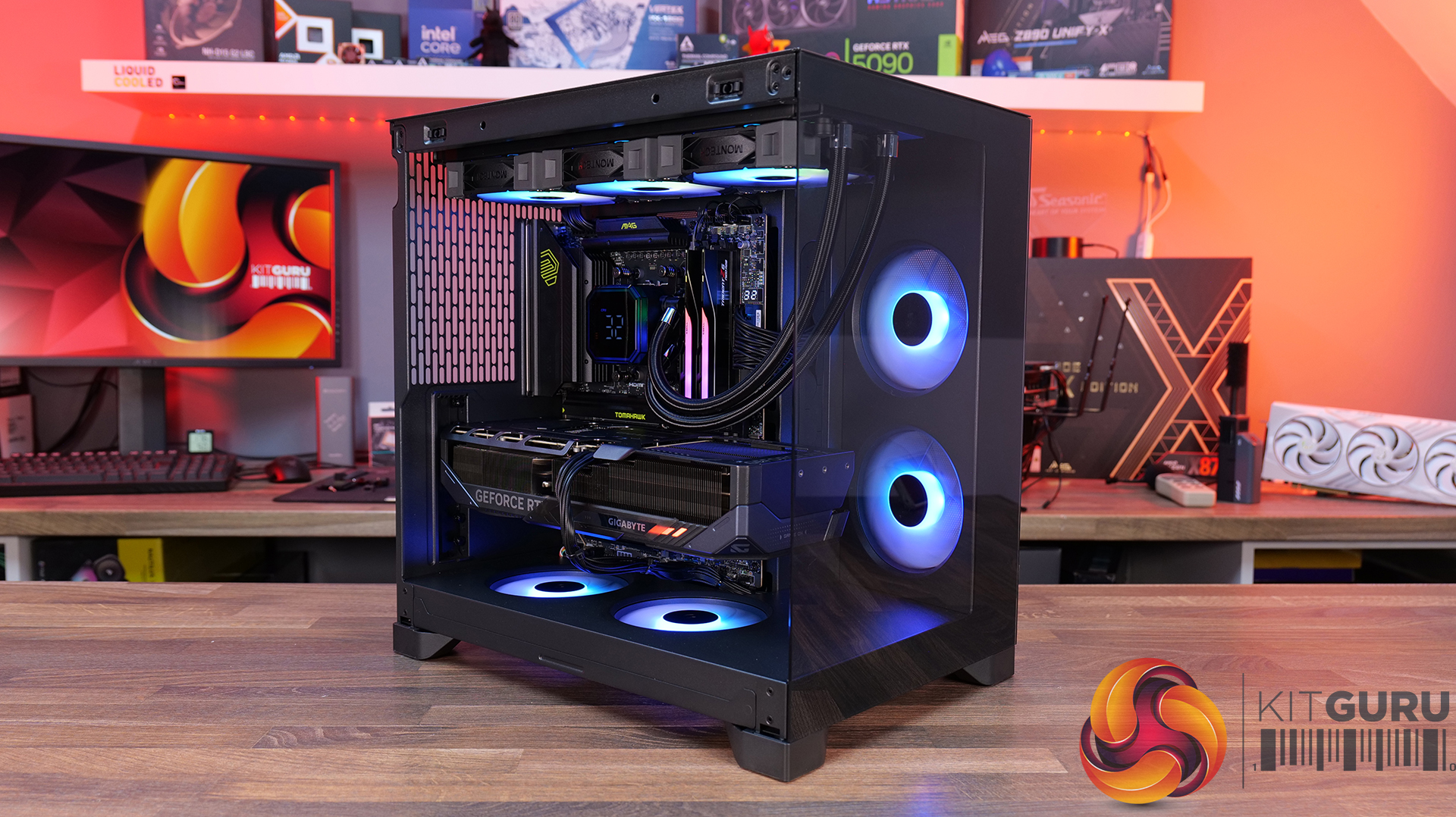
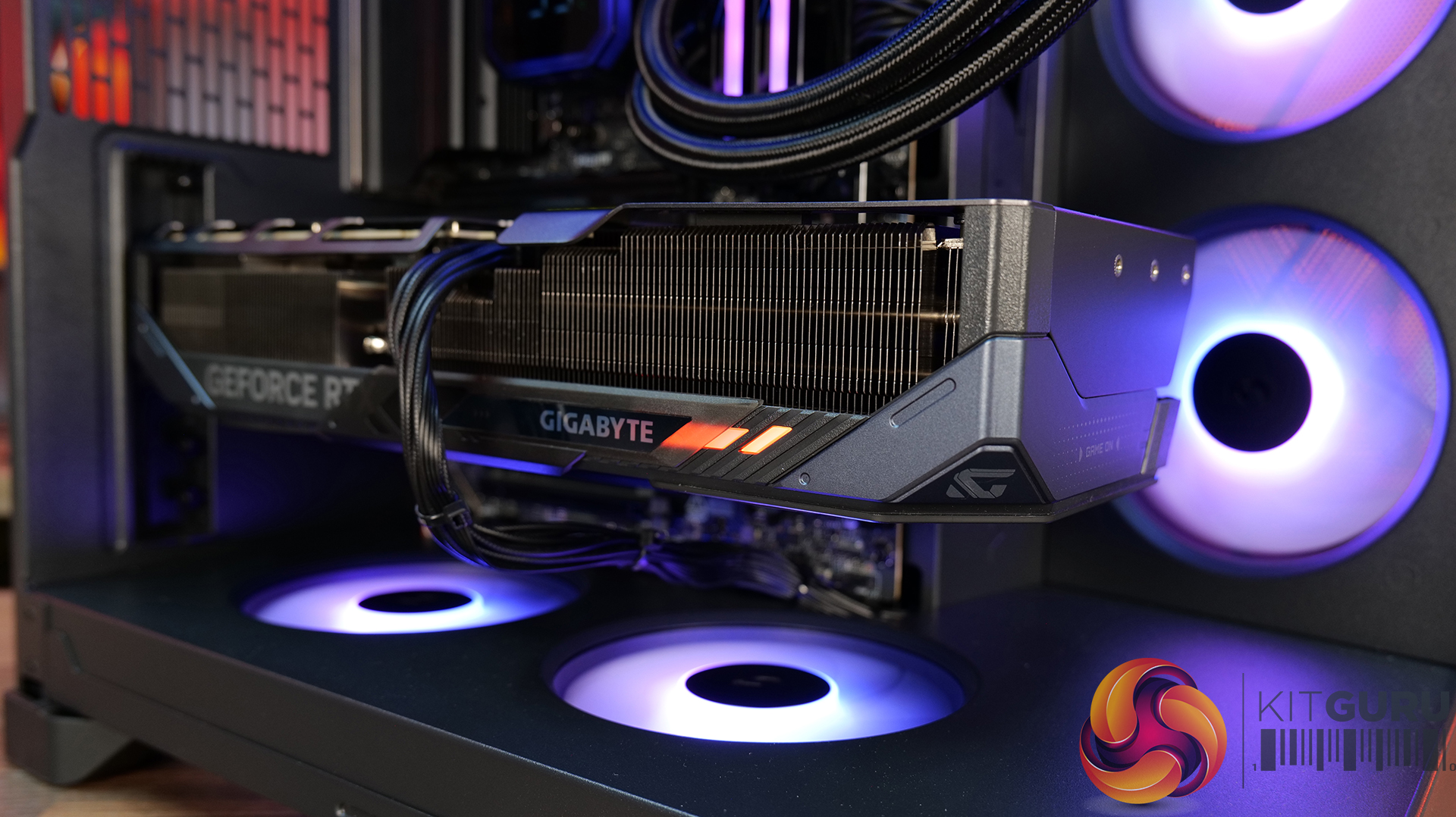
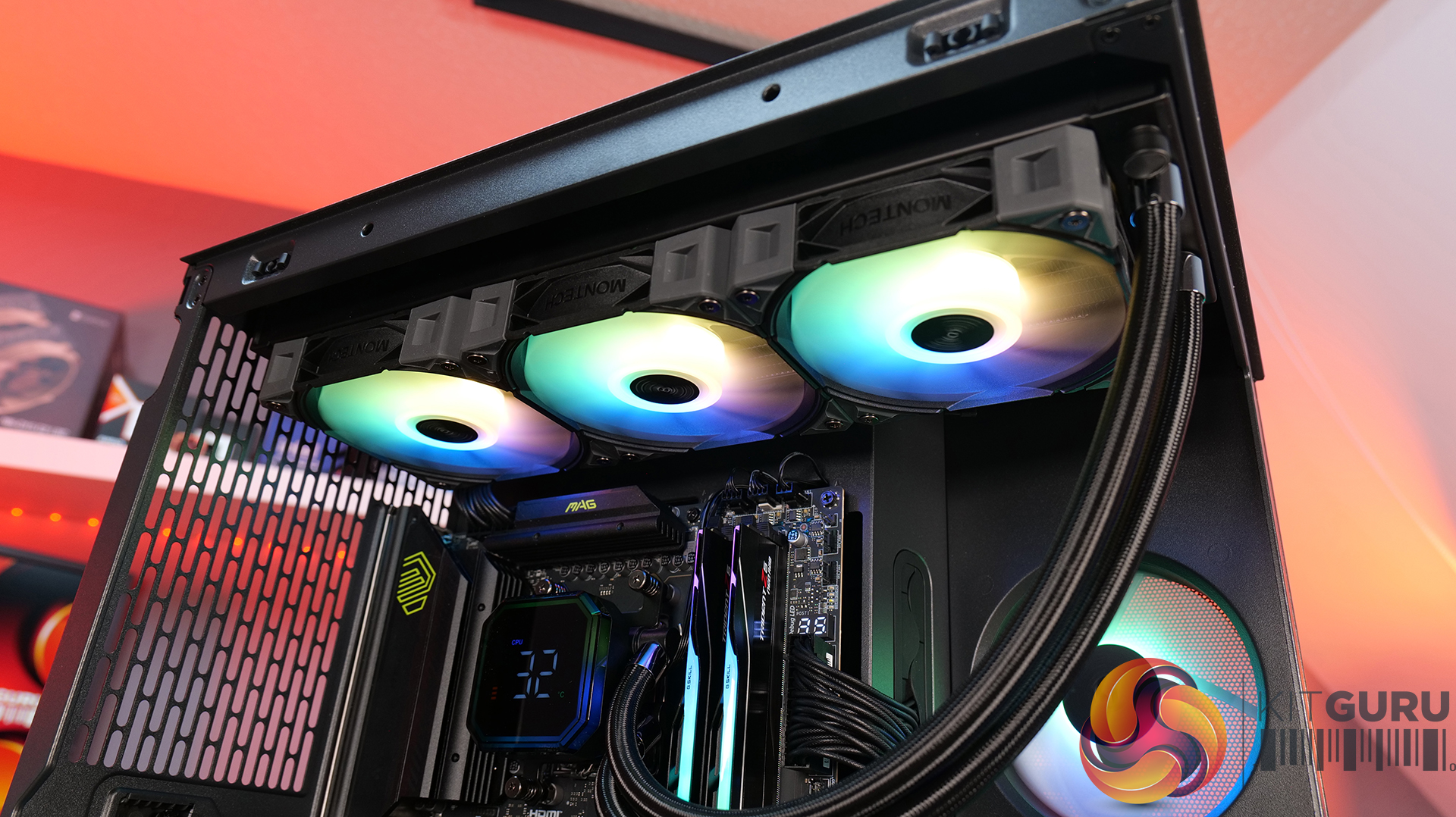
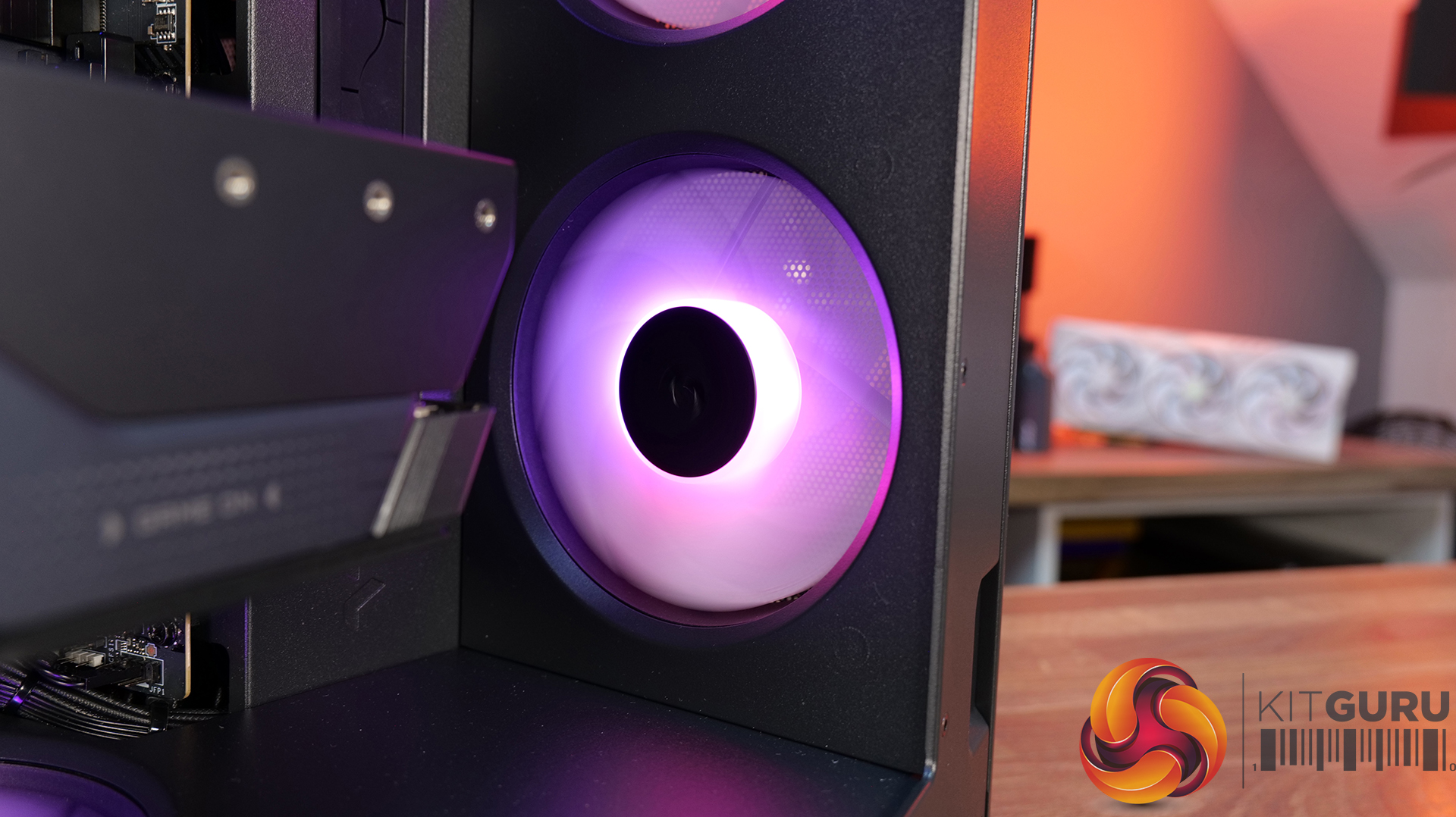
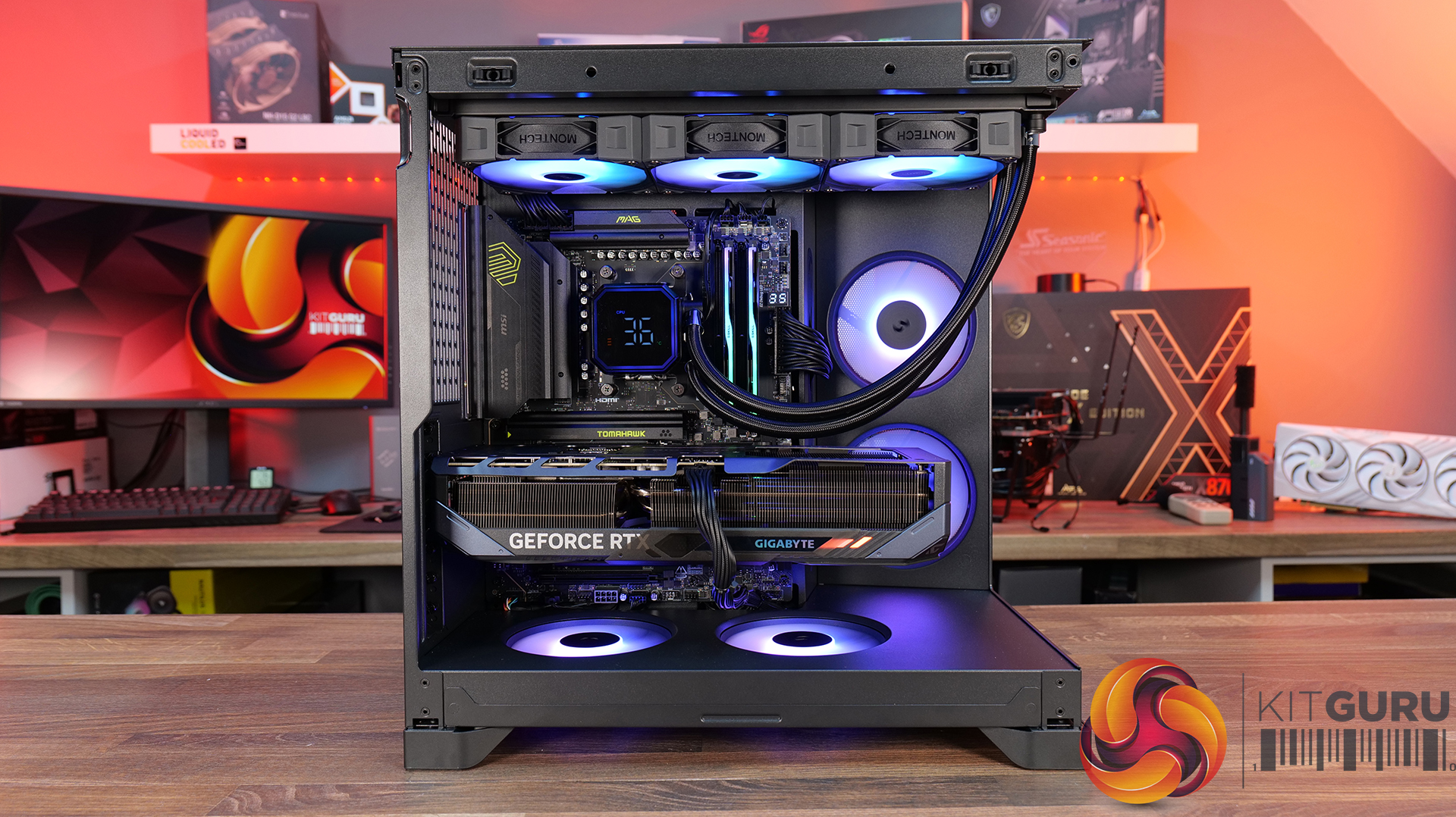
Today we’re checking out the Fractal Pop 2 Vision PC case. It’s a mid-tower chassis built around a dual-chamber design, aiming for a clean look with minimal clutter. You get four pre-installed Aspect 12X Reverse fans, support for large GPUs and 360mm radiators, plus a build-friendly layout with tool-free panel access and plenty of cable management space. On paper it looks like a solid mix of Fractal style and practicality, but does it actually deliver? Let’s find out.

Timestamps:

00:00 Intro
00:52 Meet the Pop 2 Vision
01:32 Key features
03:04 Starting the teardown
05:30 Inside the main chamber
07:47 Hardware compatibility
09:23 Back of the case
10:09 Behind the mobo tray
12:08 Quick look at the bottom
12:29 Included accessories
13:20 Test setup
13:42 Thermal + noise results
15:29 James’ thoughts on the installation process
17:36 Closing thoughts

Features:

  • Full-vision Design: Dual-chamber layout and panoramic glass panels combine for a clean, clutter-free showcase build, with hidden cabling and pre-routed fans.
  • Serious hardware support: Space for GPUs up to 412 mm and top-mounted radiators up to 360 mm, giving flexibility for high-end gaming or water-cooled setups.
  • Cooling sorted out of the box: Fractal includes four Aspect 12X Reverse fans as standard, for optimal airflow and tidy-looking visual presentation.
  • Builder-friendly features: Tool-free panel access, a magnetic top filter, generous cable routing space with straps and grommets, plus support for reverse-connector motherboards.

Specifications:

  • Case Type: Dual Chamber Chassis
  • Dimensions (LxWxH): 434 x 297 x 441 mm
  • Materials: Steel, Tempered Glass, Plastic
  • Motherboard Support: ATX / mATX / Mini-ITX
  • Reverse Connector motherboard support: Yes
  • Expansion Slots: 7
  • Storage bays: 3.5” x 1, 2.5” x 3
  • Max GPU Length: 412mm
  • Max CPU Cooler Height: 172mm
  • PSU Type: ATX up to 190mm
  • Cable Routing Space: 93mm
  • Cable Routing Grommet: Yes
  • Hook-and-loop straps: Yes, 5 pcs
  • Supplied Fans: 4 x Aspect 12X Reverse RGB BK
  • Fan Support: 2 x 120 mm (Front/Right), 3 x 120 mm or 2 x 140 mm (Top), 1 x 120 mm (Rear), 2 x 120 mm (Bottom)
  • Radiator Support: Up to 280 / 360 mm (Top), 1 x 120mm (Rear)
  • Dust Filters: 1 x Top, 1 x Bottom, 1 x Perforated Side Panel
  • Front I/O: 1 x USB Type-A 5 Gbps, 1 x USB Type-C 5 Gbps, 1 x Audio/Mic Combo Jack
  • LCD Screen: N/A

Thermal Performance Testing

To simulate thermal demand, we run the Cinebench R23 multi-thread benchmark and 3DMark Speed Way stress test simultaneously in a loop for 30 minutes to load the system fully. This gives the CPU and GPU enough time to reach constant steady-state temperature. With this data, we can compare how the system handles the thermal demand and measure peak noise levels.

Thermal performance is measured with the case in various configurations, such as the default, with the tempered glass left-hand side panel removed and with the front panel removed to see how these configurations affect the CPU and GPU temperature. During testing, only stock case fans are used unless otherwise specified. All water pumps are set to maximum RPM and fans are set to a custom RPM curve by the Motherboard software/BIOS.

All temperature measurements are presented as Deltas – meaning the ambient temperature has been deducted from the CPU temperature, giving us a Delta. Data shown in the charts represents the average component temperature over the length of the test as measured by HWiNFO, and then the last 15 minutes of the data are calculated to get the average. The ambient temperature during thermal tests is between 19-20⁰C.

Test System Specification:

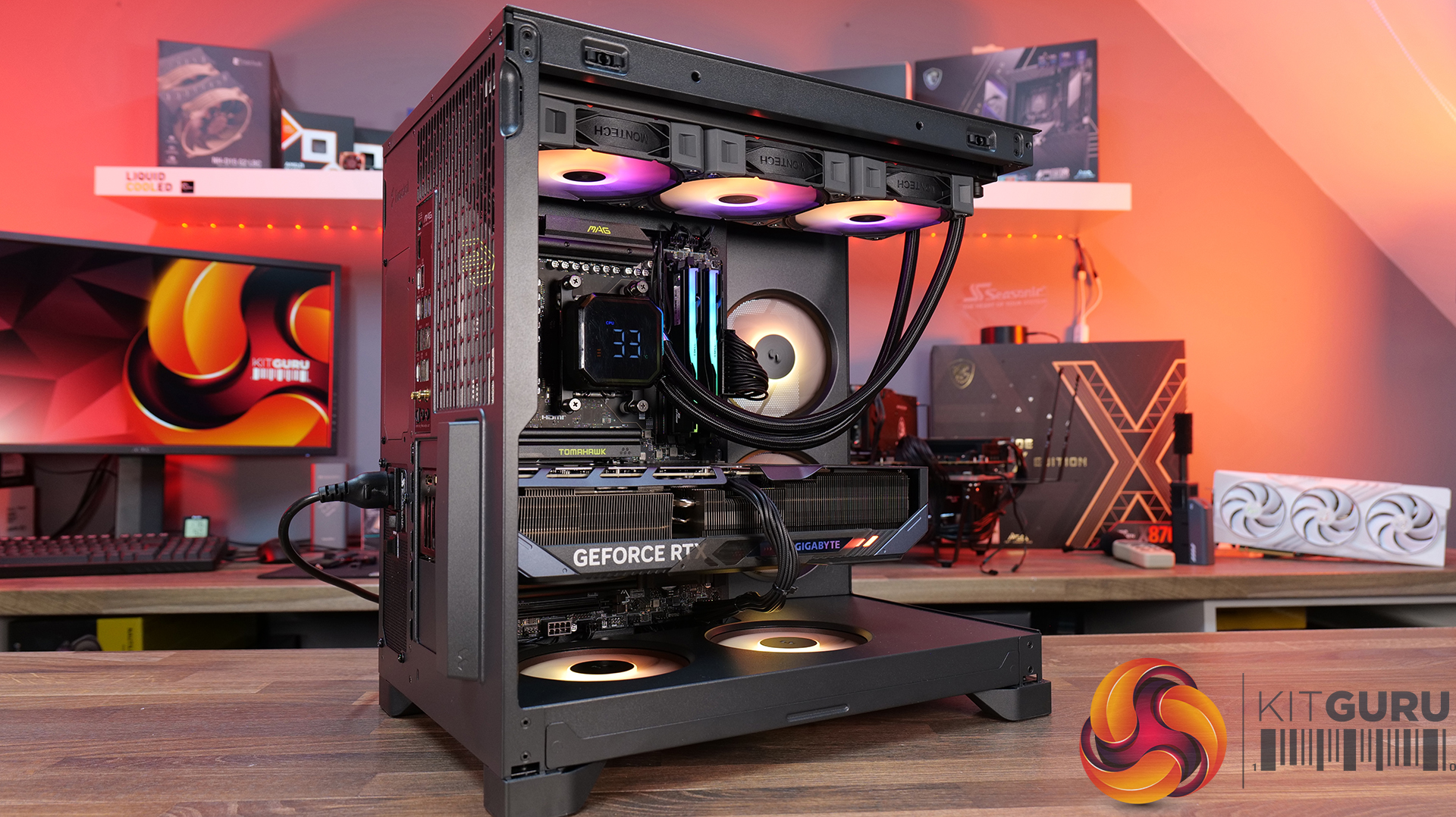
  • CPU – AMD Ryzen 7 9800X3D
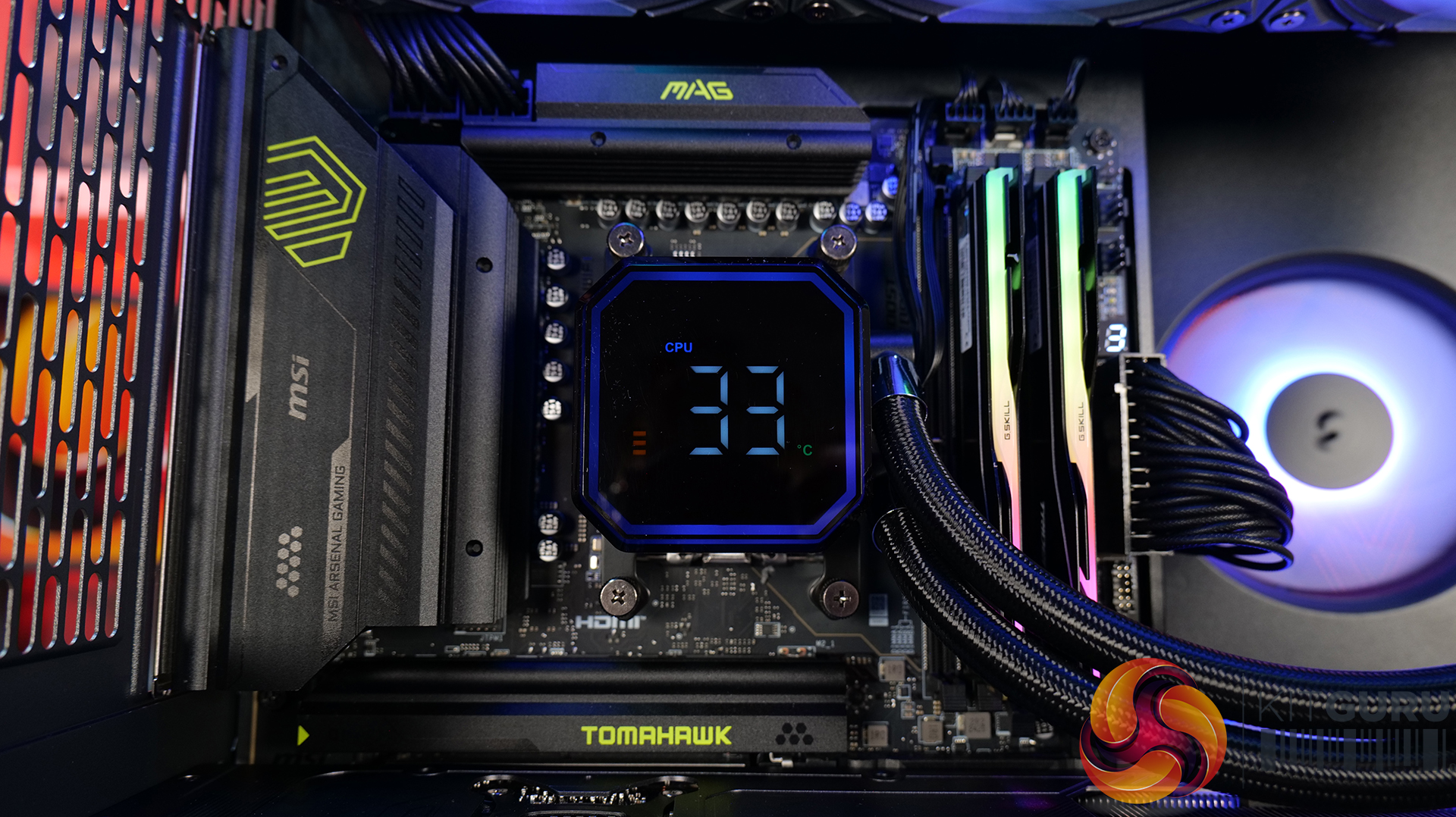
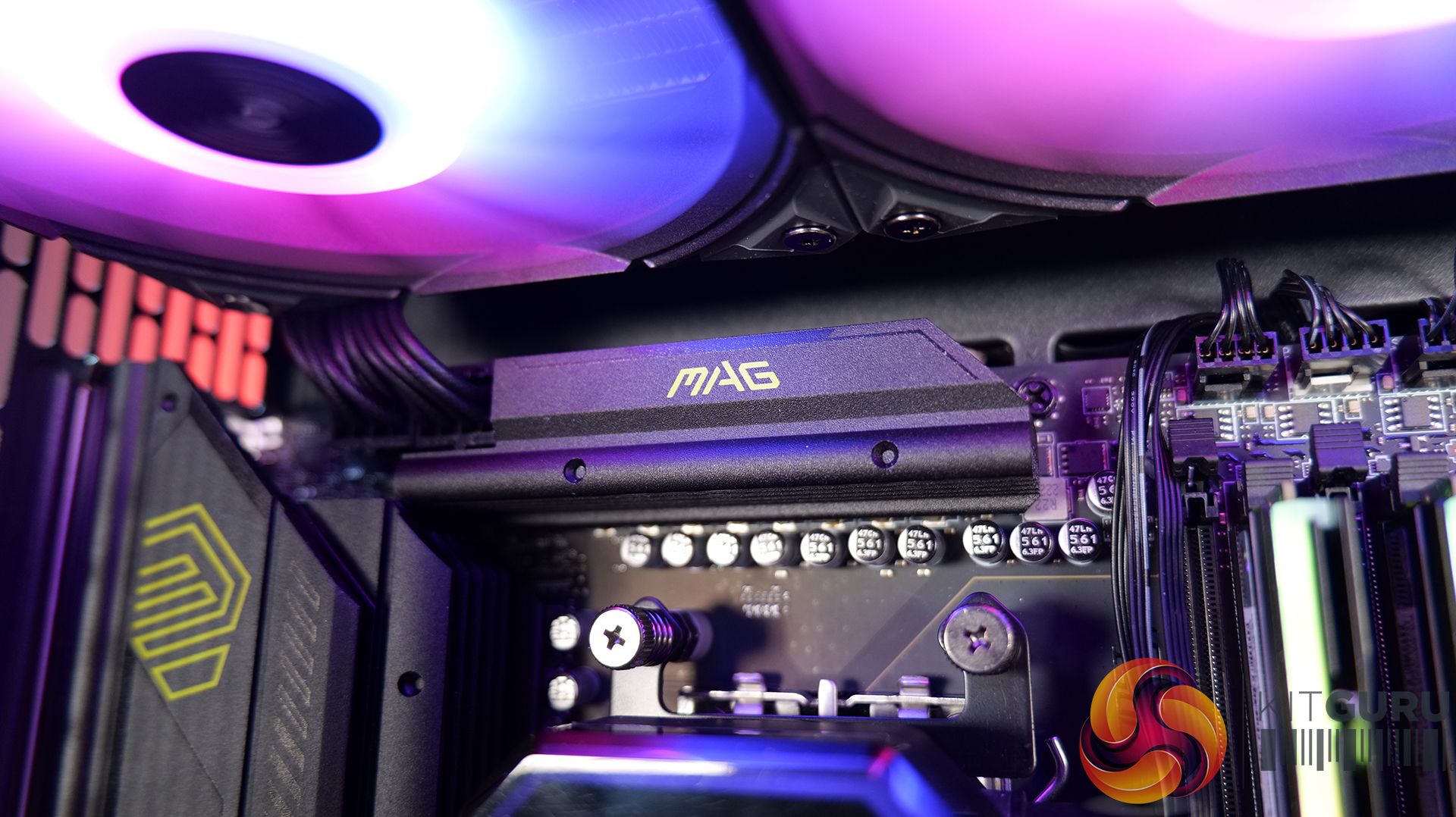
  • Motherboard – MSI X870 Tomahawk WiFi
  • Graphics Card – Gigabyte RTX 5080 Gaming OC
  • Memory – 32GB (2 x 16GB Modules) G.SKILL Trident Z5 Neo RGB DDR5-6000
  • Storage – 1TB Corsair MP600 Elite PCIE Gen4 NVMe M.2 SSD
  • CPU Cooler – Montech HyperFlow Digital 360
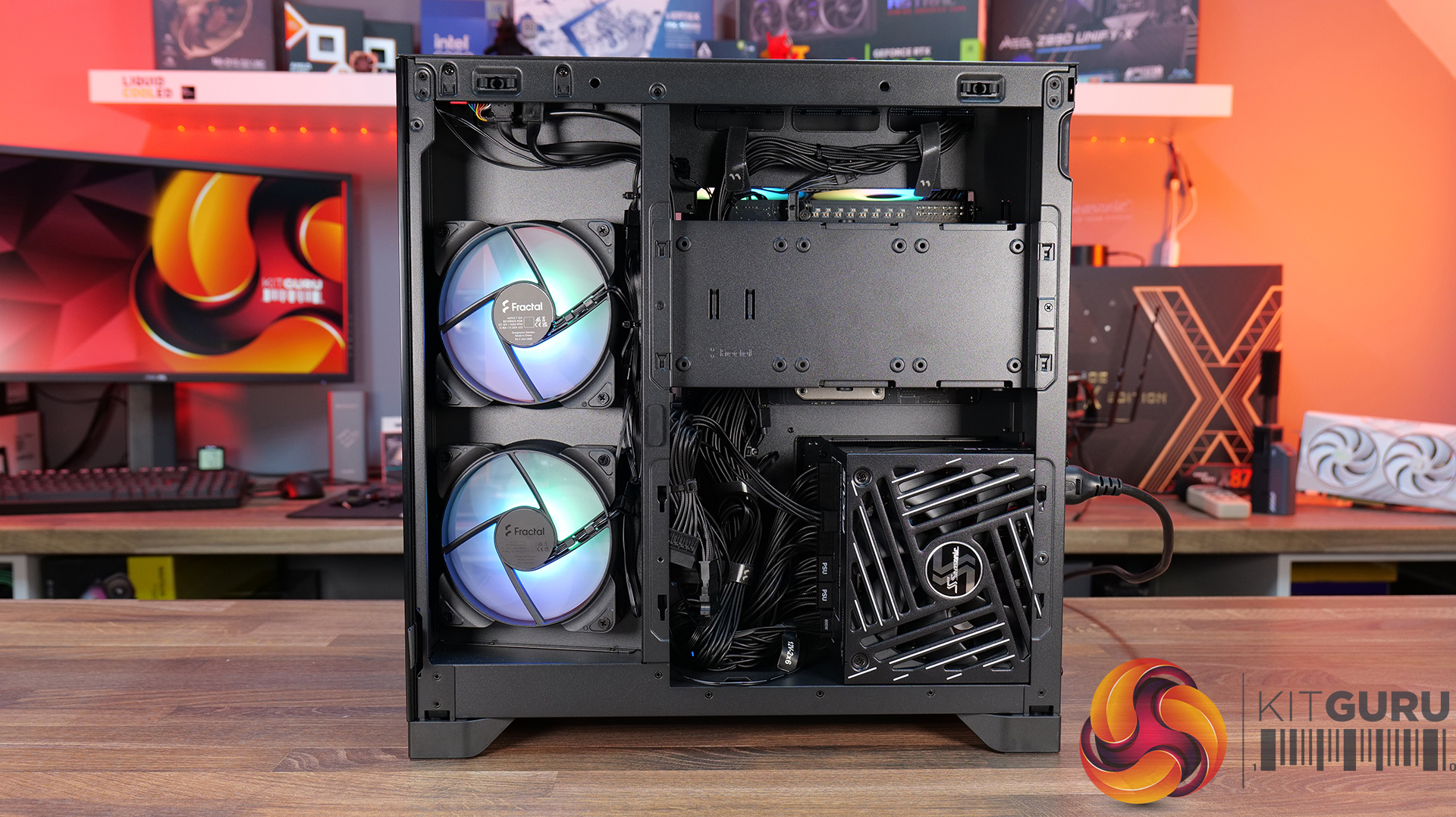
  • Power Supply – Seasonic Focus GX 1000 ATX3
  • Case fans – Stock (Fractal Aspect 12X Reverse RGB BK)
  • Chassis – Fractal Pop 2 Vision
  • Operating System – Windows 11 24H2

Thermal Performance Overview

We test case thermals using a 360mm AIO as exhaust at the top and with the case in several different fan configurations. The default configuration shown in the charts is with the top 360mm AIO cooler, 2 x 120mm side and bottom intake fans and with all case panels installed.

Looking at the thermals first, the Fractal Pop 2 Vision shows solid performance overall, with a few minor differences between configurations. With all glass panels removed, the CPU temperature is 54°C above ambient, and the GPU is at 50°C. With the case in the default configuration, temperatures rise slightly to 57°C over ambient on the CPU and 52°C on the GPU, so out-of-the-box airflow is clearly doing a decent job.

Removing the top mesh panel doesn’t change temperatures much, but removing the floor intake has an impact, pushing the CPU to 58°C and the GPU to 55°C over ambient, highlighting how important the bottom intake is for keeping GPU temperatures in check.

Noise Output

Looking at the noise results, it's pretty well controlled overall with only small differences between configurations. In the default setup, max noise is 50 dBA under load and 37 dBA at idle, which is normal for a dual-chamber case running this hardware and cooling setup.

Removing the glass panels or the top mesh panel drops load noise slightly to 49 dBA due to cooler temperatures and slightly lower fan speed. Disabling the floor intake fans pushes noise up to 52 dBA, likely due to the fans working a bit harder to compensate. At idle though it’s consistent across the board at 37 dBA.

Closing Thoughts

For a first attempt at a modern ATX dual-chamber case, the Fractal Pop 2 Vision PC Case looks to be decent value, assuming it becomes available at its suggested MSRP on launch. Build quality is a big positive as the chassis feels very solid throughout, plus the design strikes a nice balance between understated styling and full-vision aesthetic from the panoramic glass, with the recessed fans keeping things  looking clean inside the main chamber.

In terms of hardware support, there’s a lot to like here too, with 40mm+ clearance for large graphics cards, support for 360mm radiators and AIOs up top, alongside compatibility with reverse-connector ATX and mATX motherboards, so it’s flexible enough for a wide range of modern builds. It’s also generally easy to work in, with a good amount of internal space and sensible layout choices that make cable management simple and tidy presentation easy to achieve.

That said, there are some minor downsides. Some features you might expect at this price point are missing – there’s no proper fan hub included, no integrated GPU support bracket, and fan flexibility is a bit limited, with the bottom and side mounts restricted to 120mm units only. On top of that, front I/O is a little sparse, offering just a single Type-A and one Type-C port, where many cases still provide a bit more Type-A connectivity normally.

So while it’s not a completely perfect design, the core features and build quality are done well. If you’re after a dual-chamber case that prioritises clean looks, solid build quality and good hardware compatibility, the Pop 2 Vision makes a strong case for itself. While it may not give the absolute chart-topping thermals of a high airflow mesh case, with a 360mm top AIO, cooling is also pretty decent for a dual-chamber chassis.
The Fractal Pop 2 Vision has a £87.99 MSRP for the RGB model (as reviewed).

Pros: 

  • Four reverse-blade fans pre-installed.
  • Good hardware support, including reverse-connect motherboards.
  • Easy to build with.
  • Competitive MSRP.

Cons:

  • Limited side/floor fan choice.
  • No fan hub included.
  • No integrated GPU support bracket.

KitGuru says: Fractal has done a good job with the Pop 2 Vision, for the suggested MSRP it offers a good value, a solid base for your new gaming system and with the recessed fans, it looks pretty cool too.

The post Fractal Pop 2 Vision Case Review first appeared on KitGuru.

Cougar launches airflow-oriented MX600 Max RGB case with dual 200mm front fans

14 April 2026 at 10:30

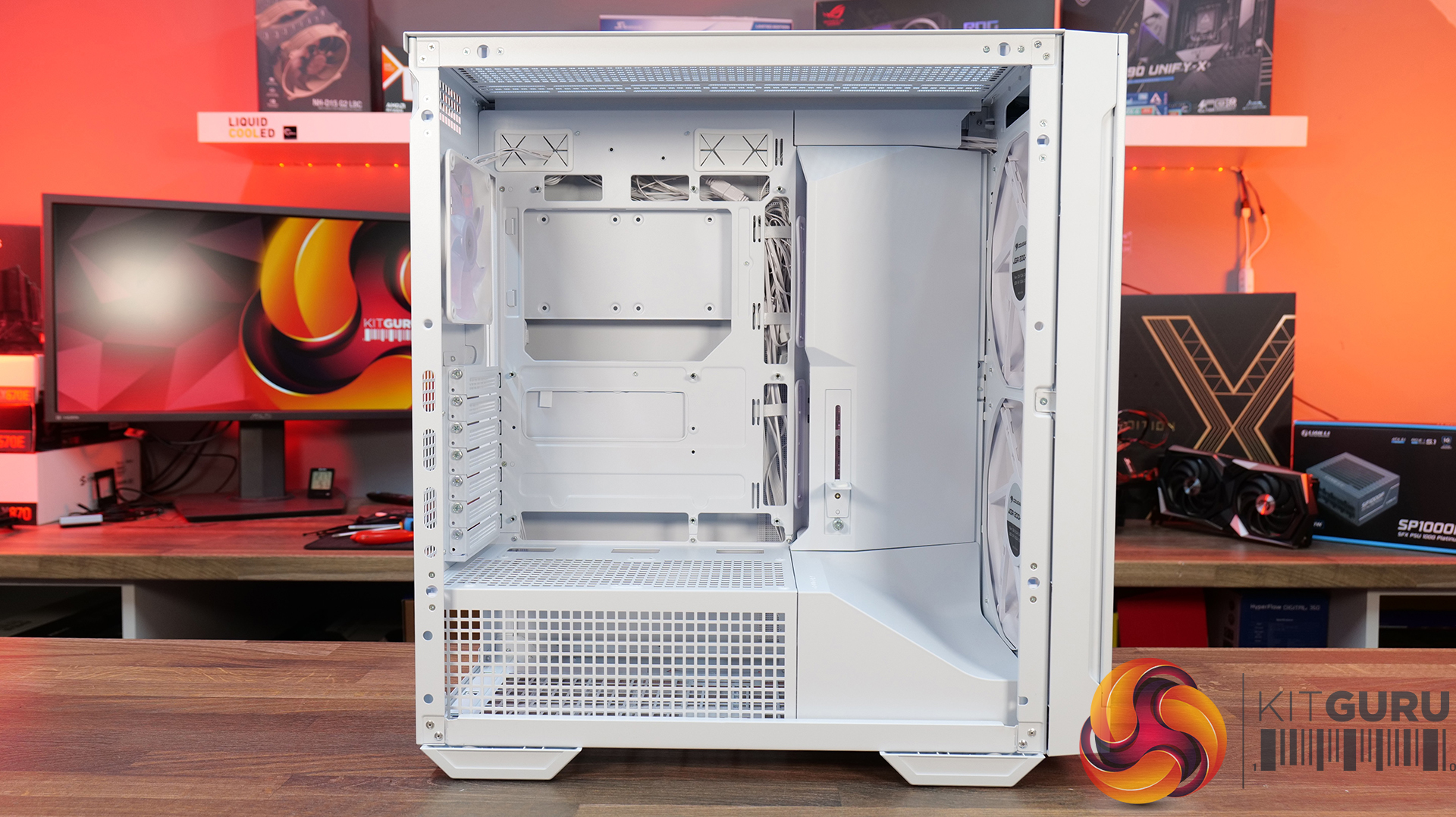
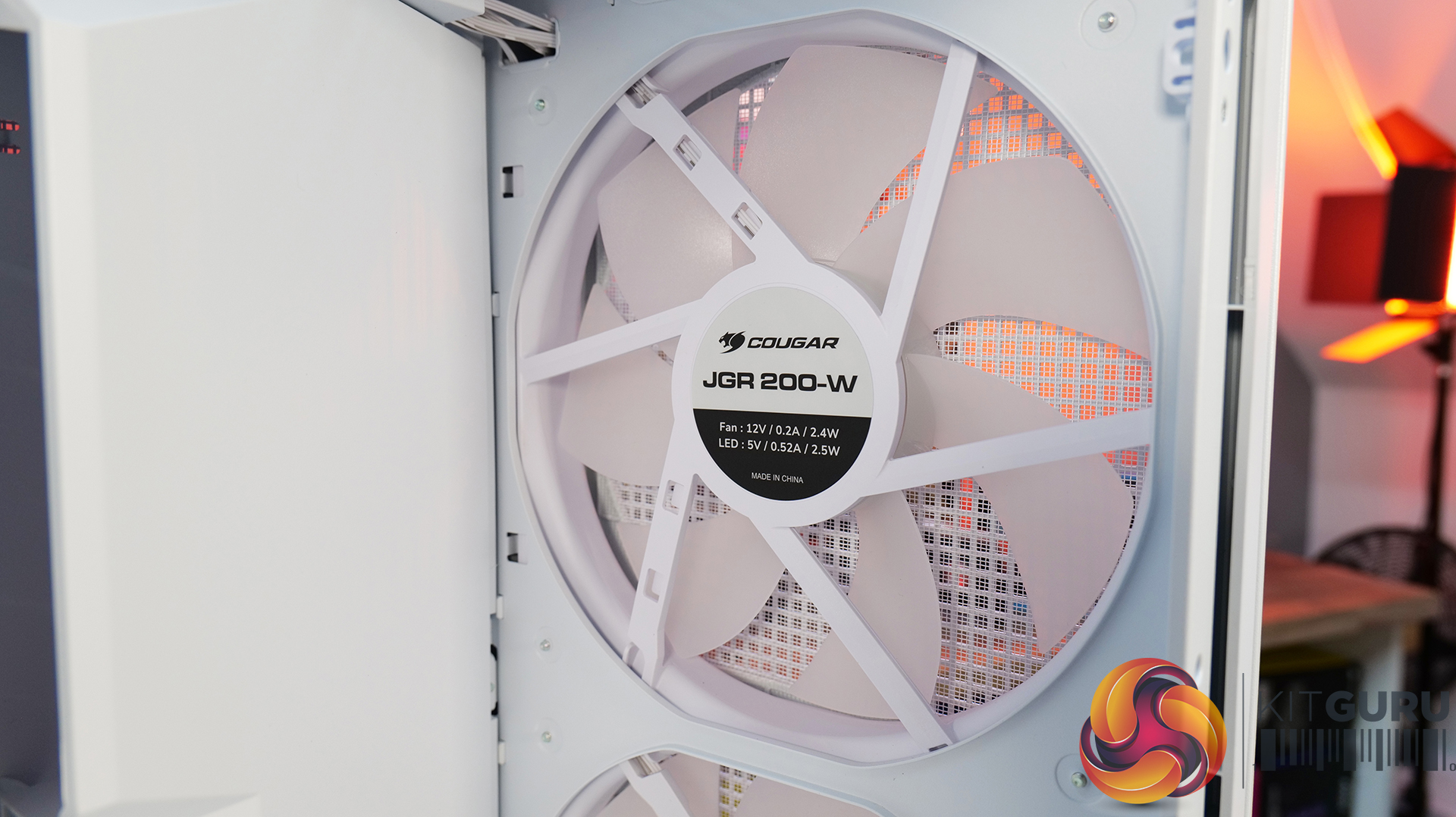
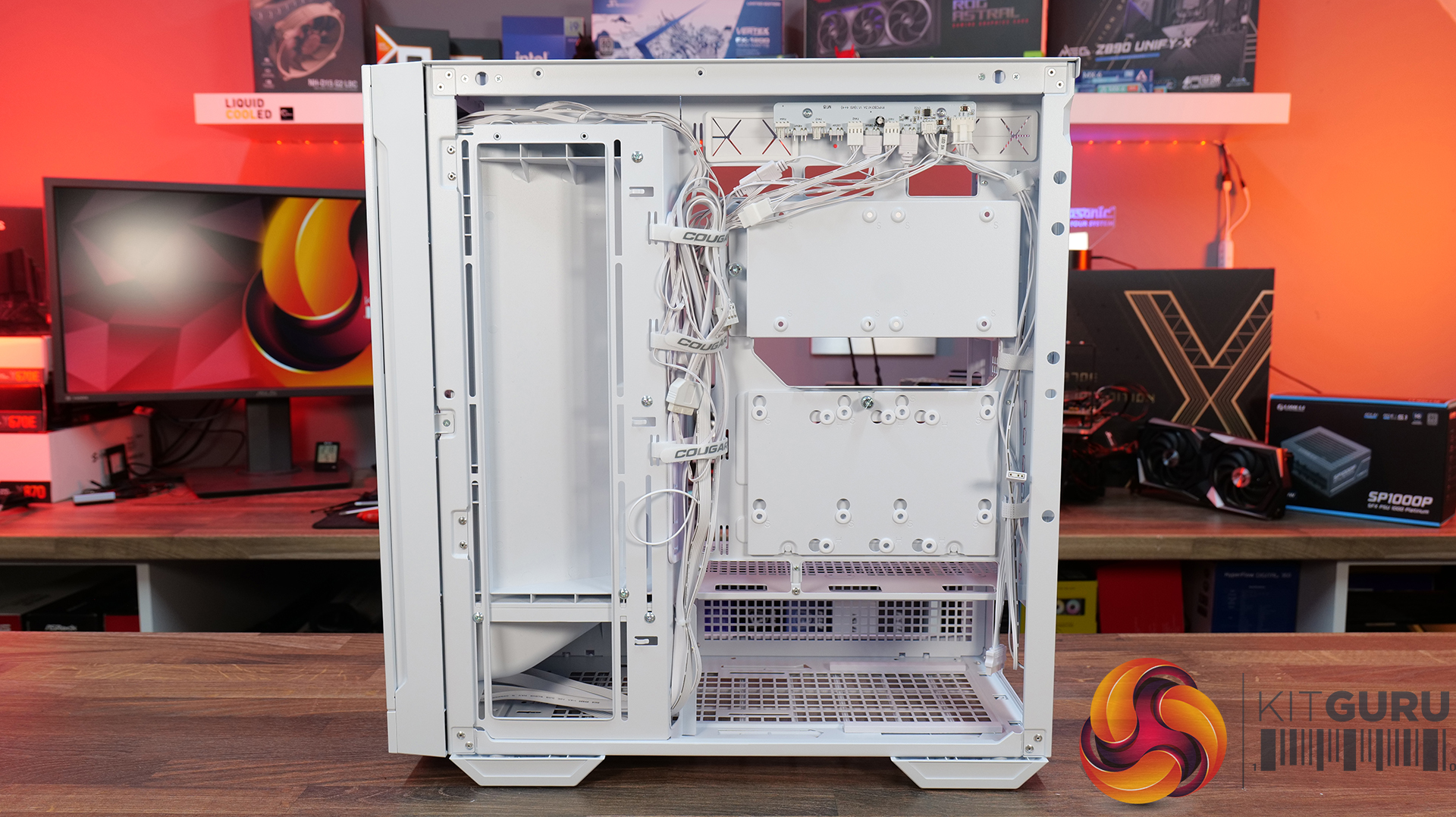
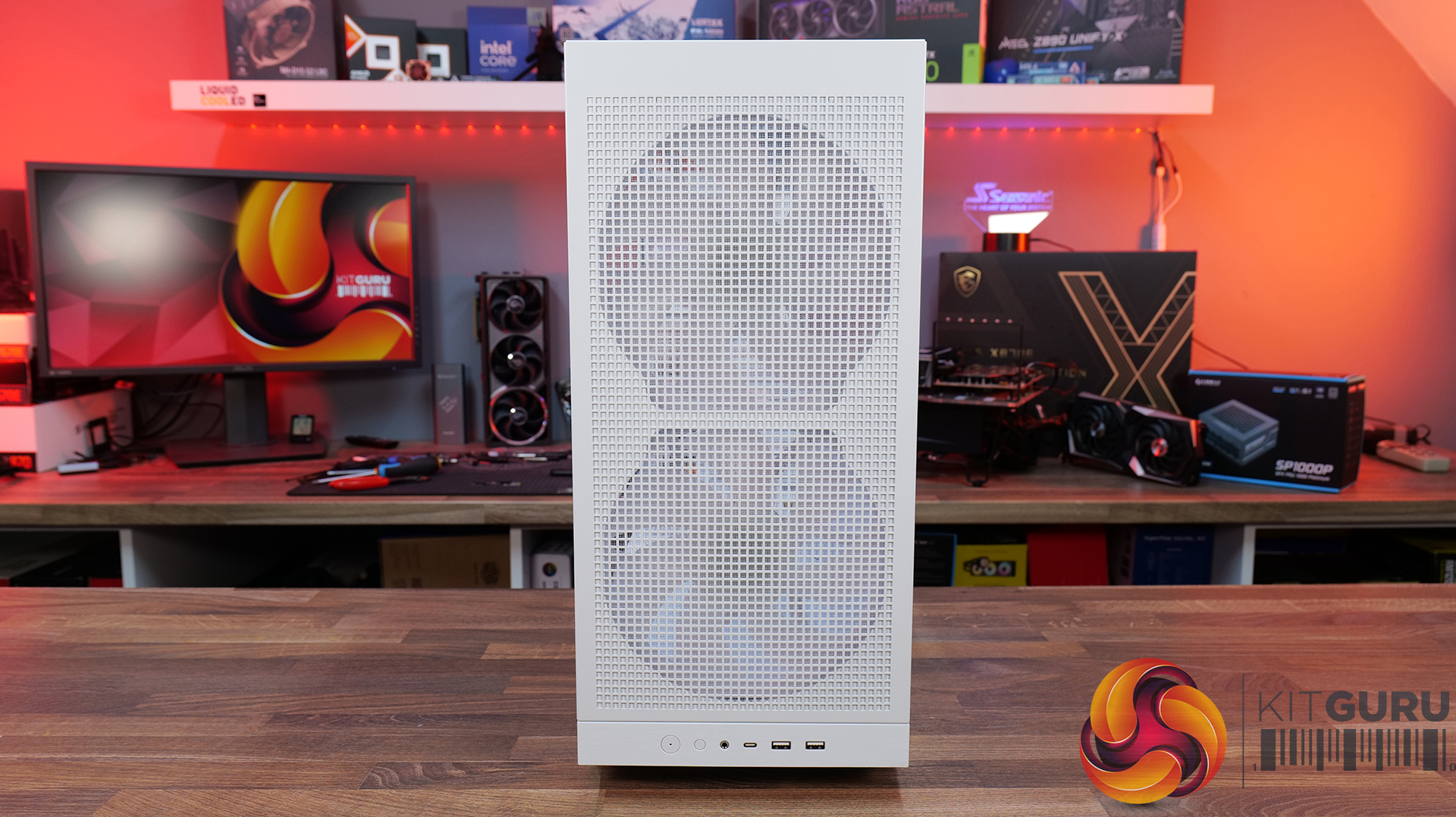
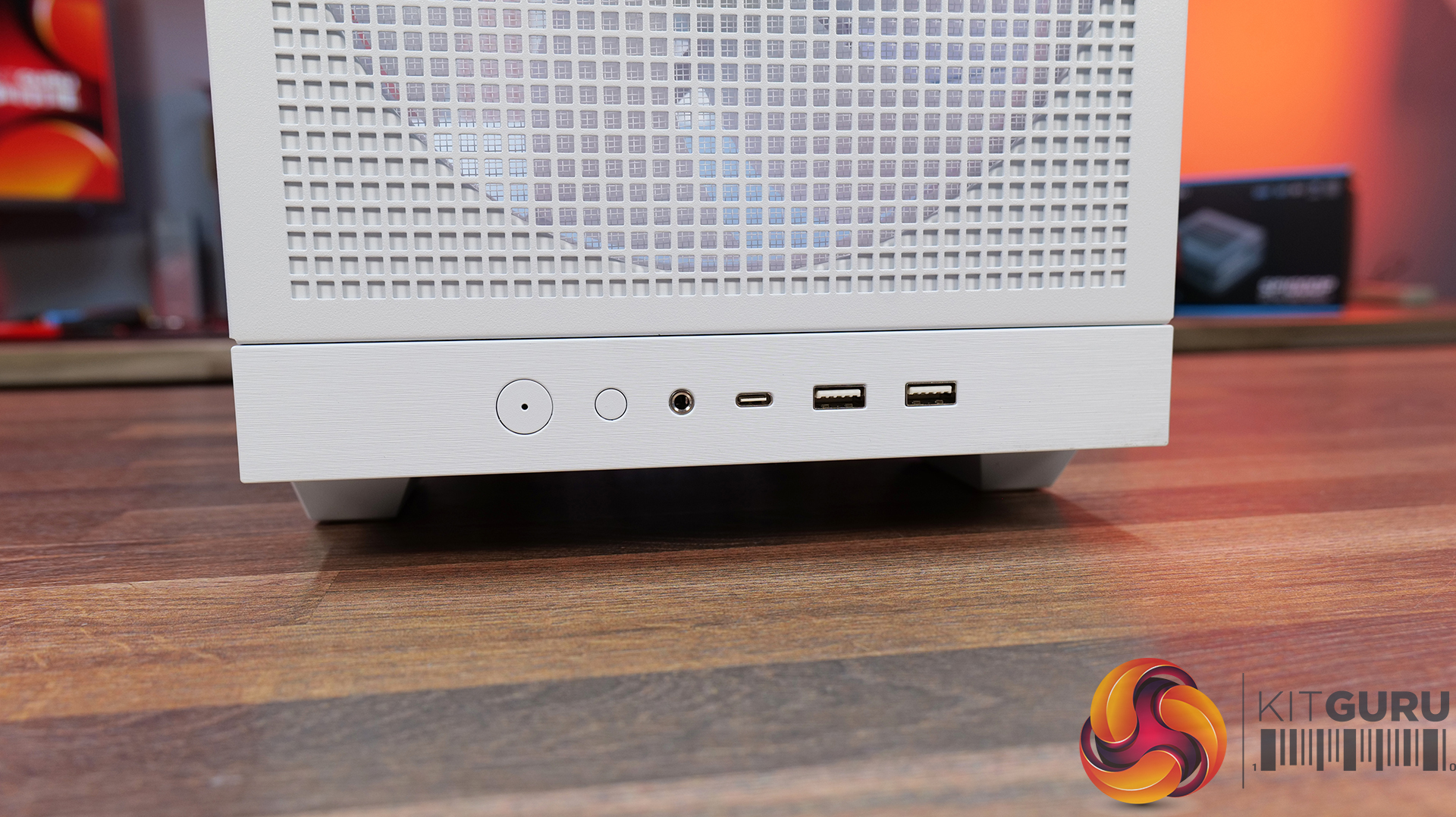
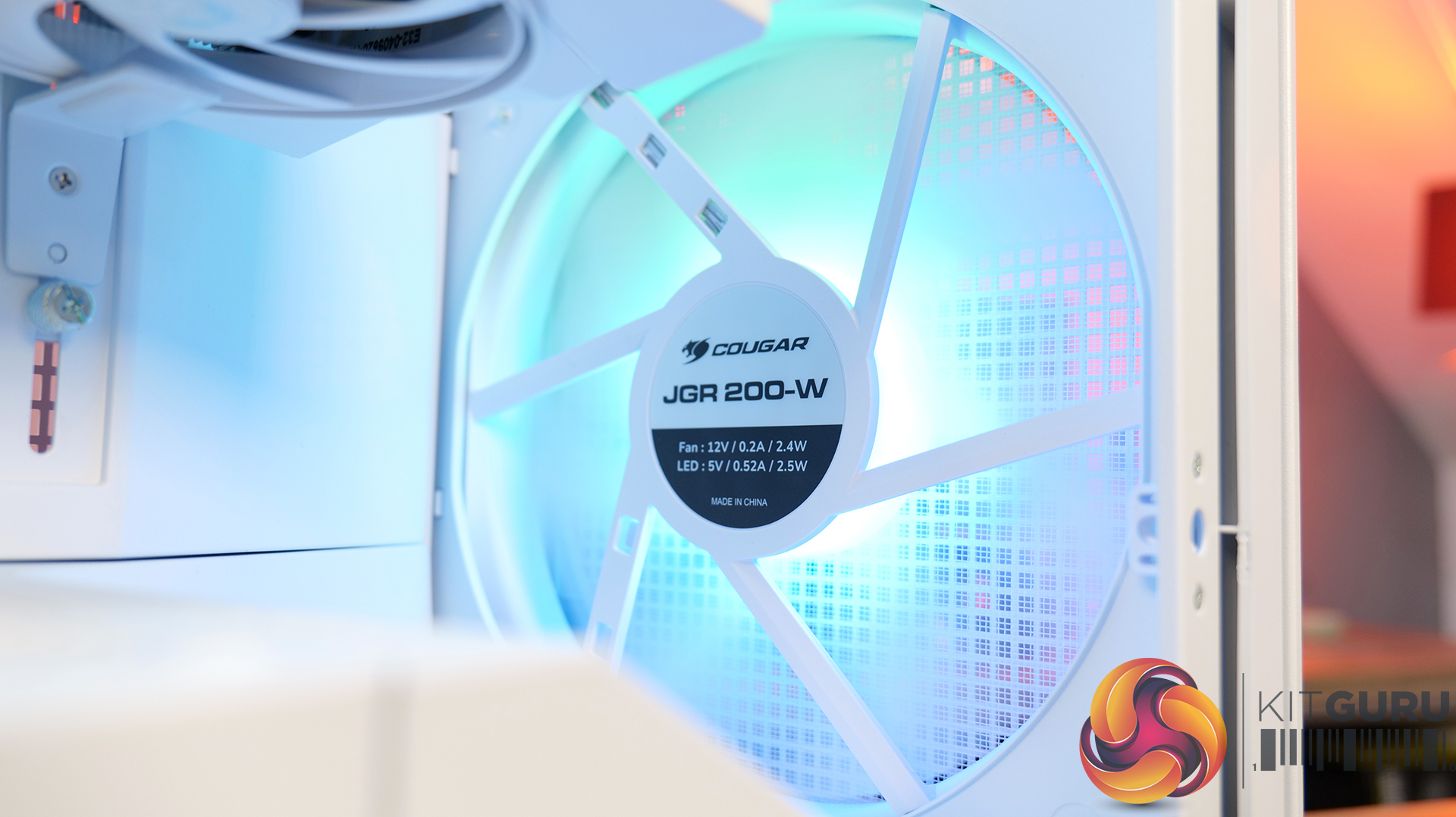
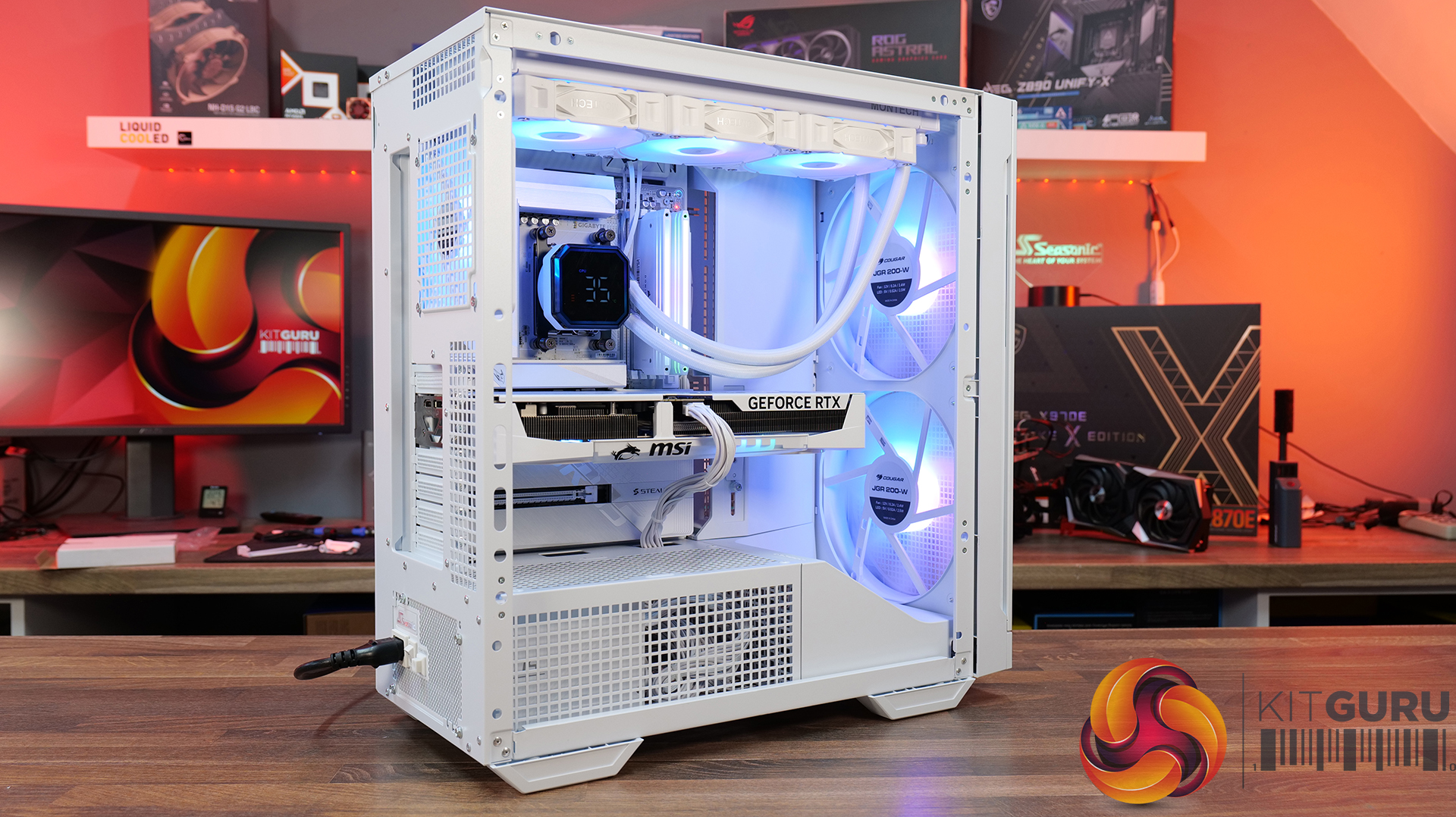
Cougar has expanded its case lineup with the airflow-focused MX600 Max RGB, a mid-tower case featuring two pre-installed 200mm front ARGB fans and a modular I/O that allows users to mount on top or the bottom of the front panel.

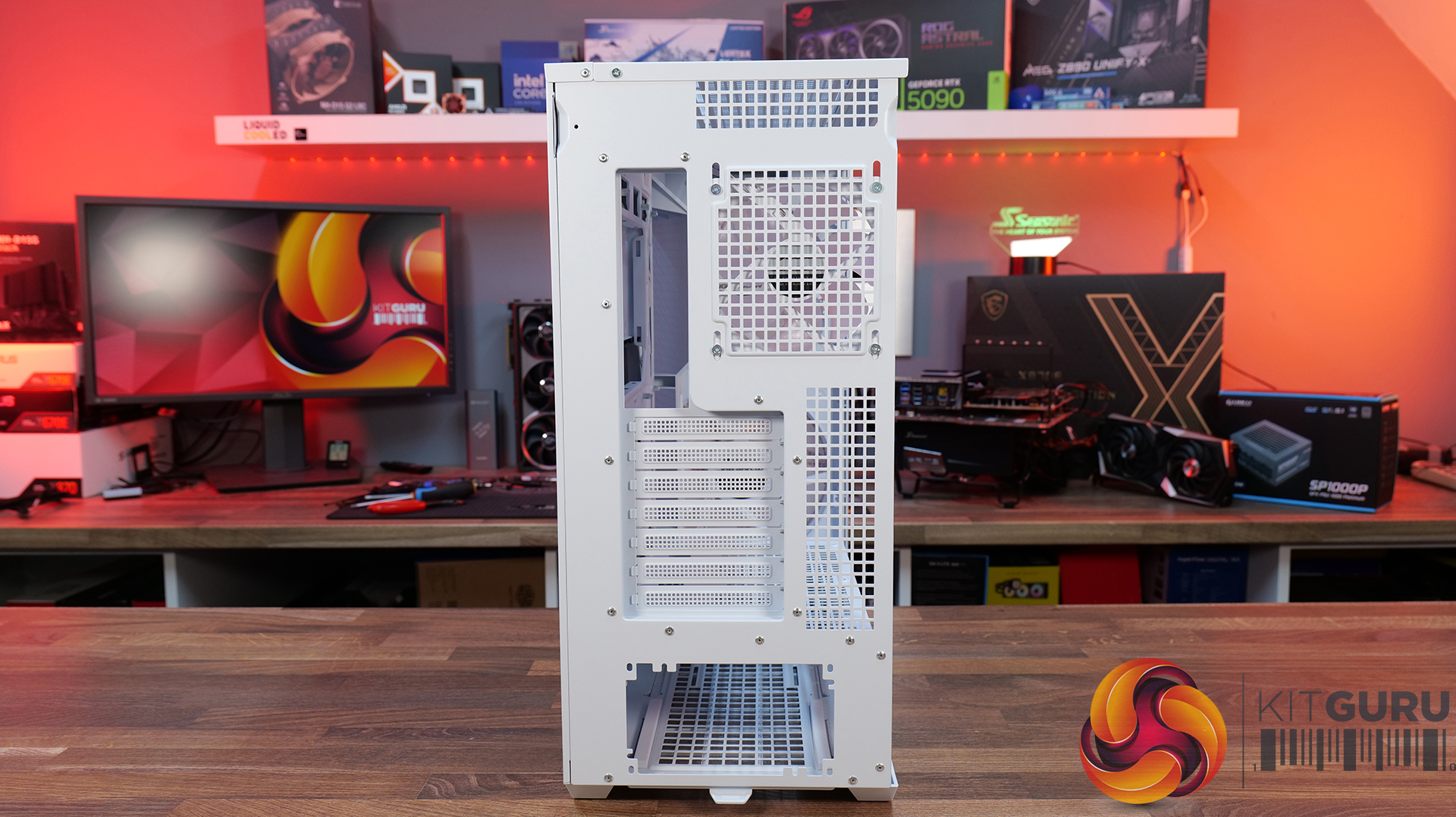
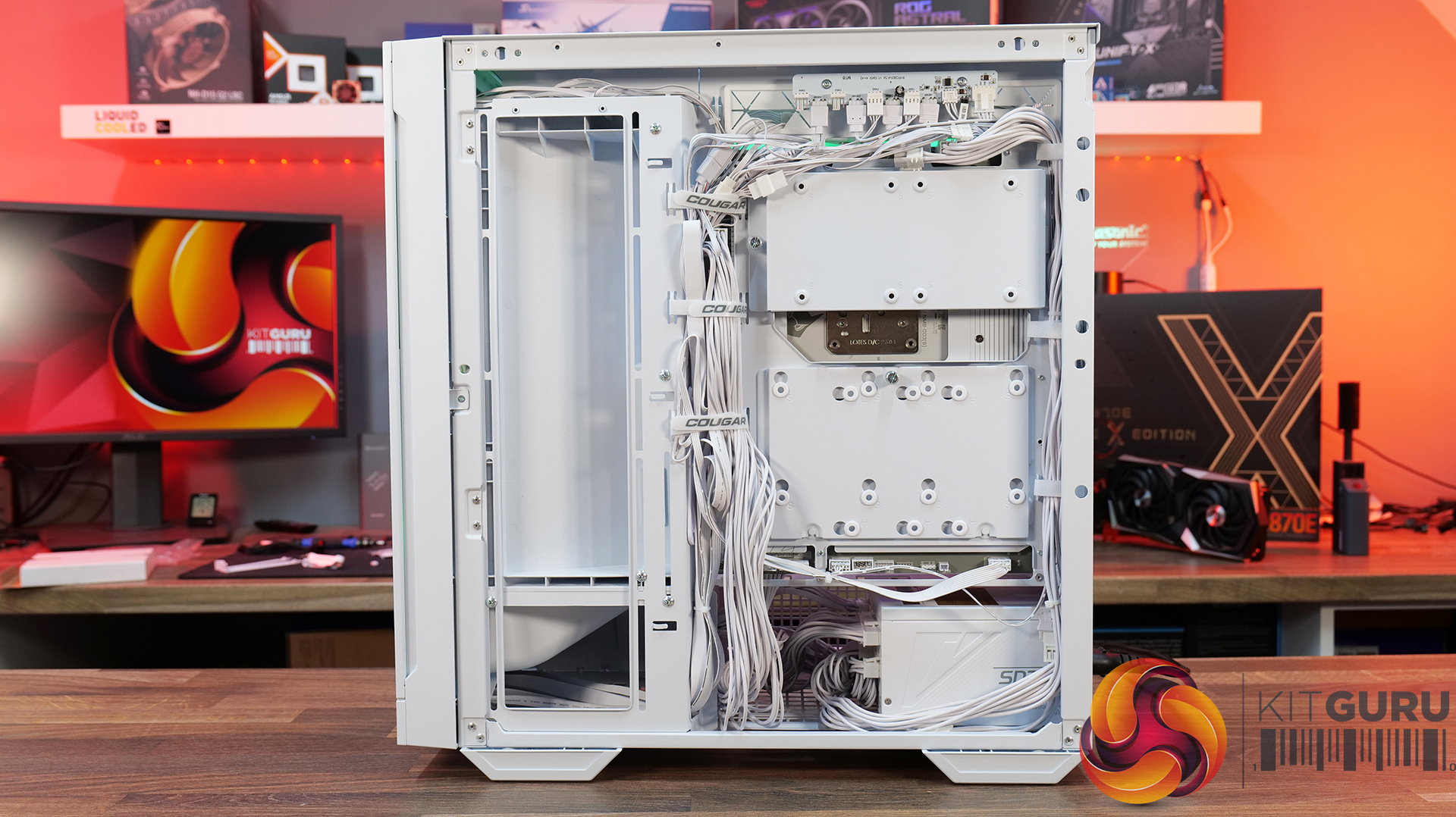
The MX600 Max RGB (via Overclocking.com) has two integrated airflow deflectors: one at the base to direct air toward the graphics card and another along the motherboard tray that serves as a cable management channel. Internal clearance supports CPU coolers up to 170mm in height and graphics cards up to 400mm in length. An adjustable GPU support bracket is built into the frame to prevent card sag.

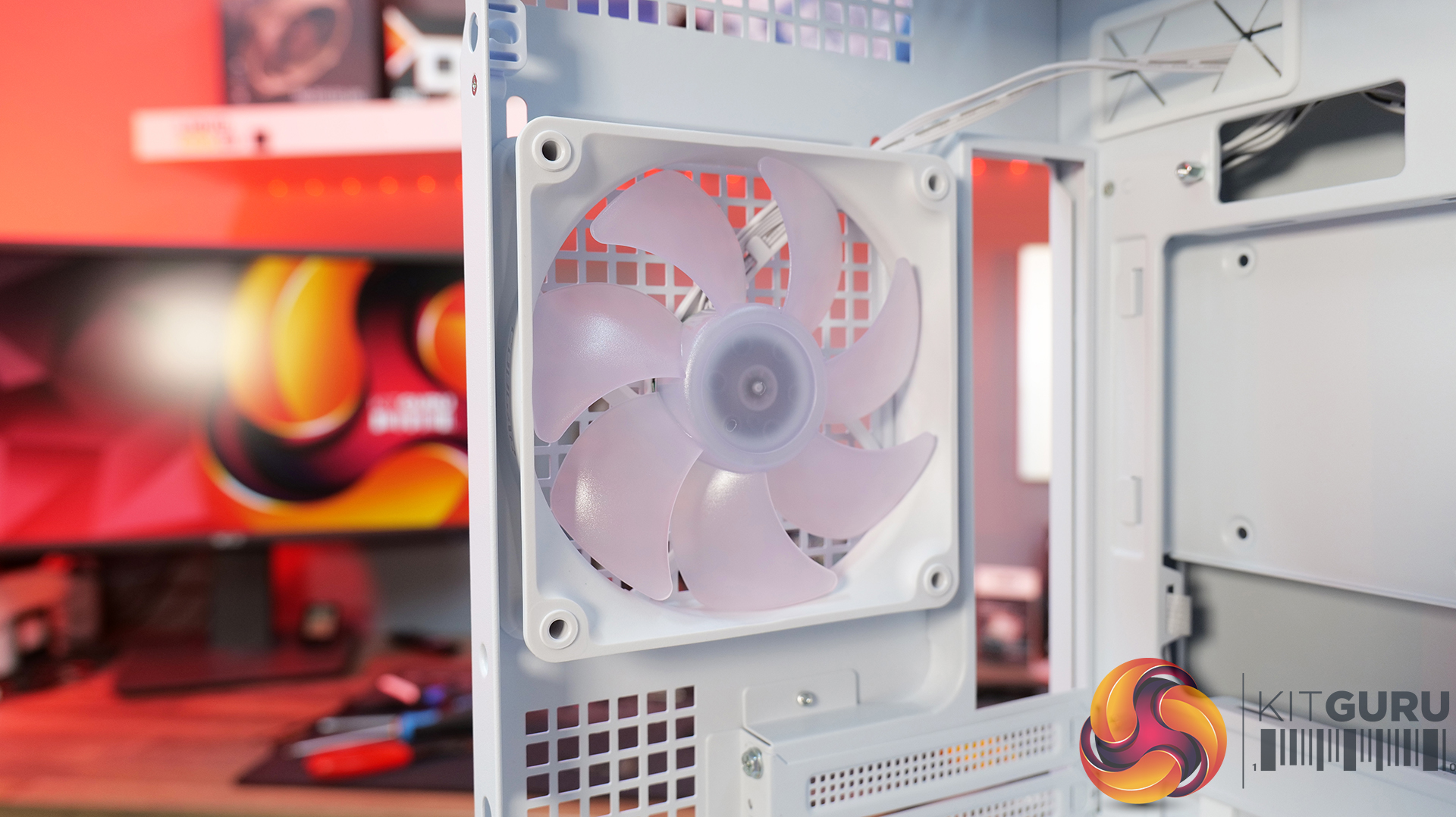
The MX600 Max RGB is compatible with ATX motherboards that use back-side connectors. The top panel is fully removable to facilitate access to EPS connectors and the installation of cooling hardware. While the front is limited to the pre-installed fans, the top panel supports radiators up to 360mm. The pre-installed 200mm fans operate between 300RPM and 1000RPM, delivering 140.4CFM of airflow and 1.5mmAq of static pressure, while the single rear 120mm ARGB fan runs up to 1400RPM. The front fan bracket is designed exclusively for 200mm units.

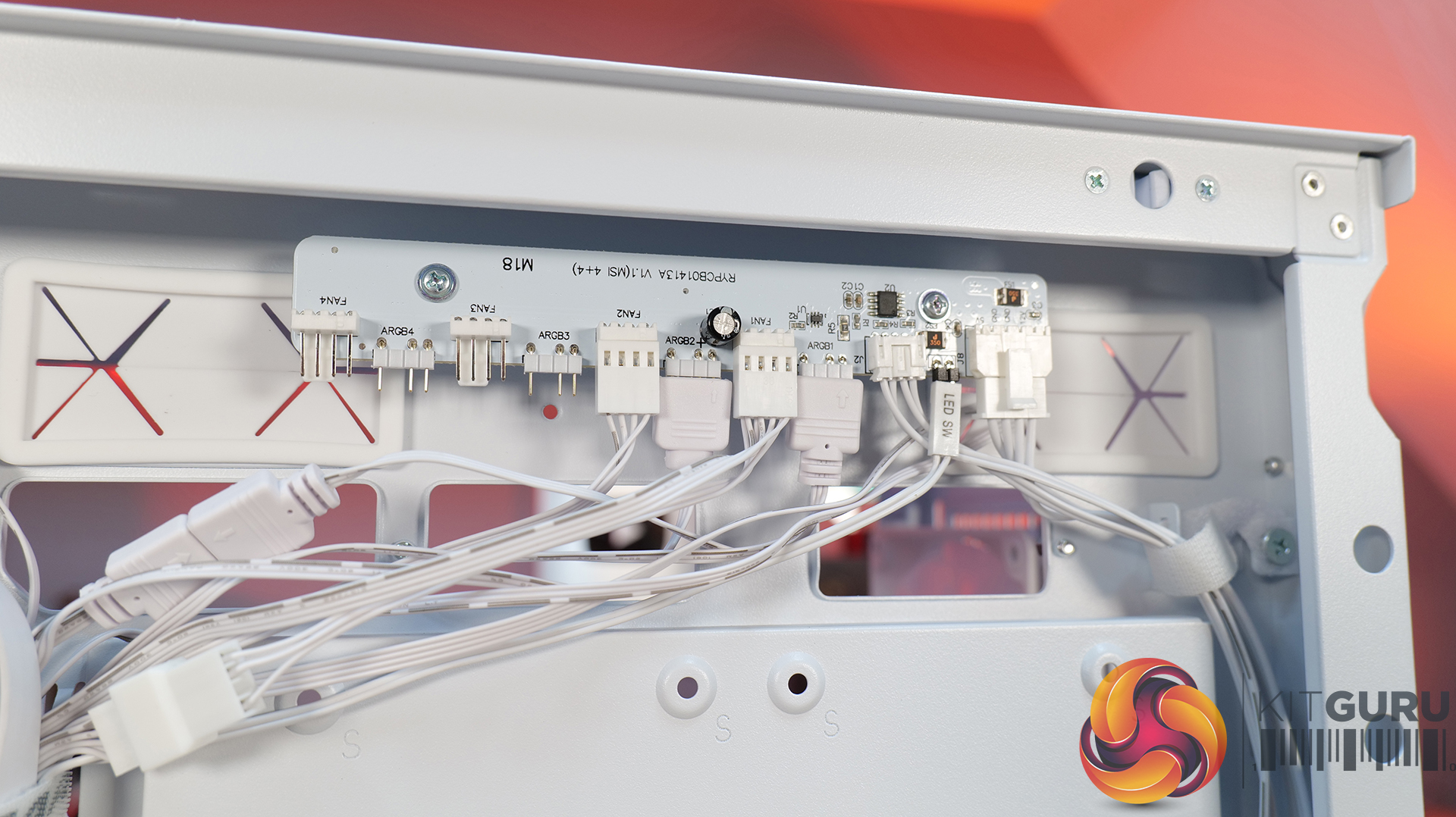
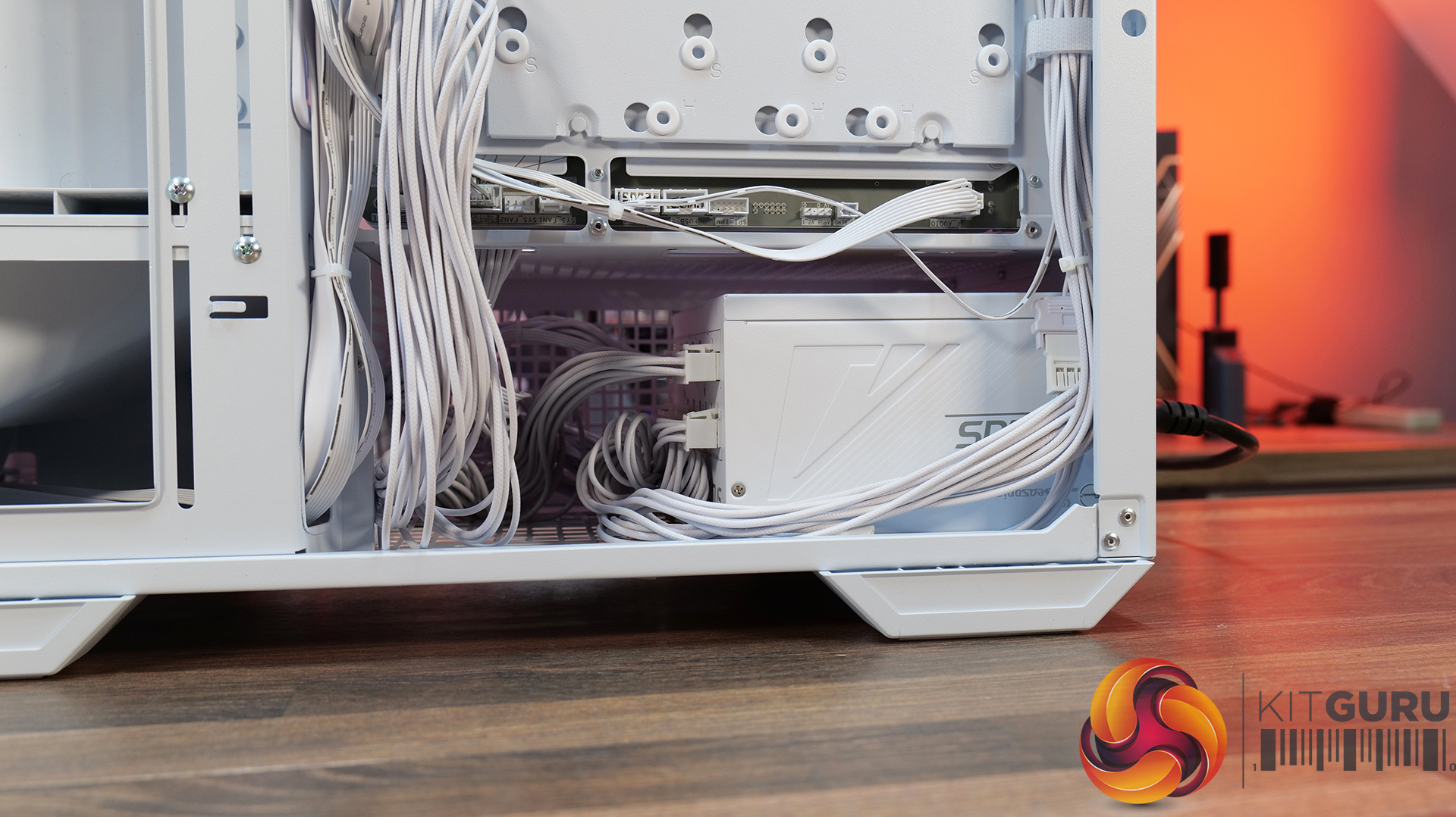
Storage options include a drive bay for either one 3.5-inch or two 2.5-inch drives, plus two additional 2.5-inch mounts behind the motherboard tray. For cable and lighting management, the case includes an integrated PWM/RGB hub.

KitGuru says: Pricing isn't known, but considering the non-Max is sold for around £100, this one shouldn't stray too far from that.

The post Cougar launches airflow-oriented MX600 Max RGB case with dual 200mm front fans first appeared on KitGuru.

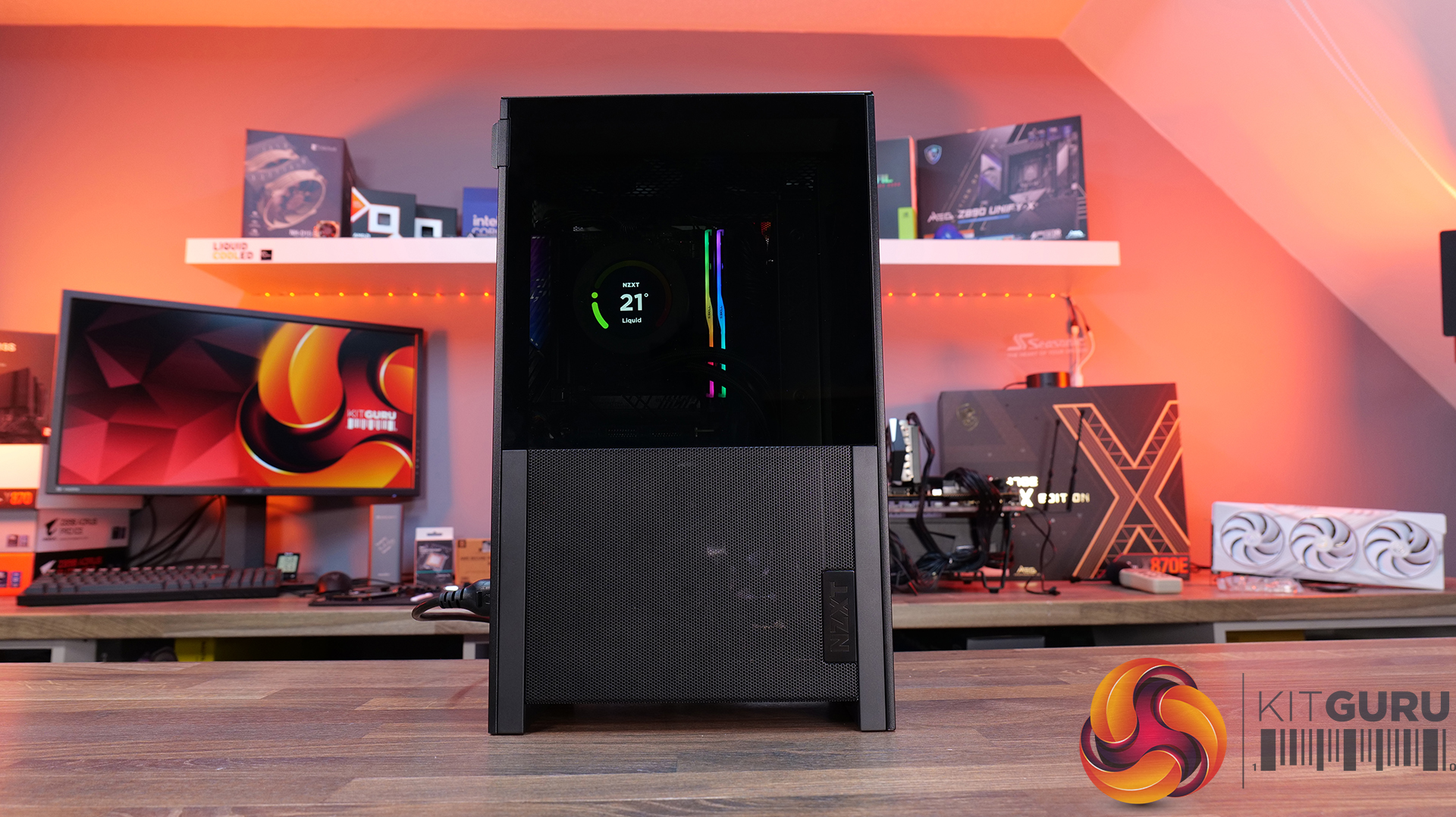
NZXT H2 Flow PC Case Review

31 March 2026 at 12:22

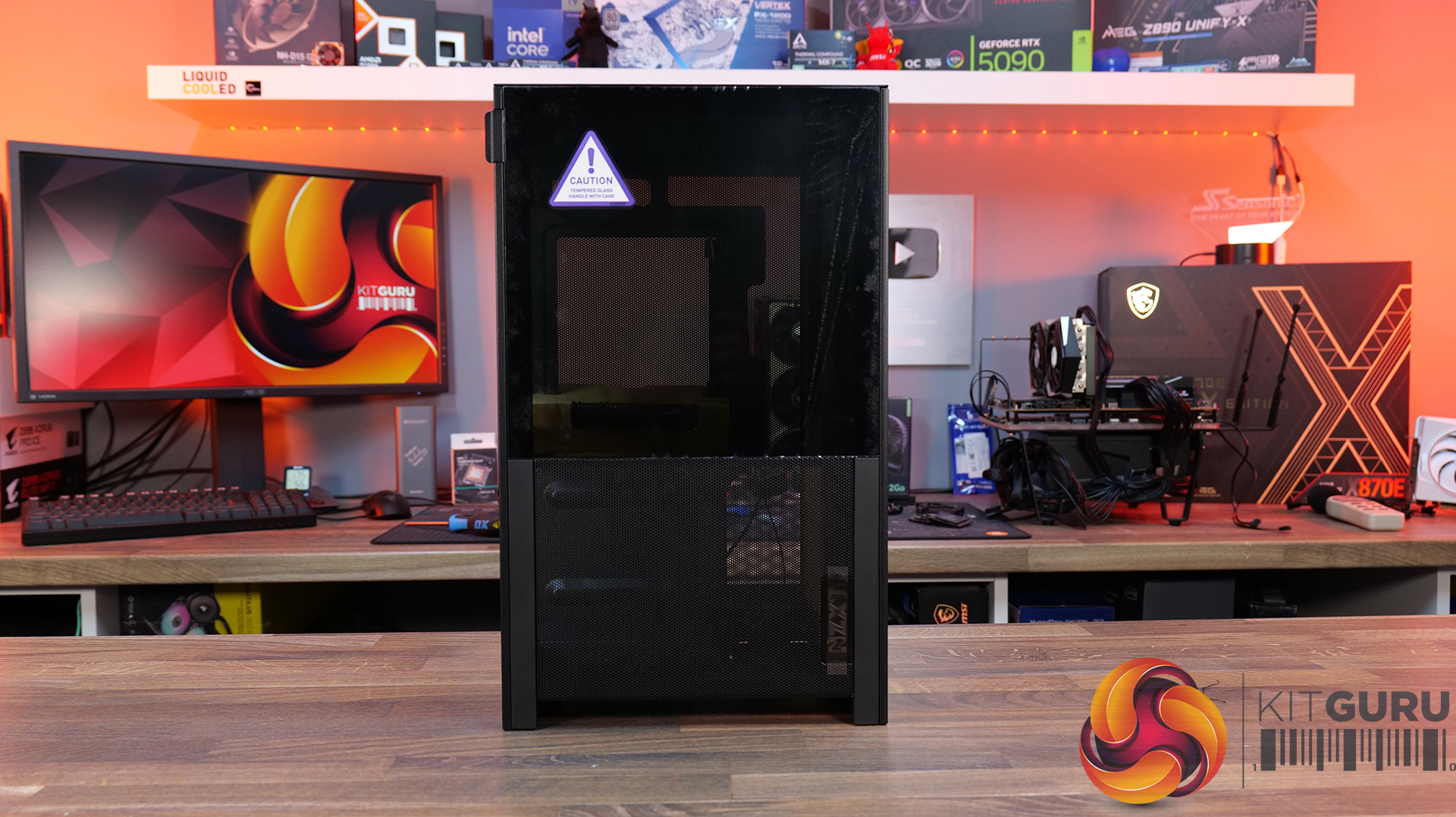
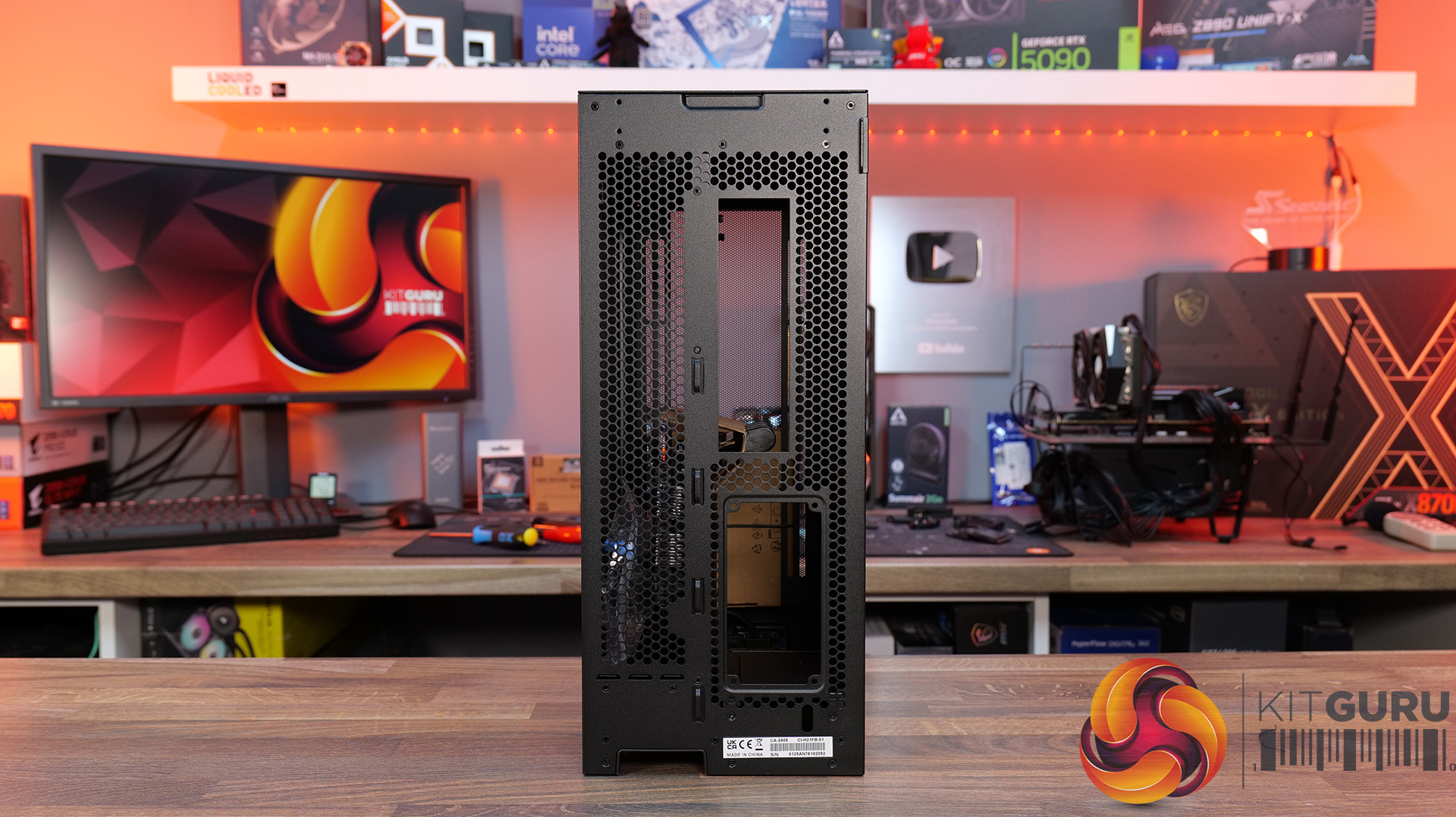
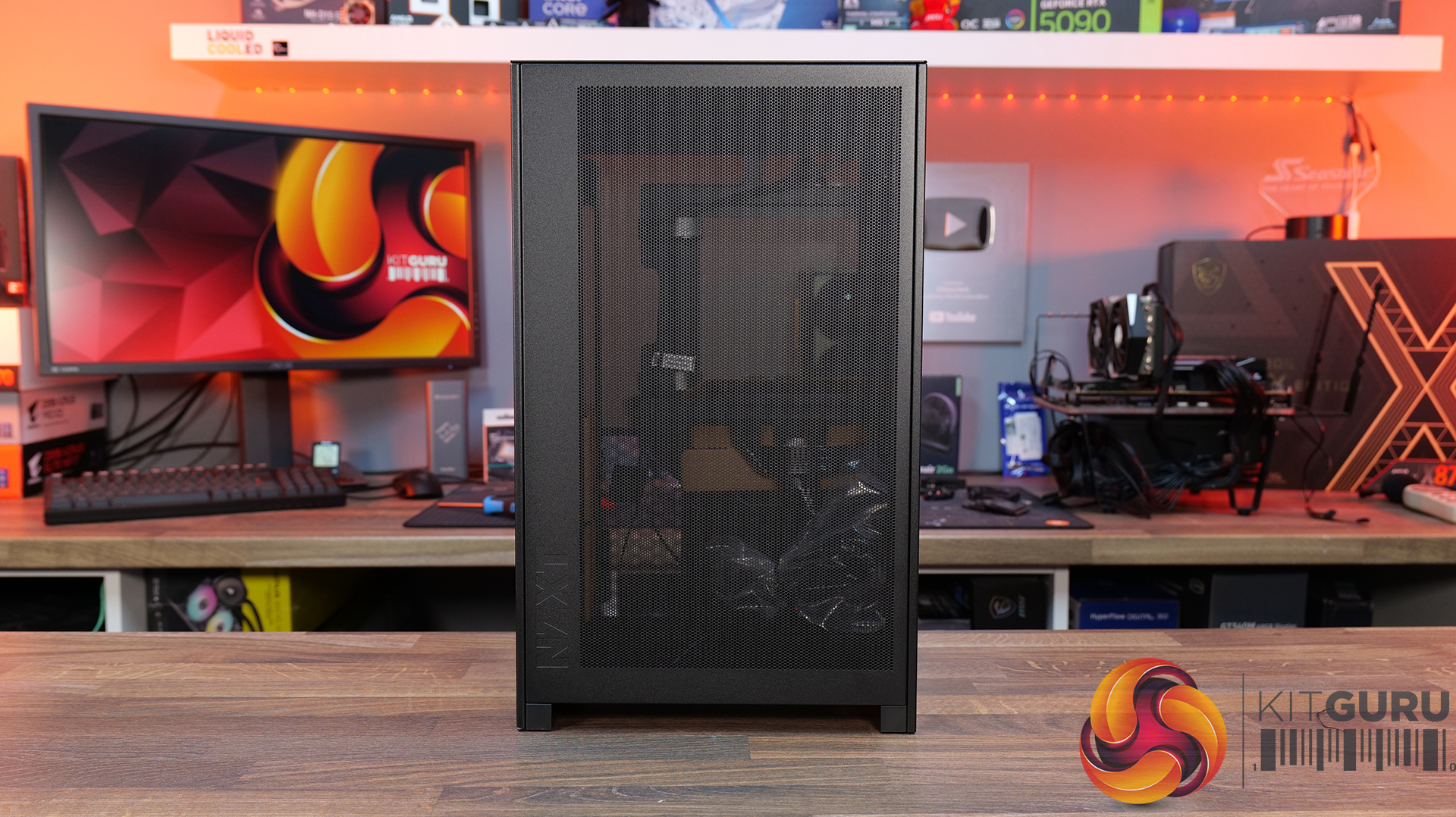
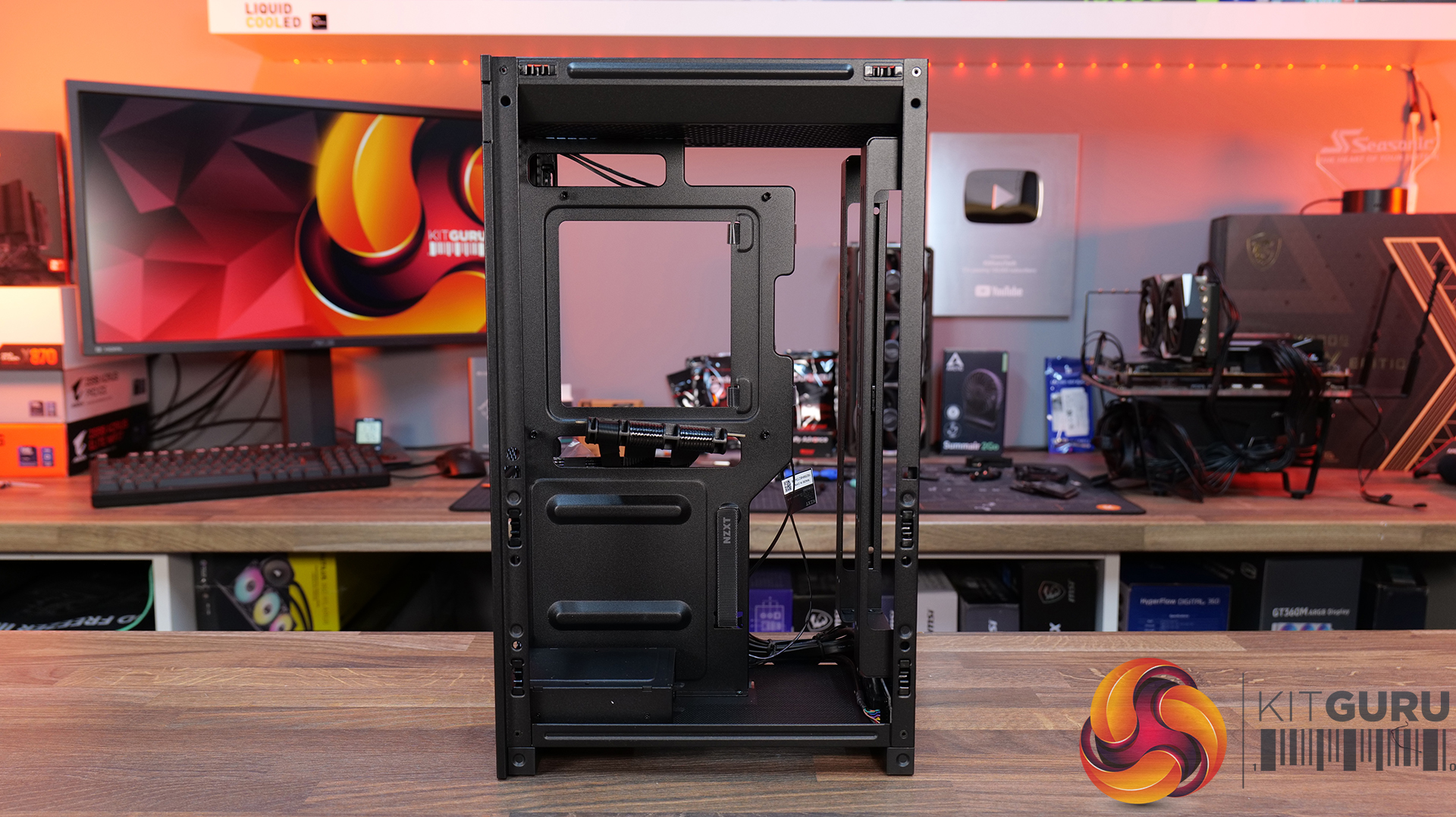
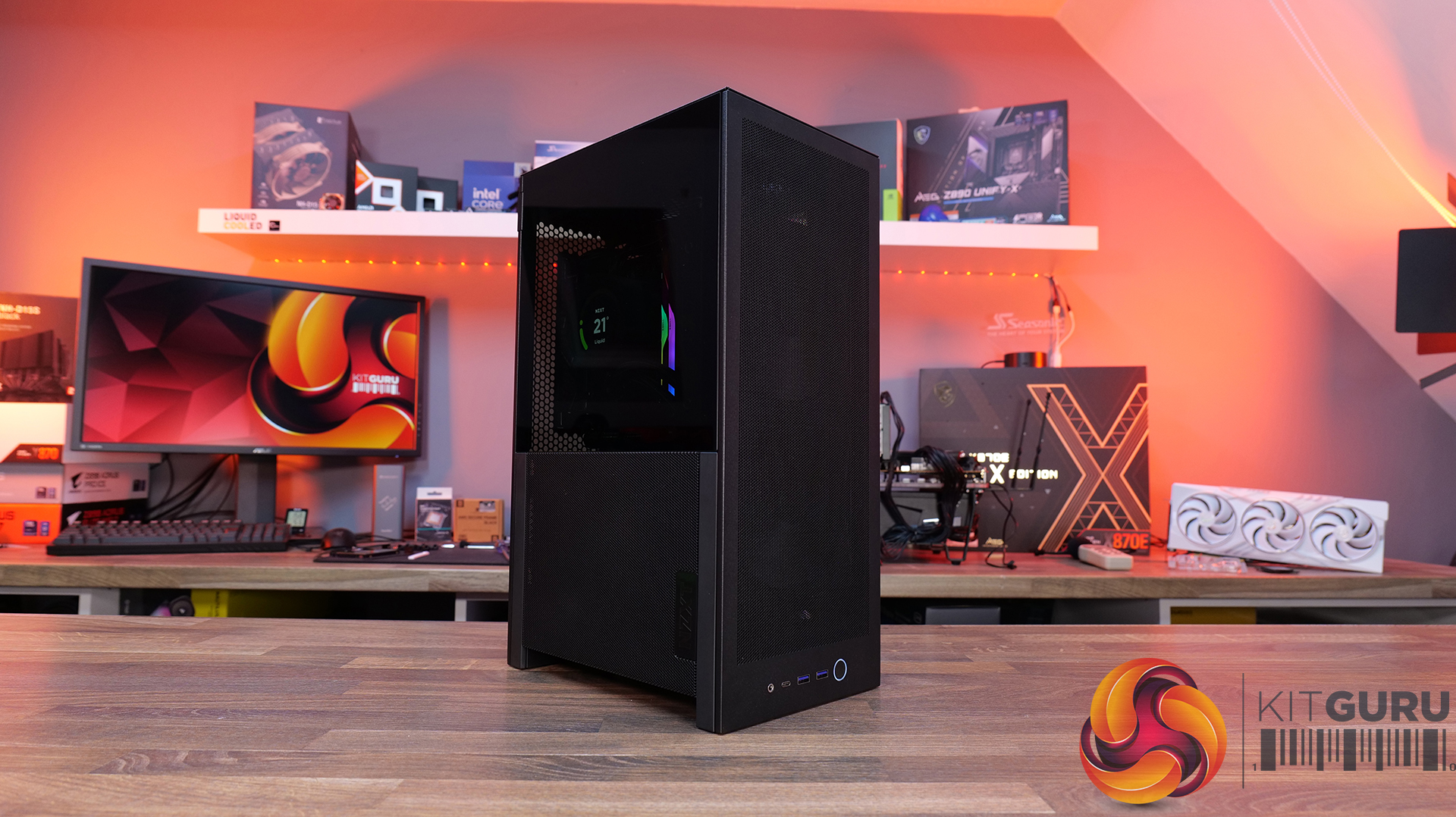
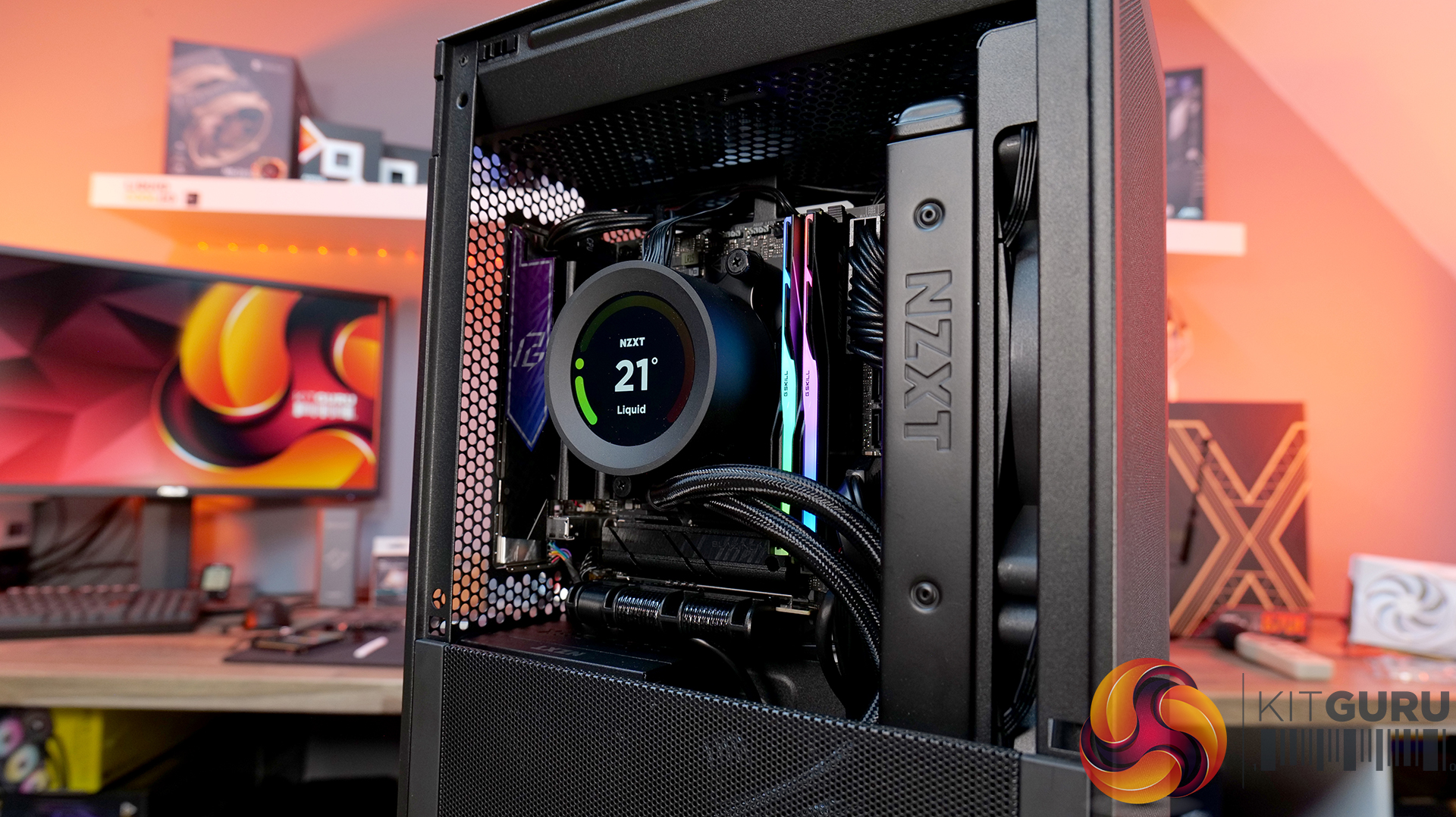
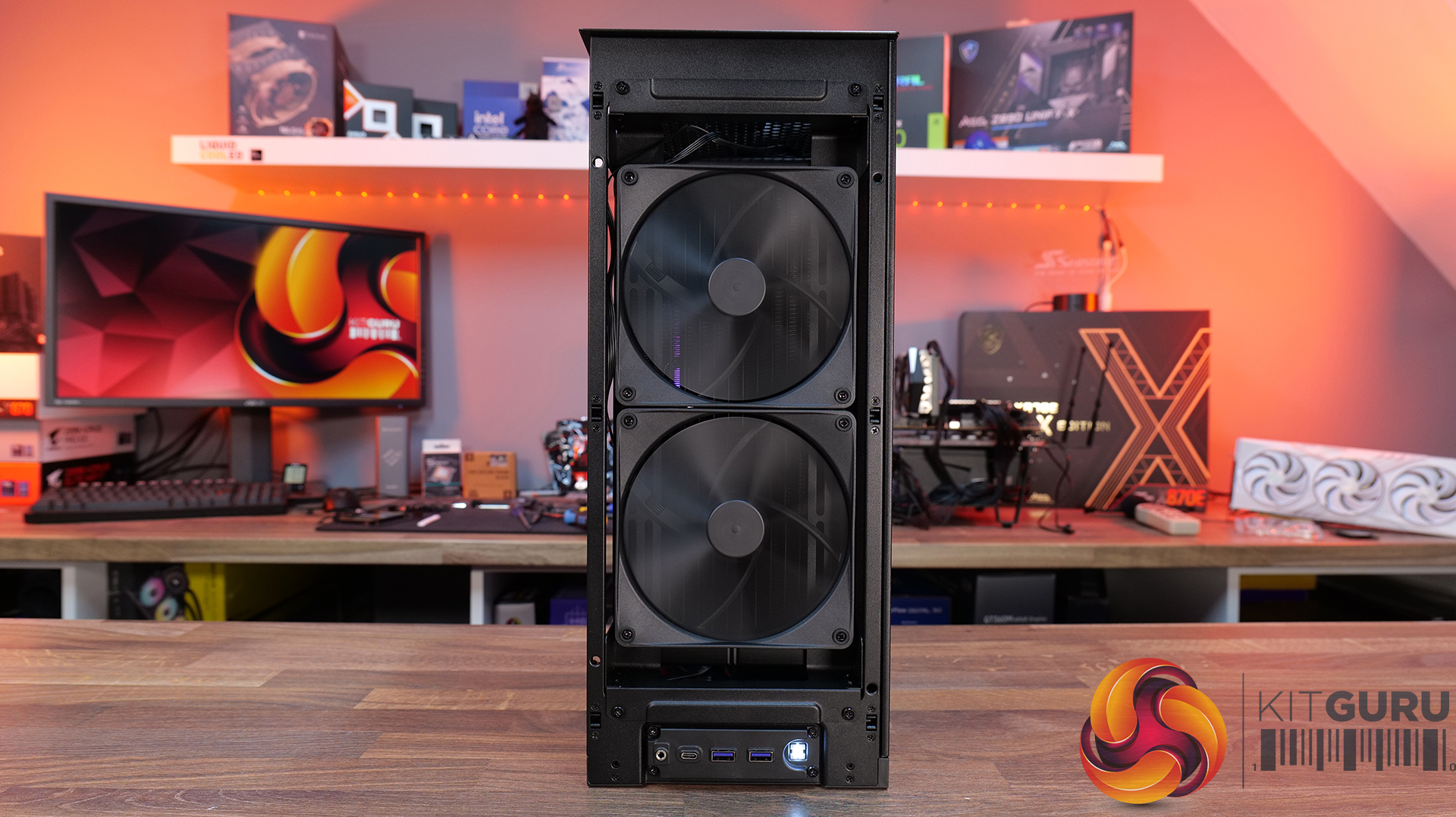
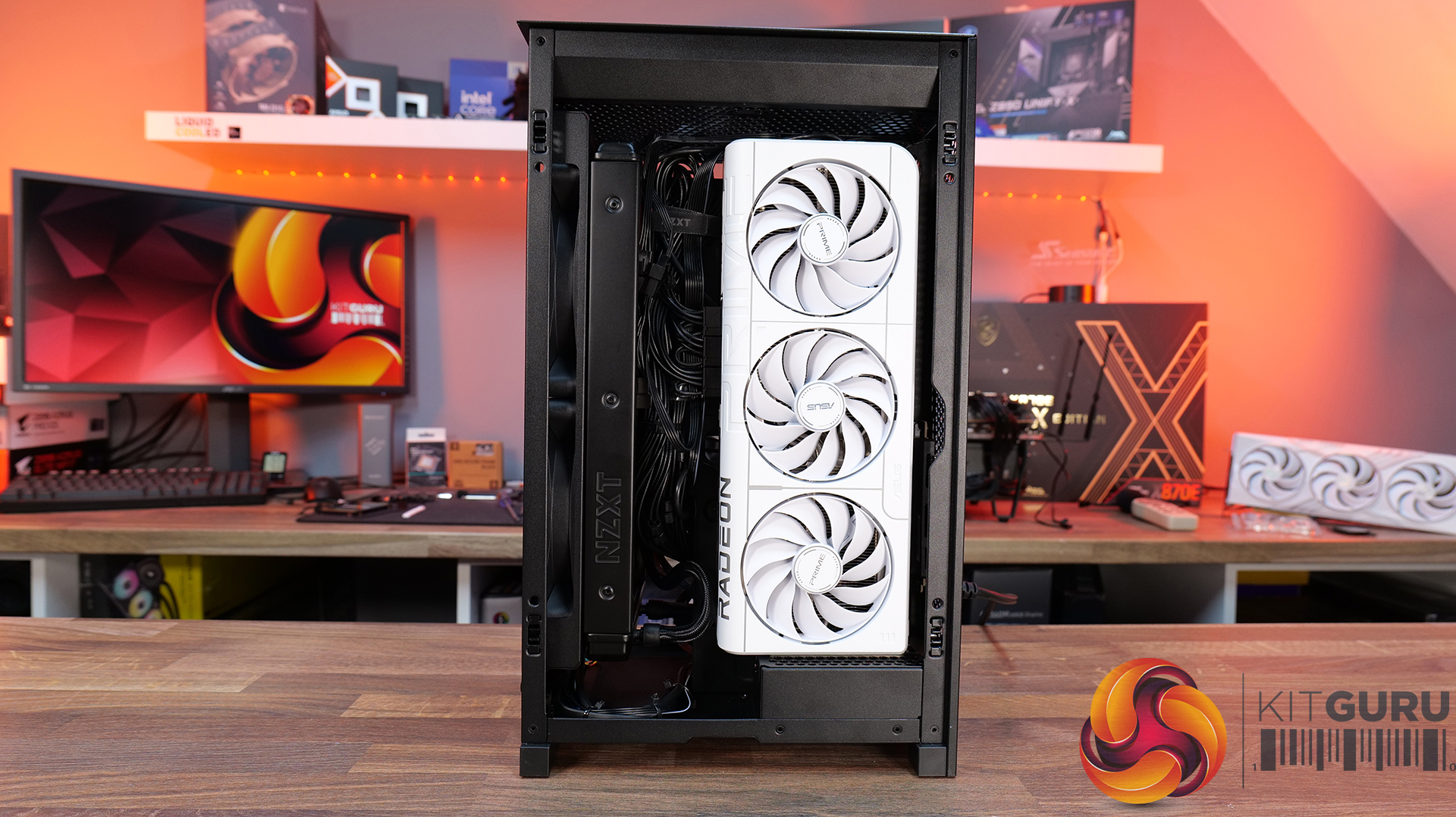
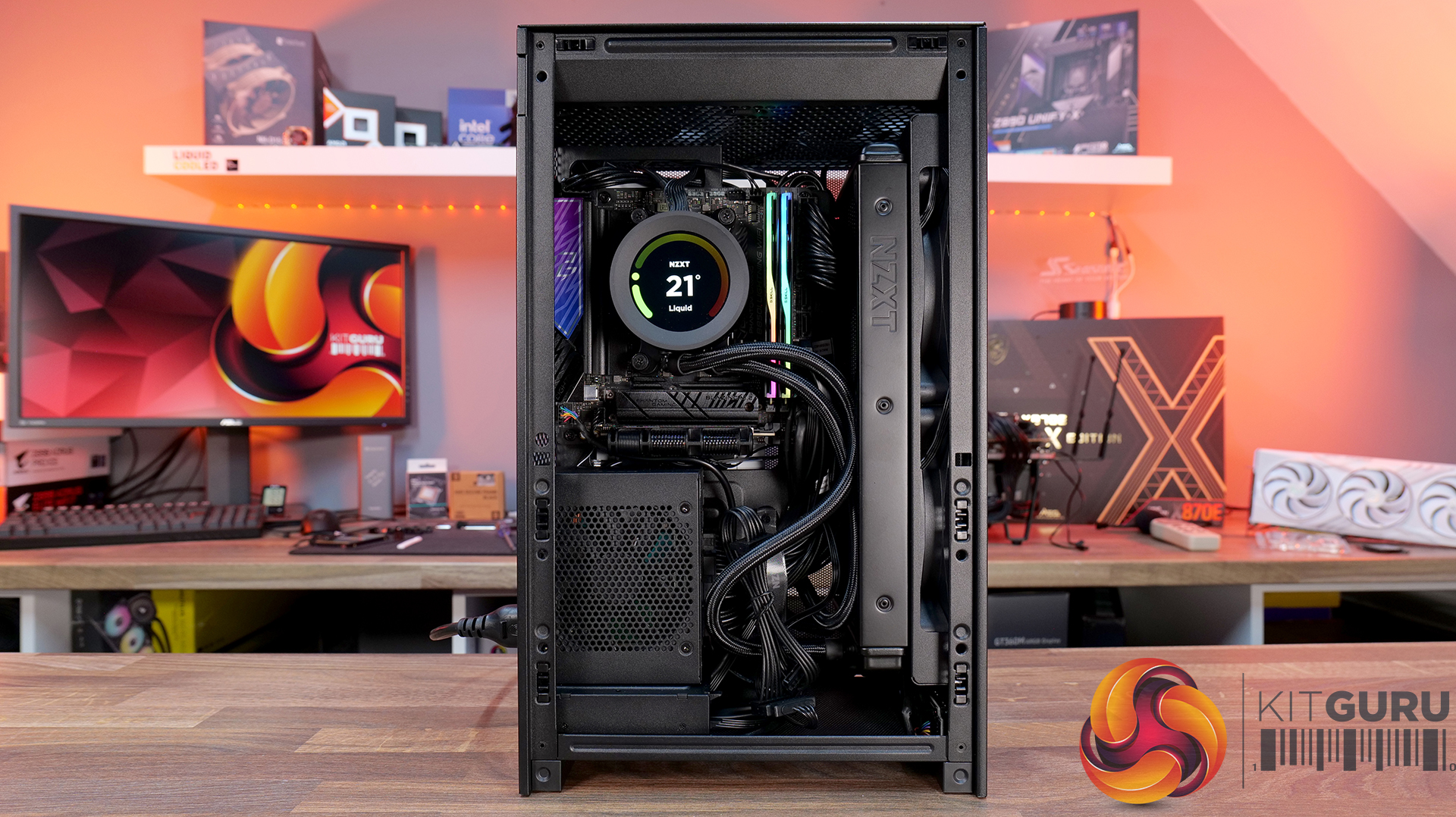
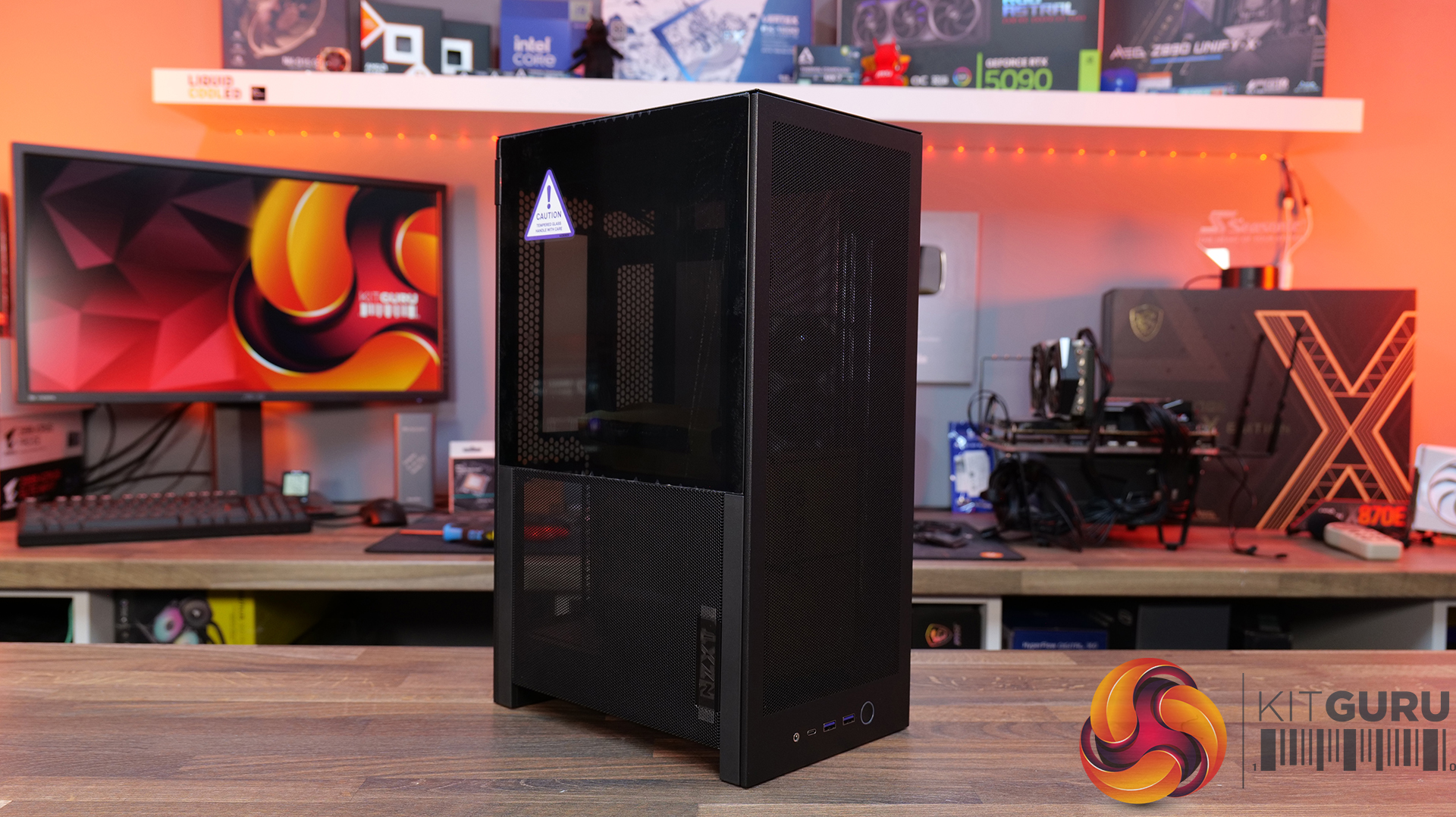
Today we’re checking out the new H2 Flow case from NZXT. It’s a small-form-factor chassis designed to focus on cooling performance while maintaining the clean, minimal looks NZXT is known for. It has a full mesh panels, support for high-end hardware and according to NZXT, a layout aimed at making the build process as straightforward as possible. There’s even support for several fan and radiator configurations, so on paper at least, it looks like NZXT is addressing one of the biggest criticisms of its previous ITX case. But how well does it actually perform? Let’s find out.

Timestamps:

00:00 Intro
00:50 Pricing and details
01:34 Overview / Dimensions / Materials
02:10 Panels / A look Inside
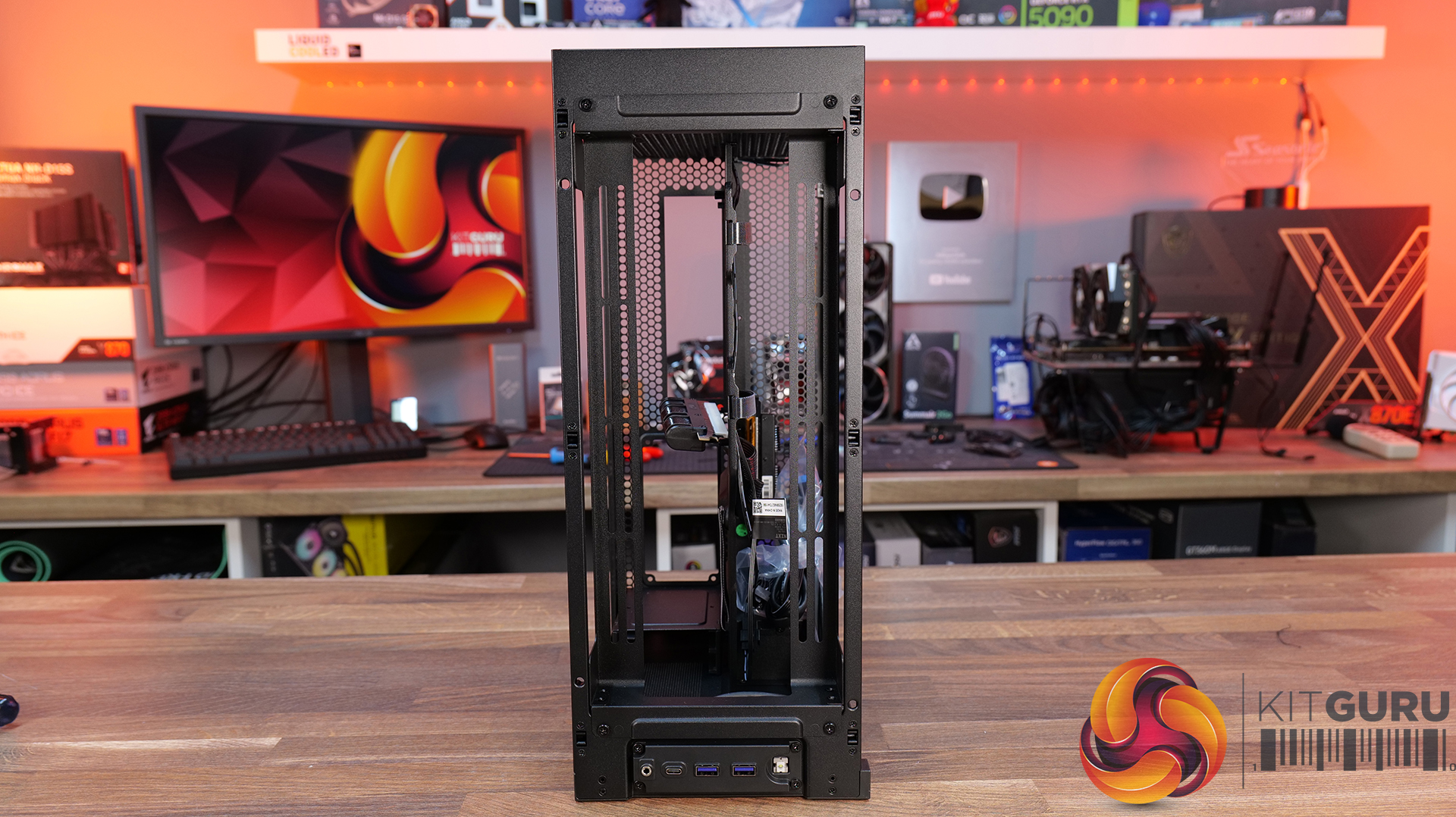
04:20 Front IO
04:56 Cooling Support
06:27 Motherboard and PSU support
07:03 Cable Management support
08:14 Graphics Card and some issues
11:45 Motherboard layout and air flow
12:37 Cable Management features
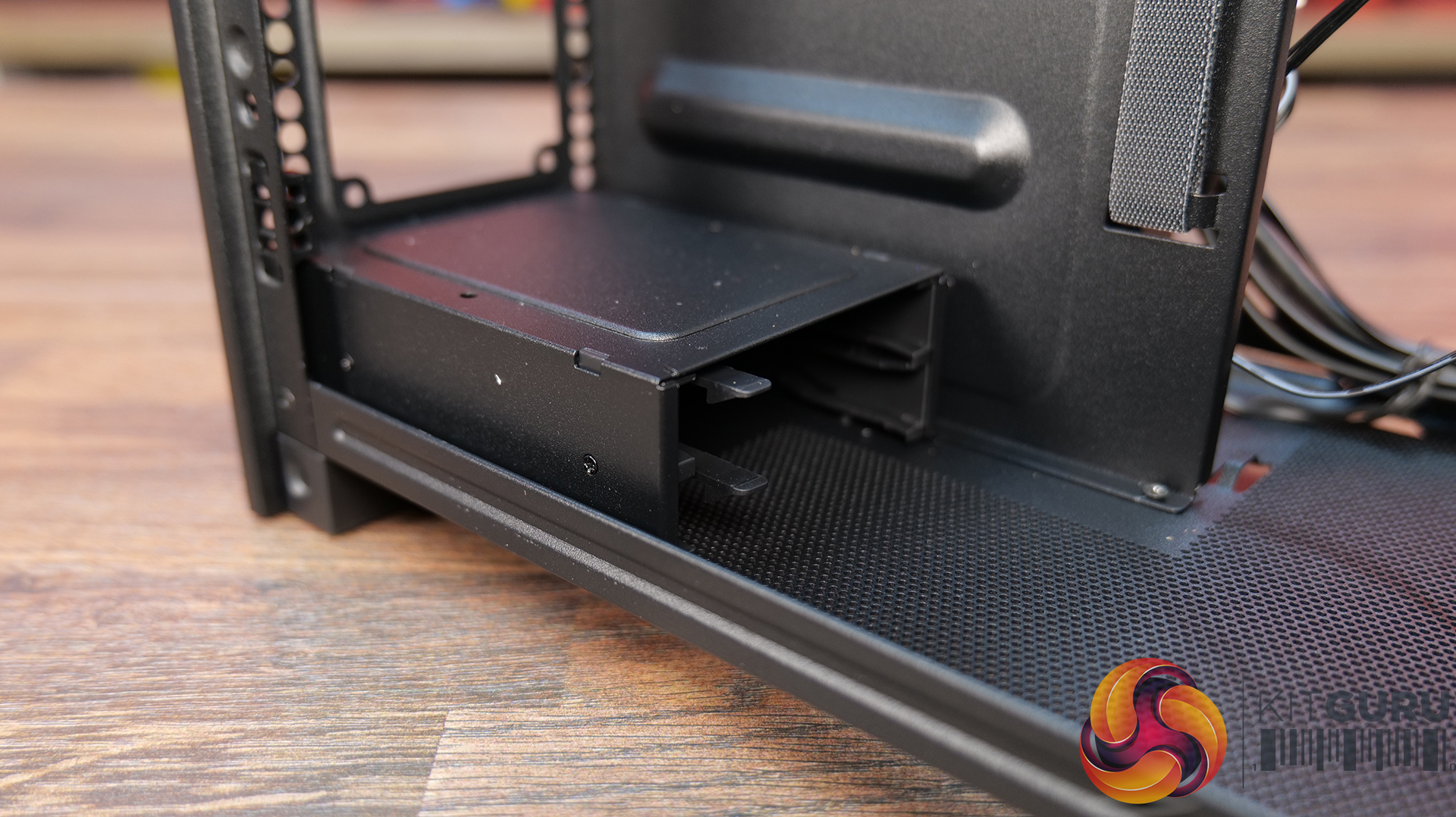
12:52 Power Supply / Drive support
13:46 Building inside the case / accessories
14:41 Thermal and Noise Performance
16:16 James thoughts

Features:

  • High-airflow mesh design: Ultra-fine mesh panels on multiple sides maximise air flow while also helping to filter dust, keeping components cool and clean.
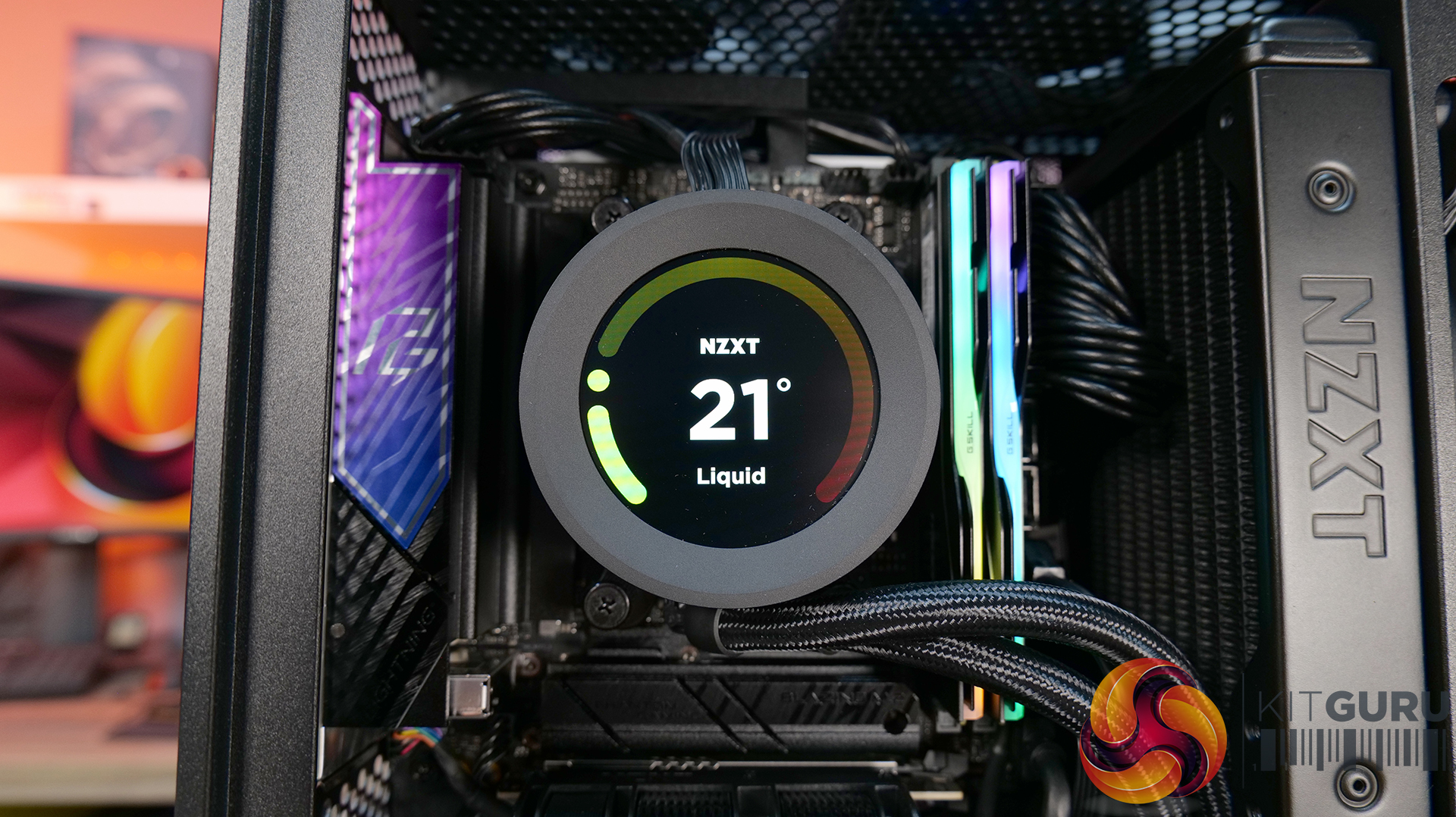
  • Strong liquid cooling support: Designed primarily for AIO setups, with support for up to a 280mm front-mounted radiator to keep thermals under control in a compact system.
  • Compact footprint, high-end compatibility: Despite the small 20.7L layout, it supports GPUs up to 331mm and 3-slots wide, making it capable of handling modern high-performance hardware.
  • Builder-friendly design: the H2 Flow Features tool-less panels, smart cable management, pre-installed fans, and a PCIe 5.0 riser cable, all aimed at making the build process quick and straightforward.

Specifications:

  • Case Type: Small Form Factor
  • Dimensions (HxWxD): 435 mm x 181 mm x 263 mm
  • Materials: Steel, tempered glass
  • Motherboard Support: Mini-ITX
  • Back-connect motherboard support: N/A
  • Expansion Slots: 3 (Standard Vertical)
  • Storage bays: 2 x 2.5”
  • Max GPU Length: 331mm
  • Max GPU Thickness: 65mm
  • Max GPU Width: 150mm
  • Max CPU Cooler Height: 75mm
  • PSU Type: SFX up to 130mm
  • Cable Management: Fixed Velcro Straps / Zip Ties Included
  • Supplied Fans: 2 x F120Q (Top)
  • Fan Support: 2 x 120 / 2 x 140mm (Front), 2 x 120mm (Top),
  • Radiator Support: up to 280mm (Top)
  • Font I/O: 1 x USB 3.2 Gen2x2 Type-C, 2 x USB 3.2 Type-A, 1 x combined 3.5mm Auio/Mic jack
  • LCD Screen: N/A

Thermal Performance Testing

To simulate thermal demand, we run the Cinebench R23 multi-thread benchmark and 3DMark Speed Way stress test simultaneously in a loop for 30 minutes to load the system fully. This gives the CPU and GPU enough time to reach constant steady-state temperature. With this data, we can compare how the system handles the thermal demand and measure peak noise levels.

Thermal performance is measured with the case in various configurations, such as the default, with the tempered glass left-hand side panel removed and with the front panel removed to see how these configurations affect the CPU and GPU temperature. During testing, only stock case fans are used unless otherwise specified. All water pumps are set to maximum RPM and fans are set to a custom RPM curve by the Motherboard software/BIOS.

All temperature measurements are presented as Deltas – meaning the ambient temperature has been deducted from the CPU temperature, giving us a Delta. Data shown in the charts represents the average component temperature over the length of the test as measured by HWiNFO, and then the last 15 minutes of the data are calculated to get the average. The ambient temperature during thermal tests is between 19-20⁰C.

Test System Specification:

Thermal Performance Overview

We test case thermals using a 280mm AIO as the intake at the front and with the case in several different fan configurations. The default configuration shown in the charts is with the Front 280mm AIO cooler, 2 x 120mm top exhaust fans and with all case panels installed.

Looking at the thermal results, the H2 Flow delivers pretty solid performance overall, with some interesting quirks. With the side panels removed, we see CPU temperature at 61°C over ambient and 39°C on the GPU. In the default configuration with all panels installed, CPU temperature increases to 65°C over ambient on the CPU and 41°C on the GPU, so out of the box airflow seems reliable, but there's some restriction.

Switching the top fans to intake doesn’t help CPU temperature at all and pushes GPU temperatures up a couple of degrees. Using an AIO as exhaust at the front sees CPU temperatures climb to 68°C, although GPU temps drop back down to 39°C in this configuration, so there’s a bit of a trade-off depending on your setup.

Noise Output

Moving on to noise output, again the H2 performs quite consistently. With the side panels removed we see a maximum load noise level of 41dBA, rising slightly to 42dBA in the default setup with all side panels installed, due to increased temperatures and higher fan speeds.

Switching the top fans to intake doesn’t change things at all, but using the AIO as exhaust pushes noise up slightly to 43dBA, due to higher CPU temperature and AIO fan speed. However, an increase of 1dBA shouldn’t be too noticeable in real-world scenarios. At idle, everything sits between 36 – 37dBA regardless of configuration, so overall the H2 Flow delivers controlled acoustics — its not the quietest case we’ve tested, but certainly nothing much to complain about either.

Closing Thoughts

Overall, the H2 Flow is a bit of a mixed bag, but there are some positives worth highlighting. The compact footprint is one of its best features — it takes up less space desk space than mid-towers and some compact SFF cases with horizontal layouts, which will appeal to users who are working with a smaller desk setup. At the same time, NZXT has done a solid job with cooling support, with compatibility for 280mm AIOs and 140mm fans, so you don’t have to sacrifice cooling for desk space, which is great and a big improvement on its predecessor, the H1.

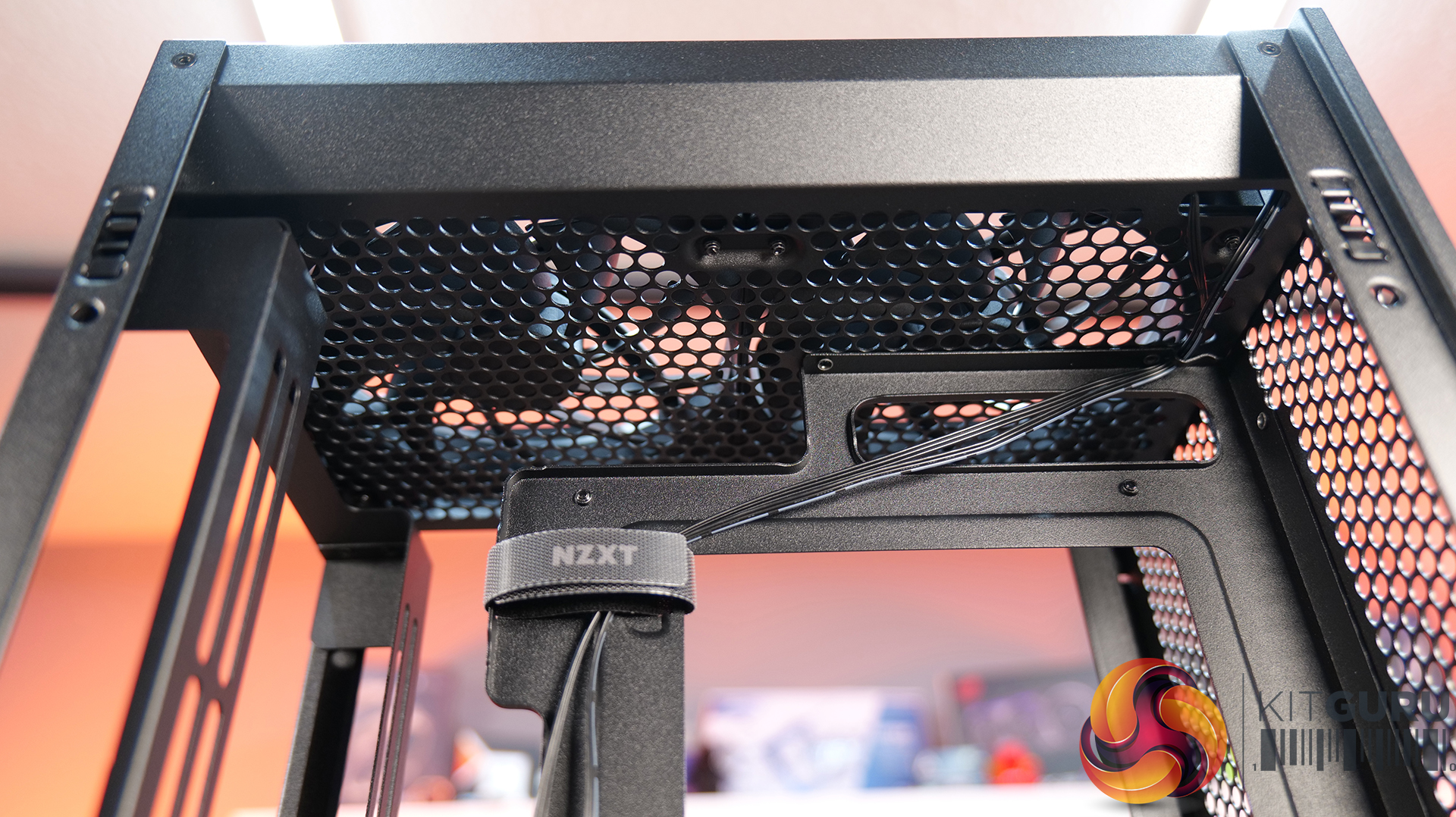
Building inside the case is mostly a smooth experience. System installation is straightforward, there’s a decent amount of space to work with given the overall size, and cable routing is handled reasonably well for the most part. There are clear channels for running cables, which work well. It's not the most radical design, nor does it include any genuinely innovative ideas, but NZXT has clearly put some thought into making the build process as painless as possible for most users.

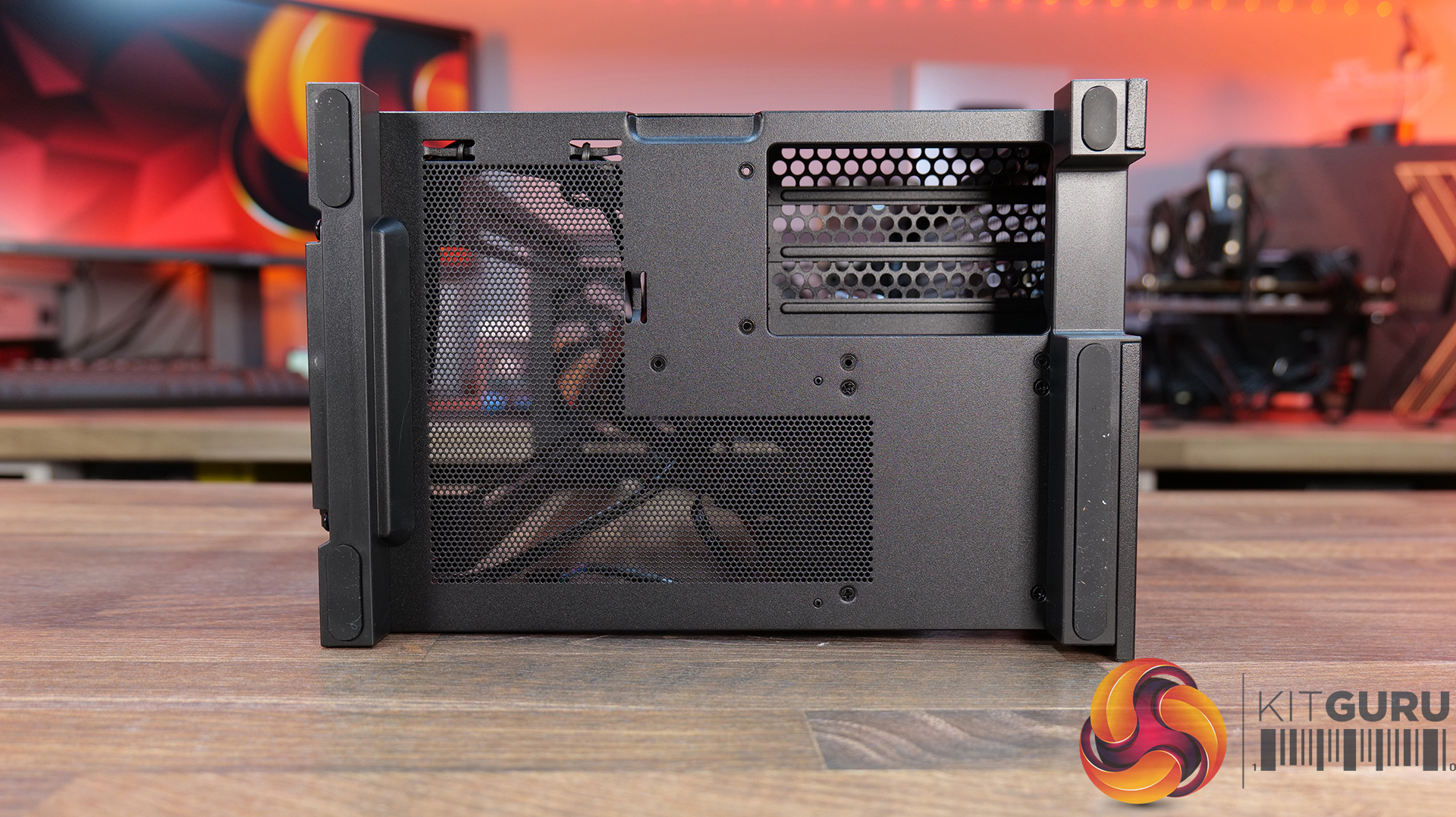
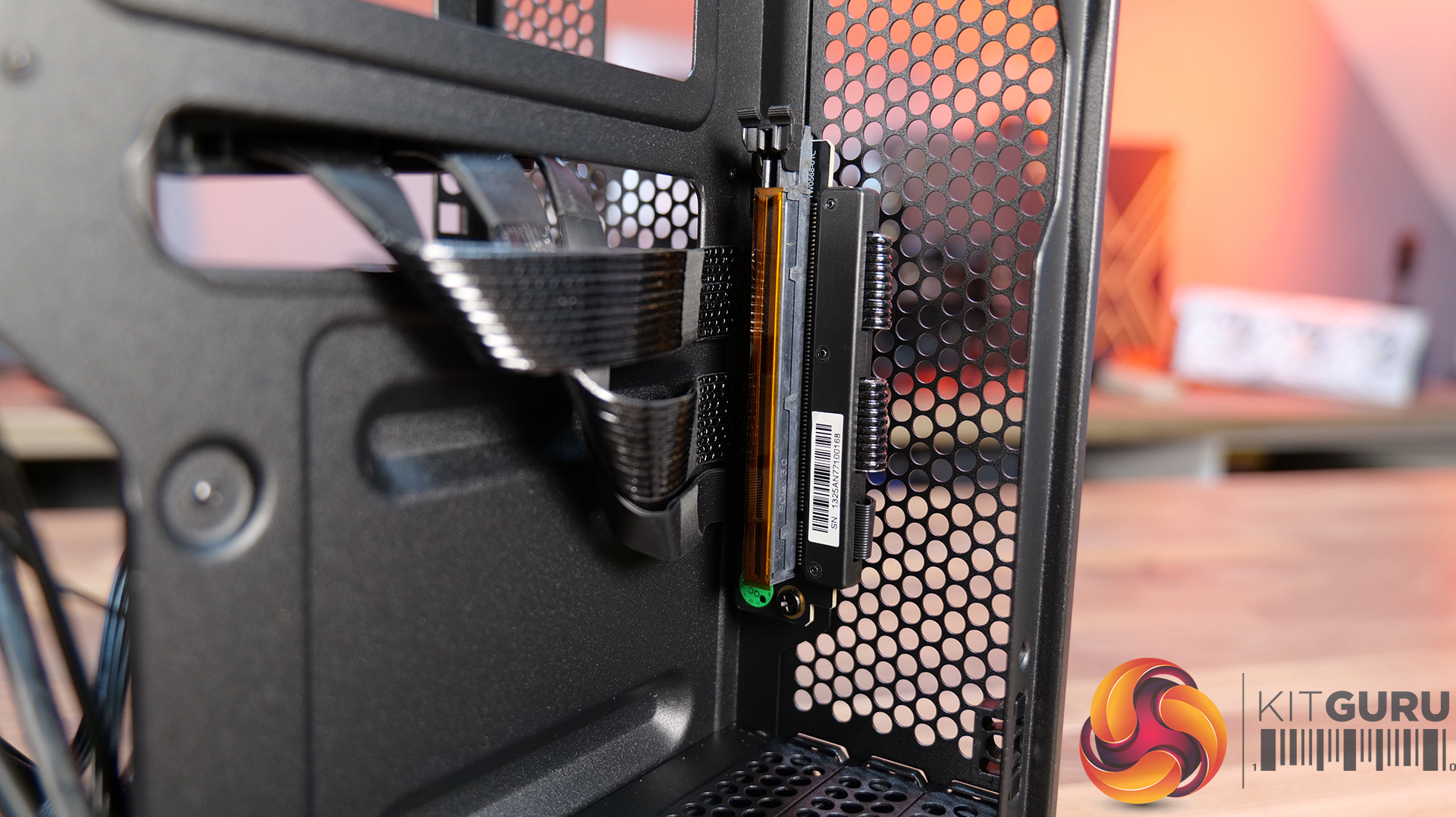
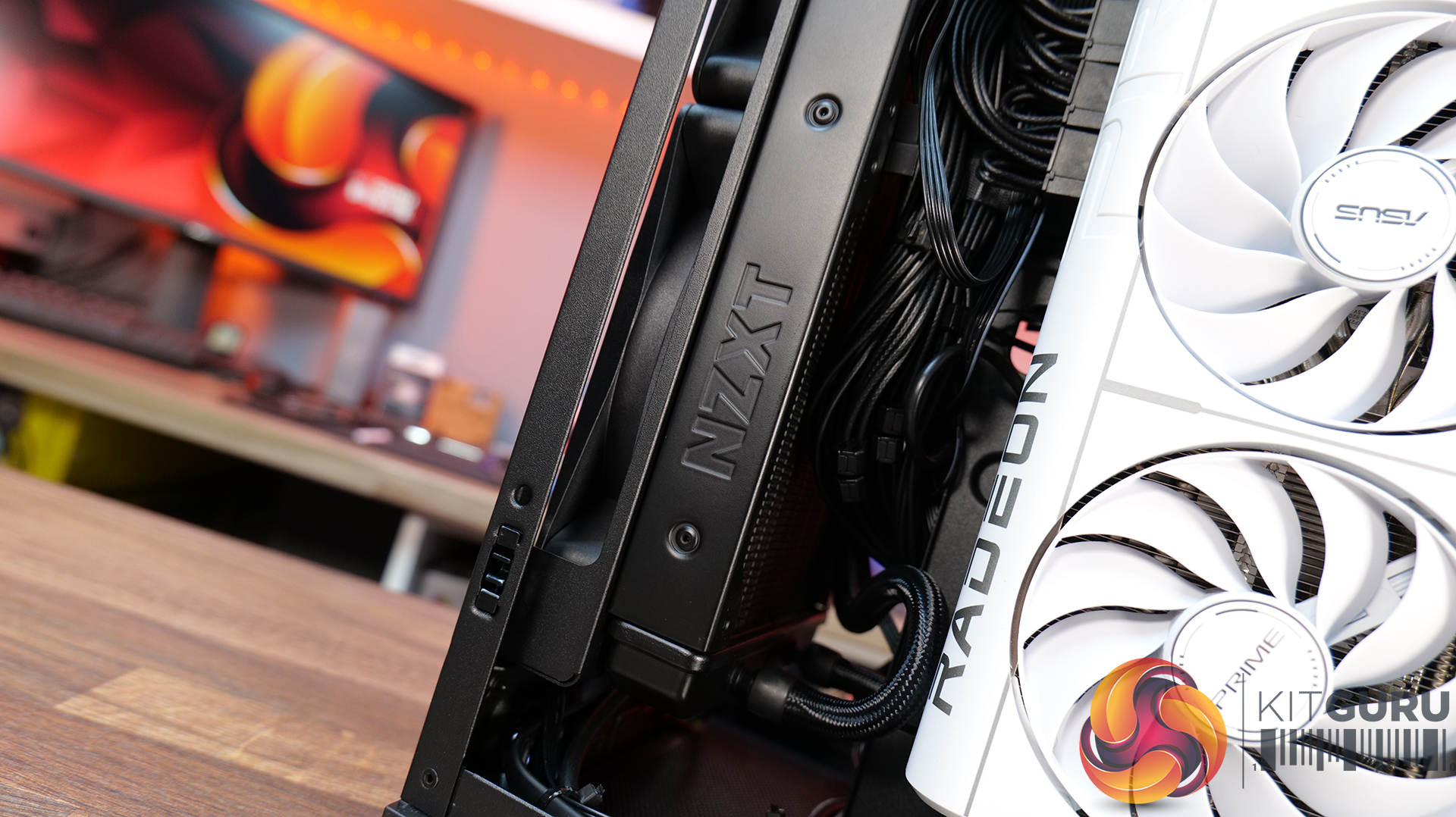
That said, there are a few downsides that hold it back. One of those issues is GPU compatibility — the maximum graphics card length is quite restrictive; it's an improvement on the H1 at 331mm, but a lot of current high-end cards simply won’t fit. There are also some concerns around build quality. The motherboard tray has excessive flex, the PCIe riser cable fouls the motherboard tray and the back of the GPU, some of the outer panels feel a bit weak, and small details like the Velcro straps don’t properly secure the 24-pin cable, even though generally cable management is good.

There are a few usability niggles too. Removing a graphics card can be awkward due to the limited access to the PCIe retaining latch, which you only notice when removing the graphcis card. There's only a small cutout in the chassis frame to get a finger in to release the PCIe latch, you may be tempted to use a tool and pry it open, which can result in damage. So while the H2 Flow gets things right in terms of size, airflow, and ease of use, the compromises — particularly around GPU support and build quality mean it doesn’t quite hit the mark.

The NZXT H2 Flow is available to purchase now from Scan priced at £129.98 HERE.

Pros: 

  • Decent cooling support
  • Small footprint.
  • Easy system installation.

Cons:

  • Max graphics card space limits options.
  • Build quality issues.
  • Cable management Velcro straps are a bit weak.
  • A little expensive.

KitGuru says: The H2 Flow is certainly an improvement in terms of cooling compared to the H1, but it still falls short in some areas, which makes it difficult to recommend. The potential for a solid small form factor case is there, but there's still room for improvement.

The post NZXT H2 Flow PC Case Review first appeared on KitGuru.

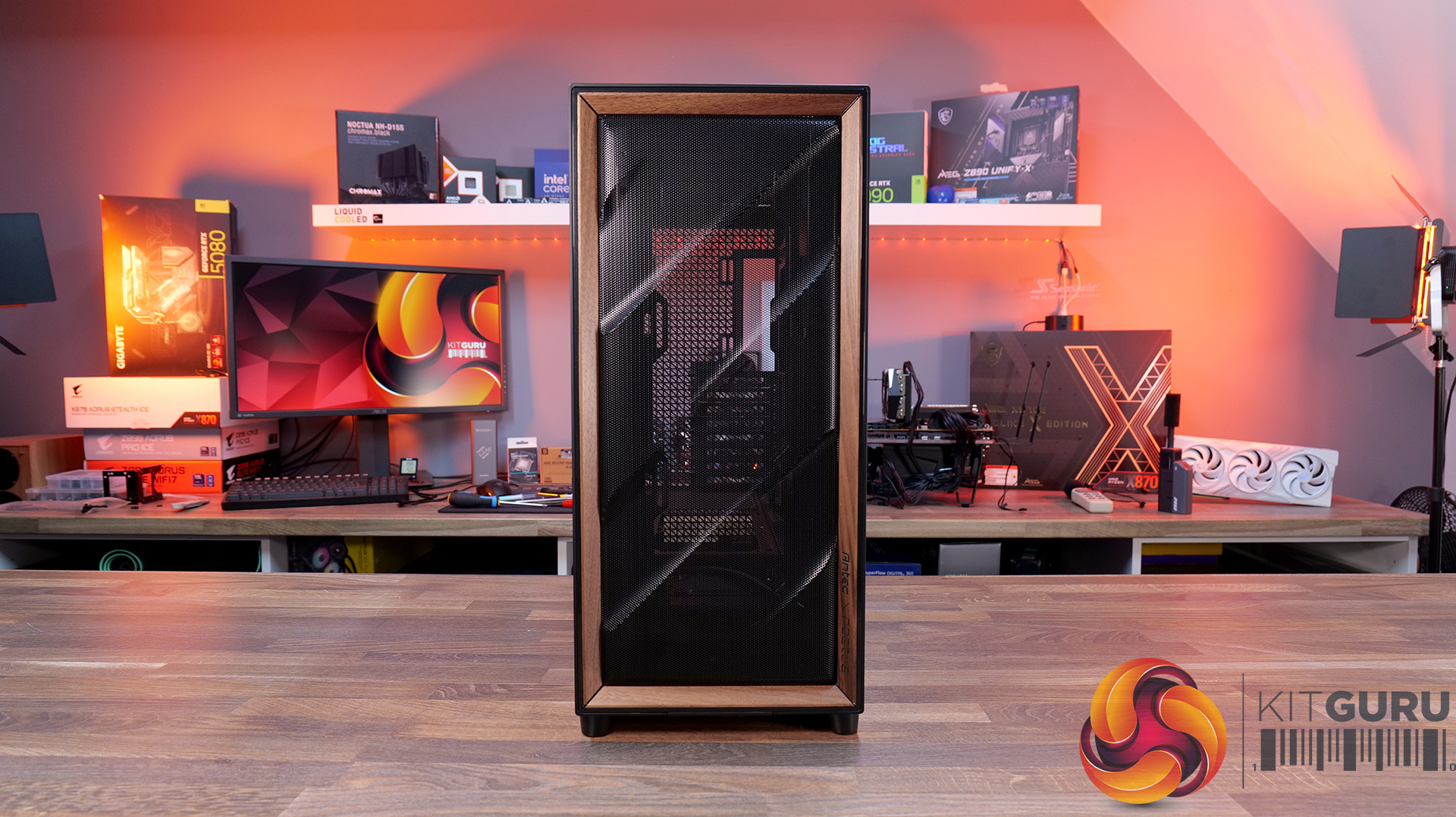
Antec Flux Pro Noctua Edition PC Case Review

22 March 2026 at 13:19

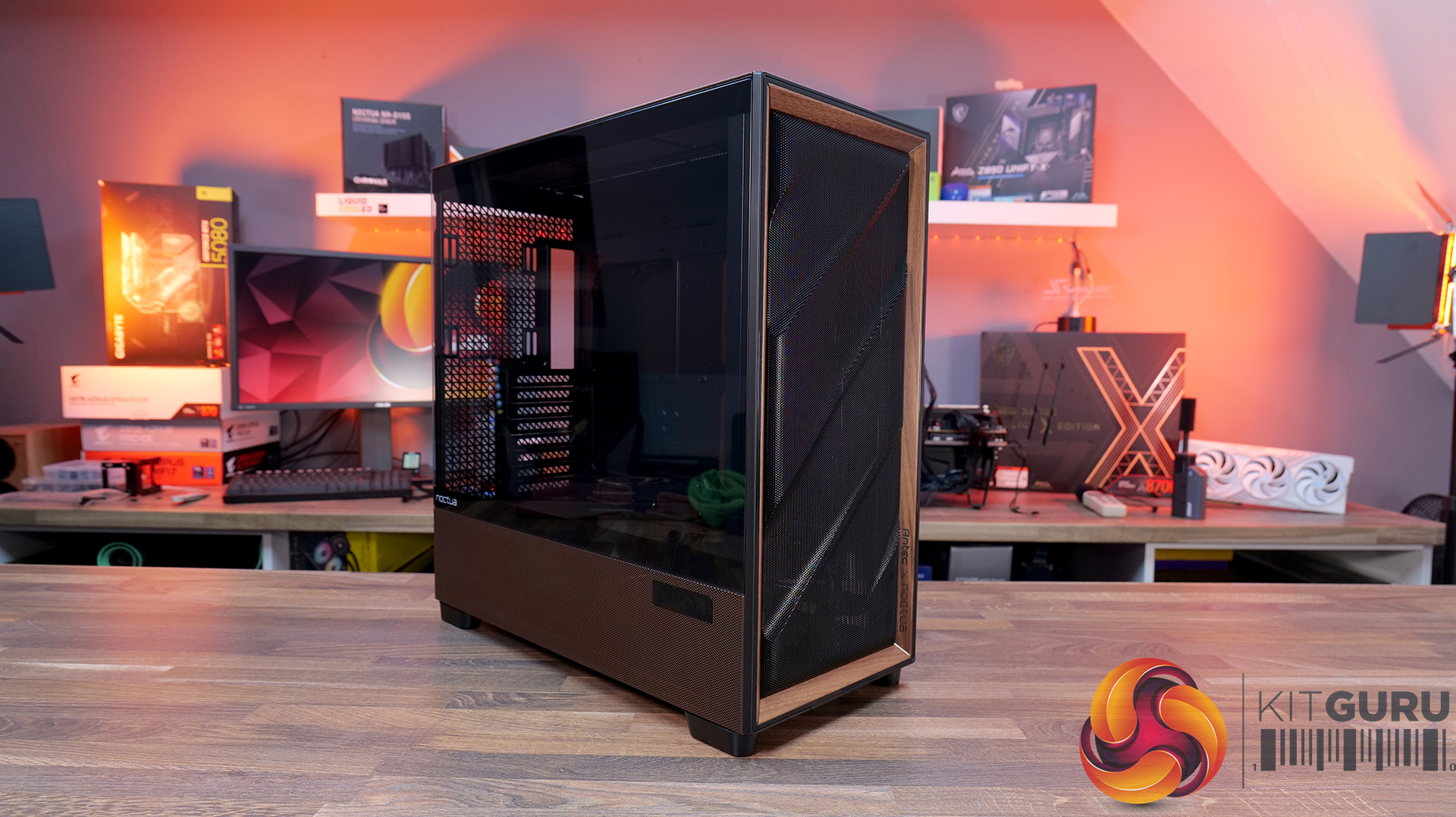
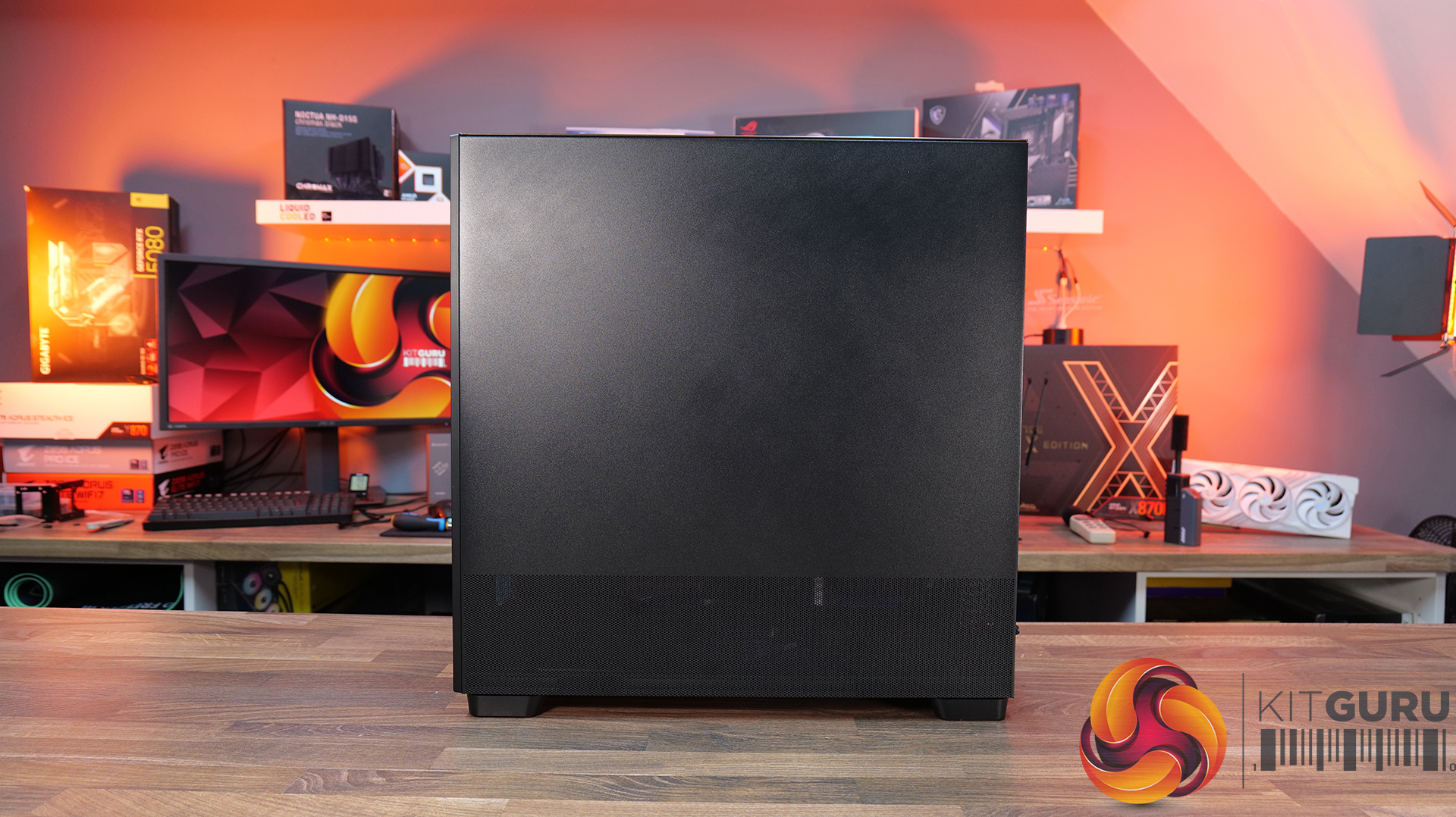
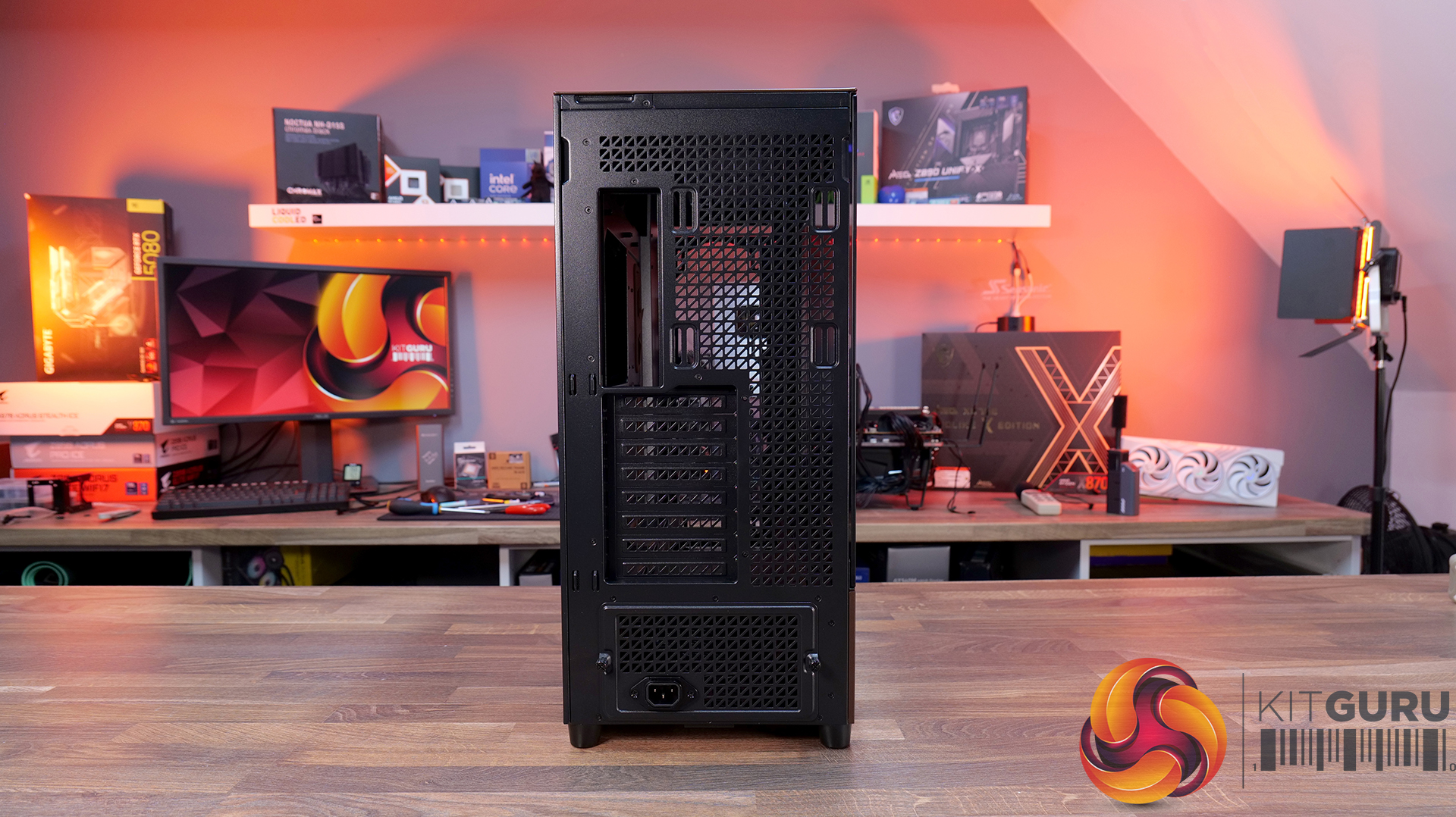
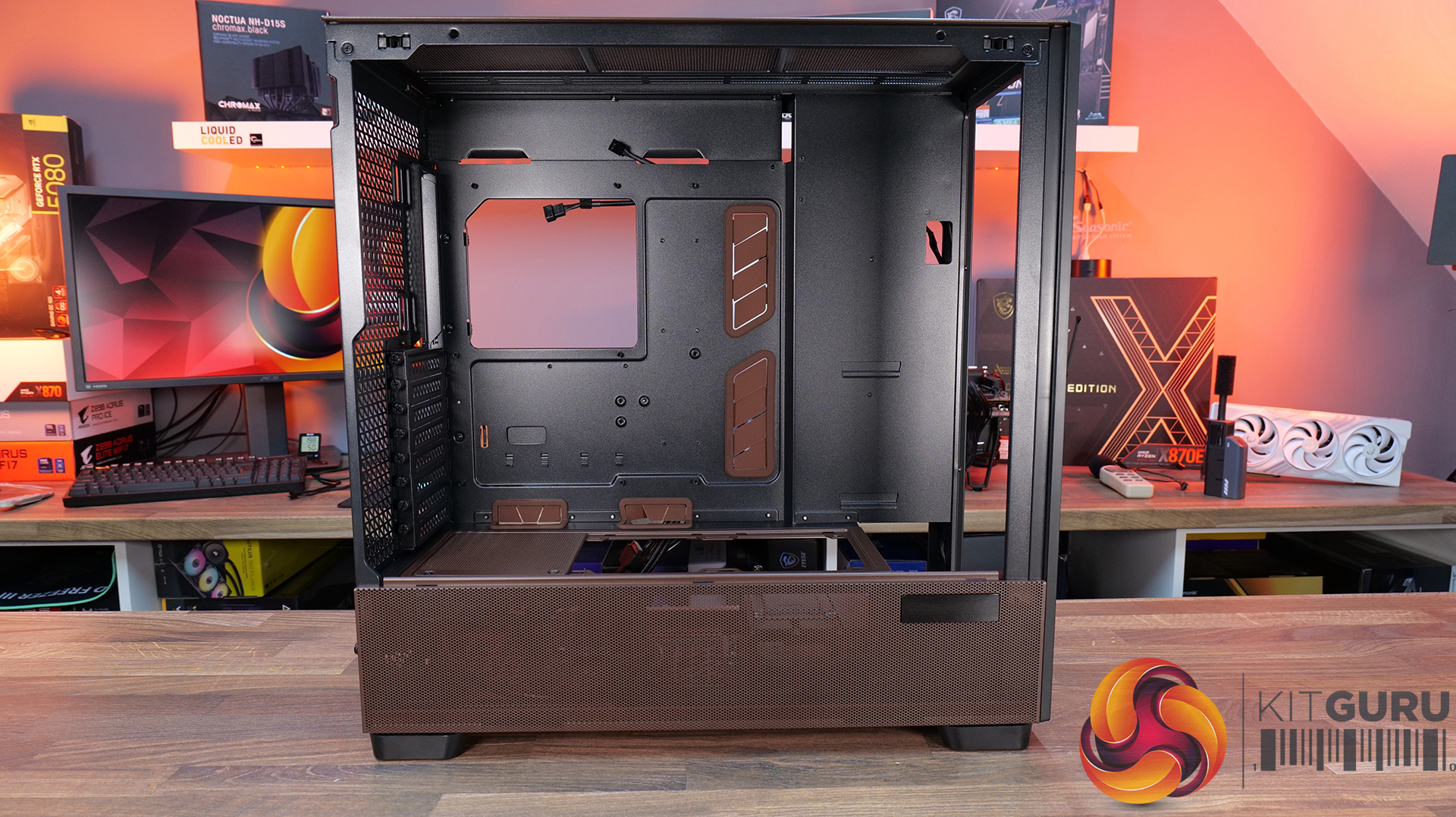
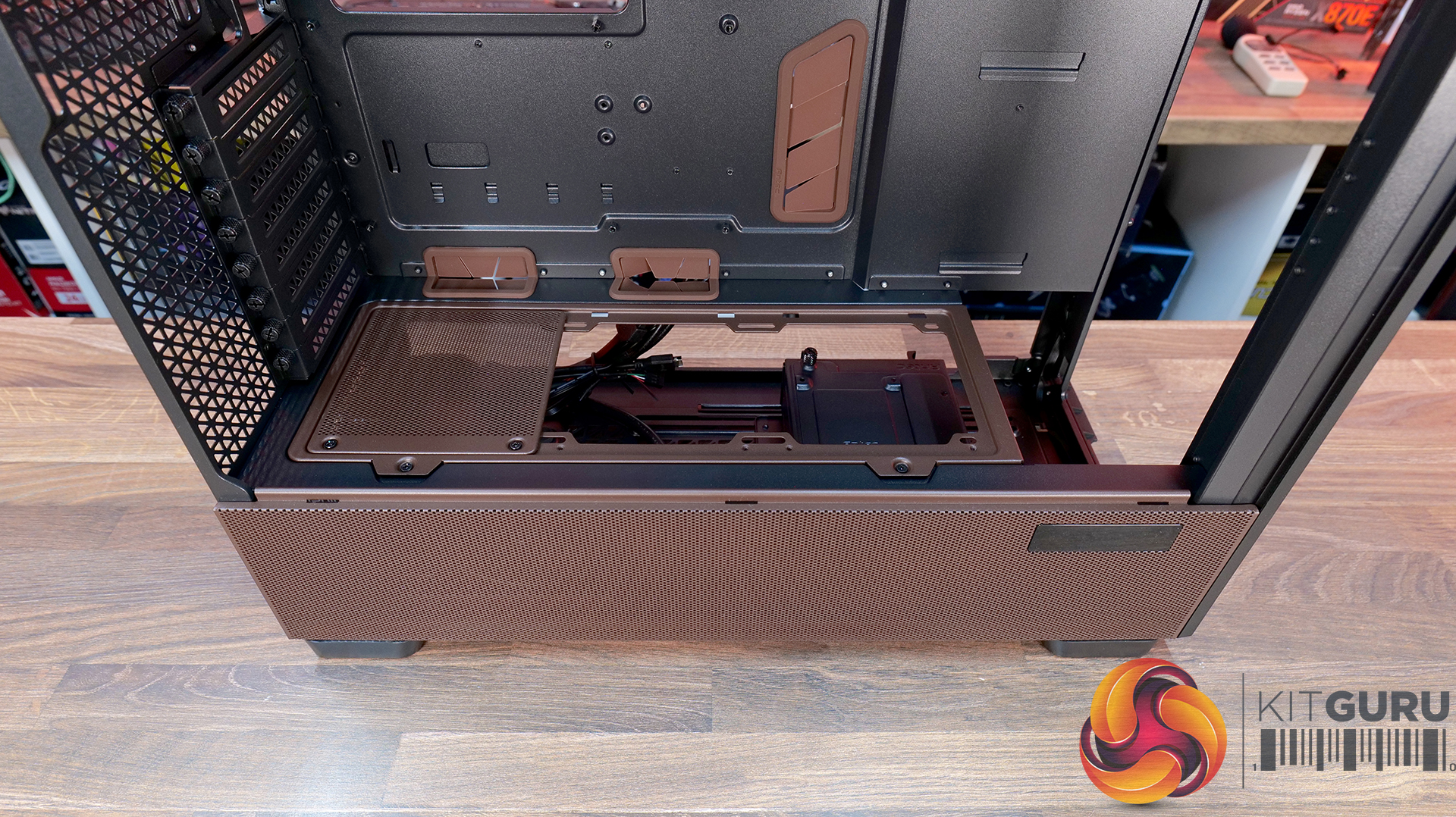
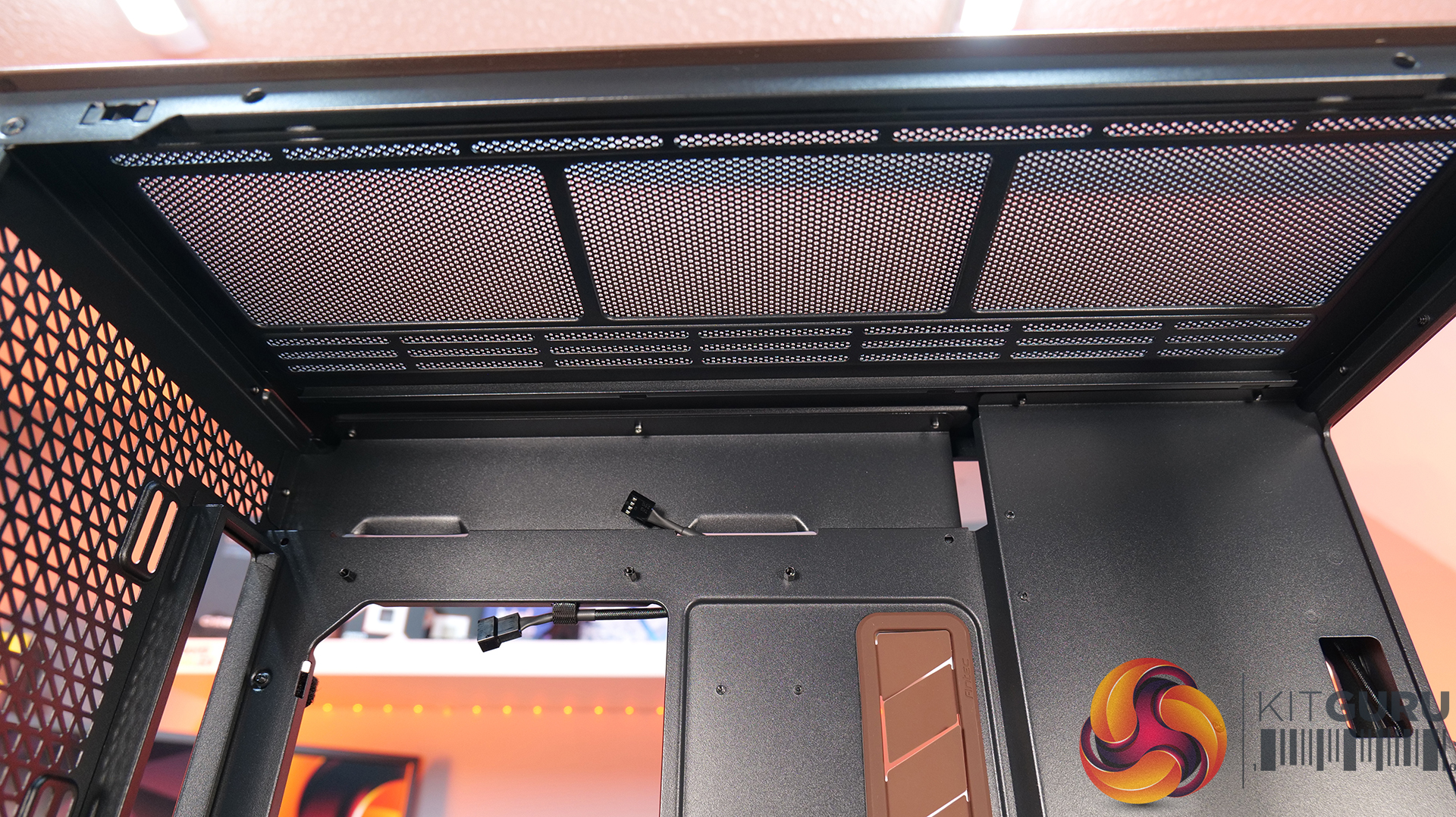
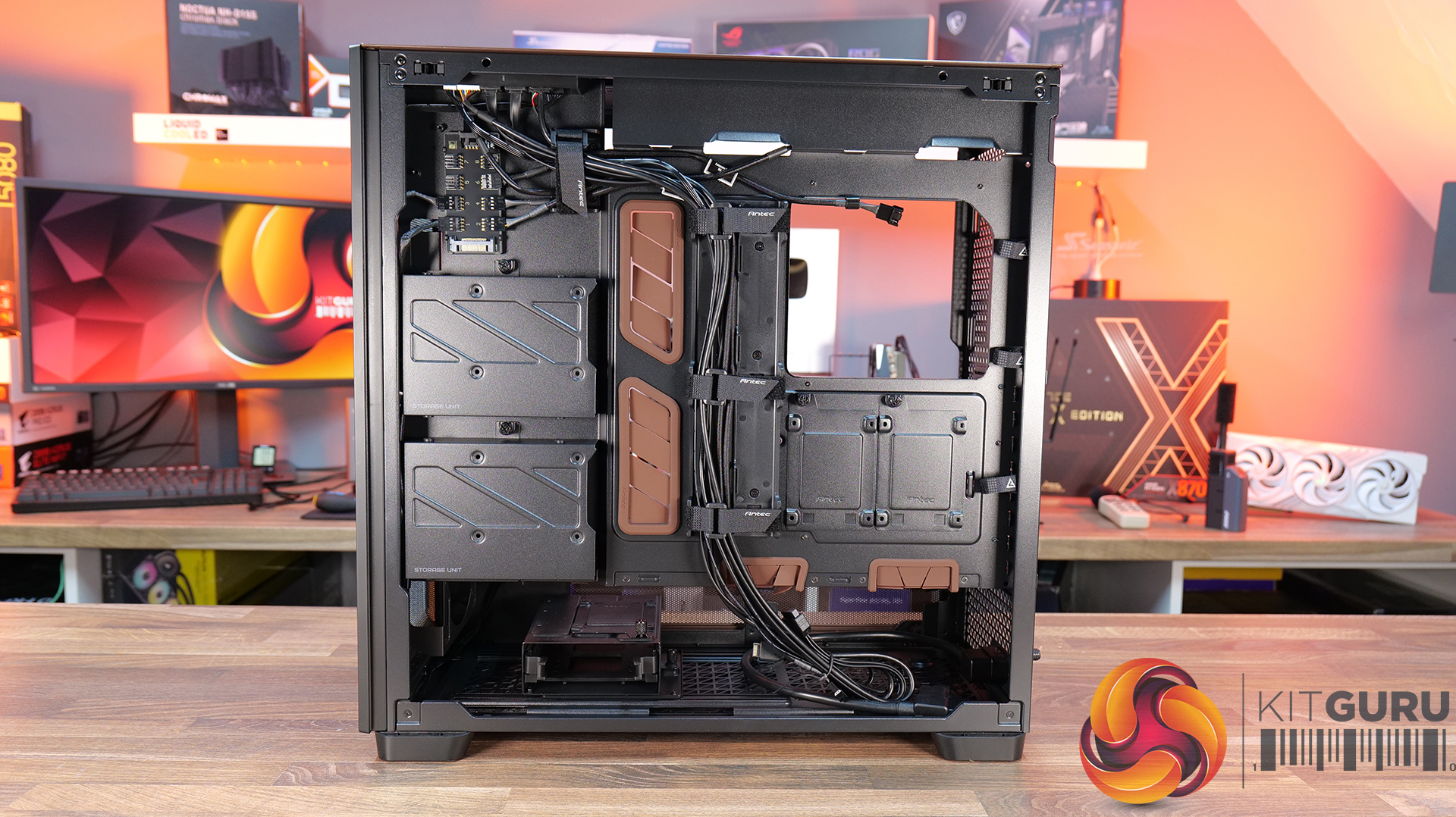
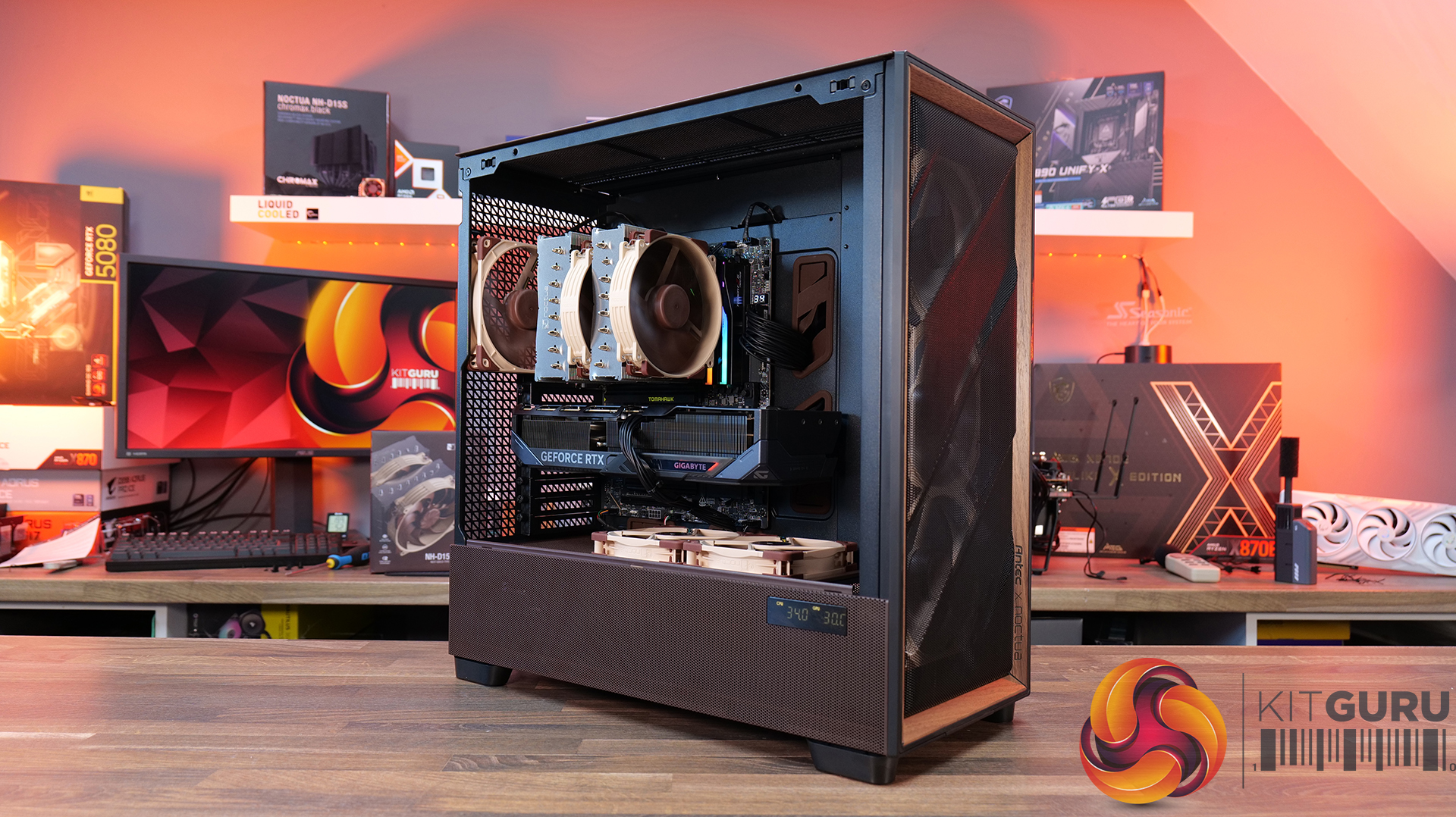
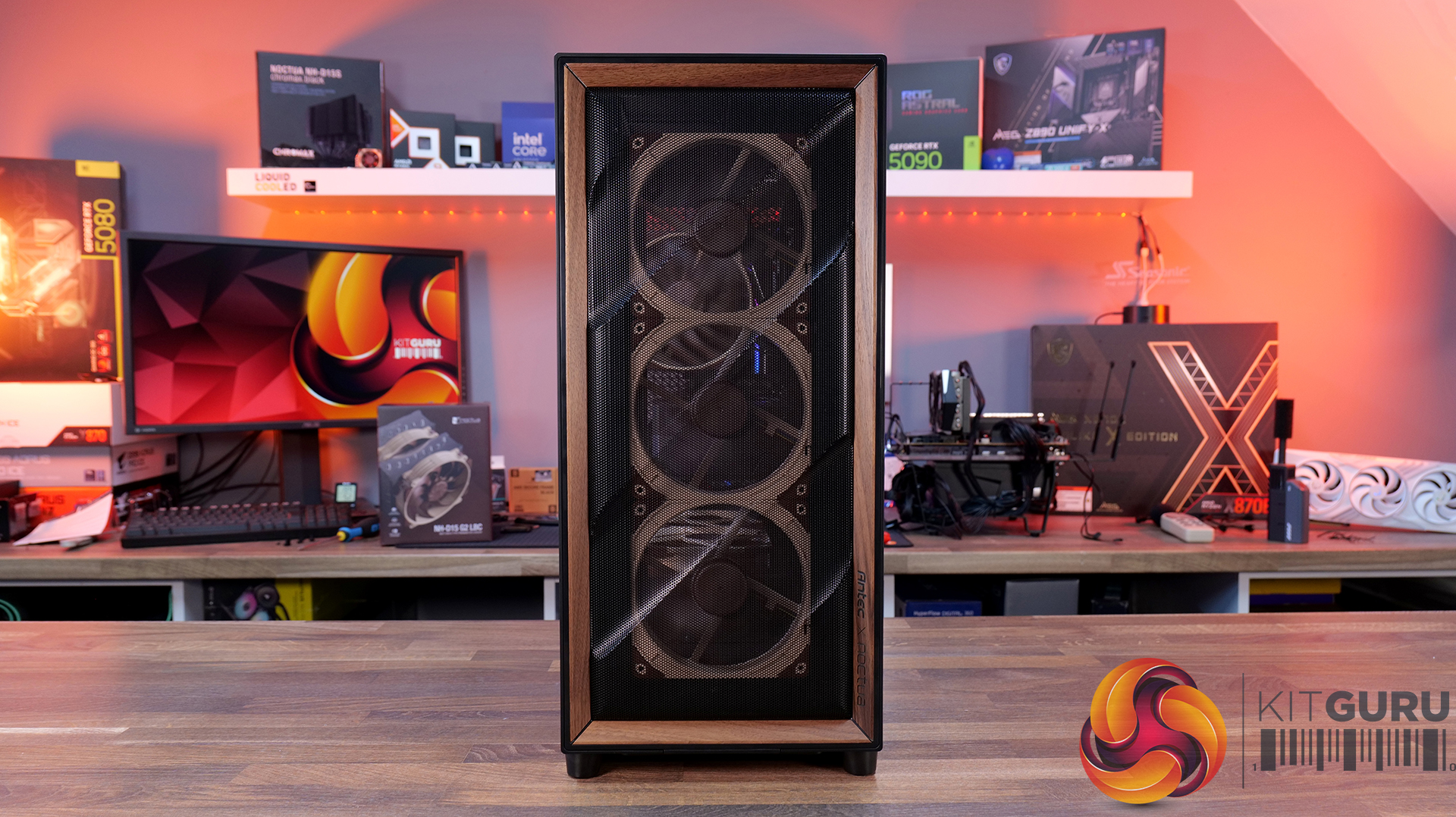
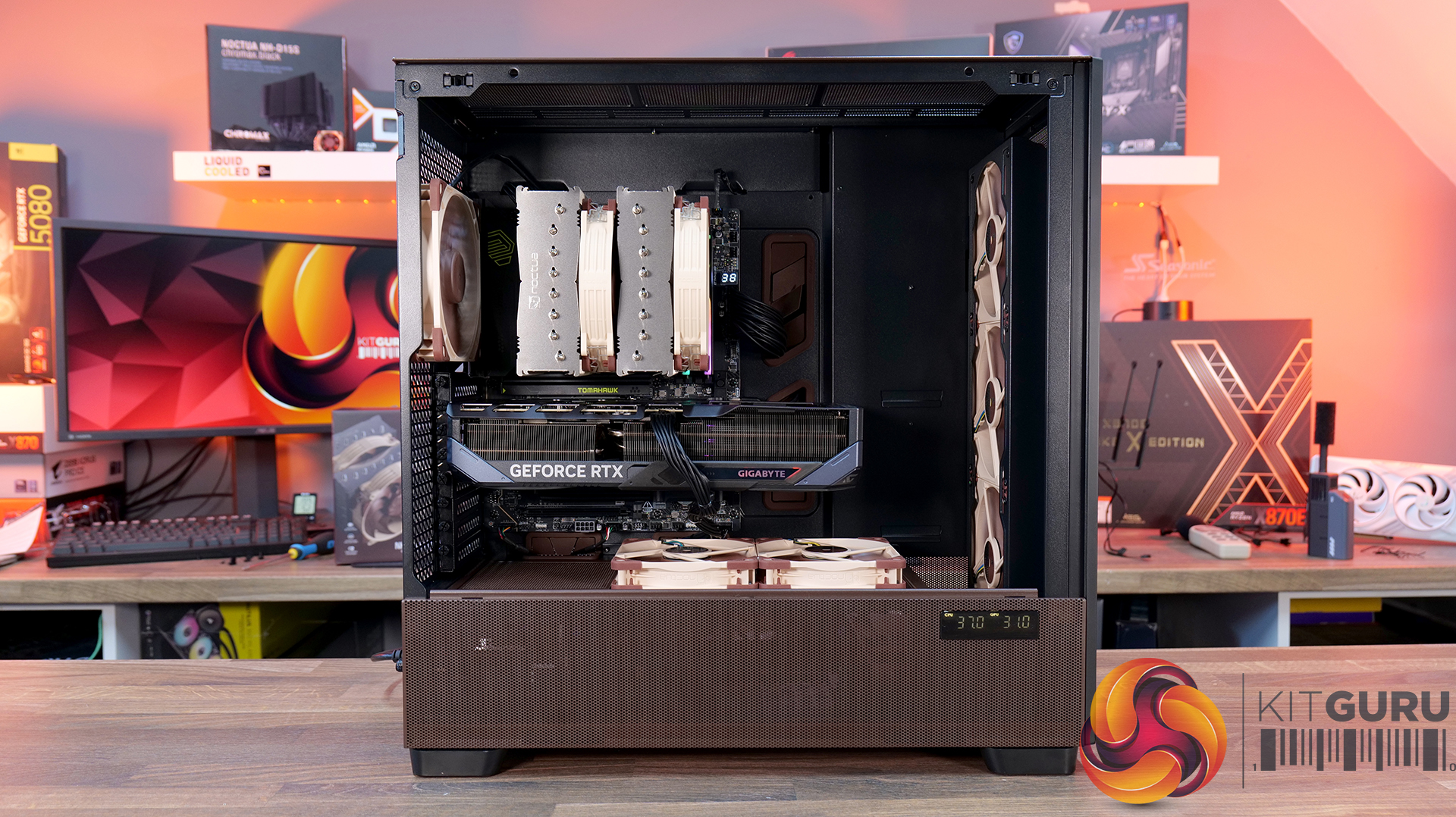
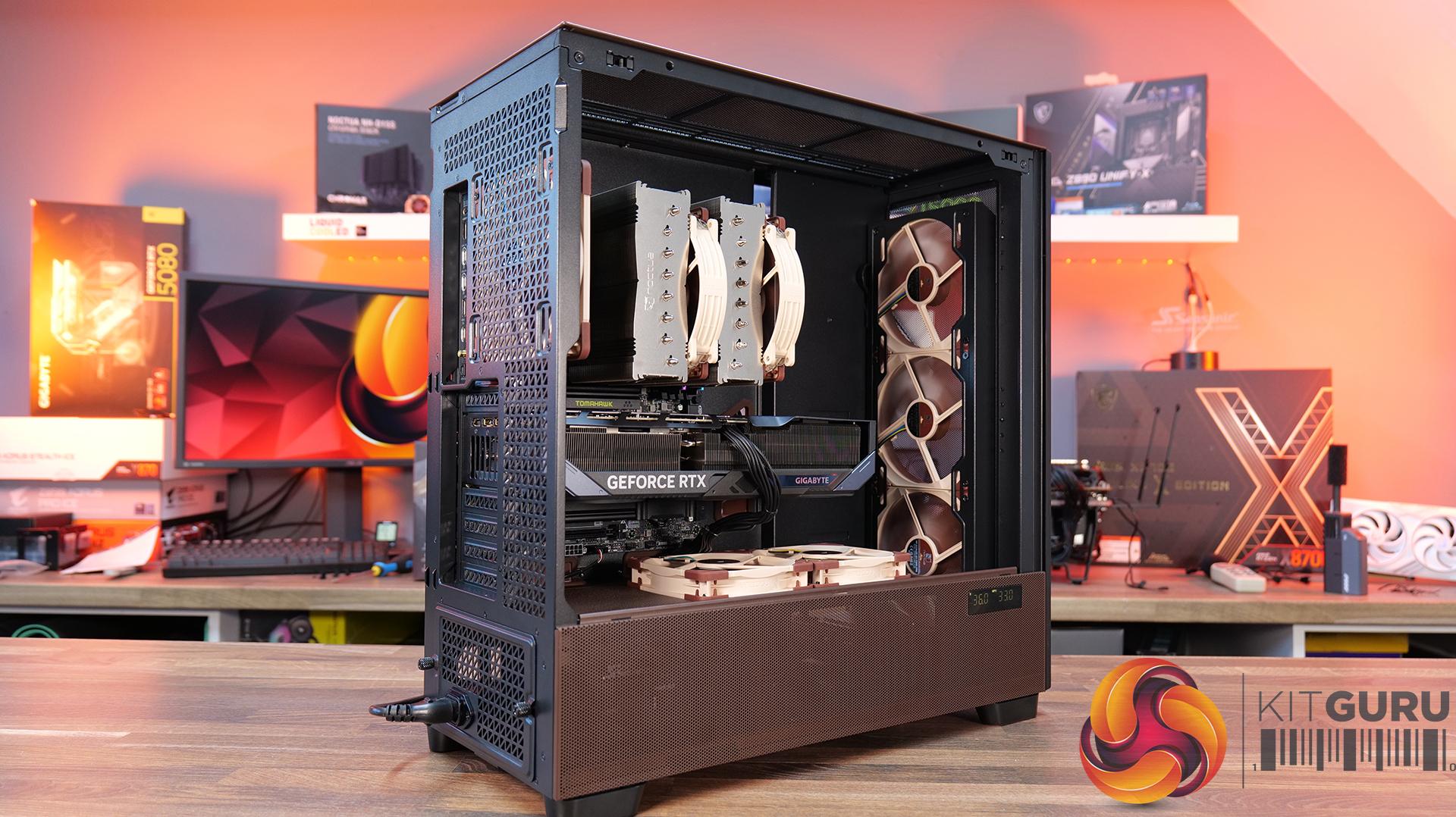
Today we’re taking a look at the Antec Flux Pro Noctua Edition, a full-tower case designed around high airflow and low-noise performance. It combines Antec’s Flux Pro chassis with a set of pre-installed Noctua G2 fans, tuned to deliver strong cooling with minimal acoustic impact. The case features extensive ventilation and support for large radiators, high-end GPUs, and oversized air coolers. In this review, we’ll be checking build quality, layout, and thermal performance to see how it stacks up.

Timestamps:

00:00 Start
00:44 Pricing / Costs
01:38 Accessories
02:02 Dimensions
02:14 Materials / Build
03:00 Recommended Fan Config
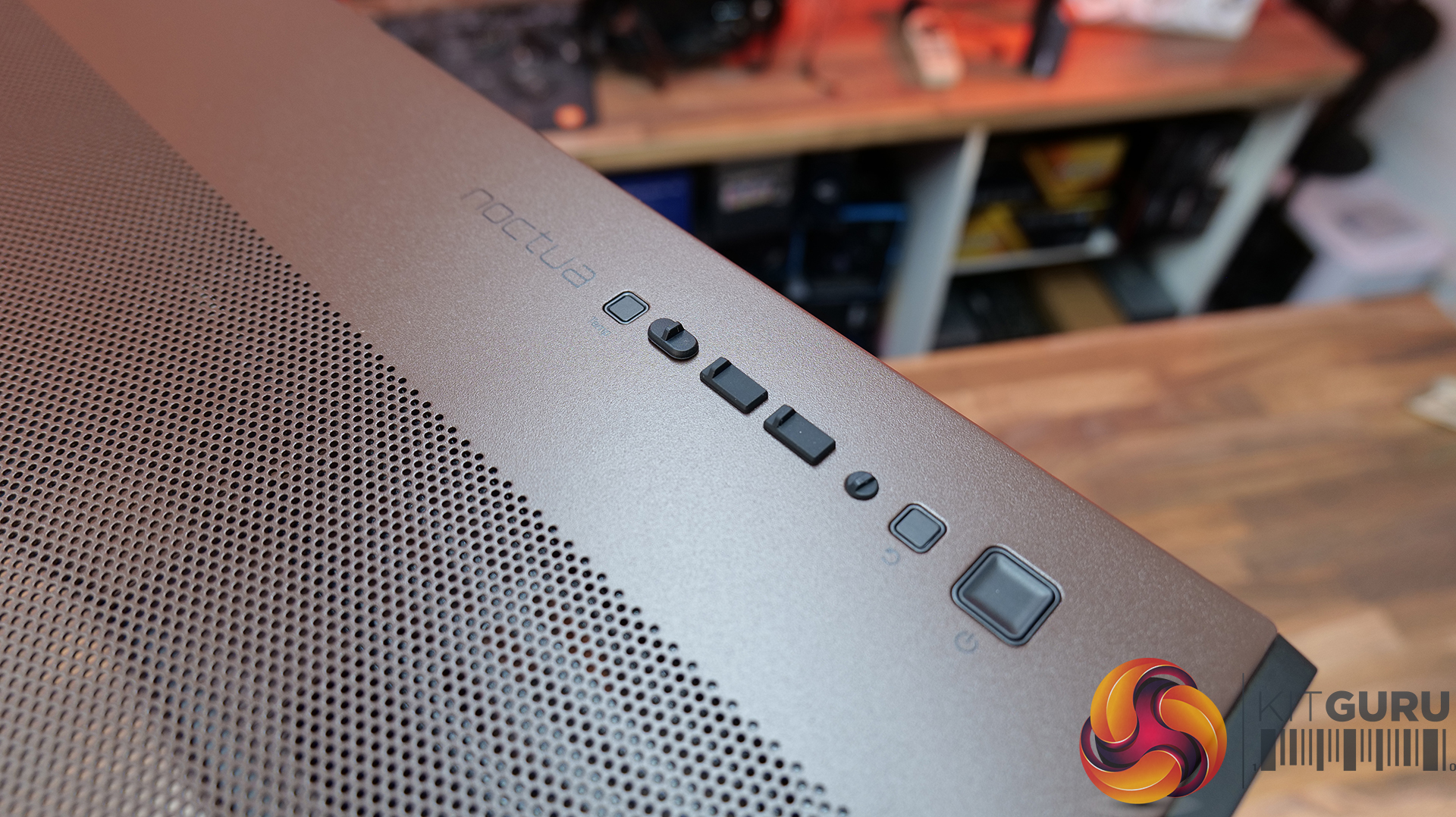
03:19 Front I/O (top)
03:47 Temperature display
04:27 Getting Inside the case / Colours
07:13 Install Options
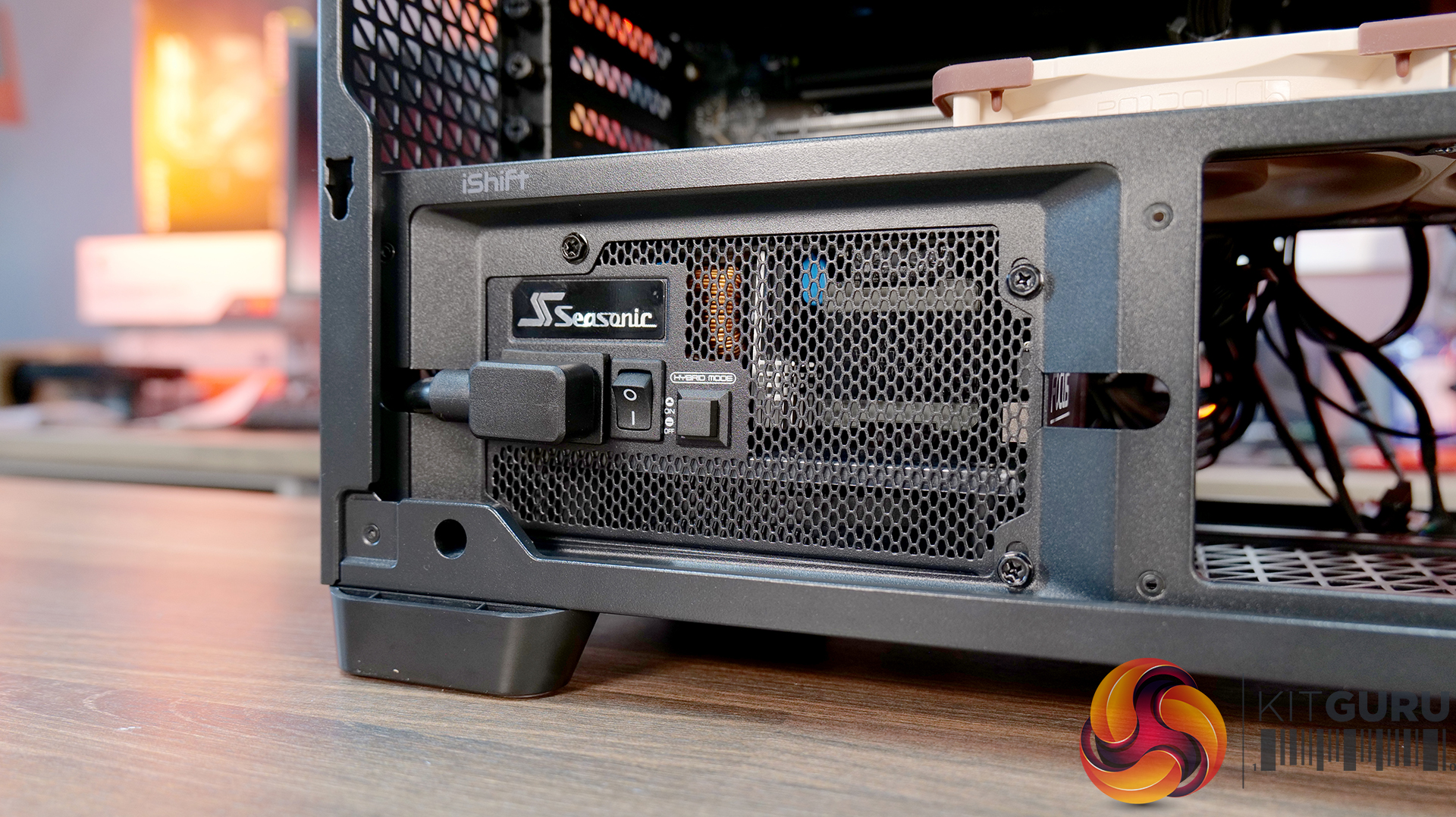
12:27 Rotated PSU Design
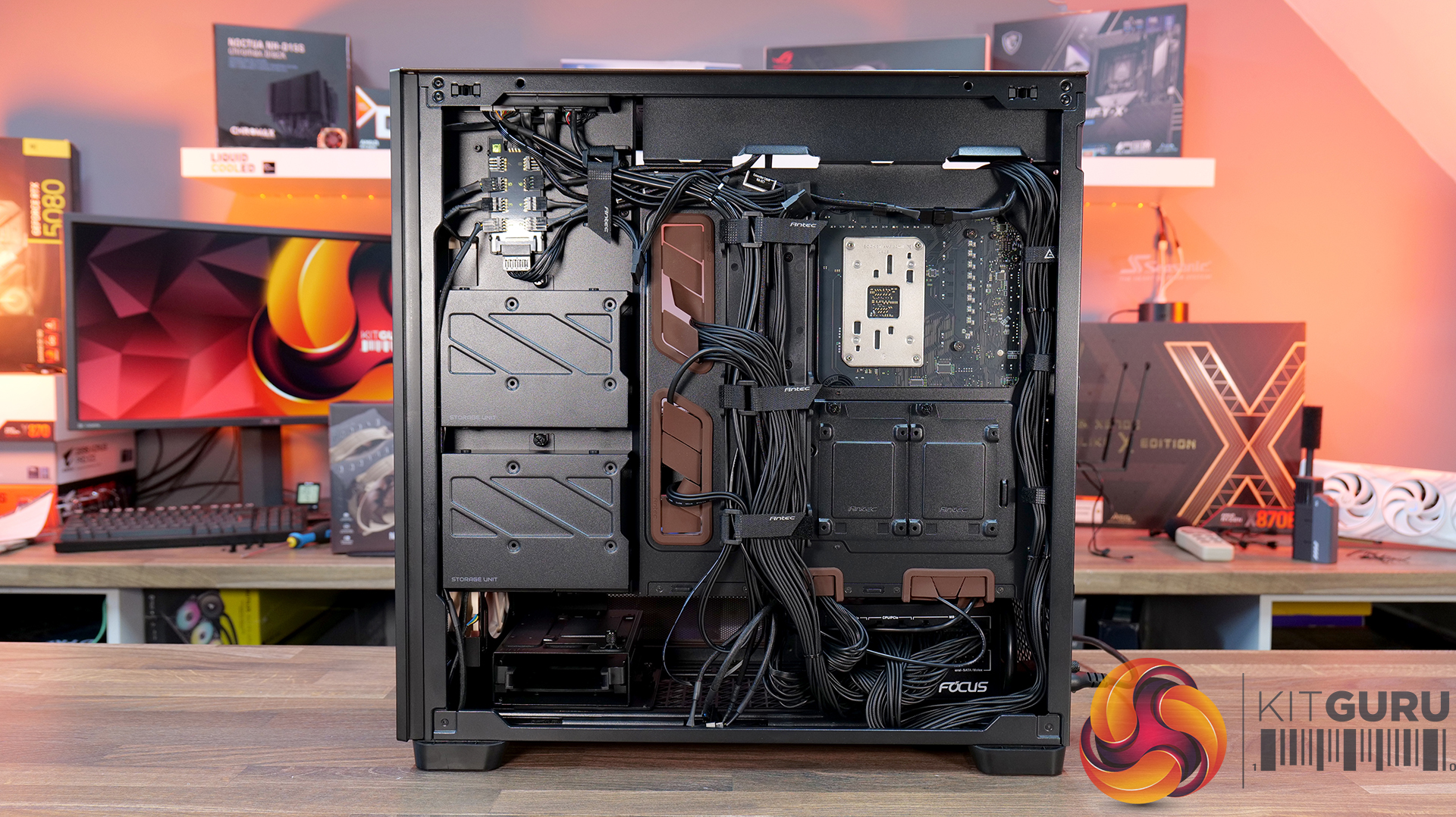
13:36 Right hand side / drive positions
17:10 Floor of the case
17:55 Testing Methodology
19:08 Thermal and Noise Performance
21:09 Visual Airflow demo and thoughts
23:22 Closing Thoughts

Features:

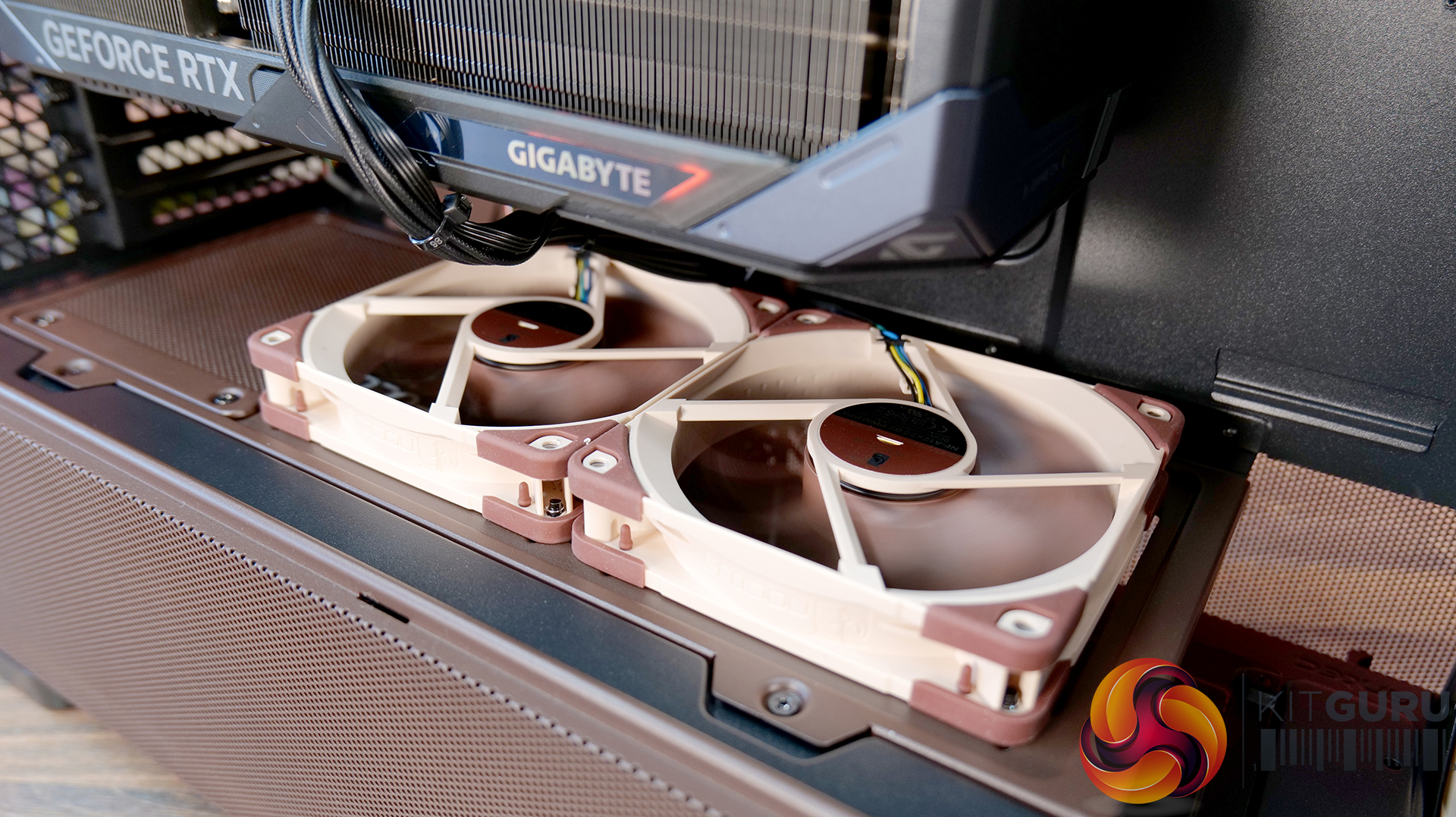
  • Pre-installed Noctua G2 fans – Includes four Noctua NF-A14x25 G2 and two NF-A12x25 G2 premium fans, delivering high-end airflow straight out of the box.
  • Optimised for low noise operation – Noctua’s Extensive lab testing and offset fan speeds are designed to reduce vibration and “beat frequency” hum for quieter performance.
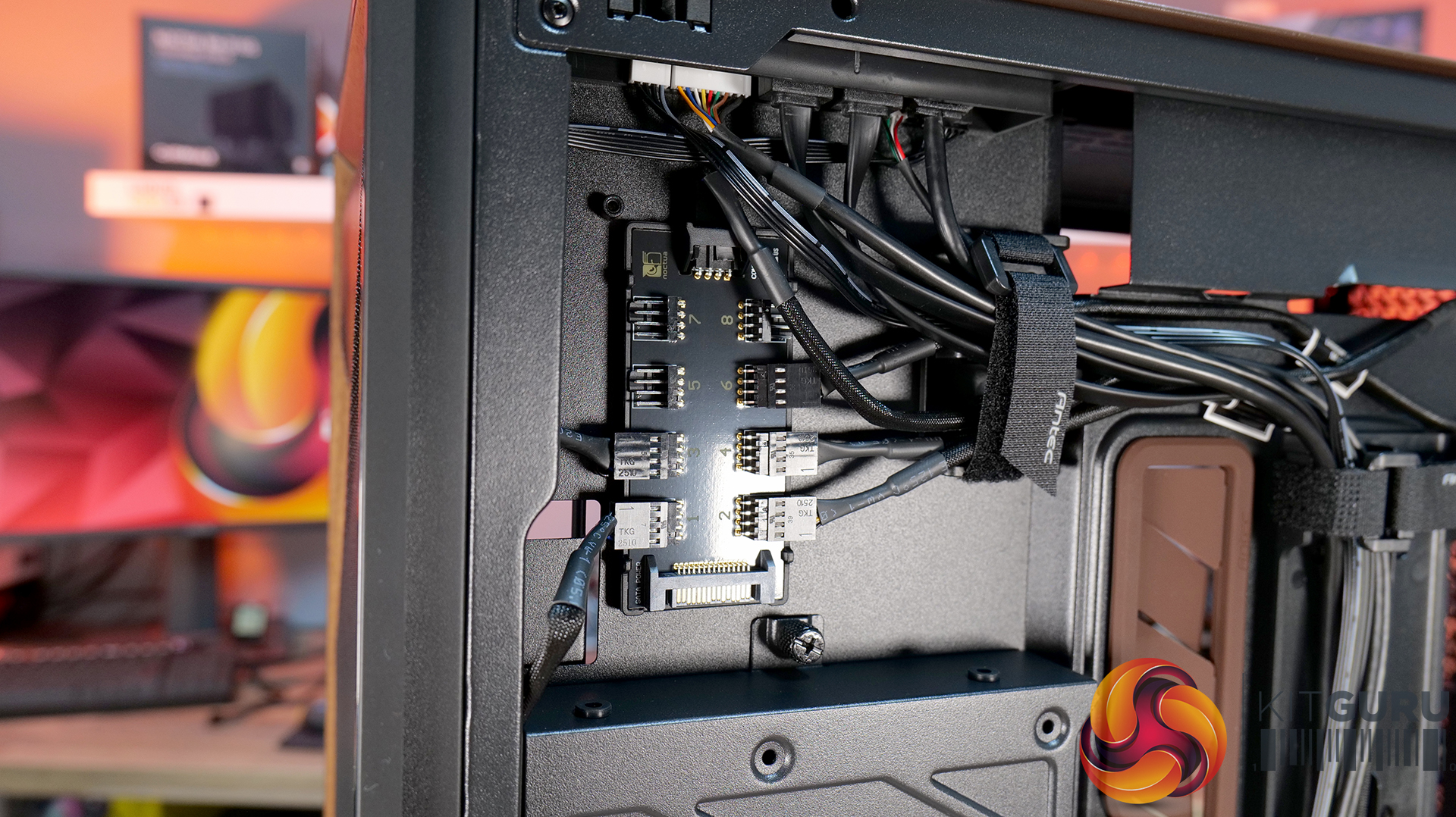
  • Integrated fan hub and clean wiring – It also comes with a pre-wired NA-FH1 fan hub for synchronised control and simplified cable management.
  • High-airflow Flux Pro chassis design – Flux Pro Noctua Edition is built on a low-airflow-resistance platform designed to maximise cooling efficiency for high-performance systems.

Specifications:

  • Case Type: ATX Full Tower
  • Dimensions (LxWxH): 530 x 245 x 546 mm
  • Materials: Steel, Tempered Glass, Walnut Wood, Silicone, Plastic
  • Motherboard Support: STX, Mini-ITX, µATX, ATX, E-ATX (Max 280mm)
  • Back-connect motherboard support: No
  • Expansion Slots: 8
  • Storage bays: 5” x 2 / 2.5/3.5” x 4
  • Max GPU Length: 455mm
  • Max CPU Cooler Height: 190mm
  • PSU Type: ATX up to 470mm (300mm with HDD) (180mm Rotated 90°)
  • Cable Routing Space: 5mm
  • Supplied Fans: 3x NF-A14x25 G2 PWM (Front), 2x NF-A12x25 G2 PWM (PSU shroud), 1x NF-A14x25 G2 PWM (rear)
  • Fan Support: 3 x 120 / 3 x 140mm (Front), 3 x 120 /  3 x 140mm (Top), 2 x 120 / 2 x 140mm (Bottom), 1 x 120 / 1 x 140mm (Rear) 3 x 120mm (PSU Shroud)
  • Radiator Support: 120/140/240/280/360/420 mm (Front/Top), 120/140mm (Rear/Bottom), 120/240/360mm (PSU Shroud)
  • Dust Filters:
  • Font I/O: 1x USB-C 3.1 (10 Gbit/s), 2x USB-A 3.0 (5 Gbit/s), 3.5 mm headphone/mic combo jack, Power / Reset / Temperature / Display Switch
  • LCD Screen: Yes – Temperature Display

Thermal Performance Testing

To simulate thermal demand, we run the Cinebench R23 multi-thread benchmark and 3DMark Speed Way stress test simultaneously in a loop for 30 minutes to load the system fully. This gives the CPU and GPU enough time to reach constant steady-state temperature. With this data, we can compare how the system handles the thermal demand and measure peak noise levels.

Thermal performance is measured with the case in various configurations, such as the default, with the tempered glass left-hand side panel removed and with the front panel removed to see how these configurations affect the CPU and GPU temperature. During testing, only stock case fans are used unless otherwise specified. All water pumps are set to maximum RPM and fans are set to a custom RPM curve by the Motherboard software/BIOS.

All temperature measurements are presented as Deltas – meaning the ambient temperature has been deducted from the CPU temperature, giving us a Delta. Data shown in the charts represents the average component temperature over the length of the test as measured by HWiNFO, and then the last 15 minutes of the data are calculated to get the average. The ambient temperature during thermal tests is between 19-20⁰C.

Test System Specification:

Thermal Performance Overview

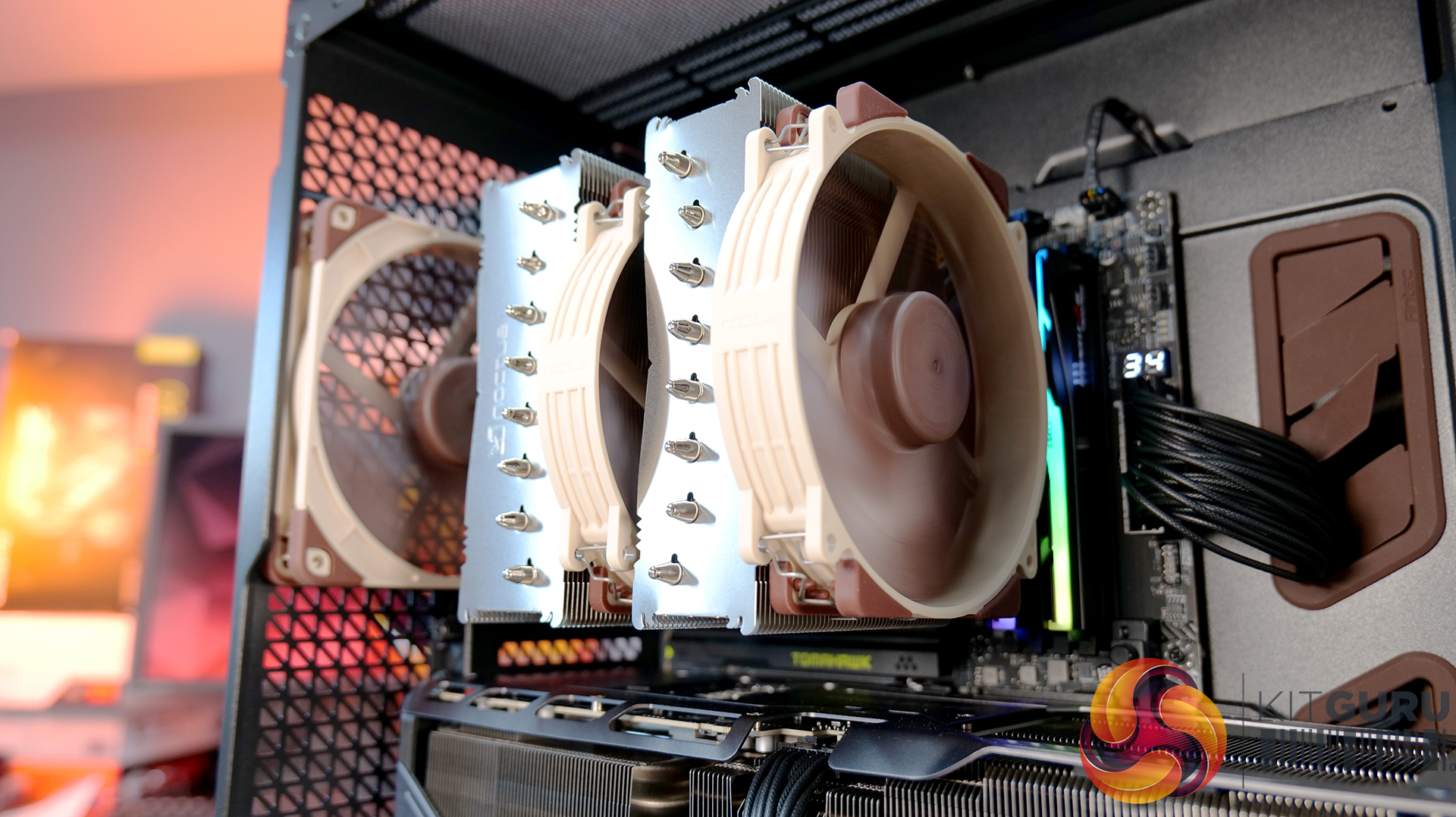
We tested the case thermals using a Noctua NH-D15 G2 LBC / 360mm AIO as the exhaust at the top and with the case in several different fan configurations. The default configuration shown in the charts is with the Noctua NH-D15 G2 LBC CPU cooler, 3 x 140mm front intake fans, 2 x 120mm PSU shroud intake fans, 1 x 140mm rear exhaust fan and with all panels installed.

Thermal performance from the Flux Pro Noctua Edition is generally very strong. In the default configuration, CPU temperatures average 56°C over ambient, with the GPU at 45 °C. There is a clear improvement over the air-cooled setup when using a top-mounted 360mm AIO. This is due to the AIO's increased cooling power rather than any limitation of the case.

However, in the air-cooled setup, adding top fans as exhaust negatively affects CPU thermals, raising temperatures to 58°C, suggesting an airflow disruption. Adding a 120mm top intake fan can have a minor improvement in CPU temperature, but GPU temperature is unchanged with both top fan configurations, so leaving top fans out completely is fine.

GPU temperature remains consistent across most setups at around 45°C over ambient, highlighting the effectiveness of the case’s airflow design in the recommended configuration. Removing the PSU shroud fans leads to a small increase in GPU temperature at 48°C. Overall, the results show that the case performs best with balanced airflow in the default configuration, delivering solid all-around thermal performance.

Noise Output

Noise performance is fairly consistent across test configurations, with load noise at 46 dBA in the default setup, which doesn’t really change whether you switch to top intake or add extra exhaust fans. Noise shifts slightly when you remove the PSU shroud fans or install a top-mounted AIO, increasing to 48 dBA under load, suggesting those configurations introduce a bit of fan noise from the GPU cooler and from the AIO compared with the default configuration and using the D15 G2 air cooler.

Idle noise, however, is rock solid across the board at 36 dBA. Overall, it’s a pretty well-balanced acoustic in any configuration, but clearly best optimised in the recommended Noctua configuration.

Closing Thoughts

The Antec Flux Pro Noctua Edition is a case that does exactly what it sets out to do — deliver strong airflow, great cooling and low noise performance. In testing, it handles both CPU and GPU thermals with ease, and more importantly, it manages to keep noise levels impressively low, not just at idle, but also under load. Something that case manufacturers don’t always get right with pre-installed fan configurations. However, the Noctua Fans are not pre-installed; this is the job of the user. They arrive in a separate box.

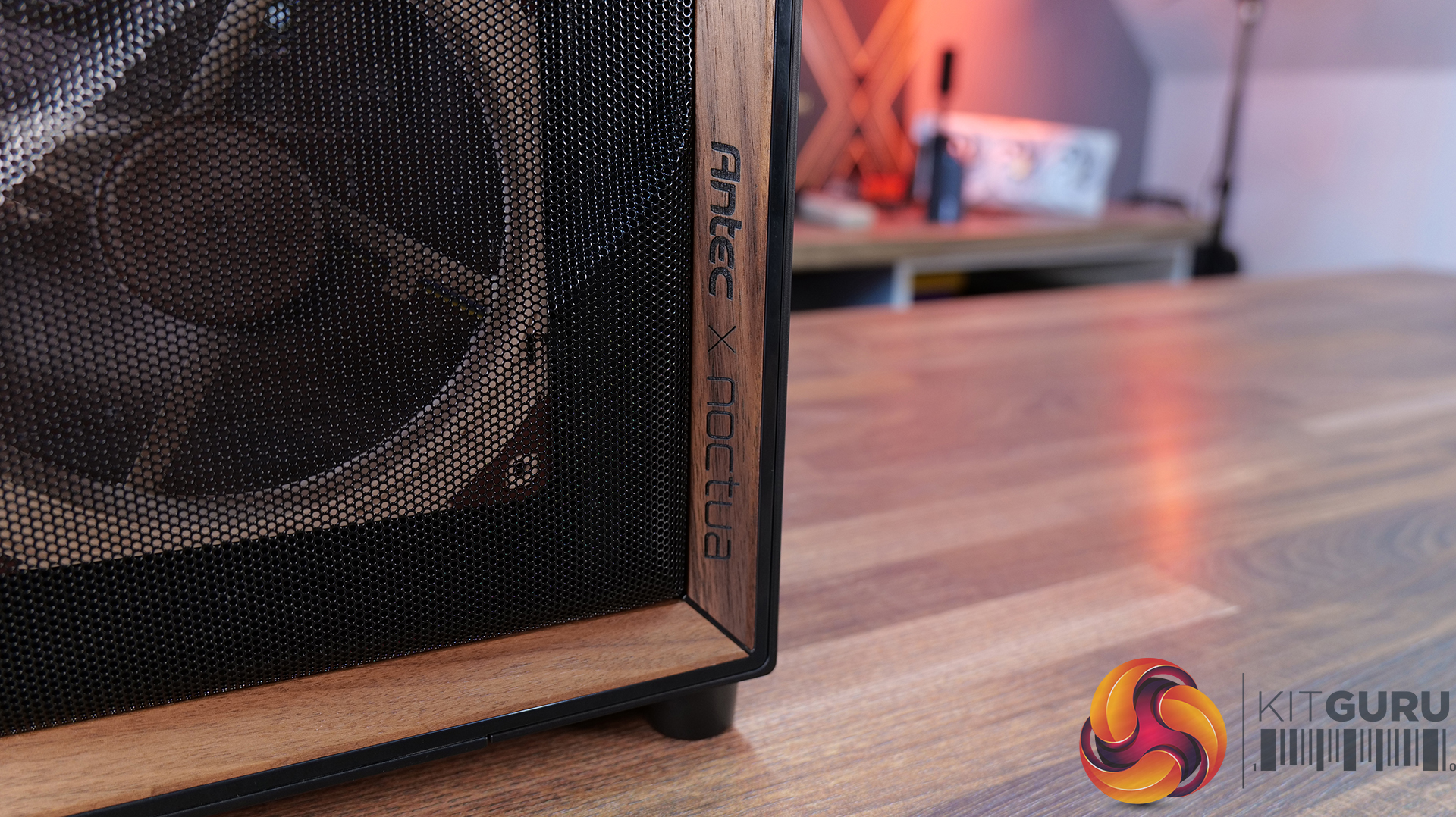
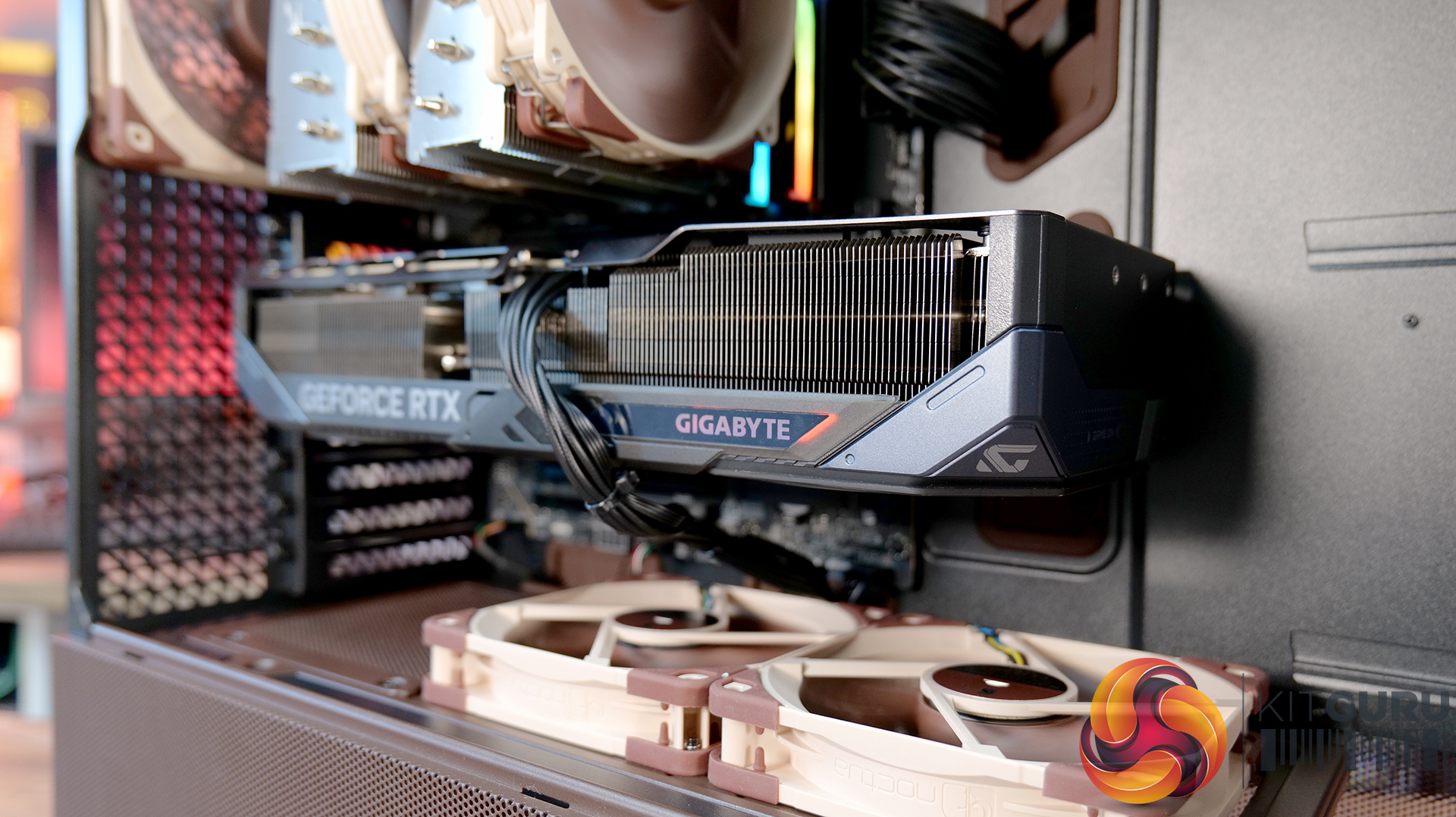
A big part of that comes down to the included Noctua fans. You’re getting a set of high-quality NF-A12x25 and NF-A14x25 G2 units, along with a Noctua fan hub, all designed to work together. Build quality is exactly what you’d expect from an Antec/Noctua partnership, and the colour scheme is carried throughout the case, giving it a very distinct look that suits the whole package very well and will no doubt please Noctua enthusiasts.

In terms of compatibility, there’s plenty to like here too, including support for dual 420mm radiator installation, as well as generous clearance for large air coolers such as the Noctua NH-D15 G2 and high-end graphics cards. So whether you’re building a high-performance air-cooled system or going all-in with liquid cooling, the Flux Pro has the space and layout to handle it. But this means the case is quite large with Full tower dimensions, not ideally suited to placement on top of the desk.

That said, it’s not without its downsides. At around £350, it’s a very expensive case; at that price, you start to expect a bit more in terms of features. There’s no integrated GPU support bracket, no back-connect motherboard support, and some of the internal panels — particularly the top and front fan mounting brackets could be more intuitive to remove. Even so, if your main priority is excellent cooling performance with low noise levels straight out of the box, the Antec Flux Pro Noctua Edition is a very capable, premium option.

The Antec Flux Pro Noctua Edition is available to purchase now from Amazon priced at £348.90 HERE.

Pros: 

  • Great thermal performance and low noise.
  • Very high-quality fans included.
  • Built-in fan hub.

Cons:

  • Expensive.
  • Missing basic key features such as an integrated GPU support arm, tool-free parts, and back-connect motherboard support.
  • Fans are not pre-installed.

KitGuru says: If you have the cash to splash on a case and want a large chassis with great cooling and low noise, then this might be ideal, especially for Noctua enthusiasts. But in the current economic conditions, it could be money better spent on core system components.

The post Antec Flux Pro Noctua Edition PC Case Review first appeared on KitGuru.

PCSpecialist Element Elite R Prebuilt Review

19 February 2026 at 13:37

UPDATE: PCSpecialist has now issued a full response to our findings. You can read what they had to say – including a full statement from John Medley, Head of Sales & Marketing, in our follow up article HERE.

Today's article was originally meant to be an in-depth analysis of PCSpecialist's Element Elite R – a prebuilt PC packing a Ryzen 7 9700X and RTX 5070 into the mini-ITX TR100 chassis from Thermaltake. However, it quickly became obvious that something was not right with this system, so instead of a traditional review, we'll be highlighting what happened, how we fixed it, and the questions raised by this incident…

Timestamps

00:00 Intro
01:00 We found a fundamental issue
02:20 How we fixed it
02:51 Before/after thermals
04:37 Noise levels + fan RPMs
05:07 Two issues raised by the error
06:24 Closing thoughts

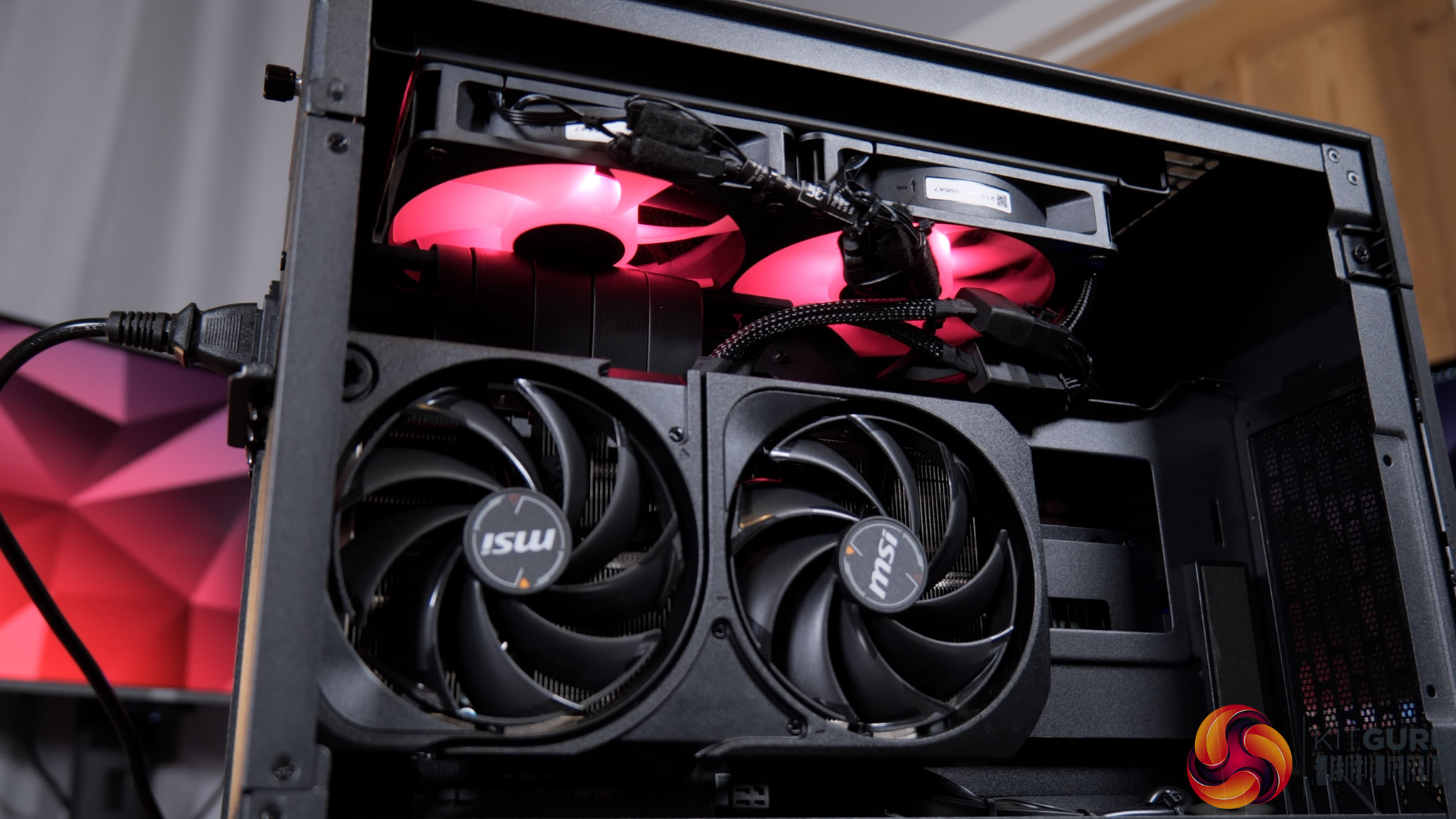
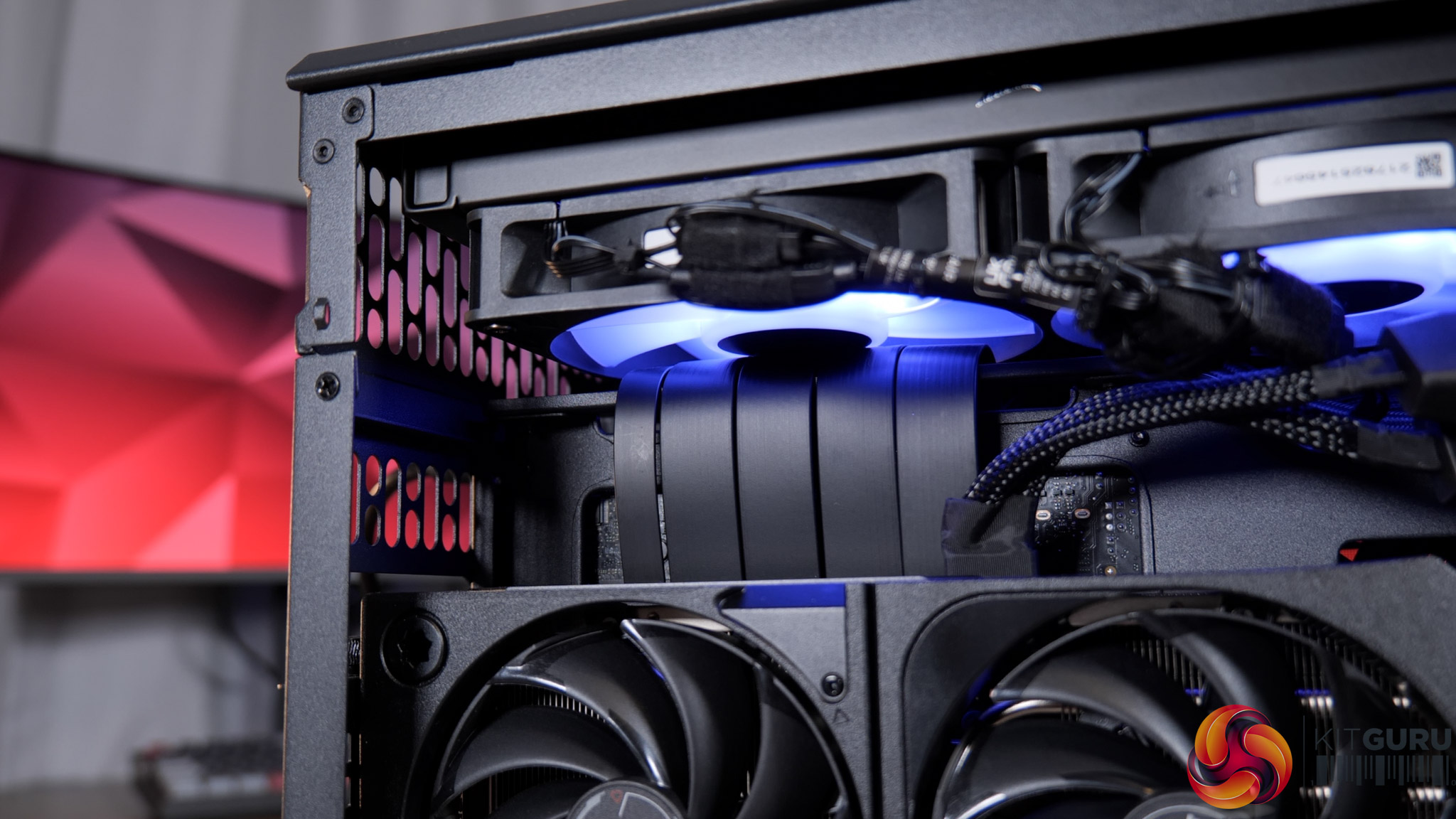
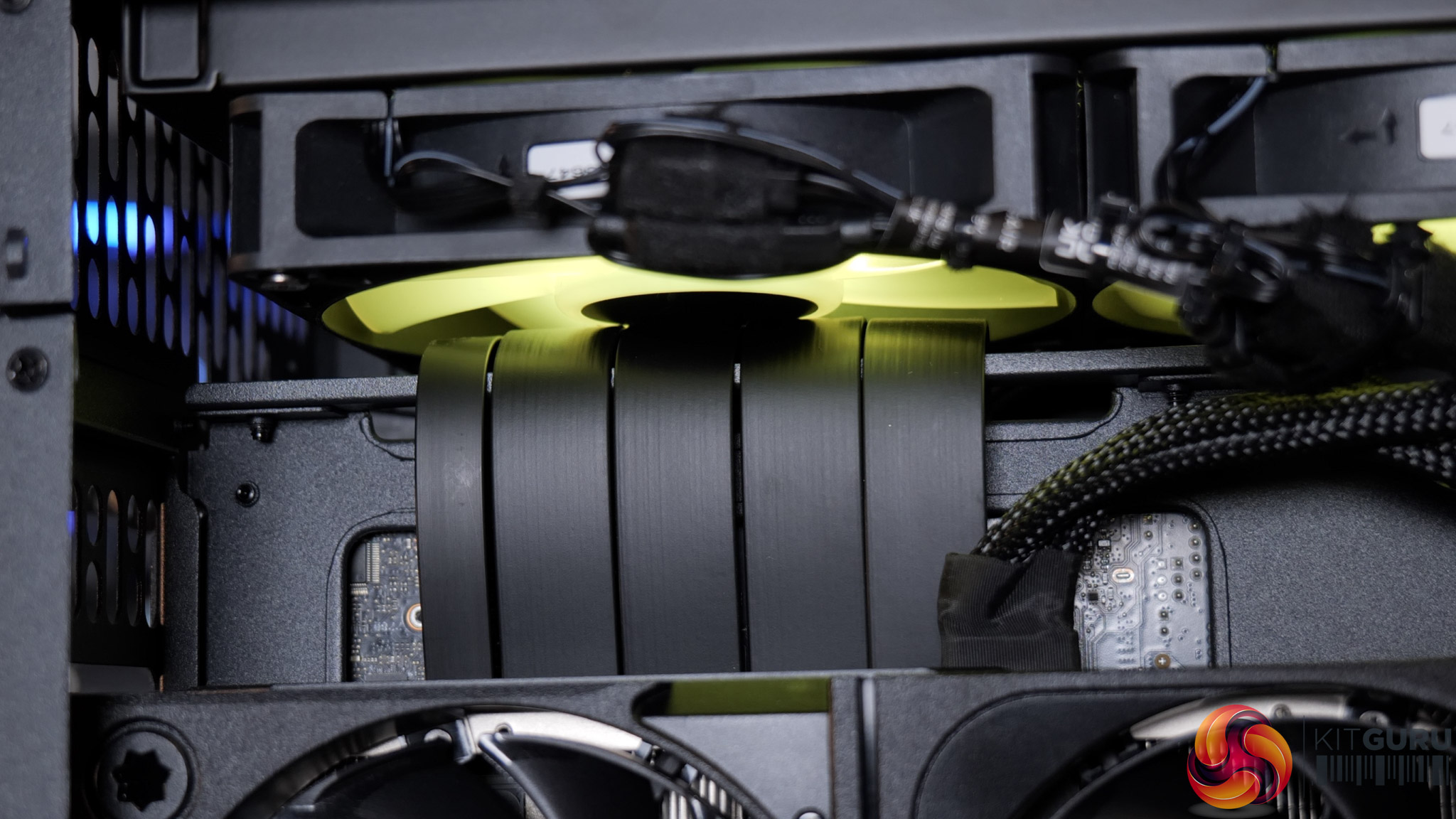
If you're not familiar with the Thermaltake TR100, it uses a split-chamber layout with the GPU in a separate compartment, connected to the motherboard via a PCIe riser. Unfortunately, that PCIe riser is the cause of the system's problems, as it has not been routed properly – or even routed at all – and has instead simply been jammed into one of the radiator fans, stopping it from spinning entirely.

I'd not used this case before but it was immediately obvious upon removing the side panel that something wasn't right. Re-visiting James' build in the TR100 from last year showed me that there's actually a dedicated crossbar, or bracket, for the PCIe riser, designed to prevent this exact thing – but here the riser has simply been looped over the top.

Fixing it took me about five minutes – I removed the radiator mount, reseated the riser properly, then secure the bracket on top, and that was job done. But clearly this is a huge oversight from PCSpecialist that raises significant questions.

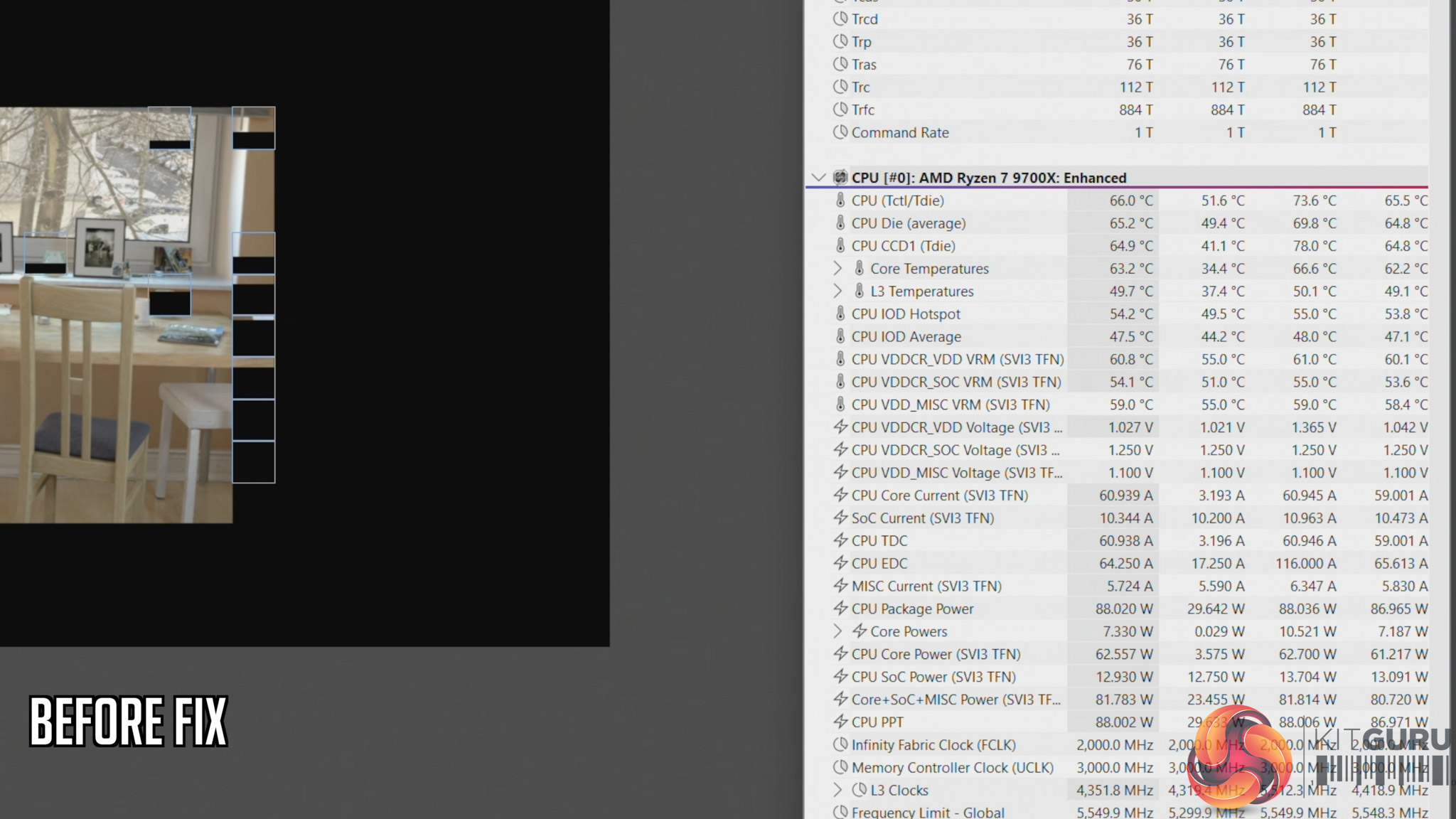
We also ran thermal tests on the CPU to see the impact of this error. Here's a quick breakdown of what we found, but be sure to watch the embedded video for the full analysis:

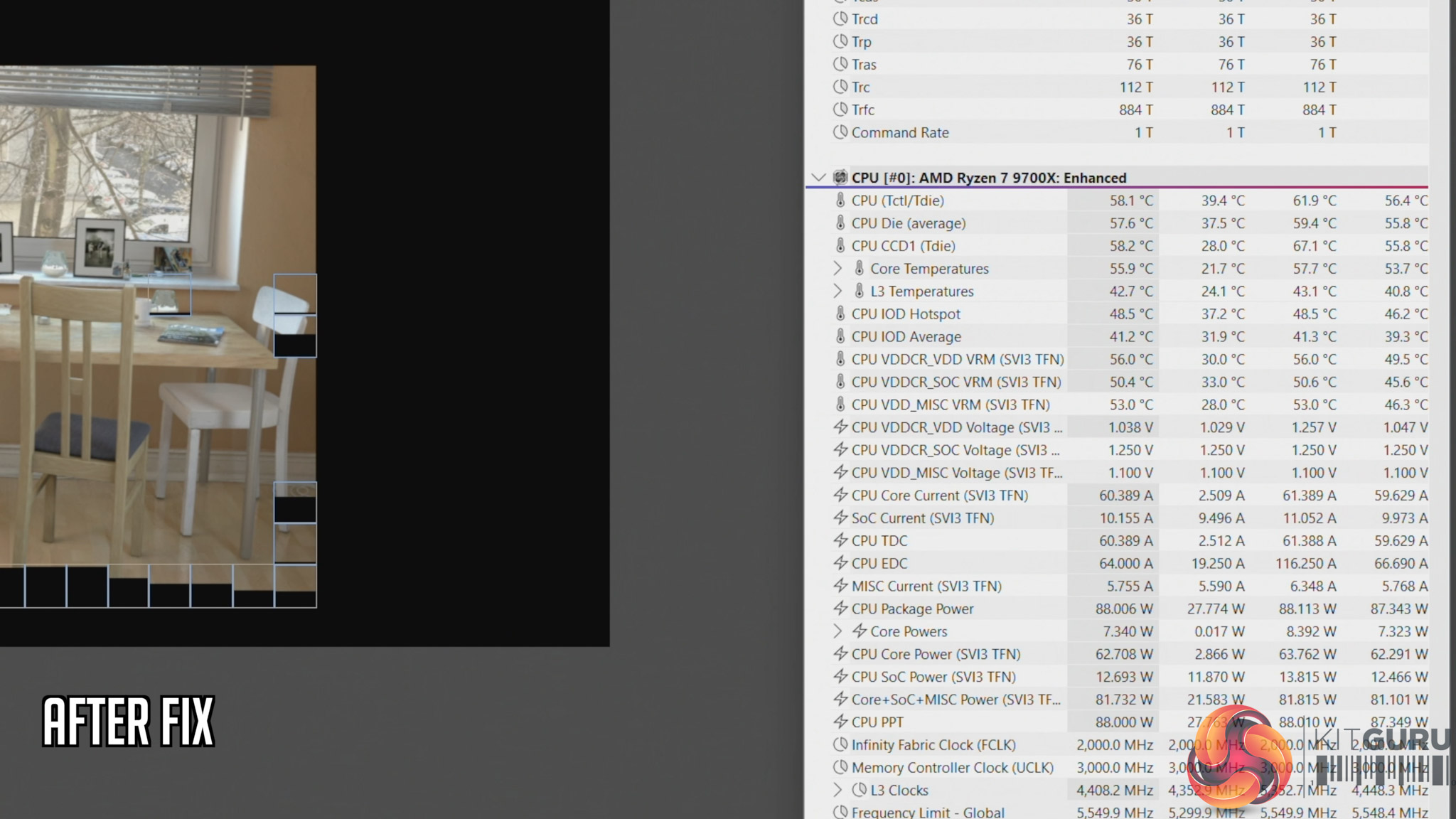
  • Cinebench, before fix: 66C steady-state, 73.6C peak
  • Cinebench, after fix: 58C steady-state, 61.6C peak
  • Cyberpunk 2077, before fix: 70C steady-state, 71.C peak
  • Cyberpunk 2077, after fix: 65C steady-state, 69.6C peak

This raises two key issues that I expand on in the video – the first being how much training are PCSpecialist builders given, considering something like this occured. And secondly, how extensive are the company's testing and quality control procedures? PCSpecialist's website talks about ‘extensive' stress tests and says all systems go through ‘a quality control checklist to ensure all components are correct and follows our stringent guidelines'. But clearly, the guidelines can't be that stringent if something like this slipped through from start to finish completely unnoticed.

Indeed, you could consider PCSpecialist ‘fortunate' that the system we received has a relatively low-power 9700X pulling approx 88W. However, you can manually configure builds in the TR100 with up to a 9950X, a CPU that draws well over 200W, and losing half your radiator airflow with that CPU would have a far more detrimental effect.

KitGuru says: PCSpecialist needs to do significantly better.

The post PCSpecialist Element Elite R Prebuilt Review first appeared on KitGuru.
❌
❌