Normal view

There are new articles available, click to refresh the page.
Before yesterdayMain stream

Epomaker HE75 V2 Review

9 September 2026 at 10:44

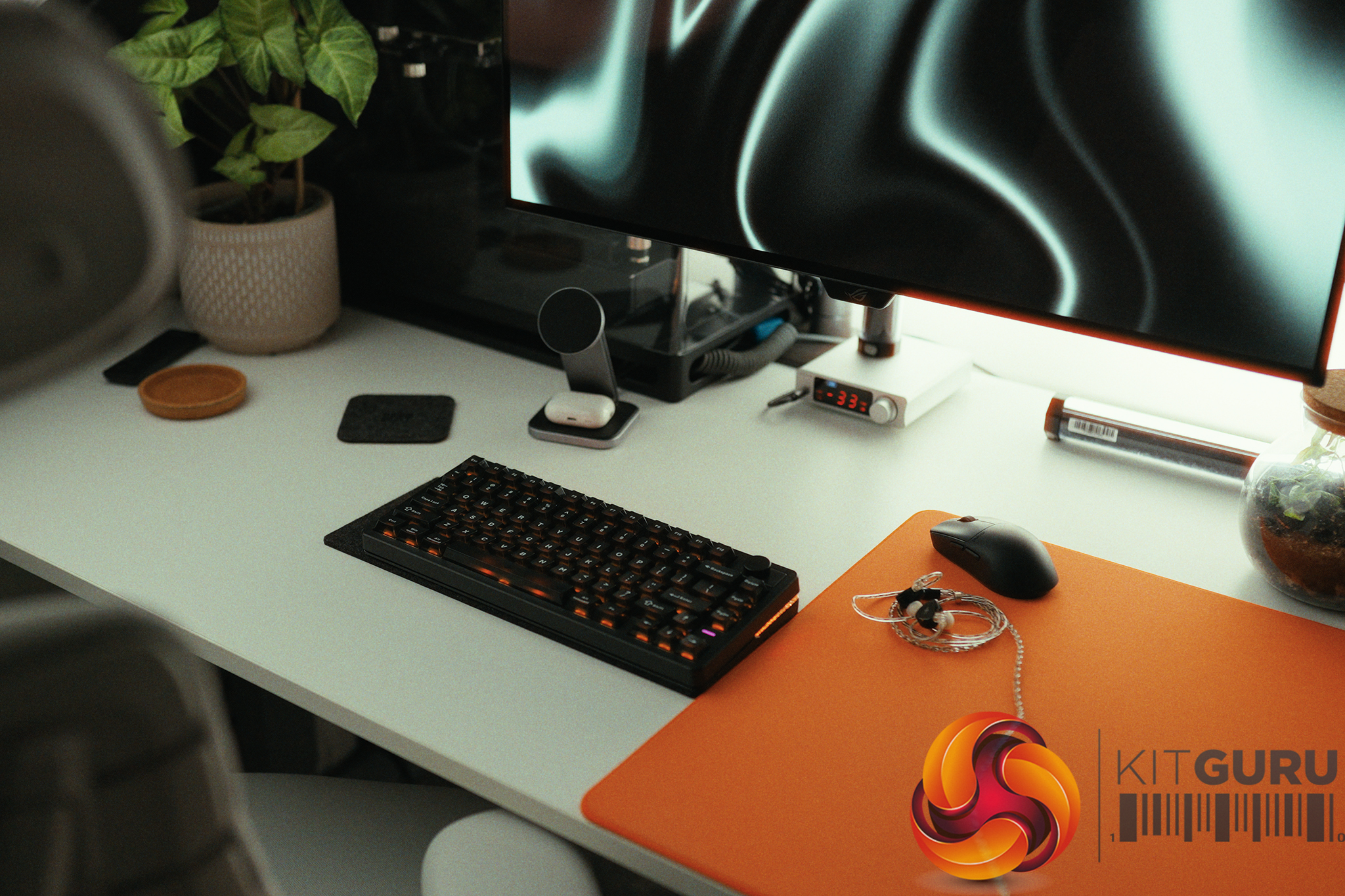
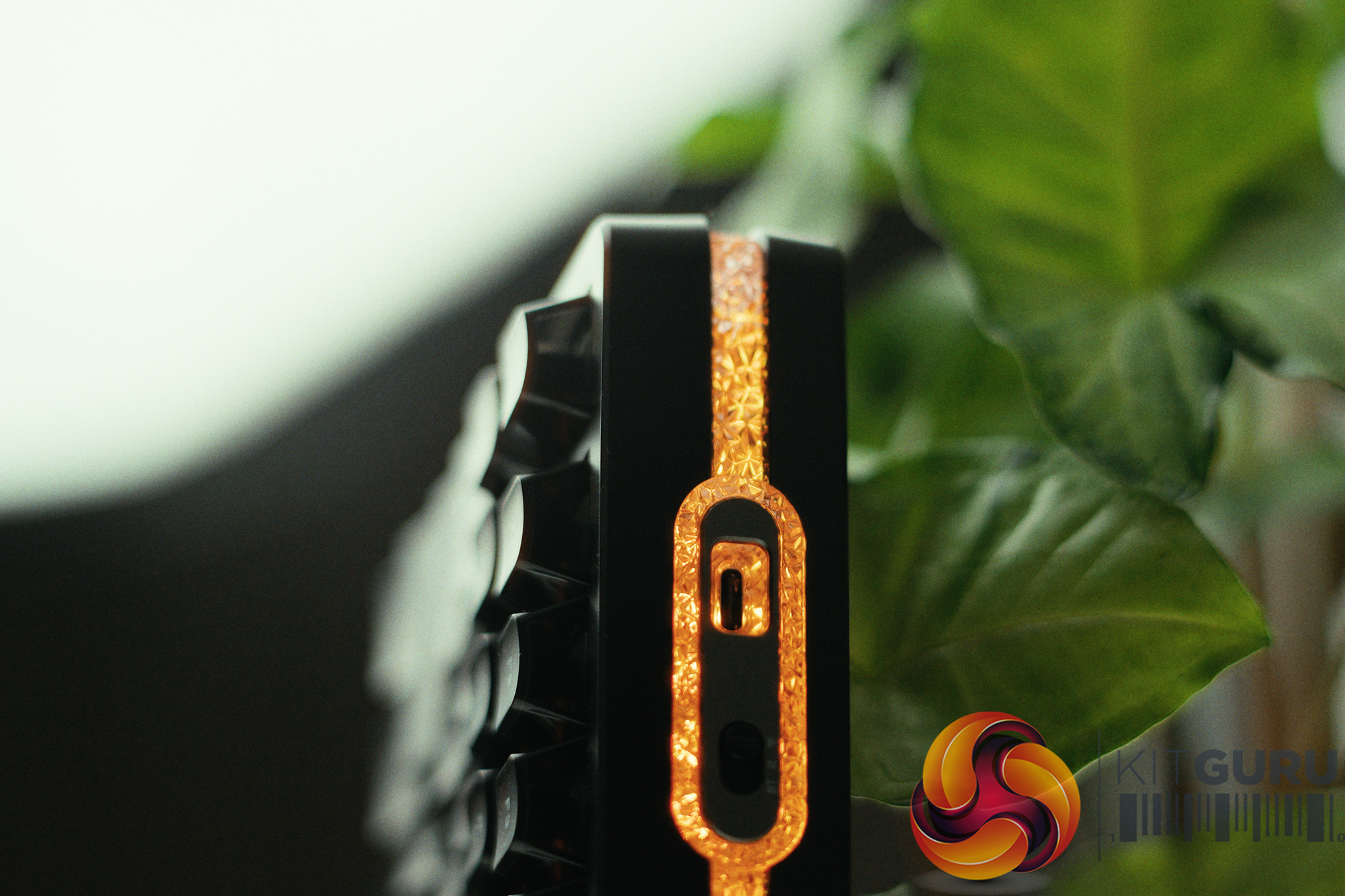
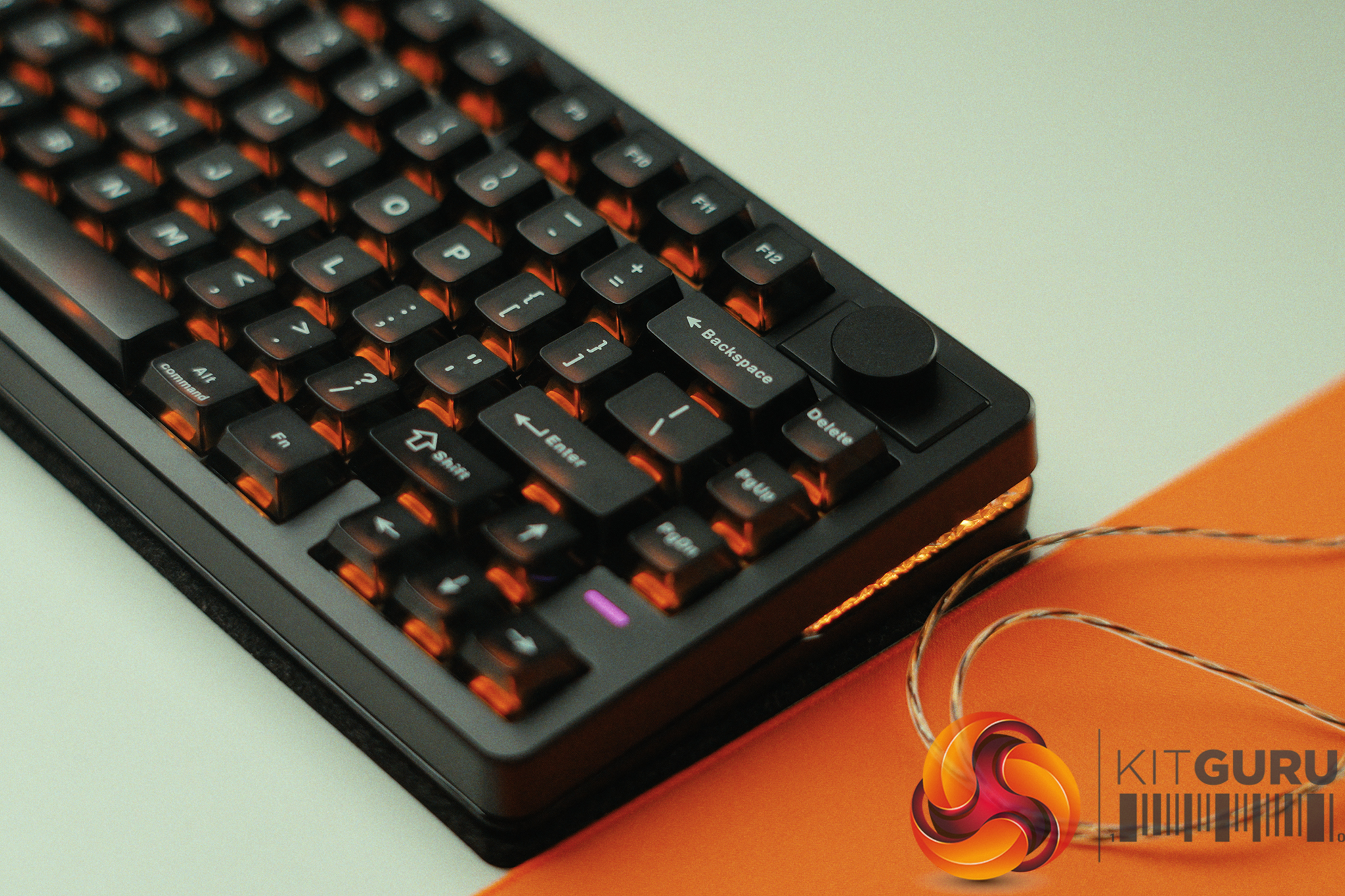
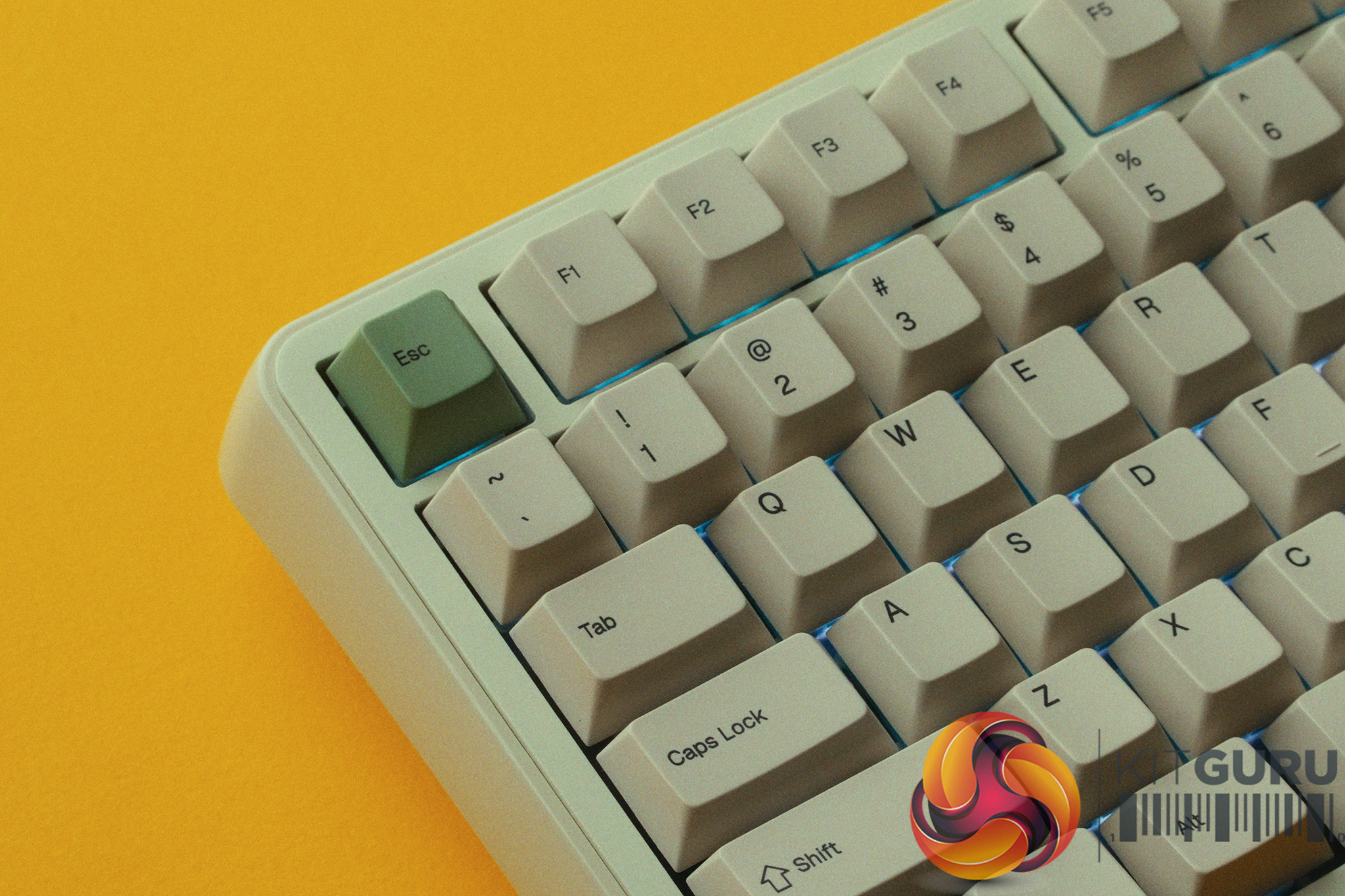
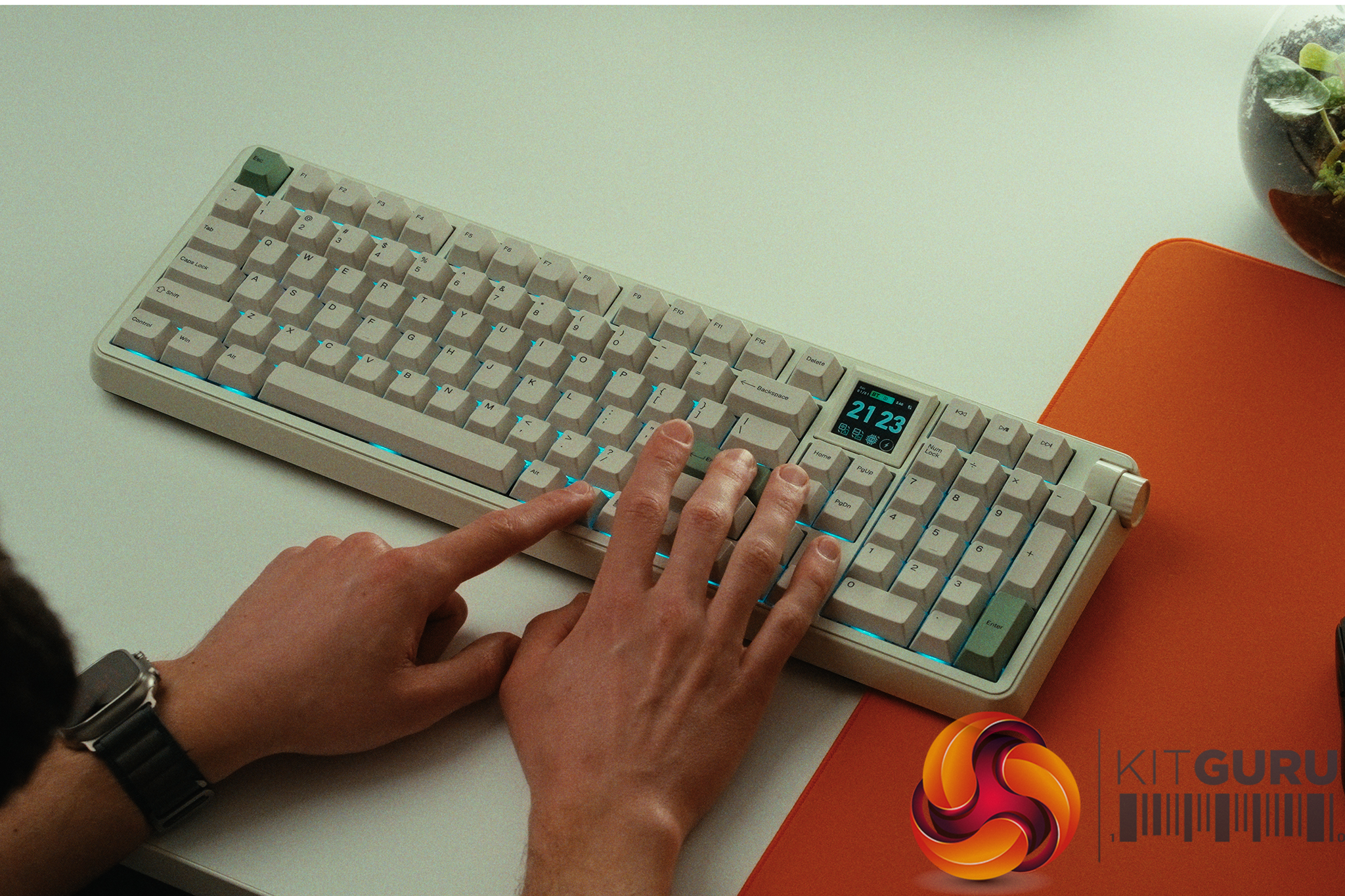
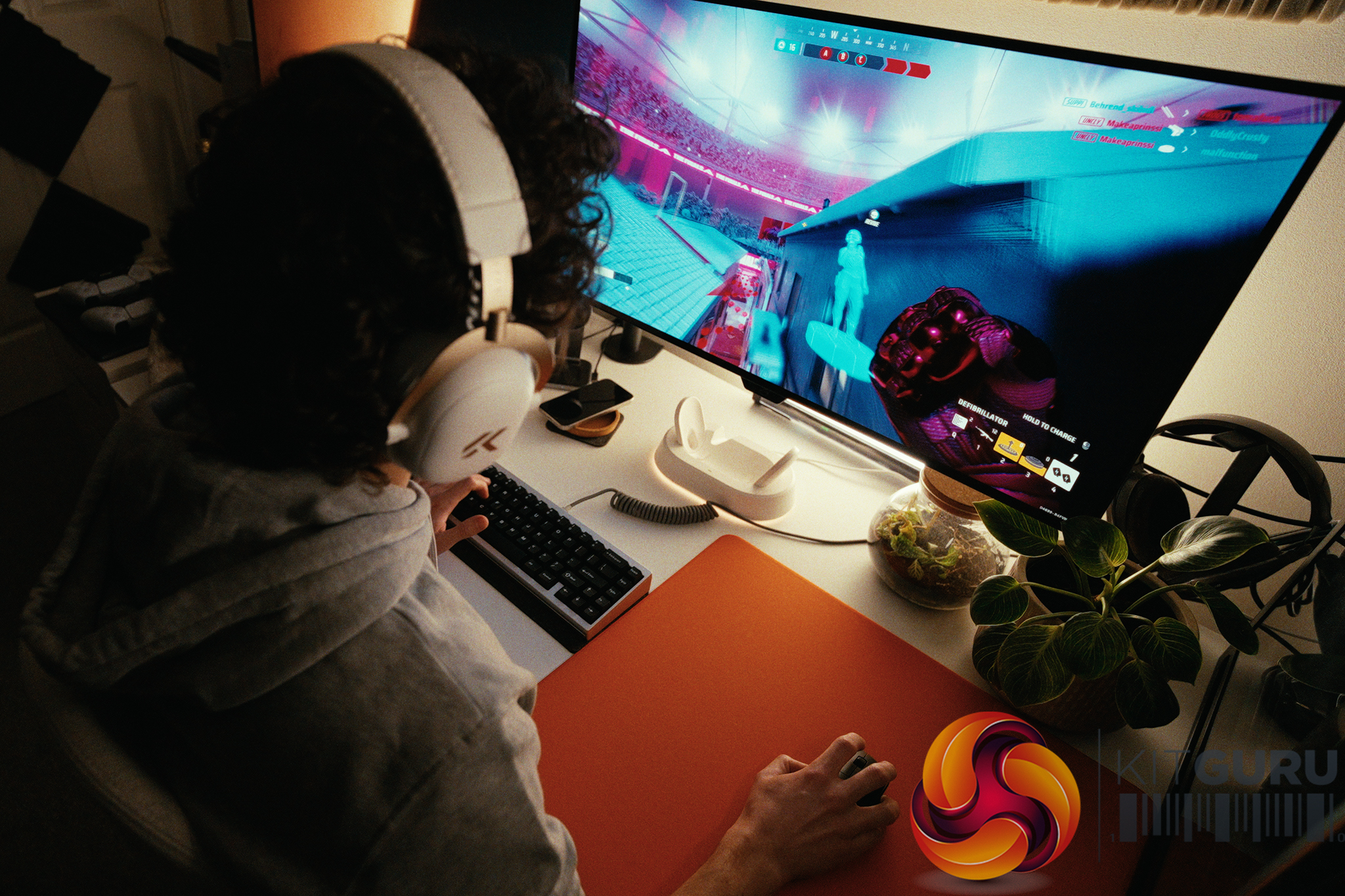
The Epomaker HE75 V2 promises the holy grail of 2026 gaming keyboard specs: a wireless, 75% layout Hall Effect board equipped with a massive 8000mAh battery, all for under £90. On paper, it looks like an incredible budget powerhouse poised to challenge keyboards twice its price. But does the real-world user experience actually live up to the impressive physical hardware, or are there frustrating compromises hiding beneath the surface?

Timestamps:

00:00 Intro
00:54 Meet the HE75 V2
01:57 Switches + sound profile
03:19 Performance
05:02 Battery life
06:42 Rapid trigger shenanigans
09:30 Driver discussions
10:57 Closing thoughts
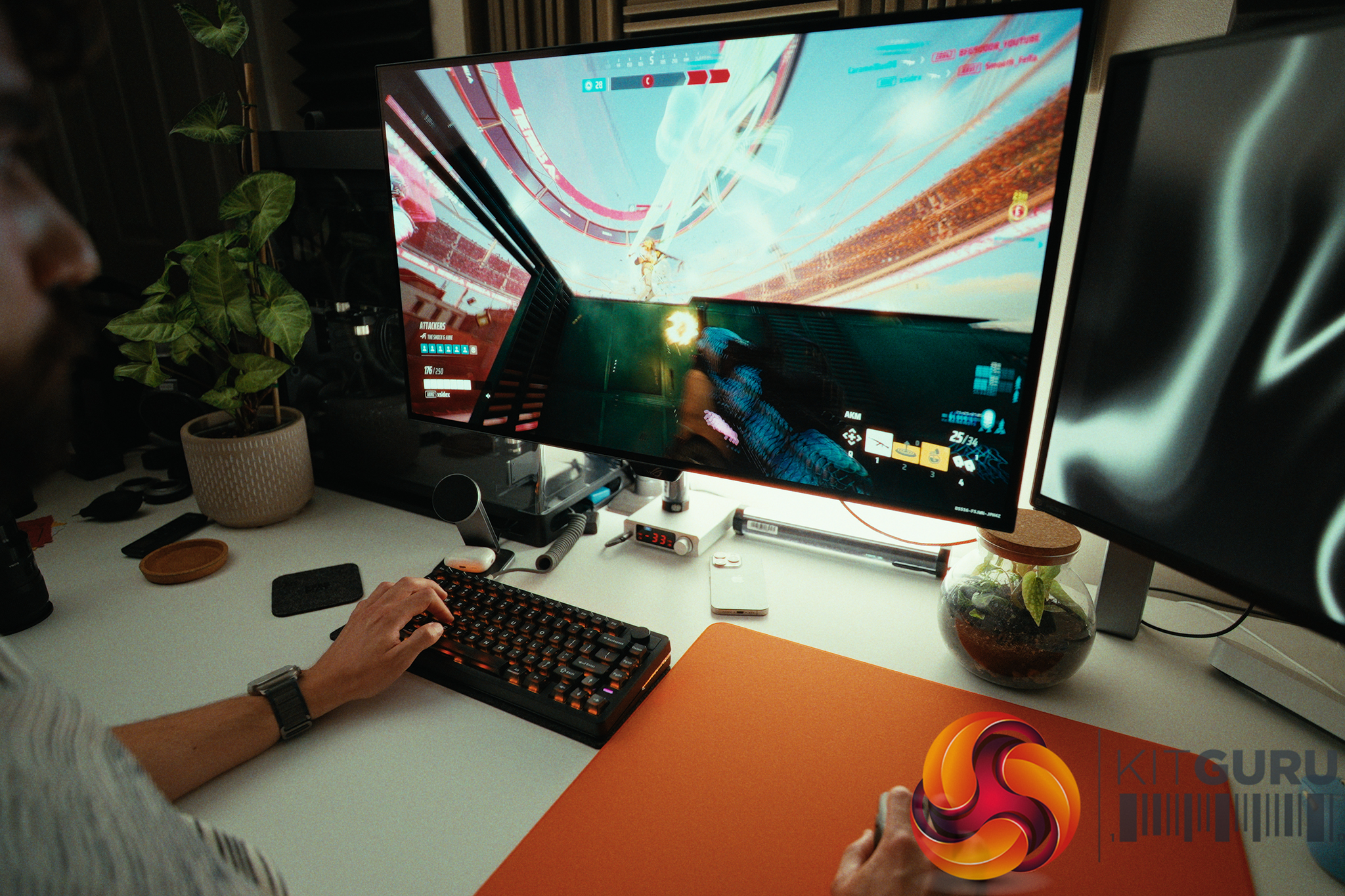
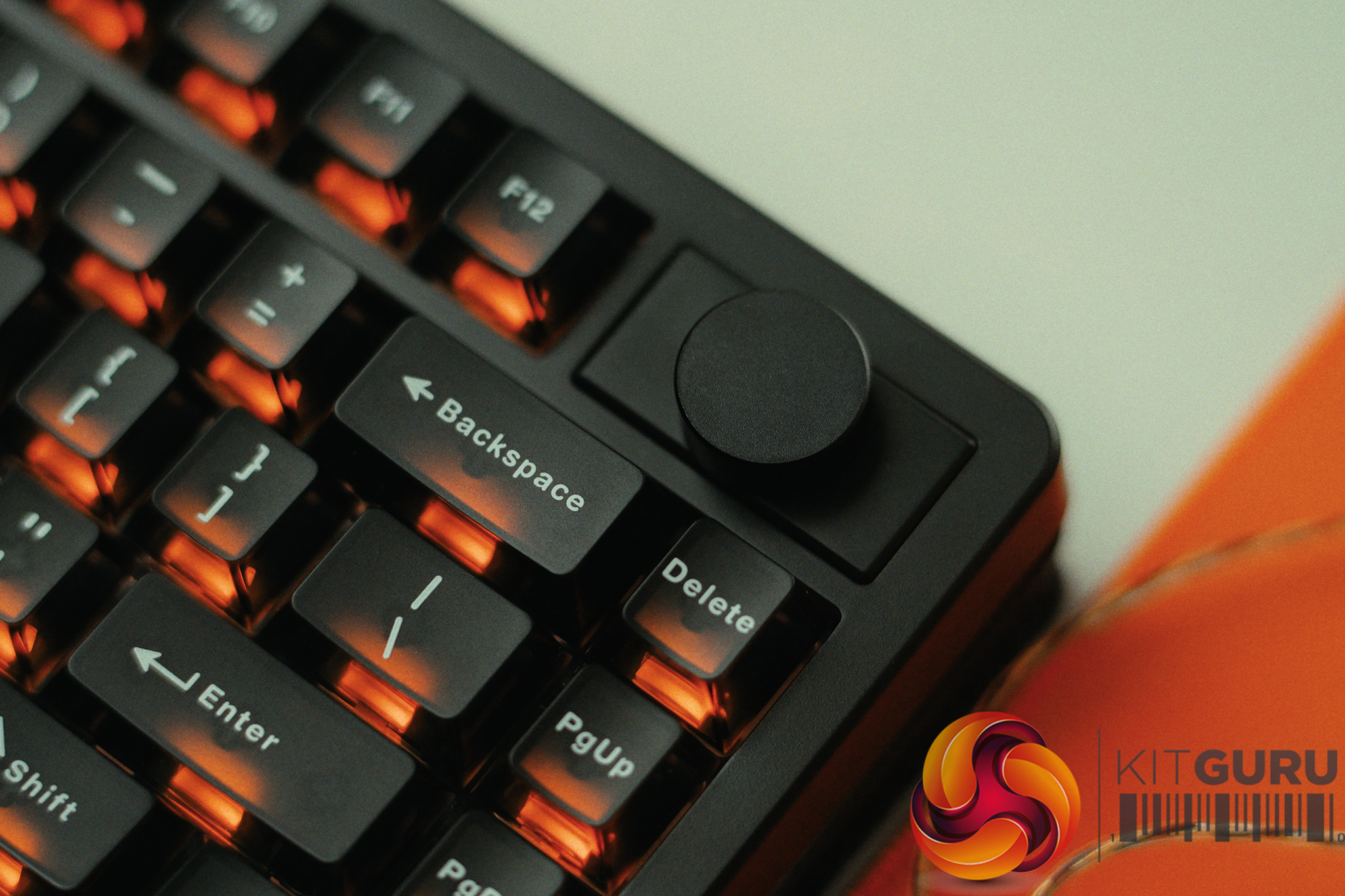
Specifications:

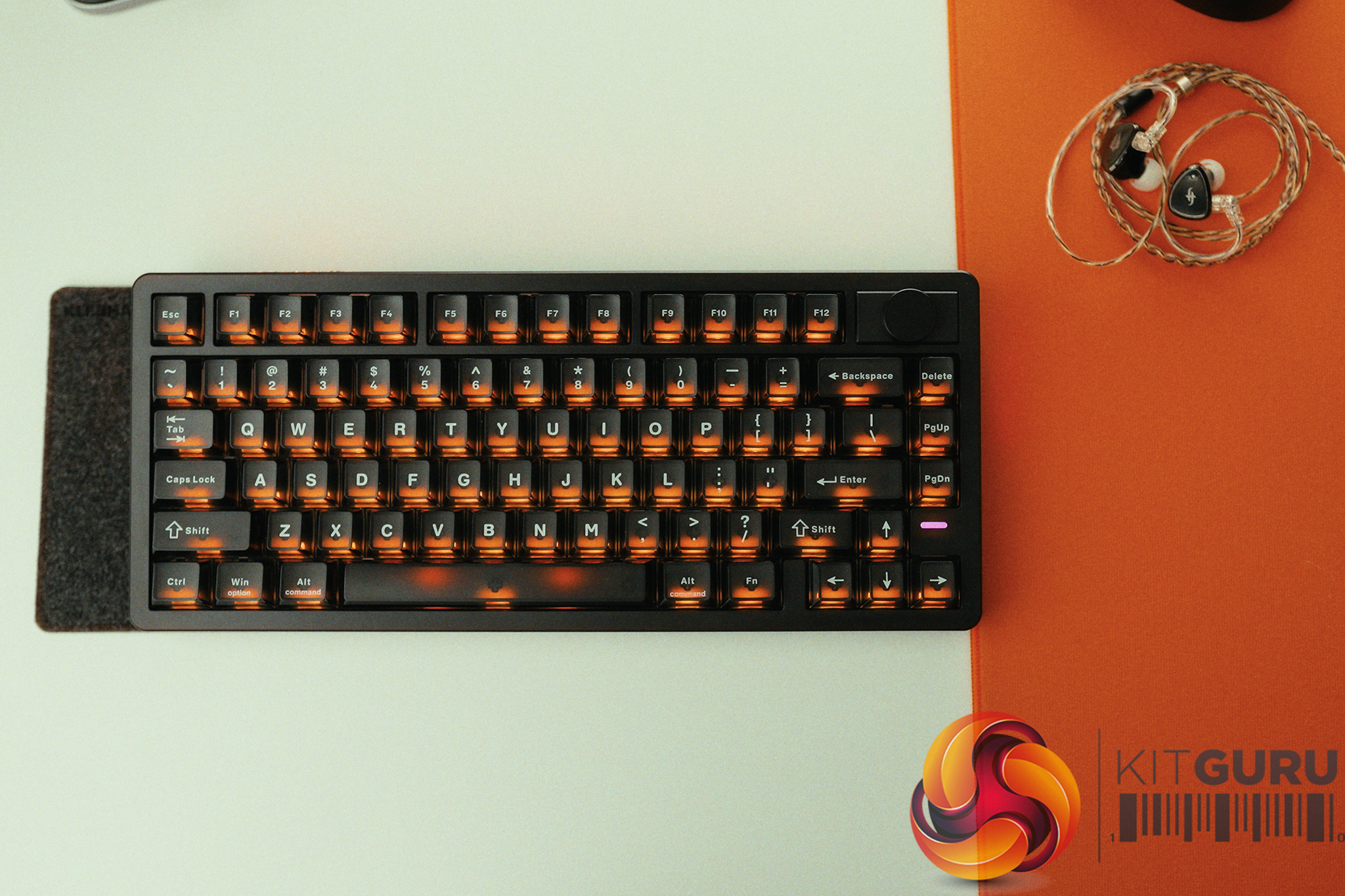
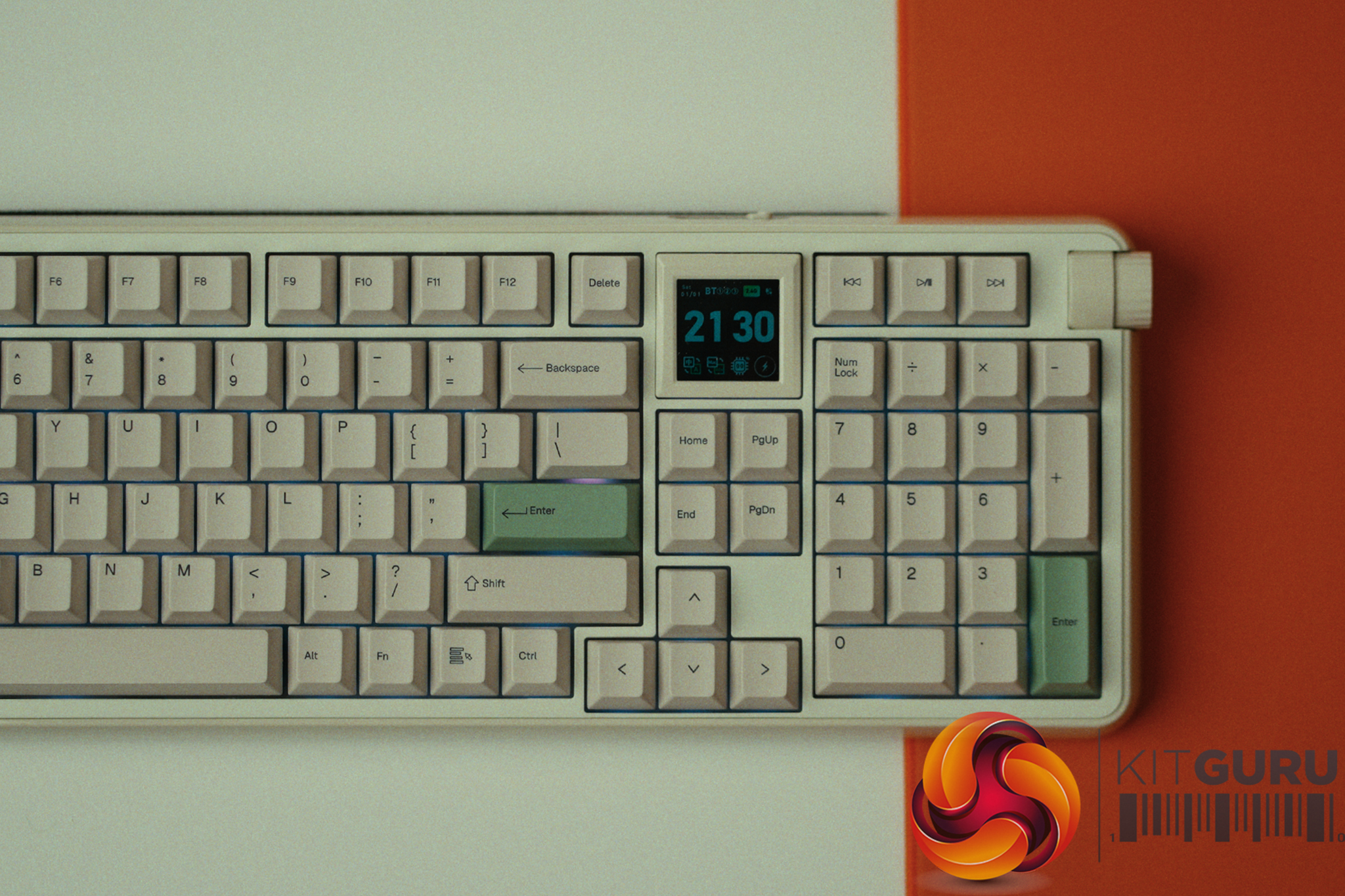
  • Form Factor: 75% Layout with Rotary Knob.
  • Switches: EPOMAKER Creamy Jade HE Switches (Hall Effect).
  • Connectivity: 2.4GHz Wireless, Bluetooth, and Wired USB-C.
  • Polling Rate: Up to 8,000Hz (1,000Hz recommended).
  • Battery: 8000mAh (2x4000mAh).
  • Keycaps: Semi-transparent (PC material).
  • Acoustics: Pre-lubed switches, zero-rattle stabilizers, and internal PE foam sheet.

Closing Thoughts

The Epomaker HE75 V2 is a keyboard that delivers incredible hardware and value but is ultimately held back by a lack of software testing and attention to detail. On the physical front, it is a triumph. For under £90, you are getting a wireless Hall Effect keyboard with butter-smooth switches, perfectly tuned stabilizers with absolutely zero rattle, and a deep, marbly acoustic profile. When we put it through a 240fps end-to-end click latency test, the HE75 V2 at 1000Hz (14.46ms wired / 16.54ms wireless) actually beat out my personal premium custom Hall Effect board by a few ms.

Interestingly the keyboard was fastest in the 1000Hz mode then on the 8000Hz mode (14.46ms vs 15.96ms) which means at the very least that 8000Hz offers, once again, an exceptionally small improvement.

However, the user experience surrounding that hardware is highly frustrating. First, despite the fact the 8000mAh battery is massive (and lasts at least 1 week with all the bells and whistles cranked to the max), it charges at a painfully slow 3W, meaning a full charge takes nearly 24 hours. Worse still is the firmware and software implementation. A hardcoded shortcut (FN + Shift) disables Rapid Trigger entirely, but the desktop driver fails to reflect this change and still shows the feature as “enabled”.

If you accidentally fat-finger this combination, you lose a crucial feature without any visual warning on your monitor. Combine this with a clunky, unresponsive app interface, and you are left with a fantastic piece of hardware that feels like it skipped the final QA testing phase.

You can buy the Epomaker HE75 V2 for under £90 HERE.

Pros:

  • Incredible value for a wireless Hall Effect gaming keyboard.
  • Fantastic click latency.
  • Smooth “Creamy Jade” switches and perfectly tuned, zero-rattle stabilizers out of the box.
  • Massive 8000mAh battery easily lasts a full week on 2.4GHz, even with RGB.

Cons:

  • Hardcoded FN + Shift shortcut accidentally disables Rapid Trigger without updating the software UI.
  • Painfully slow 3W charging speed means a full recharge takes nearly 24 hours.
  • Terrible software UI makes adjusting switch actuation depths unnecessarily frustrating.
  • Plastic chassis and PE foam design means it lacks a unique acoustic character.

KitGuru says: The Epomaker HE75 V2 offers top-tier Hall Effect performance and brilliant acoustics for an unbeatable price, but frustrating firmware bugs hold it back from true perfection.

The post Epomaker HE75 V2 Review first appeared on KitGuru.

MSI Claw 8 EX AI+ Handheld Review

4 September 2026 at 09:58

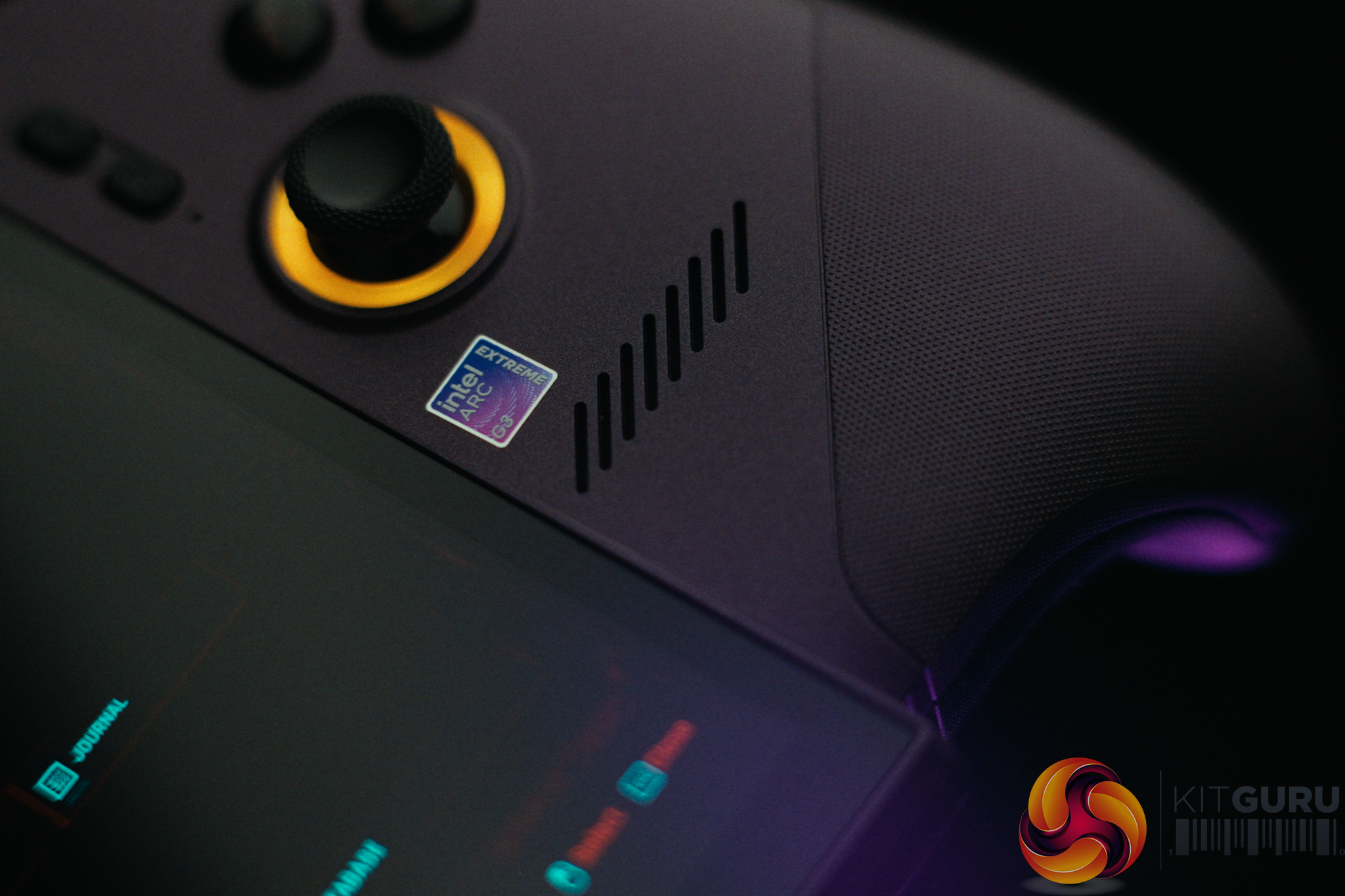
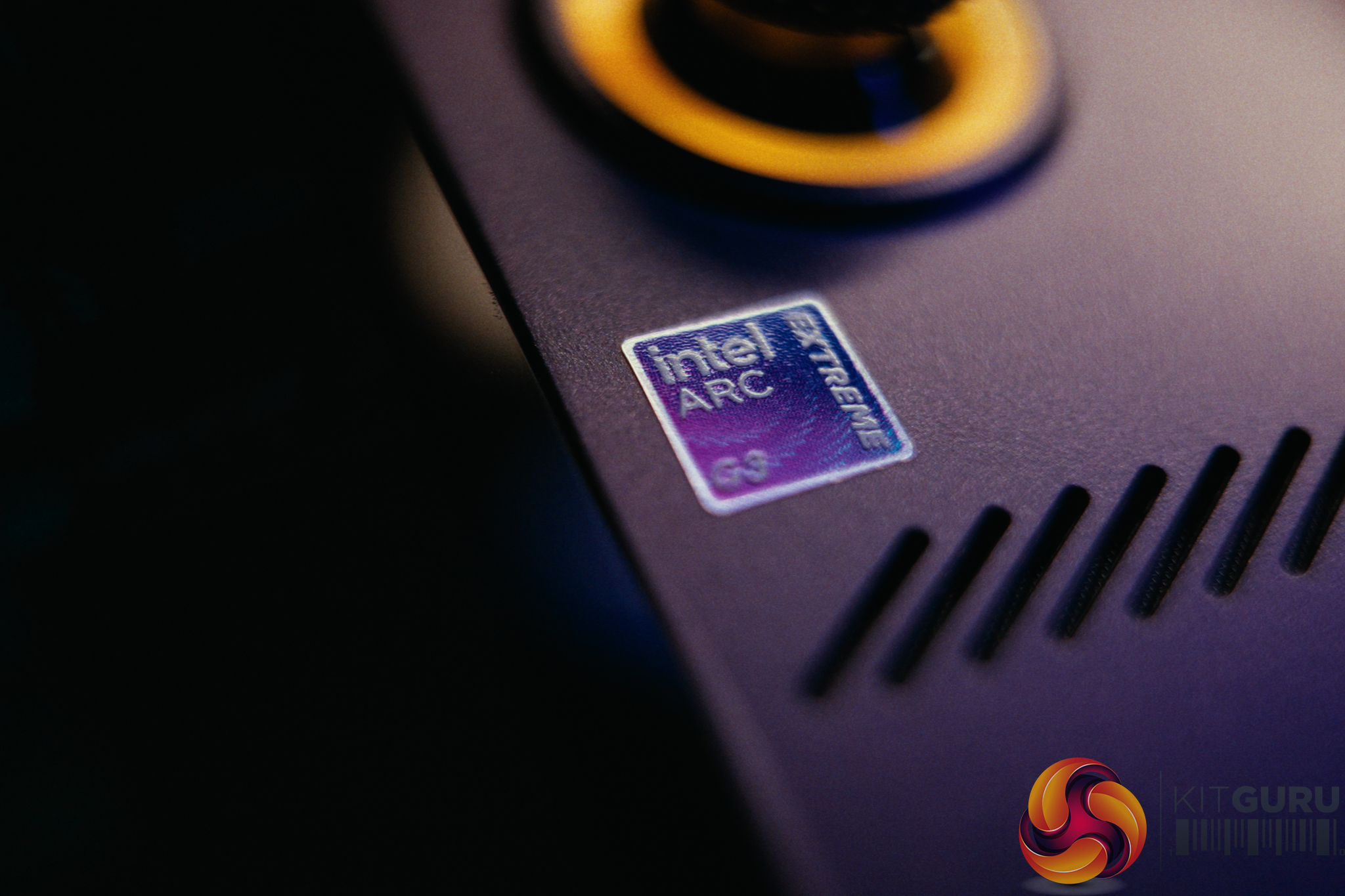
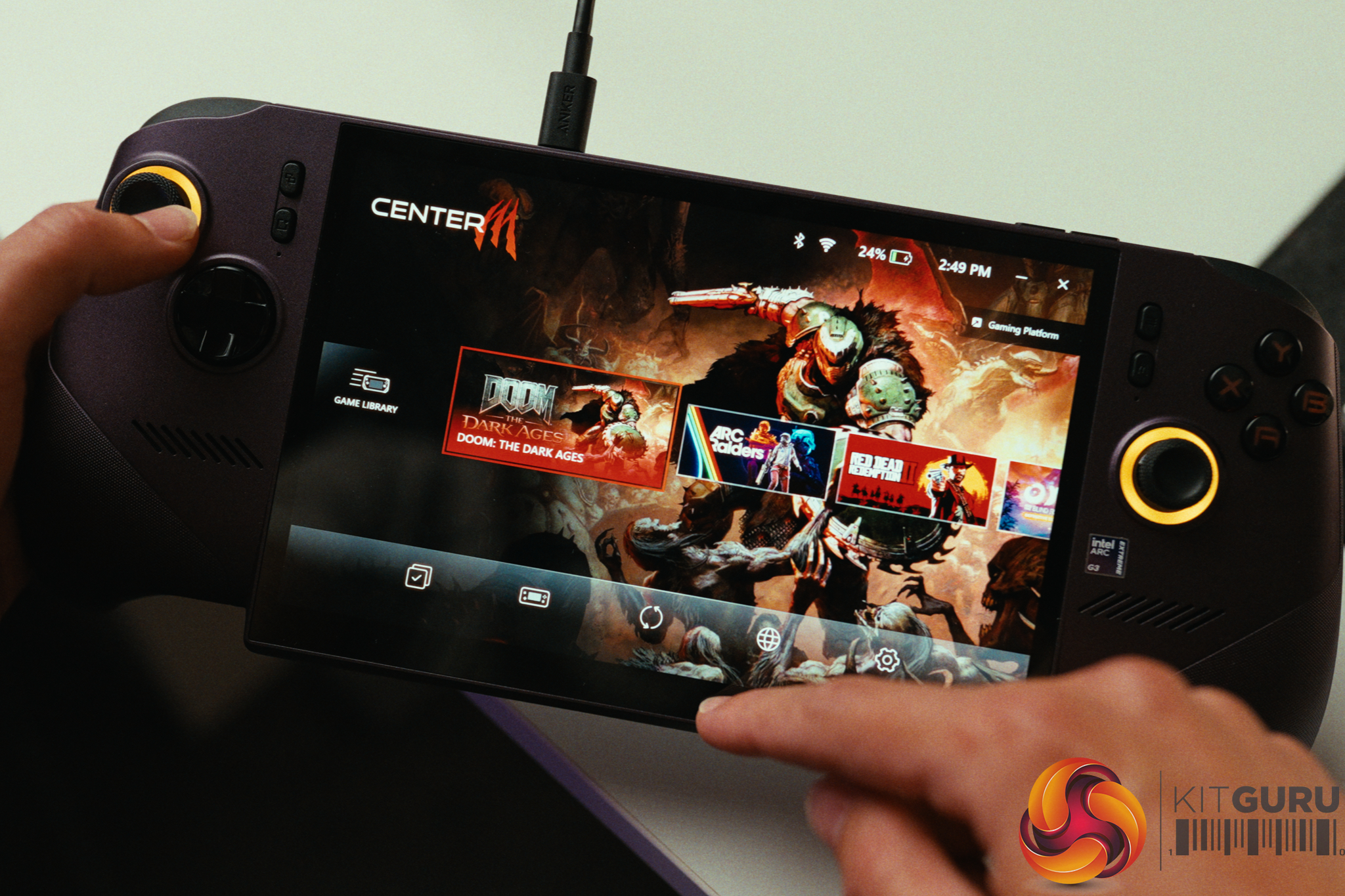
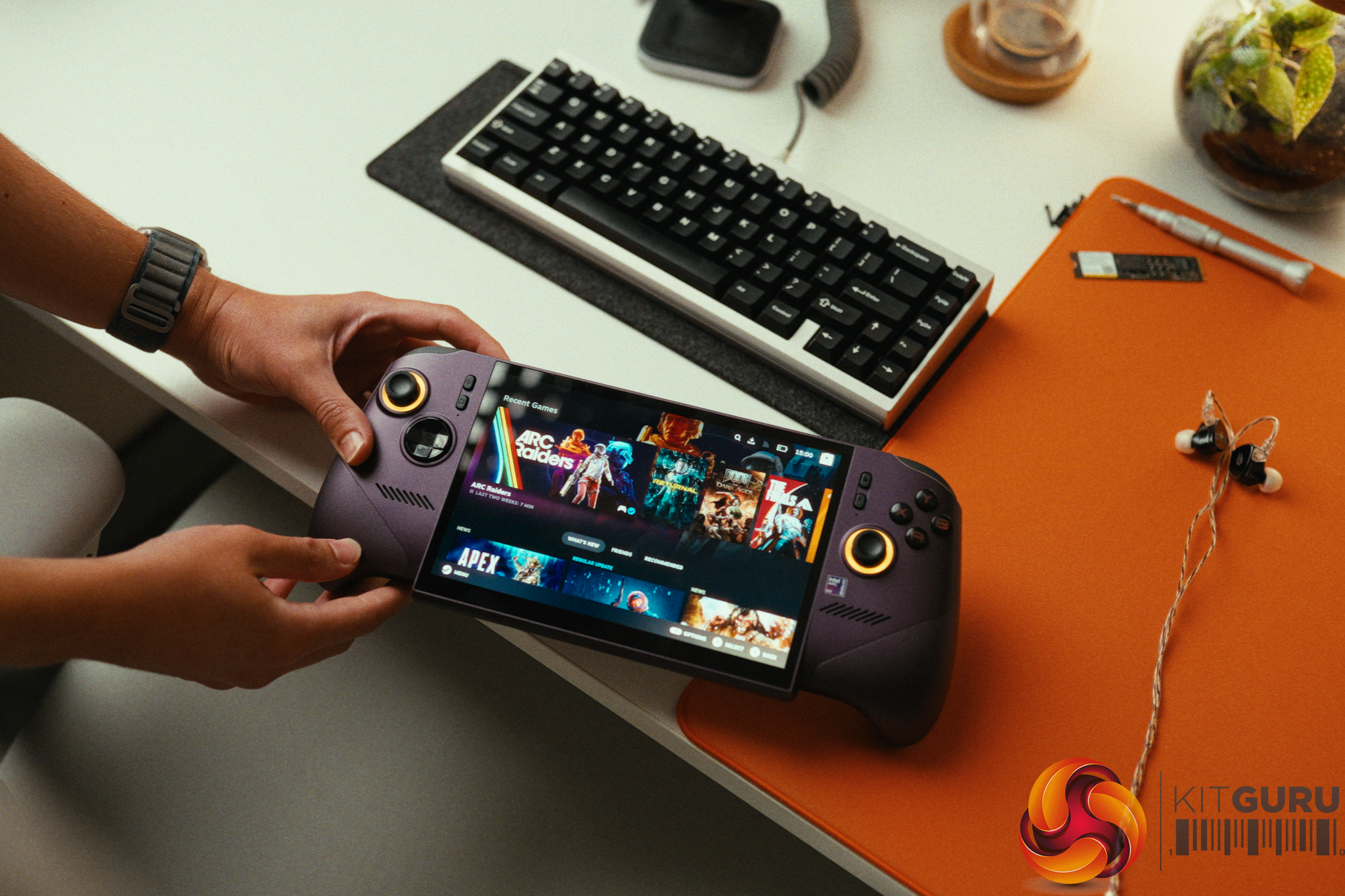
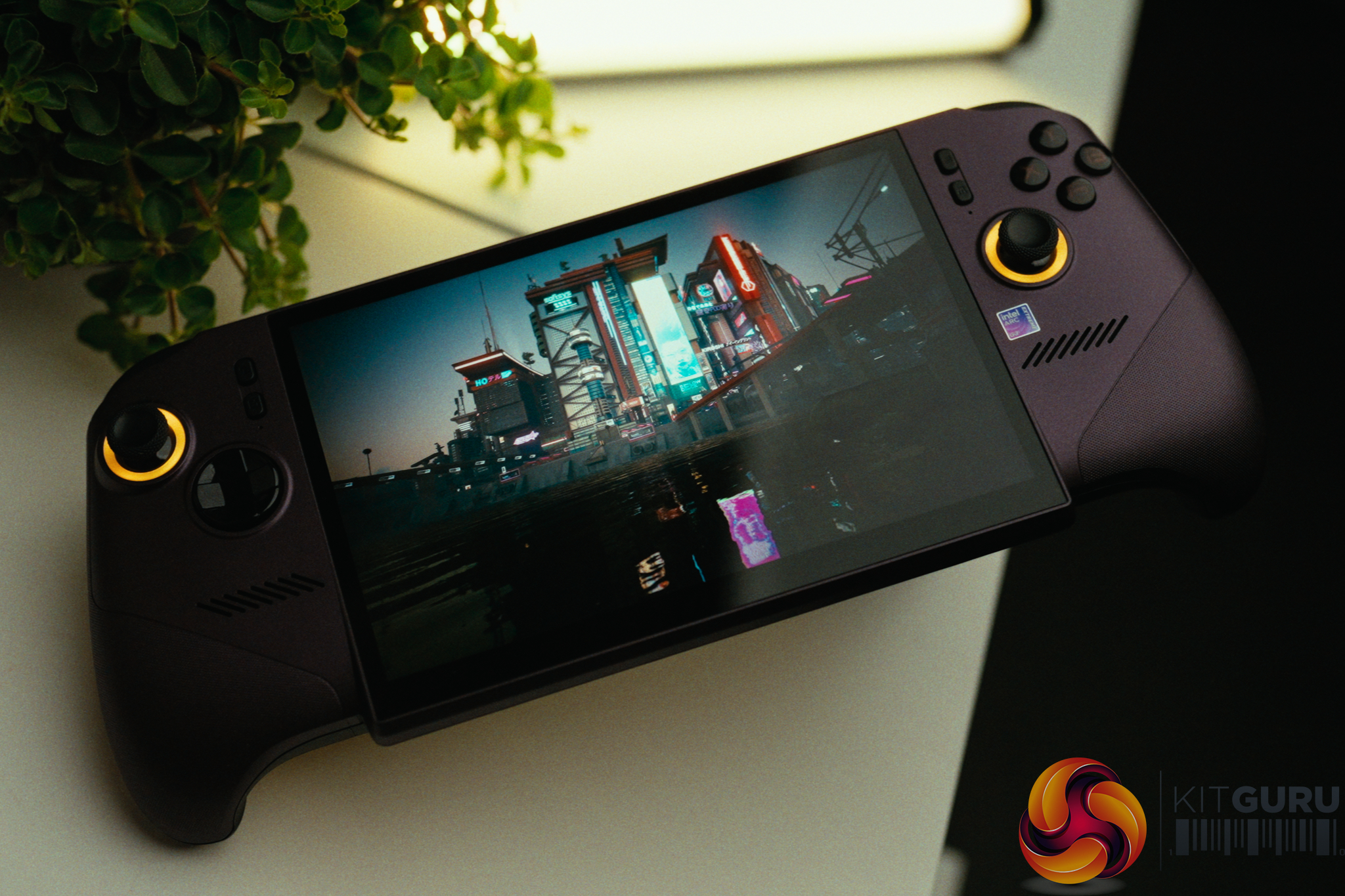
The MSI Claw 8 EX AI+ arrives with a staggering £1400 price tag and a bold promise to redefine handheld gaming. Powered by Intel's brand-new Arc G3 Extreme APU and backed by a massive 80Wh battery and a 120Hz display, on paper it certainly looks like a portable powerhouse. But with the shadow of Windows 11 looming over the handheld form factor, does this incredible hardware actually deliver a cohesive gaming experience, or is it severely let down by its own operating system?

Timestamps:

00:00 Intro
01:09 Core specs
01:57 Performance analysis
03:38 The screen + battery
05:14 Speakers (with soundtest!)
06:14 Controls, vibration motor, Hall effect!
07:35 Quick-fire other thoughts
10:42 The software…
12:36 Can Linux fix it?
15:25 Closing thoughts

Specifications:

  • Processor: Intel Arc G3 Extreme APU (14 Cores: 2P, 8E, 4LPE).
  • Graphics: Intel B390 GPU (Shared TDP with CPU).
  • RAM: 32 GB LPDDR5x.
  • Display: 8-inch IPS, 1920×1200, 120Hz.
  • Storage: 1TB NVMe SSD.
  • Battery: 80Wh with 65W USB-C Charging (Dual Type-C ports).
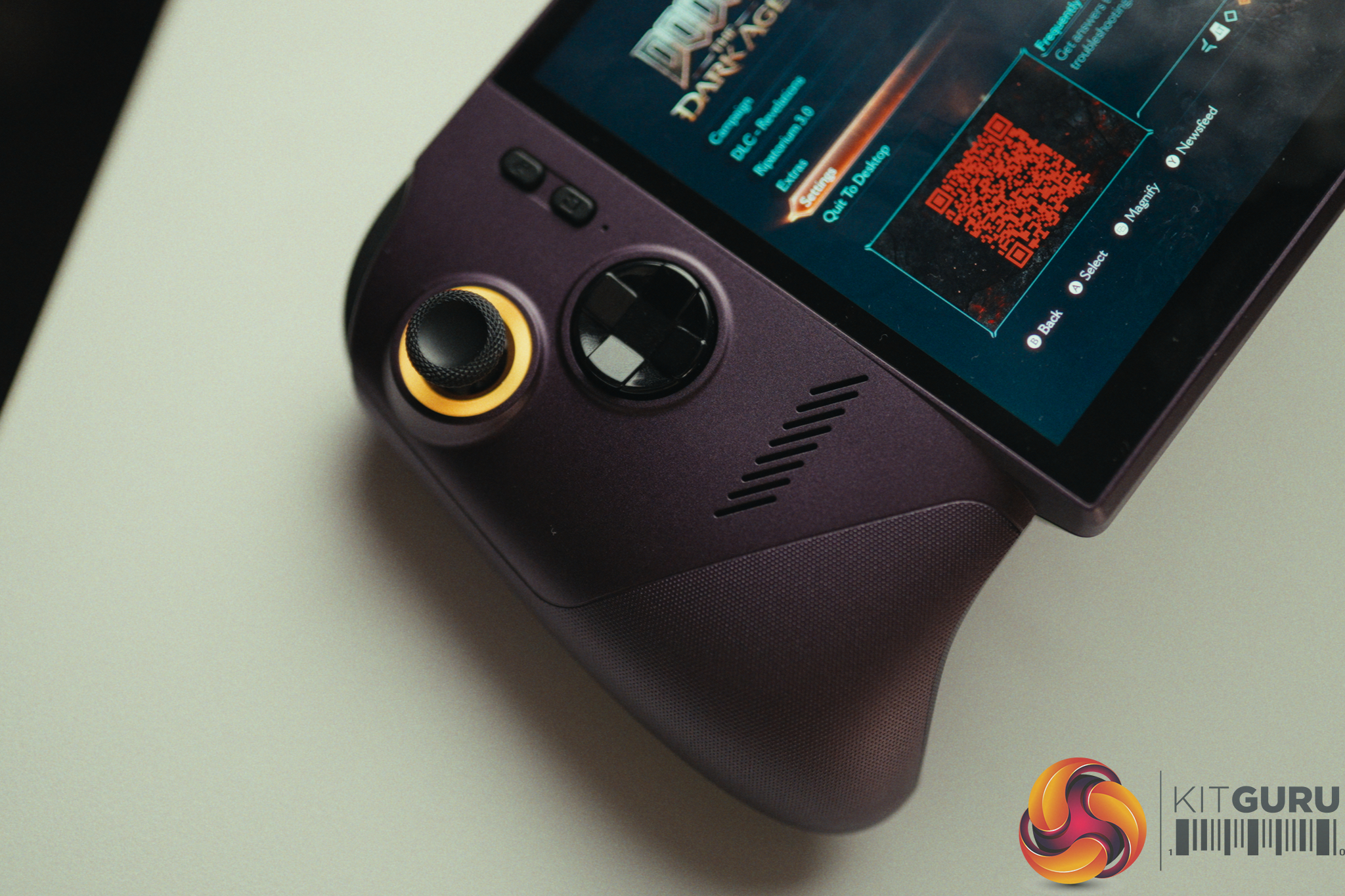
  • Controls: Hall Effect analog sticks & Triggers
  • Connectivity: Intel Wi-Fi 7 BE213, Bluetooth v6
  • Operating System: Windows 11

Closing Thoughts

The MSI Claw 8 EX AI+ is a device of extreme highs and frustrating lows. On the hardware front, the new Intel Arc G3 Extreme APU is an absolute marvel. It intelligently balances power between the CPU and the new B390 GPU, allowing us to run Cyberpunk 2077 on the High preset at 80fps using Performance XeSS upscaling. Paired with a massive 80Wh battery, crisp speakers, and Hall Effect analog sticks that guarantee no stick drift, it fundamentally redefines the performance limits of a handheld. You even get full performance on battery down to 10% charge.

However, a gaming handheld is only as good as its software, and this is where the Claw lands flat on its face. Windows 11 completely ruins the portable experience. The device routinely woke up from sleep on its own (I even had it hotbox itself in my backpack on multiple occasions) and basic reboots were constantly delayed by aggressive background updates and who knows what else. The mix of Xbox, MSI Command Center, and standard Windows overlays creates a convoluted user experience.

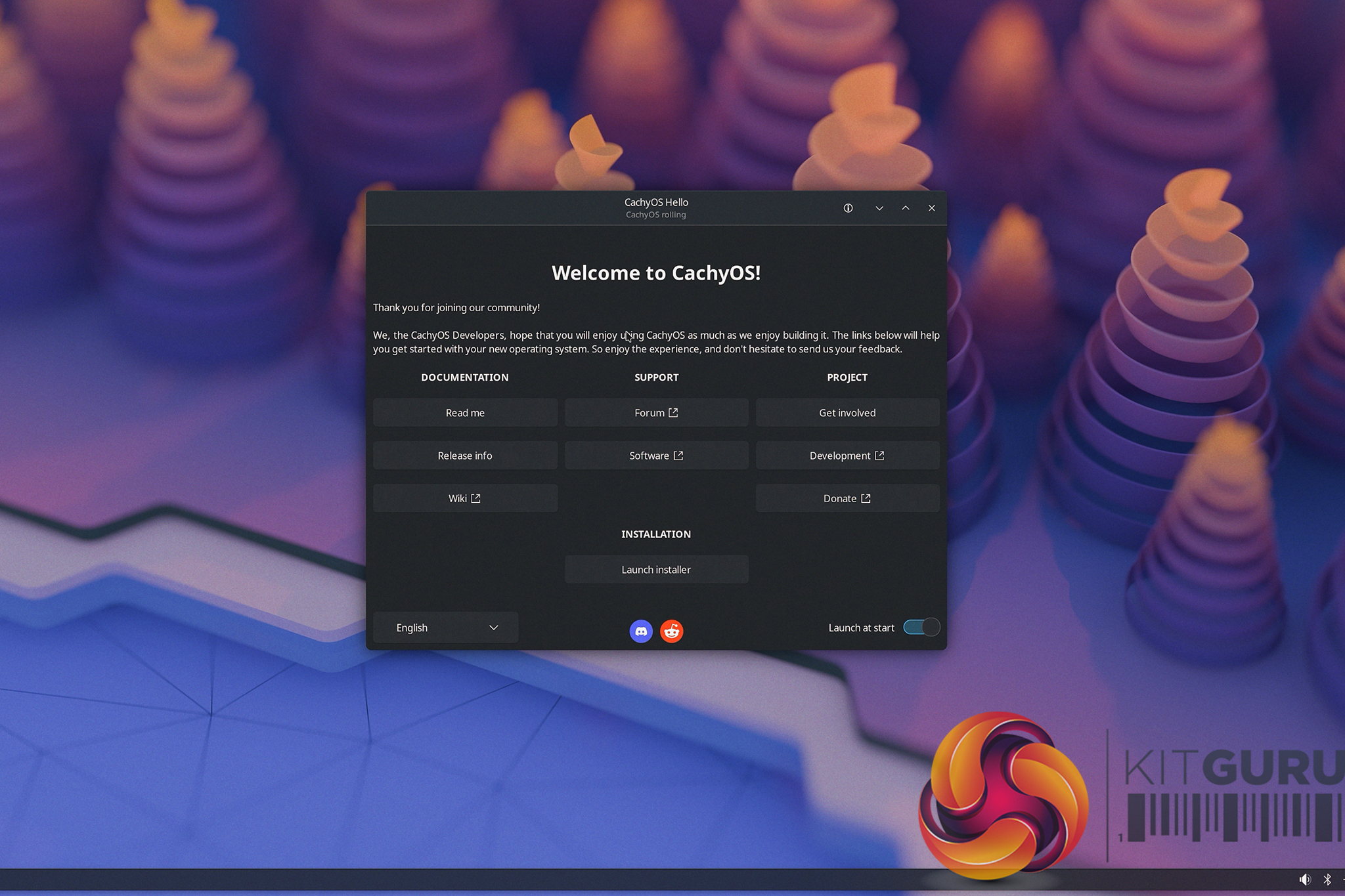
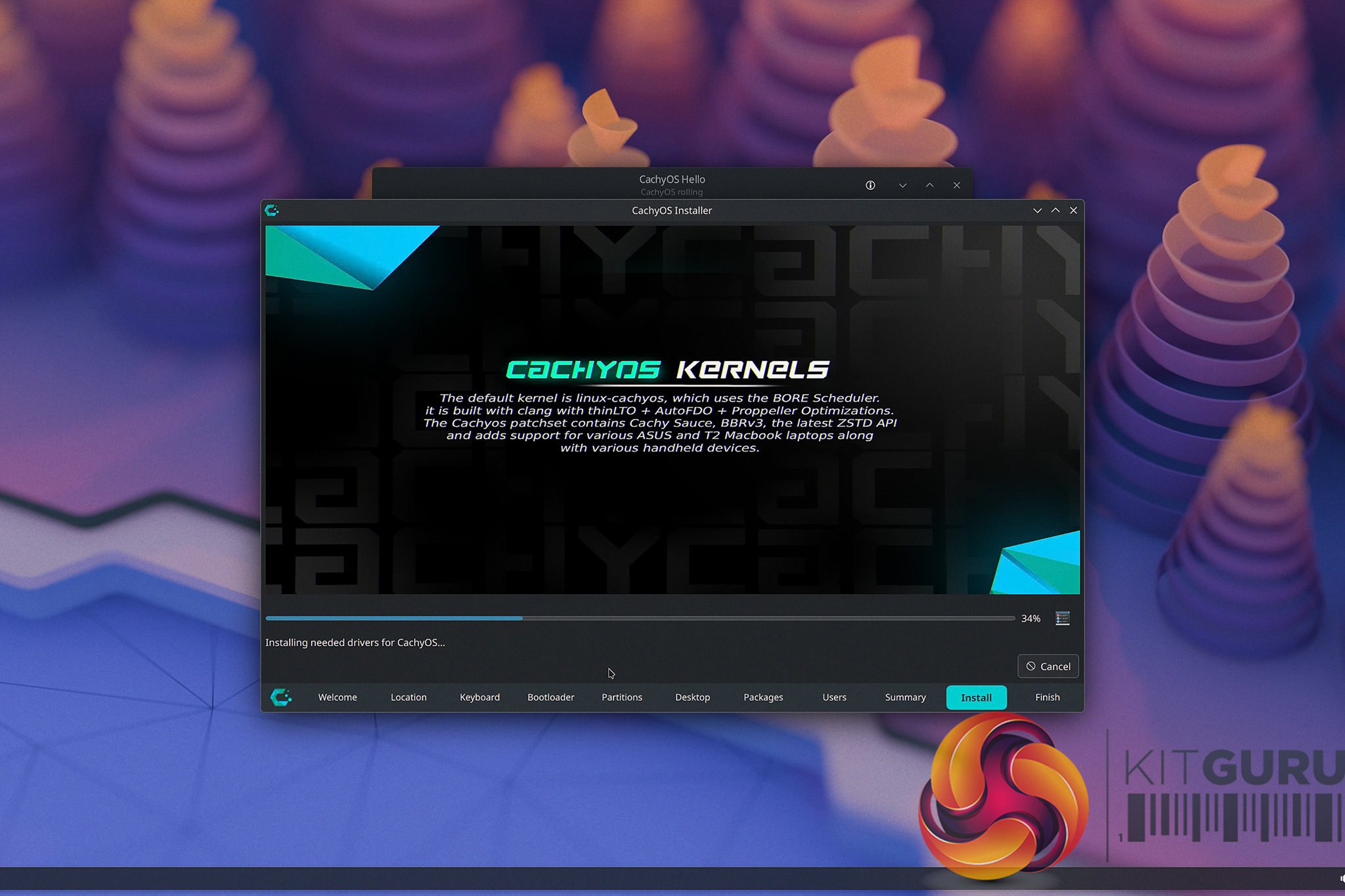
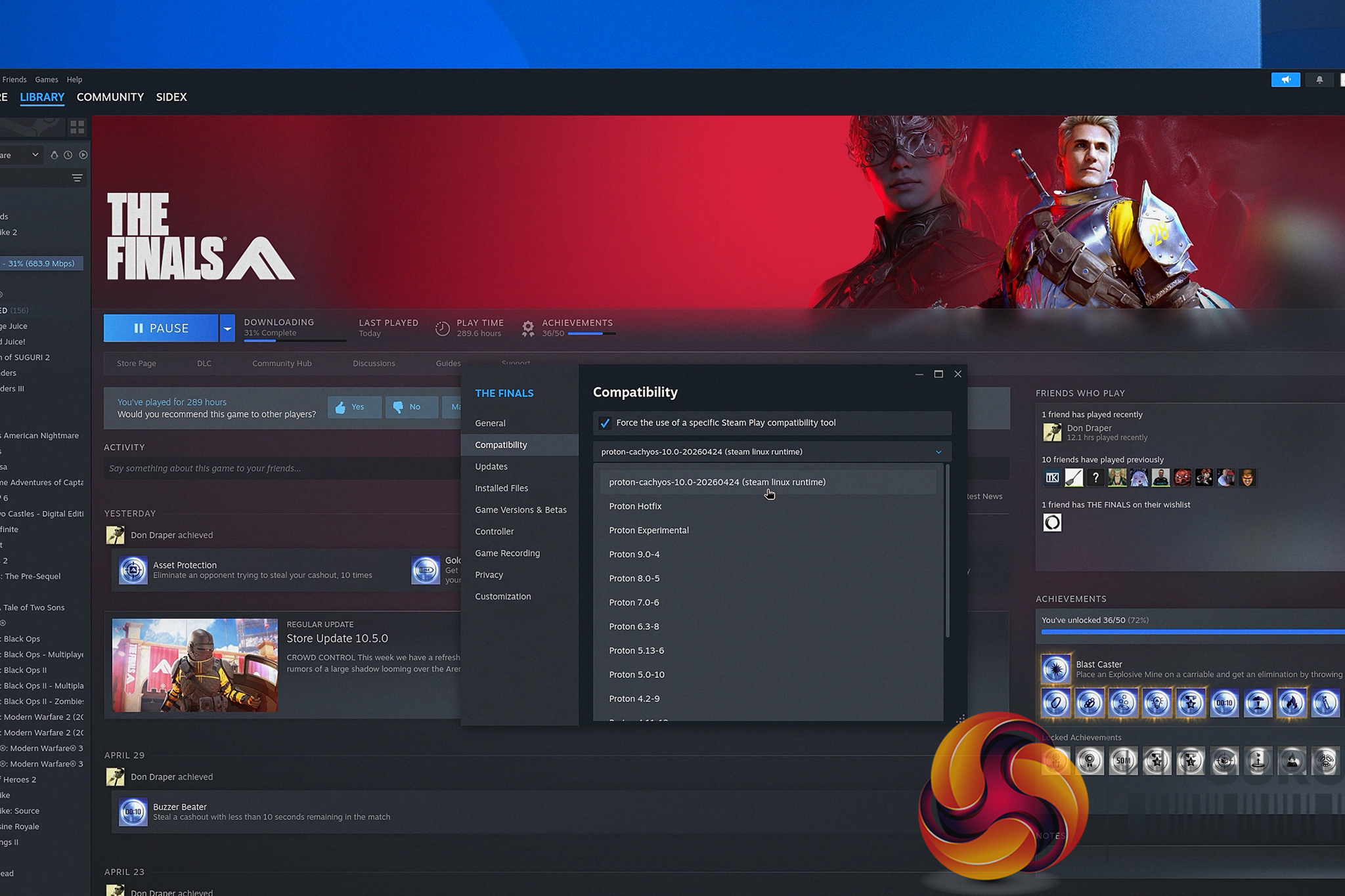
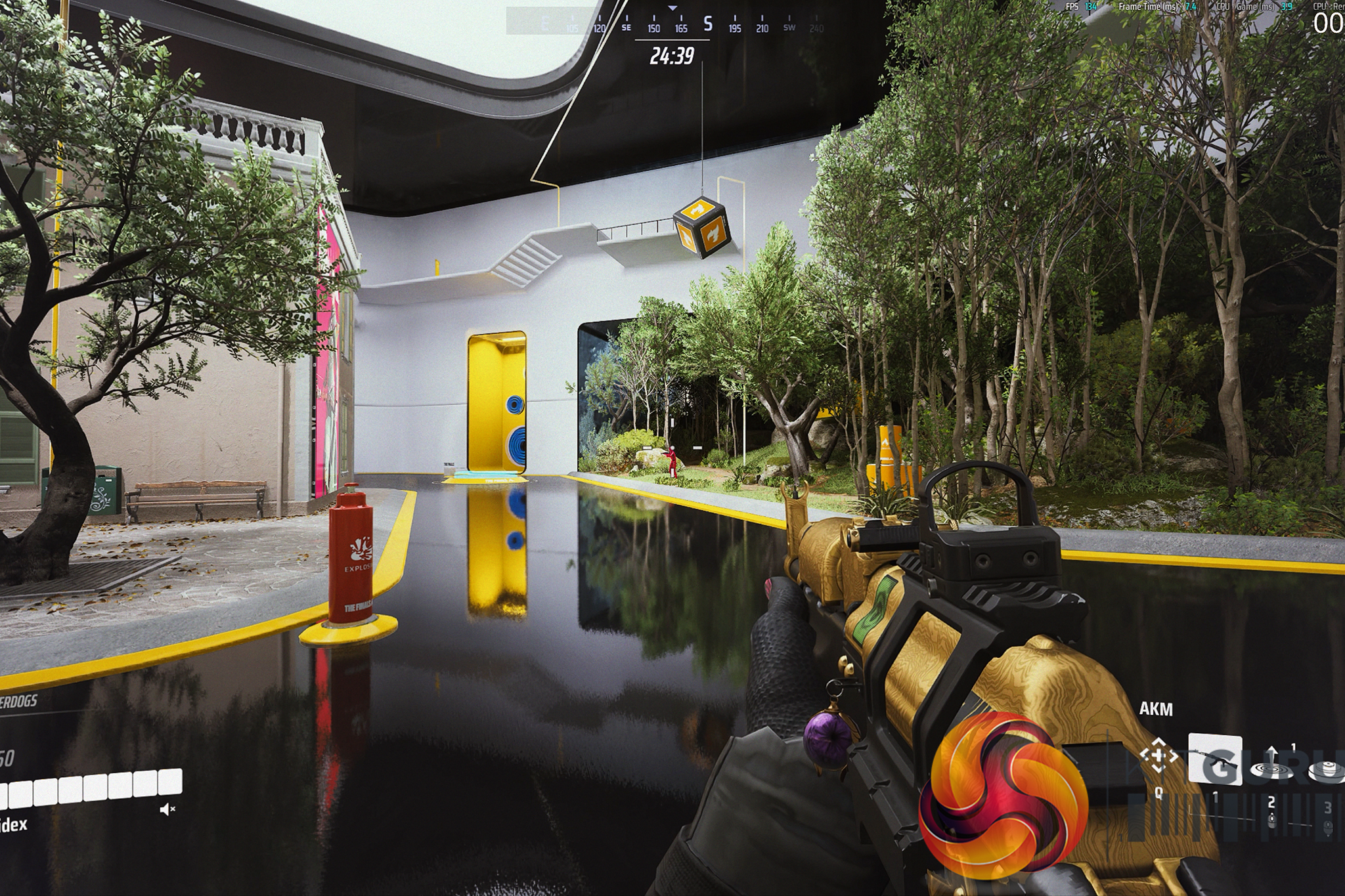
We attempted to fix the software woes by installing CachyOS Handheld Edition (Linux). While this miraculously solved the sleep issues and standby battery drain, the Intel Arc G3 Extreme platform is simply too new. The Linux drivers cannot yet match the gaming performance of Windows 11. Until the Linux drivers mature, you are stuck fighting Windows on a £1,400 device, preventing this powerful handheld from getting the recommendation the hardware deserves.

You can buy the MSI Claw 8 EX AI+ for £1400 HERE.

Pros:

  • Intel Arc G3 Extreme delivers top-tier handheld performance.
  • Massive 80Wh battery allows for 2+ hours of heavy AAA gaming with maxed out TDP or 6+ hours on lighter titles.
  • Hall Effect analog sticks completely eliminate the risk of stick drift.
  • Surprisingly crisp, loud internal speakers with a decent amount of body.
  • Delivers full gaming performance on battery power.

Cons:

  • Windows 11 experience is poor (randomly wakes from sleep, excessive background updates).
  • The 1920×1200 IPS screen isn't bright enough for outdoor use and drains battery faster.
  • Very expensive at £1400.
  • Linux gaming drivers for the new APU are currently too immature to match Windows 11 performance.
  • Bulky design with protruding analog sticks makes it difficult to pack in a bag.
  • Handles get noticeably warm during long sessions, causing sweaty palms.

KitGuru says: The MSI Claw 8 EX AI+ features revolutionary hardware and incredible gaming performance, but it is fundamentally crippled by a frustrating Windows 11 experience and an eyebrow-raising price tag.

KitGuru Worth Considering Award

The post MSI Claw 8 EX AI+ Handheld Review first appeared on KitGuru.

PCSpecialist Momentum Pro Review (5700X + 9060 XT 16GB)

27 August 2026 at 11:53

The PCSpecialist Momentum Pro enters the market at £1099 as part of a Back to School promotion, attempting to strike a delicate balance between price and performance in 2026. By pairing older AM4 components with a modern AMD RX 9060 XT, it looks like a calculated compromise for budget-conscious gamers targeting 1080p and 1440p. But does relying on a last-gen CPU, DDR4 memory, and a budget motherboard hold this machine back, or is it exactly the kind of balanced configuration students and gamers need right now?

Timestamps:

00:00 Intro
01:39 A message for the parents…
03:44 The hardware
05:09 The are compromises…
06:23 SSD + memory performance
07:21 A520 motherboard
09:00 Memory upgrade + build quality
10:05 Closing thoughts

Specifications:

  • Processor: AMD Ryzen 7 5700X.
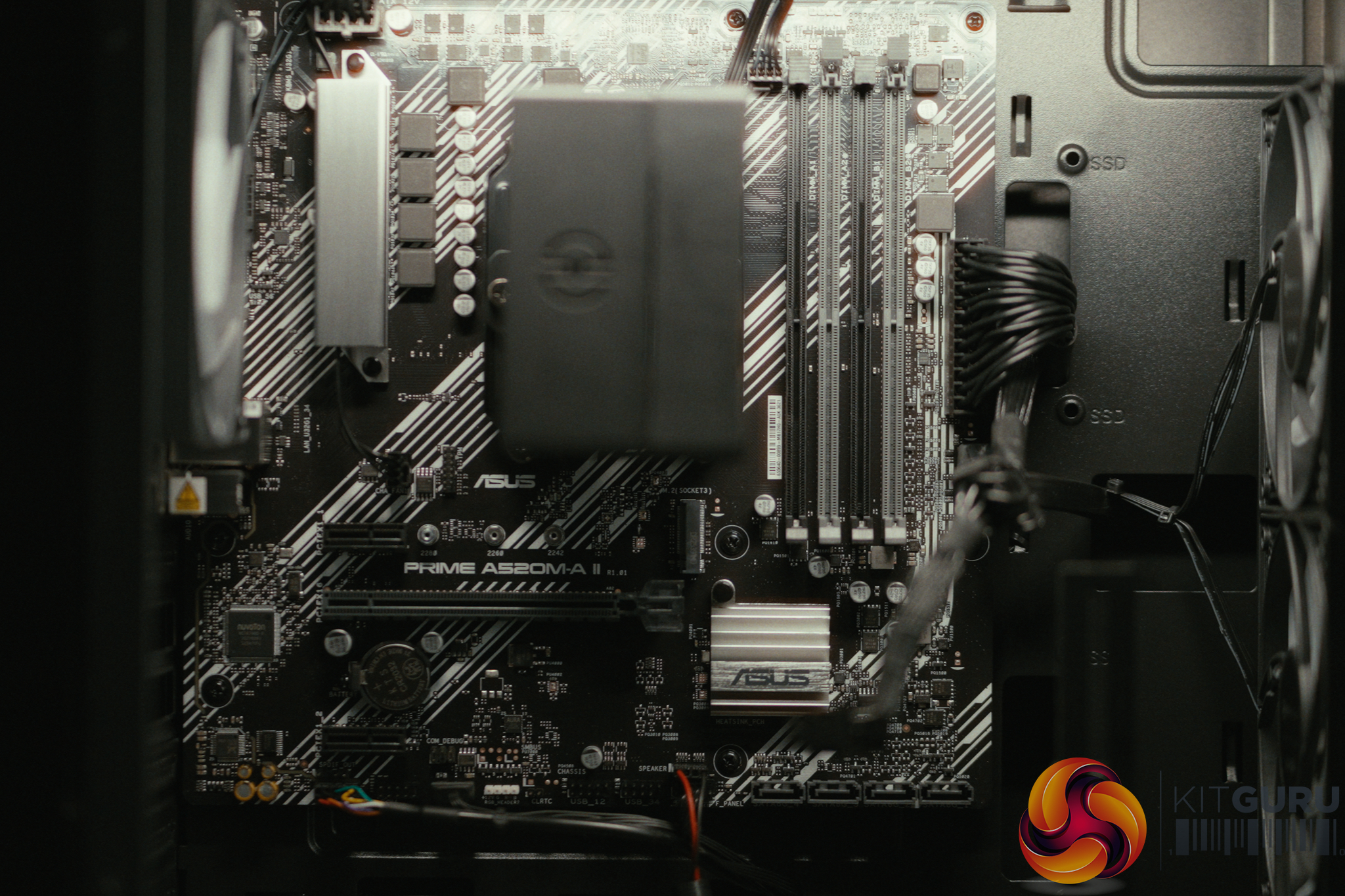
  • Motherboard: ASUS PRIME A520M-A II/CSM (PCIe Gen 3).
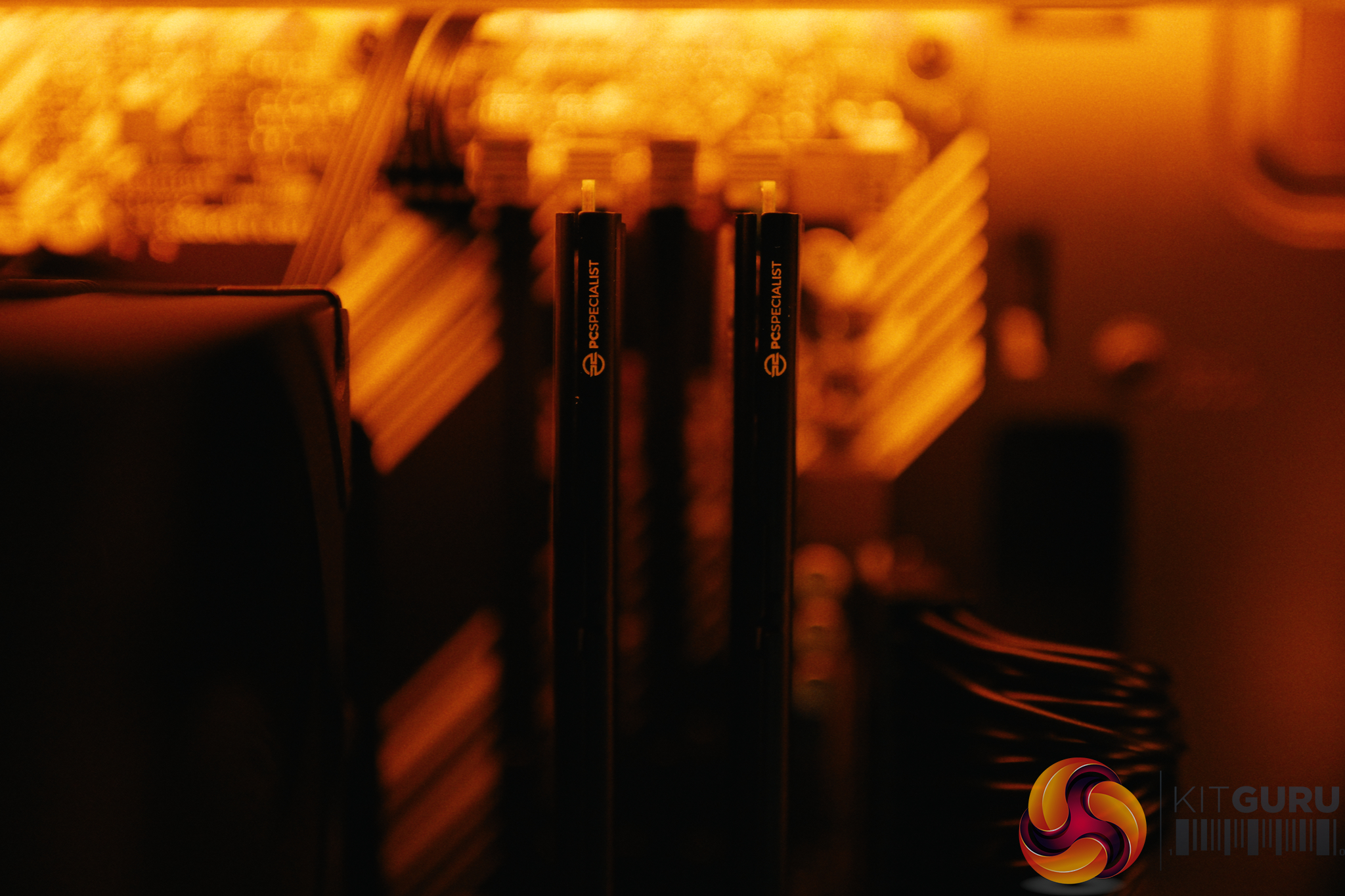
  • Memory: 16GB PCS PRO DDR4 3200MHz (CL22).
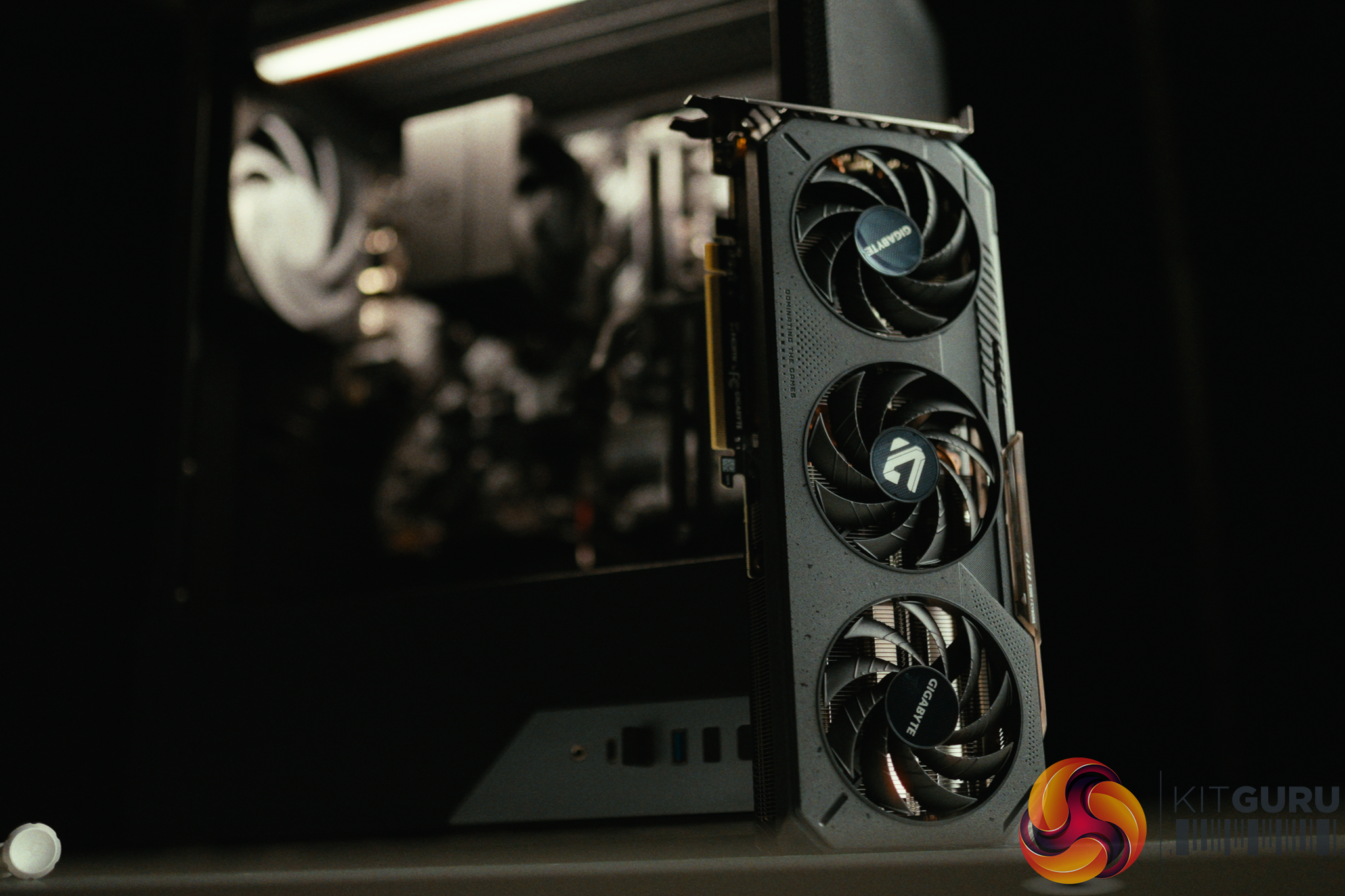
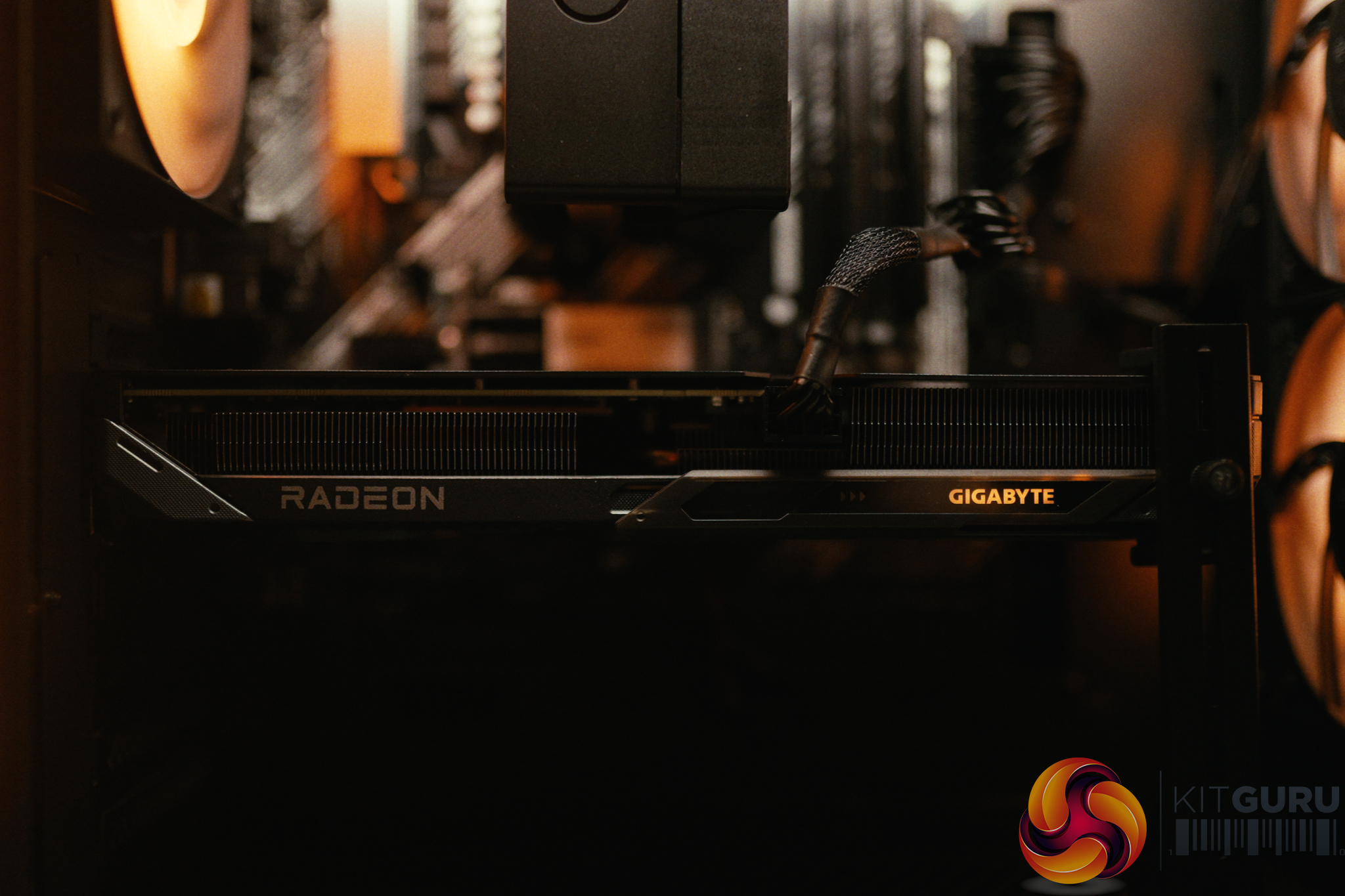
  • Graphics: AMD RADEON RX 9060 XT (16GB VRAM).
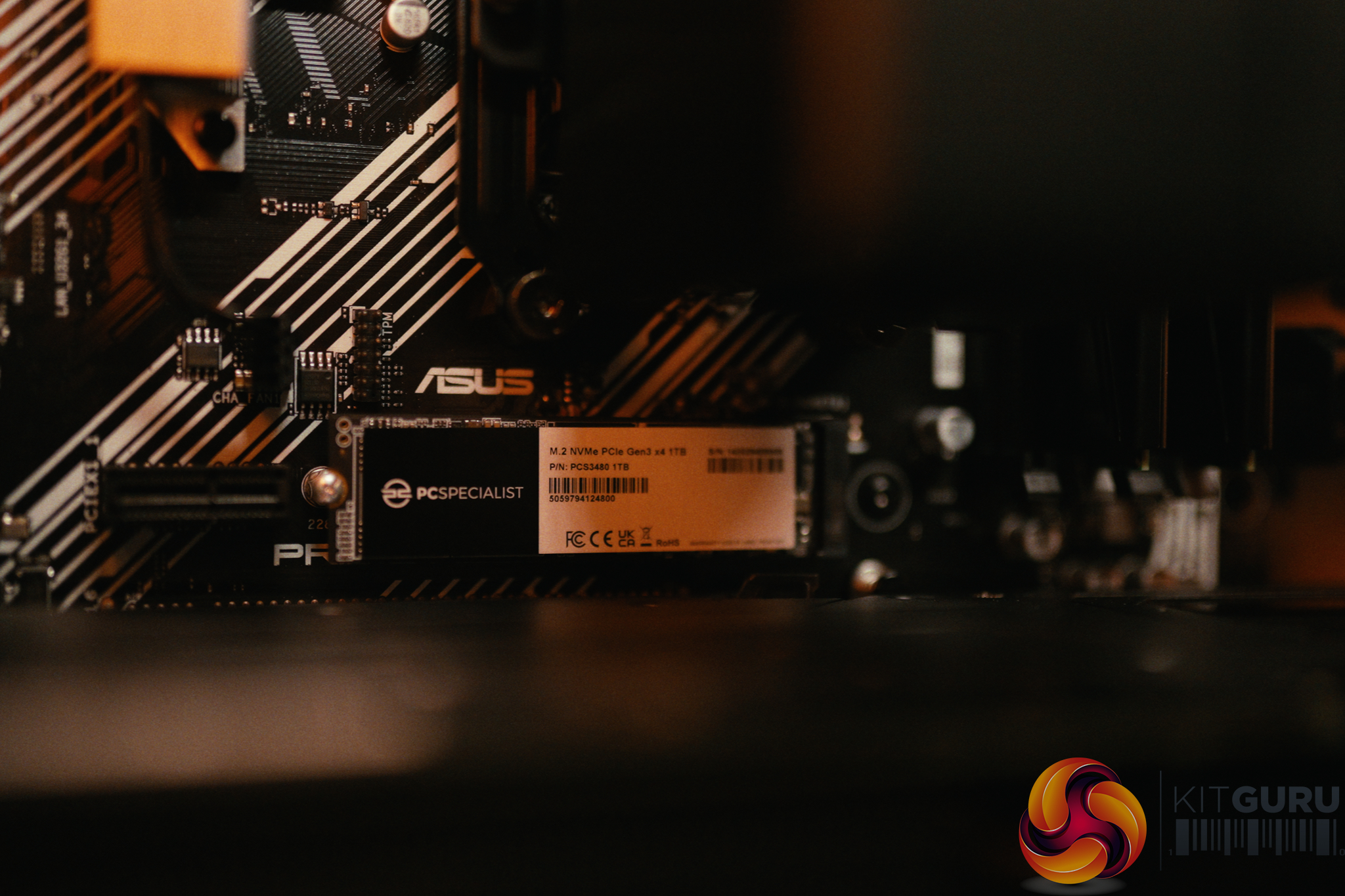
  • Storage: 1TB PCS M.2 PCIe Gen 3 NVMe SSD (TLC NAND).
  • Operating System: Windows 11 Home (BitLocker enabled by default).

Closing Thoughts

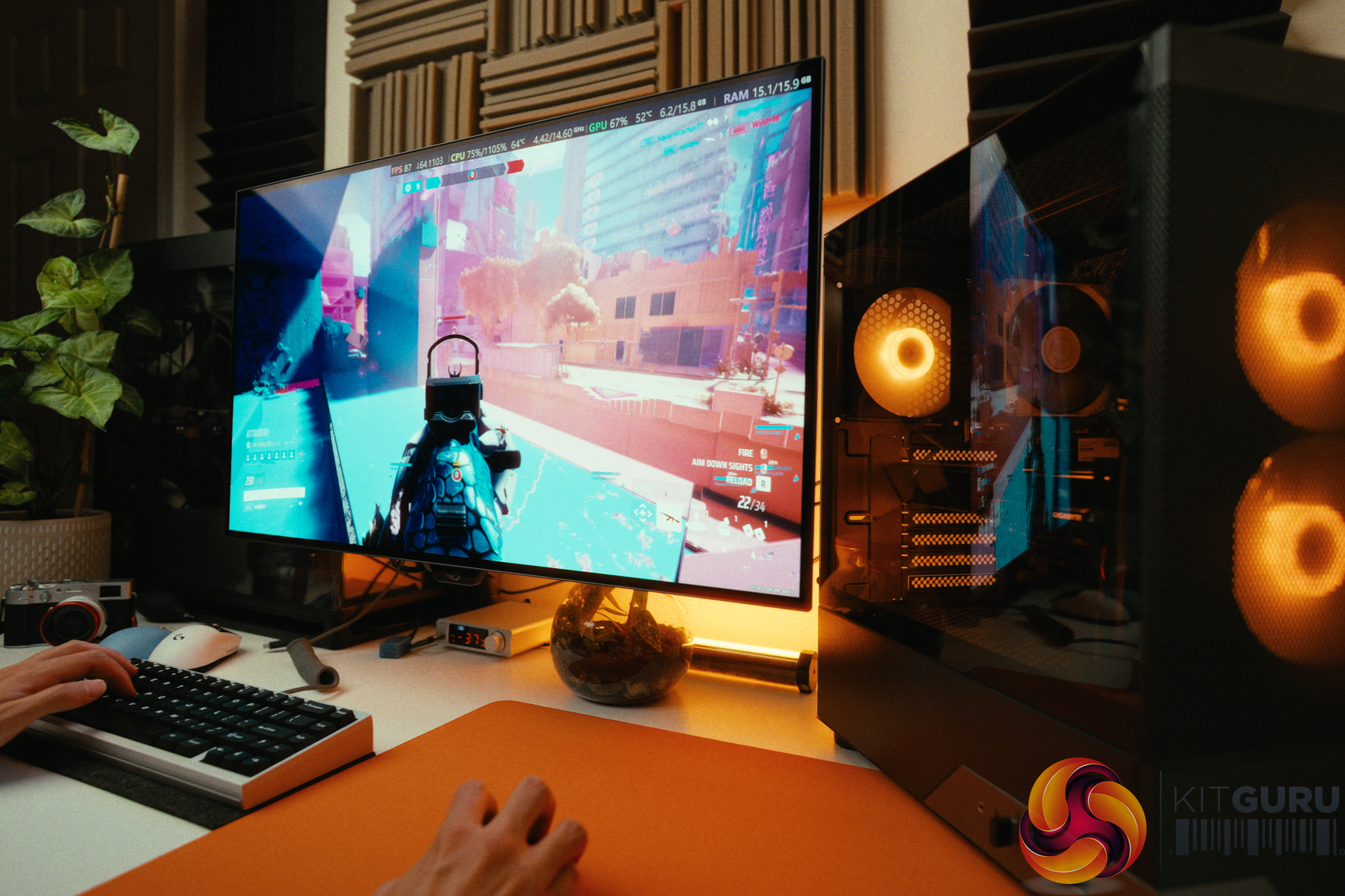
The PCSpecialist Momentum Pro is a machine defined by its compromises, but they are mostly the right ones for 2026. By utilizing the older AM4 platform, DDR4 memory, and a Ryzen 7 5700X, PCSpecialist managed to squeeze the highly capable 16GB RX 9060 XT into a £1099 budget. In our testing, this allowed the Momentum Pro to nearly match the gaming performance of the last PCSpecialist build that we tested a few months back that retailed for £600 more. In day to day use it easily chews through 1080p and 1440p titles like Cyberpunk 2077 and Returnal.

The assembly quality remains fantastic, with great cable management and cool, quiet operation.

However, corners – understandably – had to be cut to hit the price point. The biggest disappointment is the ASUS A520 motherboard. Not only does it limit you to PCIe Gen 3 speeds (which hampers future SSD upgrades, though it barely affects the GPU), but it also locks users out of AMD's Precision Boost Overdrive (PBO). The 5700X has massive thermal headroom in this build, but it's not possible undervolt it or raise the conservative 77W power limit to get free performance. Furthermore, the included USB WiFi dongle is poor and needs to be replaced if you rely on WiFi. We're also not keen on seeing Norton installed out of the box.

Nonetheless, if you are a parent looking for a machine that can handle schoolwork, coding, and heavy gaming right out of the box, this is a fantastic deal. Just make sure to plug in an Ethernet cable and spend a few minutes uninstalling the bloatware.

You can buy the PCSpecialist Momentum Pro for £1099 HERE.

Pros:

  • The RX 9060 XT with 16GB VRAM provides excellent 1080p and 1440p gaming performance.
  • Fantastic assembly quality, cable management, and quiet cooling.
  • Smart compromises keep the price at a highly competitive £1099.
  • The motherboard retains 4 RAM slots for easy future upgrades to 32GB.

Cons:

  • The A520 motherboard locks out PBO, preventing free CPU performance tweaks.
  • Included USB WiFi dongle is slow and should be replaced or bypassed with Ethernet.
  • Motherboard is limited to PCIe Gen 3, limiting future SSD upgrades.
  • Pre-installed bloatware (Norton) and default BitLocker actively harm system performance.

KitGuru says: The Momentum Pro proves that pairing last-gen components with a modern GPU is a winning strategy for budget gamers, provided you can look past a restrictive motherboard.

The post PCSpecialist Momentum Pro Review (5700X + 9060 XT 16GB) first appeared on KitGuru.

Corsair Vanguard Air 99 Wireless Review

24 August 2026 at 12:02

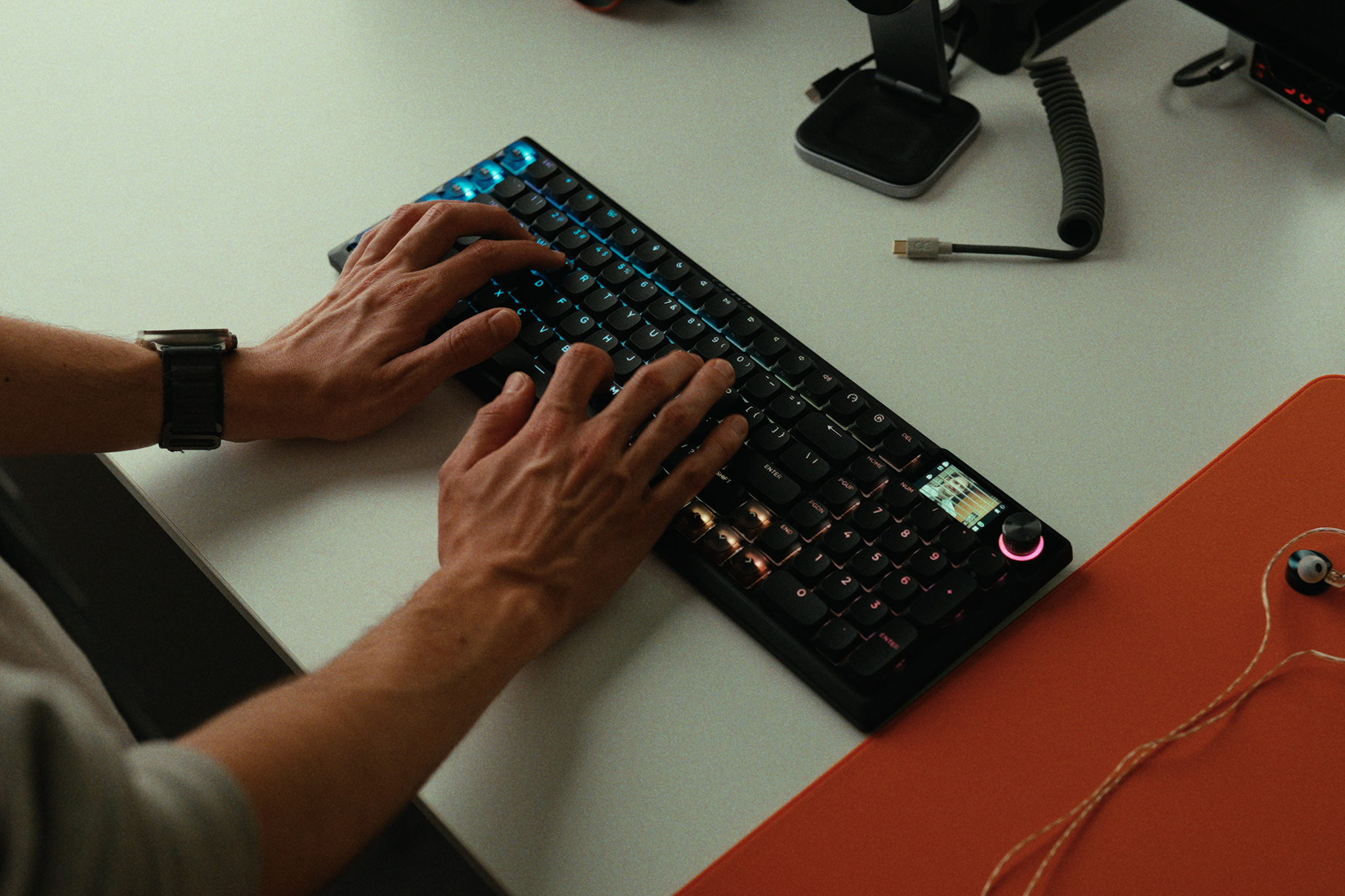
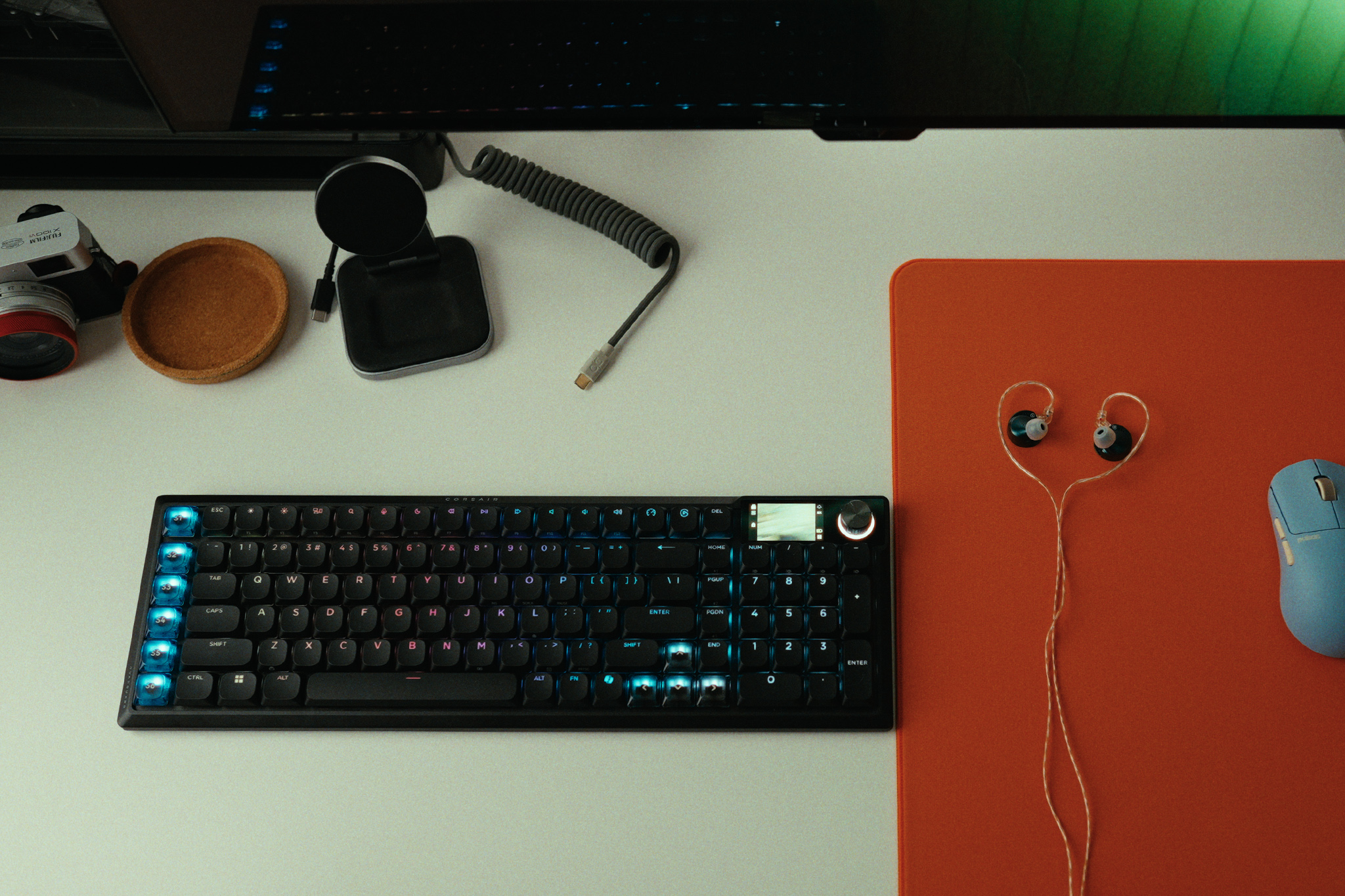
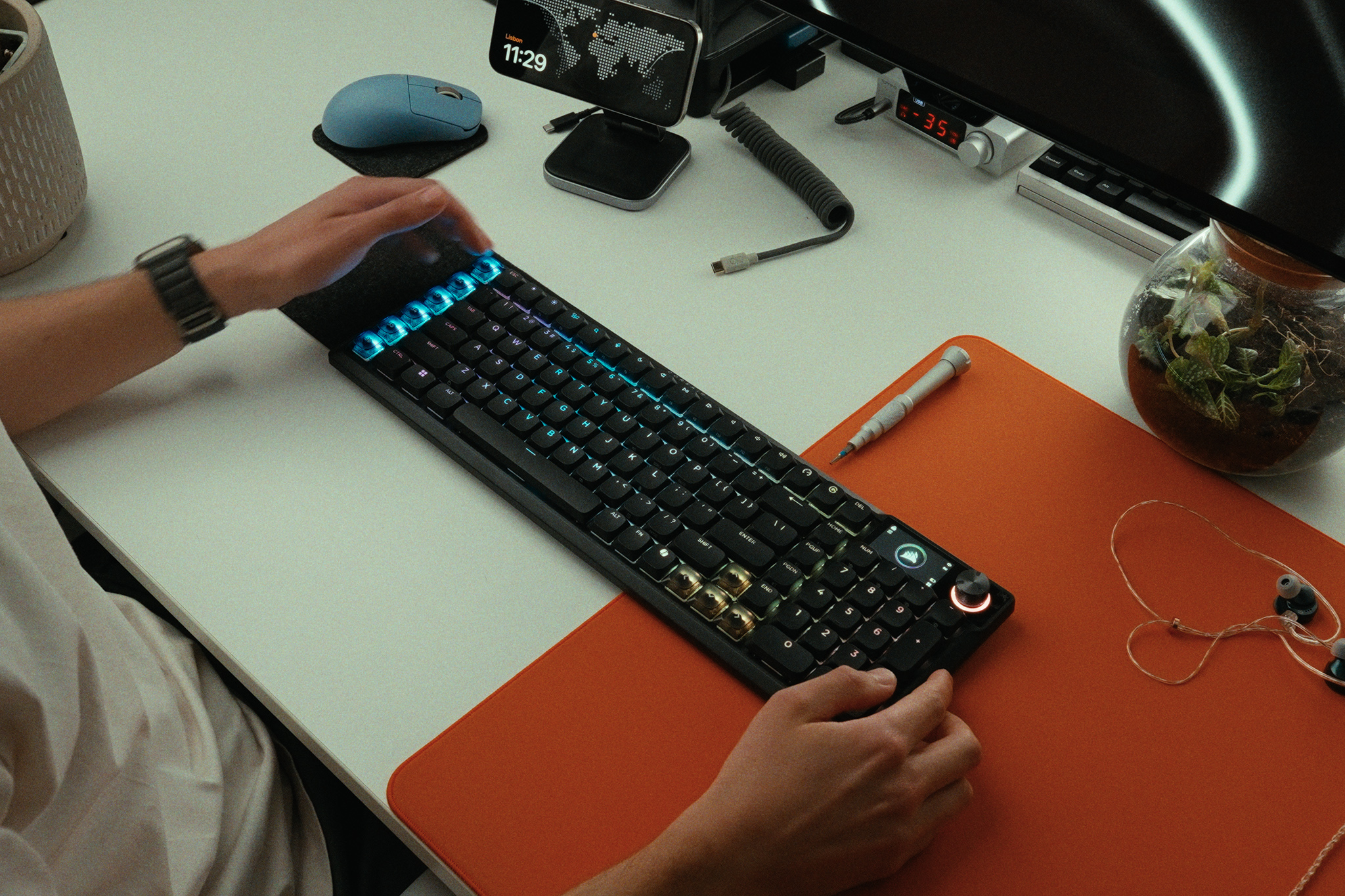
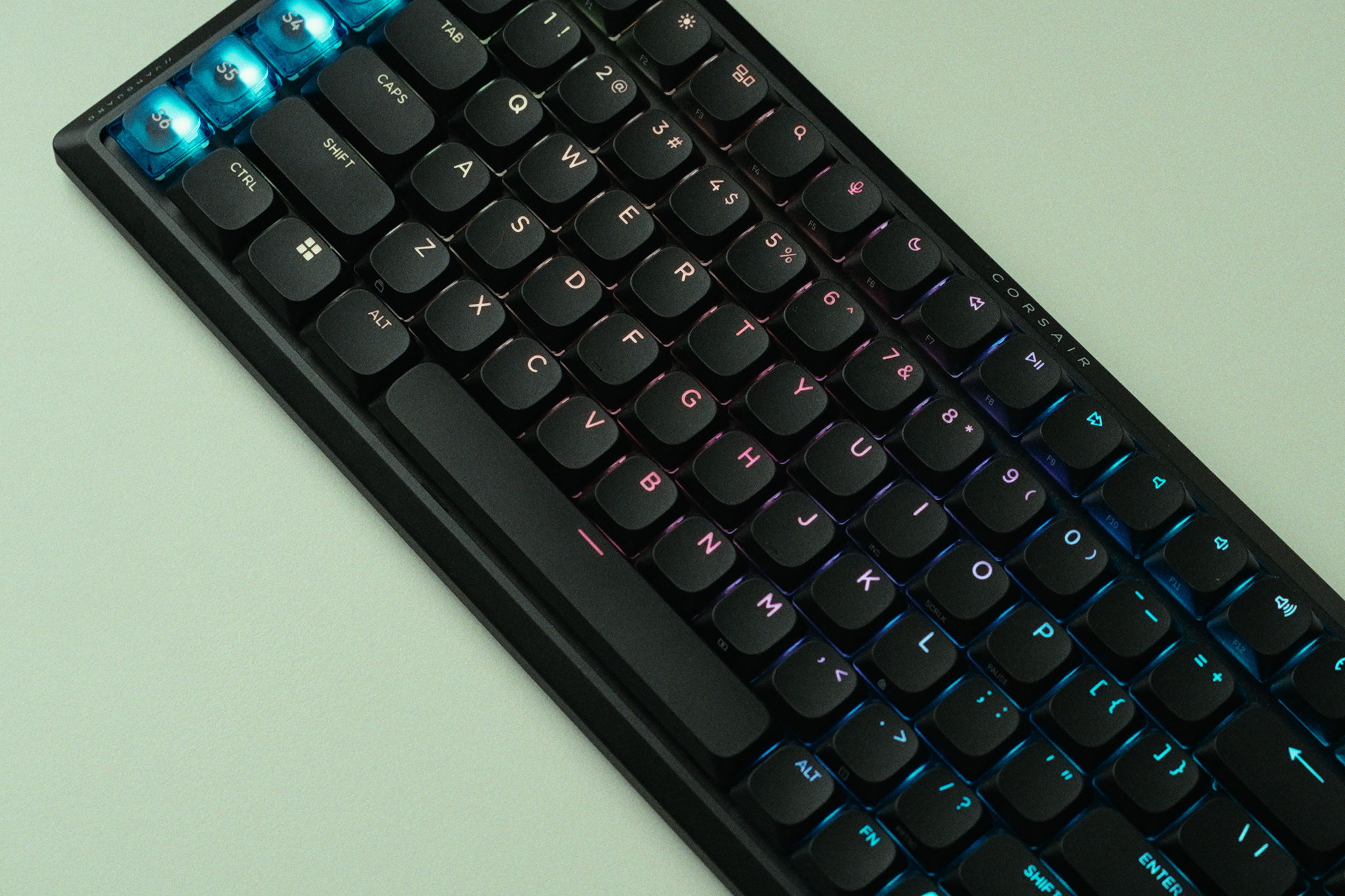
The Corsair Vanguard Air 99 Wireless is an ambitious attempt to pack almost every premium keyboard feature under the sun into one sleek, low-profile chassis. Retailing at a hefty £239 MSRP, it features smooth low profile optical switches, a bright integrated screen, per-key RGB, and an 8,000Hz polling rate. But by opting for optical switches over Hall Effect in the name of battery life, has Corsair actually delivered a coherent wireless experience, or is this keyboard crippled by frustrating compromises?

Timestamps:

00:00 Intro
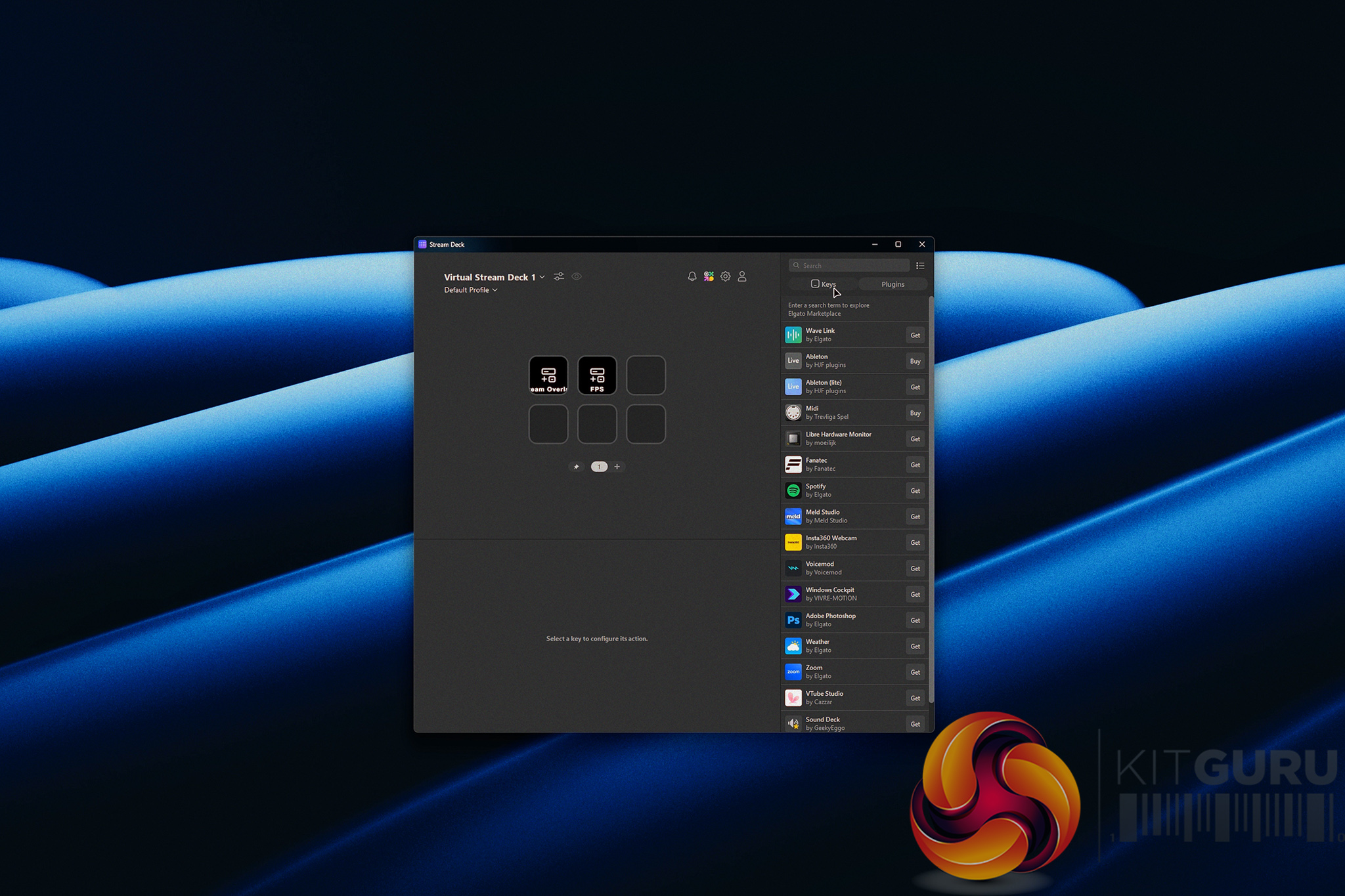
01:01 Streamdeck functionality
02:34 Corsair web hub
03:22 OPX low-profile switches + keycaps
04:31 Screen, rotary dial and RGB
05:46 Pricing discussion
06:42 A cascade of bad decisions…
09:04 Slow wireless reconnection
10:04 Actual keyboard experience
11:05 Rattly stabilisers…
11:46 Closing thoughts

Specifications:

  • Form Factor: 99% Layout (Low-Profile).
  • Switches: CORSAIR OPX Low-Profile Optical (1.5mm Actuation / 2.5mm Total Travel).
  • Connectivity: 2.4GHz Slipstream Wireless, Bluetooth, and USB Wired.
  • Polling Rate: Up to 8000Hz.
  • Features: LCD Screen, Rotary Encoder, dedicated macro keys.
  • Software: iCUE, CORSAIR Web Hub, and Elgato Stream Deck app.
  • Battery Life: Up to 57 hours without RGB and at 1000Hz

Closing Thoughts

The Corsair Vanguard Air 99 Wireless is a product in conflict with itself. On paper, it looks like a productivity and gaming powerhouse. Its integration into the Corsair and Elgato ecosystems is fantastic, allowing you to configure custom macro keycaps with remarkable ease. The OPX low-profile optical switches are smooth and snappy, offering a quick 1.5mm actuation that feels right at home if you prefer laptop-style keyboards. I also love Corsair's push toward the Web Hub, which gives you near feature parity without forcing you to keep the bulky iCUE desktop app running at all times.

However, the hardware compromises are baffling. I think Corsair skipped Hall Effect switches to save battery life, but then added a bright screen, per-key RGB, and an 8KHz polling rate. The result? The battery dies in roughly 10 hours of typical use if you use all of those features, and then takes a painfully slow three and a half hours to recharge. Because it dies so fast, you will likely leave it plugged in permanently, making the omission of true Rapid Trigger Hall Effect switches a massive missed opportunity for gamers. The software-based Snap Tap feature simply isn't a replacement for Rapid Trigger, and utilizing it can even get you kicked from competitive games like CS2.

Throw in intensely rattly stabilizers that constantly tick as you type, a slow 3 to 5 second wake-from-sleep delay, and a strange wireless interference with other wireless mice, and this keyboard becomes very hard to recommend. Even at its occasional discounted promotional price of £189, there are simply too many better, more focused alternatives on the market.

You can buy the Corsair Vanguard Air 99 Wireless for £239 HERE.

Pros:

  • Excellent Stream Deck integration with distinct, dedicated macro keycaps.
  • The screen and per-key RGB are bright and easily visible in daylight.
  • OPX optical switches are smooth and responsive right out of the box.
  • The Web Hub software is a great, lightweight alternative to iCUE.

Cons:

  • Terrible battery life and very slow charging (maxes out at just 7.1W).
  • Lacks Hall Effect switches (and genuine Rapid Trigger) at a premium gaming price point.
  • Stabilizers are intensely rattly, ruining the acoustic and typing experience.
  • Wireless dongle caused bizarre interference and lag with other high-end gaming mice.
  • Frustratingly slow to wake from sleep, often missing the first few keystrokes.

KitGuru says: The Corsair Vanguard Air 99 Wireless attempts to do it all, but terrible battery life, rattly stabilizers, and the lack of Hall Effect switches make it a confusing and overpriced package.

KitGuru Worth Considering Award

The post Corsair Vanguard Air 99 Wireless Review first appeared on KitGuru.

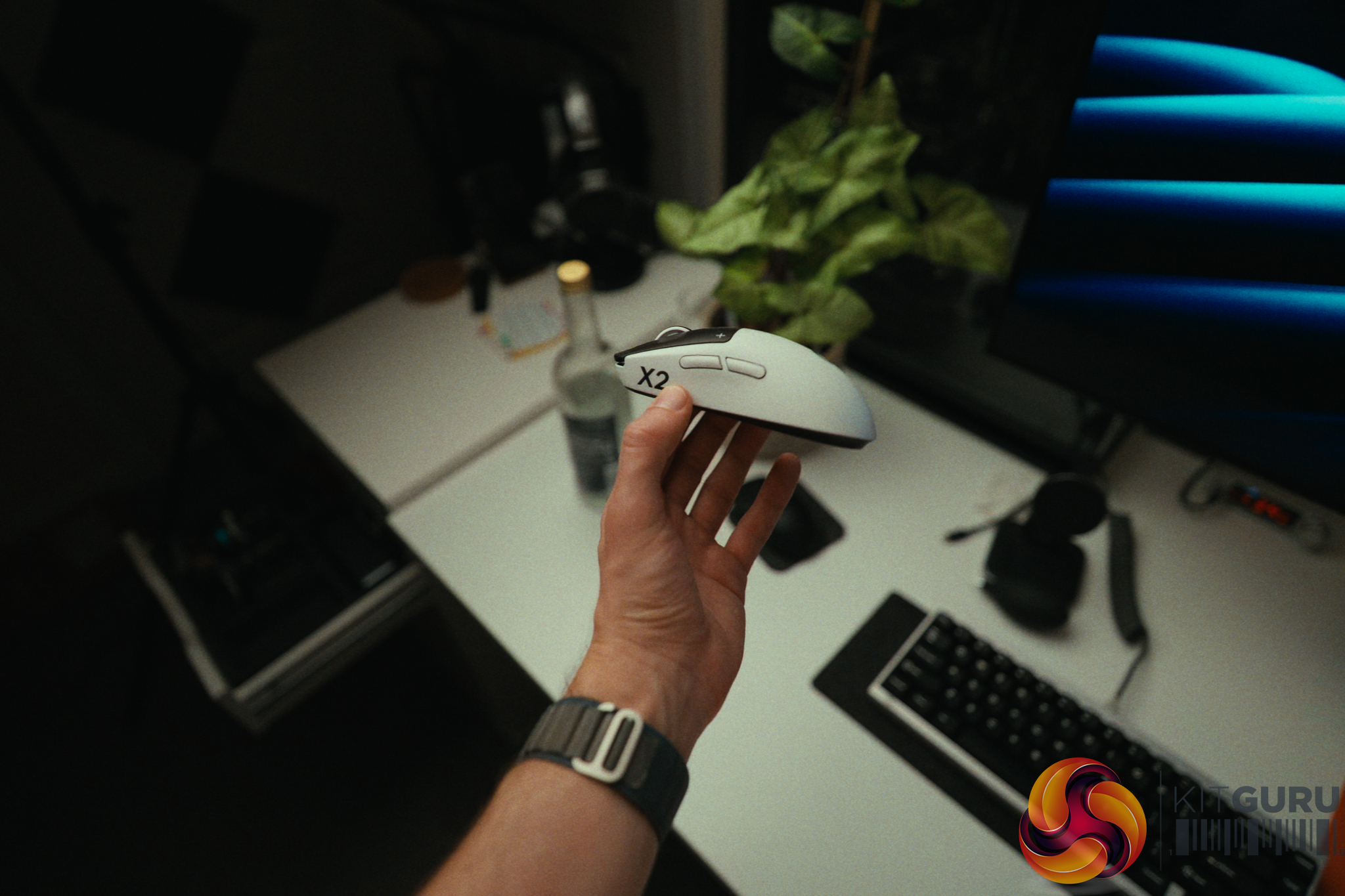
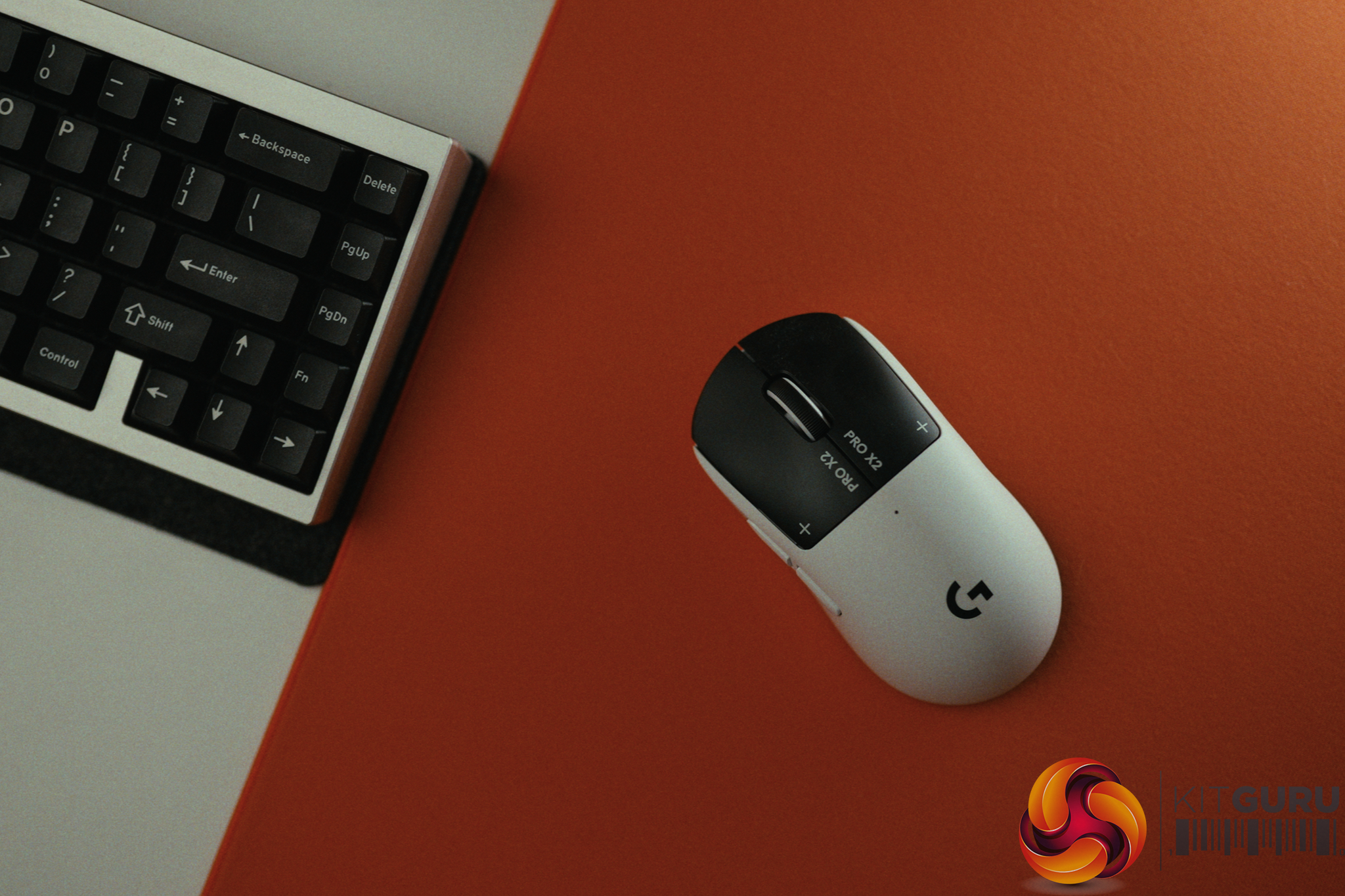
Logitech G Pro X2 Superstrike Review: Three Months Later

19 August 2026 at 11:13

When Logitech announced the G Pro X2 Superstrike, they made a bold claim: an unprecedented 30ms competitive latency advantage thanks to their new Haptic Induction Trigger System (HITS). On paper, dropping 30ms of latency is the equivalent of jumping from 30fps to over 300fps in game. It sounds like the holy grail of competitive gaming peripherals. But after spending three months daily-driving this mouse, does this revolutionary tech actually translate to real-world aiming performance, or is it just clever marketing?

Timestamps:

00:00 Intro
00:55 30ms improvements?!
02:00 The tech and how it works
04:05 Rapid trigger + haptics
06:57 Real-world experience
08:52 Other aspects of the mouse
12:08 Closing thoughts

Specifications:

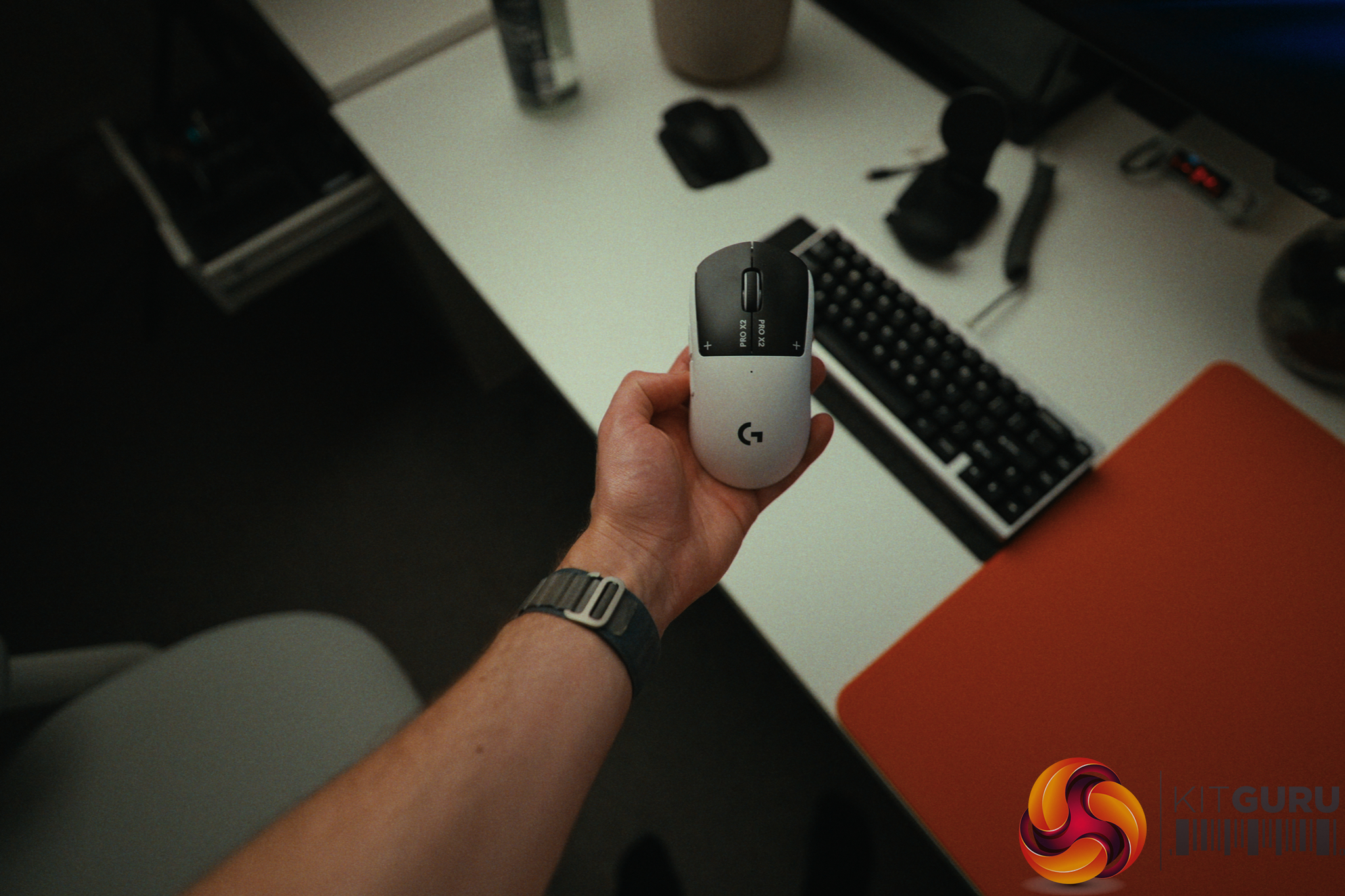
  • Weight: 62g (Front-heavy balance).
  • Main Switches: HITS (Haptic Induction Trigger System) with adjustable actuation and feedback.
  • Sensor: HERO 2
  • Shape: Symmetrical “Potato” shape (right-handed side buttons).
  • Polling Rate: Up to 8000Hz Wireless.
  • Coating: Grippy matte finish.
  • Skates: PTFE (Stock thickness is slightly thin).
  • Battery: Up to 90h

Closing Thoughts

The Logitech G Pro X2 Superstrike introduces incredibly cool technology that undoubtedly raises the ceiling for the entire peripheral industry, much like Hall Effect switches did for keyboards. The HITS triggers allow you to digitally adjust actuation depth, rapid trigger sensitivity, and the physical haptic feedback (which feels remarkably similar to a MacBook trackpad). Setting the Rapid Trigger aggressively makes spam-clicking semi-auto weapons outrageously fast and absolutely deadly.

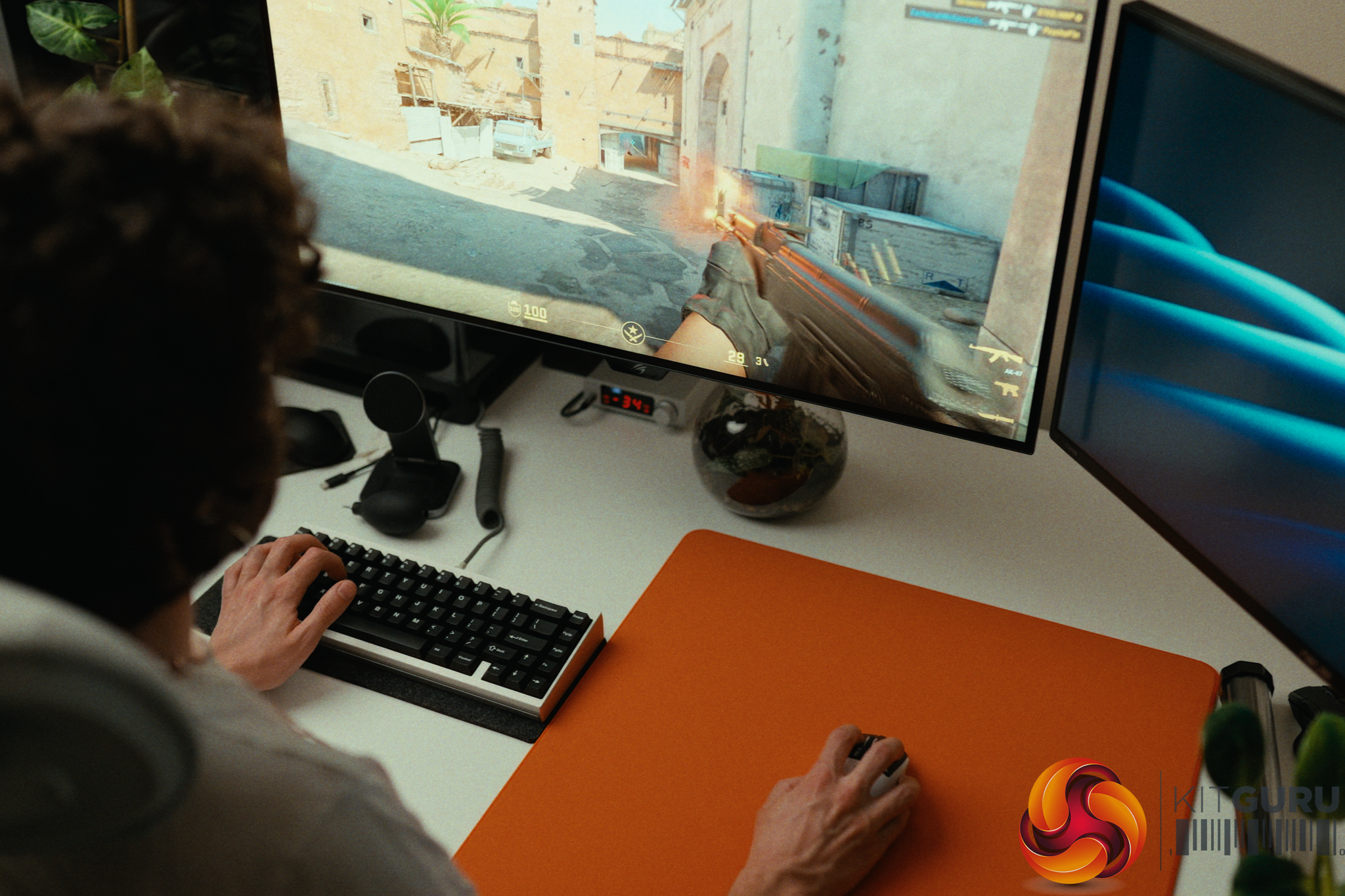
However, the 30ms latency advantage comes with a massive caveat. To achieve it, you have to run the actuation point at its absolute lowest setting, which forces you to completely unlearn the natural habit of pre-tensioning your fingers before a shot. I did a bunch of real world test but I also ran a human benchmark reflex test every couple of days for over three months and the Superstrike actually fell 5.55ms *behind* my Pulsar X2 Crazylight.

Once I backed the actuation off to a more controllable 3/10, the experience was lovely, but I cannot confidently say it resulted in hitting shots I would have otherwise missed.

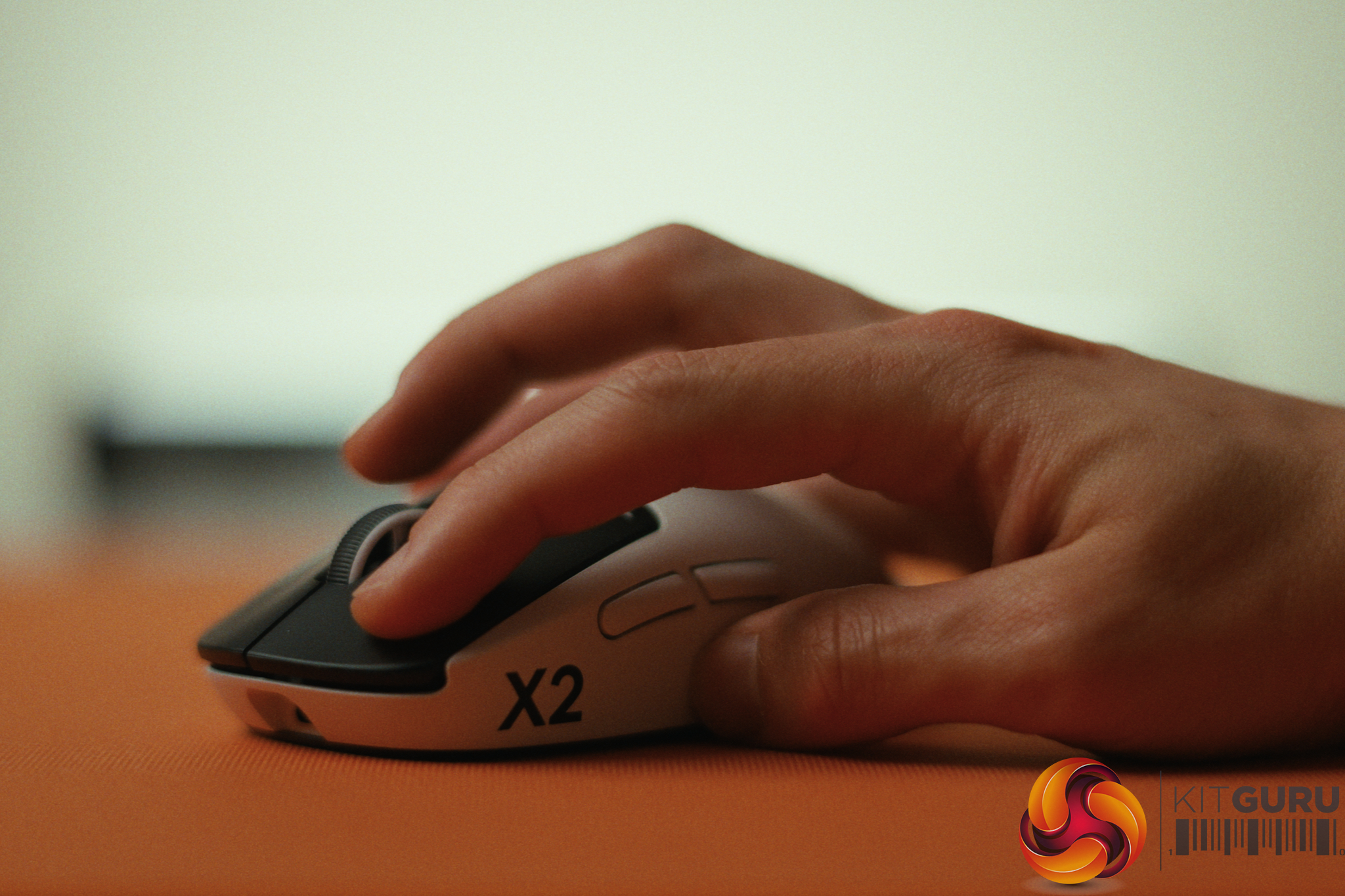
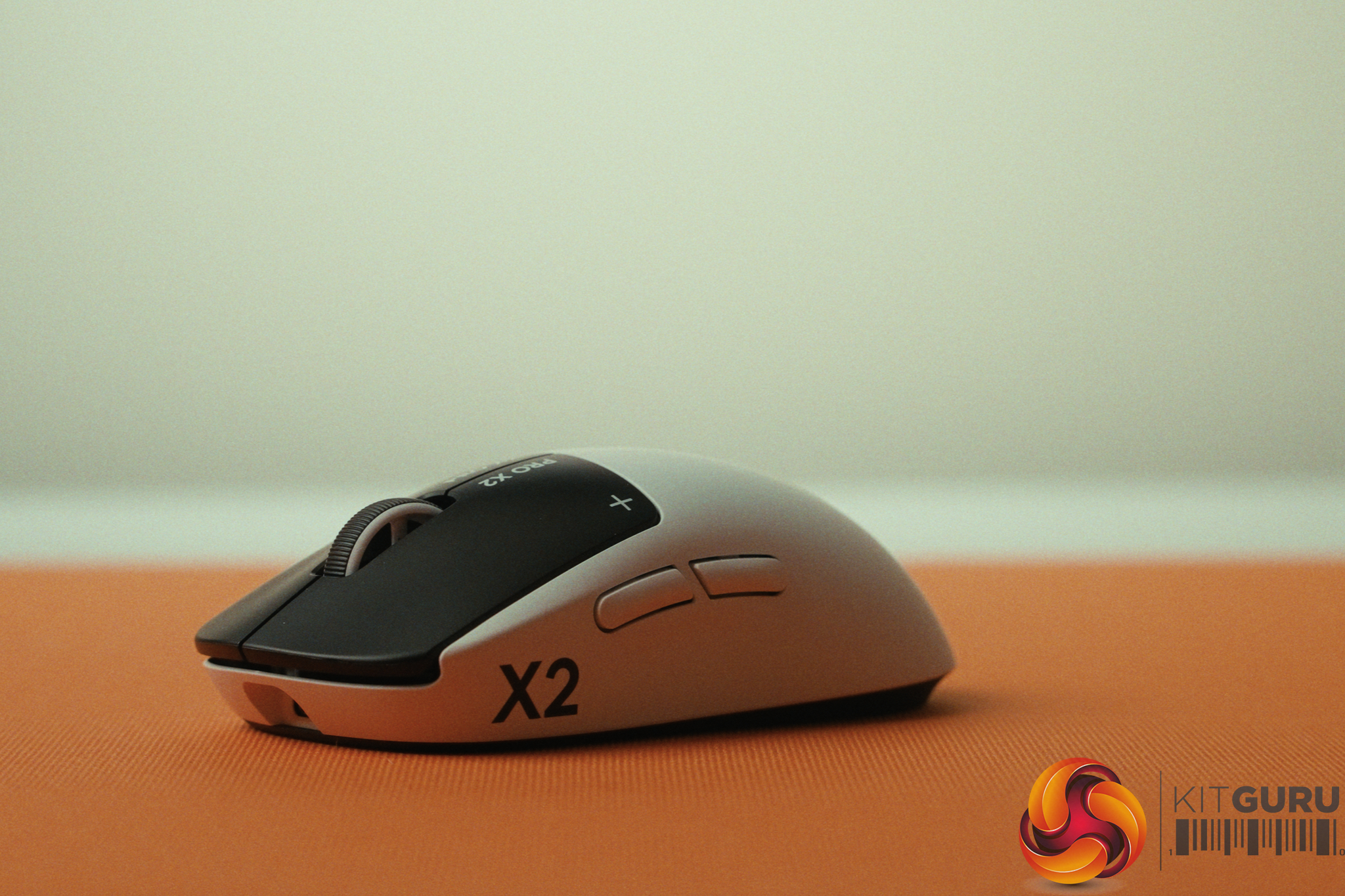
Outside of the triggers, this is very much a classic “Superlight” experience, for better or worse. The premium wireless performance, exceptional 2kHz battery life, and grippy coating are fantastic. Conversely, the side buttons remain disappointingly mushy, the stock skates are a bit thin, and the safe “potato” shape still gets in the way during tracking-heavy games for claw and fingertip grippers. Furthermore, housing the haptic engines up front means the 62g weight is no longer perfectly centered, resulting in a noticeably front-heavy balance.

Ultimately, if you play tactical shooters like CS2 where a single well-timed click is everything, it is worth checking out for yourself. But if you play tracking-heavy games, you might feel more at home with a lighter, smaller and better-balanced alternative.

You can buy the Logitech G Pro X2 Superstrike for £159.99 HERE.

Pros:

  • HITS technology offers unprecedented customization for actuation, rapid trigger, and haptic feedback.
  • Rapid trigger makes spam-clicking semi-auto weapons outrageously fast.
  • Premium wireless sensor with exceptional battery life at 2000Hz.
  • Coating is very grippy and feels great in the hand.

Cons:

  • The 30ms latency claim requires unlearning finger pre-tensioning and doesn't easily translate to real-world reflexes.
  • The haptic trigger hardware shifts the balance, making the 62g mouse noticeably front-heavy.
  • Side buttons remain mushy and feel out of place next to the premium haptic main clicks.
  • The classic safe shape isn't ideal for tracking-heavy games using fingertip or claw grips.

KitGuru says: The G Pro X2 Superstrike's haptic triggers are an impressive leap forward for the industry, but they won't magically make you a gaming god overnight.

The post Logitech G Pro X2 Superstrike Review: Three Months Later first appeared on KitGuru.

Geekom GeekBook M16 Review

14 August 2026 at 10:05

The Geekom GeekBook M16 enters the market as a larger, budget-focused 16-inch companion to the X14 Pro we reviewed earlier this year. Sitting roughly $200 cheaper, it retains the powerful 16-core Intel Core Ultra 9 185H processor but makes significant cuts to the display, memory, and storage to hit its price point. On paper, it looks like a calculated compromise for those wanting top-tier CPU power on a tighter budget. But do these cost-saving measures result in a cohesive, balanced machine, or is the M16 crippled by its own spec sheet?

Timestamps:

00:00 Intro
00:52 M16 vs X14 Pro
02:02 The screen
03:08 Battery life
05:03 RAM + Storage situation
07:24 Keyboard + trackpad (need improvement)
09:50 Other design elements
12:33 The thermal paste issue…
15:04 Gaming performance
16:21 Closing thoughts

Specifications:

  • Processor: Intel Core Ultra 9 185H (16 Cores, 22 Threads, 45W limit).
  • Display: 16-inch IPS, 1920×1200, 60Hz, 318 nits (No VRR).
  • Memory: 16GB LPDDR5 6400MHz (Soldered).
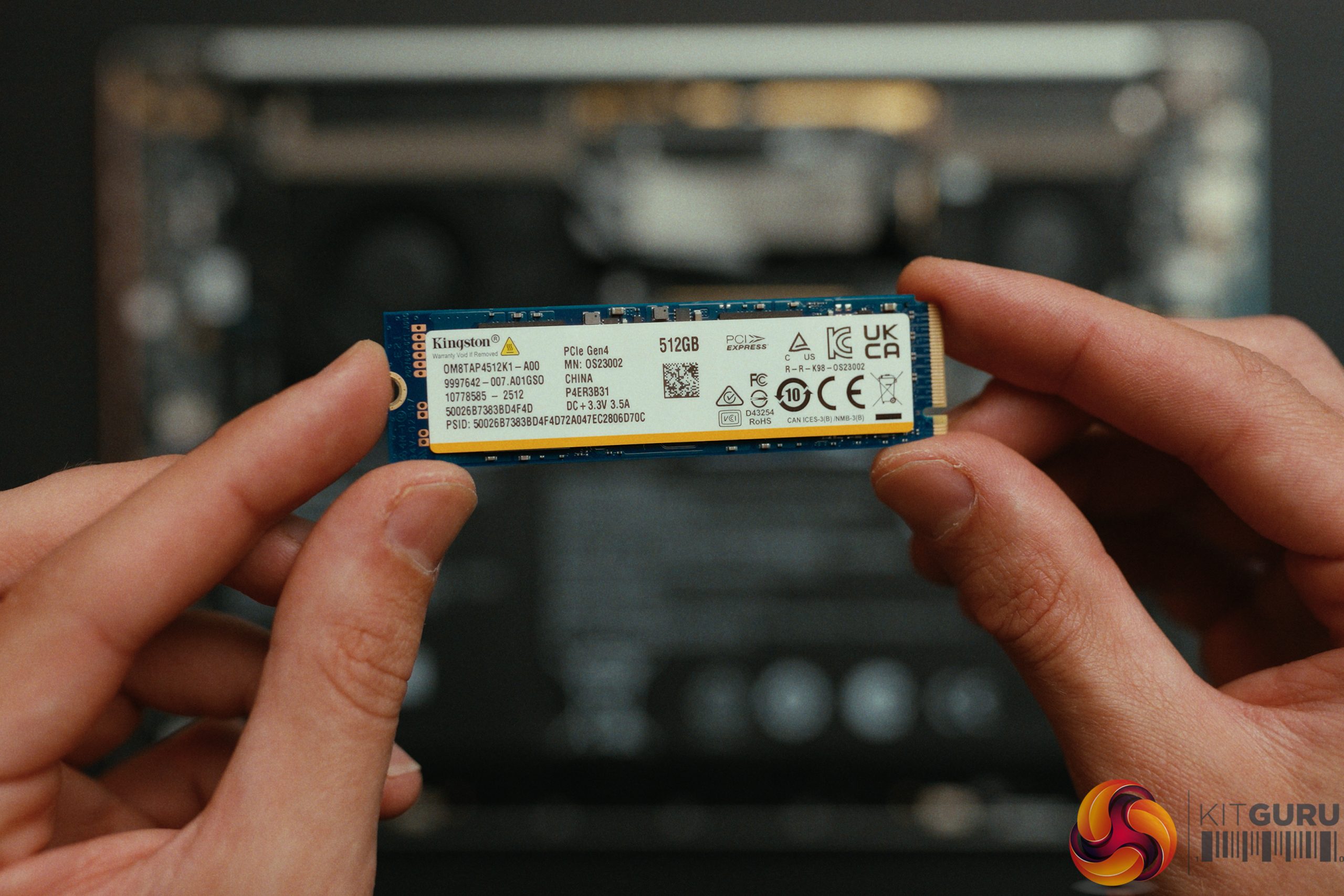
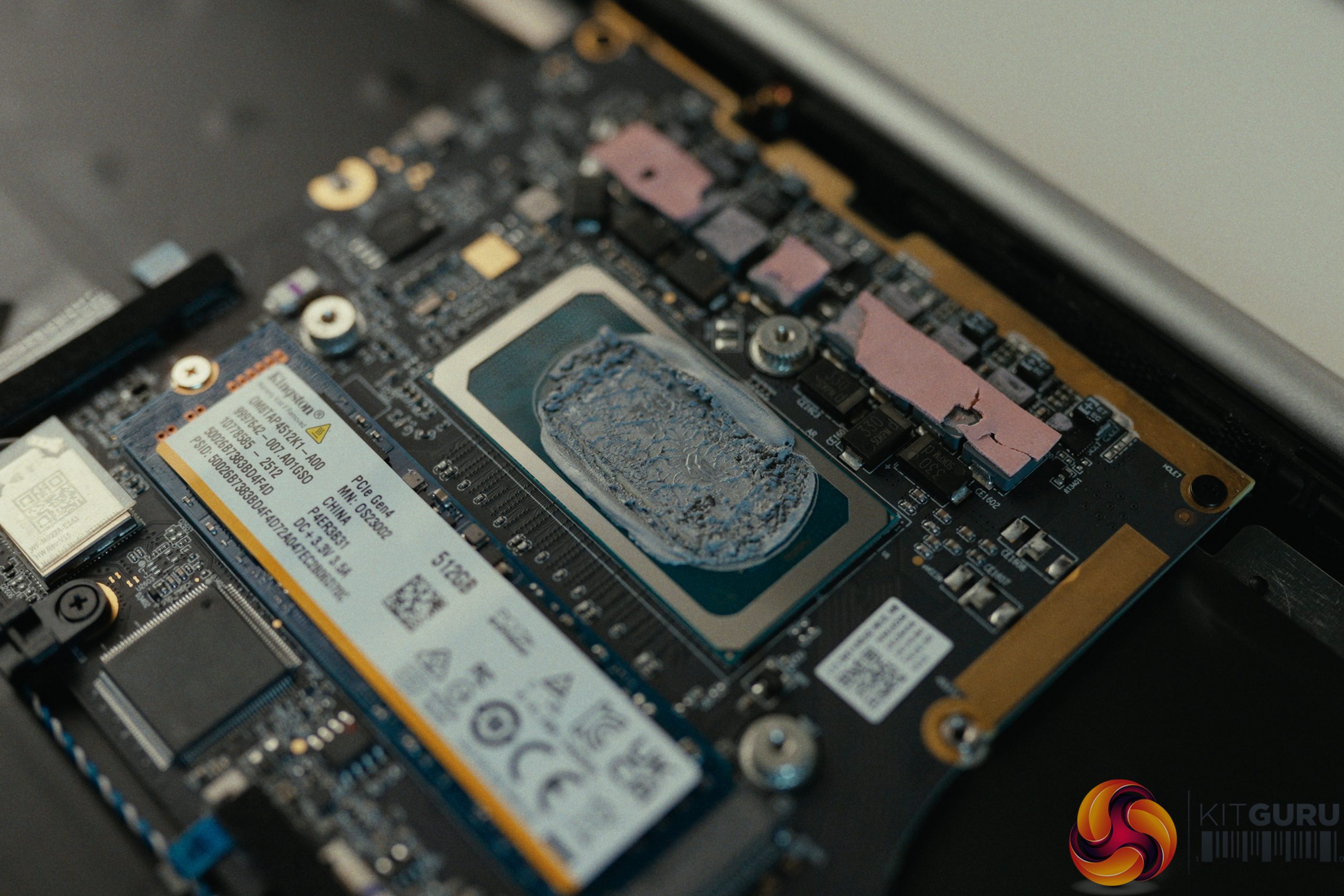
  • Storage: 512GB Kingston QLC PCIe SSD (No DRAM cache).
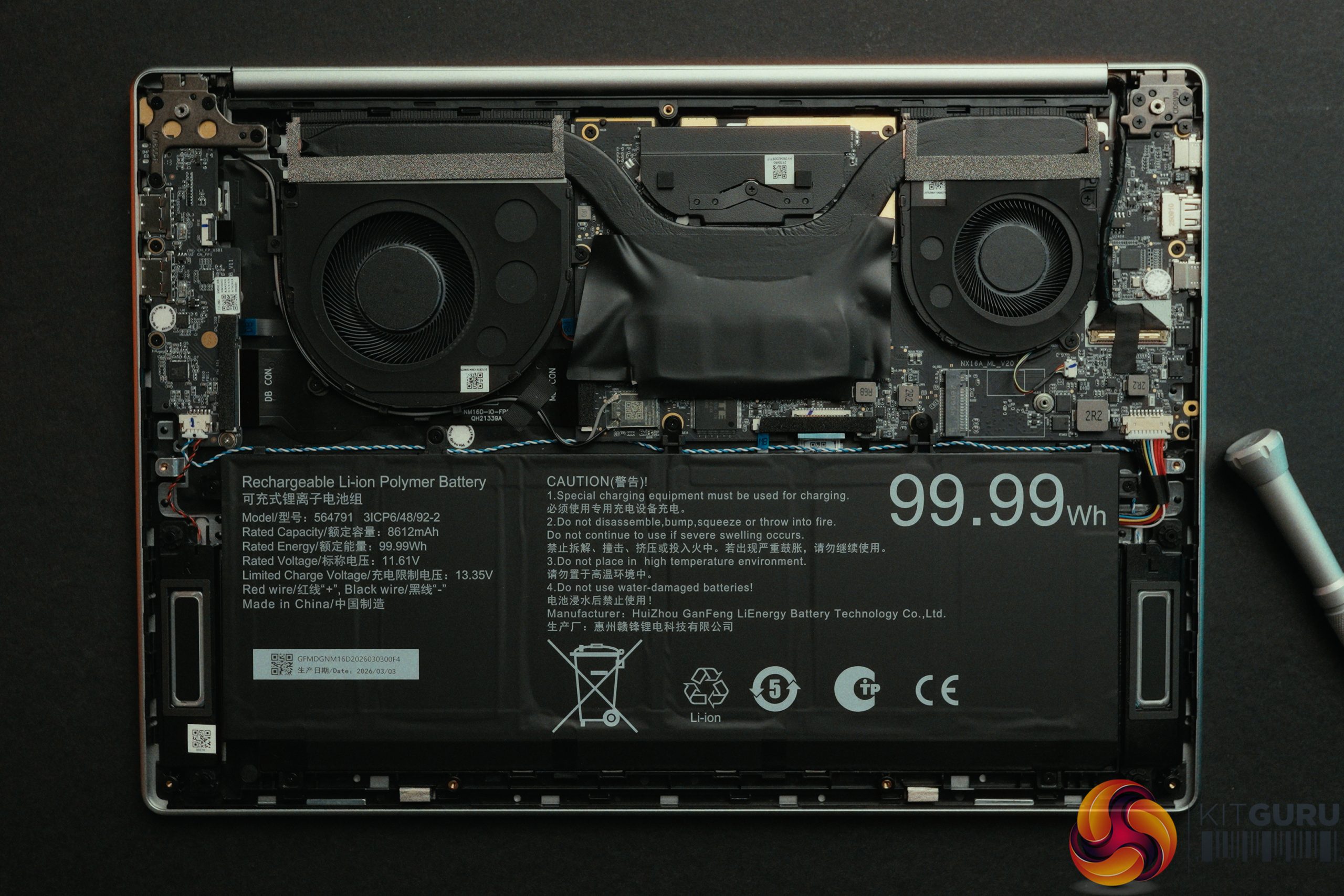
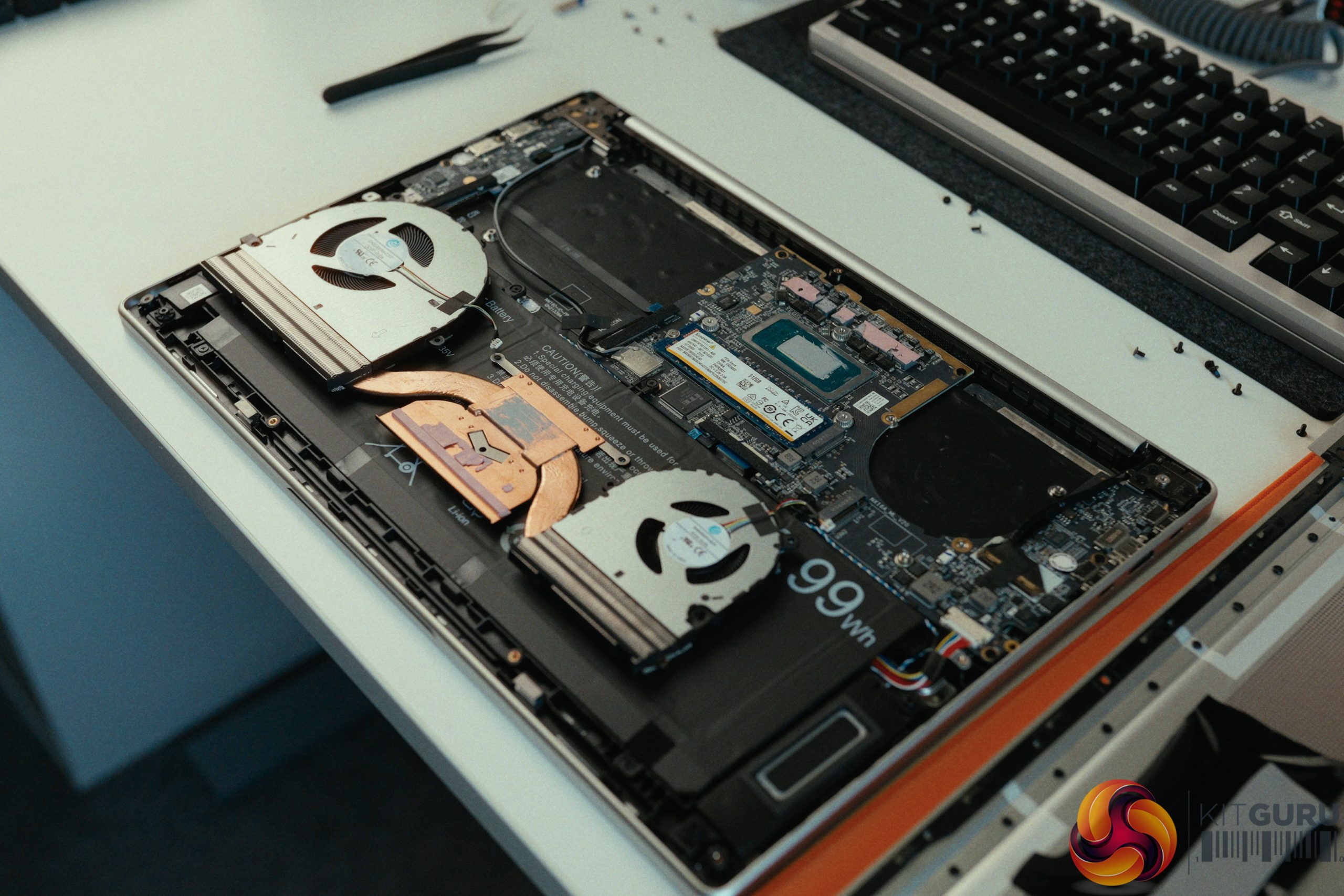
  • Battery: 99.99Wh with 100W USB-C Charging.
  • Dimensions: 16-inch Aluminum Chassis.

Closing Thoughts

The Geekom M16 is a somewhat unbalanced machine. By dropping the price $200 below the X14 Pro, Geekom had to make compromises, but they arguably made the wrong ones. The gorgeous OLED screen is gone, replaced by a dim, blue-tinted 60Hz IPS panel that lacks VRR, resulting in screen tearing during games. More alarmingly, the 512GB Kingston QLC SSD is so slow that it actively bottlenecks basic Steam game downloads on a Gigabit connection, and in our usage, its health degraded rapidly due to the system heavily relying on the page file to compensate for the soldered 16GB of RAM.

There's other areas that still need to be improved, too. The trackpad remains jumpy and inconsistent, and the stock thermal paste application remains clearly sub-optimal. Out of the box, the M16's 45W CPU barely outperformed the 35W X14 Pro. It wasn't until we manually opened the laptop and repasted the CPU that we unlocked a massive 29.7% performance jump in Cinebench. The hardware is physically capable, but trapped behind this poor thermal goop.

Ultimately, the M16 just doesn't feel like a balanced laptop. It pairs a power-hungry, high-end 16-core processor with bottom-of-the-barrel storage and a mediocre screen. It isn't good for video editors, it certainly isn't good for gamers, and we'd argue average users would be better served by a laptop with a weaker, more efficient CPU paired with significantly better RAM and storage.

Geekom sent over the following discount code and retail links for our readers, but please note these are NOT affiliate links and we do not get a kickback from any purchases:

Pros:

  • Massive 99.99Wh battery provides solid uptime (around 8 hours of 4K video playback).
  • Upgraded 100W charger is included in the box.
  • Redesigned bottom speaker grille eliminates the chassis vibration issues found on the X14 Pro.
  • Massive performance headroom (nearly 30%) if you are willing to manually repaste the CPU.

Cons:

  • Poor out-of-the-box thermal paste causes significant CPU bottlenecking.
  • Slow QLC SSD bottlenecks Gigabit internet downloads and degraded quickly in our testing.
  • Mediocre 60Hz IPS screen with poor colour accuracy (Delta E of 14) and no VRR.
  • Jumpy, last-gen trackpad and an annoying keyboard layout (Airplane mode next to Backspace).

KitGuru says: The Geekom M16 pairs a high-end processor with bottom-tier storage and a mediocre screen, resulting in a frustratingly unbalanced laptop.

KitGuru Worth Considering Award

The post Geekom GeekBook M16 Review first appeared on KitGuru.

Corsair Nightsword V2 Wireless SD Mouse Review

6 August 2026 at 12:00

The Corsair Nightsword V2 Wireless SD enters the market at £119, attempting to bridge the gap between an ergonomic gaming mouse and a productivity powerhouse. Its standout feature is a dedicated Stream Deck button that summons a virtual Stream Deck directly to your screen, allowing for endless macro customization. But does cramming streamer-focused software features into a heavy, ergonomic shell make for a compelling daily driver, or does it compromise the fundamental gaming experience?

Timestamps:

00:00 Intro
00:59 Stream Deck button
02:10 Compromises for the button?
04:15 Spec discussion + wireless performance
05:23 Clicks + soundtest
07:18 Software – web hub
08:49 Battery life
09:34 Coating + textured sides
10:25 Closing thoughts
11:38 Post-edit Update!

Specifications:

  • Weight: 89g official specification (Weighed at 92g).
  • Connectivity: Wireless via USB Dongle (Extender included).
  • Polling Rate: Up to 8000Hz (1000Hz recommended).
  • Scroll Wheel: Smooth, tactile, with side-to-side scrolling.
  • Special Features: Dedicated Elgato virtual Stream Deck button.
  • Software: Configurable via Corsair Web UI or iCue desktop app.
  • Price: £119.

Closing Thoughts

The Corsair Nightsword V2 Wireless is a niche product that struggles to balance its unique software capabilities with its physical hardware. The integration of the virtual Stream Deck is interesting but only to a select few. Having a highly customizable macro pad pop up on your screen at the press of a conveniently located thumb button can be a productivity dream, however accommodating this feature seems to have compromised the core gaming experience. At 92 grams, it feels heavy and fatiguing for competitive play, completely lacking the agility found in modern more lightweight alternatives.

Furthermore, the fundamental physical interactions are a mixed bag. While the scroll wheel is fantastic and the side buttons feel great, the main clicks suffer from significant pre- and post-travel, making them feel hollow and sluggish. Add in a slippery rubberized side coating, and the £119 price tag becomes a little hard to justify.

If you value aim and agility, there are much better mice on the market; if you desperately need Elgato macros, you are likely better off buying a physical Stream Deck or leaving the macros and shortcuts to your keyboard.

You can buy the Corsair Nightsword V2 Wireless SD for £119 HERE.

Pros:

  • The Elgato button integration offers incredibly powerful, customizable virtual macros.
  • The scroll wheel is excellent, featuring smooth tactility and side-to-side scrolling.
  • Exceptional battery life that easily lasts over a week of heavy use.
  • Corsair is pushing towards a Web UI, eliminating the strict need to install iCue for basic functions.

Cons:

  • At 92g, it is too heavy and fatiguing for competitive gaming.
  • Main clicks feel hollow and sluggish with noticeable pre- and post-travel.
  • The side coating is slippery and provides poor grip with even a little sweat.
  • Sub-par dongle range requires the use of the included extender cable right next to the mouse for reliable performance.

KitGuru says: The Corsair Nightsword V2 Wireless offers clever Elgato Stream Deck integration, but its heavy weight, hollow clicks, and slippery coating make it a tough sell for serious gamers.

KitGuru Worth Considering Award

The post Corsair Nightsword V2 Wireless SD Mouse Review first appeared on KitGuru.

LiberNovo Omni Pro Review

13 July 2026 at 12:10

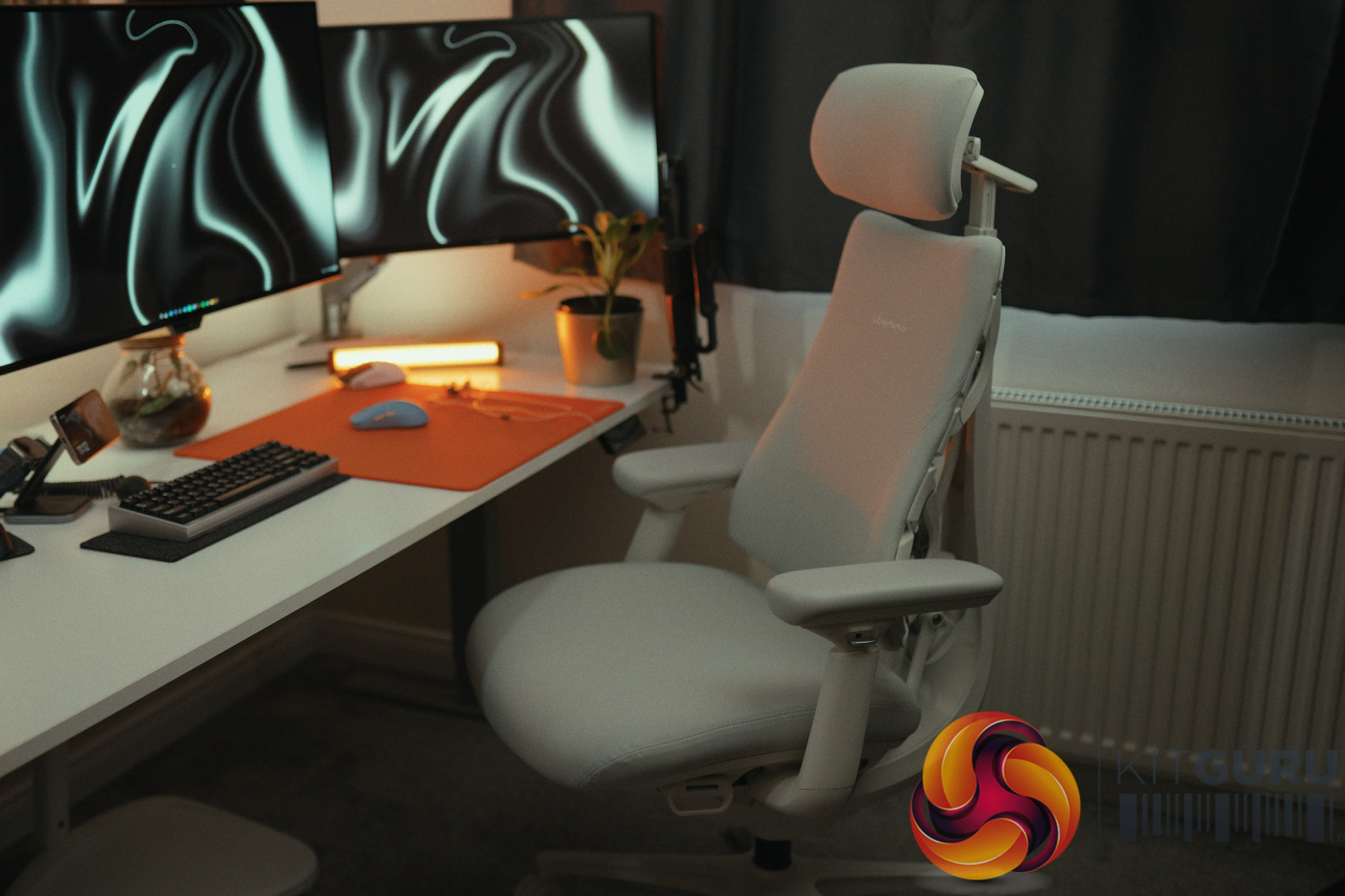
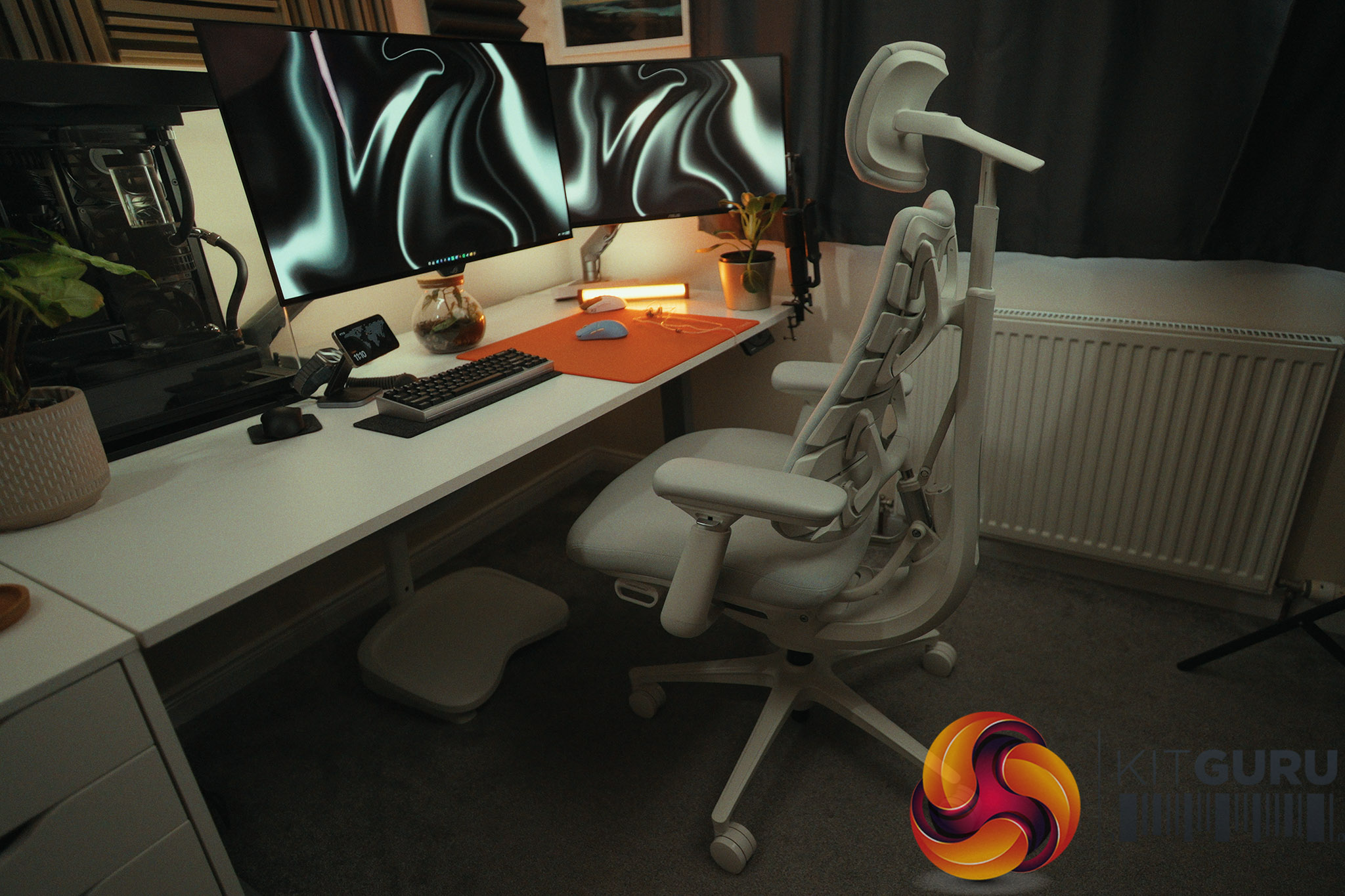
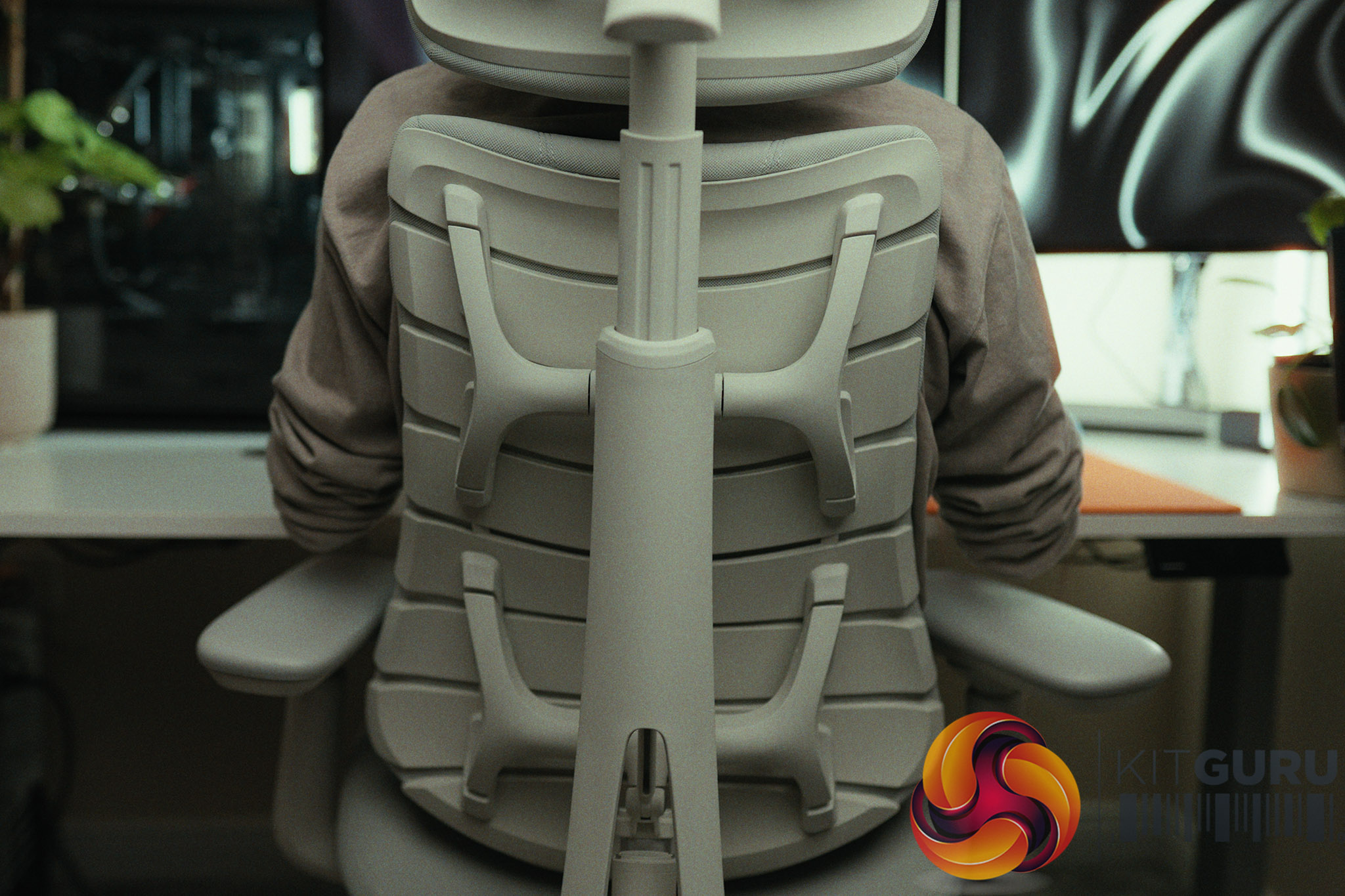
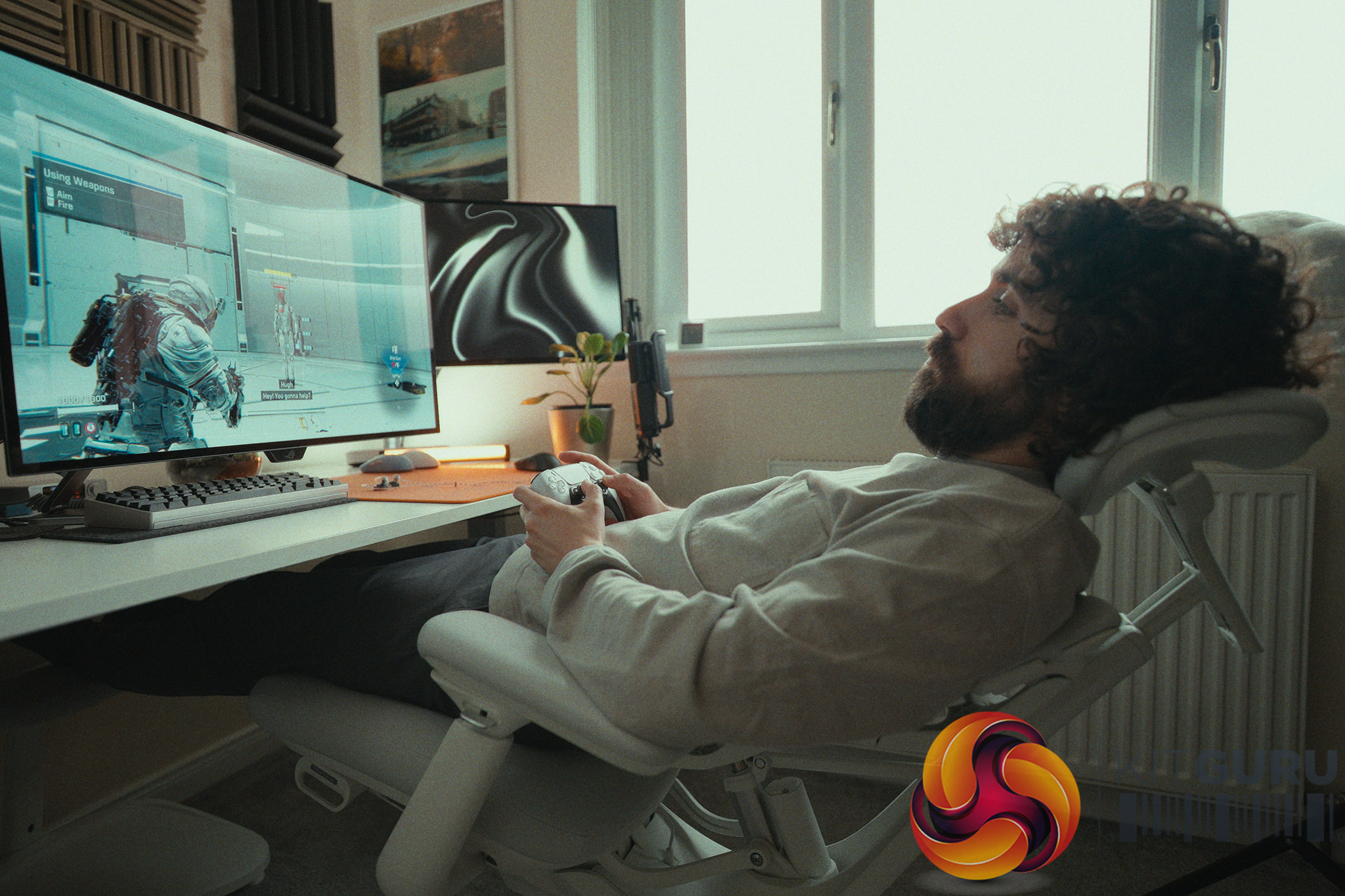
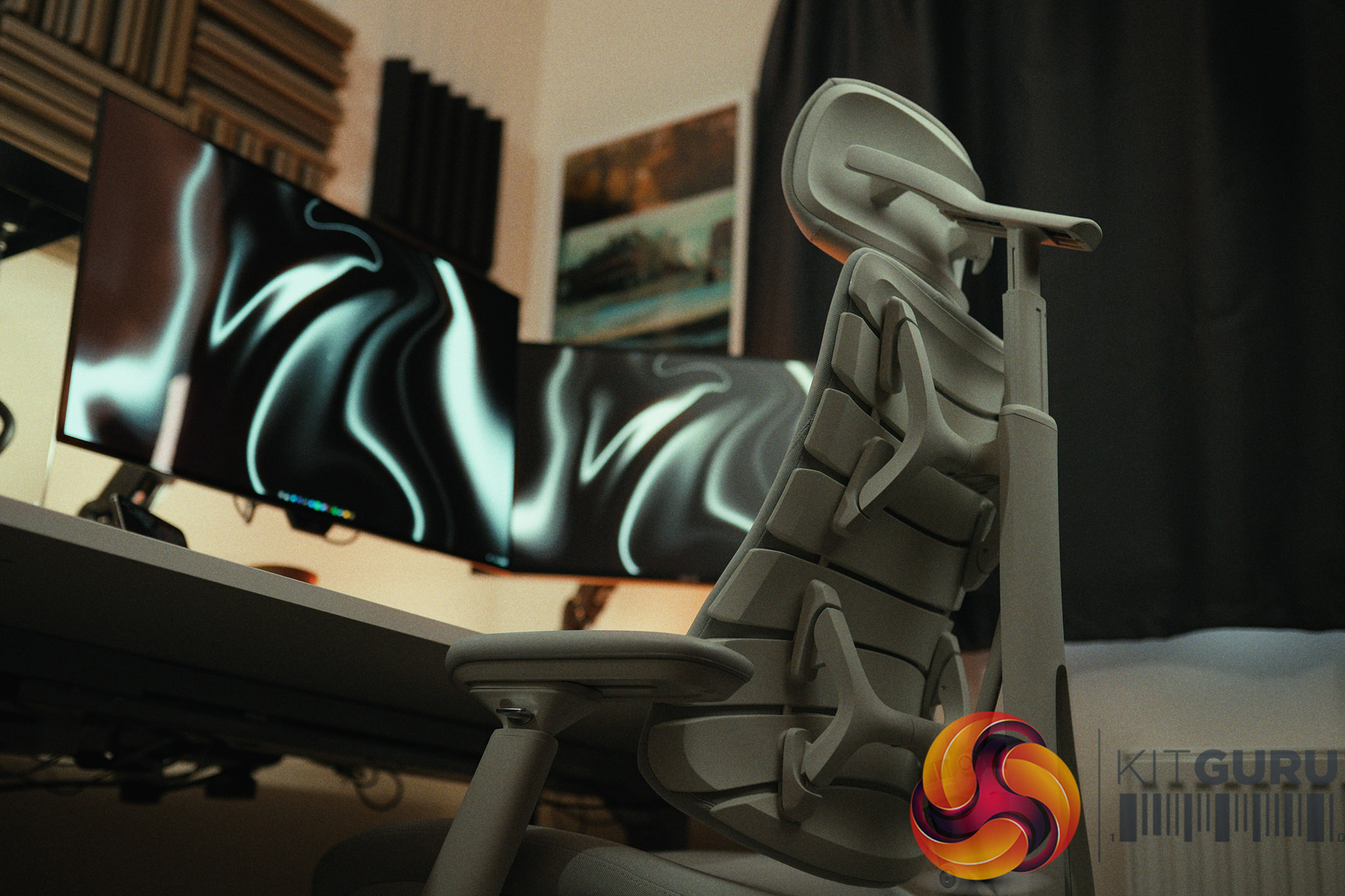
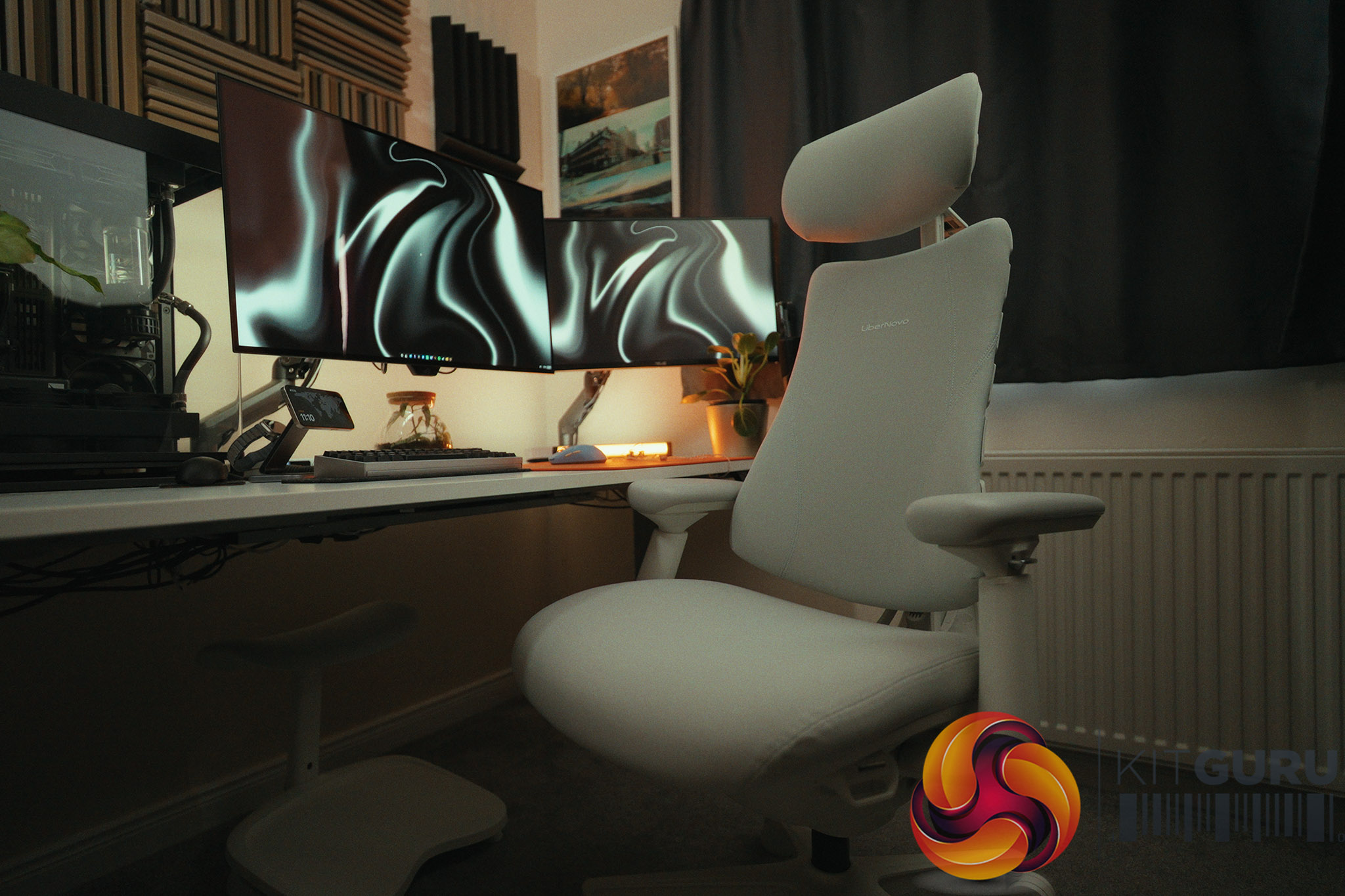
The LiberNovo Omni Pro enters the premium office chair market with an eye-watering £849 starting price and a feature set that reads like a tech product – with it's motorized backrest, built-in stretch mode, active seat ventilation, and a USB-C battery bank to power it all. But do these electronic additions actually improve the daily seating experience, or are they just expensive gimmicks masking a standard ergonomic chair?

Timestamps:

00:00 Intro
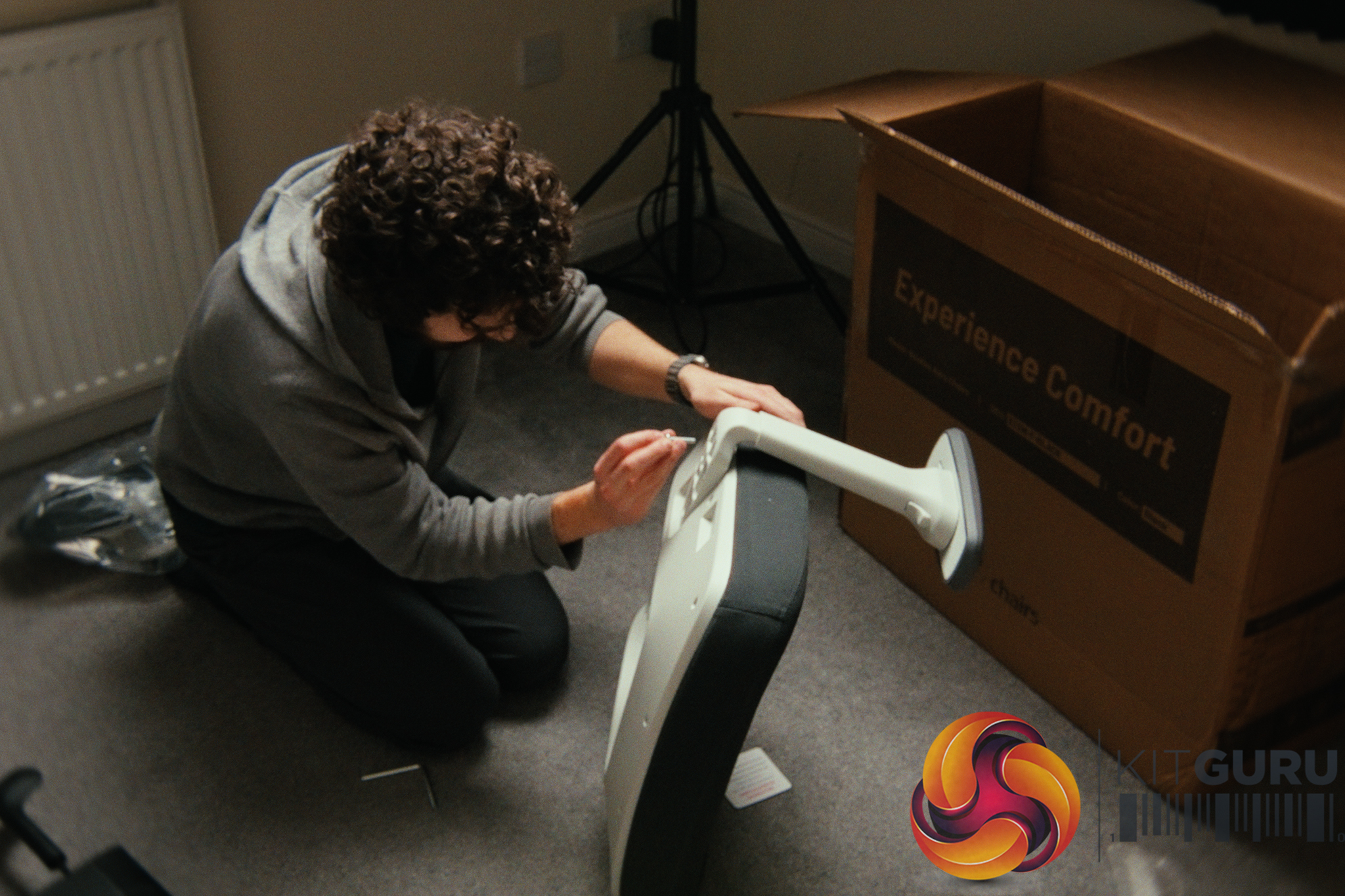
01:10 Assembly
02:15 Omni Stretch mode
03:47 Ergonomic adjustments
04:49 Active ventilation + fan
07:05 Battery life…
08:32 Using the chair in different situations
12:33 Thing that could be improved…
15:46 Price + warranty discussion
17:17 Closing thoughts

Specifications:

  • Upholstery: Glacier White Danish Gabriel Atlantic Fabric.
  • Electronic Features: Motorized backrest (With Omni Stretch mode), Active cooling fan.
  • Power Supply: Removable 32.4Wh USB-C Power Bank.
  • Accessories: Optional £94 matching footrest.
  • Warranty: 5 years on chair components / 2 years on electronics.

Closing Thoughts

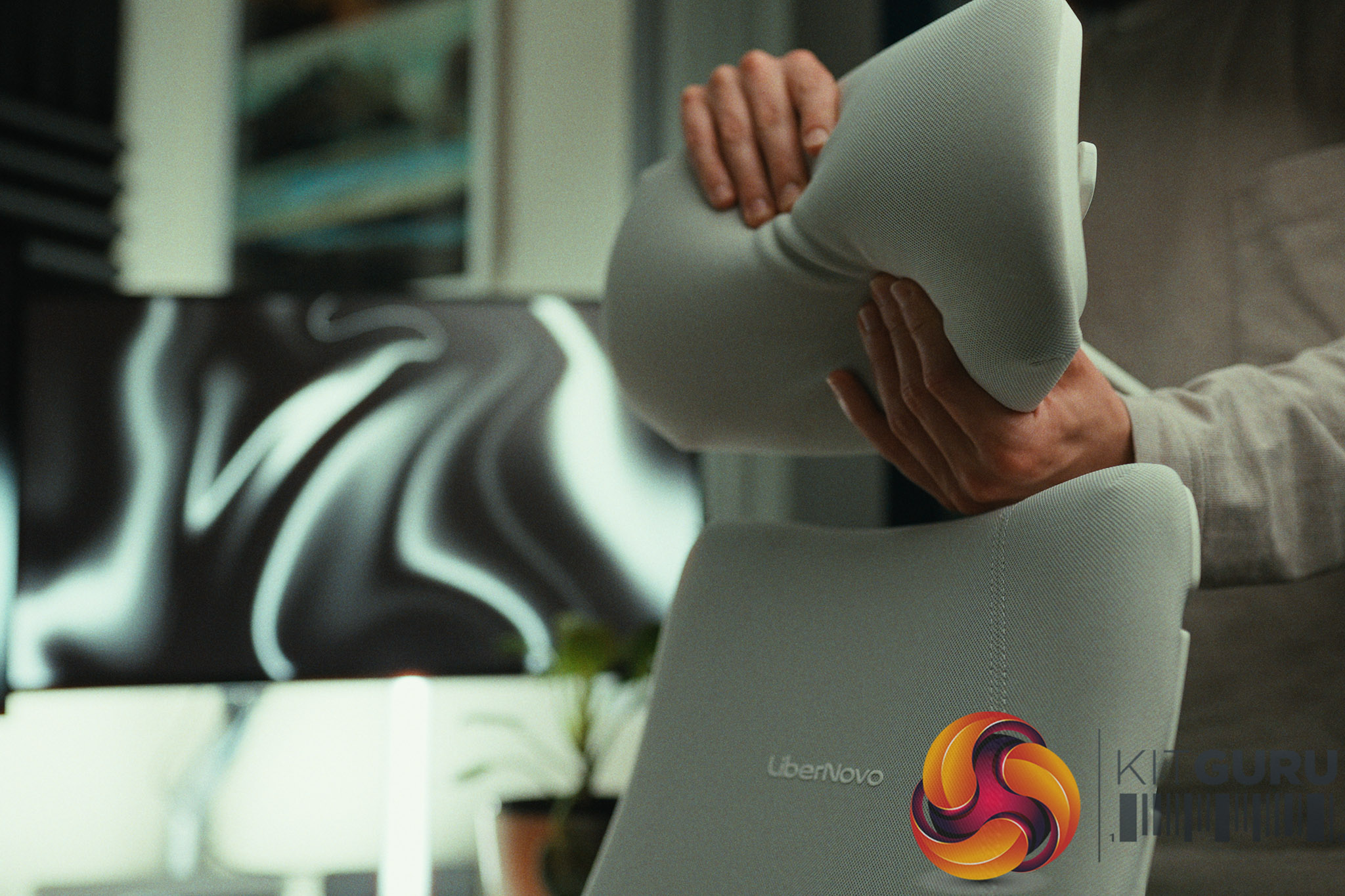
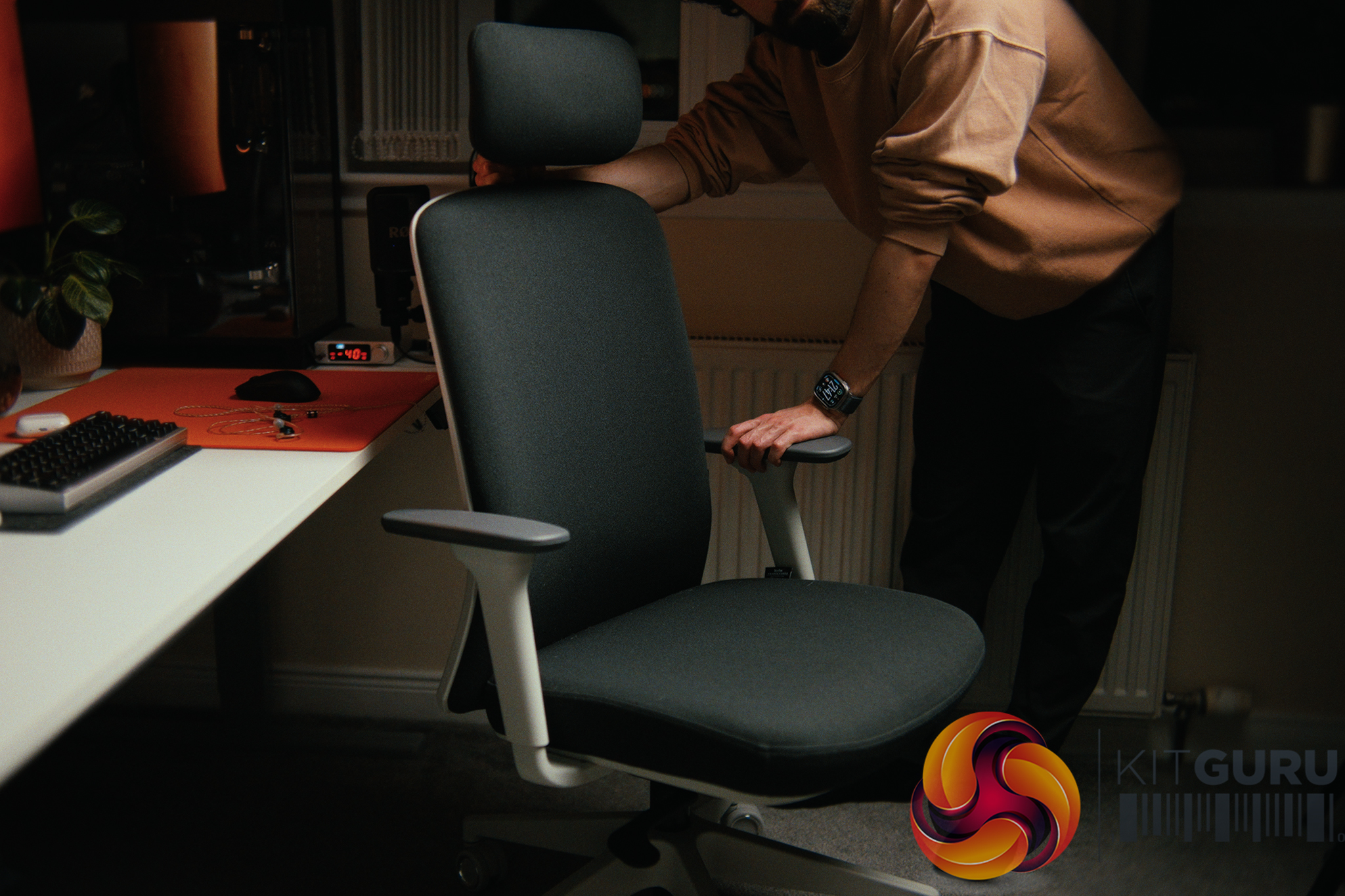
The LiberNovo Omni Pro is a chair that genuinely expands what an office chair can be. By integrating motorised adjustments, you can perfectly dial in your posture with the push of a button, whether you are leaning forward for competitive gaming or fully reclined with the optional footrest to watch an F1 race. The active cooling and Omni Stretch mode lean far more toward “genuinely useful” than “gimmick,” and the overall comfort provided by the soft, breathable fabric and well-designed frame is exceptional. I particularly loved that the armrests move dynamically with the backrest recline, a feature more brands need to adopt.

However, at £943 for the full setup (including the footrest), the warranty situation is a tough pill to swallow. While the physical chair gets 5 years of coverage, the electronics—the very components that make this chair special—are only covered for 2 years.

Despite this, if you have the budget, this is one of the most versatile and comfortable chairs I have ever tested.

You can buy the LiberNovo Omni Pro starting at £849 here:

  1. US: https://bit.ly/4uZqPqm
  2. UK: https://bit.ly/4eCqHHs

Pros:

  • Massive versatility with highly adjustable, comfortable seating positions.
  • Omni Stretch mode and motorized backrest are genuinely useful features.
  • Armrests move perfectly in tandem with the backrest recline.
  • Battery life from the removable USB-C power bank (lasted a full month and counting).

Cons:

  • Disappointing 2-year warranty on the electronics given the premium price.
  • Out-of-the-box height adjustment bug required manual disassembly to fix.
  • Battery bank charges very slowly (under 10W).

KitGuru says: The LiberNovo Omni Pro is an incredibly comfortable and versatile chair with features that actually enhance the user experience, but it is a little held back by only 2 years of electronics warranty.

The post LiberNovo Omni Pro Review first appeared on KitGuru.

Epomaker RT100 Pro Review

26 June 2026 at 09:24

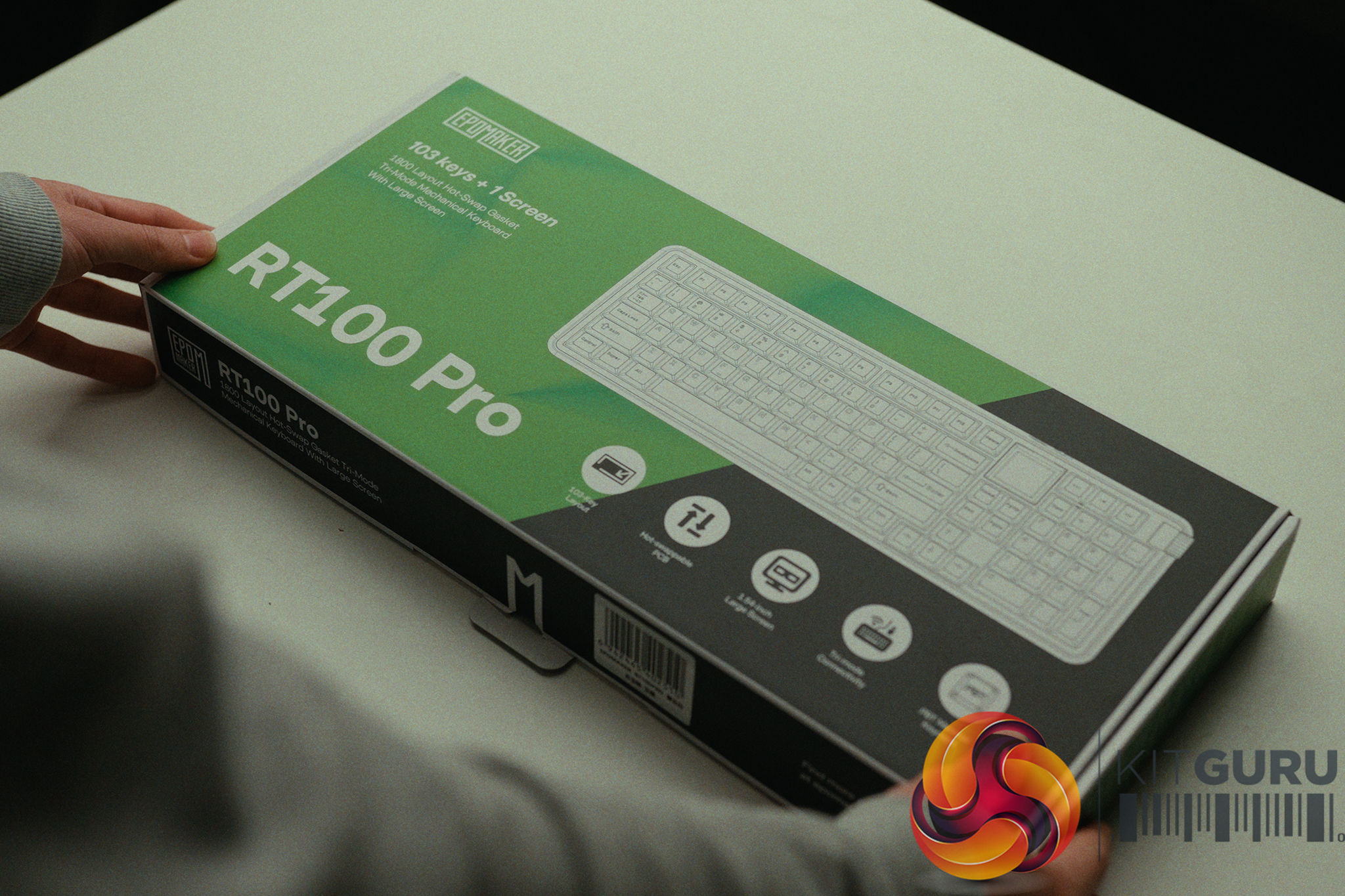
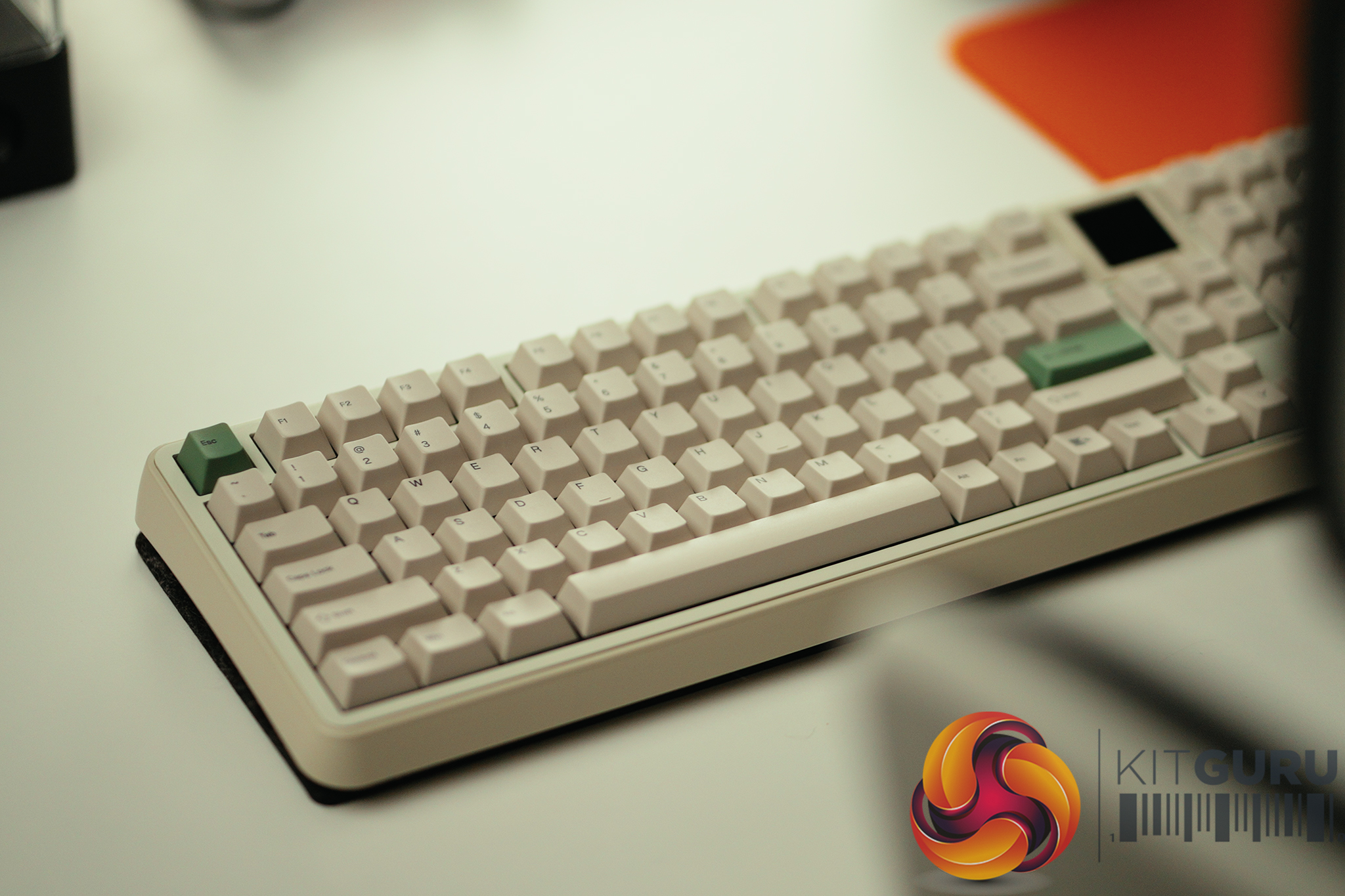
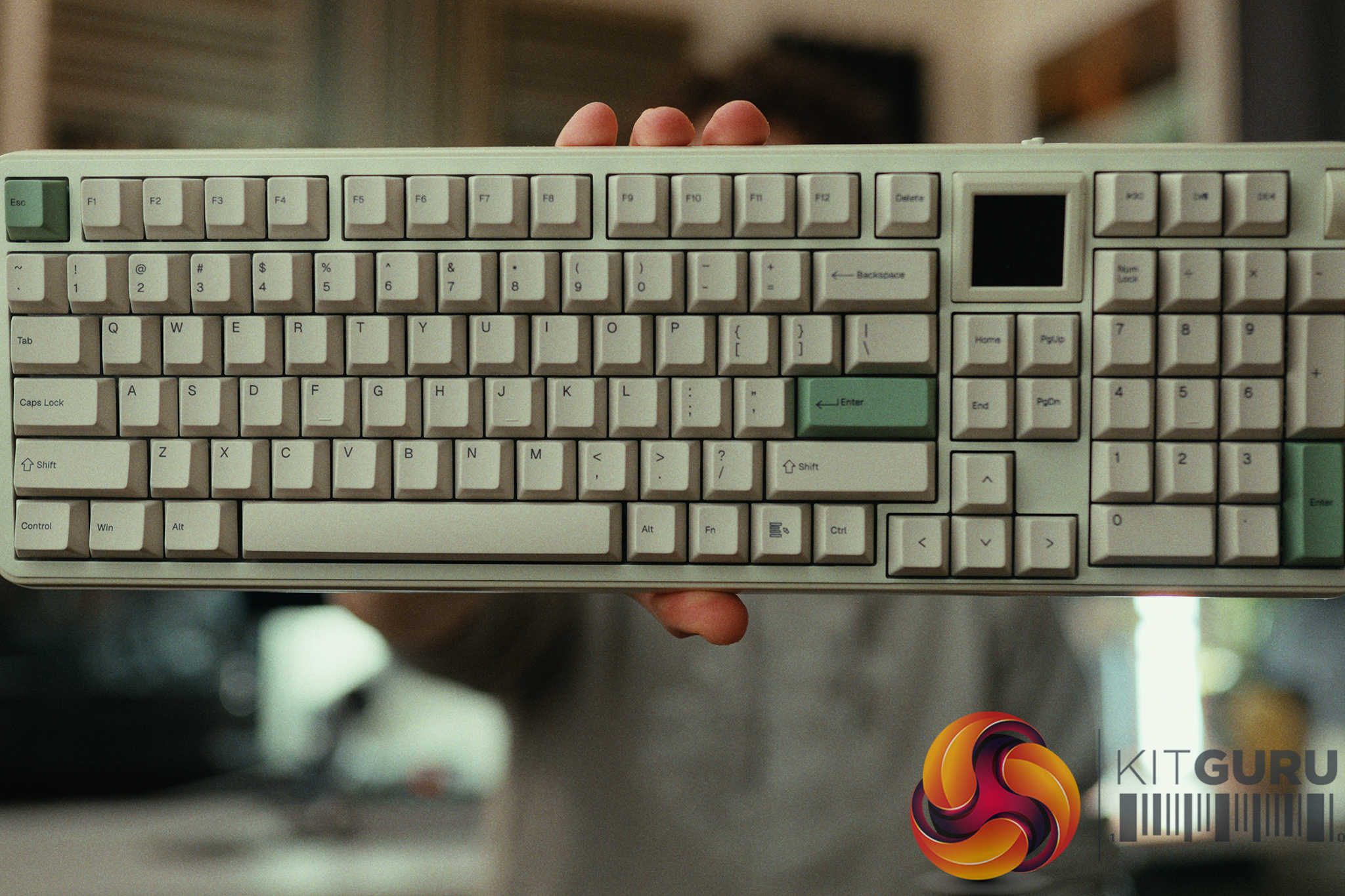
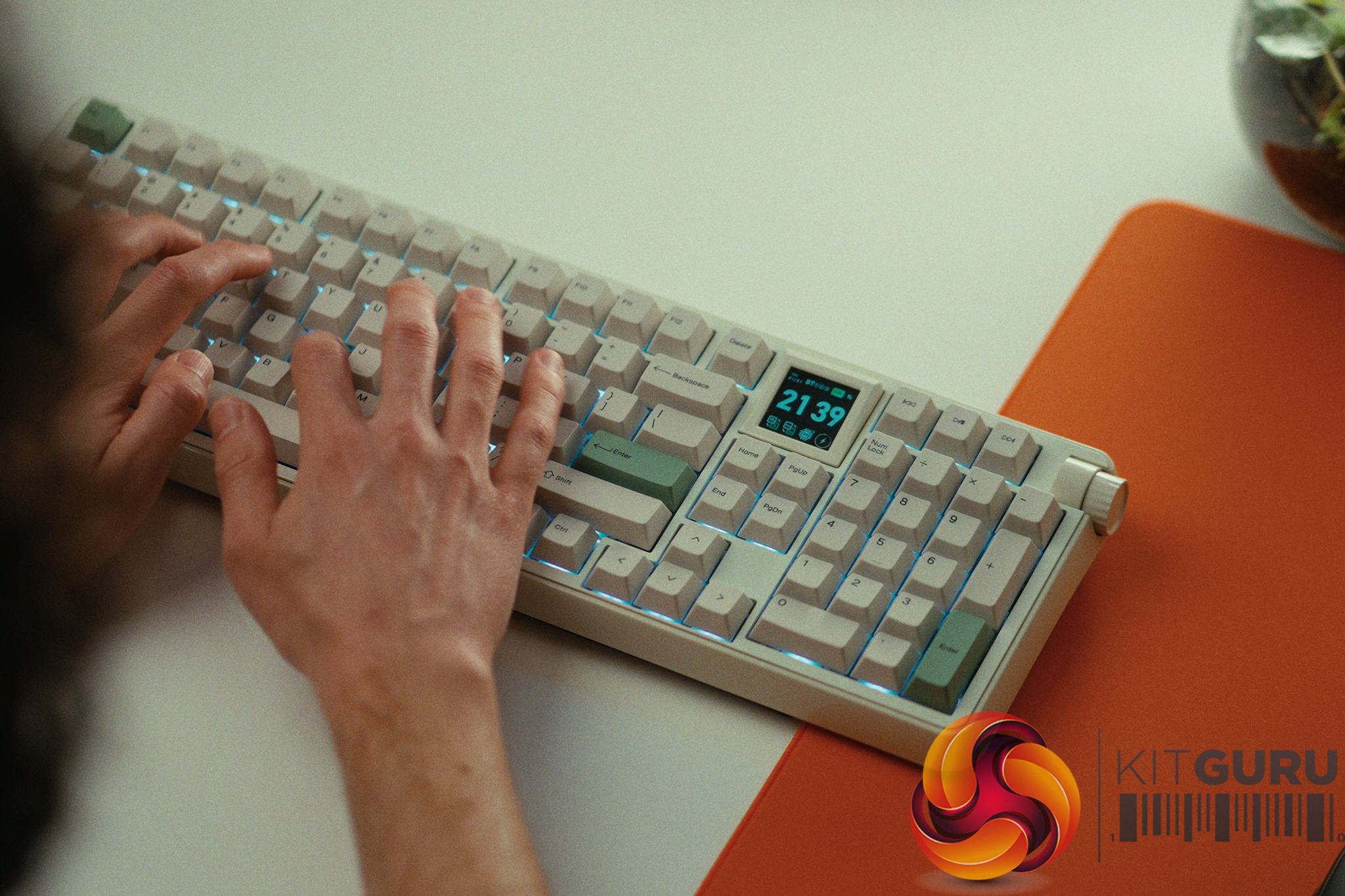
The Epomaker RT100 Pro enters the market at £129, heavily targeting your nostalgic trend genes. Appart from the retro aesthetic it comes with a  detachable screen, tri-mode connectivity, and a promise of premium acoustics right out of the box, it looks like a compelling package on paper. But beneath the Instagram-friendly exterior and the heavy layers of sound dampening, does the RT100 Pro actually deliver a cohesive daily typing experience, or is it just masking deeper hardware and software flaws?

Timestamps:

00:00 Intro
01:09 Why it isn’t for Carlos…
02:19 Soundtest + acoustic profile
04:31 The small details need improvement
08:06 Other ‘retro’ elements
09:19 The software…
11:59 We have UPDATES!
16:48 Closing thoughts

Specifications:

  • Form Factor: Full-sized layout with Numpad.
  • Connectivity: 2.4GHz Wireless, Bluetooth, and Wired USB-C.
  • Keycaps: PBT (Retro styling).
  • Switches & Stabs: Pre-lubed switches and pre-lubed plate-mounted stabilizers.
  • Acoustics: Heavy on the internal silicone dampening and PE foam sheets.
  • Features: Detachable mini smart and per-key RGB.

Closing Thoughts

The Epomaker RT100 Pro is a masterclass in masking plastic hardware with clever acoustic tricks, but it frustrated me the more I looked past the surface. To its credit, the keyboard sounds genuinely plesant out of the box. By stuffing the plastic shell with PE foam and thick silicone, and pairing that with smooth, pre-lubed switches and stabilizers, Epomaker has achieved a deep, marbly “thock” that many people can spend hours trying to replicate.

However, the heavily advertised detachable screen is poorly executed; it is incredibly dim, features muted colors, and completely loses its internal clock settings the moment it is detached or the keyboard battery dies. Furthermore, the plastic chassis feels cheap and prone to creaking, making the keyboard difficult to modify because removing any internal foam leaves the components feeling entirely too loose.

The worst offender proved to be the Epomaker software. Initially, in order to use features like the CPU monitor on the screen, you are forced to give the app full Windows Administrator rights. Once launched, it also silently starts multiple strange background services (with names like “screen_capture_service.exe”, “keyboard_monitor_service.exe” and “rhythm_service.exe”.

Thankfully, we reached out to Epomaker with our concerns and the company issued an update for the software, so such background services are now only started when needed for certain keyboard RGB settings, which is absolutely the right approach as things like the screen_capture_service.exe caused my GPU to spike by 20W at idle with random CPU spikes to boot and around 200mb of RAM permanently. In game the impact is even worse at around 20% performance drop.

Ultimately, for £129, the RT100 Pro nails keyboard basics but ends up being a frustrating experience as there is still lots of room for improvement when it comes to the software.

You can buy the Epomaker RT100 Pro for £129 HERE.

Pros:

  • Well tuned, deep, and marbly acoustic profile right out of the box.
  • Versatile tri-mode connectivity (2.4GHz, Bluetooth, Wired).
  • Simple PBT keycaps that fit the retro aesthetic well.

Cons:

  • Mediocre and sometimes resource-heavy software that focuses on quantity of features instead of quality implementation.
  • The detachable screen is dim, loses its time settings when without power, and struggles to sync basic GIFs.
  • Glossy plastic shell feels cheap and relies entirely on foam to hide its flaws.
  • Per-key RGB is incredibly dim and arguably unnecessary for a retro board.

KitGuru says: The Epomaker RT100 Pro looks great on a desk and sounds fantastic out of the box, but it is ultimately let down by a gimmicky screen and mediocre software.

KitGuru Worth Considering Award

The post Epomaker RT100 Pro Review first appeared on KitGuru.

Our Guide to Installing Linux for Gaming w/ CachyOS

18 May 2026 at 09:50

We have all been there. You boot up a fresh Windows 11 installation only to be greeted by forced online accounts, AI assistants you didn't ask for, and background bloatware eating into your precious framerates. For years, the alternative has been Linux, but the perceived hassle of terminals and compatibility issues has kept most gamers away. What if I told you that you could ditch Windows, install a heavily optimized gaming OS, and be ready to launch your first Steam game in under 10 minutes?

Timestamps:

00:00 Intro
00:56 Getting started…
03:04 Getting the system prepped
07:19 CachyOS installation
12:10 We’re in the OS!
15:53 Running games on Steam – the basics
20:02 How to troubleshoot
22:02 Running our game!
24:57 Closing thoughts

Let's not sugar coat it: the state of modern Windows is increasingly frustrating for PC enthusiasts. In our recent hardware reviews, we've seen first-hand how pre-installed software and OS-level bloat can literally rob you of your system's performance, leaving real framerates on the table for no good reason.

The classic counter-argument is always, “Just switch to Linux.” But for the average gamer, the idea of jumping into an entirely new operating system sounds like a daunting, weekend-long project filled with troubleshooting, mental gymnastics, and endless forum diving.

I wanted to prove that this simply isn't true anymore.

Enter CachyOS. It's a Linux distribution purpose-built for squeezing every last drop of performance out of your hardware right out of the box, with gaming at the forefront of its design. But rather than just throwing benchmarks at you, I decided to show you exactly how frictionless the transition can actually be.

In this video, we are doing a real-time, follow-along tutorial. No skipped steps and extra fluff. We start from absolute scratch by creating a bootable USB drive using Ventoy, walk through the surprisingly simple CachyOS graphical installer, and handle the post-install essentials together. We run through grabbing the necessary gaming packages (literally pressing a single button to install everything), ensuring the system is fully up to date, and logging straight into Steam.

The best part? From downloading the CachyOS .iso to getting on your new fresh CachyOS desktop in just a little over 10 minutes. If you have a spare NVMe drive sitting around, and you are simply fed up with the current direction of Microsoft's operating system and want a snappier, cleaner desktop experience, grab a coffee and hit play.

You might just find that the grass actually is greener on the other side.

KitGuru says: Let us know if you're a Linux user, or if this guide might just tempt you to try it out!

The post Our Guide to Installing Linux for Gaming w/ CachyOS first appeared on KitGuru.

PCSpecialist Nebula Master K Prebuilt (250K Plus + 9060 XT)

11 May 2026 at 11:00

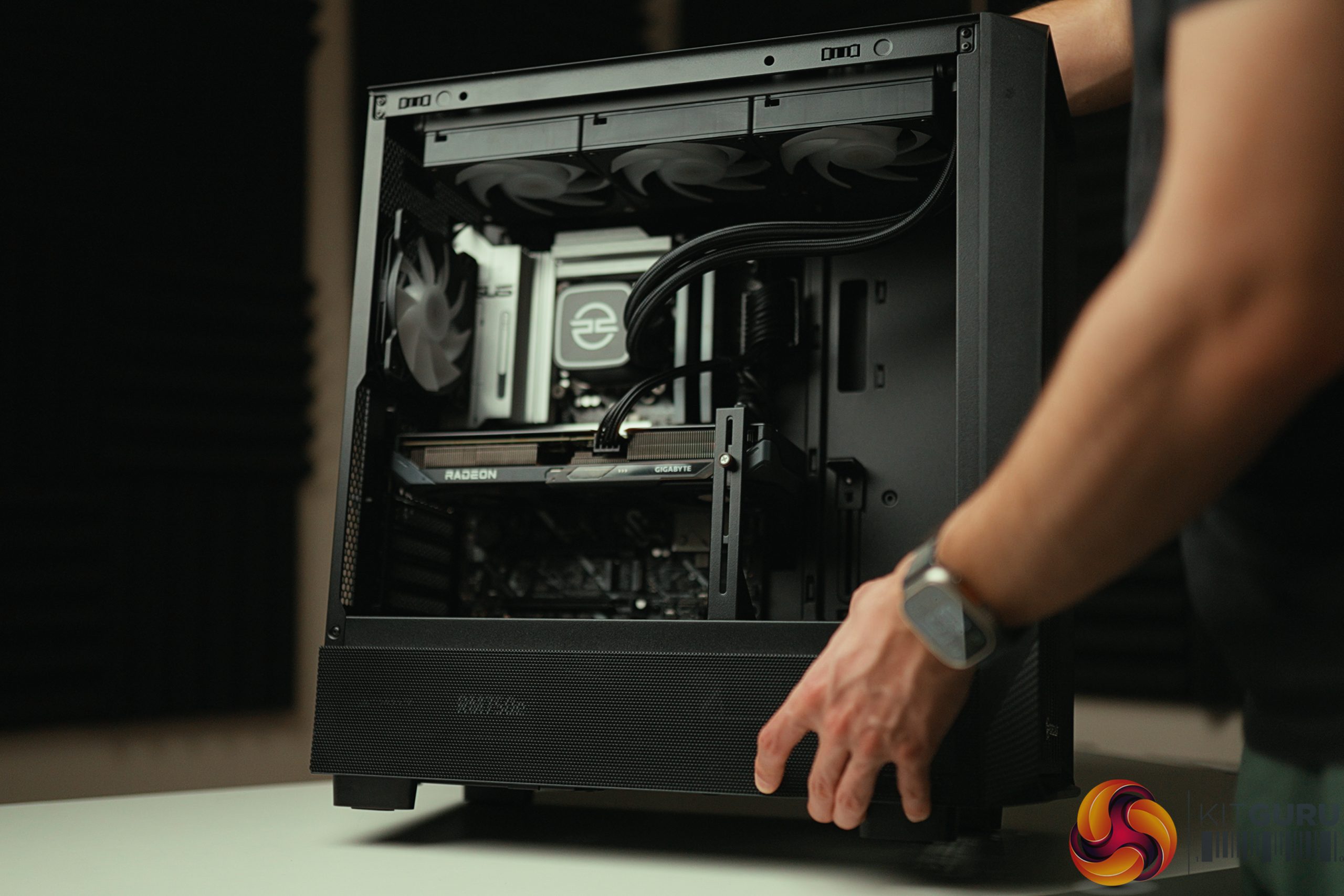
The PCSpecialist Nebula Master K enters our test lab with an appealing spec sheet, pairing an Intel Core Ultra 5 250K Plus with an AMD RX 9060 XT inside a clean mid-tower chassis, all for £1749. For many, paying a premium to avoid the hassle of building a PC is a worthwhile investment. On paper, this system offers a balanced, high-quality 1440p gaming experience with pristine cable management. But does the real-world software experience and the “assembly tax” justify the cost over simply building it yourself?

Timestamps:

00:00 Intro
00:46 Key specs
02:16 Value + price
02:57 Unboxing and first impressions
04:34 XMP + BIOS settings
06:11 Thermal performance + thermal paste
07:19 Benchmark results
08:57 Something felt off
10:50 Uninstalling all the bloat
13:27 Closing thoughts

Specifications:

  • Processor: Intel Core Ultra 5 250K Plus (18-Core, up to 5.3GHz).
  • Motherboard: ASUS PRIME Z890-P WIFI (LGA1851, DDR5, Wi-Fi 7).
  • Memory: 32GB Corsair VENGEANCE RGB DDR5 5600MHz CL40.
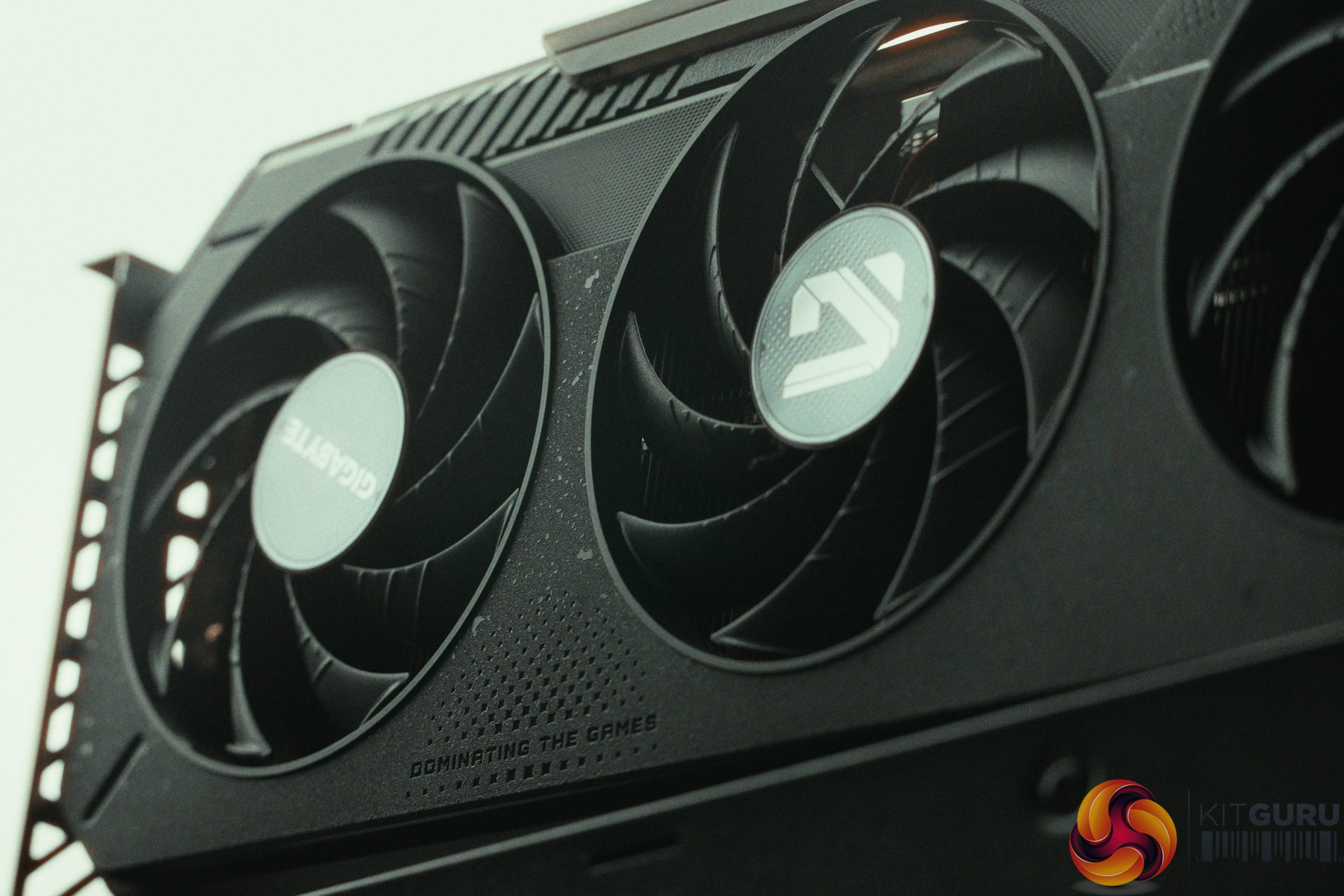
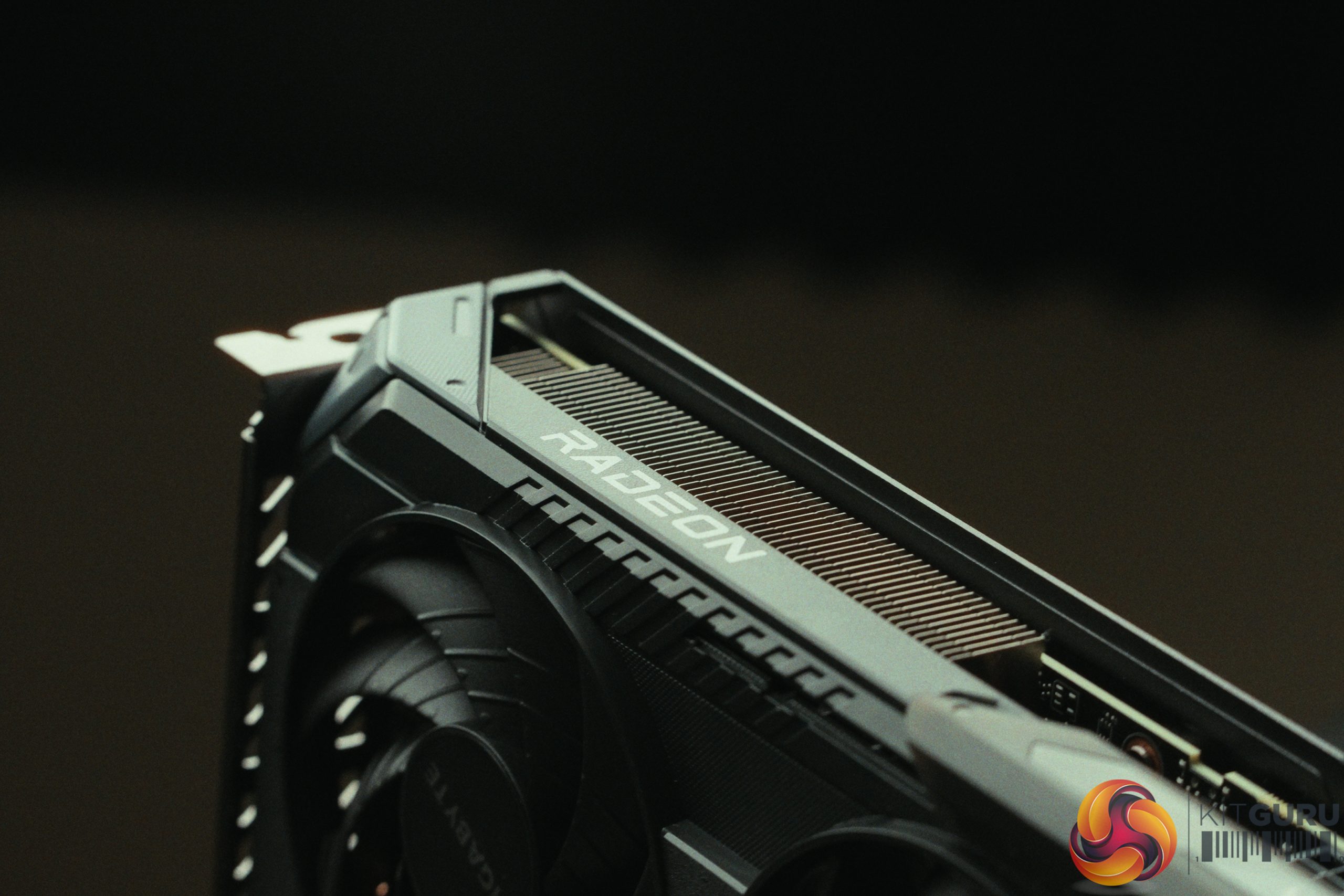
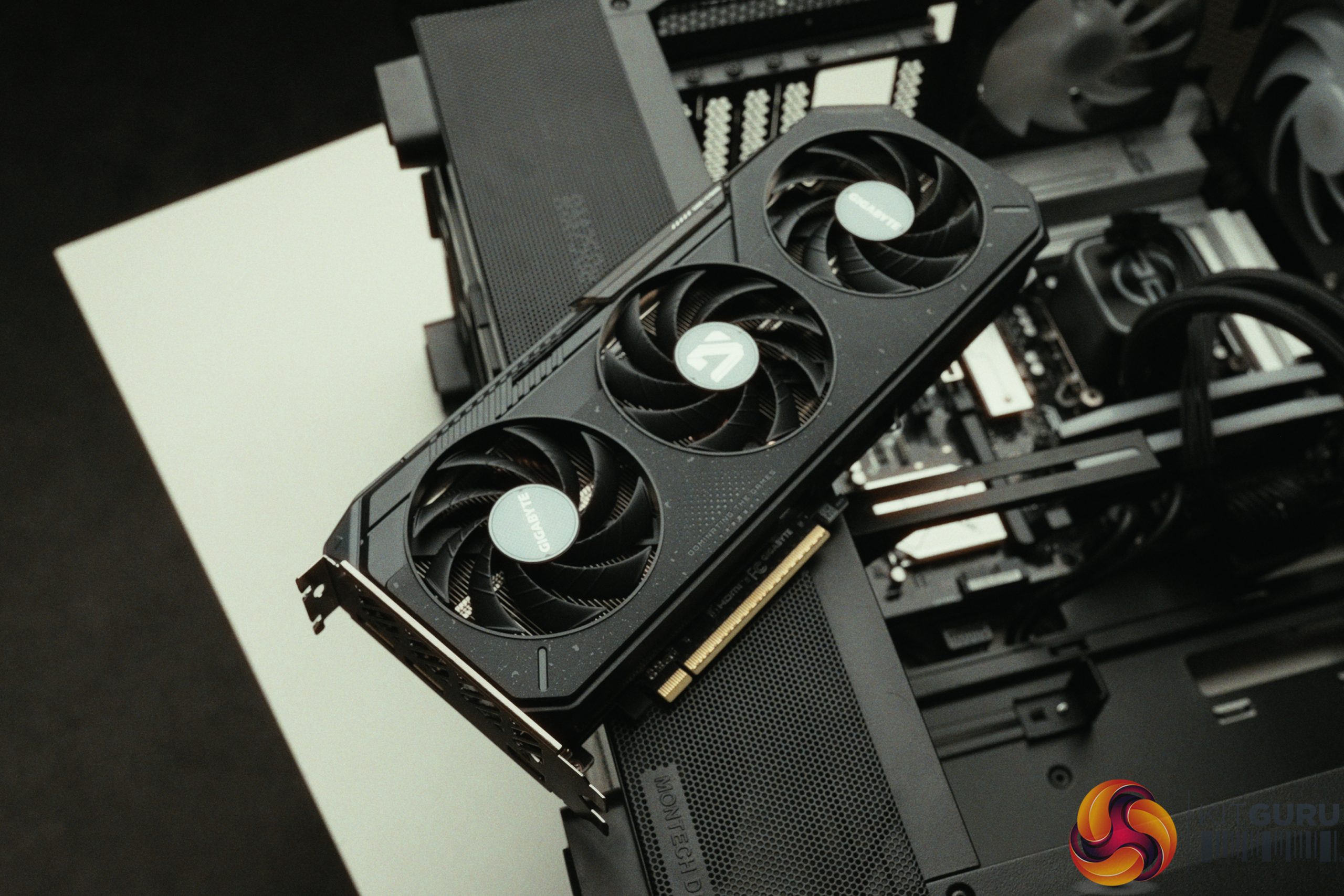
  • Graphics: GIGABYTE RADEON RX 9060 XT GAMING OC (16GB).
  • Storage: 2TB KLEVV C925G PCIe 4.0 NVMe SSD (7400MB/s Read 6500MB/S Write).
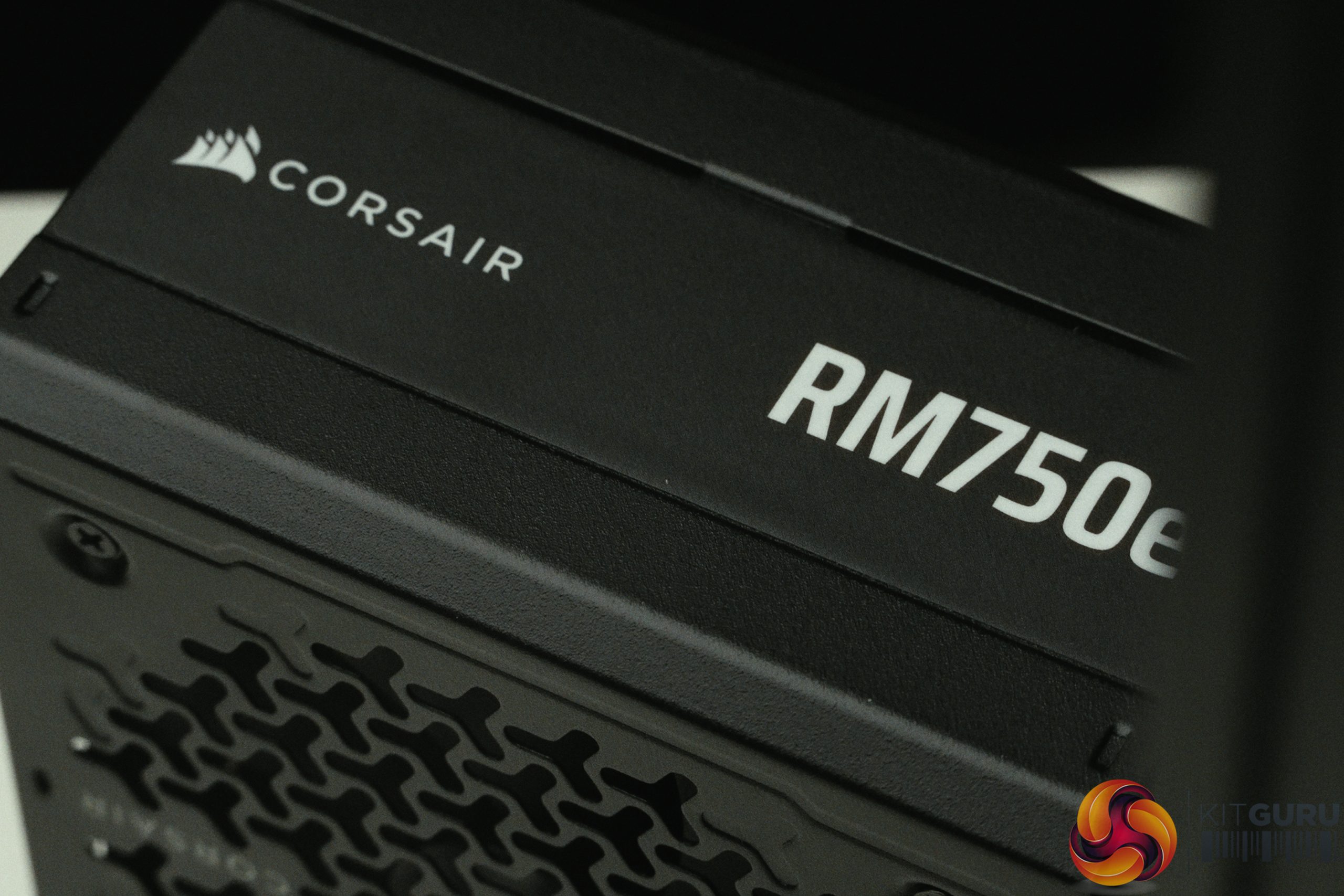
  • Power Supply: CORSAIR 750W RMe SERIES ATX 3.1.
  • Cooling: PCSpecialist LS-360 AIO Liquid Cooler.

Closing Thoughts

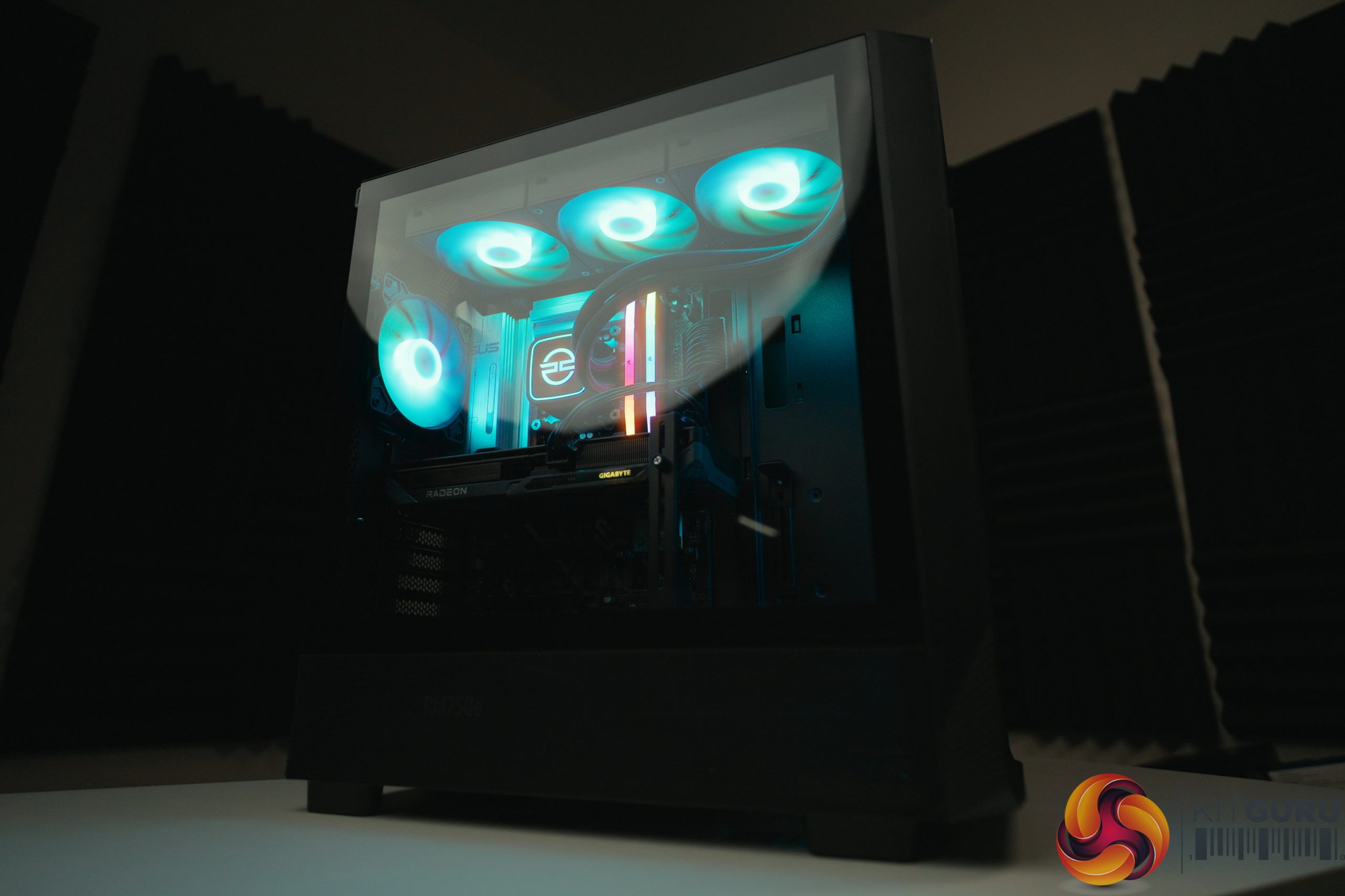
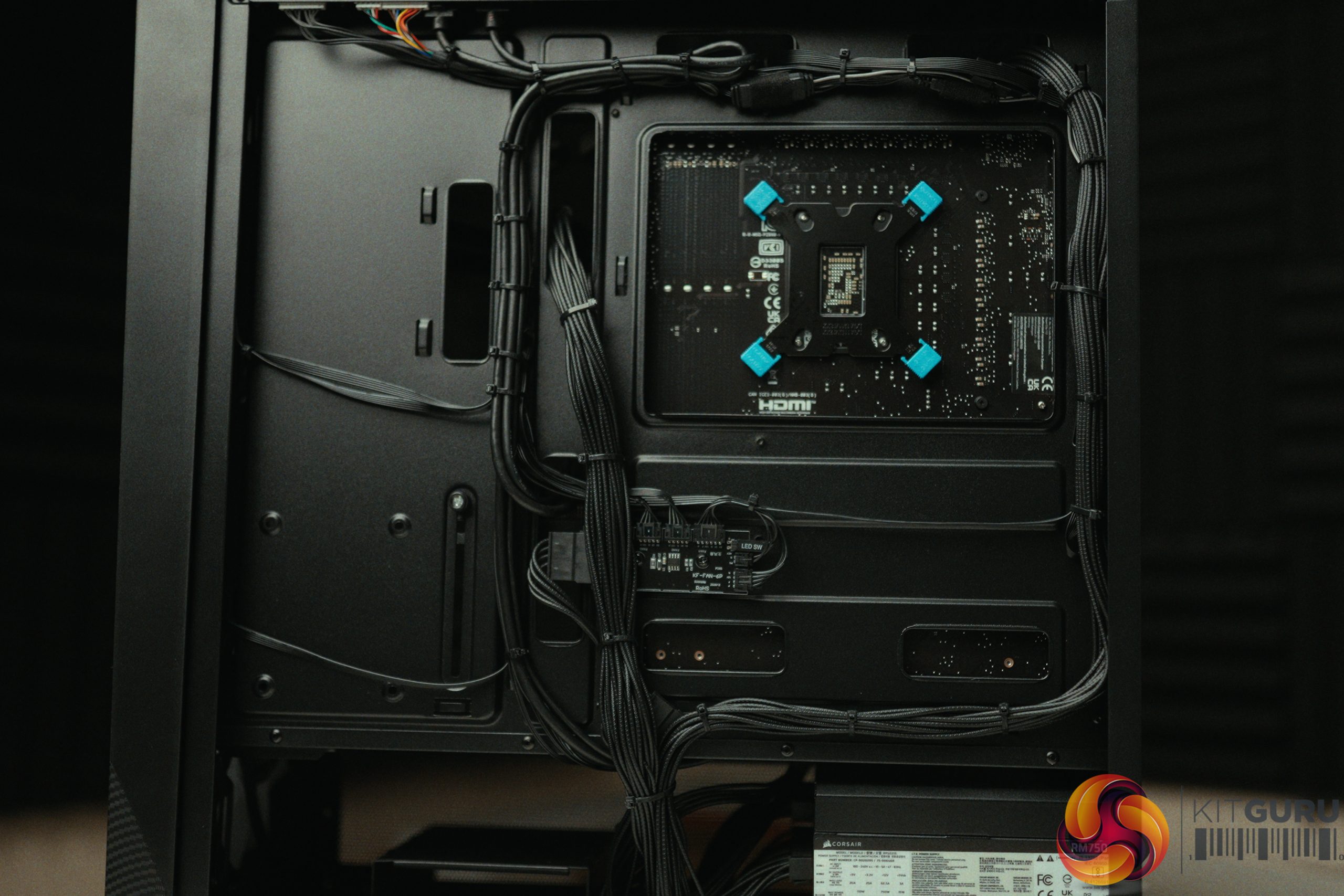
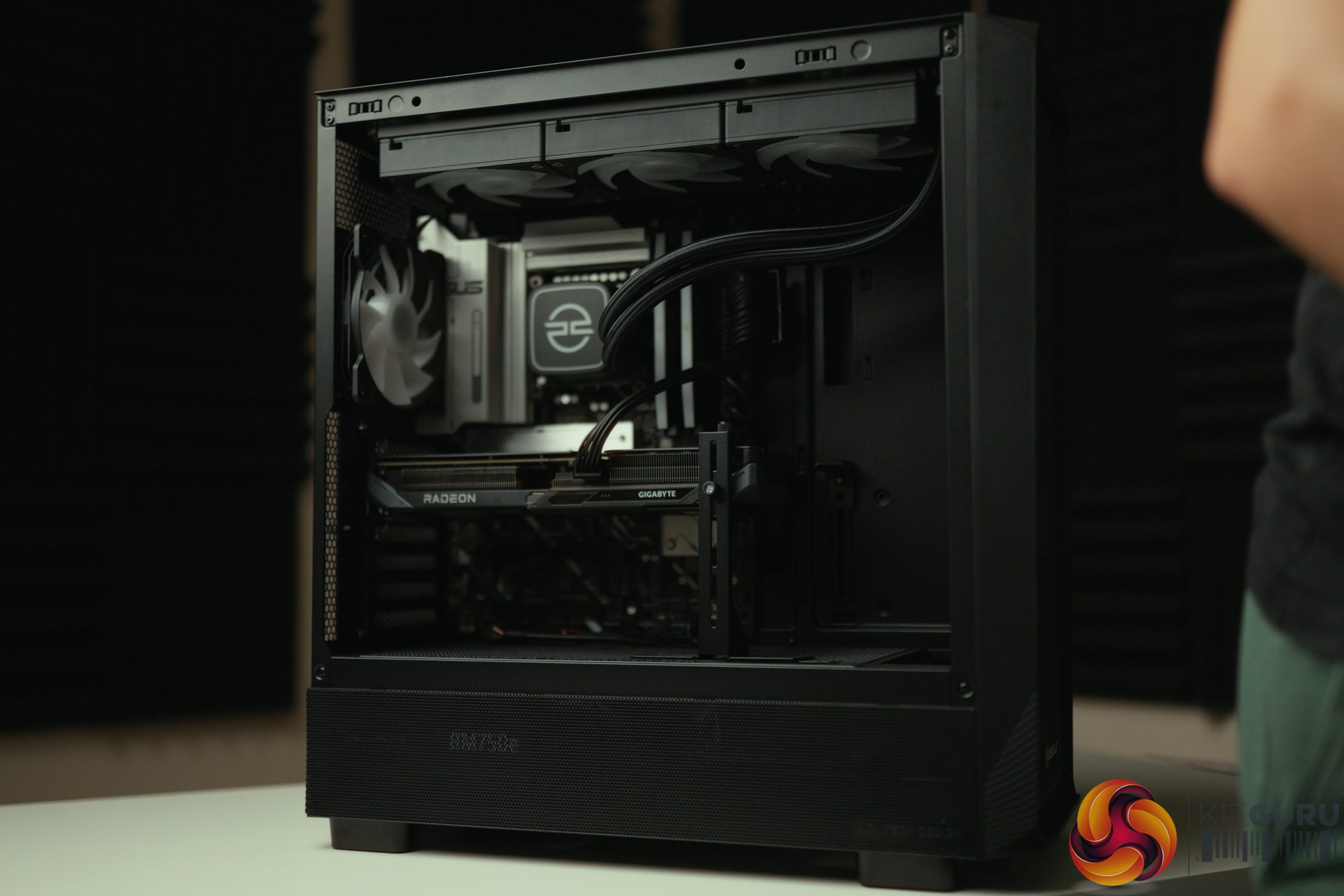
PCSpecialist has delivered a physically impressive machine with the Nebula Master K. The assembly quality is phenomenal, boasting near-perfect cable management on both the front and back of the chassis. The hardware choices are balanced, the 360mm AIO and case fans keep things incredibly quiet (with the GPU hovering around 52°C under load), and essential BIOS settings like memory speeds were correctly enabled out of the box.

Recreating this exact build on PCPartPicker costs around £1,540 (excluding a Windows license), meaning you are paying roughly a £200 premium for the build service, shipping and warranty. For this level of care in the assembly it's definitely an interesting proposition to some.

However, the out-of-the-box software experience does hold the machine back. Pre-installed bloatware—most notably a 90-day trial of Norton 360, along with Asus Armoury Crate and Corsair iCUE—causes the system to feel sluggish and actively steals performance. Simply uninstalling these programs yielded a massive 17% boost to 1% low framerates in Returnal, a 5.5% boost to 1% lows in CS2, and a 5-7% uplift in Cinebench scores. While PCSpecialist does a fantastic job building the PC, the bloatware is a massive letdown. Stay tuned for an upcoming guide where we use this exact same system but install Linux for gaming if you want to avoid this sort of thing!

You can configure and buy the PCSpecialist Nebula Master K for £1749 HERE.

Pros:

  • Immaculate assembly and effective cable management.
  • Quiet operation with excellent thermal headroom.
  • Correct BIOS settings applied out of the box (RAM speeds).
  • Well-balanced components for 1440p gaming.

Cons:

  • Pre-installed bloatware (Norton 360 for Gamers) actively harms system performance.
  • Lack of reusable cable ties makes future upgrades slightly tedious.

KitGuru says: PCSpecialist has done a great job building the Nebula Master K is no exception, but stay tuned for our upcoming Linux gaming guide if you want to move away from Windows.

The post PCSpecialist Nebula Master K Prebuilt (250K Plus + 9060 XT) first appeared on KitGuru.

Geekom A5 Pro Mini PC Review

15 April 2026 at 09:30

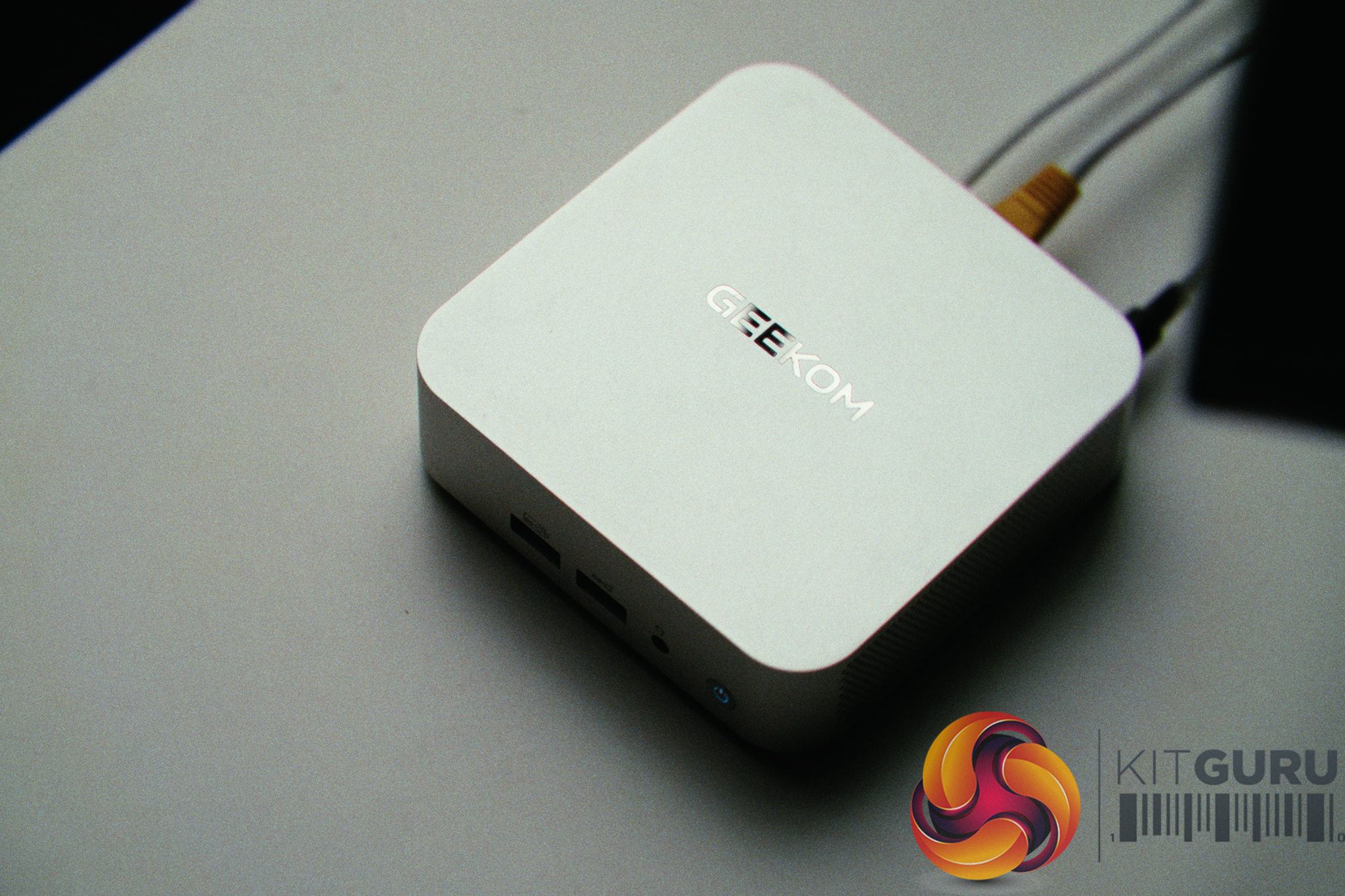
The Geekom A5 Pro (2026) is a £520 mini PC designed for everyday desktop computing, housed in an all-aluminium chassis. But sometimes hardware testing doesn't go exactly to plan – so this time around, when my primary home network server suddenly died, this compact machine was drafted into emergency service to act as a VPN server, OPNsense router / firewall. On paper this seemed like a tough challenge, but a month later has it been a success?

Timestamps:

00:00 Intro
01:33 How this happened
03:12 The Geekom A5 Pro – Hardware
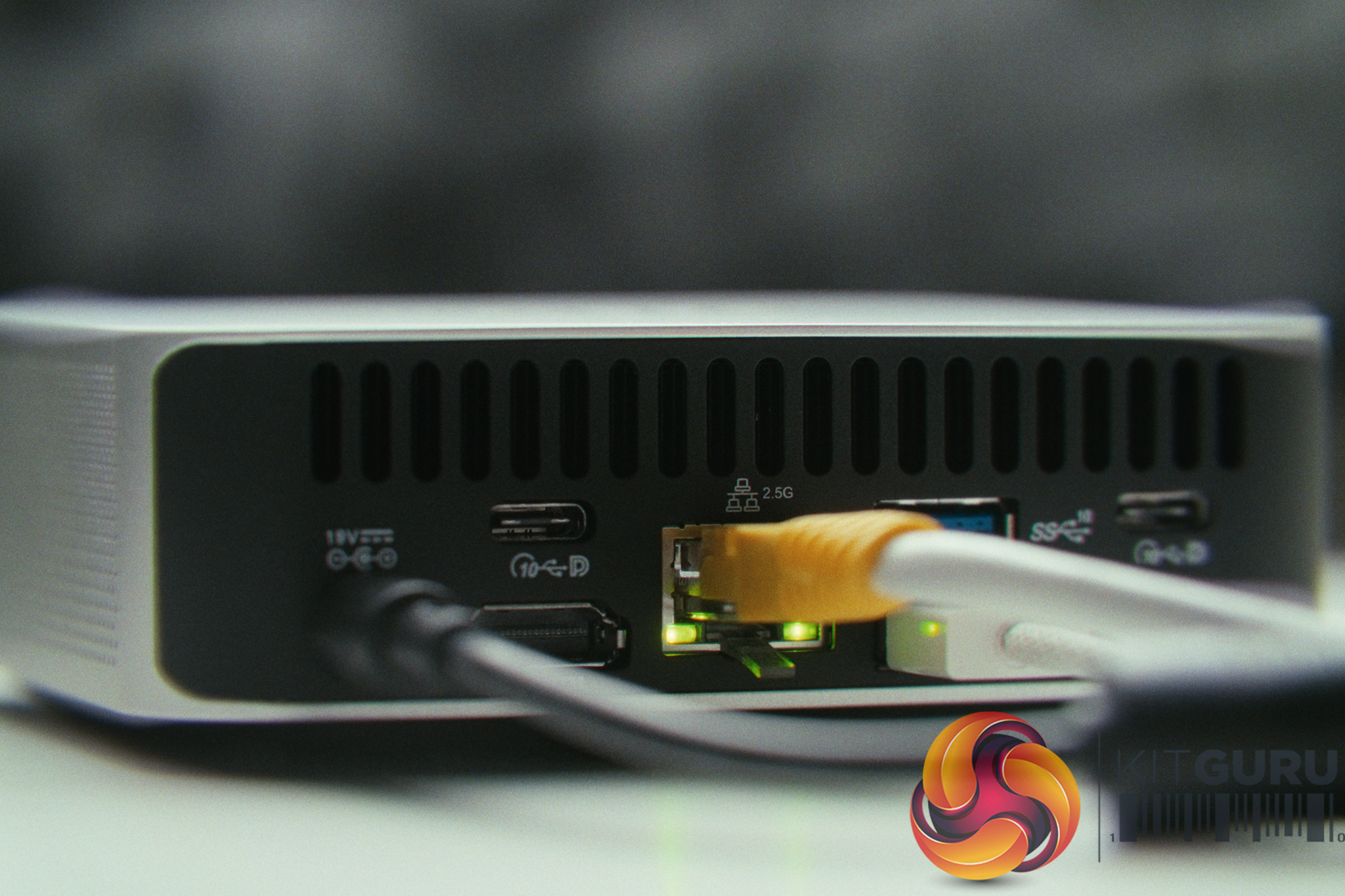
05:12 The I/O and WAN / LAN
07:52 Proxmox Install and Configuration
09:37 Real World Performance
11:42 Thoughts?

Specifications:

  • Processor: AMD Ryzen™ 5 7530U (6 Cores, 12 Threads, 16MB Cache, up to 4.5GHz).
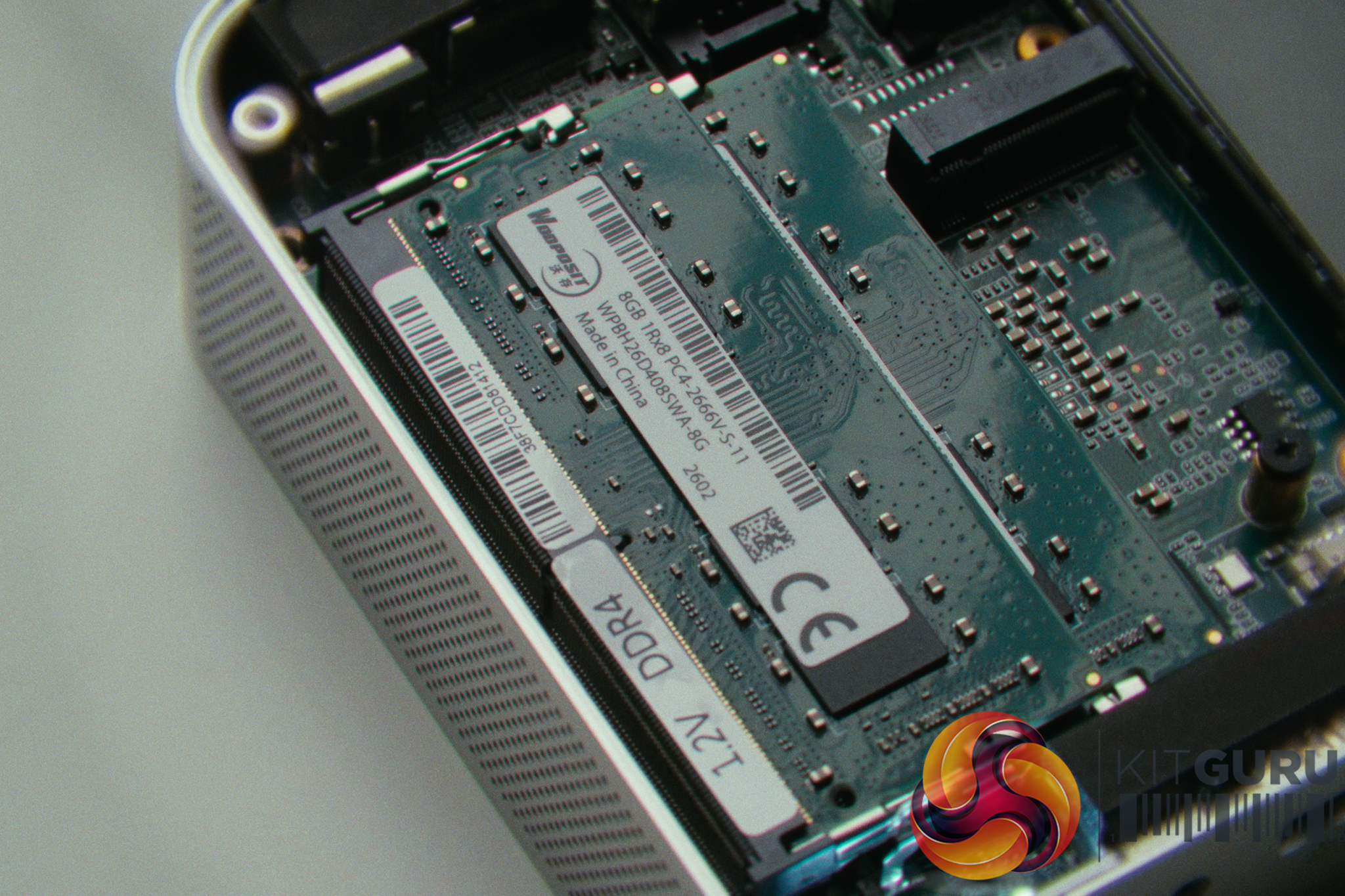
  • Memory: 16GB (2x8GB) DDR4 SODIMM (Expandable up to 64GB).
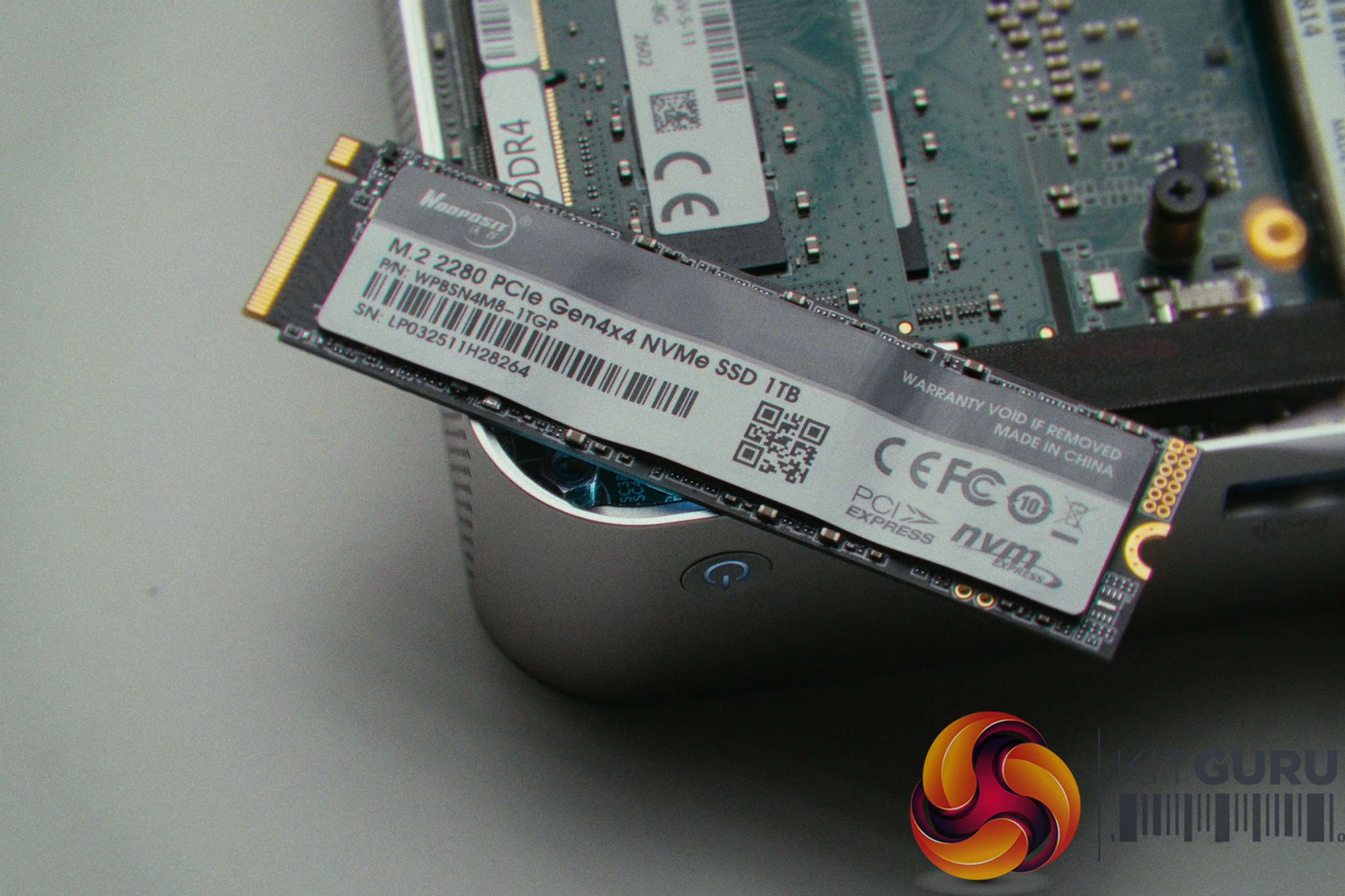
  • Storage: 1TB M.2 NVMe SSD (Supports 1x 2280 PCIe & 1x 2242 SATA III).
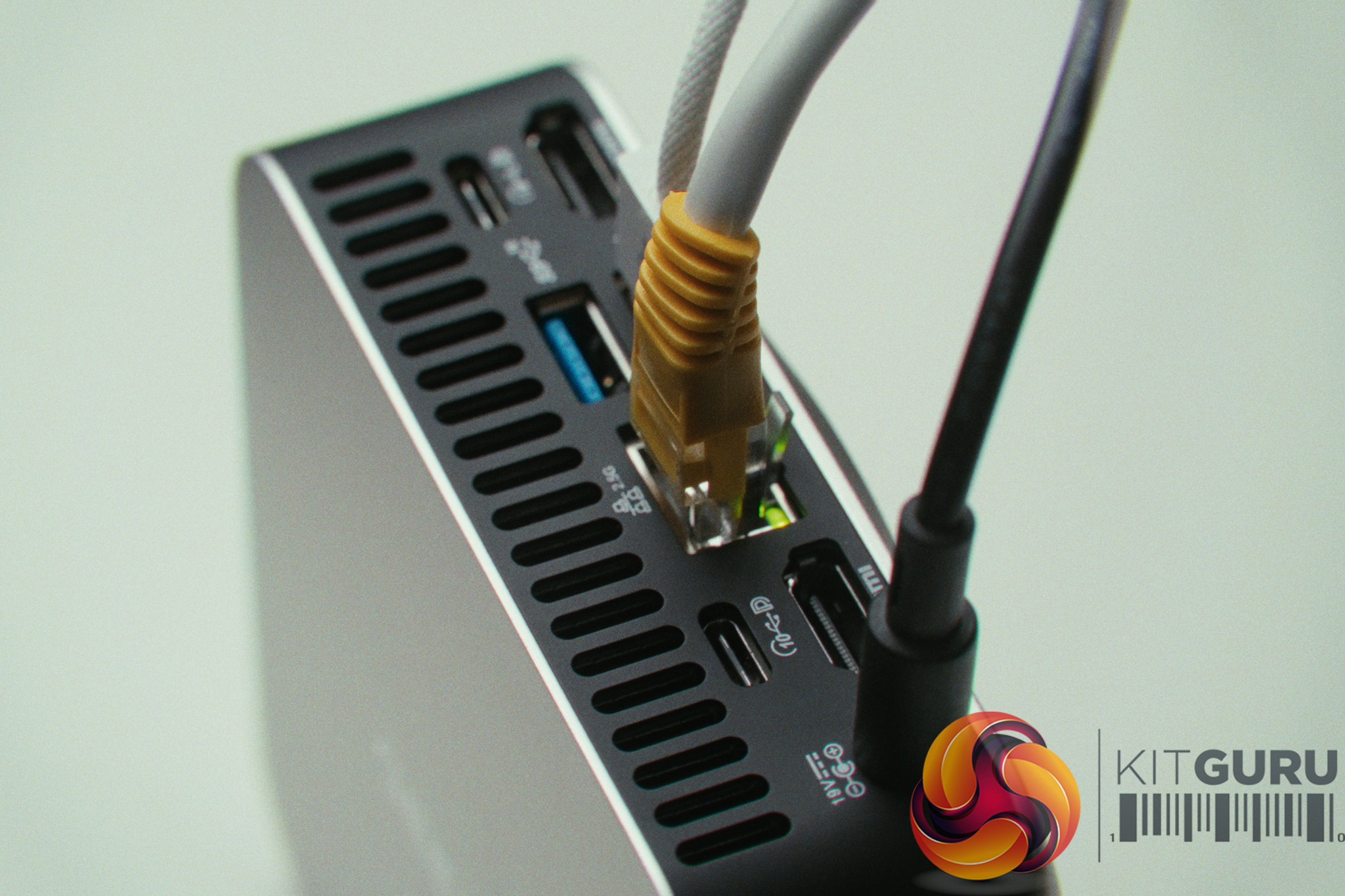
  • Networking: 1x 2.5GbE LAN (Realtek Controller), Wi-Fi 6, and Bluetooth 5.2.
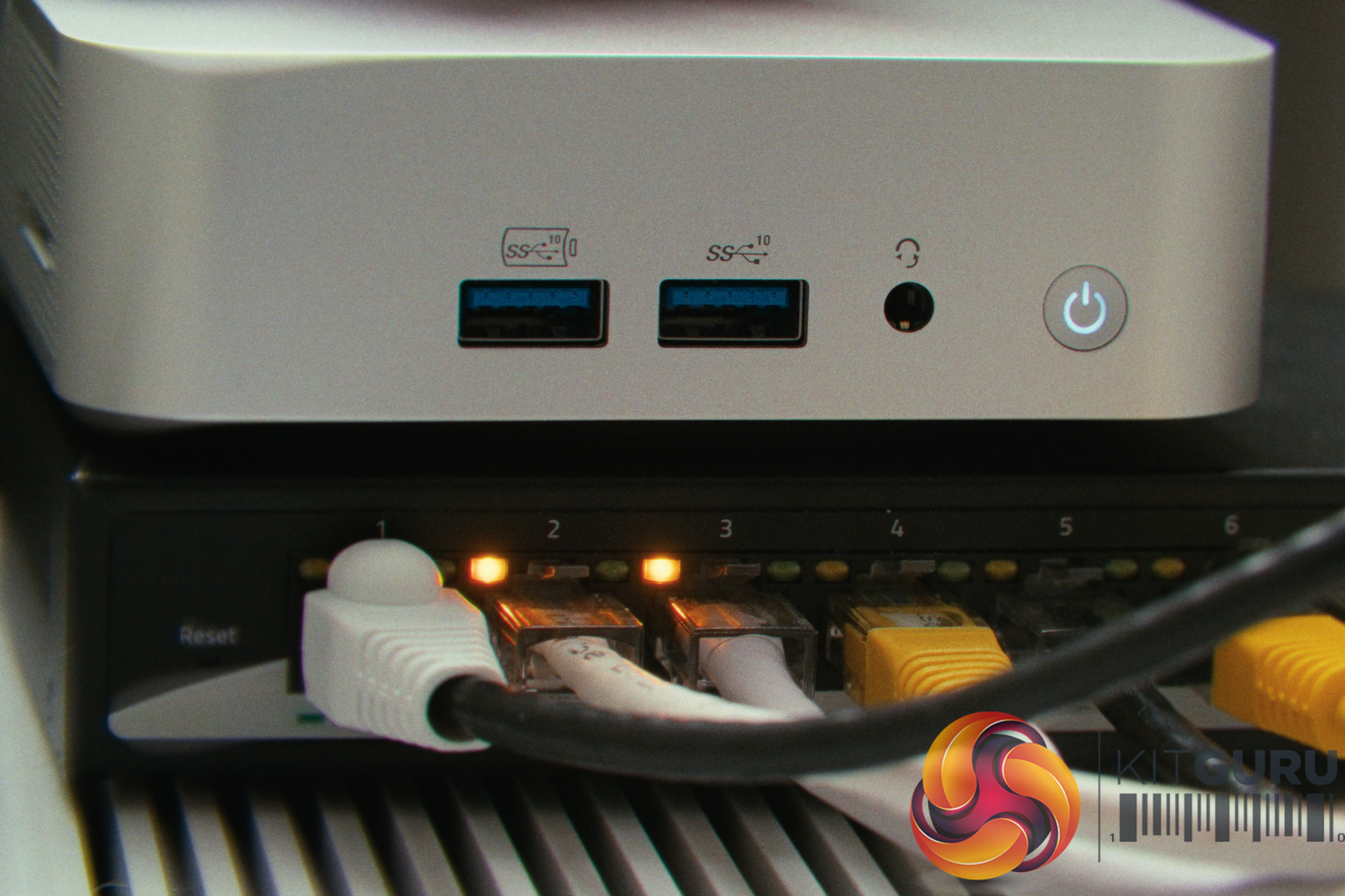
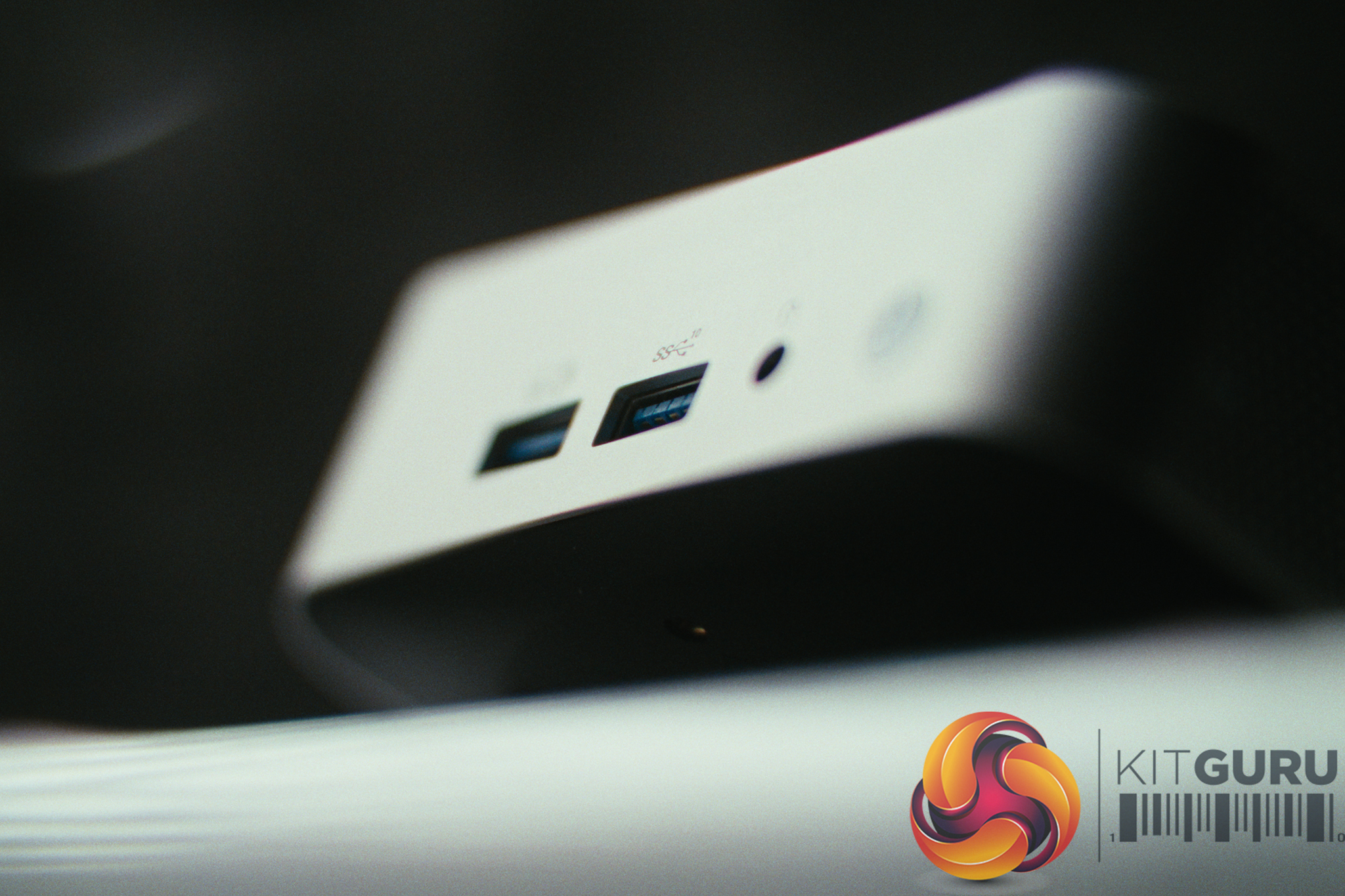
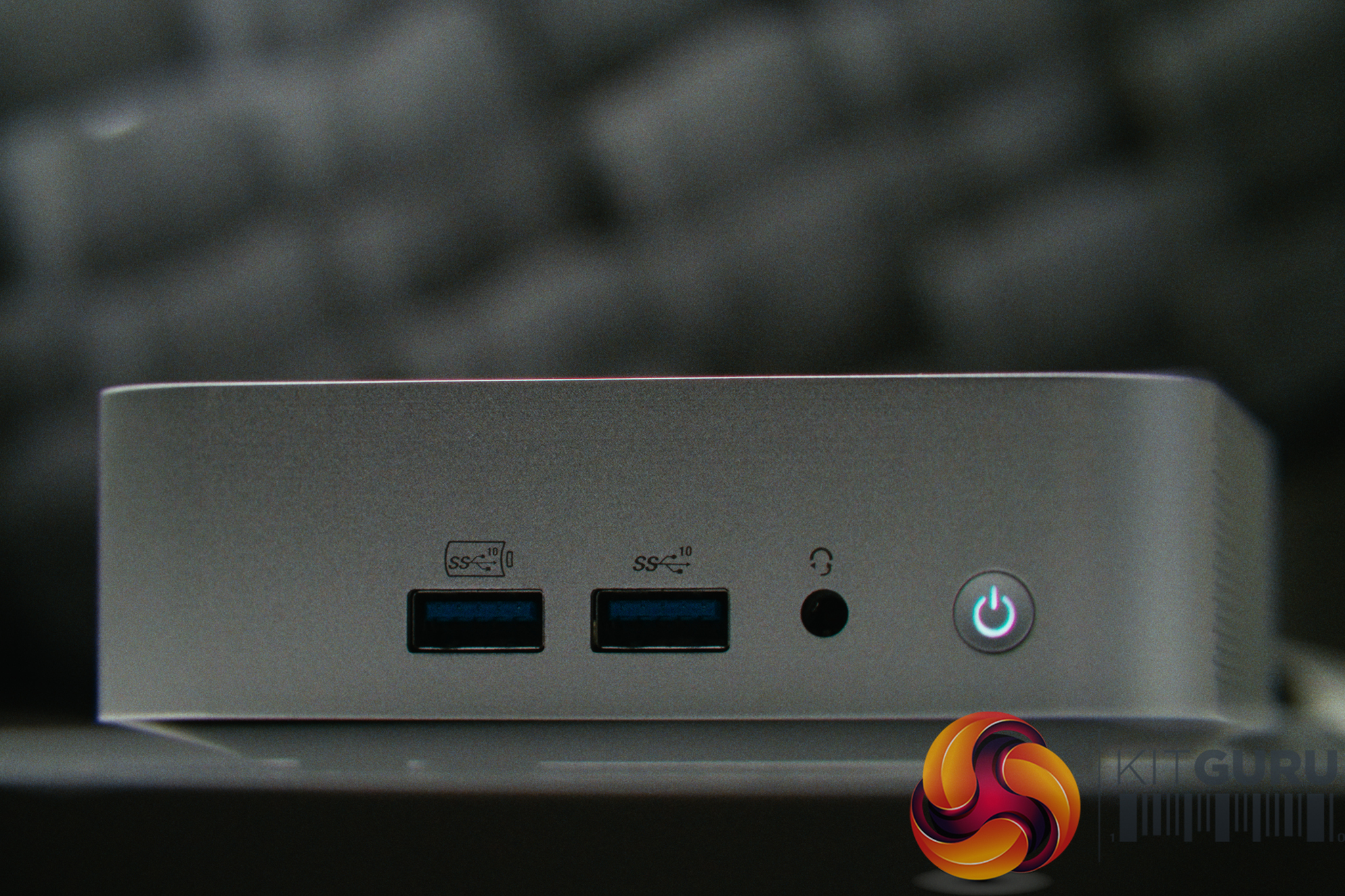
  • I/O Ports: 2x USB 3.2 Gen 2 Type-C, 3x USB 3.2 Gen 2 Type-A, 1x USB 2.0, 2x HDMI 2.0, SD Card Reader, 3.5mm Audio.
  • Chassis & Dimensions: All-Aluminium Unibody / 112.4 × 112.4 × 37 mm (0.47L).
  • Power Consumption: ~14W idle / ~40W peak.
  • Target Price: ~£520.

Closing Thoughts

The Geekom A5 Pro is a machine that massively exceeded our expectations, primarily because we threw it into a scenario it was never designed for. Rather than light web browsing, we tasked it with running Proxmox, an OPNsense router/firewall, Home Assistant, and multiple other Docker containers to replace a dead server. The Ryzen 5 7530U is incredibly capable; even when routing traffic for an entire home network, CPU utilization never crossed the 40% mark. Cooling was also very impressive given it also remained whisper-quiet, with temperatures hovering in the high 50s while drawing as little as 14 watts.

That said, repurposing a standard mini PC as a network server was an emergency plan and not really an ideal solution. Having only a single Ethernet port requires significant networking gymnastics (like using a managed switch and VLAN tagging) to route both WAN and LAN traffic over one cable. Furthermore, the Realtek network controller is less ideal than an Intel equivalent for virtualised routing, requiring hardware offloading to be disabled to maintain stability. We also noted that the RAM and SSD in our unit came from a relatively unknown brand called Wodposit, though the SSD speeds (7.2GB/s read) were good during large file transfers.

Ultimately, while running a home network on a single-port mini PC is an impractical long-term solution, this month-long experiment proves just how capable these small machines are. If you are looking to dip your toes into the world of self-hosting and home labs without driving up your energy bill, the Geekom A5 Pro is definitely a versatile piece of hardware.

Geekom also sent over the following retail links and discount code, but please note these are not affiliate links and we do not profit from any sales:

Pros:

  • Excellent CPU performance handles multitasking and virtualization with ease.
  • Power efficient, drawing between 14W and 40W.
  • Quiet operation and great thermal management.
  • Premium all-aluminum unibody chassis with generous I/O.
  • Fast NVMe SSD speeds despite the unknown manufacturer.

Cons:

  • Realtek networking controller requires software tweaking in Proxmox.
  • Uses lesser-known component brands for memory and storage.
  • Single Ethernet port.

KitGuru says: The Geekom A5 Pro might target the average user, but its power efficiency, metal chassis, and highly capable Ryzen processor make it a fantastic, affordable gateway into the world of self-hosting and home labs.

The post Geekom A5 Pro Mini PC Review first appeared on KitGuru.

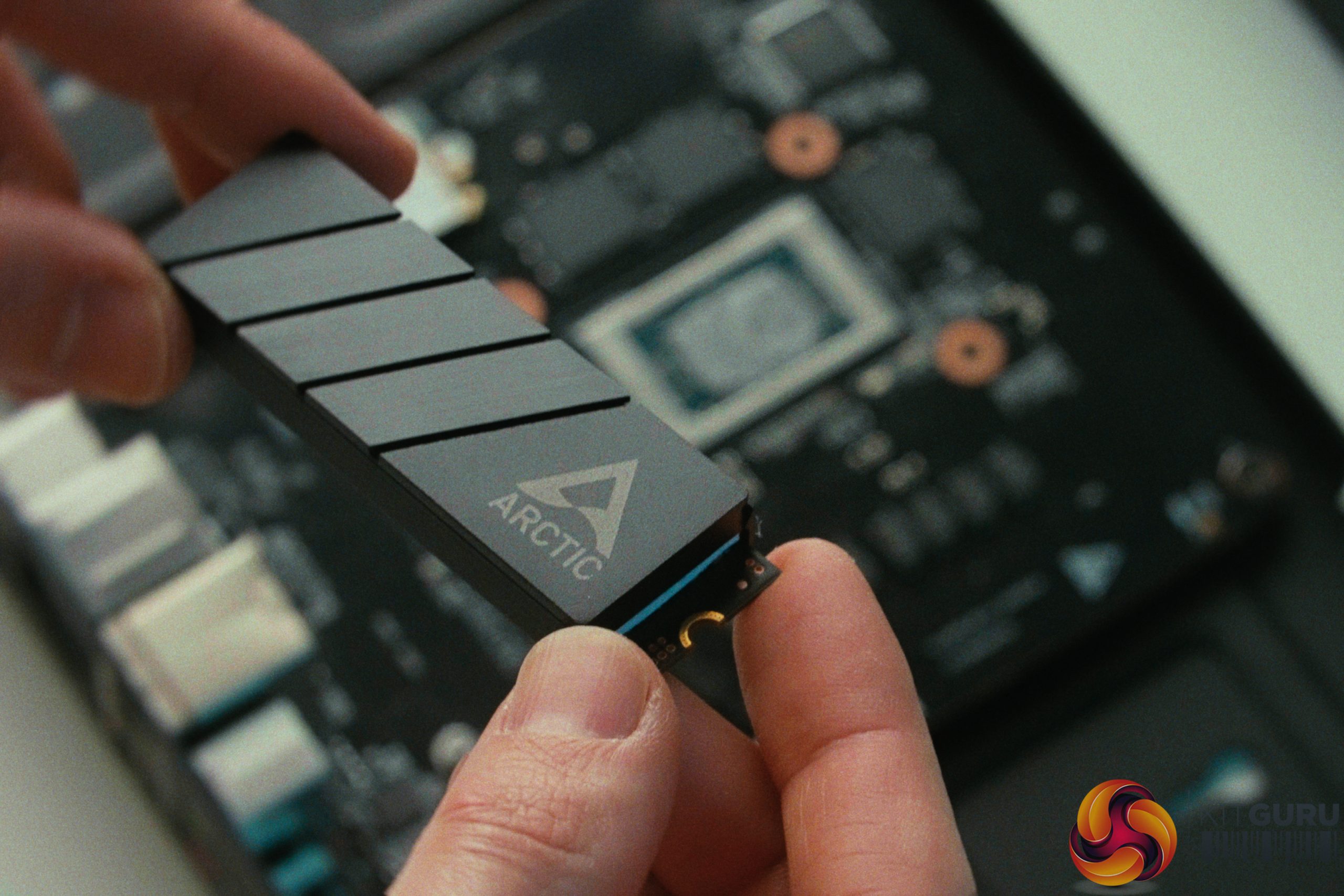
Arctic Senza Review (Ryzen AI 9 HX 370 + Passive Cooling)

8 April 2026 at 10:17

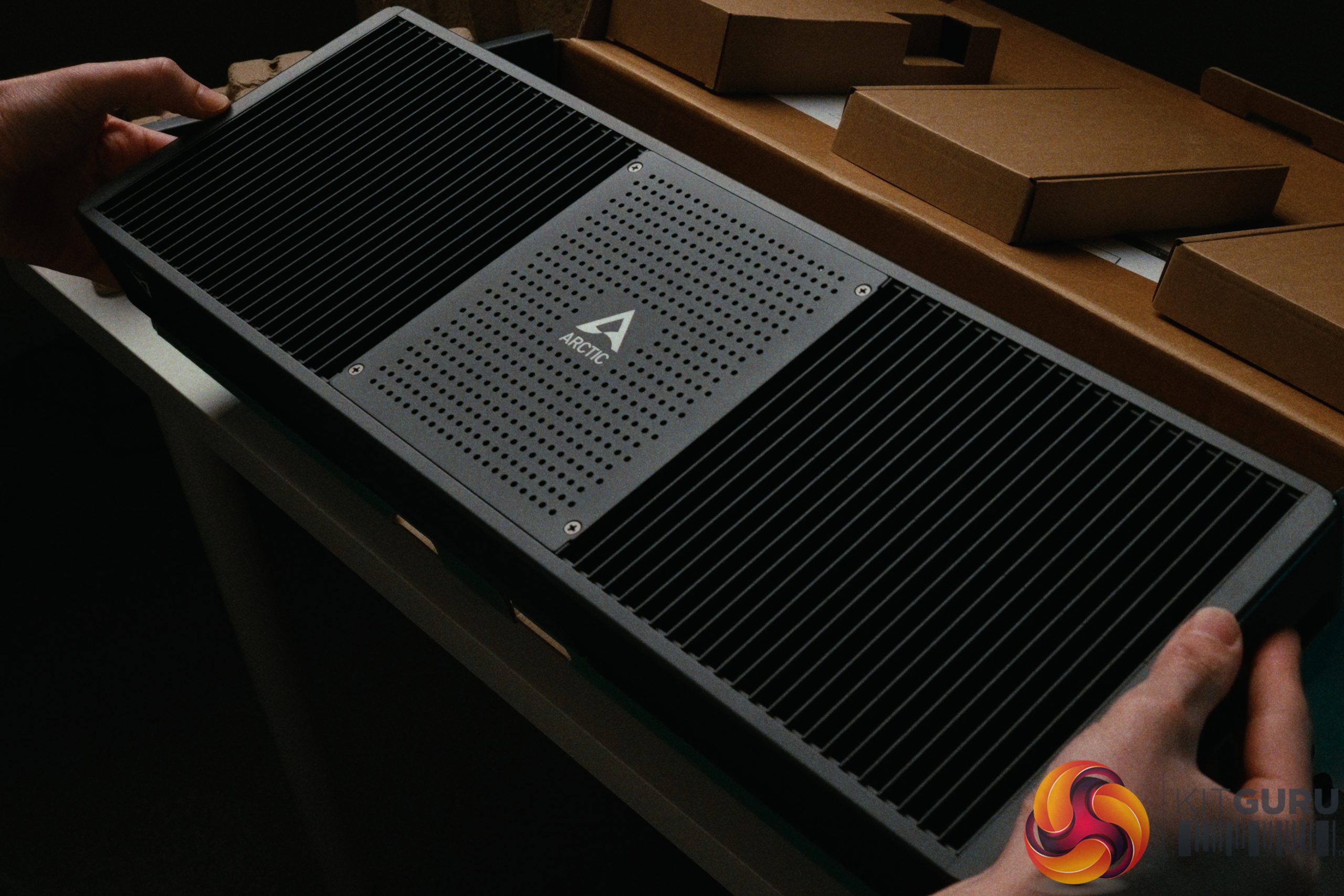
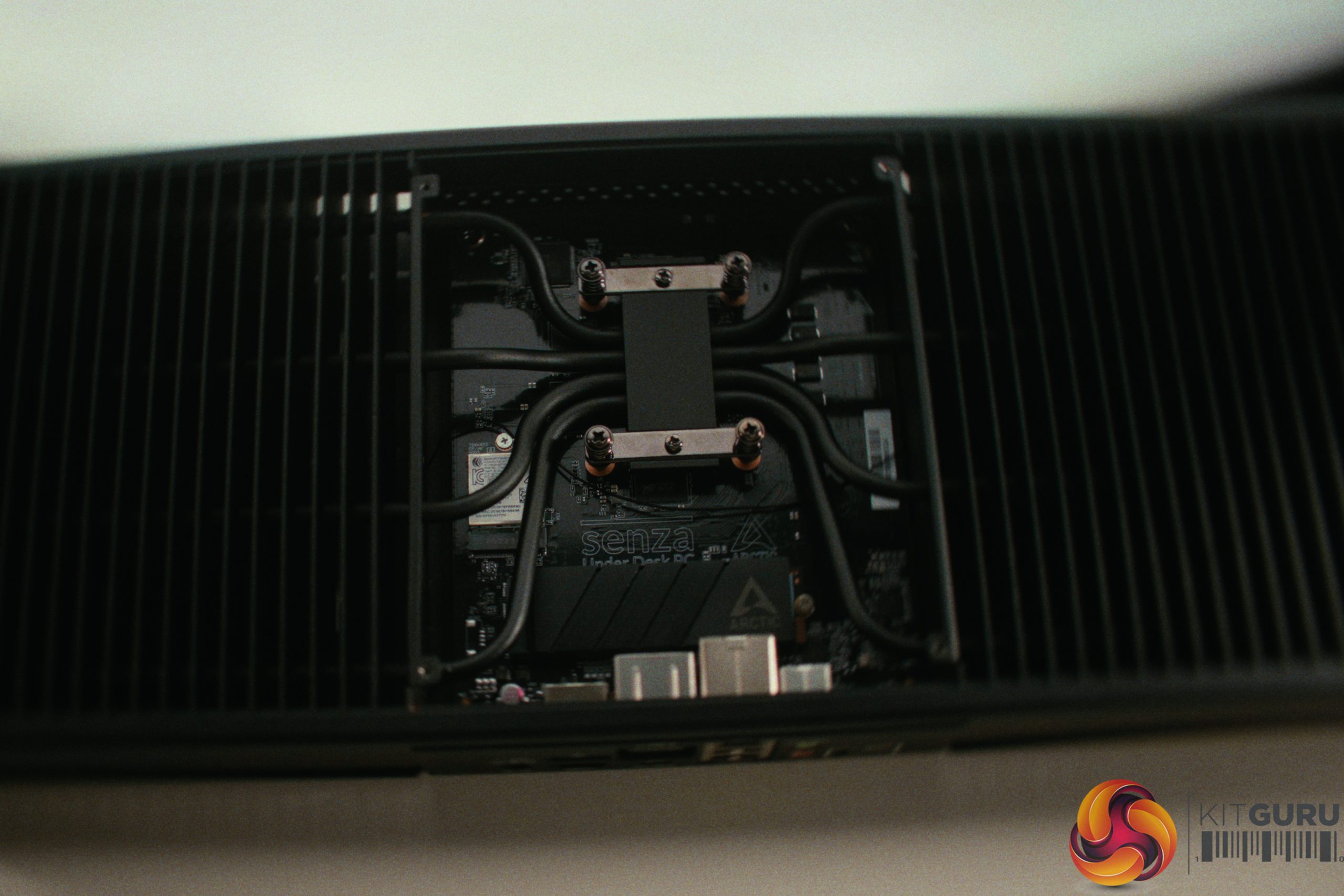
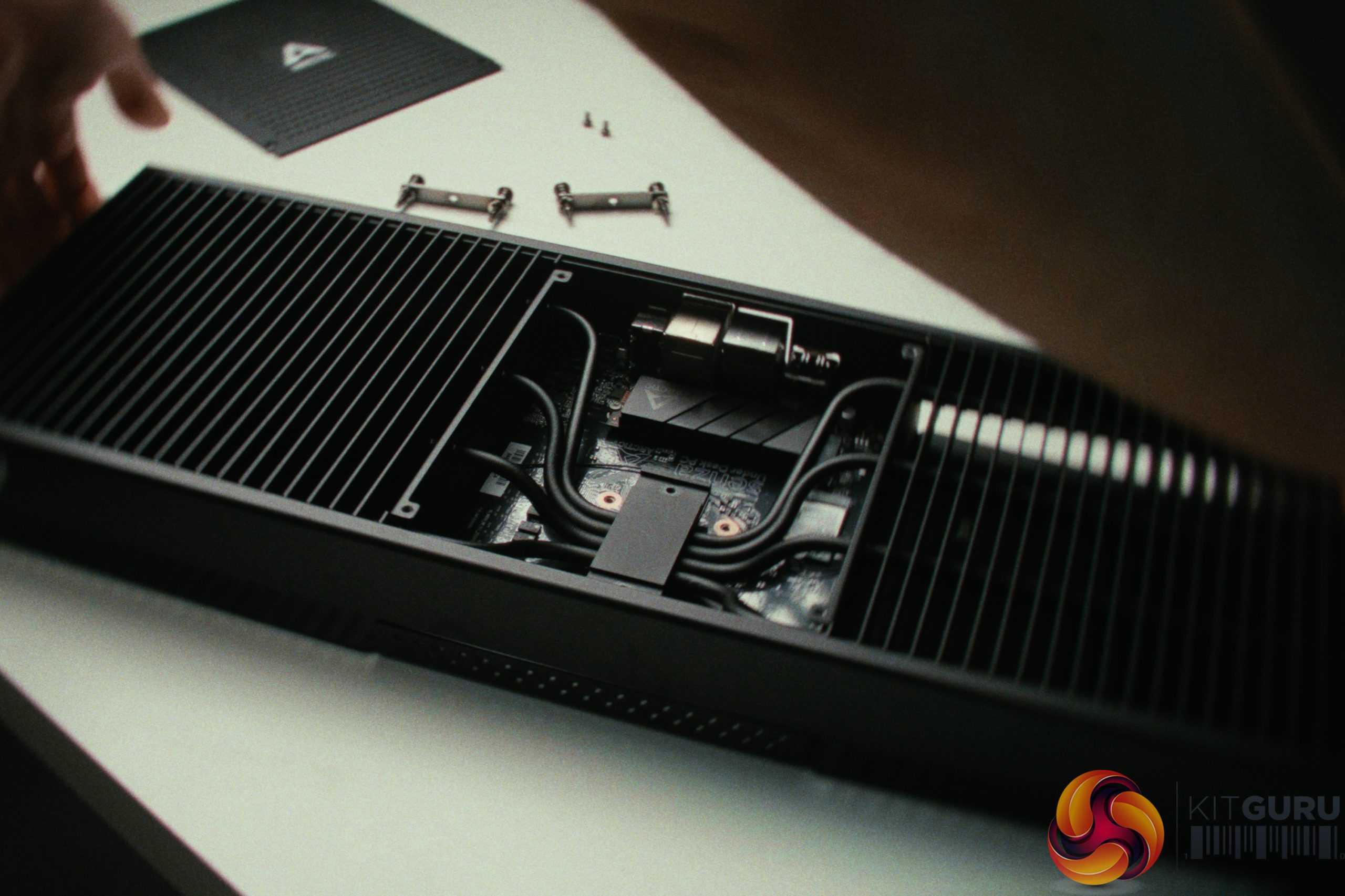
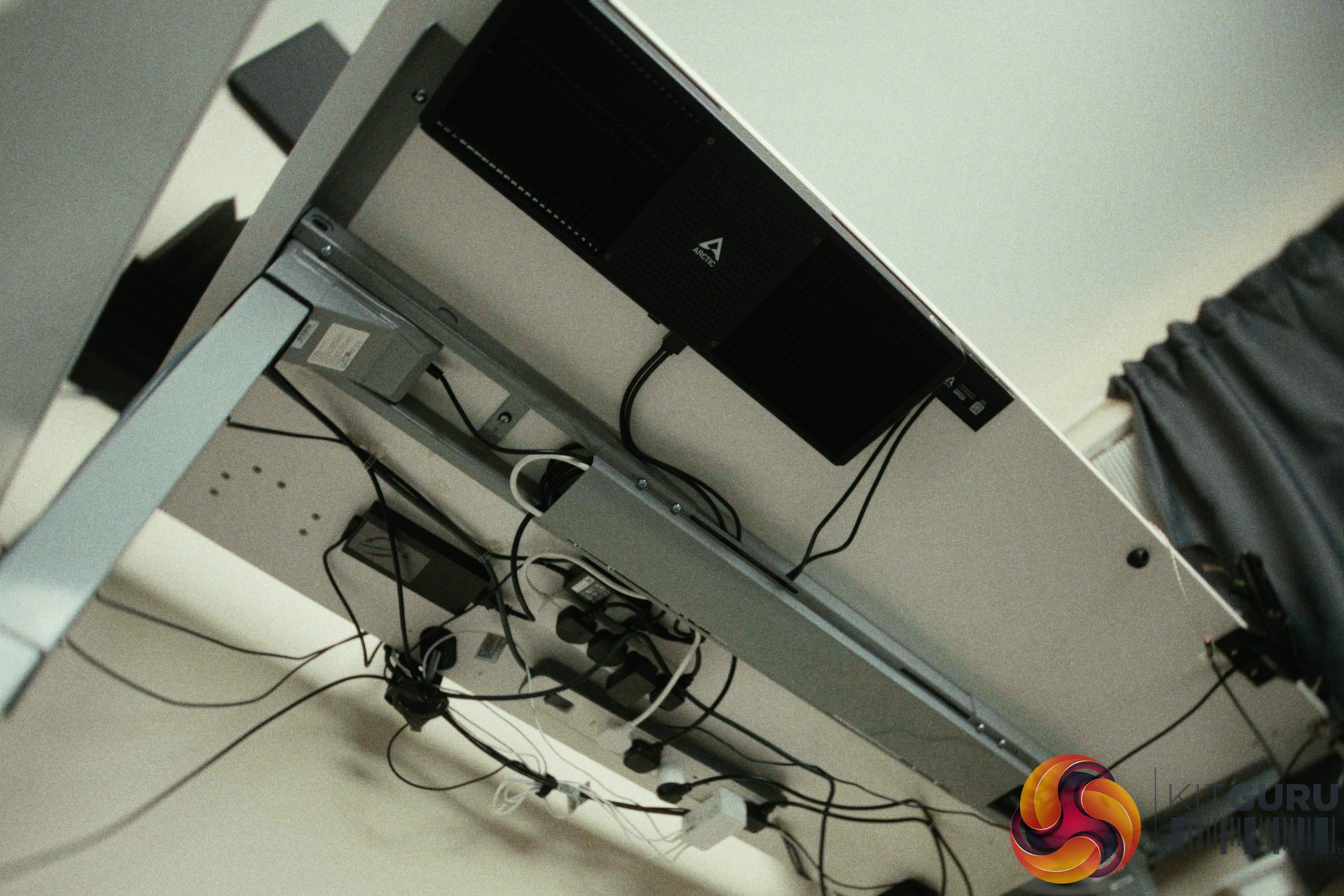
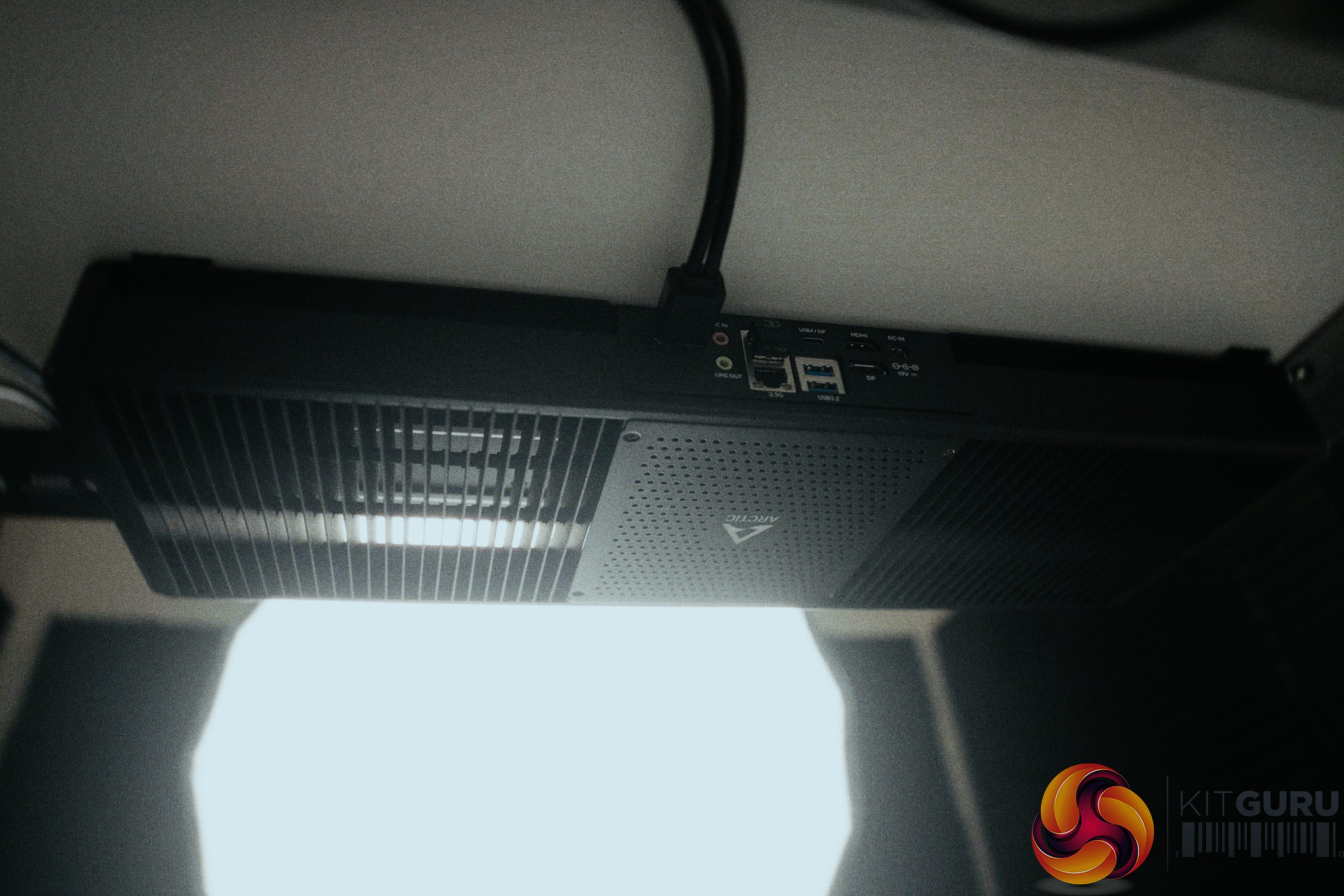
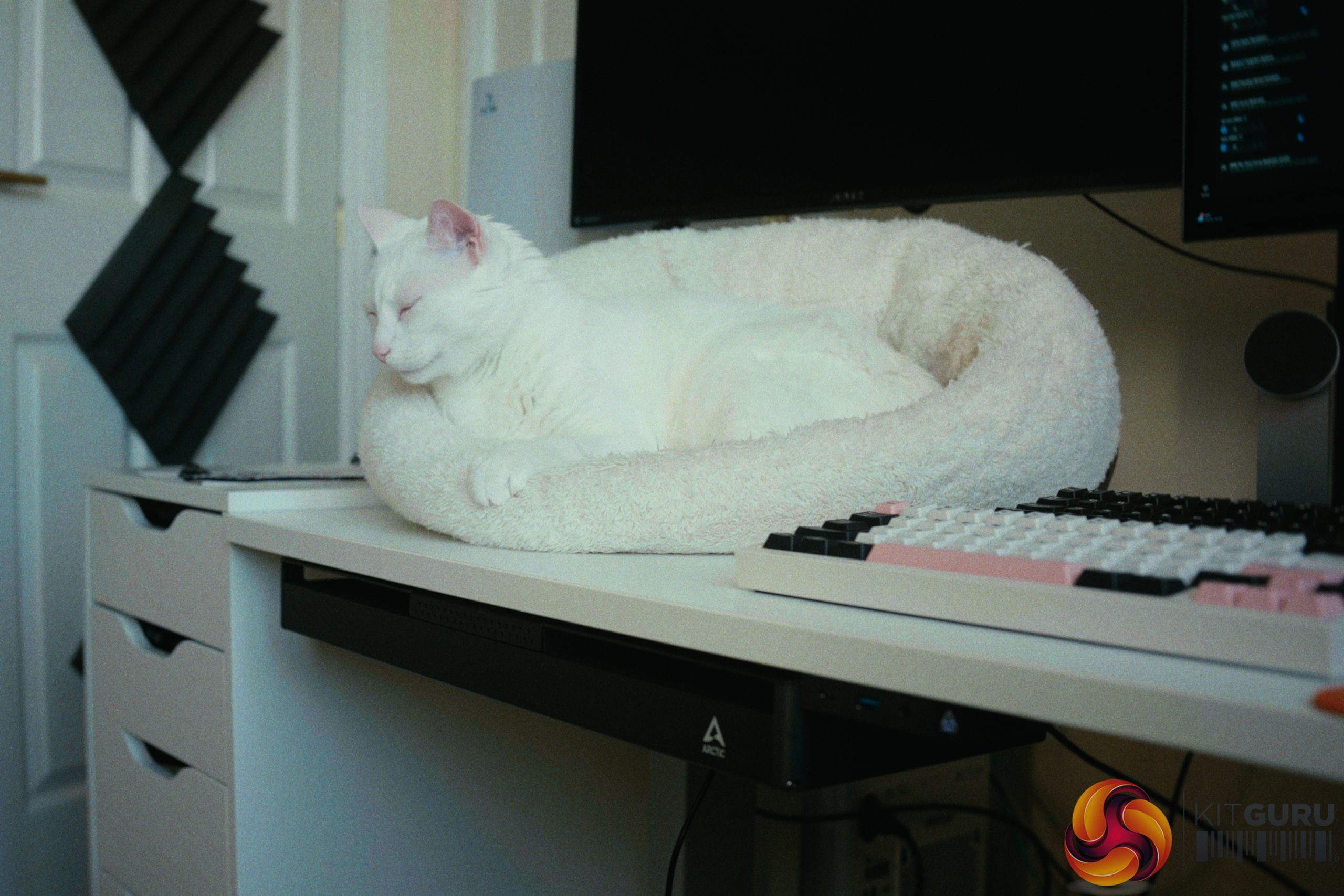
The Arctic Senza promises the ultimate stealth PC experience by packing a 12-core Ryzen AI 9 HX 370 and 32GB of LPDDR5X memory into a completely passive, desk mounted chassis. On paper, it looks like a whisper-quiet productivity powerhouse capable of handling heavy workloads without breaking a sweat or making a single sound. But does this fanless design actually hold up under sustained pressure, or do the inevitable compromises of a silent PC outweigh the engineering marvel?

Timestamps:

00:00 Intro
01:04 Build quality / form-factor
02:44 Default thermals
04:56 How far can we push the power?
07:25 Background tasks and RAM usage
08:59 GPU performance – gameplay tests
10:57 SSD and upgradability
12:05 BIOS CEC shenanigans
14:04 WiFi situation
15:35 Front panel box
19:12 Closing thoughts

Specifications:

  • Processor: AMD Ryzen AI 9 HX 370
  • Graphics: AMD Radeon 890M
  • Memory: 32GB LPDDR5X-8000Mhz
  • Storage: 1TB PCIe Gen4 NVMe SSD
  • Cooling: Completely passive custom under-desk heatsink
  • Connectivity: Wi-Fi 7, Bluetooth 5.3, 2.5Gbps LAN
  • Dimensions: 536mm (L) x 180mm (W) x 50mm (H)

Closing Thoughts

The Arctic Senza is a machine that left me profoundly conflicted. On one hand, the sheer engineering and build quality completely caught me off guard. The thick metal panels and massive central heatsink scream premium, successfully pushing the concept of whisper-quiet computing to the absolute extreme. Thermal performance is a solid 10/10 out of the box; even when unlocking the CPU power limit to 115W during a 12-hour 4K video encode, the massive passive cooler effortlessly kept temperatures in check. Performance-wise, the Ryzen AI 9 HX 370 and Radeon 890M combo delivers excellent results for heavy productivity and light 1080p gaming while sipping power from the wall.

On the other hand, the Senza is held back by a series of frustrating quirks. The front panel box feels like an afterthought compared to the main chassis. It has terrible audio shielding that results in interference on the headphone jack and I could barely get enough power to trickle charge another device.

Additionally, the system suffers from annoying connectivity bugs, including mediocre Wi-Fi 7 performance due to a problematic antenna setup, and random HDMI sleep/wake issues. Even the front power LED is entirely inconsistent, making it hard to tell what state the PC is in (a problem I found quite funny during the first days of testing but quickly found myself hating).

Ultimately, the Senza is a brilliant, unique piece of thermal engineering that I want to root for. It is the perfect foundation for a silent workstation, but it feels like it needs a slight revision to its peripherals and BIOS to achieve true perfection.
You can buy the Arctic Senza for €1,049 HERE.

Pros:

  • Incredible premium build quality and stealthy under-desk design.
  • Phenomenal passive cooling, even under sustained 12-hour heavy loads.
  • Excellent CPU performance and incredible power efficiency.
  • Completely silent operation.

Cons:

  • Front panel box feels cheap and suffers from audio interference.
  • Annoying HDMI sleep issues and an inconsistent power LED.
  • Mediocre Wi-Fi performance compared to other Wi-Fi 7 devices.
  • BIOS bugs and limited options

KitGuru says: The Arctic Senza is an absolute thermal engineering marvel that delivers massive silent performance, but it is somewhat let down by frustrating peripheral and connectivity quirks.

The post Arctic Senza Review (Ryzen AI 9 HX 370 + Passive Cooling) first appeared on KitGuru.

Boulies Aura Chair Review

16 March 2026 at 12:23

The Boulies Aura enters the competitive office chair market with a £270 price tag, promising a blend of clean, modern design and ergonomic comfort. Featuring a highly adjustable frame, cold-cured foam, and breathable fabric, it looks like a solid ergonomic investment on paper. But does this extensive list of adjustments actually translate into a comfortable, supportive experience for long hours of work and gaming?

Timestamps:

00:00 Intro
01:24 Size and fit
02:11 Assembly process
02:46 Adjustment settings
03:27 Arm rests and back lock
05:29 Overall comfort
06:44 Areas for improvement…
08:01 Two other considerations
09:36 Closing thoughts

Specifications:

  • Upholstery: Boulies NUO Breathable Fabric.
  • Seat Cushion: Upgraded Cold-Cured Foam.
  • Adjustability: Seat height (46-56cm), seat depth (49.5-54cm), backrest height (71-77.5cm), and lumbar support.
  • Armrests: 3D adjustable (height (64-81.5cm), depth, and angle).
  • Recline: 3-level multi-tilt mechanism (95°, 113°, 135°).
  • Hydraulics & Base: Class 4 Gas Lift with Heavy-duty Engineering Plastic Base.
  • Casters: 6cm PU casters.

Closing Thoughts

The Boulies Aura is a highly competent office chair that excels in its sheer level of adjustability. Being able to tweak the seat depth, backrest height, lumbar support, and armrests makes it incredibly easy to dial in a customized fit for long productivity or gaming sessions. The plush cold-cured foam and breathable fabric make it a comfortable place to sit, and the remarkably easy 20-minute solo assembly process is a massive bonus for anyone dreading flat-pack furniture.

However, it is not without a few quirks. Smaller users (under 1.75m) may find the seat depth a bit too long even on the shortest setting, and the armrests do not naturally go low enough for competitive gamers who like to sit flush against their desk—though reversing the armrests works as a clever, easy workaround. Add in some minor plastic-on-plastic creaking during adjustments and a black fabric that acts as a magnet for pet hair, and it loses a tiny bit of its premium luster. Overall, if the £270 price fits your budget and you need a highly customizable ergonomic chair, the Aura is a very solid choice that is built to last.

You can buy the Boulies Aura for £269.99 HERE.

Pros:

  • Good amount of ergonomic adjustability (seat depth, lumbar, backrest).
  • Very comfortable cold-cured foam seat for long sessions.
  • Quick and easy solo assembly (under 20 minutes).
  • Highly repairable and customizable (armrests can be easily unscrewed and reversed if you want them lower and further back).

Cons:

  • Minimum seat depth might be slightly too long for users under 1.75m.
  • Minor plastic creaks make the adjustment mechanisms feel less premium.
  • Black fabric is an absolute magnet for pet hair.
  • Seat foam can get a bit warm in rooms over 25°C.

KitGuru says: The Boulies Aura offers an impressive suite of ergonomic adjustments and genuine all-day comfort, making it a strong contender for any home office or gaming setup.

The post Boulies Aura Chair Review first appeared on KitGuru.

Mchose V9 Turbo Wireless Headphones Review

25 February 2026 at 13:55

The Mchose V9 Turbo enters the highly competitive £100 wireless gaming headset market with some bold hardware features. Boasting a clever magnetic charging dock, seamless 2.4GHz and Bluetooth connectivity, and a battery that refuses to die, it looks like a fantastic all-in-one package on paper. But can it deliver a balanced experience, or will it compromise where it matters most?

Timestamps:

00:00 Intro
00:59 Build Quality, Materials and Controls
02:07 Weight and Shape
02:42 Charging on the Dock
03:07 Battery Life
04:13 Dock and RGB
04:38 The App and files
05:40 Firmware update for English
06:06 Virtual Surround
06:59 AI Noise reduction
08:19 Equaliser settings and audio
10:05 Gamer 1 Profile and tweaks
11:41 Gaming Audio Experience
13:38 Carlos' closing thoughts

Specifications:

  • Driver Type & Size: 60mm Composite Diaphragm Driver.
  • Connection Modes: Wireless 2.4GHz / BT Wireless / Wireless Type-C / Wired.
  • Battery: 2000mAh.
  • Weight: Approx. 320g (excluding microphone) 330g (with microphone)
  • Charging Base: RGB Magnetic Charging Base Station.
  • Ear Cushions: Ice-Cooling Protein Leather (Replacement fabric ear cups included).
  • Microphone: Detachable AI Noise-Canceling Microphone with 360° Voice Pickup.
  • Software & Features: MCHOSE M HUB (7.1 Virtual Surround Sound, Custom EQ Modes, Battery Display).
  • Compatible Platforms: PC / Laptop / PS5 / PS4 / Switch / Mobile / Tablet.

Closing Thoughts

The Mchose V9 Turbo is a headset that gets the physical hardware incredibly right, but stumbles on the execution of what makes a headphone great. On the positive side, the magnetic charging dock is brilliant – simply dropping the headphones into place via the volume knob cutout is effortless. Comfort is great, especially when using the included fabric pads, and the battery life is pretty solid.

There is definitely a software bug that makes the battery report a solid 100% life remaining even after 75 hours of active use, but with the convenient charging station I see no use-case where battery will be a concern. The 2.4GHz wireless latency is also spot-on for gaming which is always a must for any wireless headsets.
Unfortunately, the audio experience lets it down. The sound profile feels small, thin, and shouty, severely lacking in low-end energy and sporting recessed mid-frequencies. It is a fatiguing listen for both music and gaming. Even with tools like Equalizer APO, you are fighting against the built-in DSP, making it hard to find an enjoyable tuning, let alone if you just stick with the built-in equalizer on the Mchose app.
The microphone is equally only OK, delivering a muffled, highly compressed sound that easily picks up keyboard noise, requiring noise reduction that further makes it muffled and compressed.

I also spotted some software quirks that could be easily addressed, such as stealthy background processes even when closed, a max 45-minute auto-power-off timer that given the convenient dock setup could have offered a off setting, and a blinding green LED on the dongle.

For £100, I would personally prefer moving to a £20-30 set of IEMs and an external USB microphone on a boom arm, but if you need flawless wireless and are ok with compromising on sound quality, these are worth considering.

You can buy the Mchose V9 Turbo for around £100 HERE.

Pros:

  • Brilliant magnetic charging dock makes top-ups effortless.
  • Strong battery life that lasts for weeks.
  • Excellent 2.4GHz wireless performance with consistently low latency.
  • Comfortable fit, especially with the included fabric earpads.

Cons:

  • Audio is thin and a little fatiguing thanks to poor mid/low-end energy.
  • Muffled, highly compressed microphone with unimpressive clarity.
  • Some annoying software quirks (always on bright green dongle LED, background running processes, battery percentage reporting is broken).

KitGuru says: The Mchose V9 Turbo nails the wireless experience, but it is ultimately let down by fatiguing audio and an only OK microphone.

KitGuru Worth Considering Award

The post Mchose V9 Turbo Wireless Headphones Review first appeared on KitGuru.
❌
❌