❌

Normal view

There are new articles available, click to refresh the page.
Before yesterdayMain stream

Valve rolls out SteamOS and Steam Machine verification system

13 July 2026 at 07:53

Valve has rolled out its official compatibility rating system for the Steam Machine and SteamOS, introducing a new user interface element within the Steam store.

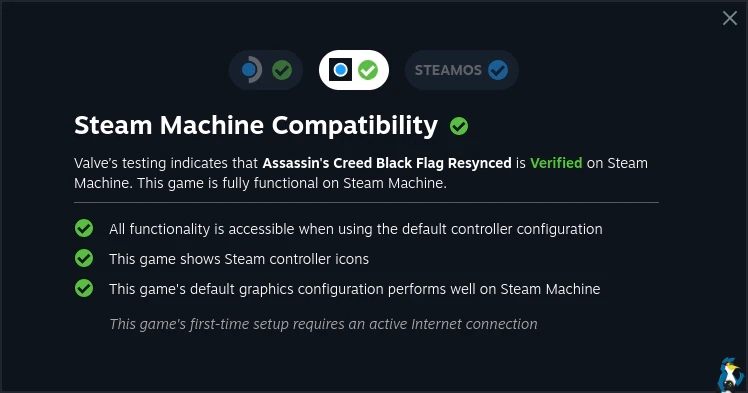
Spotted by GamingOnLinux, this update is currently viewable on the Steam store and mobile app. Users can find the new ratings by visiting a game's Steam page, scrolling down to the β€œSteam Deck Compatibility” section, and clicking the β€œLearn more” button.

Image credit: GamingOnLinux

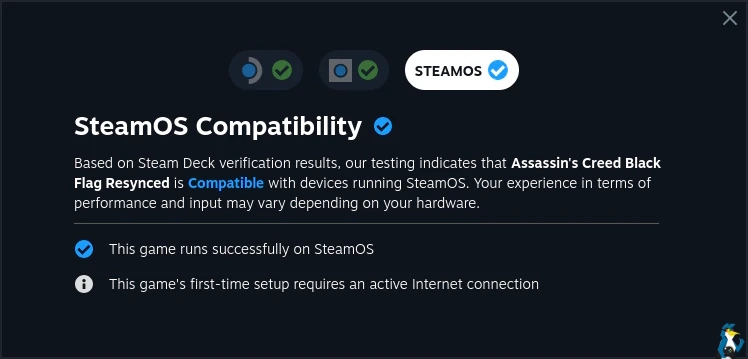
After pressing the button, an interface will pop up with three distinct tabs outlining specific requirements for the Steam Deck, Steam Machine, and SteamOS. The Steam Machine tab handles metrics for the Steam Machine Verified program, tracking performance and controller compatibility with default settings. Furthermore, the general SteamOS section indicates whether a game functions through the Proton compatibility layer or requires an active internet connection for initial setup and gameplay.

Hints of an upcoming β€œSteam Frame Verified” rating system have also appeared for certain titles, though Valve has not yet deployed a final store UI for it.

KItGuru says: Expanding the verification ecosystem to cover the Steam Machine ensures players know exactly how a game will perform before launching it.

The post Valve rolls out SteamOS and Steam Machine verification system first appeared on KitGuru.
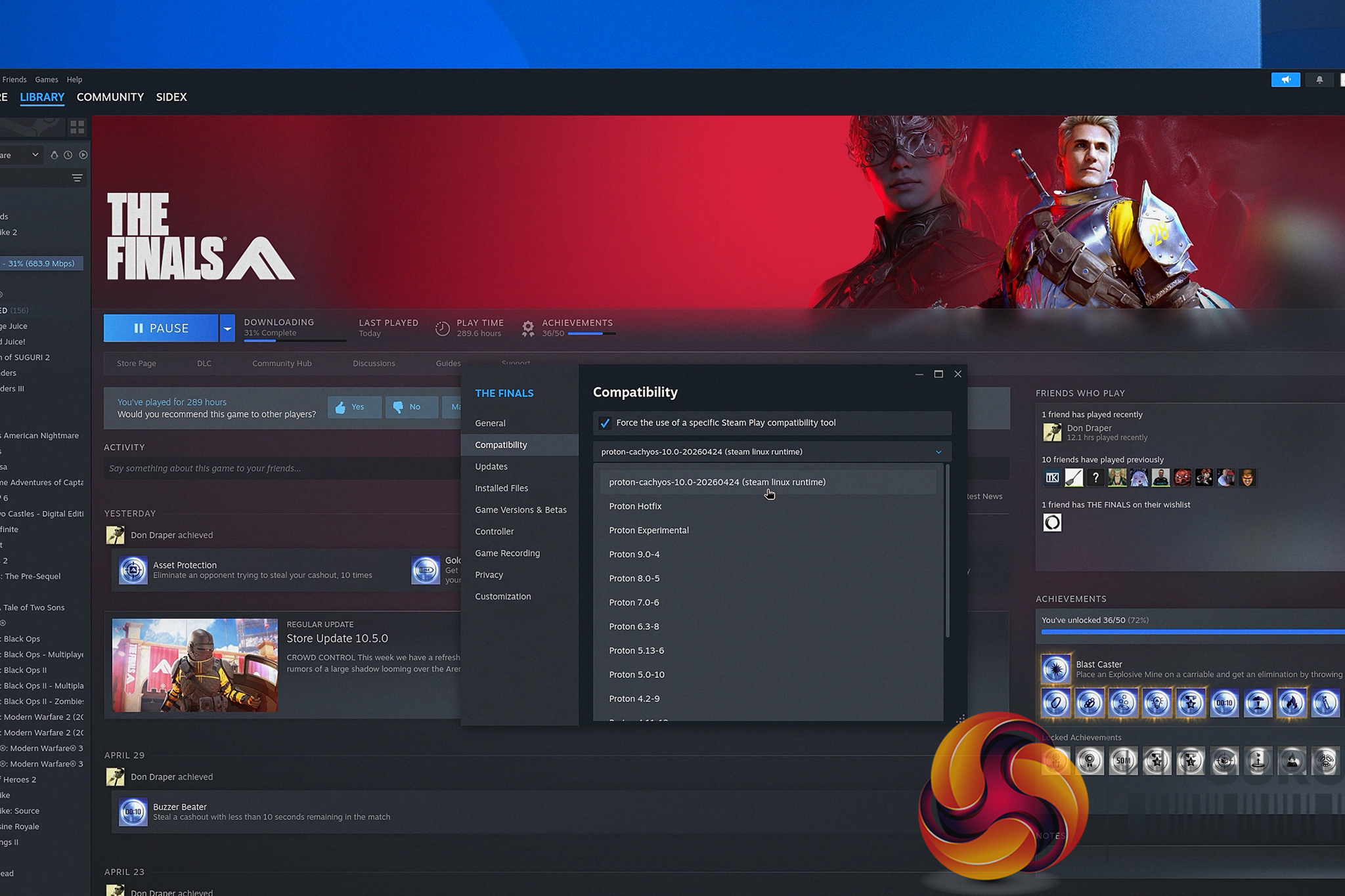
Our Guide to Installing Linux for Gaming w/ CachyOS

18 May 2026 at 09:50

We have all been there. You boot up a fresh Windows 11 installation only to be greeted by forced online accounts, AI assistants you didn't ask for, and background bloatware eating into your precious framerates. For years, the alternative has been Linux, but the perceived hassle of terminals and compatibility issues has kept most gamers away. What if I told you that you could ditch Windows, install a heavily optimized gaming OS, and be ready to launch your first Steam game in under 10 minutes?

Timestamps:

00:00 Intro
00:56 Getting started…
03:04 Getting the system prepped
07:19 CachyOS installation
12:10 We’re in the OS!
15:53 Running games on Steam – the basics
20:02 How to troubleshoot
22:02 Running our game!
24:57 Closing thoughts

Let's not sugar coat it: the state of modern Windows is increasingly frustrating for PC enthusiasts. In our recent hardware reviews, we've seen first-hand how pre-installed software and OS-level bloat can literally rob you of your system's performance, leaving real framerates on the table for no good reason.

The classic counter-argument is always, β€œJust switch to Linux.” But for the average gamer, the idea of jumping into an entirely new operating system sounds like a daunting, weekend-long project filled with troubleshooting, mental gymnastics, and endless forum diving.

I wanted to prove that this simply isn't true anymore.

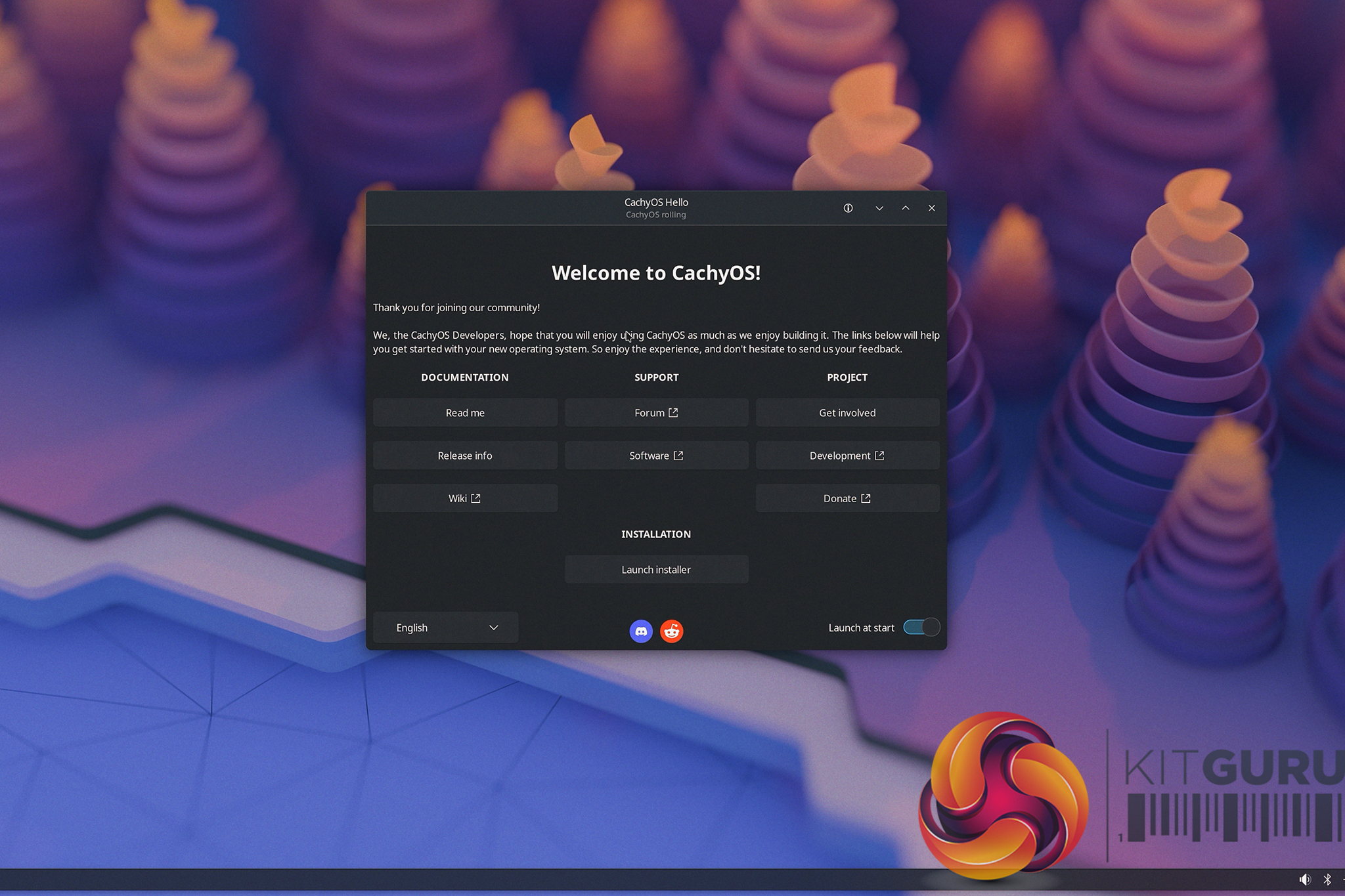
Enter CachyOS. It's a Linux distribution purpose-built for squeezing every last drop of performance out of your hardware right out of the box, with gaming at the forefront of its design. But rather than just throwing benchmarks at you, I decided to show you exactly how frictionless the transition can actually be.

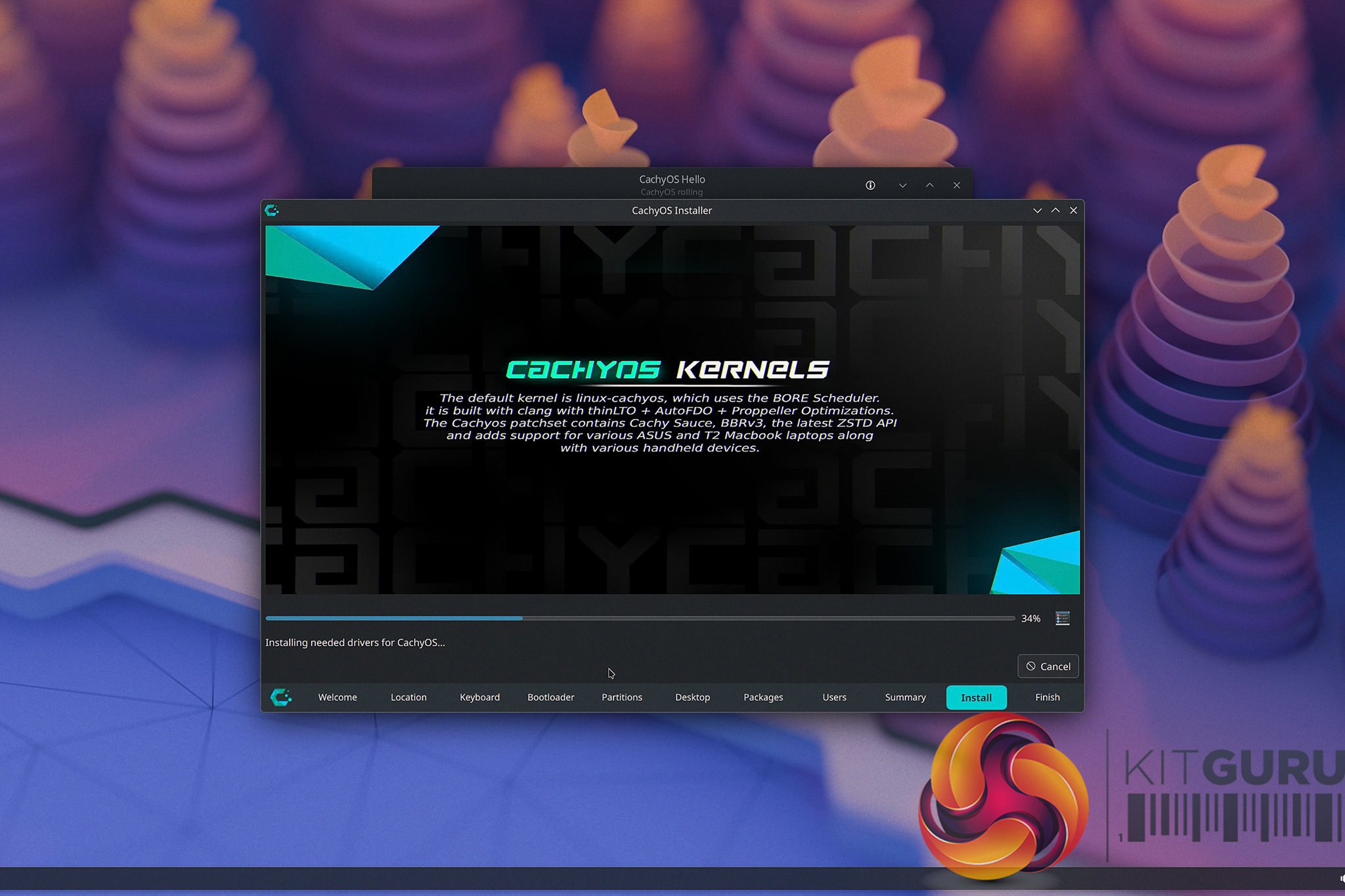
In this video, we are doing a real-time, follow-along tutorial. No skipped steps and extra fluff. We start from absolute scratch by creating a bootable USB drive using Ventoy, walk through the surprisingly simple CachyOS graphical installer, and handle the post-install essentials together. We run through grabbing the necessary gaming packages (literally pressing a single button to install everything), ensuring the system is fully up to date, and logging straight into Steam.

The best part? From downloading the CachyOS .iso to getting on your new fresh CachyOS desktop in just a little over 10 minutes. If you have a spare NVMe drive sitting around, and you are simply fed up with the current direction of Microsoft's operating system and want a snappier, cleaner desktop experience, grab a coffee and hit play.

You might just find that the grass actually is greener on the other side.

KitGuru says: Let us know if you're a Linux user, or if this guide might just tempt you to try it out!

The post Our Guide to Installing Linux for Gaming w/ CachyOS first appeared on KitGuru.
❌
❌