Normal view

There are new articles available, click to refresh the page.
Before yesterdayMain stream

MSI MEG CoreLiquid E15 360 AIO Review: Bold and stunning, with market-leading performance

6 September 2026 at 12:48

MSI MEG CoreLiquid E15 360 AIO

(Image credit: Tom's Hardware)

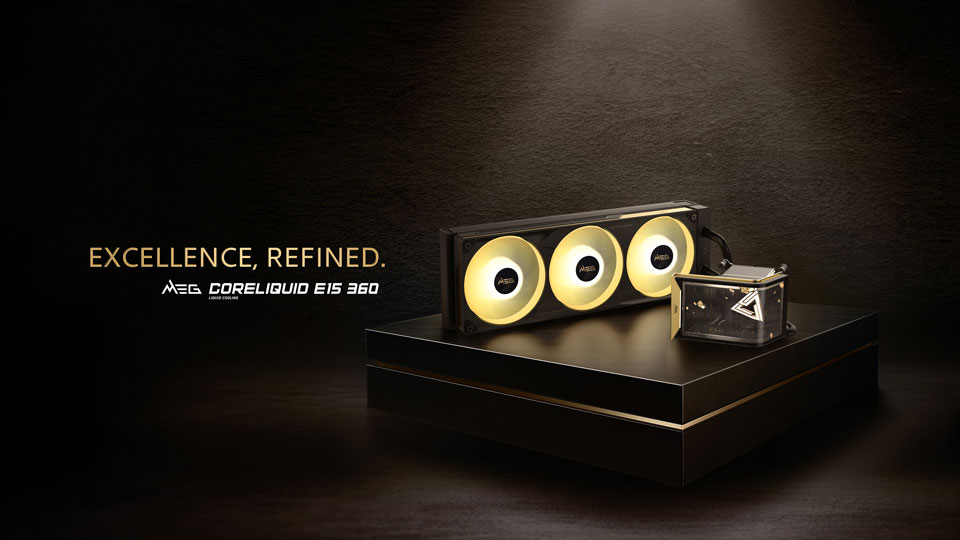
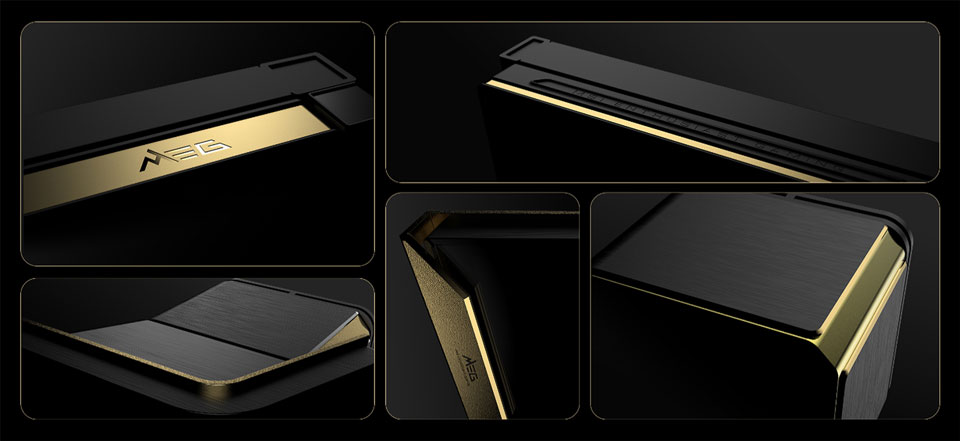
Today we’re testing MSI’s latest flagship AIO, the MEG Coreliquid E15 360, a luxury AIO with a premium black-and-gold aesthetic symbolizing authority and elegance. So we’re expecting market-leading thermal performance. Of course, the feature that stands out the most is the stunning 6.67-inch curved 2240x1080 AMOLED screen. The whole design looks and feels premium, with a price tag to match.

MSI MEG CoreLiquid E15 360 AIO

(Image credit: Tom's Hardware)

Let's take a look at the specifications and features of this CPU cooler, then we’ll go over thermal and noise benchmarks to decide if the MEG CoreLiquid E15 360 is good enough to make our list of the best CPU coolers on the market.

Cooler specifications

Cooler

MSI MEG CoreLiquid E15 360

Colors

Black with Gold

MSRP

$399.99

Lighting

ARGB on fans

Warranty

6 years (cooling components)
2 years (AMOLED display)

Socket Compatibility

AMD AM5/AM4
Intel 1700/1851

Dimensions

138.95 (W) x 136.47 (D) x 167.3mm (H)/ 133 (W) x 114 (D) x 161mm (H)

Maximum TDP with AMD’s Ryzen 9 9950X3D (Our Testing)

>265W with AMD’s Ryzen 9 9950X3D

Features of MSI’s MEG CoreLiquid E15 360 AIO

▶️ Premium black-and-gold aesthetic

MSI MEG CoreLiquid E15 360 AIO

(Image credit: Tom's Hardware)

MSI’s MEG CoreLiquid E15 features a design that just oozes a feeling of premium quality – each component is precision-made using high-quality components, with gold colored plating flanking black metal. The highlight of this cooler, of course, is the premium curved screen, but if, for some reason, you’d prefer not to use the screen, a stylish black-and-gold pump cover is also included.

MSI MEG CoreLiquid E15 360 AIO

(Image credit: Tom's Hardware)

▶️ RAM Clearance

As with most AIOs on the market, MSI’s E15 doesn’t overhang or interfere with RAM DIMMs at all, allowing for compatibility with all sizes of DDR4 or DDR5 DIMMs, no matter how tall.

MSI MEG CoreLiquid E15 360 AIO

(Image credit: Tom's Hardware)

▶️ Magnetic Penrose Triangle

MSI MEG CoreLiquid E15 360 AIO

(Image credit: Tom's Hardware)

A pretty nifty piece of swag included with this AIO is a magnetic Penrose triangle and, boy, let me tell you, this magnet is strong! How strong? I threw it across the living room to a metal door and it instantly secured itself to the door!

MSI MEG CoreLiquid E15 360 AIO

(Image credit: Tom's Hardware)

▶️ 28mm thick single-frame fans

There’s more to a cooler than just the heatsink. The included fans have a direct impact on aesthetics, noise levels, and overall thermal performance. The E15 features a 360mm single-frame fan unit, and it is pre-installed for user convenience, saving a few moments during cooler installation.

MSI MEG CoreLiquid E15 360 AIO

(Image credit: Tom's Hardware)

Fan Speed

800–2300 RPM ±10%

Dimensions

362 x 125 x 28.4 mm

Airflow

217.91 CFM

Air Pressure

3.84 MMH20

▶️ MSI EZ Display software – Pros and Cons

Strictly speaking, you don’t actually need to install MSI’s EZ Display software to enjoy the functionality of the included screen. The E15’s default animation shows a Penrose triangle against a background strongly reminiscent of the brutalist Isu ruins from The Fate of Atlantis DLC in Ubisoft’s Assassin’s Creed: Odyssey.

MSI MEG CoreLiquid E15 360 AIO

(Image credit: Tom's Hardware)

If you’re happy with this default animation, no software installation is necessary. It’s only if you want to customize the screen that software installation is necessary.

MSI MEG CoreLiquid E15 360 AIO

(Image credit: Tom's Hardware)

Once the MSI EZ Display software has been installed, there are three primary configuration styles. The first is a “full screen” mode that has several stunning animations, each unique but in the same style as the others.

MSI MEG CoreLiquid E15 360 AIO

(Image credit: Tom's Hardware)

In addition to the visual theme, you can choose to enable several metrics on the screen. In the image above, I’ve enabled the date and time, but you can opt for other things, like CPU and GPU temperatures, processor frequencies, etc.

These are nice features and certainly look good, but that’s where the customization ends for metrics. The EZ Display doesn’t currently let you change the position or size of the metrics displayed. If MSI wants this AIO to appeal to tech enthusiasts, that’s a feature they’ll need to implement – especially when you consider the E15’s luxury price tag. This lack of proper customization is especially annoying when trying to display metrics with a custom image, as shown below.

MSI MEG CoreLiquid E15 360 AIO

(Image credit: Tom's Hardware)

Another aspect I would like to see improved is the ability to deselect themes in the “playlist.” Currently, if you let the animations shuffle or loop, every single animation (preset and custom) that you have included in your library is played.

MSI MEG CoreLiquid E15 360 AIO
Tom's Hardware
MSI MEG CoreLiquid E15 360 AIO
Tom's Hardware

The second configuration mode available for this screen is a “split-screen” option, which currently has only two presets. As the mode’s name implies, this splits the display into two parts, allowing for one animation or image on each side of the display.

MSI MEG CoreLiquid E15 360 AIO

(Image credit: Tom's Hardware)

The last mode available for this screen is extended mode, which allows you to use the display as a secondary monitor with Windows.

MSI MEG CoreLiquid E15 360 AIO

(Image credit: Tom's Hardware)

This allows you to use your own software and show off themes and images entirely of your own creation, play movies of any length, etc. There is one downside though: when I tested this mode, HDCP would not work on either the MSI display or my primary LG ultrawide monitor when streaming video from Amazon Prime on my primary monitor, resulting in degraded video quality.

▶️ Packaging

MSI MEG CoreLiquid E15 360 AIO

(Image credit: Tom's Hardware)

The outer packaging loudly advertises the product, with a stunning black-and-gold theme and the AIO’s image on the front. The individual parts in the package are protected with cardboard, with mini boxes for the radiator, pump, accessories, and etc.

MSI MEG CoreLiquid E15 360 AIO

(Image credit: Tom's Hardware)

Included with the package are:

  • Mounting hardware for AMD and Intel platforms
  • 120mm fans
  • Thermal paste
  • Magnetic Penrose triangle
  • Bending tube clips

MSI MEG CoreLiquid E15 360 AIO

(Image credit: Tom's Hardware)

▶️ MSI MEG CORELIQUID E15 360 AM5 Installation

To begin putting things together, you’ll first need to remove the default AM4/5 retention brackets and replace them with the included mounting bars for the AIO.

MSI MEG CoreLiquid E15 360 AIO

(Image credit: Tom's Hardware)

Next, take the mounting bars and secure them with the included screws.

Now it’s time to apply the thermal compound. If you’re not sure how to do that, we have a handy thermal paste application guide that covers the different methods you can use.

After thermal paste is applied, take the CPU block and press it against the mounting bars, using the built-in screws to secure it in place.

MSI MEG CoreLiquid E15 360 AIO

(Image credit: Tom's Hardware)

At this point, you’re mostly good to go. You can leave the AIO set up as above if you want, but most users will want to take off the cover from the CPU block and place the screen on top of it instead.

MSI MEG CoreLiquid E15 360 AIO

(Image credit: Tom's Hardware)

The final step, of course, is to connect the AIO’s cables – ARGB, USB, and PWM.

MSI MEG CoreLiquid E15 360 AIO

(Image credit: Tom's Hardware)

Real-world testing configuration – AMD AM5 platform

We’ve tested coolers with both the Ryzen 9950X3D and its non-V-Cache sibling, the 9950X. There are some differences in how the 9950X and 9950X3D CPUs are impacted by thermal events. While the heat output of the CCDs of AMD’s 9950X3D is relatively balanced, the 9950X I used has one CCD that runs much hotter than the other, with a difference of over 10 degrees Celsius in some scenarios, shown below.

MSI MEG CoreLiquid E15 360 AIO

(Image credit: Tom's Hardware)

We’ve since returned to using a 9950X3D for cooler testing, as it has a more balanced heat profile, and is almost certainly a more widely adopted CPU. The benchmark results shared in these reviews may differ from others because I emphasize results that are comparable to real-world use. This means I generally test CPU coolers inside of a closed desktop case, which increases cooling difficulty compared to other testing methods.

Many reviewers test coolers on open test benches, which have a combination of lower airflow needs and lowered ambient temperatures. This can make weak coolers appear stronger than they really are. Some publications have also used generic thermal plates to test cooling solutions. I reject both of these methods because they don’t accurately reflect real-world cooler conditions.

CPU

AMD Ryzen 9 9950X3D

GPU

MSI Ventus 3X RTX 4070Ti Super

RAM

TeamGroup Diamond Rose T-Force Xtreem DDR5-7200

Motherboard

MSI X870E Carbon Wifi

Case

Tryx FLOVA F50

Our latest testing setup uses the FLOVA F50 computer case from Tryx.

MSI MEG CoreLiquid E15 360 AIO

(Image credit: Tom's Hardware)

This case features a unique “crossflow” fan that pulls air from the side, which the company claims is more effective than traditional intake fans. For air cooling tests, we’ve added a single Noctua NF-A12 G2 intake fan.

PBO Performance and maximum noise levels

We’re going to start this review’s benchmark section by focusing on a traditional maximum performance test, with the CPU cooler’s fans allowed to reach their fastest speeds, for the best cooling possible.

Turning on PBO allows AMD’s Ryzen 9 9950X3D to stretch its legs and consume over 260W. Enabling PBO allows for high power consumption and heat output. When using MSI’s X870E Carbon Wifi motherboard, the CPU will reach its TJ Max (peak temperature) of 95 degrees C (203 F) and thermally throttle, to some extent, with most coolers. When this throttling occurs, I’ve measured the average power consumption to determine performance.

MSI MEG CoreLiquid E15 360 AIO

(Image credit: Tom's Hardware)

I’ve highlighted the performance of the MEG CoreLiquid E15, the P22, and the prototype P22 to demonstrate how MSI has been continuously improving the thermal performance of its AIOs. The MEG E15 has the second-best results in our current test bench, averaging 62 degrees Celsius over ambient (84 C). Out of curiosity, I also tested the thermal performance to see how better temperatures might perform with an open case – and surprisingly, there was only a single degree’s difference.

MSI MEG CoreLiquid E15 360 AIO

(Image credit: Tom's Hardware)

The maximum noise levels of this cooler are on the louder end, measuring 48 dBA. But to my ears at least, the the pitch of the cooler’s fans is soft, which makes the cooler feel quieter than how it measures.

200W thermal benchmarks

For the next thermal test, I leave the motherboard settings at their defaults, which results in a power limit of 200W when running Cinebench R23.

MSI MEG CoreLiquid E15 360 AIO

(Image credit: Tom's Hardware)

Thermal results in this scenario were similar to our first test, with MSI’s E15 being a top performer, holding the third-best results, averaging 47.1 C over ambient (69.1 C).

150W + GPU thermal results

Our next test runs Cinebench on the CPU with a 150W power limit, while also running Furmark on MSI’s RTX 4070 Ti Super Ventus 3x OC. This causes the GPU to consume ~295W of power. This test is designed to emulate the thermals of games, which stress both the CPU and GPU.

MSI MEG CoreLiquid E15 360 AIO

(Image credit: Tom's Hardware)

MSI’s E15 AIO once again performs well here, with our second-place result when testing in our Tryx FLOVA F50 test bench. Out of curiosity, I also tested this AIO in an open case, which resulted in an additional thermal improvement of 1.8 C.

Noise levels in this scenario were moderate, registering at 40.9 dBA with our Pyle PSP25 sound meter.

MSI MEG CoreLiquid E15 360 AIO

(Image credit: Tom's Hardware)

Noise-normalized testing

Most testing is performed with the cooler tied to the default fan curve of our MSI X870E Carbon motherboard, but some of y’all prefer to see tests when the noise levels of coolers are equalized. This is especially important to those of you who prefer silent computers. This next test has the CPU cooler noise-normalized to 38.9 dBA, with PBO enabled for the Ryzen 9 9950X3D CPU.

This test is especially difficult, because in addition to the reduced noise from the CPU cooler, our current test bench’s system fans are configured to run extremely silently, below the floor of the noise meter I use to measure dBA.

MSI MEG CoreLiquid E15 360 AIO

(Image credit: Tom's Hardware)

The results here are simply excellent. MSI’s E15 is one of the few AIOs on the market capable of keeping the CPU under TJ Max with PBO enabled in our current test bench, even when the noise levels of the fans are limited.

Karhu DDR5 RAM thermals testing

Your CPU cooler does not operate in isolation. It has an impact on not just your CPU’s temperatures, but also the other components in your build, like your RAM and GPU. To that end, I’ve run the Karhu RAM stress test. This places a load of ~153W on the CPU and ensures system RAM (DDR5 in my case) is fully stable. In this type of scenario, most AIOs tend to produce worse results than air coolers.

MSI MEG CoreLiquid E15 360 AIO

(Image credit: Tom's Hardware)

DDR5 temperatures in this test were good, the best of any AIO, save those incorporating VRM or RAM fans.

MSI MEG CoreLiquid E15 360 AIO

(Image credit: Tom's Hardware)

Conclusion

MSI MEG CoreLiquid E15 360 AIO

(Image credit: Tom's Hardware)

With a hefty $399 price, this AIO is strictly for users who don’t care much about build budgets. The stunning black-and-gold aesthetic reflects that luxury status, and the included 6.7-inch screen and preset animations are stunning. Thermal performance is also among the best AIOs on the market, so the cooler isn’t all about style over substance.

But of course, with the ongoing inflated prices of RAM, storage, and GPUs, most of us aren’t likely to seriously consider spending nearly $400 on a cooler. If you’re looking for a more budget-minded alternative, I’d encourage you to check out Arctic’s Liquid Freezer III Pro instead.
Alphacool reveals highly-serviceable Core 2 XT CPU AIO cooler lineup

4 September 2026 at 15:01

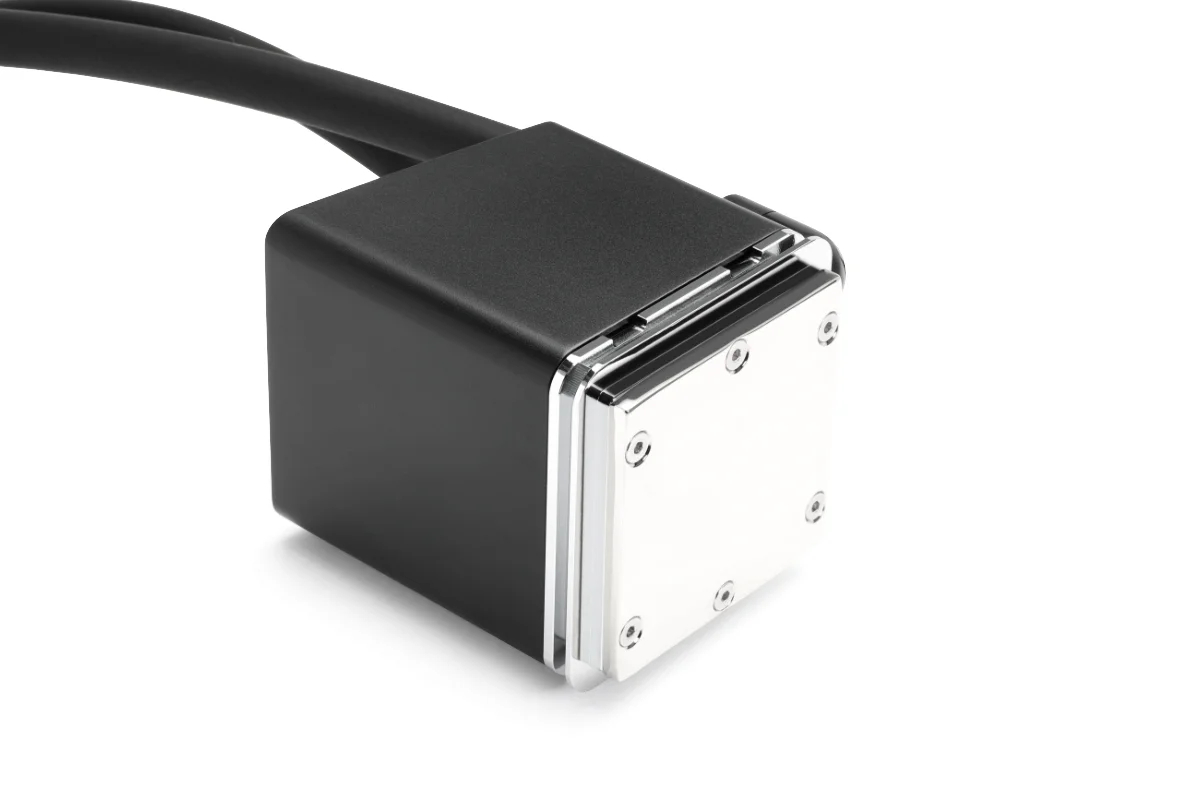
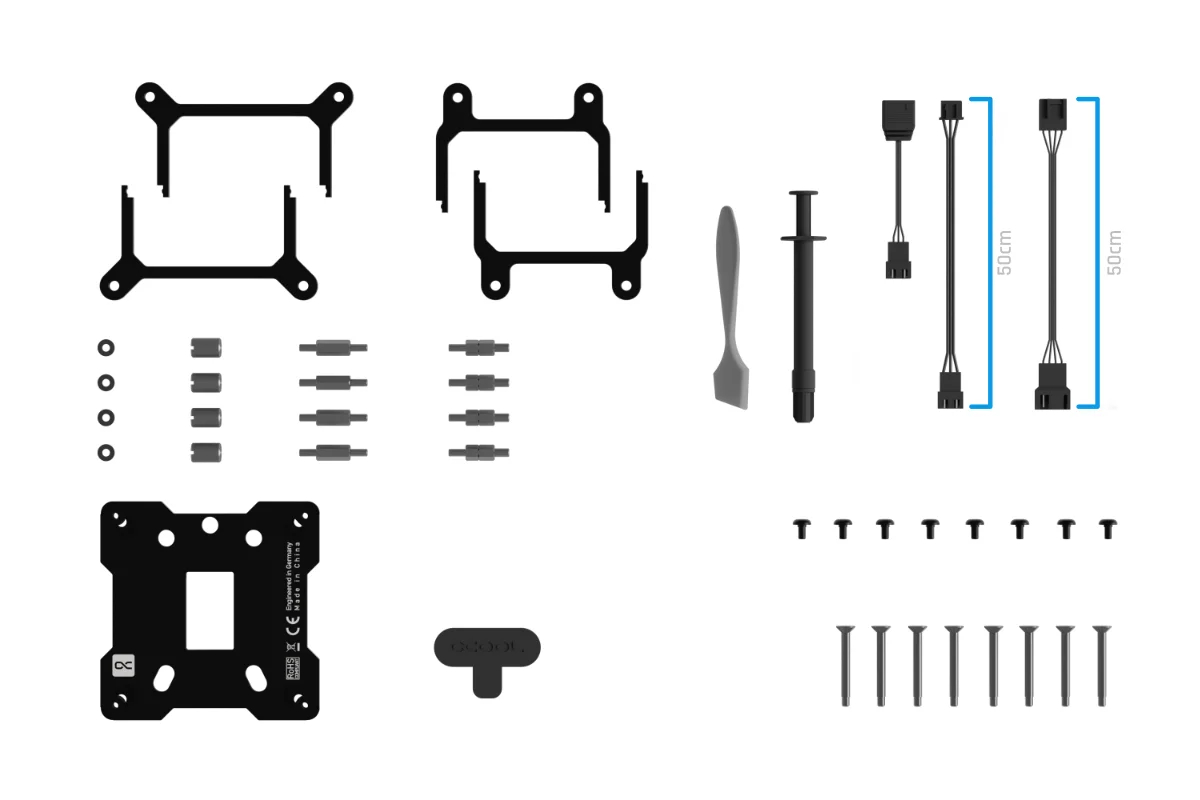
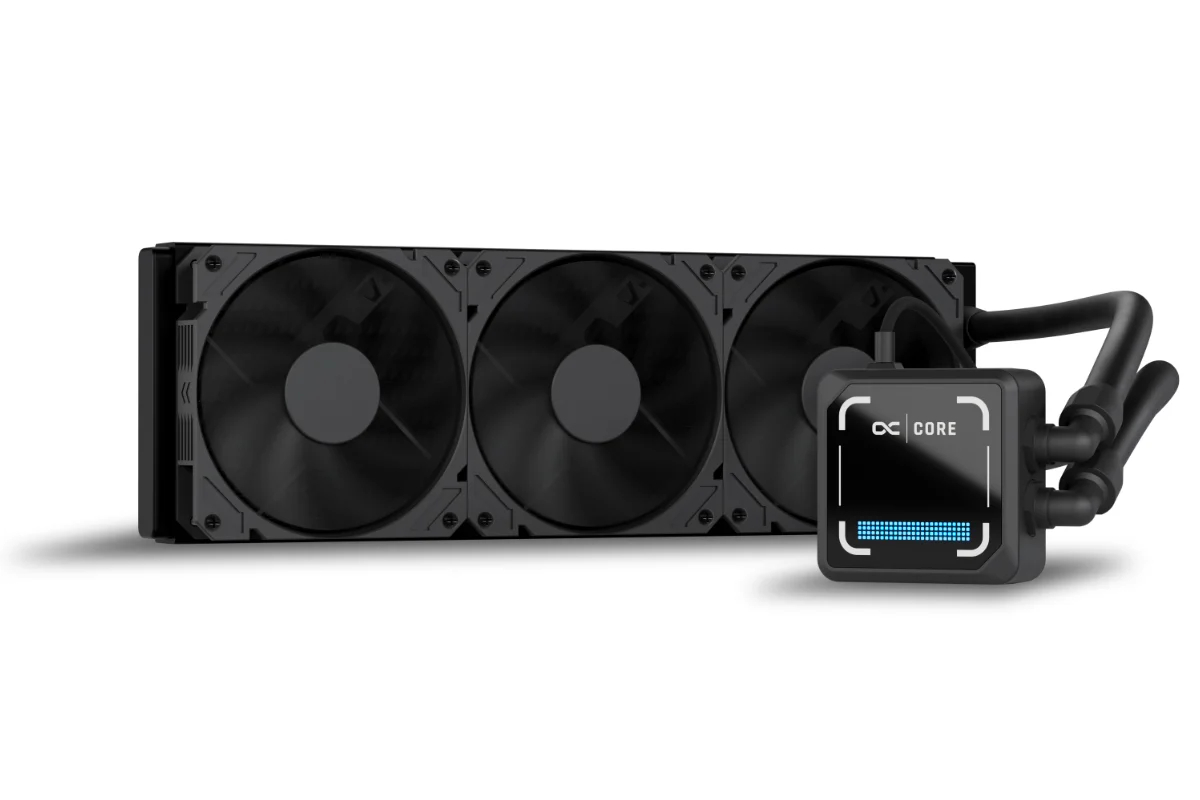
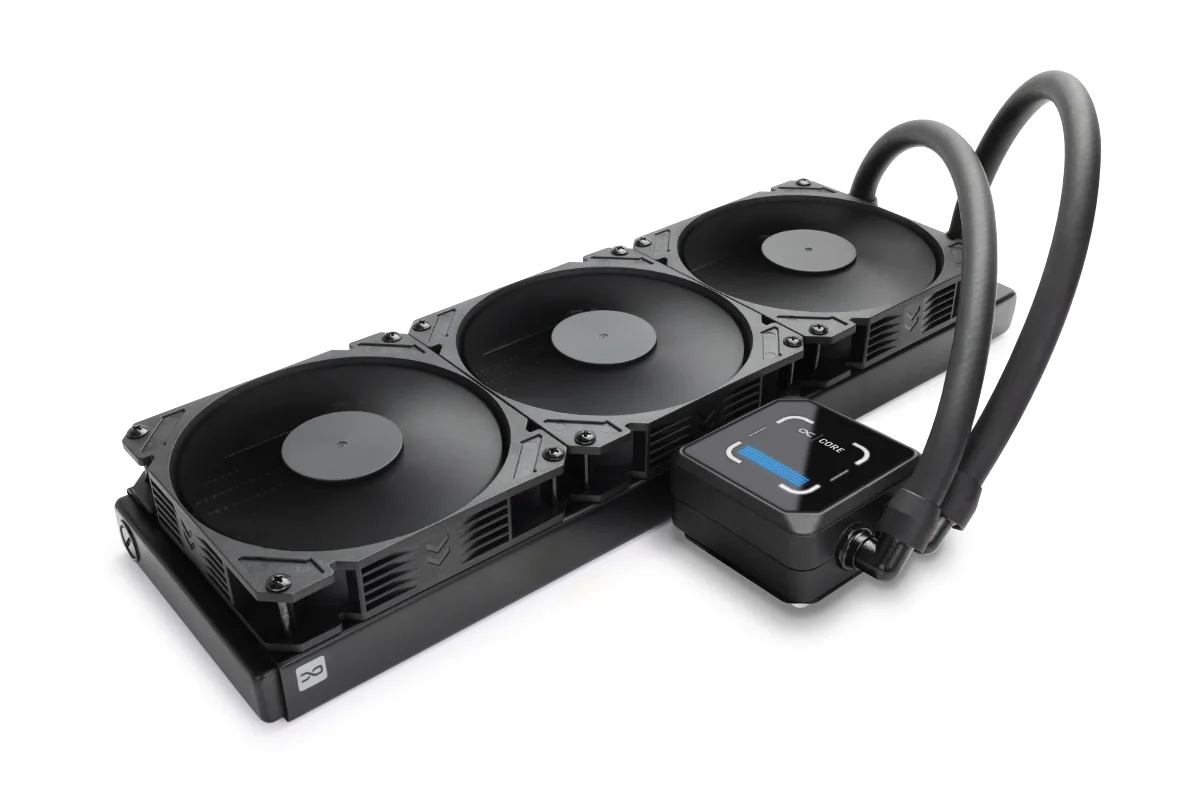
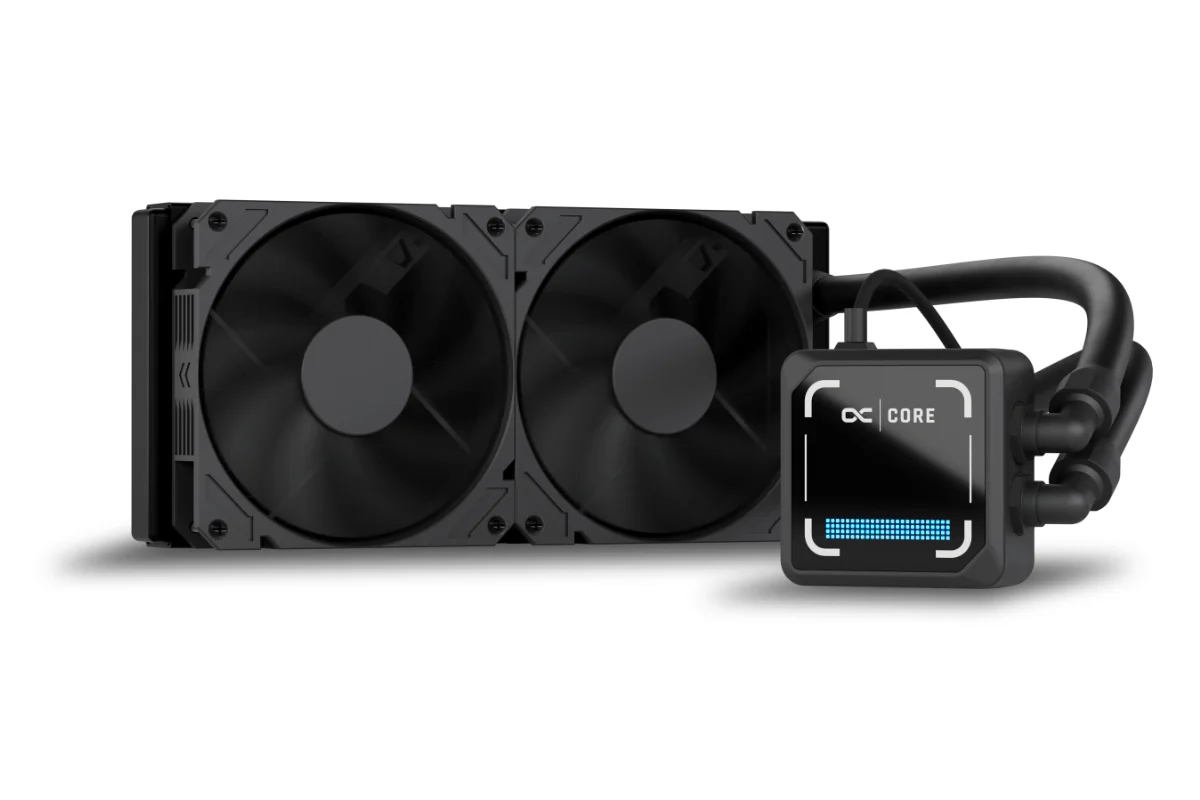
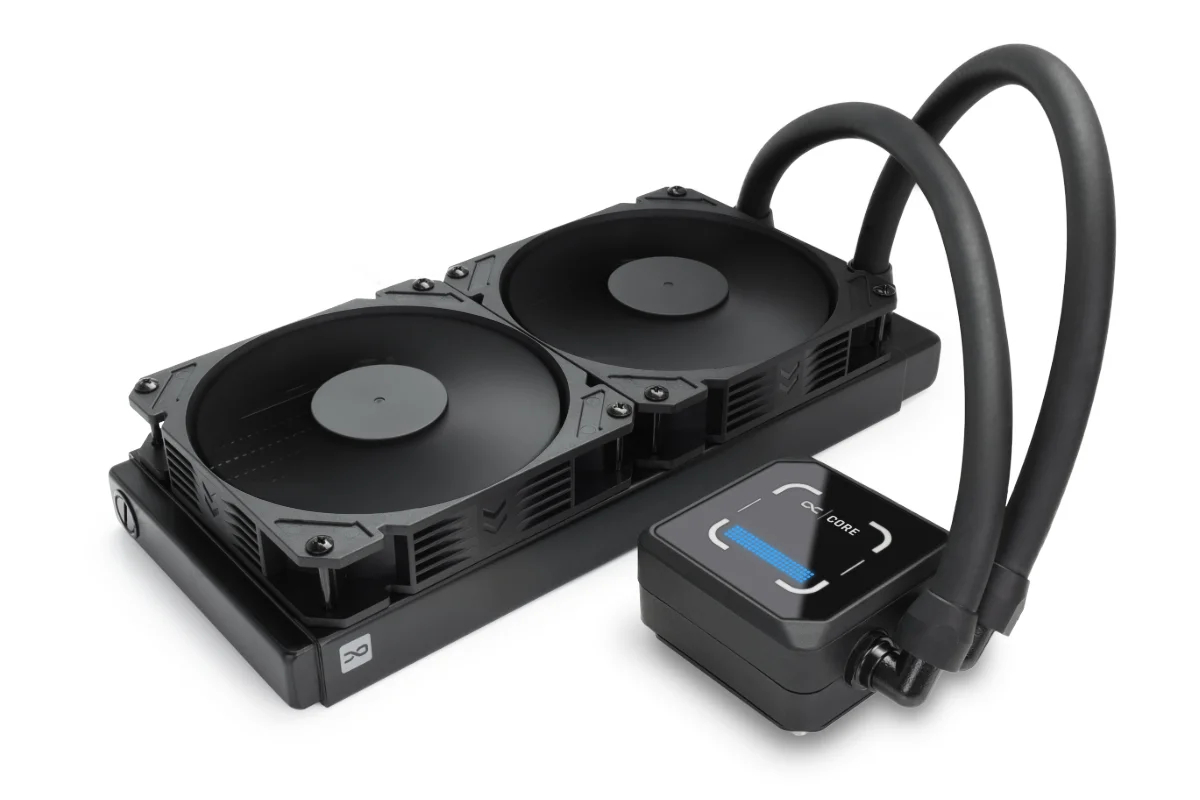
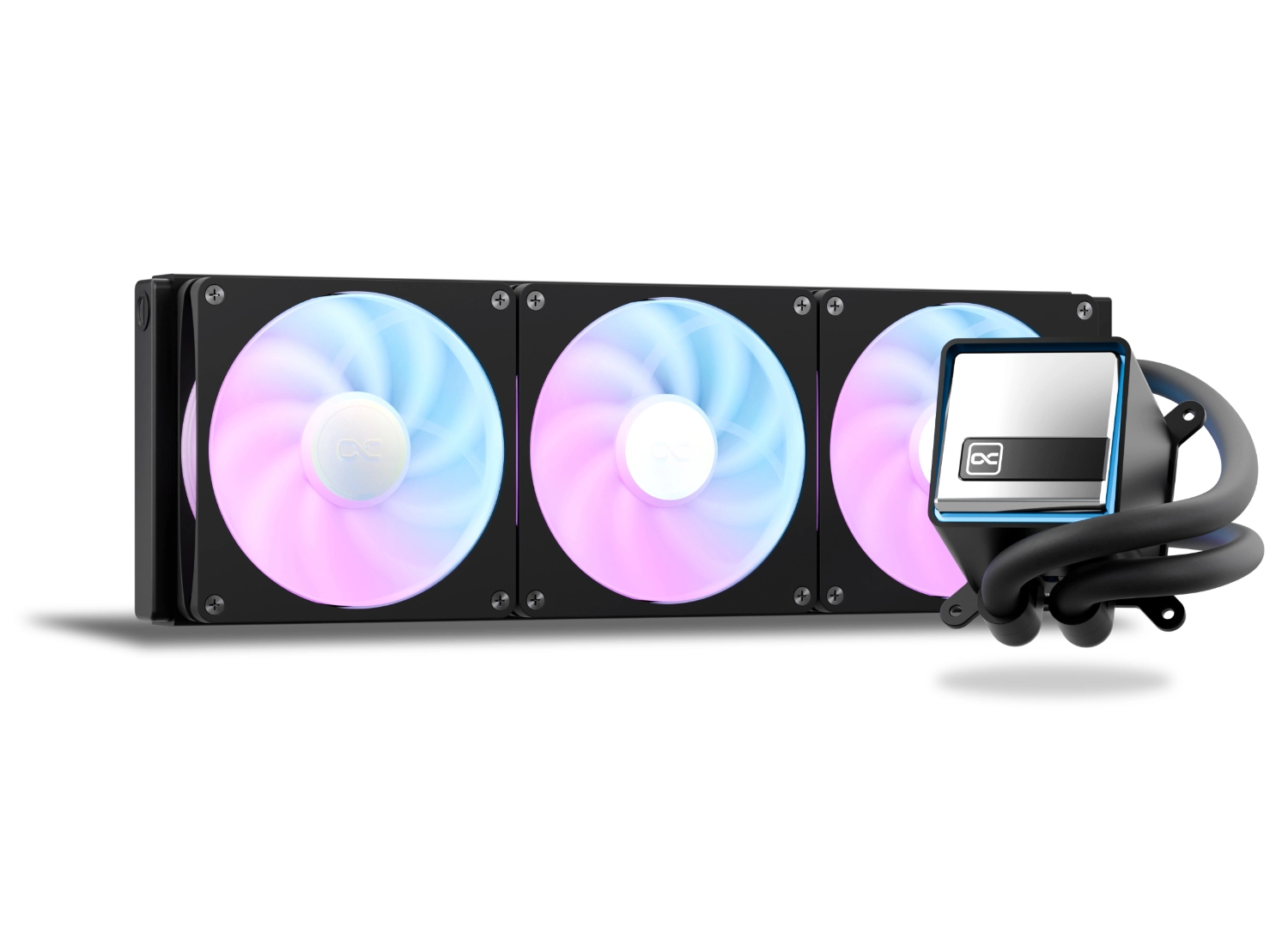
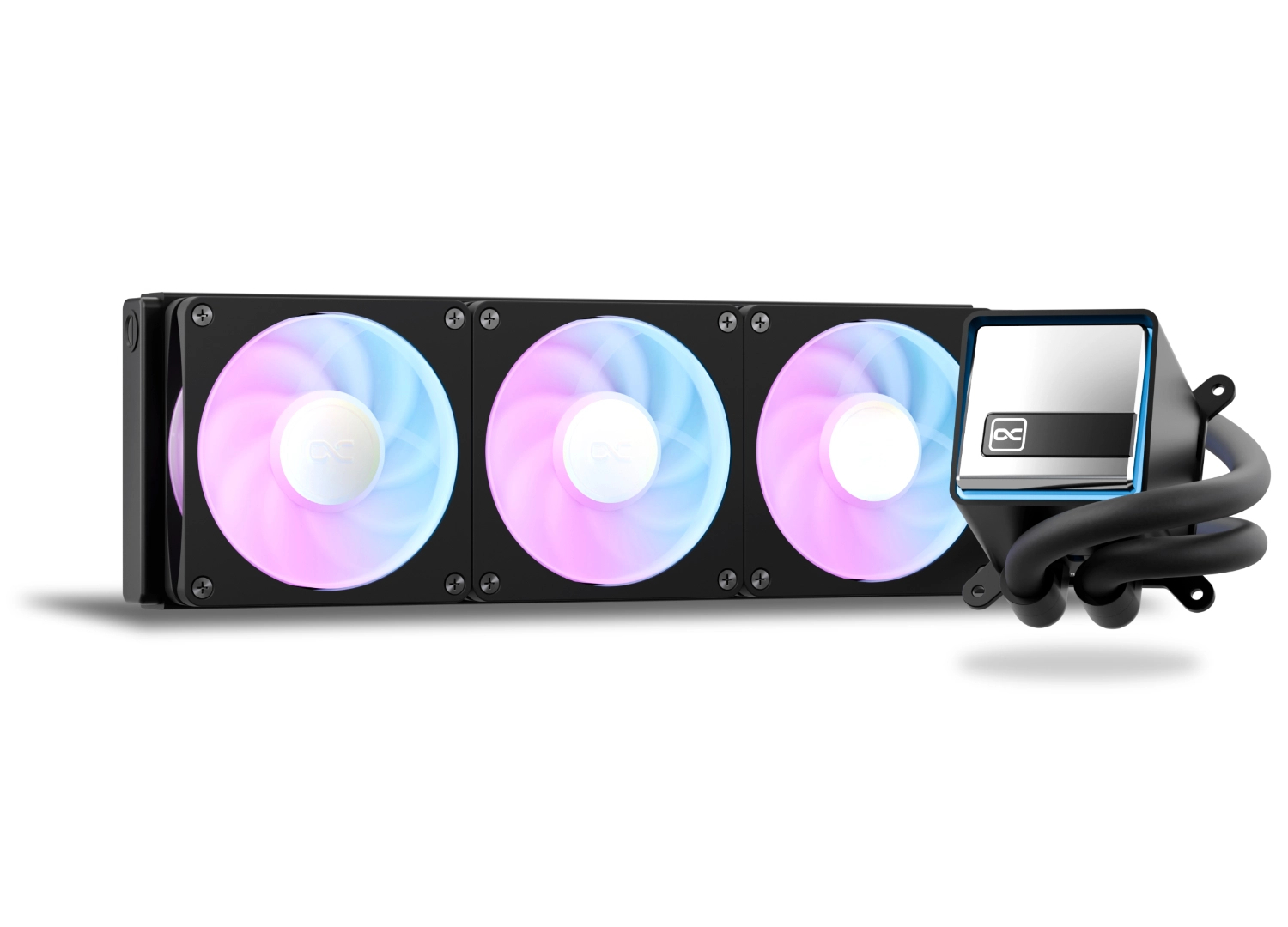
Alphacool has launched the Core 2 XT CPU AIO series, bringing custom liquid-cooling components to an AIO design. Available in 240mm, 280mm, 360mm, and 420mm radiator configurations, the new lineup pairs a copper NexXxoS HPE radiator with a Core 1-based CPU block, an integrated Core DC-LT 3 PWM pump, and Apex Stealth metal fans.

The Core 2 XT series cooling loop features an aluminium CPU block housing with integrated ARGB lighting, which is kept isolated from the coolant. Built directly into the block, a Core DC-LT 3 PWM pump runs at up to 3800RPM to drive coolant through flexible TPV tubing. Heat transfer relies on a NexXxoS HPE all-copper radiator structure, working alongside Alphacool's Apex Stealth metal fans, which feature built-in ARGB lighting, a maximum speed of 2600RPM, and a maximum rated airflow of 59.79CFM at 3.35mmH2O.

Four sizing options make up the lineup, covering 240mm, 280mm, 360mm, and 420mm NexXxoS ST30 HPE radiators. Dual 120mm Apex Stealth metal fans cool the 240mm variant, while the 280mm model includes two 140mm fans. For larger builds, the 360mm version features three 120mm fans, while the 420mm flagship has three 140mm fans.

Unlike conventional sealed liquid coolers, Alphacool emphasises long-term serviceability with this series. Borrowing components directly from its custom water-cooling catalogue, the design supports a right-to-repair approach that allows users to service, refill, or replace parts over time rather than discarding the entire unit. These coolers are now available starting at €249.98.

KitGuru says: The combination of full-copper radiators, Apex Stealth metal fans, and replaceable components gives the Core 2 XT series a longevity edge over standard sealed AIOs. However, all this comes at a relatively steep cost.

The post Alphacool reveals highly-serviceable Core 2 XT CPU AIO cooler lineup first appeared on KitGuru.

Watercool launches new Heatkiller V Ultra and Pro CPU blocks

31 August 2026 at 14:30

Watercool is expanding its HEATKILLER lineup with two new CPU blocks for AM4 and AM5, the HEATKILLER V Ultra and the HEATKILLER V Pro. Both models introduce a redesigned fin layout and updated baseplate structure aimed at improving contact and flow on modern Ryzen processors.

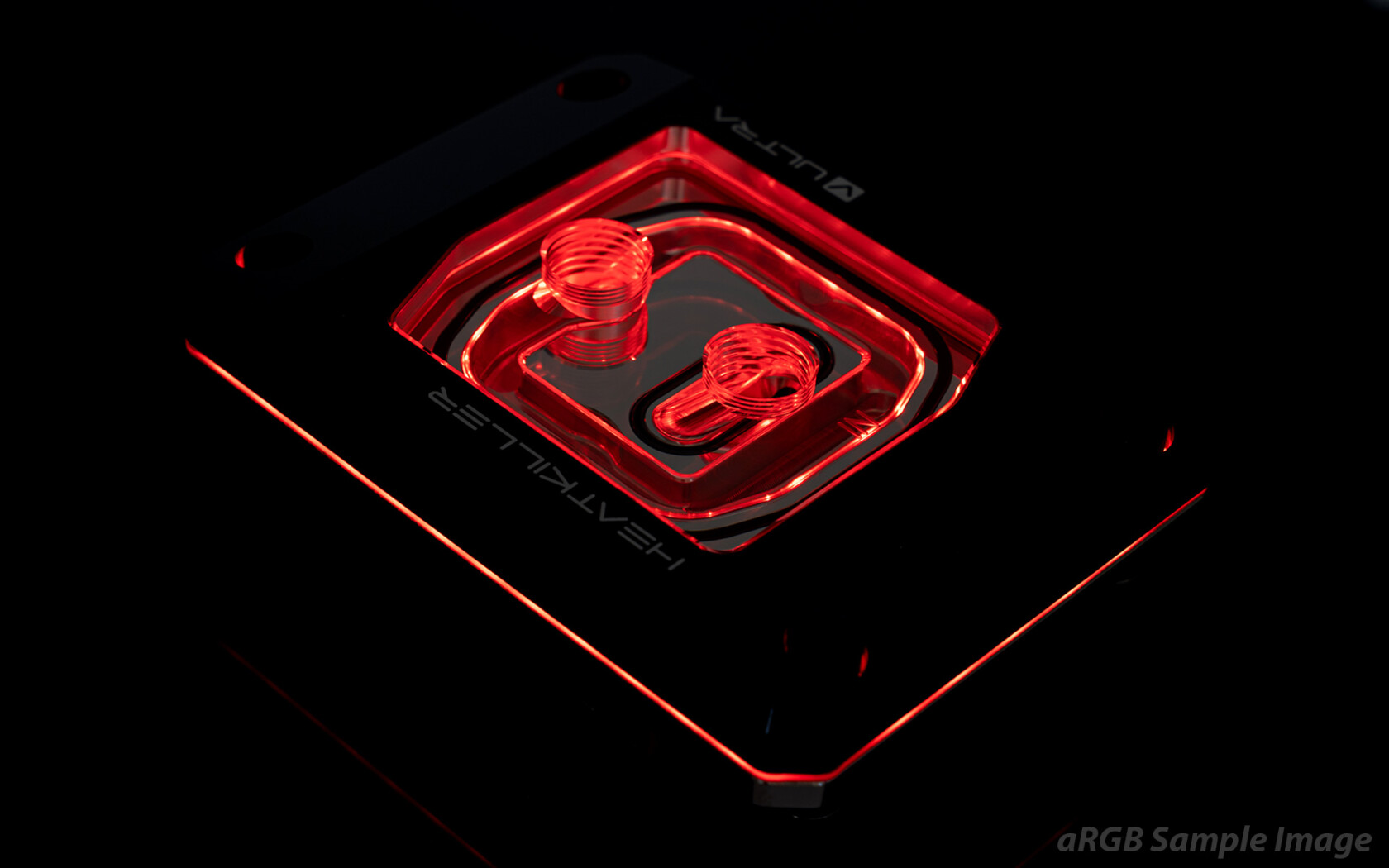
The HEATKILLER V Ultra is the flagship model. Watercool has redesigned the fin layout and baseplate for AM4 and AM5, using 0.15mm fins and a revised flow path to improve contact under Ryzen’s hotspot layout. Cross‑slots in the base allow the copper to flex slightly under mounting pressure, helping it sit flatter against the CPU. The Ultra also features a nickel‑plated copper base, a pre‑assembled mounting system and a dedicated ARGB PCB with 43 LEDs positioned for indirect illumination. The lighting cable is modular, allowing the block to be used without RGB if preferred.

The HEATKILLER V Pro follows a similar design philosophy, but with a 0.25mm fin structure paired with a bare copper base rather than a nickel‑plated one. Watercool describes the Pro variant as tuned for maximum flow while still benefiting from the updated fin geometry and cross‑slot contact improvements. Like the Ultra, it ships with the new mounting system and includes Halnziye HY‑P17 thermal paste in the box.

Both blocks are manufactured in Germany, from machining through to final assembly, and use a mix of aluminium, PMMA and copper across the frame and top. Pricing lands at €179.95 for the Ultra model and €159.95 for the Pro.

KitGuru Says: Are you planning a new loop for a Ryzen 7000 or 9000 build?

The post Watercool launches new Heatkiller V Ultra and Pro CPU blocks first appeared on KitGuru.

Alphacool Core 2 LT AIO offers a slim radiator for compact PCs

30 August 2026 at 10:00

Alphacool is updating its entry‑level AIO lineup with the Core 2 LT, a successor to the Eisbaer LT series built around a slim 25mm copper radiator and modular components taken from the company’s custom‑loop range.

The cooler uses a NexXxoS ST25 full‑copper radiator, giving it a thinner profile than most 240mm and 360mm AIOs while still using a full‑copper design. Alphacool pairs this with its Core DC‑LT 3 PWM pump mounted directly to the block, capable of speeds up to 3800RPM.

Flexible TPV tubing and rotary fittings are included too, which should make installation a little easier in tighter, more compact PC cases. The AIO also comes with pre-installed Alphacool Core 120mm fans, which spin at up to 4000RPM, pushing a very high 119.8 CFM, so there should be plenty of airflow.

Pricing for the Core 2 LT AIO cooler sits at €149.98 for the 240mm model and €164.98 for the 360mm version.

KitGuru Says: Do you prefer slim radiators for compact builds, or do you stick with standard 27mm units?

The post Alphacool Core 2 LT AIO offers a slim radiator for compact PCs first appeared on KitGuru.

ASRock reveals Rock Series AIO liquid coolers with integrated display options

26 August 2026 at 16:30

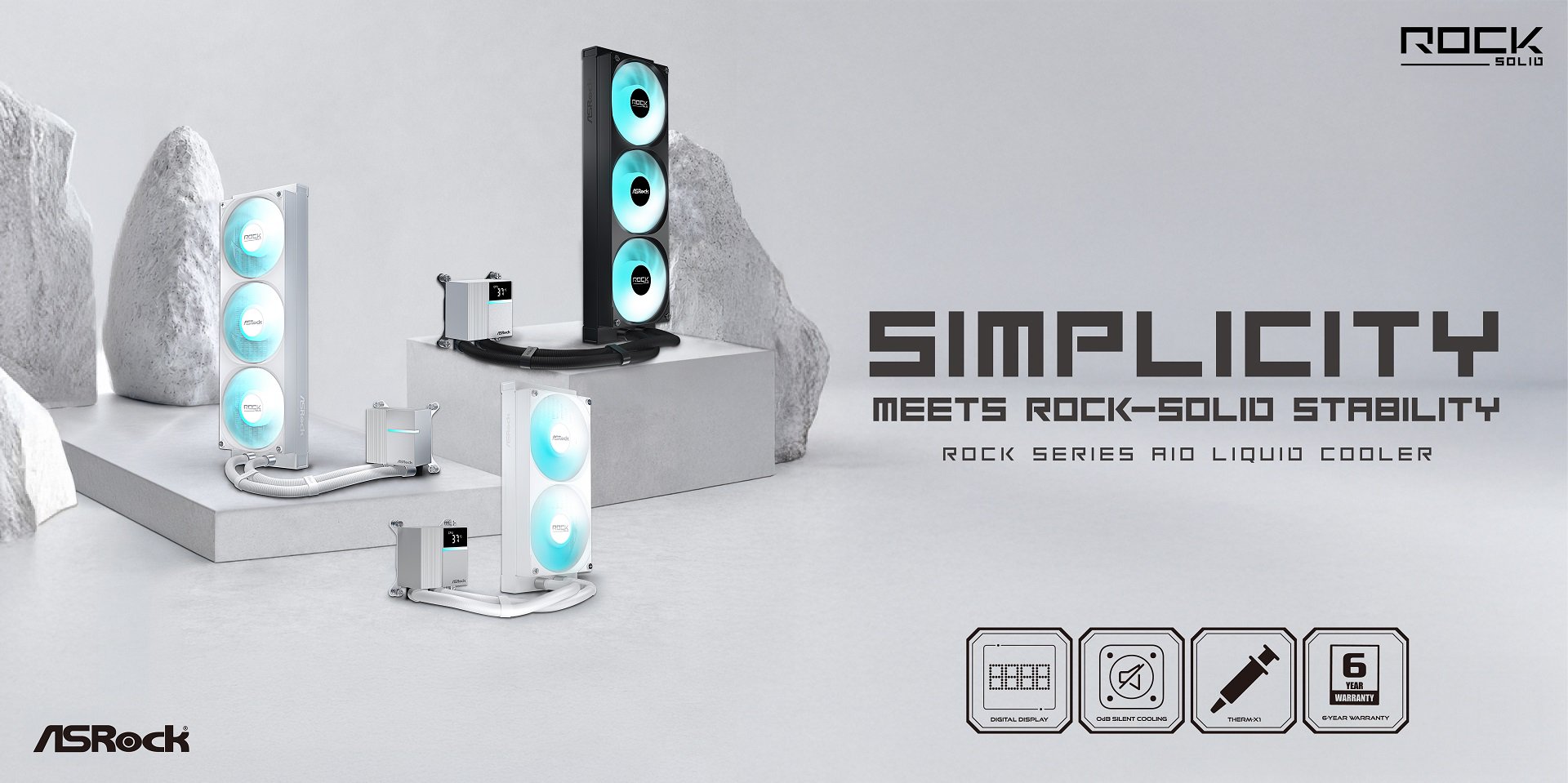
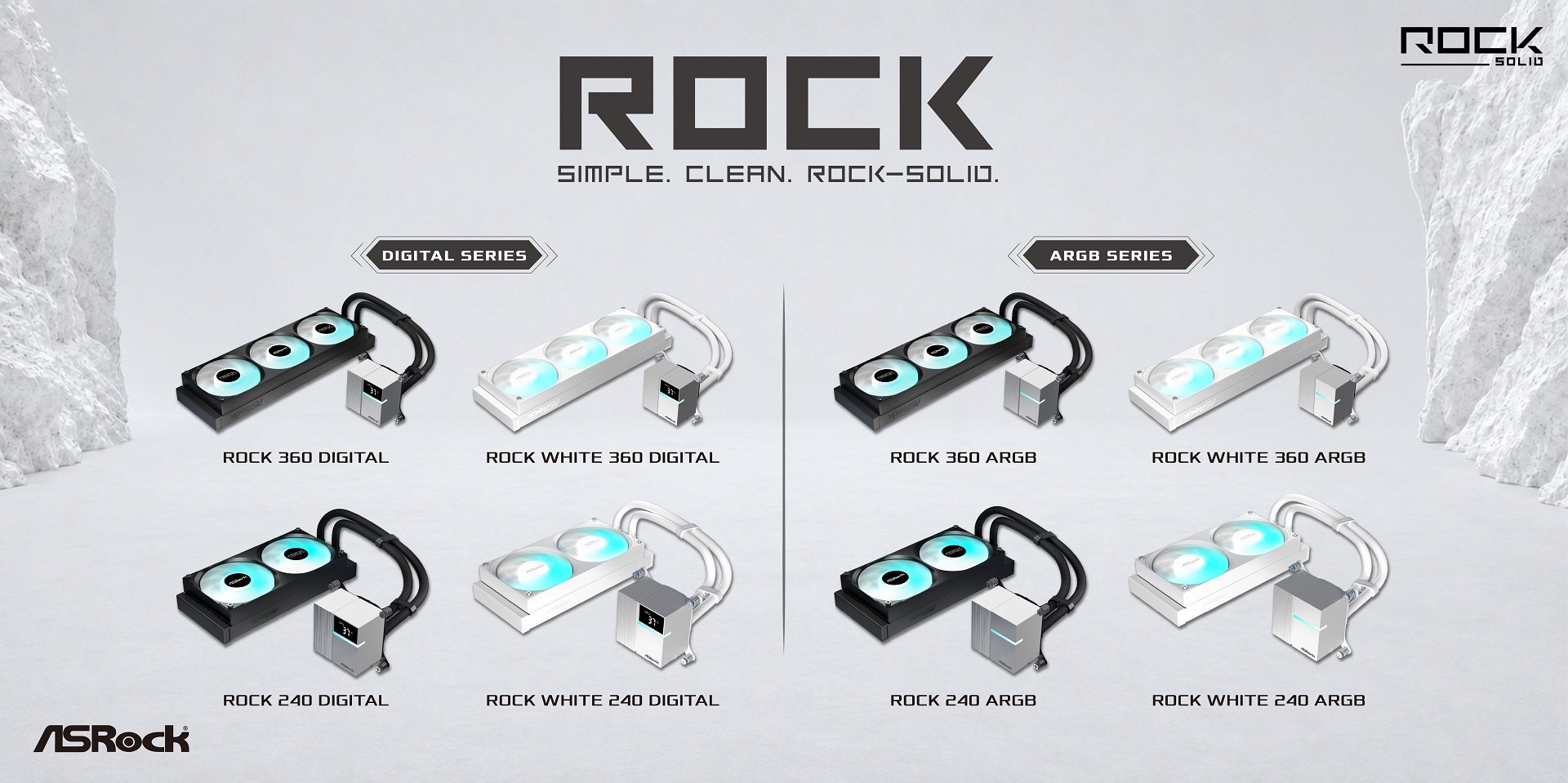
ASRock has introduced the Rock Series, a new family of all-in-one liquid CPU coolers available in eight configurations. The lineup features 240mm and 360mm radiator options in black or white, alongside a choice between Digital models with integrated hardware monitoring and traditional ARGB variants.

Digital editions include a 1.05‑inch display on the pump block for real‑time CPU temperature readouts. ARGB versions omit the screen for those who prefer a simpler lighting‑focused design. Each cooler in the Rock Series uses a three‑phase, six‑slot pump with a dual‑side inlet structure, while the radiator fans arrive pre‑installed in a unified frame to streamline cable routing and assembly.

A zero‑RPM mode allows the fans to stop entirely during low‑load operation. ASRock uses IIR and EPDM tubing for improved resistance to heat, leakage and coolant loss, and each cooler ships with Therm‑X1 thermal paste. The full range carries a six‑year warranty. ASRock has not yet announced pricing, release dates, socket compatibility or detailed fan specifications.

KitGuru says: The unified fan frame and built-in screen option make the Rock Series a more minimalist choice for those who prefer that aesthetic. The option to choose a 240mm or 360mm radiator, with or without a screen, is also welcome.

The post ASRock reveals Rock Series AIO liquid coolers with integrated display options first appeared on KitGuru.

Corsair reveals iCUE Link Titan II AIO coolers and RX II RGB fans

26 August 2026 at 13:00

Corsair has launched the iCUE Link Titan II Series of AIO liquid CPU coolers, along with standalone RX II RGB fans and a standalone 5-inch LCD screen module. Featuring the new FlowDrive 2 pump and an optimised lower-fin-density radiator, the lineup includes both RX LCD and RX RGB variants designed to improve cooling efficiency while operating at lower noise levels.

Leading the range is the iCUE Link Titan II RX LCD, equipped with a 5‑inch IPS display (720×1280, 500 nits, 60Hz) capable of showing system telemetry or custom graphics, and can also function as a secondary monitor. The pump housing includes an integrated VRM‑assist fan and 52 addressable RGB LEDs. The RX RGB model drops the screen in favour of 20 pump‑cap LEDs and supports CapSwap modules. Both coolers ship with pre‑applied XTM70 thermal paste and pre‑attached mounting hardware.

Corsair is also releasing standalone iCUE Link RX II RGB fans in 120mm, 140mm and 360mm Unified Frame formats. These include built‑in temperature monitoring, Magnetic Dome bearings and AirGuide vanes. In addition, the new 5‑inch LCD module is available separately as an upgrade for existing Titan and Titan II coolers.

Corsair’s warranty coverage is six years for Titan II coolers and five years for the standalone fans and LCD module. Pricing is set at £199.99/$239.99/€229.90 for the Titan II RX LCD, and £149.99/$179.99/€169.90 for the RX RGB model. The standalone LCD module is £74.99/$99.99/€89.90, while RX II fans start at £24.99/$34.99/€29.90.

KitGuru says: Interested in any of the new Corsair iCUE Link parts?

The post Corsair reveals iCUE Link Titan II AIO coolers and RX II RGB fans first appeared on KitGuru.

Gamdias reveals Chione M5 and P5 Pro AIOs with customisable LCDs

26 August 2026 at 10:00

Gamdias has introduced two new 360mm AIO liquid coolers, the Chione M5‑360 and Chione P5‑360 Pro, both equipped with integrated IPS LCD displays. The coolers feature updated coldplates, high‑density radiators and ARGB PWM fans, with support for system monitoring and custom visuals.

Gamdias’ higher‑end option, the Chione P5‑360 Pro, includes a 6‑inch IPS LCD mounted on a multi‑directional bracket that can tilt, extend or reposition the screen. The more compact Chione M5‑360 (also available in white) features a 4‑inch IPS LCD with a 90° rotation mechanism. Both models support Gamdias’ Zeus Cast software, allowing users to upload custom images or GIFs and display system metrics such as CPU temperature and clock speeds.

Cooling performance is driven by a shared 3‑phase, 6‑slot, 4‑pole motor‑pump design paired with an upgraded copper coldplate using 0.12mm microflow channels. Heat is dissipated through a 360mm high‑density fin radiator and three hydraulic‑bearing fans capable of up to 2200RPM and 81.81CFM. The mounting kit supports current platforms, including Intel LGA1851 and AMD AM5.

MSRP is set at $159.99 for the Chione P5‑360 Pro, $114.99 for the Chione M5‑360 WH, and $109.90 for the standard Chione M5‑360.

KitGuru says: The M5 series offers adjustable LCDs at a relatively low price, giving builders more visual customisation without moving into premium territory. Those wanting a larger screen and more flexible positioning may prefer the P5‑360 Pro.

The post Gamdias reveals Chione M5 and P5 Pro AIOs with customisable LCDs first appeared on KitGuru.

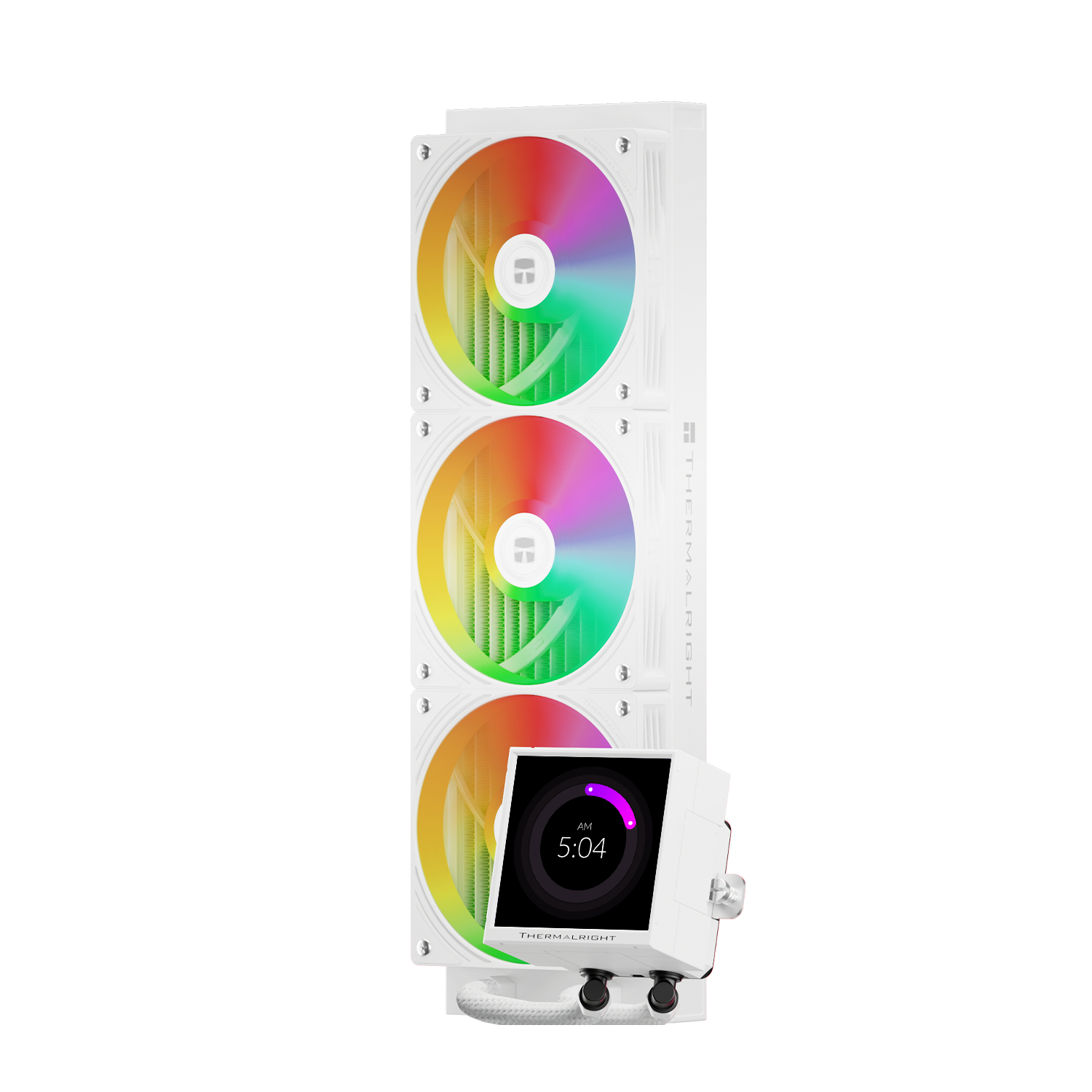
Thermalright launches new V2 Peerless Vision AIO liquid coolers

24 August 2026 at 11:00

Thermalright has listed its Peerless Vision V2 liquid cooler series, a refreshed 360mm AIO that retains the pump‑mounted display while introducing updated 120mm fans and revised RGB lighting.

Available in black and white, the Peerless Vision V2 uses a 397×120×27mm aluminium radiator paired with three TL‑N12‑R9‑S V2 120mm fans. Each fan runs up to 2400RPM, delivering 85.35CFM of airflow and 2.95mmH2O static pressure, with noise levels rated at 33.3dBA. The fans use S‑FDB bearings and connect via 4‑pin PWM headers, with 5V 3‑pin ARGB support for lighting control.

The pump housing retains the 3.95‑inch square display introduced with the original model, offering a 480×480 resolution for system telemetry or custom images. The pump is rated at 3000RPM±10% and uses a 4‑pin PWM connector with a 12V DC input. Thermalright lists pump dimensions at 81×79×67.6mm, with the full cooler covered by a five‑year warranty.

Socket compatibility matches the first‑generation Peerless Vision, covering AMD AM4 and AM5, as well as Intel LGA115x, 1200, 1700 and 1851. Thermalright also notes that users should ensure adequate chassis clearance for radiator and pump installation.

KitGuru Says: The V2 revision is a modest update, centred on new fans and revised RGB lighting rather than a full redesign.

The post Thermalright launches new V2 Peerless Vision AIO liquid coolers first appeared on KitGuru.

Ocypus Sigma L36 Pro Review: How is this LCD AIO so cheap?

15 August 2026 at 12:05

The latest cooler on our test bench is the Sigma L36 Pro, a high-end AIO with a 3.5-inch display from relative cooling newcomer Ocypus. This manufacturer is known for quirky design choices that help set it apart from its many competitors. I found the company’s Iota C70 computer case and A62 digital air cooler especially interesting products when I tested them last year.

Like many other AIOs we’ve reviewed lately, the Sigma L36 Pro features a display – a large 3.5-inch detachable screen in this case, capable of displaying performance metrics and animated images and video.

Ocypus Sigma L36 Pro

(Image credit: Tom's Hardware)

Screen aside, the technical specifications of the product are impressive. The static pressure exerted by the fans is nearly twice as strong as many competitors – rated for up to 5.8 mmH20. But even more impressive than this is the price of the liquid cooler: Despite having a relatively large display and extremely powerful fans, you can find this cooler selling for $135 or less.

Ocypus Sigma L36 Pro

(Image credit: Tom's Hardware)

Let's take a look at the specifications and features of this eye-catching AIO, then we’ll go over thermal and noise benchmarks so you can decide if the Ocypus Sigma L36 Pro deserves to make our list of the best CPU coolers.

Cooler specifications

Cooler

Ocypus Sigma L36 PRO

Colors

Black or White

MSRP

$134.99

Lighting

Display block only

Warranty

5 years

Socket Compatibility

AMD AM5/AM4
Intel 1700/1851/1200/115X

Radiator dimensions

397m (L) x 120mm (W) x 27mm (H)

Maximum TDP with AMD’s Ryzen 9 9950X3D (Our Testing)

Full speed fans: >265W

Noise-normalized: >255W average

Features of Ocypus Sigma L36 Pro

▶️ Detachable 3.5-inch 640x480 resolution IPS display

It seems like the biggest trend in liquid cooling recently is AIOs with fancy displays on top of the CPU block, and Ocypus rides this trend, including a 3.5-inch IPS screen here that some users might find reminiscent of older PCs due to it’s VGA (640x480) resolution and 4:3 aspect ratio.

Ocypus Sigma L36 Pro

(Image credit: Tom's Hardware)

Many AIOs have the screen built into the CPU block, like Hyte’s THICC Q60. Other manufacturers offer the display and CPU block as separate components, and that’s how the Ocypus Sigma L36 Pro is designed.

When a display connects to the PC, but isn’t actually built into the CPU block, this opens up customization options that you might not think of normally. As you can see in the photograph above, I’ve got the display set up on a stool next to my computer desk, instead of inside my case. You’ll have to obtain a 9-pin header to USB-A (or C) adapter to use the device externally, but these can usually be found for less than $10.

To control and customize the display, you’ll need to download the simply named Ocypus Display software. It’s a surprisingly small download size of only 184 megabytes, and uses 493 MB when installed – and about the same amount of RAM when active.

Multiple preset themes are available, but only three are installed by default.

Ocypus Sigma L36 Pro

(Image credit: Tom's Hardware)

If you click the cloud icon shown in the picture above, a link to Ocypus' “Download Center” is opened in your default browser, which offers more options.

Ocypus Sigma L36 Pro

(Image credit: Tom's Hardware)

The software is extremely simple to use and easy to create your own customized theme with. In the example above, I uploaded an animated GIF file of a happy puppy and set the display to monitor CPU temperature, power consumption, and fan speeds metrics through text labels. I’ve also set up monitoring of CPU utilization, both with a text label showing the current status and a line graph showing the changes in CPU utilization over time.

▶️ RAM Clearance

As with most liquid coolers, the design of this AIO is such that the CPU block as such that it doesn’t overhang or interfere with the DIMM slots in any manner, ensuring that all sticks of compatible RAM, no matter how tall, will fit with this cooler.

▶️ Thick CPU cold plate

This AIO is designed for normal PC platforms like Intel’s Arrow Lake and LGA1851 socket or AMD’s Ryzen X3D CPUs and the AM5 socket, but you might wonder if it supports server products when you see the size of the coldplate – it has a larger surface area and greater thickness than most liquid coolers designed for consumer PCs.

Ocypus Sigma L36 Pro

(Image credit: Tom's Hardware)

▶️ 120mm fans

There’s more to a cooler than just the radiator and liquid pump. The included fans have a direct impact on aesthetics, noise levels, and overall thermal performance. Conveniently, the fans here arrive pre-installed, saving a few moments of time when you put things together. The fans included in this model are white, but this cooler is also available with black fans.

Ocypus Sigma L36 Pro

(Image credit: Tom's Hardware)

Fan Speed

500-2400 RPM (±10%)

Airflow

90 CFM

Air Pressure

5.8 MMH20

These fans seem to be overbuilt, more powerful than the rest of the AIO can properly take advantage of. They are rated for an unusually high 5.8 MMH20 of static pressure and 90 CFM at full speed.

▶️ Packaging

The outer packaging is a bit flashy, at least in comparison to your normal AIO box. It features a rendering of the cooler against a black background with streaks of purple hues – logos on all sides of the box for full marketing impact.

Ocypus Sigma L36 Pro

(Image credit: Tom's Hardware)

The inner packaging is just as fresh as the outside, with each component of the cooling system well protected from the chaos that shipping can bring by using a combination of soft covers and individual cardboard walls for each component.

Ocypus Sigma L36 Pro

(Image credit: Tom's Hardware)

Included with the package are:

  • Mounting hardware for AMD and Intel platforms
  • Tubing clips
  • A small tube of thermal paste
  • 360mm radiator and 120mm fans
  • 3.5-inch LCD display

Ocypus Sigma L36 Pro

(Image credit: Tom's Hardware)

AM5 Installation

This section assumes you’ve already mounted the 360mm radiator. Installation of AIOs is typically much easier when you have already secured the radiator to your computer case. To begin putting things together, you’ll first need to remove the default AM4/5 retention hardware.

The next step is to screw in the mounting studs, as shown below.

Now you’ll want to apply the included thermal paste. If you’re not sure how to do that, we have a handy thermal paste application guide that covers the different methods you can use.

Ocypus Sigma L36 Pro

(Image credit: Tom's Hardware)

After thermal paste is applied, take the CPU block and press it against the studs, using the included screws and a screwdriver to secure it in place.

Ocypus Sigma L36 Pro

(Image credit: Tom's Hardware)

I chose to attach the included 3.5-inch screen externally, but if you want to place it in your case, this is the time to put it on top of your CPU block. The final step, of course, is to connect the cables and turn on your computer when finished.

Ocypus Sigma L36 Pro

(Image credit: Tom's Hardware)

Real-world testing configuration – AMD AM5 platform

We’ve tested coolers with both the Ryzen 9950X3D and its non-V-Cache sibling, the 9950X. There are some differences in how the 9950X and 9950X3D CPUs are impacted by thermal events. While the heat output of the CCDs of AMD’s 9950X3D is relatively balanced, the 9950X I used has one CCD that runs much hotter than the other, with a difference of over 10 degrees Celsius in some scenarios, shown below.

We’ve since returned to using a 9950X3D for cooler testing, as it has a more balanced heat profile, and is almost certainly a more widely adopted CPU. The benchmark results shared in these reviews may differ from others because I emphasize results that are comparable to real-world use. This means I generally test CPU coolers inside of a closed desktop case, which increases cooling difficulty compared to other testing methods.

Many reviewers test coolers on open test benches, which have a combination of lesser airflow needs and lowered ambient temperatures. This results in making weak coolers appear stronger than they really are. Some publications have also used generic thermal plates to test cooling solutions. I reject both of these methods because they don’t accurately reflect real-world cooler conditions.

CPU

AMD Ryzen 9 9950X3D

GPU

MSI Ventus 3X RTX 4070Ti Super

RAM

TeamGroup Diamond Rose T-Force Xtreem DDR5-7200

Motherboard

MSI X870E Carbon Wifi

Case

Tryx FLOVA F50

Our latest testing setup uses the FLOVA F50 computer case from Tryx.

This case features a unique “crossflow” fan that pulls air from the side, which the company claims is more effective than traditional intake fans. For air cooling tests, we’ve added a single Noctua NF-A12 G2 intake fan.

PBO Performance and maximum noise levels

We’re going to start this review’s benchmark section by focusing on a traditional maximum performance test, with the CPU cooler’s fans allowed to reach their fastest speeds, for the best cooling possible.

Turning on PBO allows AMD’s Ryzen 9 9950X3D to stretch its legs to an extent and consume over 260W. Enabling PBO enables high power consumption and heat output, when using MSI’s X870E Carbon Wifi motherboard, the CPU will reach its TJ Max (peak temperature) of 95 degrees C (203 F) and thermally throttle to some extent with most coolers. When this throttling occurs, I’ve measured the average power consumption to determine performance.

Ocypus Sigma L36 Pro

(Image credit: Tom's Hardware)

High-end AIO liquid coolers have higher expectations in this benchmark, and are expected to be able to keep AMD’s Ryzen 9 9950X3D under TJ Max during the duration of the benchmark – in these cases, we compare the CPU’s actual temperature.

Ocypus’ Sigma L36 Pro performs well and is capable of keeping the CPU cool in this test, with an average temperature of 85.7C/186.3F.

Ocypus Sigma L36 Pro

(Image credit: Tom's Hardware)

Some coolers perform well in maximum strength tests, but run loudly at full speeds. Noisy fans in this scenario aren’t necessarily a bad thing; some folks prefer to hear them as a way to be aware when the CPU is getting hot.

The fans included with Ocypus’ Sigma L36 Pro reach 49.8 dBA at 100% RPM, which is loud, but to be expected of fans with 5.8mm H20 of air pressure. Those who prefer to implement speed restrictions for silent operation need not worry; our noise-normalized benchmarks show good performance even when the fans are set to run quietly.

Ocypus Sigma L36 Pro

(Image credit: Tom's Hardware)

200W thermal benchmarks

For the next thermal test, I leave the motherboard settings at their defaults, which results in a power limit of 200W when running Cinebench R23.

Ocypus Sigma L36 Pro

(Image credit: Tom's Hardware)

When compared to the other seven AIOs we’ve tested Ocypus Sigma L36 Pro against, its performance is behind most of its peers. That said, the gap between Ocypus’ AIO and the top performer is rather small – the average temperature of 70.5C (48.5C above ambient) achieved by the Sigma L36 Pro is only 2.1C behind our best result.

150W + GPU thermal results, noise levels

Our next test runs Cinebench on the CPU with a 150W power limit, while also running Furmark on MSI’s RTX 4070 Ti Super Ventus 3x OC. This causes the GPU to consume ~295W of power. This test is designed to emulate the thermals of games, which primarily stress the CPU and GPU.

Ocypus Sigma L36 Pro

(Image credit: Tom's Hardware)

Ocypus’ position in this thermal test remains the same as in our previous chart. When tied to the default fan curve of MSI’s X870E Carbon motherboard, it reaches a mild volume level of 41.9 dBA.

Ocypus Sigma L36 Pro

(Image credit: Tom's Hardware)

Noise-normalized testing

Most testing is performed with the cooler tied to the default fan curve of our MSI X870E Carbon motherboard, but some of y’all prefer to see tests when the noise levels of coolers are equalized. This is especially important to those of you who prefer silent computers. This next test has the CPU cooler noise-normalized to 38.9 dBA, with PBO enabled for the Ryzen 9 9950X3D CPU.Most coolers will not be able to keep the CPU from reaching its peak temperature (TJ Max) in this stress test. So we’ll look at this in terms of average CPU power consumption, which averaged 255.4 watts.

Ocypus Sigma L36 Pro

(Image credit: Tom's Hardware)

This test is especially difficult because in addition to the reduced noise from the CPU cooler, our current test bench’s system fans are configured to run extremely silently, below the floor of the noise meter I use to measure dBA.

Conclusion

Ocypus Sigma L36 Pro

(Image credit: Tom's Hardware)

Ocypus’ Sigma L36 Pro features an attractive combination of features, including a fancy 3.5-inch LCD display. Those things alone make this AIO interesting and worth considering, but it’s also affordable, with a regular price of only $135, and often on sale for less. In fact, as this review was wrapping up, the black version of the Sigma L36 Pro was on sale at Amazon for just $105. At that price, it’s inarguably a CPU-cooling steal.

Modder pumps liquid directly over bare GPU silicon via 3D-printed block — drops RTX 2060 Super load temps to 28°C despite initial leaks

9 August 2026 at 14:15

The fearless TrashBench has been testing direct die water cooling of graphics cards. The inevitable twist here is that they removed the metal waterblock from the equation. Despite initial leaky results and much concern of water damage to the expensive parts thrown into the mix, some of the end results are eyebrow-raising in a good way.

“In my pursuit of the perfect water block, I realized, why do we need metal at all?” queried the antipodean host of the punk-rock GPU death lab. “Why can't we just pump water directly over the bare silicon? Makes sense to me.”

TrashBench began this project well aware that leaks might be a problem. Thus, a non-working GeForce RTX 3060 was chosen for the initial feasibility tests. It was measured up for a 3D printed water block which would direct the coolant directly over the GPU die. Our hardware adventurer covered any surface-mount components beside the GPU with nail polish to prevent water damage/shorting.

Some tried and trusted plumbing measures were then applied, with the design incorporating washers, gaskets, and hose clamps (worm-screw equipped jubilee clips). Water pipe fittings were melted into the block, which was fastened using the retaining clamp mechanism that the air cooler had previously used.

This initial test sprang a leak, or two, so TrashBench decided to add epoxy adhesive to secure and seal the 3D printed block to the GPU. This worked, but then some water was spotted oozing from the tube fittings, so they got a dose of epoxy too. At last, we had the first non-leaky prototype…

After some live runs using a powered-up GTX 980 were successful, it was time for the main event with fitting, testing, and benchmarking using an RTX 2060 Super. On the way, it was noticed that the choice of 3D print material used on TrashBench’s Bambu Lab 3D printer wasn’t trivial. Some materials leaked from the edges, and others were actually slightly porous. During live power tests, the TechTuber wisely used a PCIe riser cable so any leaks wouldn’t immediately drip onto the motherboard.

Was it worth it?

If you like to live dangerously, it could be argued that the TrashBench results show some value in this cooling methodology. The headlining technique was compared against the stock cooler and a clamped-on AiO cooling solution.

GeForce RTX 2060 Super: 'Heaven' benchmark temperatures table

Cooling solution

Observed temperature (°C)

Stock

70

AiO

36

Direct water

28

Going by the numbers above, you can see that direct water cooling could be interesting, as long as you can ensure long-term confidence about leakage. In the video, you can also see some interesting extras, like running this system using -28°C coolant. The same trick is also tested using an Intel i5-7600K CPU. That was chosen as “it’s not a particularly hot CPU, but if it dies, I don’t care.”

The eventual conclusion was that chamber size matters (most clearly illustrated by the CPU cooling test), but pumping water directly over silicon can work.

Delta’s GoCool-150 Goes Big To Enable 150kW Liquid-To-Air Cooling for ASRock Rack’s NVIDIA VR NVL72

8 August 2026 at 15:05

How do you cool a giant rack of AI hardware? With an even bigger heat exchanger. Delta's GoCool-150 is a liquid-to-air CDU that is designed to dissipate 150kW of heat from NVL72 and other high-density liquid cooled racks

The post Delta’s GoCool-150 Goes Big To Enable 150kW Liquid-To-Air Cooling for ASRock Rack’s NVIDIA VR NVL72 appeared first on ServeTheHome.

Frore claims its LiquidJet can drop Nvidia Rubin GPU temperatures by 10°C — can also boost performance by 15% as hyperscalers eye using delidded GPUs in production environments

It is not a secret that proper cooling ensures longevity and enables hardware to demonstrate its full potential. But when it comes to data center AI hardware, proper cooling also means higher sustained performance, which directly translates into money earned by the owner. Frore Systems, a maker of cooling solutions that are made using semiconductor-grade tools, seems to have a perfect idea of how to reduce the temperature of next-generation AI accelerators and increase their performance by 15%.

Frore Systems last week published a white paper which suggests that improvements to the entire cooling stack — from the GPU packaging and thermal interface materials (TIMs) to coldplates and coolant temperatures — can increase token generation per watt by more than 30%. Meanwhile, one of the company's boldest projections based on an analytical thermal model* is that its LiquidJet coldplate technology alone can lower Nvidia Rubin GPU junction temperatures by up to 12°C, which translates into a 10% to 25% improvement in tokens/Watt, while a 10°C reduction could increase token generation by around 15%.

Indeed, modern AI accelerators, such as the upcoming Nvidia Rubin, can dissipate up to 2,400 W, and their die temperatures can easily hit 95°C or more. But while 95°C is not necessarily a problem for silicon longevity, leakage current certainly is. Leakage current rises exponentially with temperature, approximately doubling for every 10°C increase in maximum junction temperature, which is when transistor switching itself also becomes less efficient. As a consequence, hotter GPUs require higher voltages to sustain clocks, which eventually forces Dynamic Voltage and Frequency Scaling (DVFS) to reduce clocks to remain within thermal limits, which in turn will reduce performance and token generation.

Frore Systems

(Image credit: Frore Systems)

This all leads to a simple conclusion: the better the cooling, the higher the performance and token output. Which is generally right. However, cooling is not as simple, as it depends on multiple factors that can be optimized. Furthermore, for AI data centers, cooling itself is no longer a way to preserve CPUs and accelerators from overheating, but really is a way to maximize their performance and token money generation.

Nvidia designs its platforms around Tj(max) temperature; it is one of the fundamental design constraints for the GPU, package, and cooling solution. This works like this:

  • Nvidia specifies a maximum allowable junction temperature (Tj,max limit). This is the temperature the silicon must not exceed during normal operation. The exact value is not always public, but Frore uses 95°C for Rubin in its analysis.
  • The GPU continuously monitors its junction temperature using tens or hundreds of on-die thermal sensors, yet power management monitors the hottest region.
  • DVFS attempts to maximize performance while staying below the thermal and power limits, so if the GPU has thermal headroom, it can sustain higher clocks or lower voltage. If the junction temperature rises, the firmware gradually adjusts voltage and frequency. If necessary, it throttles to prevent exceeding Tj(max).

The problem is that GPUs operate under several simultaneous limits, such as thermal limit (Tj,max), package power limit, current limit, and voltage limit. Usually, power is reached before thermal. Meanwhile, modern cooling systems are designed to prevent silicon from reaching Tj(max). So, even if Nvidia's GPU never reaches Tj(max), lowering the operating junction temperature still improves efficiency because transistor leakage decreases as temperature falls. This is where Frore and its cooling systems come into play.

According to Frore, leakage power approximately doubles for every 10°C increase in junction temperature, while transistor switching power rises by about 2% over the same temperature range, so lowering operating temperatures is beneficial even when the processor is not thermally throttling.

Thermal resistance

According to Frore, the maximum GPU junction temperature used by hardware makers is directed by a deceptively simple equation:

Tj(max) = Tinlet + Q × Rtotal

where coolant inlet temperature, GPU power, and total thermal resistance determine how hot the silicon can be. Meanwhile, total thermal resistance depends on three major elements: the GPU package itself, the thermal interface material between the package, and the coldplate design. As each layer adds thermal resistance, it increases die temperature and reduces overall token money generation. That said, thermal resistance is becoming a major problem, according to the paper.

Frore claims that delidding the Rubin package dramatically lowers thermal resistance (while this is obvious, I must add again that the paper is based on an analytical thermal model*). According to the paper, an unlidded Rubin package can reduce junction temperature by as much as 20°C compared to one with an integrated heatspreader (IHS), which potentially improves tokens/Watt by up to 35%. Of course, there are disadvantages, as delidded GPUs have lower mechanical reliability. We will talk about it later on. In any case, there are cloud system providers that explore the use of delidded Rubin GPUs to boost their token money generation despite all the risks, according to Frore.

Frore Systems

(Image credit: Frore Systems)

Frore's own contribution is, of course, its coldplate. Conventional coldplates are typically manufactured using skiving, a machining process that creates long, straight microchannels inside a copper block. Frore instead borrows manufacturing techniques from semiconductor fabrication — etching and bonding — to build intricate three-dimensional copper microstructures that address hotspots on the accelerator's silicon. These unique microstructures cannot be produced using traditional machining, at least not cost-efficiently, according to Frore.

Frore Systems

(Image credit: Frore Systems)

Improving efficiency

The LiquidJet design features short microchannels that are etched around hot spots, multiple cooling stages, and flow routing optimized for the GPU's power-density map. According to the company's analysis, this enables a 6°C to 12°C reduction in junction temperature and improves tokens/Watt by 10% to 25% in the case of the Nvidia Rubin GPU*. A roughly 10°C temperature reduction would therefore correspond to about a 15% increase in token generation efficiency, the paper claims.

Frore Systems
Frore Systems
Frore Systems
Frore Systems
Frore Systems
Frore Systems

Frore argues that improved coldplate efficiency changes the economics of facility cooling, which is obviously the most important part of the hyperscalers' consideration. Nvidia designed Rubin to operate with coolant entering at up to 45°C, which enables many AI data centers to rely entirely on 'free' cooling without mechanical chillers. While lowering the inlet temperature can further improve GPU efficiency, doing so only makes economic sense if the energy consumed by the chillers is offset by the resulting increase in money token generation. Meanwhile, because LiquidJet requires a lower coolant flow rate to maintain the same junction temperature, it also reduces the chiller coefficient of performance (COP) required for additional cooling to become worthwhile.

Frore Systems

(Image credit: Frore Systems)

In Frore's example, a Rubin GPU equipped with a conventional skived coldplate requires a chiller COP of approximately 6.7 before colder coolant delivers a net efficiency benefit, whereas LiquidJet lowers the break-even COP to around 4.1, which makes mechanical chilling economically attractive across various deployments.

One interesting thing about Frore's analysis is that its LiquidJet is more efficient on Rubin data center GPUs compared to Blackwell data center GPUs* due to the higher transistor density of the former.

Frore's analysis does not stop at exploring the advantages of its own cooling systems, so the company's analytical thermal model extends to other means by which improved cooling and/or lowered thermal resistance can affect temperatures and therefore money token generation.

Frore Systems

(Image credit: Frore Systems)

One of the most striking claims by Frore concerns Nvidia's upcoming Rubin is that Frore claims that delidding the GPU package — removing the IHS and the graphene TIM placed between the die and the lid — dramatically lowers thermal resistance, which therefore reduces junction temperature by as much as 20°C compared to regular GPUs with IHS, which therefore improves tokens per Watt by up to 35%, according to the model used by Frore.

Meanwhile, mechanical reliability becomes a major concern for delidded GPUs. Without the IHS, the bare Rubin GPU packaged using TSMC's CoWoS-L technology becomes considerably more vulnerable to cracking of bridges that connect the two Rubin dies. In fact, even in the Hopper era, some GPUs literally cracked with certain liquid coolers. Furthermore, maintaining uniform contact pressure across multiple exposed dies is substantially more difficult than in the case of monolithic processors. Nonetheless, there are hyperscalers that are exploring the use of delidded Rubin GPUs to increase their token generation and money output.

Thermal interface materials play an equally important role. By default, Nvidia's Rubin reportedly addresses the thermal penalty of a lidded package by using liquid indium metal TIM with gold-plated contact surfaces. Frore argues that an unlidded package paired with a high-performance phase-change material such as PTM7950 still exhibits lower overall thermal resistance than a lidded package using liquid metal, which turns into as much as a 14°C junction-temperature advantage and up to a 28% increase in money tokens/Watt, according to Frore's model.

Summary

The key point of Frore's white paper is that cooling has become a key determinant of AI data center profitability, as lower GPU junction temperatures improve token generation efficiency rather than 'just' preventing overheating.

In a white paper based on an analytical thermal model, the company claims that its LiquidJet coldplate can lower Nvidia Rubin junction temperatures by 6°C to 12°C and increase tokens/Watt by 10% to 25%, while a 10°C reduction could boost token generation by about 15%.

In addition, the company argues that more efficient coldplates make mechanical chilling economically viable across a wider range of AI data centers as it lowers the break-even chiller efficiency required to offset cooling power consumption.

Finally, Frore claims that delidding Rubin and optimizing thermal interface materials can reduce thermal resistance further and improve tokens/Watt by up to 35%, albeit at the cost of greater mechanical risk for these accelerators.

*It should be noted that Frore's analysis is based on an analytical thermal model rather than experimental results. The paper builds on the thermal resistance equation (Tj = Tinlet + Q × Rtotal), published or assumed operating parameters for Nvidia's Rubin GPU, and the company's own estimates of how different coldplate designs affect thermal resistance.

ASRock Rack 4U16X-GNR2 NVIDIA HGX B300 8-GPU Server Review

27 July 2026 at 16:02

We review the ASRock Rack 4U16X-GNR2, an 8x NVIDIA HGX B300 server with enormous network bandwidth and two liquid-cooling options

The post ASRock Rack 4U16X-GNR2 NVIDIA HGX B300 8-GPU Server Review appeared first on ServeTheHome.

MSI Slyly Shows off an Upcoming DLC AMD EPYC Venice Platform With CD182-S6091-X2 Servers and Racks

19 July 2026 at 18:00

AMD's EPYC Venice is coming, and OEMs are eager to show off their upcoming wares. At Computex we caught MSI's CD182-S6091-X2 (DLC), a liquid cooled dual socket 1OU2N server node

The post MSI Slyly Shows off an Upcoming DLC AMD EPYC Venice Platform With CD182-S6091-X2 Servers and Racks appeared first on ServeTheHome.

ASRock Phantom Gaming and Steel Legend 360 LCD review: An impressive cooling debut

15 July 2026 at 16:11

ASRock is well known among PC enthusiasts for its graphics cards, motherboards, power supplies, and gaming monitors. Now, it has entered the market for liquid cooling solutions.

We’re looking at two of the company’s first AIOs here, the Phantom Gaming 360 LCD and Steel Legend 360 LCD. Both of these liquid coolers feature 3.4-inch 480 x 480 displays for showing off animations and monitoring performance metrics. Aside from aesthetics, the main differences between the two are the included fans and radiator size. The Steel Legend 360 incorporates a standard 27 mm thick radiator, whereas the Phantom Gaming 360 uses a thicker-than-normal 32 mm radiator.

ASRock AIO's

(Image credit: Tom's Hardware)

Let's take a look at the specifications and features of the coolers, then we’ll go over thermal and noise benchmarks and decide whether ASRock’s Phantom Gaming and Steel Legend AIOs deserve to make our list of the best CPU coolers.

Cooler specifications

Cooler

ASRock Phantom Gaming 360

LCD/Steel Legend 360 LCD

Colors

Black

White

MSRP

$189.99

$159.99

Lighting

CPU block, radiator, and fans

CPU block

Warranty

6 years

2 years

Socket Compatibility

AMD AM5/AM4

Intel 1700/1851

Radiator dimensions

397mm (L) x 120mm (W) x 32mm (H)

397mm (L) x 120mm (W) x 27mm (H)

Maximum TDP (Our Testing)

>260W with AMD’s Ryzen 9 9950X3D

>260W with AMD’s Ryzen 9 9950X3D

Features of ASRock Phantom Gaming & Steel Legend 360 LCD

▶️ 60hz 3.4-inch LCD display

ASRock AIO's

(Image credit: Tom's Hardware)

Both the Phantom Gaming 360 LCD and the Steel Legend 360 LCD include a 3.4-inch square IPS screen with a 480 x 480 resolution and 60 Hz refresh rate, with brightness rated at 250 nits.

ASRock AIO's

(Image credit: Tom's Hardware)

To control and customize the screen, you’ll need to download ASRock’s Polychrome Display software. You have the option of selecting six preset themes, or you can build your own theme, and/or customize the individual elements shown on the display.

ASRock AIO's

(Image credit: Tom's Hardware)

While I certainly wish there were more presets available, my biggest complaint using this software is the extreme file compatibility limits. If you’d like to upload a custom background, the image or video file needs to be less than 20 megabytes and 1080p or lower in resolution.

ASRock AIO's

(Image credit: Tom's Hardware)

▶️ RAM Clearance

As with most liquid coolers, the design of both the Steel Legend and Phantom Gaming 360 has the CPU block set so it doesn’t overhang or interfere with the DIMM slots – ensuring that all sizes of RAM, no matter how tall, are compatible.

ASRock AIO's

(Image credit: Tom's Hardware)

▶️ VRM fan

Included on top of the CPU block is a 70 mm, 3,000 RPM fan designed to help keep your RAM and motherboard’s VRM modules cool. As you’ll see in our Karhu benchmarks, it does an excellent job of cooling these parts of your computer.

ASRock AIO's

(Image credit: Tom's Hardware)

▶️ Thick CPU cold plate

The copper contact plate is unusually thick, like you’d more typically see in an AIO supporting AMD Threadripper or Intel Xeon server CPUs.

ASRock AIO's

(Image credit: Tom's Hardware)

Differences between the ASRock Phantom Gaming 360 LCD and Steel Legend 360 LCD

▶️ Color schemes and aesthetic

While they are similar in many ways, each of these AIOs has a different aesthetic, similar to what you’d see in the company’s motherboard lines. The Steel Legend might appeal to those who prefer simpler designs, with a white body and gray fan blades.

ASRock AIO's

(Image credit: Tom's Hardware)

If you want flashy lighting, the Phantom Gaming 360 might be your thing. In addition to ARGB lighting on the fan blades, it also includes a lighting strip across the side of the radiator.

ASRock AIO's

(Image credit: Tom's Hardware)

▶️ Radiator sizes: 32 mm and 27 mm

There are two primary technical differences between the Phantom Gaming 360 LCD and the Steel Legend 360 LCD; one of those is the radiator size. The Steel Legend 360 LCD has a standard 27 mm radiator, whereas the Phantom Gaming 360 features a thicker 32 mm radiator.

ASRock AIO's

(Image credit: Tom's Hardware)

▶️ 120 mm fans

There’s more to a liquid cooler than just the radiator and liquid pump. The included fans directly impact noise levels and cooling performance. This constitutes the second primary technical difference between the AIOs we’re reviewing today.

Both units include fans that are 28 mm thick and pre-installed for user convenience. The Steel Legend 360 features three individual 120 mm fans, with a white shell and gray blades.

ASRock AIO's

(Image credit: Tom's Hardware)

The Phantom Gaming includes a fancier fan block instead of individual fans, and features ARGB lighting on the fan blades and a strip across the radiator. These fans aren’t as powerful – or as noisy – as the fans included with the Steel Legend, but this is balanced by the thicker 32 mm radiator included on the Phantom Gaming 360 LCD.

ASRock AIO's

(Image credit: Tom's Hardware)

Steel Legend

Phantom Gaming

Fan Speed

0 - 2500 ± 10% RPM

0 - 2400 ± 10% RPM

Airflow

76.7 CFM

61.28 CFM

Air Pressure

4.16 mmH20

3.11mmH20

Packaging

The outer packaging is a bit flashy – at least, in comparison to your normal AIO box. It features a rendering of the cooler against a black background with streaks of purple hues.

ASRock AIO's

(Image credit: Tom's Hardware)

The inner packaging is just as fresh as the outside, with each component of the cooling system well protected from the chaos that shipping can bring by using a combination of soft covers and individual cardboard walls for each component.

ASRock AIO's
Tom's Hardware
ASRock AIO's
Tom's Hardware

Included with the package are:

  • Mounting hardware for AMD and Intel platforms
  • Tubing clips
  • A small tube of thermal paste
  • 360 mm radiator and 120 mm fans
  • 3.4-inch LCD display

ASRock AIO's

(Image credit: Tom's Hardware)

AM5 Installation

This section assumes you’ve already mounted the 360 mm radiator. Installation of AIOs is typically much easier when you have already secured the radiator to your computer case.

To begin putting things together, you’ll first need to remove the default AM4/5 retention from the motherboard.

ASRock AIO's

(Image credit: Tom's Hardware)

The next step is to place the mounting bars on top of the studs, securing them with the included screws. The middle of the mounting bars includes a helpful image indicating the direction the bars should be installed, with an arrow pointing towards where the CPU should be.

ASRock AIO's

(Image credit: Tom's Hardware)

Now you’ll want to apply the included thermal paste. If you’re not sure how to do that, we have a handy thermal paste application guide that covers the different methods you can use.

Afterwards, place the pump block against the CPU and mounting bars, and use a screwdriver to secure it. You should have the liquid tubing in the south position for best thermal performance.

ASRock AIO's

(Image credit: Tom's Hardware)

The next step is to slide the LCD display on top of the VRM fan. To complete the AIO’s installation, you’ll want to connect the USB, PWM, and ARGB headers as appropriate – then you can power on your system.

ASRock AIO's

(Image credit: Tom's Hardware)

Real-world testing configuration – AMD AM5 platform

We’ve tested coolers with both the Ryzen 9950X3D and its non-V-Cache sibling, the 9950X. There are some differences in how the 9950X and 9950X3D CPUs are impacted by thermal events. While the heat output of the CCDs of AMD’s 9950X3D is relatively balanced, the 9950X I used has one CCD that runs much hotter than the other, with a difference of over 10 degrees Celsius in some scenarios, shown below.

ASRock AIO's

(Image credit: Tom's Hardware)

We’ve since returned to using a 9950X3D for cooler testing, as it has a more balanced heat profile, and is almost certainly a more widely adopted CPU. The benchmark results shared in these reviews may differ from others because I emphasize results that are comparable to real-world use. This means I generally test CPU coolers inside of a closed desktop case, which increases cooling difficulty compared to other testing methods.

Many reviewers test coolers on open test benches, which have a combination of lesser airflow needs and lowered ambient temperatures. This results in making weak coolers appear stronger than they really are. Some also use generic thermal plates to test cooling solutions. I reject both of these methods because they don’t accurately reflect real-world cooler conditions.

Our latest testing setup uses the Flova F50 computer case from Tryx.

ASRock AIO's

(Image credit: Tom's Hardware)

This case features a unique “crossflow” fan that pulls air from the side, which the company claims is more effective than traditional intake fans. For air cooling tests, we’ve added a single Noctua NF-A12 G2 intake fan.

We’re going to start this review’s benchmark section by focusing on a traditional maximum performance test, with the CPU cooler’s fans allowed to reach their fastest speeds for the best cooling possible.

Turning on PBO allows AMD’s Ryzen 9 9950X3D to stretch its legs to an extent, and all air coolers I have tested with PBO enabled using MSI’s X870E Carbon Wifi motherboard reach the maximum CPU temperature of 95 degrees C (203 F) and thermally throttle to some extent.

ASRock AIO's

(Image credit: Tom's Hardware)

The thermals of both ASRock AIOs are excellent, able to keep AMD’s Ryzen 9 9950X3D under its peak temperature (TJ Max) in Cinebench R23 with PBO enabled – allowing for the best possible benchmark performance. Of particular note is the performance of ASRock’s Steel Legend 360; it maintained an average of 61.5C over ambient (83.5C), the best result we’ve seen on this test bench.

Some coolers perform well in maximum strength tests, but require running loudly to maintain said performance. The ASRock AIOs we tested reach 46.9 and 47.8 dBA, which is about average for most liquid coolers on the market.

ASRock AIO's

(Image credit: Tom's Hardware)

200W thermal benchmarks

For the next thermal test, I leave the motherboard settings at their defaults, which results in a power limit of 200W when running Cinebench R23.

ASRock AIO's

(Image credit: Tom's Hardware)

When a standard power limit is imposed, the thermal differences between the two ASRock coolers close, with both coolers performing about the same. I measured 47.3 and 47.9 degrees over ambient, giving them the third- and fourth-best performing results from this test bench.

150W + GPU thermal results, noise levels

Our next test runs Cinebench on the CPU with a 150W power limit, while also running Furmark on MSI’s RTX 4070 Ti Super Ventus 3x OC. This causes the GPU to consume ~295W of power. This test is designed to emulate the thermals of games, which primarily stress the CPU and GPU.

ASRock AIO's

(Image credit: Tom's Hardware)

ASRock’s Steel Legend stood out in this test, outperforming all other competitors, with an average temperature of 57.4 C (35.4 C above ambient). The Phantom Gaming AIO also performed well, taking the fourth-place spot.

But thermals are only part of the story. Noise levels, especially when you’re gaming, are far more important here. When tied to my motherboard’s default fan curve, ASRock’s Steel Legend 360 had a noise level measured at 39.2 dBA. The Phantom Gaming 360 LCD was just a hair louder, measuring 39.6 dBA.

ASRock AIO's

(Image credit: Tom's Hardware)

Noise-normalized testing

Most testing is performed with the cooler tied to the default fan curve of our MSI X870E Carbon motherboard, but some prefer to see tests when the noise levels of coolers are equalized. This is especially important to those of you who prefer silent computers. This next test has the CPU cooler noise-normalized to 38.9 dBA, with PBO enabled for the Ryzen 9 9950X3D CPU.

ASRock AIO's

(Image credit: Tom's Hardware)

With recordings of 258.8 and 258.2W average CPU power consumption, ASRock’s AIOs perform essentially on par with each other while noise-normalized.

Karhu DDR5 RAM thermals testing

Your CPU cooler does not operate in isolation. It has an impact on not just your CPU’s temperatures, but also the other components in your build, like your RAM and GPU. To that end, I’ve run the Karhu RAM stress test. This places a load of ~153W on the CPU and ensures system RAM (DDR5 in my case) is fully stable. In this type of scenario, most AIOs tend to produce worse results than air coolers.

ASRock AIO's

(Image credit: Tom's Hardware)

DDR5 temperatures were excellent in this test, with averages of 20.9 C (Steel Legend) and 21.5 C (Phantom Gaming) recorded. Of the AIOs I’ve tested on this configuration, only Silverstone’s IceMyst Pro with its unique stackable fans performs better.

We’ve also included a chart showing the CPU temperatures in this test, and thermal performance was strong – outperforming air coolers by ~5 degrees C. But I haven’t recorded this data for other AIOs yet.

ASRock AIO's

(Image credit: Tom's Hardware)

Conclusion

ASRock AIO's

(Image credit: Tom's Hardware)

ASRock’s Steel Legend 360 LCD and Phantom Gaming 360 LCD are both strong coolers, well suited to heat-intensive CPUs like AMD’s Ryzen 9950X3D or Intel’s Core i9-14900K.

Of the two ASRock AIOs, I would recommend the Steel Legend 360 LCD for users who want the best thermal performance possible (and a lower price tag). It might lack the thicker 32 mm radiator included with the Phantom Gaming 360 LCD, but its included fans are stronger, and as a result provide lower CPU temperatures and quieter noise levels in common scenarios. Still, at around $160, the Steel Legend is far from the most affordable AIO with a display, and it’s only available in white.

Thermalright launches Dynamic Vision PRO 360 AIO with massive display

14 July 2026 at 12:00

Thermalright has introduced the Dynamic Vision PRO 360 ARGB Black, a new 360mm all-in-one liquid CPU cooler with a massive 5.5-inch display on top of the CPU block and a dedicated VRM fan. 

The Dynamic Vision PRO 360 ARGB Black cooler stands out with its 5.5-inch LCD screen, which is mounted onto the CPU block magnetically, making it easy to remove or adjust the angle. Below the screen, the water block integrates a dedicated VRM fan operating at 2500RPM to deliver 20.8CFM of airflow and 2.3mmH2O of static pressure, while the pump runs at up to 6800RPM.

The radiator is equipped with the TL-U36, a 25mm-thick single-frame that houses three fans. At the centre of each fan is an infinity mirror effect, along with ARGB lighting going around each fan, with an extra ARGB LED strip running along the full length of the frame. Performance specs show the fans topping out at 2400RPM, pushing up to 71.5CFM of airflow alongside 2.69mmH2O of static pressure.

KItGuru Says: Would you prefer an oversized display for your AIO, or do you prefer smaller displays that sit directly inside the CPU block? 

The post Thermalright launches Dynamic Vision PRO 360 AIO with massive display first appeared on KitGuru.

MSI introduces MEG Maestro 900R full-tower case and curved AMOLED AIO cooler

10 July 2026 at 16:00

MSI has officially unveiled its new flagship case and CPU cooler: the MEG Maestro 900R full-tower chassis and the MEG Coreliquid E15 360 all-in-one liquid CPU cooler. Both products feature premium aluminium construction and advanced structural designs for enthusiast system builders.

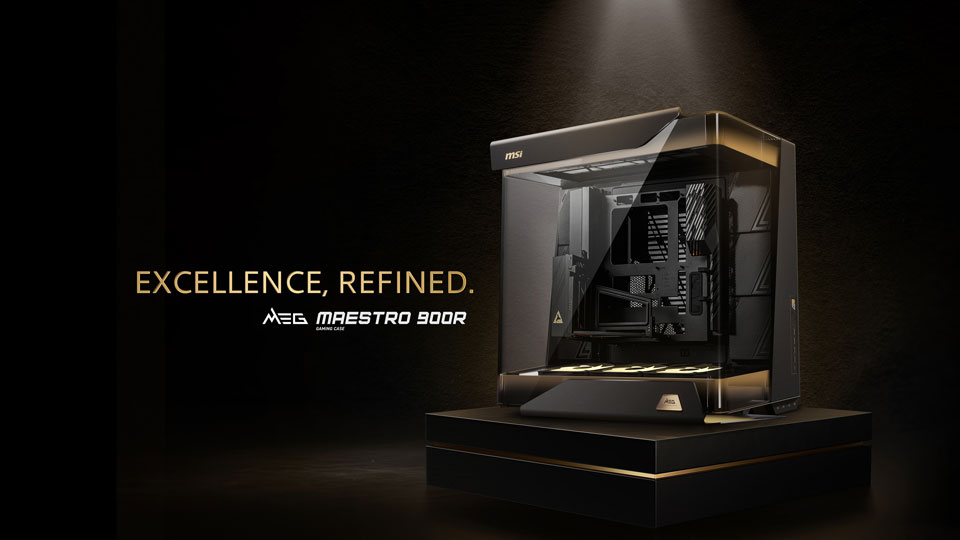
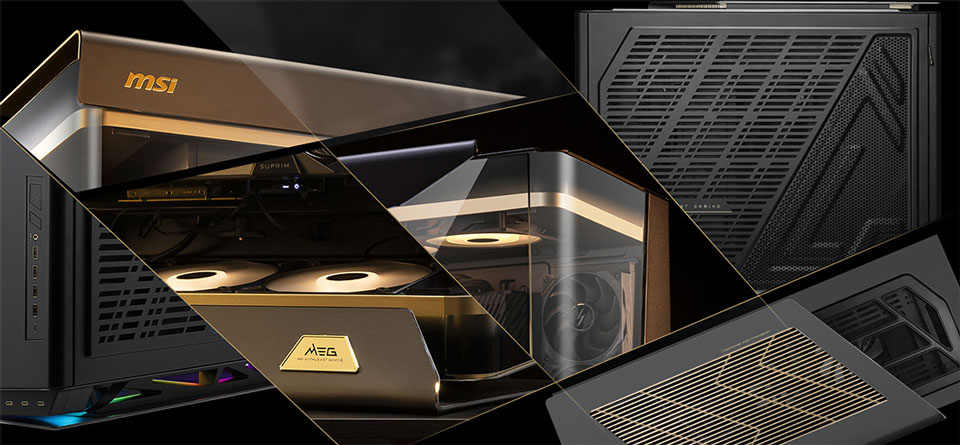
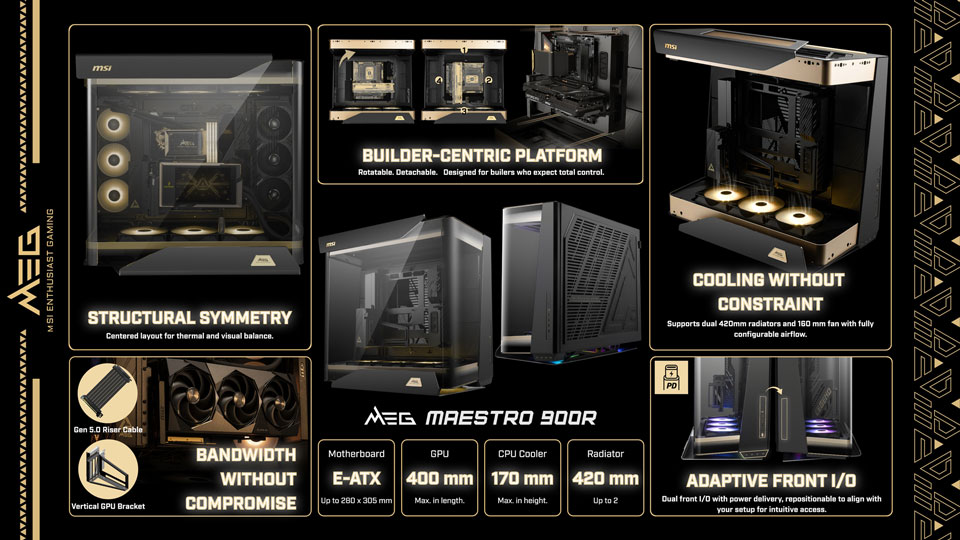
The MEG Maestro 900R full-tower case uses a unique “Centered Architecture” that places the motherboard, graphics card, and cooling hardware at the absolute centre of the chassis. This layout pairs with a triple-sided panoramic tempered-glass exterior and features a signature 75º aluminium geometry. To assist with system assembly, MSI includes a detachable, rotatable motherboard tray that can function independently as an open test bench across four installation orientations. The company also bundles a PCIe Gen5 x16 riser cable and a vertical GPU mounting bracket to facilitate centred graphics card positioning.

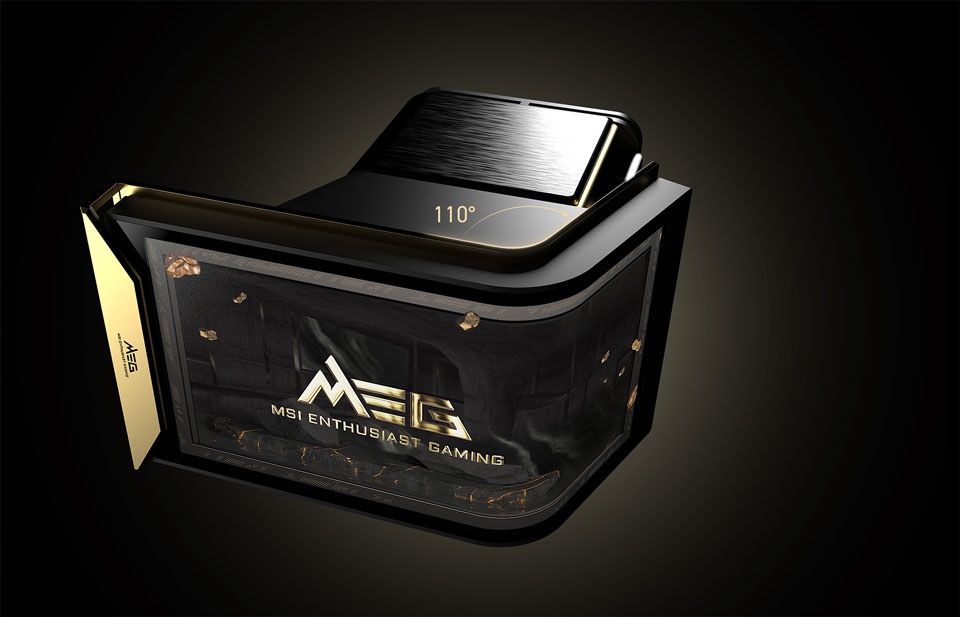
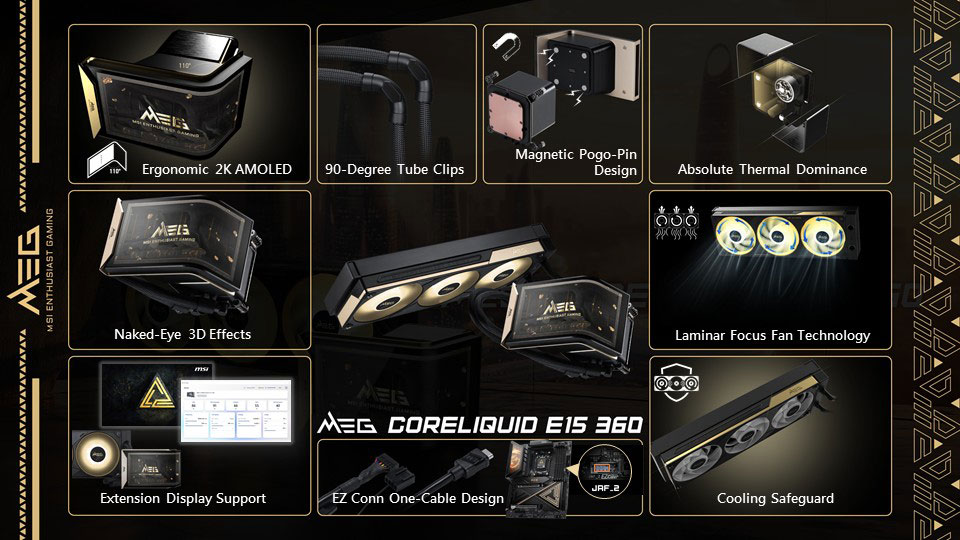
Accompanying the case is the MEG Coreliquid E15 360 AIO liquid cooler, which features an integrated 110º curved 2K AMOLED display capable of rendering naked-eye 3D content. MSI uses a magnetic Pogo-pin connection to attach the screen to the pump block, removing visible cables from the central CPU area. System communications like screen data, pump power, fan speeds, and ARGB lighting route through a single cable via the EZ Conn system.

Regarding thermals, MSI says the Laminar Focus technology runs the centre fan clockwise while the outer fans spin counter-clockwise to reduce turbulence. A three-phase sensorless motor powers the pump, while an integrated Cooling Safeguard system flashes a red warning light if it detects abnormal fan speeds.

KitGuru says: Interested in any of MSI's new high-end MEG components?

The post MSI introduces MEG Maestro 900R full-tower case and curved AMOLED AIO cooler first appeared on KitGuru.

New Chieftec Iceberg Pro 360 AIO series features interlocking fans and VRM cooling

9 July 2026 at 08:45

Chieftec has introduced the Iceberg Pro 360 series, a new lineup of 360mm all-in-one liquid CPU coolers featuring an integrated centrifugal VRM fan built directly into the pump housing.

The new series includes two distinct models: the Iceberg Pro 360 RGB and the Iceberg Pro 360 Dark. Both configurations deploy a 360mm aluminium radiator alongside an aerospace-inspired pump design. Chieftec aims to improve overall motherboard thermal performance by using the integrated pump fan to actively direct airflow over nearby VRMs, M.2 SSDs, and memory modules.

Cable management and installation are said to be streamlined with the company's Snap-On interlocking 120mm radiator fans, which spin up to 2200 RPM. Other performance figures for the fans include a rated airflow of 64.72 CFM and a rated air pressure of 3.06 mmH2O. The VRAM fan speed is rated at 500-2200RPM.

Illumination choices separate the two variants: the RGB model uses ARGB/PWM fans, while the Dark edition swaps them for non-illuminated PWM fans to achieve a clean, all-black look. Aside from the fans, both coolers share the same structural framework. Socket compatibility spans Intel LGA1851, LGA1700, LGA1200, and LGA115x, as well as AMD AM5 and AM4.

KitGuru says: Integrating a VRM fan into an AIO pump block isn't new, but it's proven to help reduce temperatures. Do you consider a VRM fan a plus when choosing AIOs, or is it something you just ignore?

The post New Chieftec Iceberg Pro 360 AIO series features interlocking fans and VRM cooling first appeared on KitGuru.
❌
❌