Reading view

There are new articles available, click to refresh the page.

Dell PowerProtect One: Open, Integrated, and Intelligent Cyber Resilience
Backup and recovery infrastructure has always been the part of the data center that gets the most attention when something goes wrong, but that pattern has shifted. Ransomware has made backup the last line of defense rather than an insurance policy, and the operational expectations have shifted accordingly. Recovery times that were acceptable five years ago are now liabilities; backup data itself is a major target; and the teams running cyber resilience are smaller and less specialized than they used to be, even as the platforms they manage have grown more complex.

Dell’s response to this shift is PowerProtect One. The platform is built on products customers already know, and the introduction of PowerProtect One signals a sharper positioning: It is Dell’s answer to the historical trade-off between open ecosystems and integrated management. PowerProtect One is a unified cyber resilience platform that brings together management, orchestration, and secure protection storage into a single, intelligent experience.
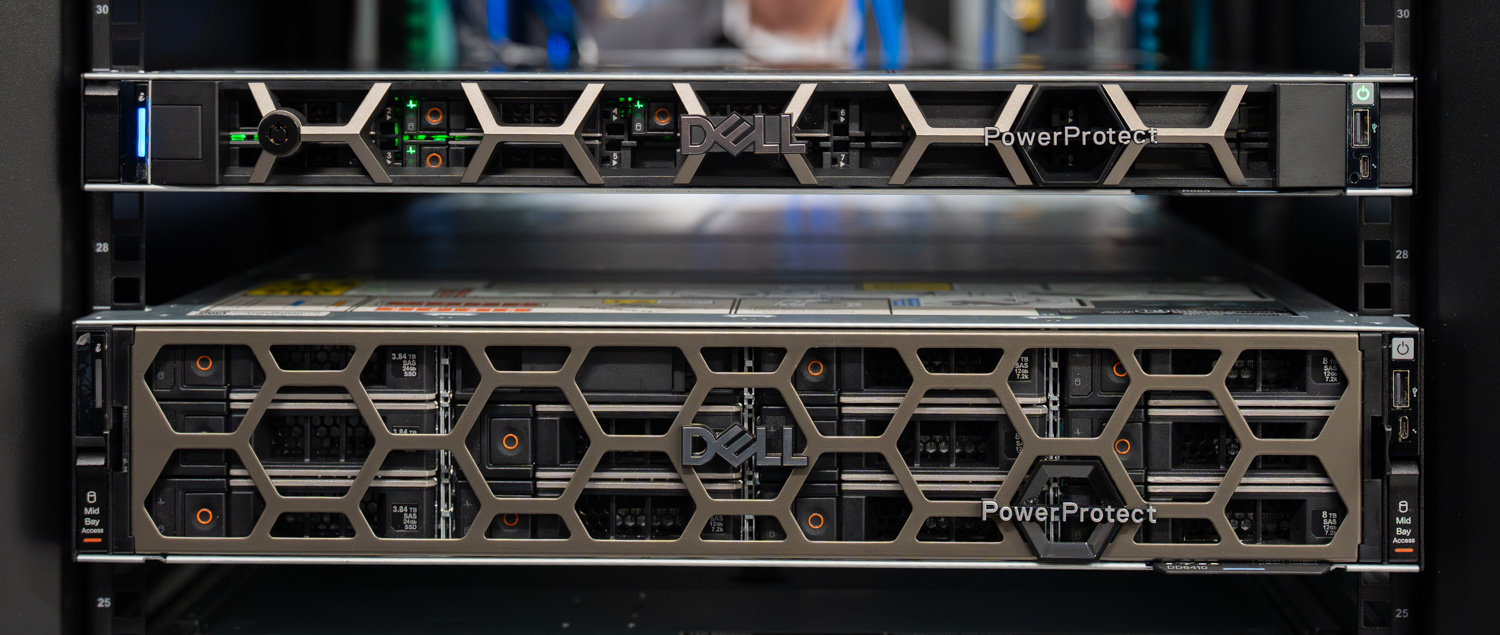
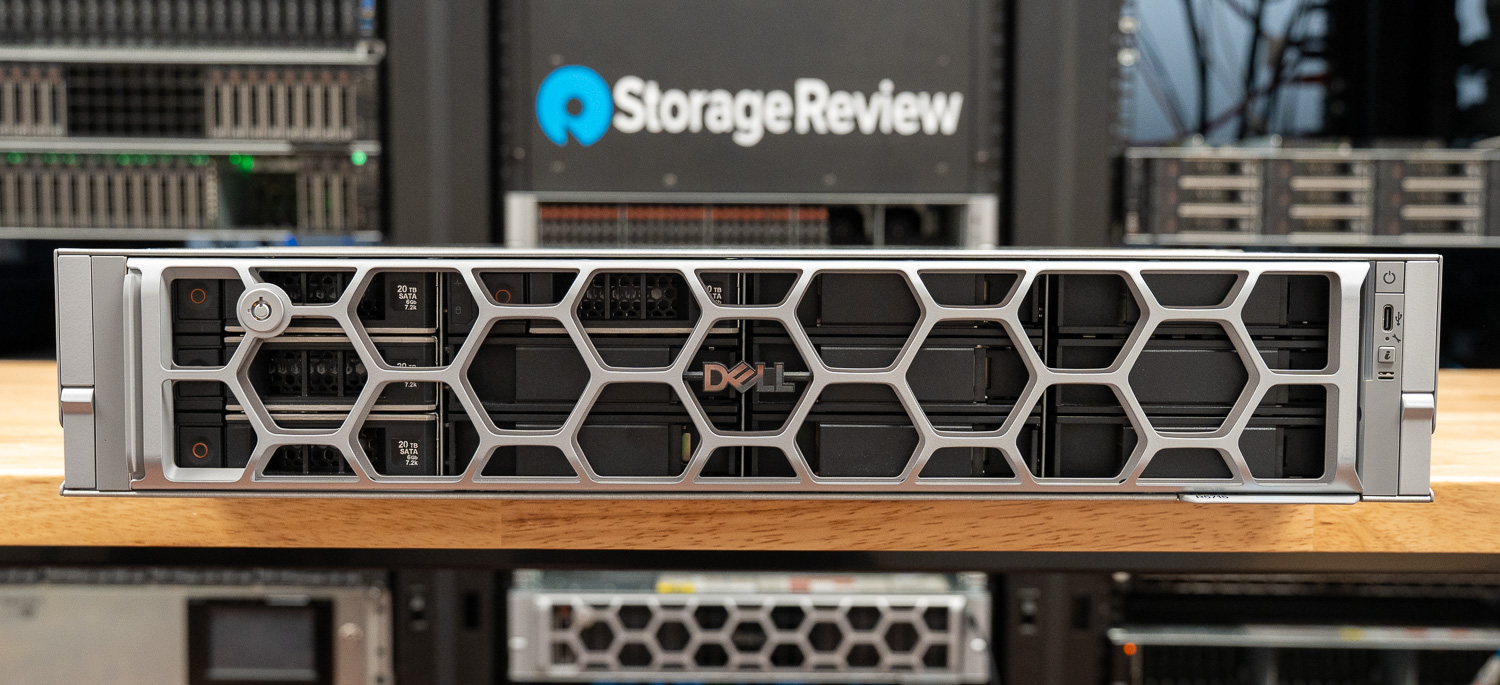
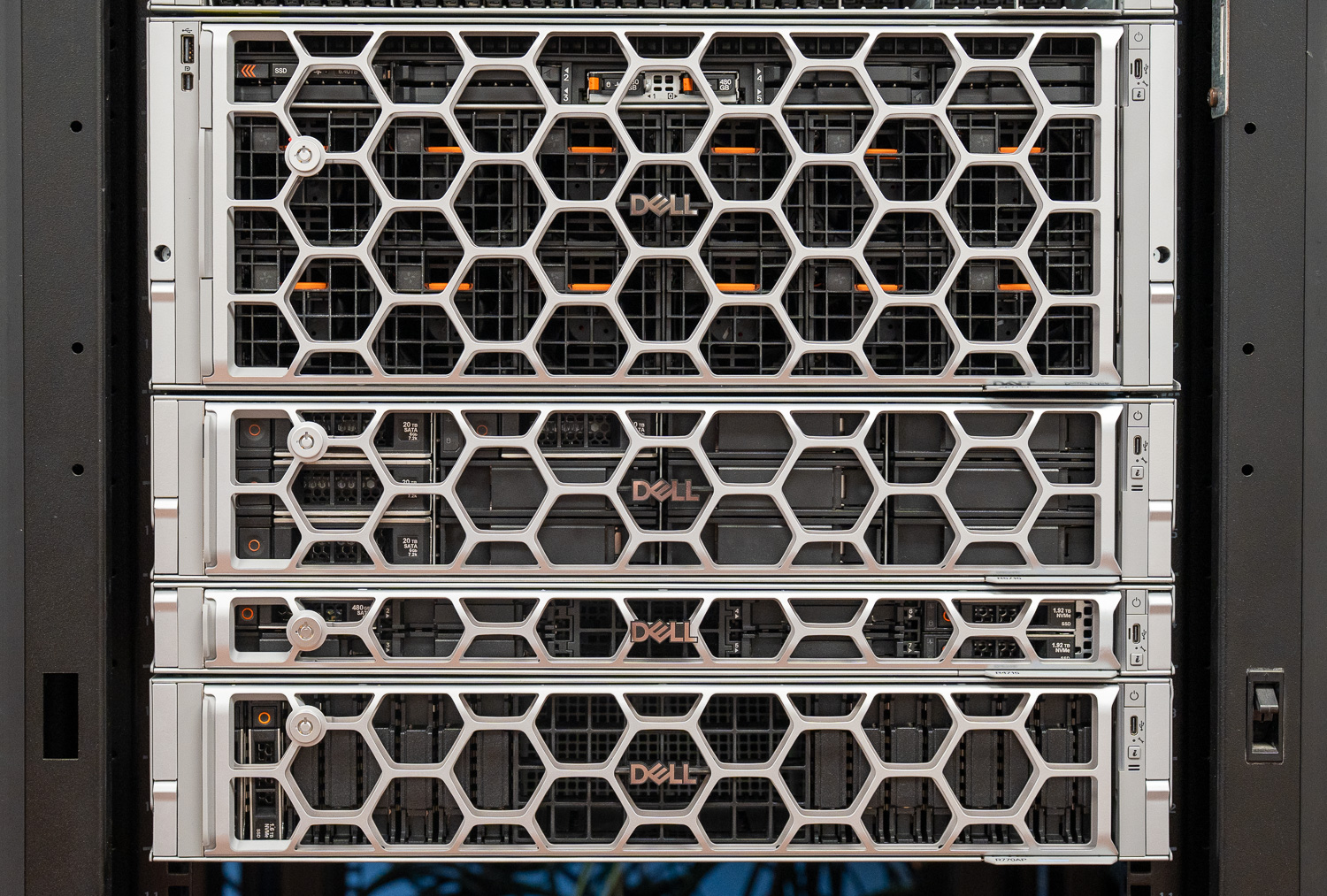
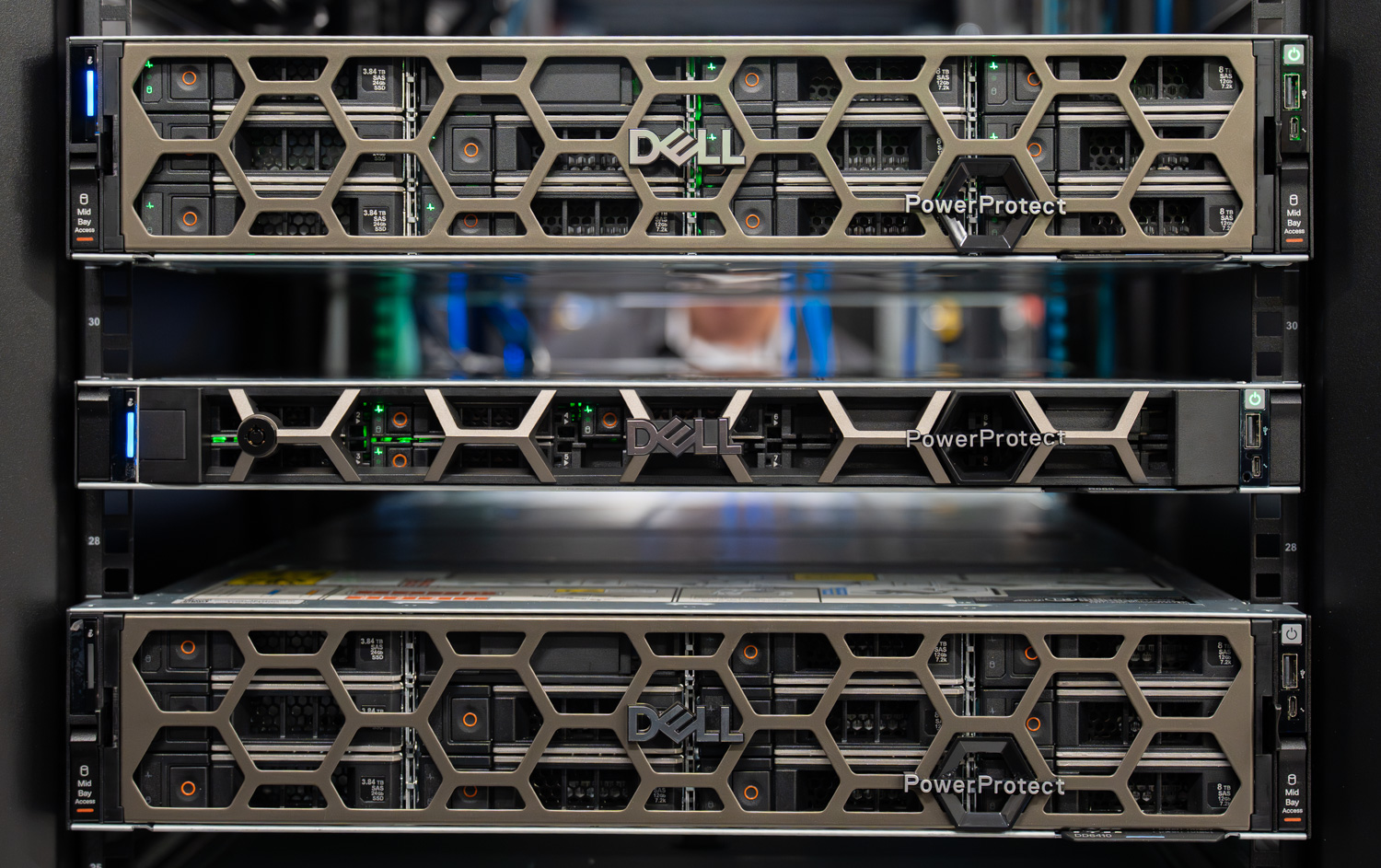
dell powerprotect one appliance

Designed to protect business-critical data across any environment, PowerProtect One simplifies how organizations build and operate cyber resilience—without forcing them to abandon the heterogeneous ecosystems they already rely on. Built on the combined strengths of PowerProtect Data Manager and PowerProtect Data Domain, PowerProtect One delivers a single control plane that defines policies, governs assets, and handles operational workflows across the protected environment. We have written about Data Domain extensively over the past several years, and the broader Data Domain platform remains the most widely deployed purpose-built backup foundation in the market, with more than 15,000 active customers globally.

The platform also leans heavily on its AI Assistant, a capability that takes on more weight in the current operational climate than it might have a few years ago. Backup and recovery teams are smaller and increasingly staffed by generalists; the volume of repetitive monitoring and triage work has grown, and the windows for responding to ransomware activity or initiating recovery have tightened. The AI Assistant pulls real-time telemetry from across the platform, answers natural language queries about protection status, failed jobs, capacity, and system health, and surfaces clickable navigation links that take administrators directly from question to action. It connects to a customer-hosted LLM through a configurable API endpoint and runs against curated Dell product knowledge. This ensures the answers are grounded in both the live system state and Dell’s documentation, rather than in generic AI output.

In this analysis, we examine PowerProtect One as it lands at Dell Technologies World 2026, including the operational experience, the open ecosystem architecture that lets third-party backup tools work with the platform, the cyber resilience capabilities built around immutability and anomaly detection, and how the AI Assistant changes the path from question to answer. We also touch on what the platform will look like beyond launch, with Dell signaling support for other models within the Data Domain family.

Open Ecosystem and Storage Architecture

One of the clearest signals of how PowerProtect One operates as a unified cyber resilience platform is its approach to storage. Backup data lives in storage units that administrators create and manage directly from the unified interface, which is familiar to anyone who has worked with Data Domain. What is different is how the platform handles those storage units once they exist.

A storage unit on PowerProtect One can serve two distinct purposes. The first is internal use by the solution’s own protection policies, with backup jobs scheduled and orchestrated, and data landing in a storage unit dedicated to that policy. The second is more interesting. The same storage unit construct can be exposed externally through DD Boost, allowing third-party backup applications to write directly to PowerProtect One as a target. Commvault, HYCU, Veeam, and other DD Boost ecosystem partners can use the platform as backup storage without changing their own software stack, and the data is stored in the same protection storage with the same data reduction, compression, and retention lock options as Dell-orchestrated backups.

This is the practical mechanism behind Dell’s “open by design, integrated by experience” framing. Customers running mixed environments do not have to choose between keeping the backup tools their teams already know and consolidating onto a unified protection storage layer. They can do both at the same time. The platform also offers an unusually broad workload catalog through PowerProtect One itself, with native protection for VMware, Hyper-V, Nutanix AHV, Kubernetes, Oracle, SQL, Exchange, SAP HANA, file systems, NAS, and Storage Direct Protection for Dell PowerStore and Dell PowerMax. That depth of coverage matters because it lets the platform serve as a protective layer for nearly anything in the environment, without forcing a tooling decision on the workloads themselves.

Storage unit creation is straightforward in practice. Administrators define soft and hard quotas, set stream limits, enable retention lock when immutability is required, and apply workload-specific tuning where relevant. Both active and cloud tiers are supported, so data can remain local or extend to cloud object storage based on retention and access requirements. Storage units are not exclusively a Dell construct in this platform. The storage units are leveraged by PowerProtect One and third-party utilities separately, but as part of the shared storage layer.

Cyber Resilience by Design

Beyond Anomaly Detection and the operational workflows that surface it, PowerProtect One layers in the security and compliance capabilities that enterprise environments require. The platform supports FIPS 140/2 compliance for cryptographic operations, with all in-flight data encrypted and the option to enable encryption at rest for stored backup copies. Common Criteria readiness is part of the same compliance posture, and Dell runs the platform through ongoing security scans for malware, rootkit activity, OS vulnerabilities, container integrity, and web API flaws.
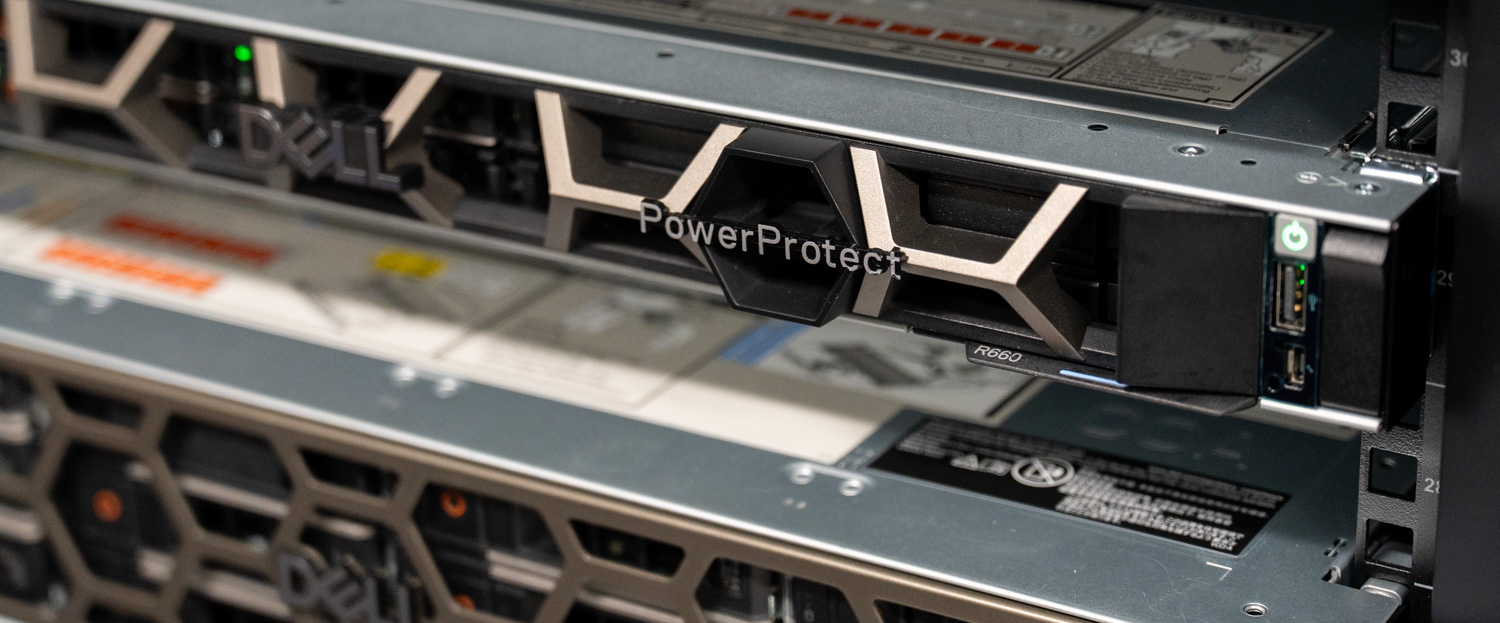
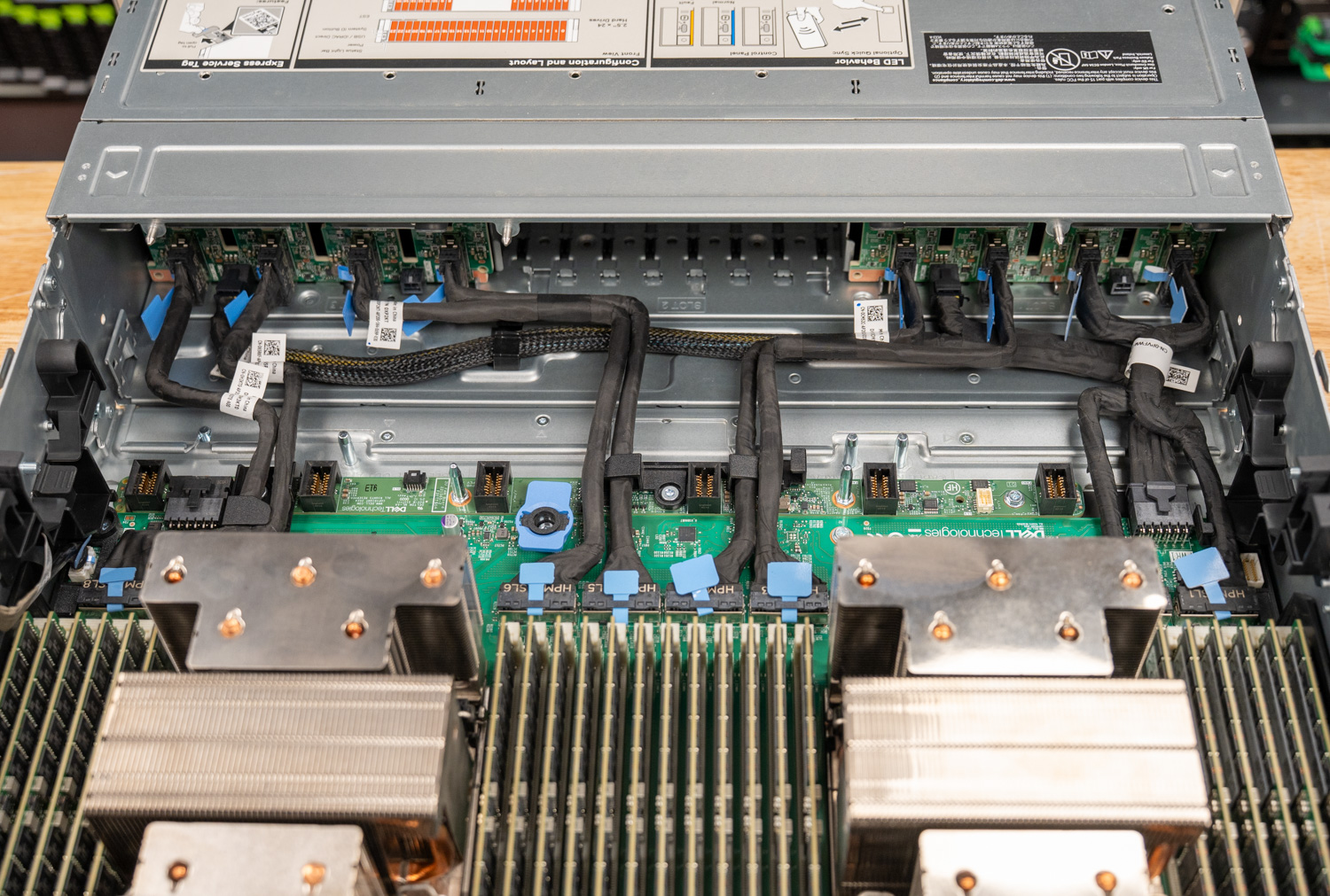
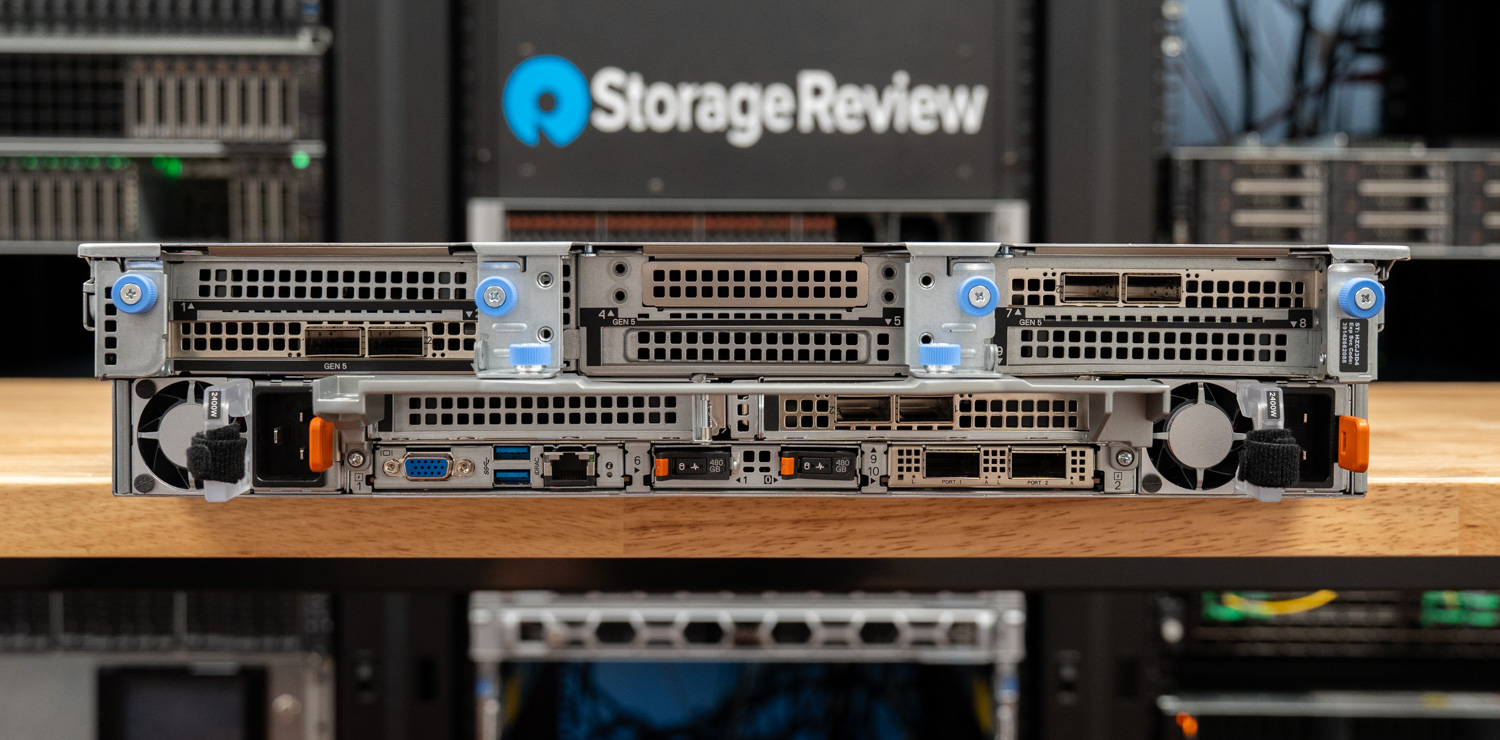
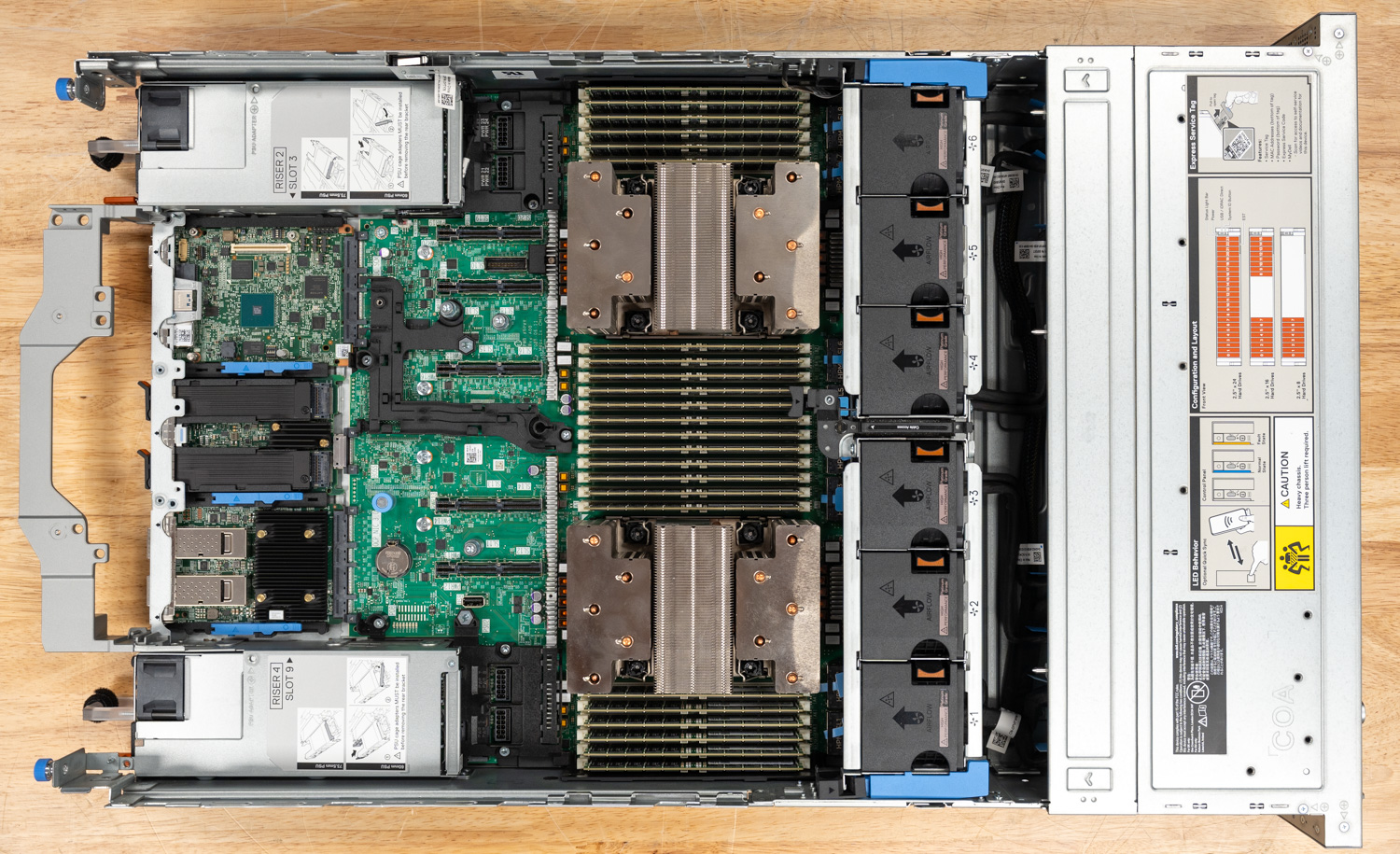
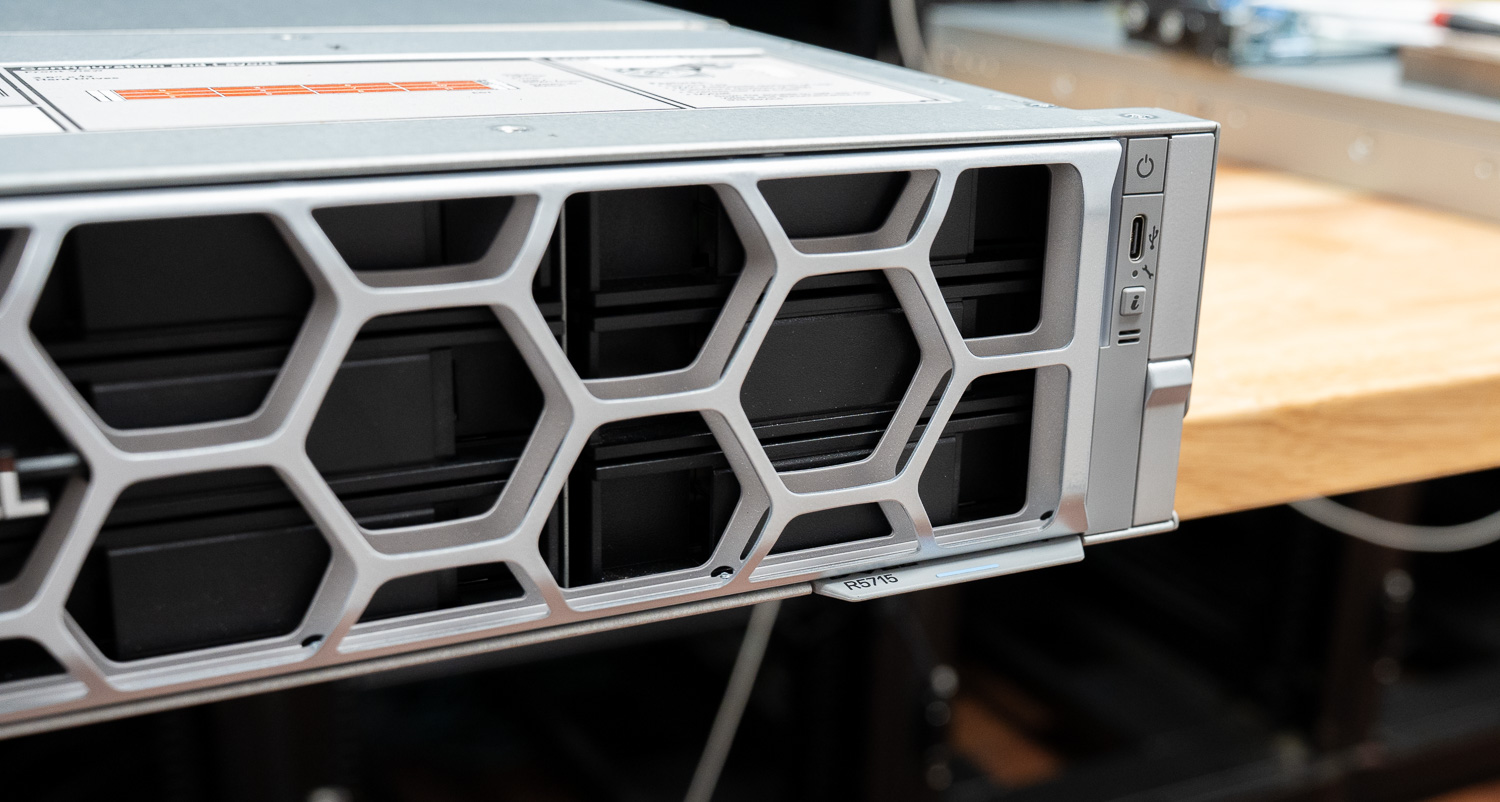
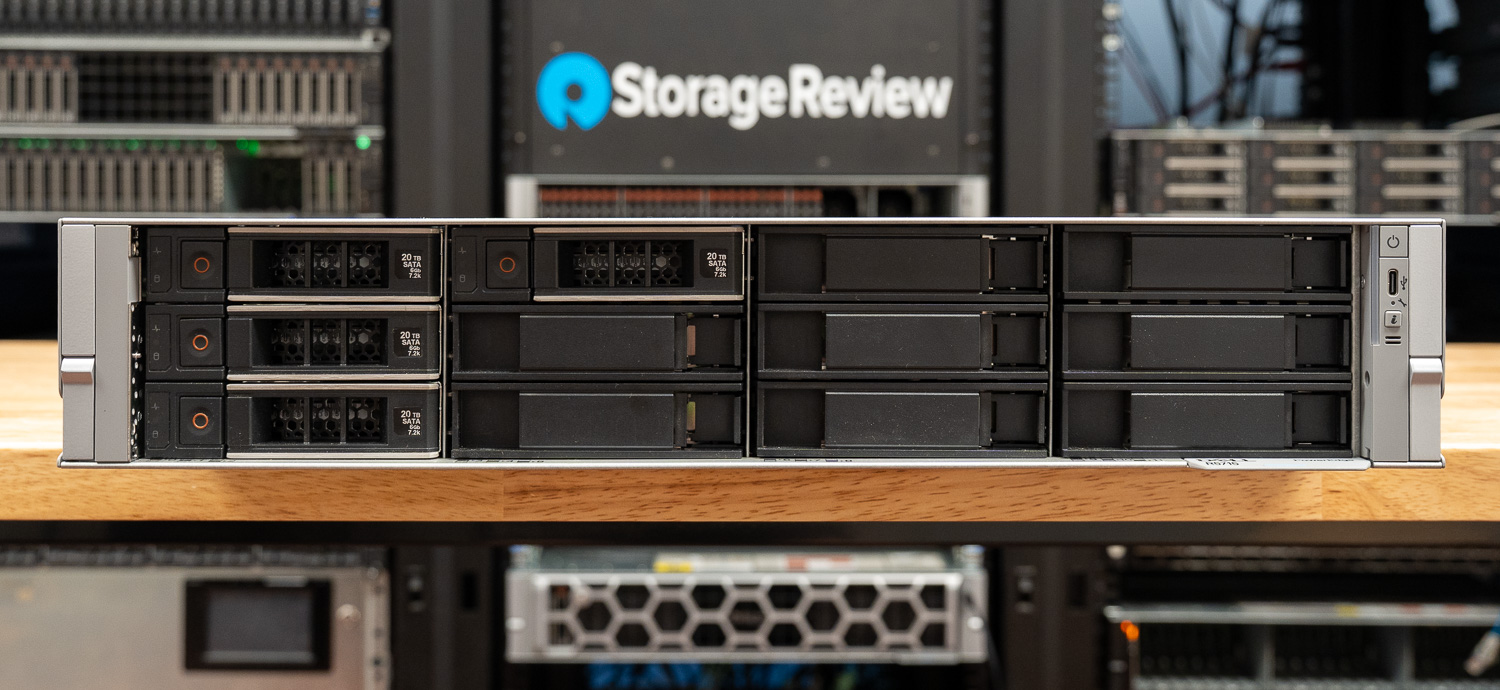
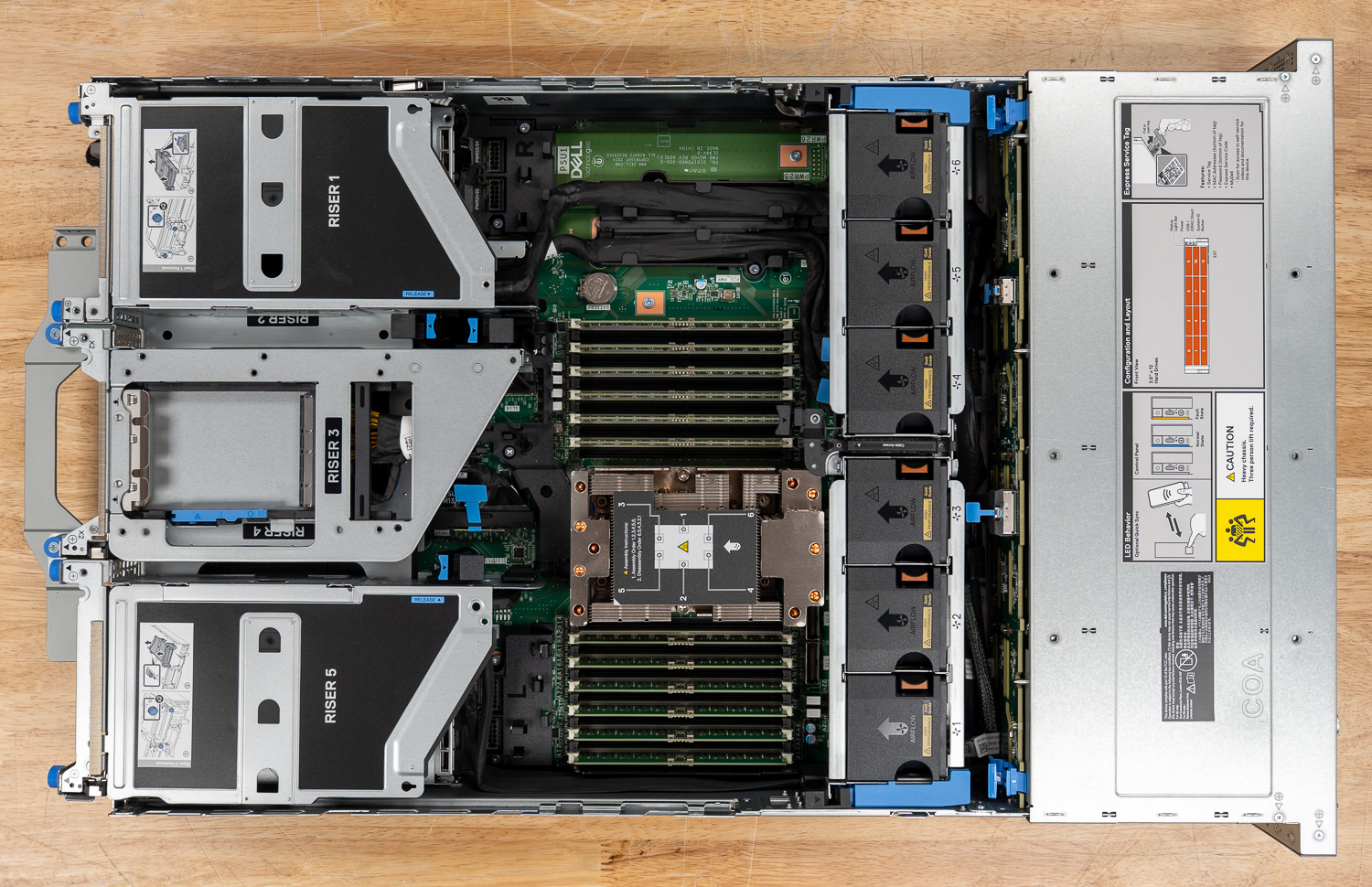
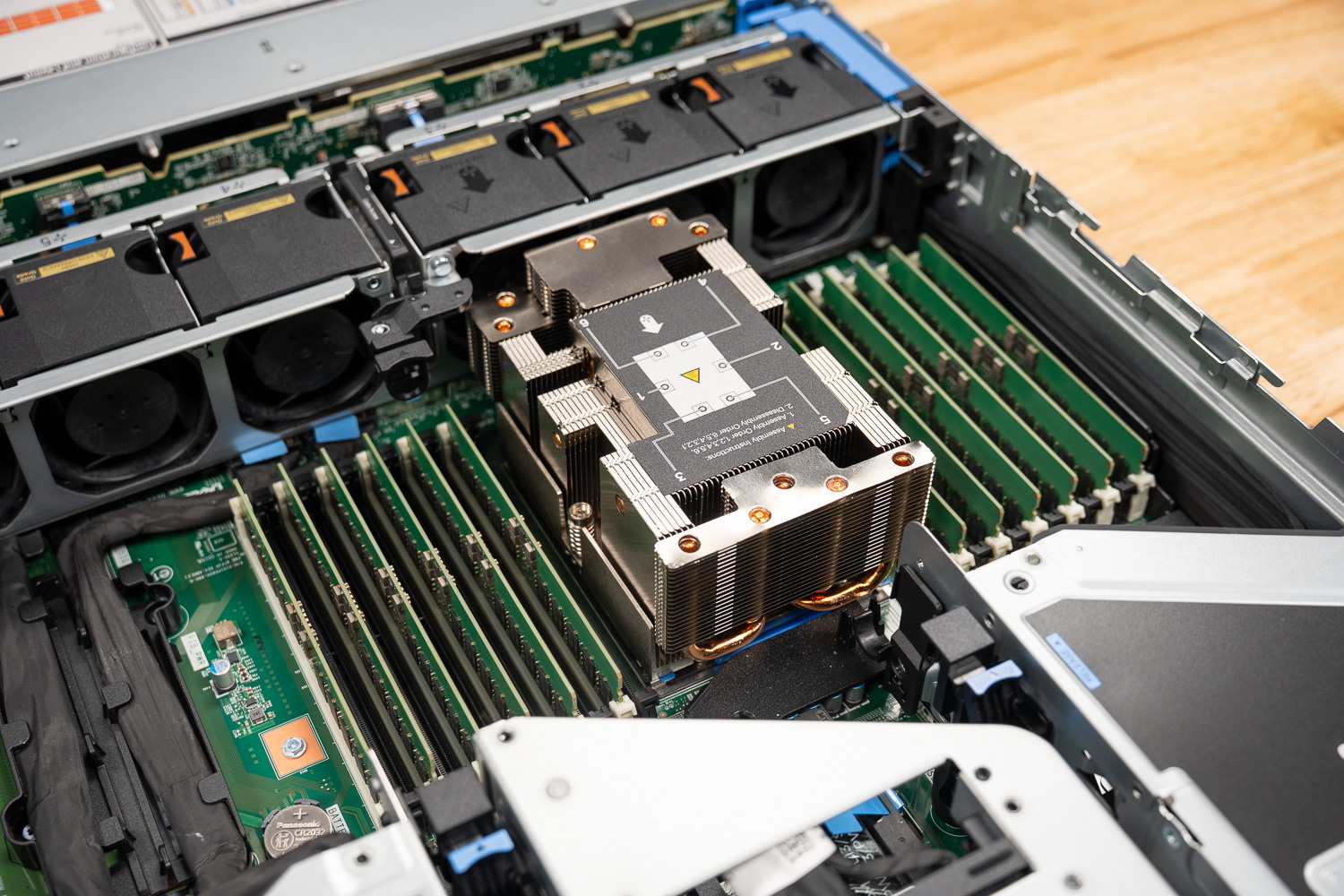
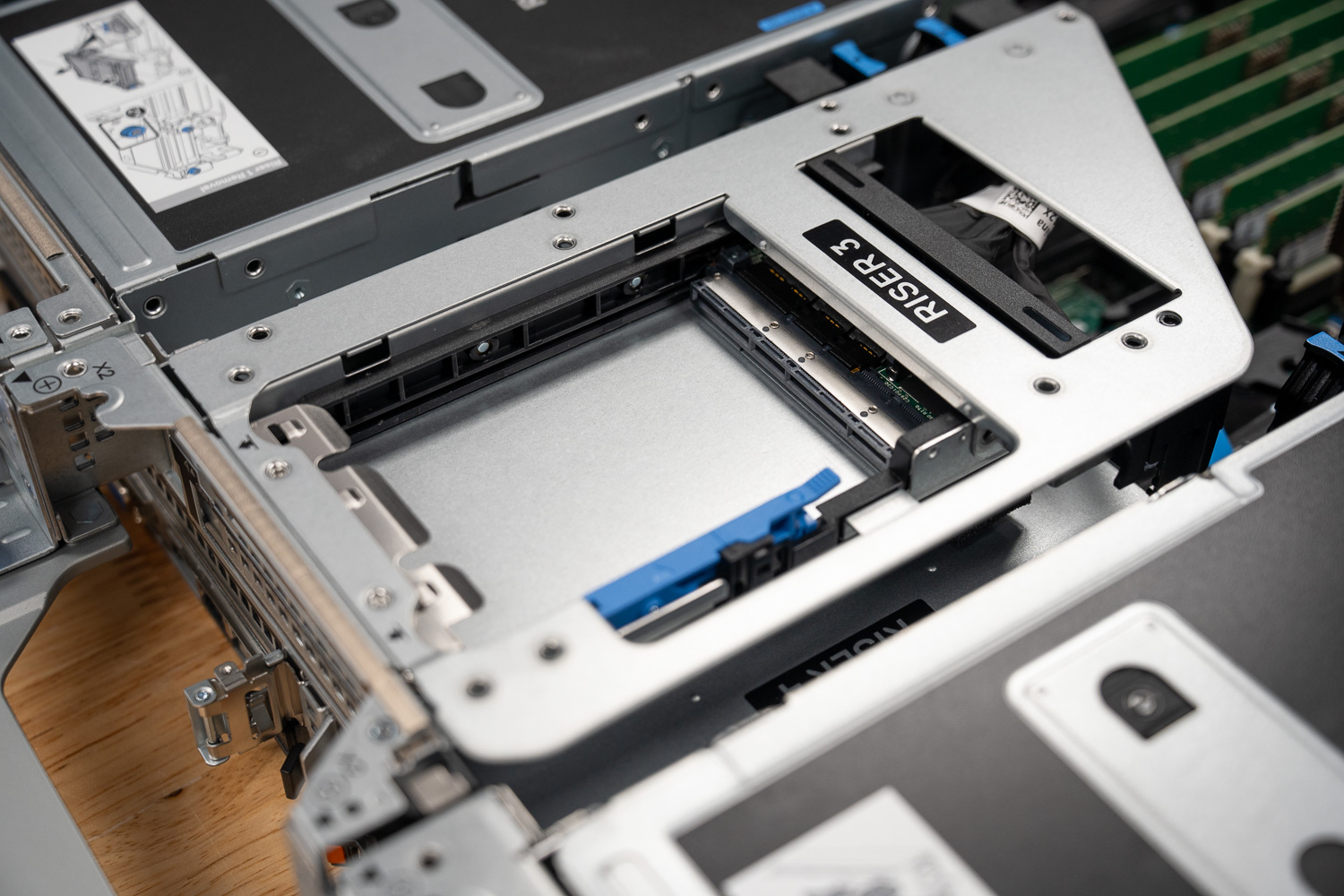
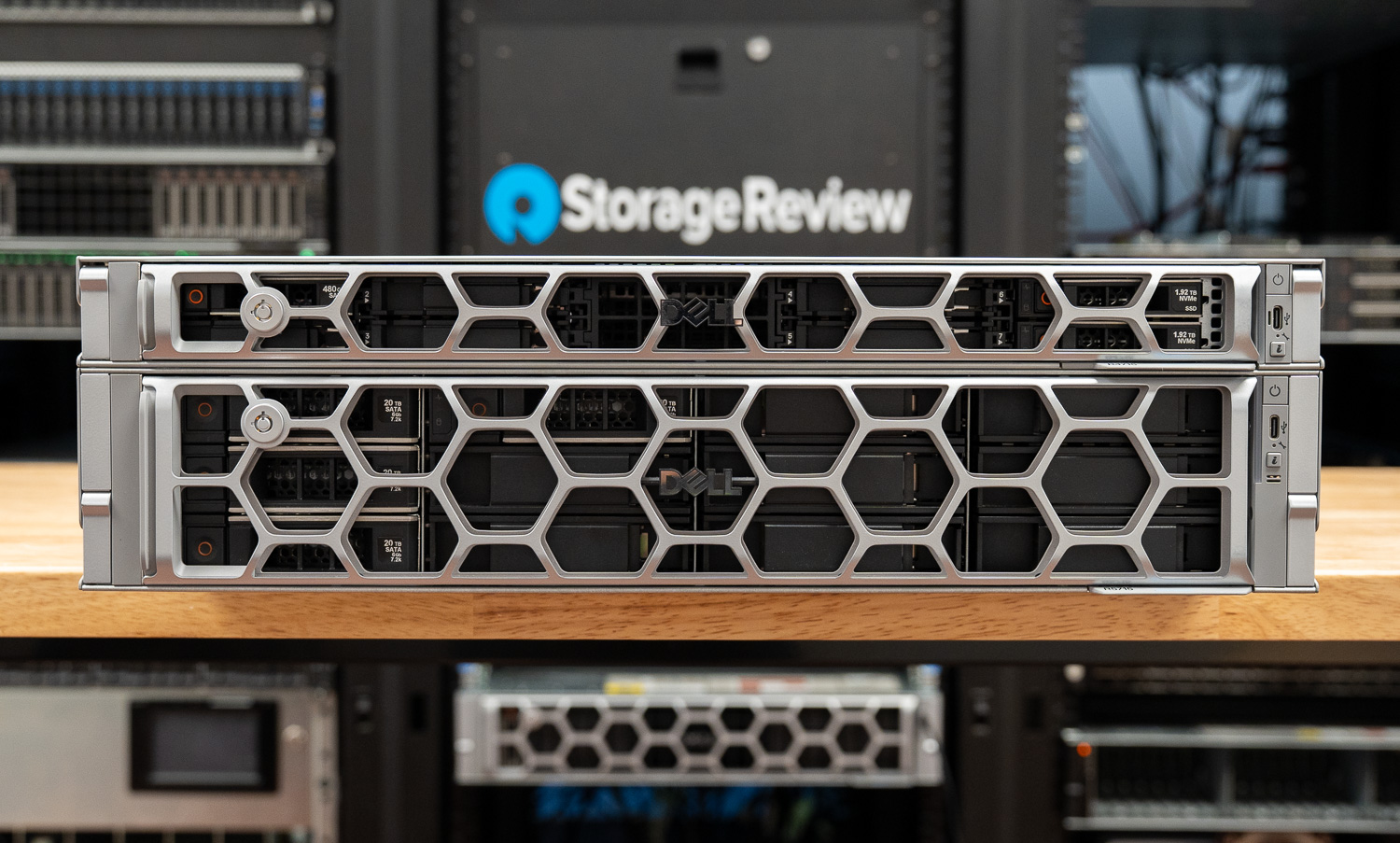
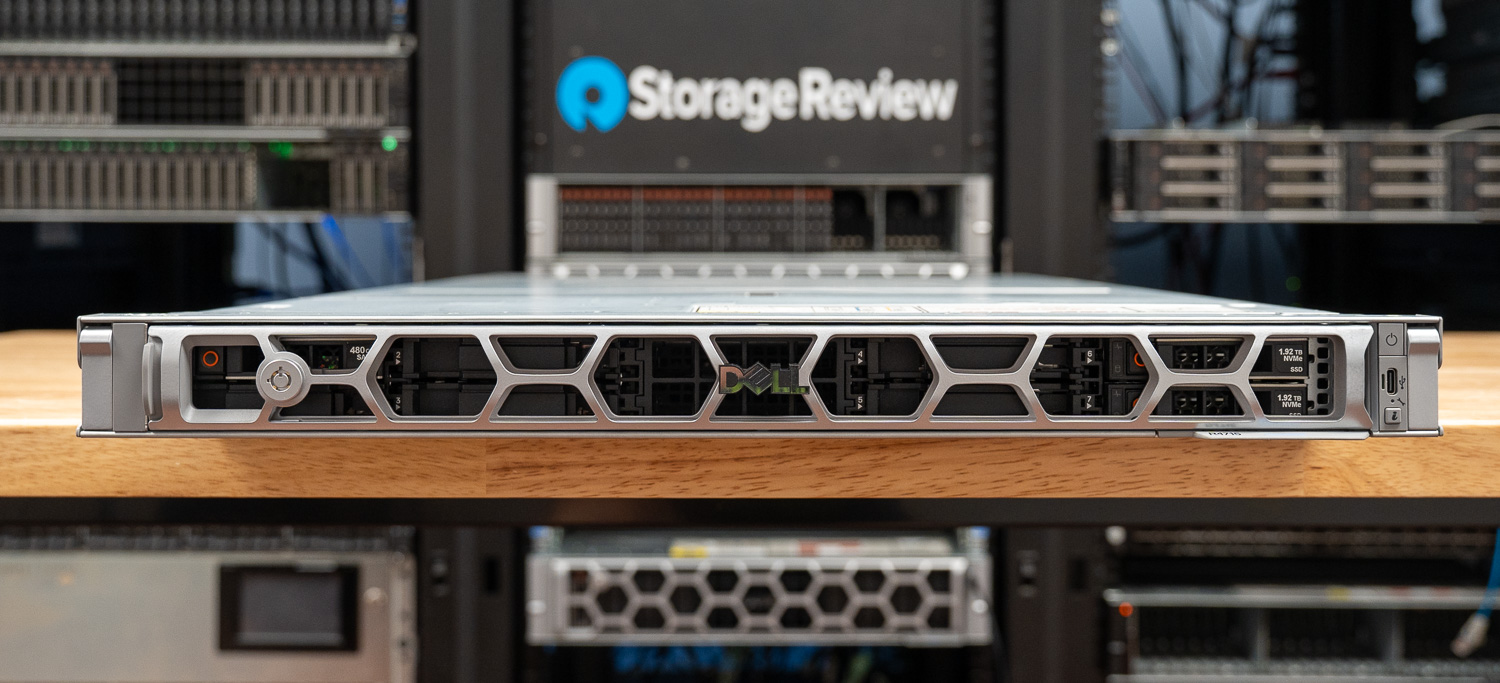
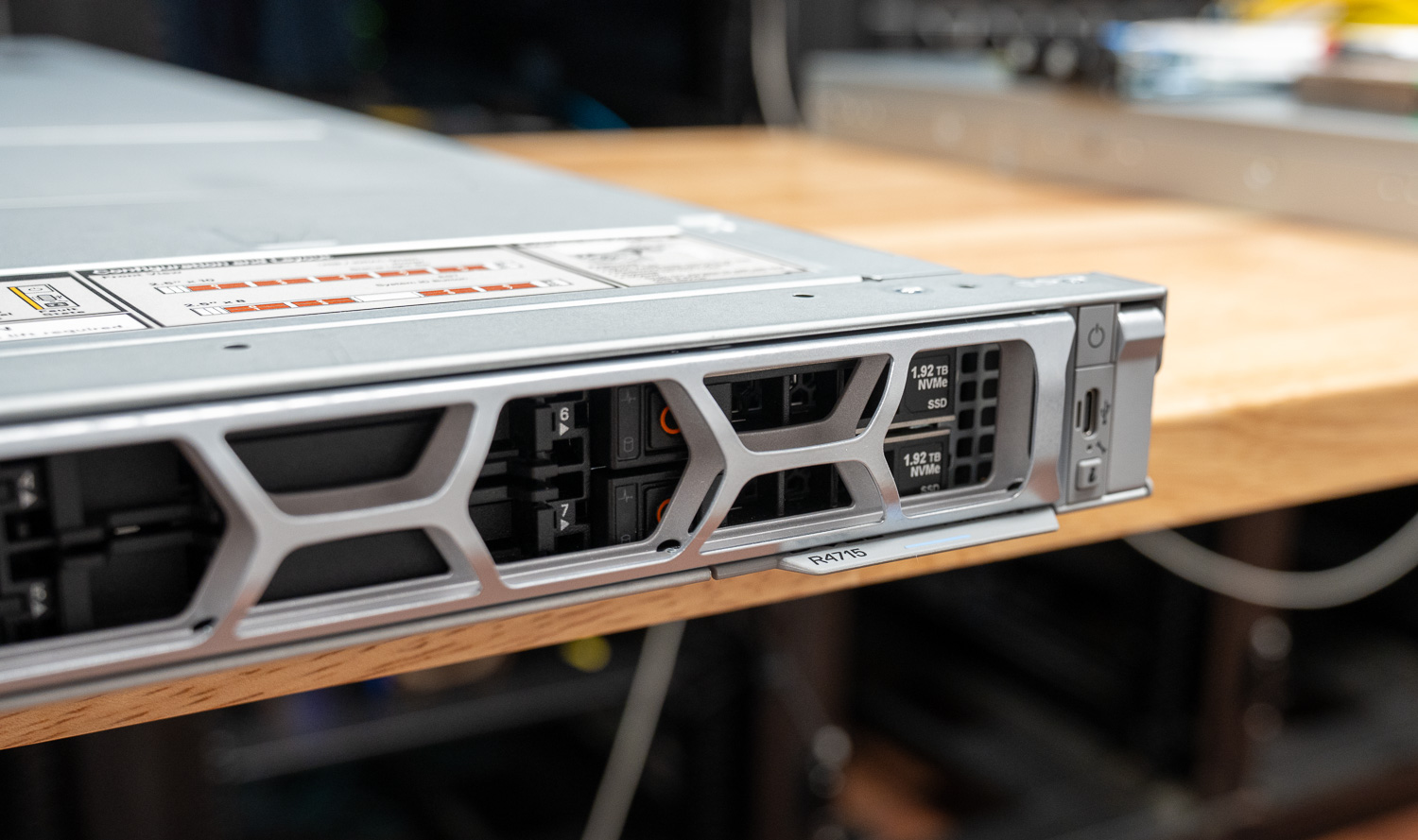
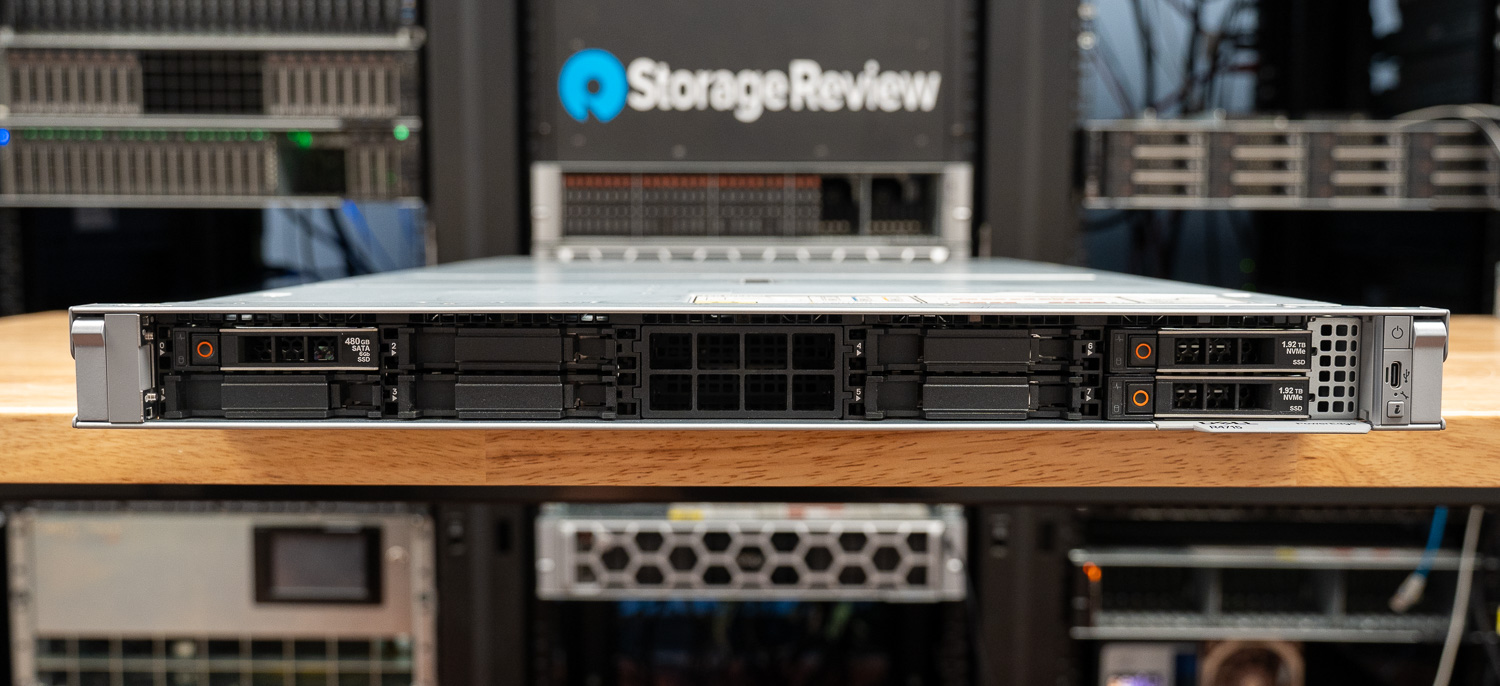
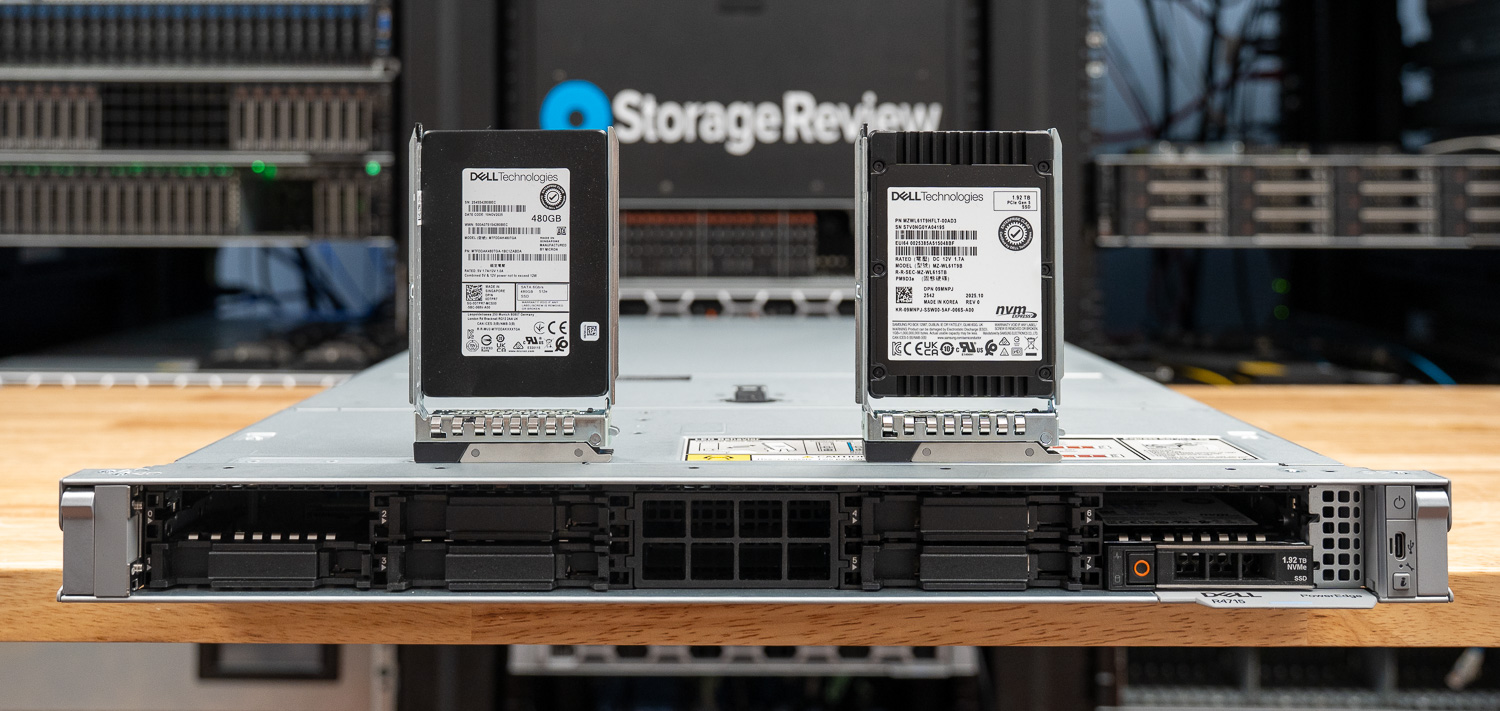
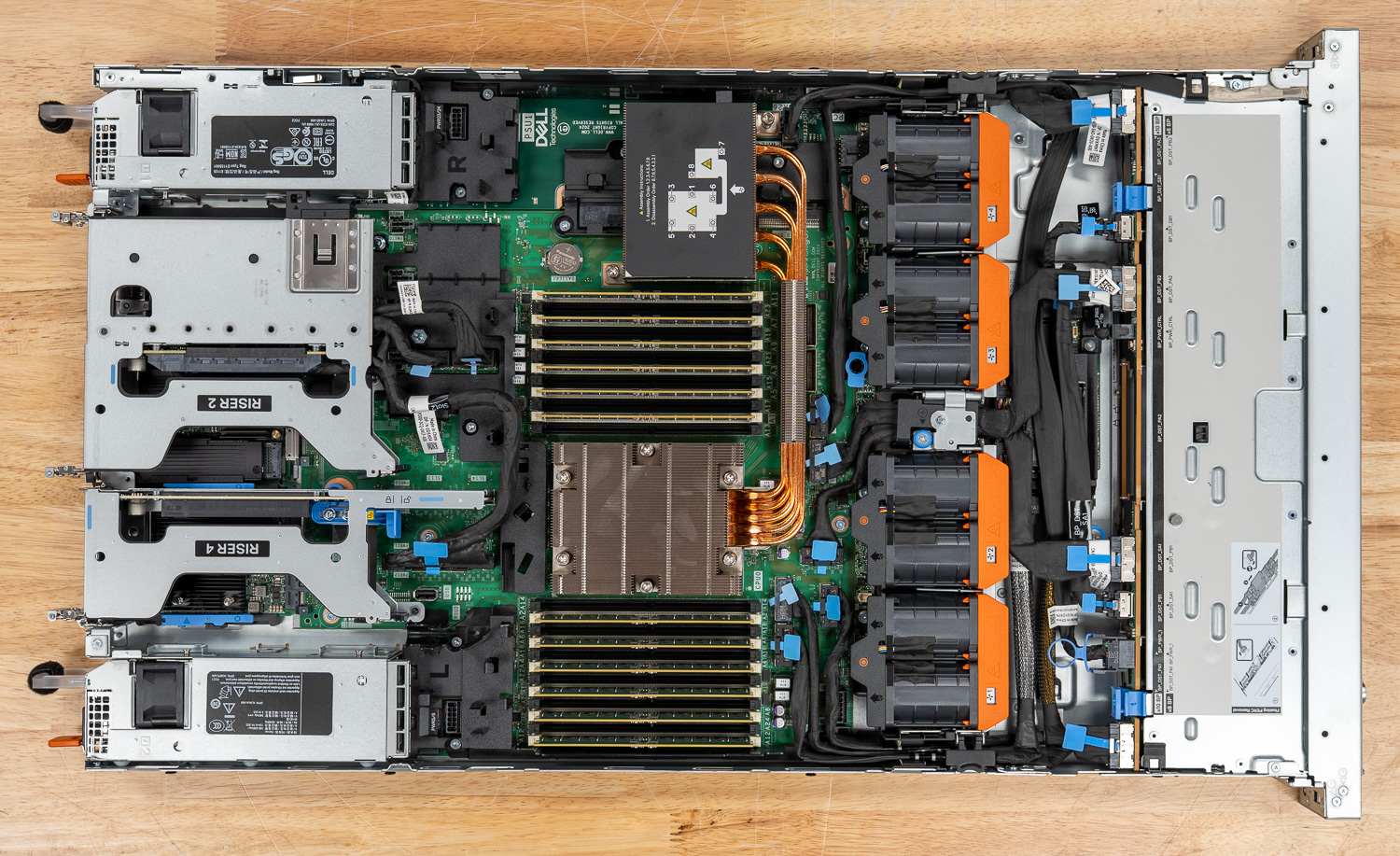
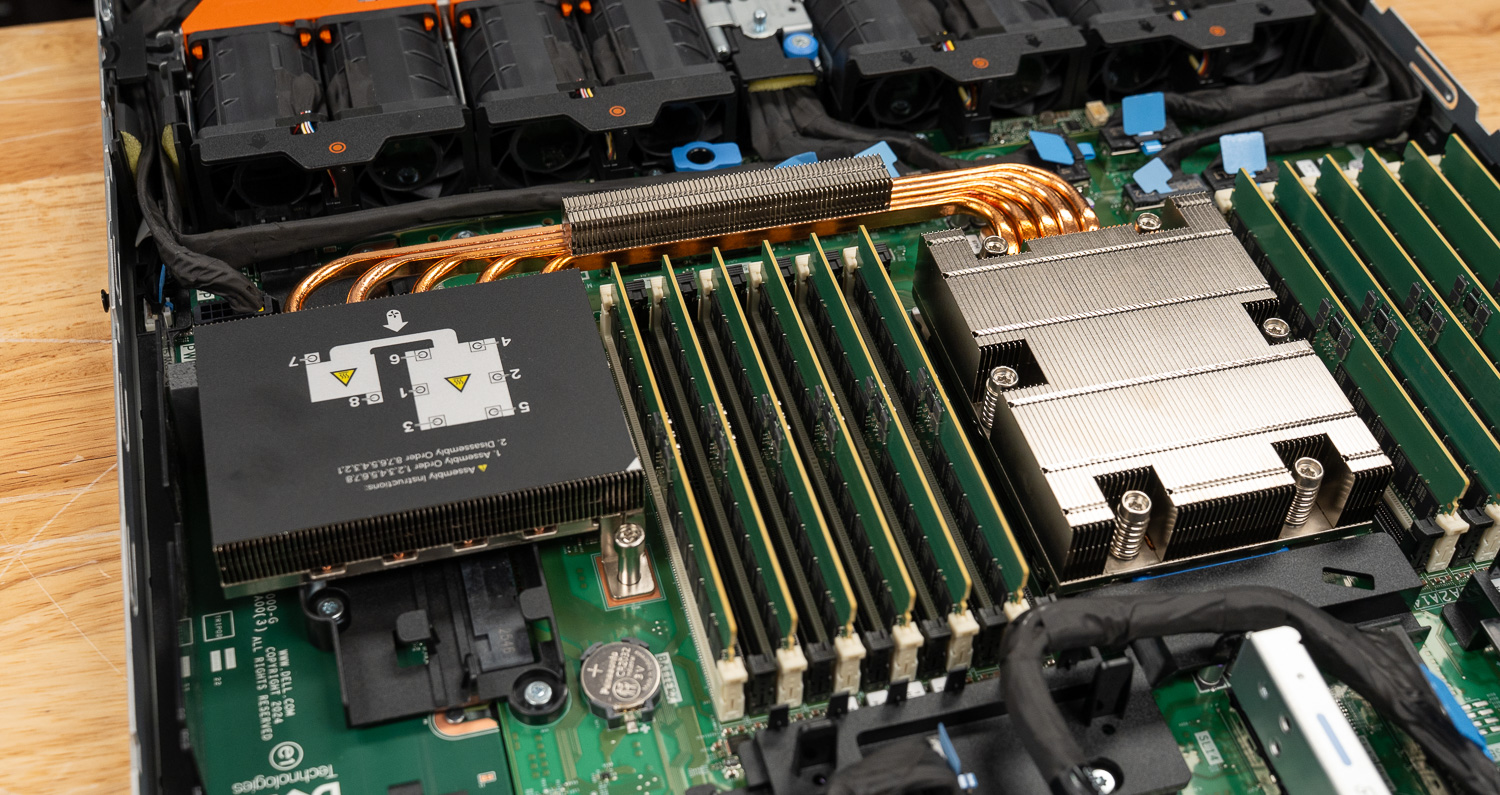
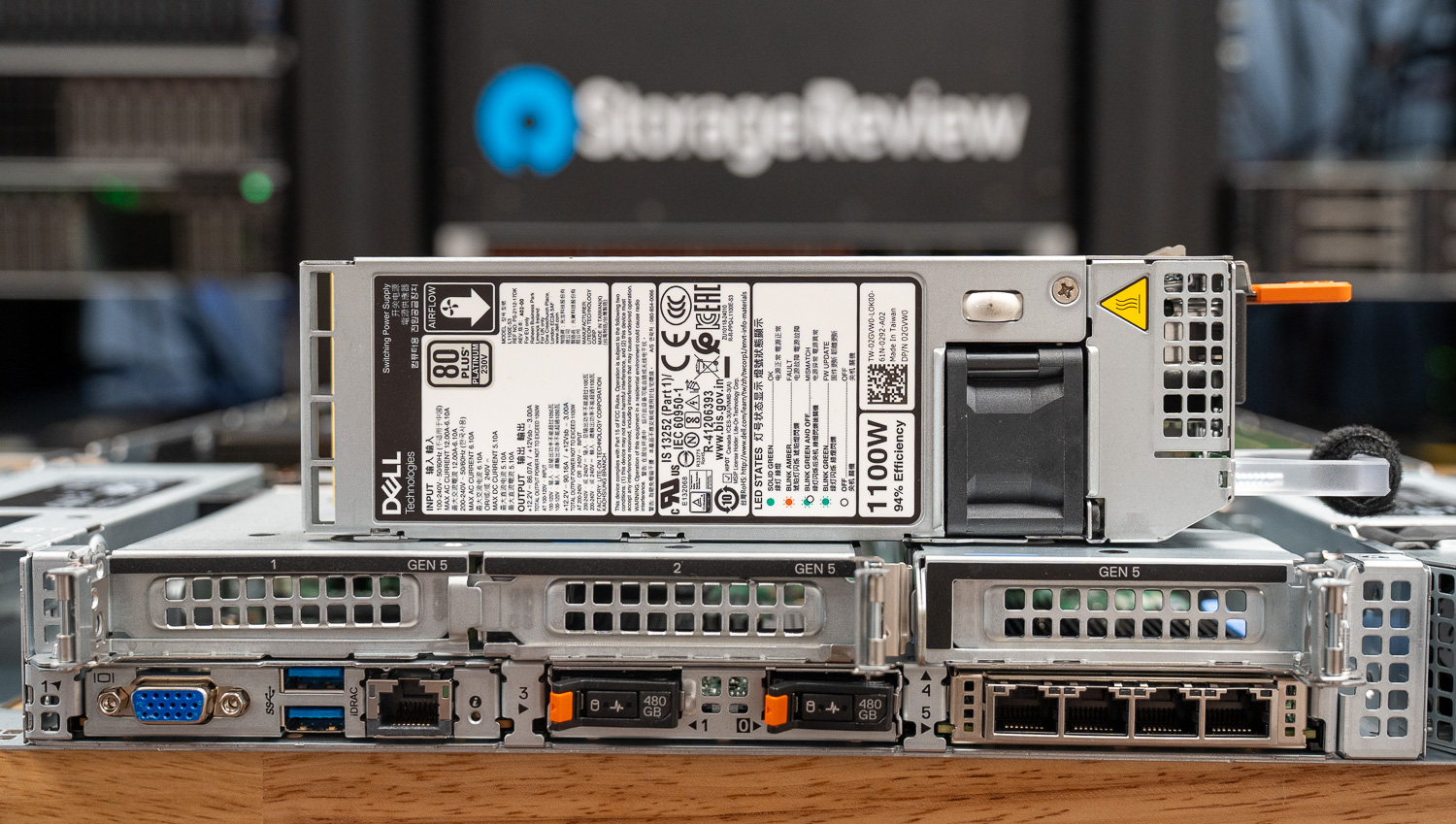
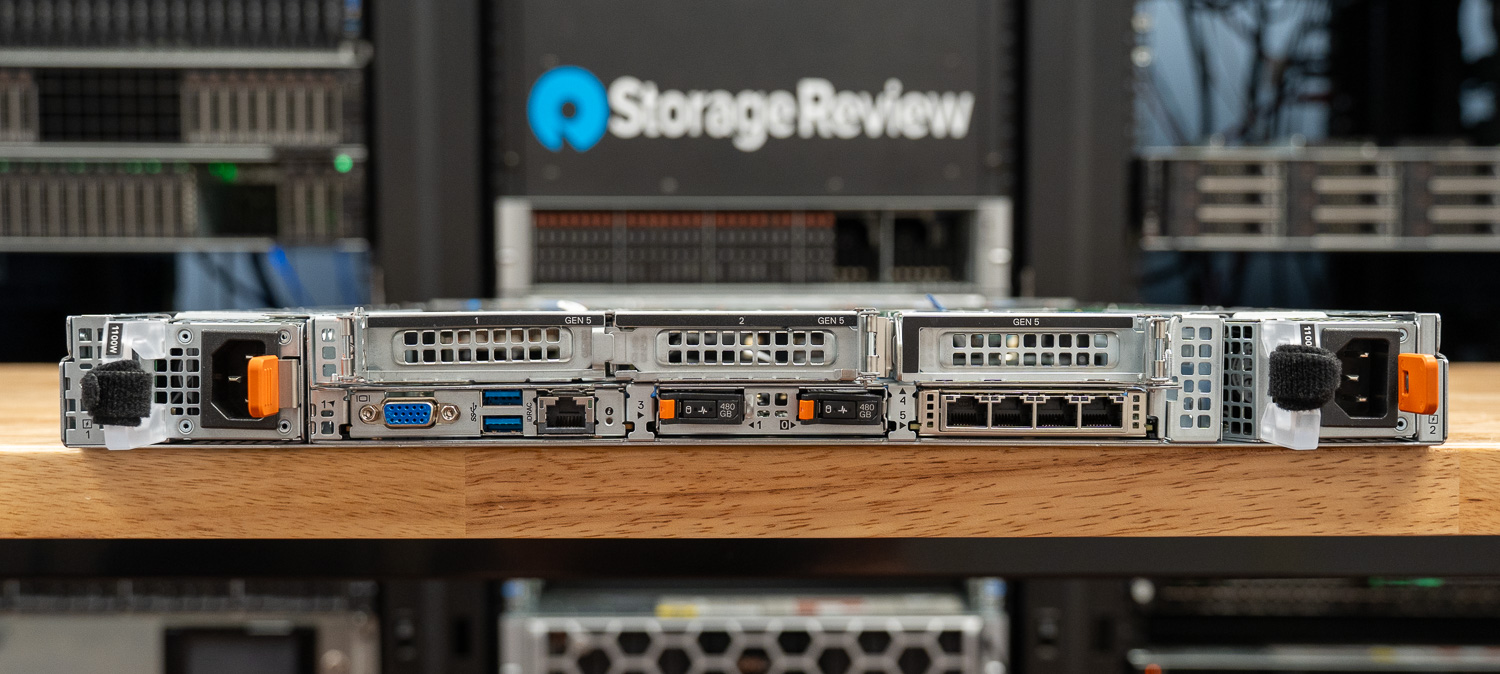
dell powerprotect one 1u node

Access control extends across multiple authentication paths. Single sign-on integrations include Okta, Microsoft Entra ID, PingOne, and RSA SecurID. At the same time, multifactor authentication is supported via TOTP providers such as Google Authenticator, Microsoft Authenticator, Authy, Duo, and LastPass. Role-based access control limits administrative actions to the appropriate users, and audit logging captures activity across the platform for compliance reviews and forensic analysis.

Retention lock is the immutability mechanism most directly tied to ransomware defense. Once applied, backup data cannot be deleted or modified before the retention period expires, even by administrators with elevated privileges. The platform supports both governance and compliance modes, allowing organizations to align with regulatory requirements that demand stricter immutability controls. Combined with Anomaly Detection workflows that flag suspicious changes in backup data, retention lock provides PowerProtect One with the foundation to recover cleanly from ransomware events without relying on the compromised production environment.

PowerProtect One Management

Day 1: Deployment

Initial deployment of the PowerProtect One appliance is quick and guided. In our run, the system can be up and usable in under 10 minutes once the configuration is applied. The initial setup focuses on getting core services online rather than walking users through a long provisioning process.
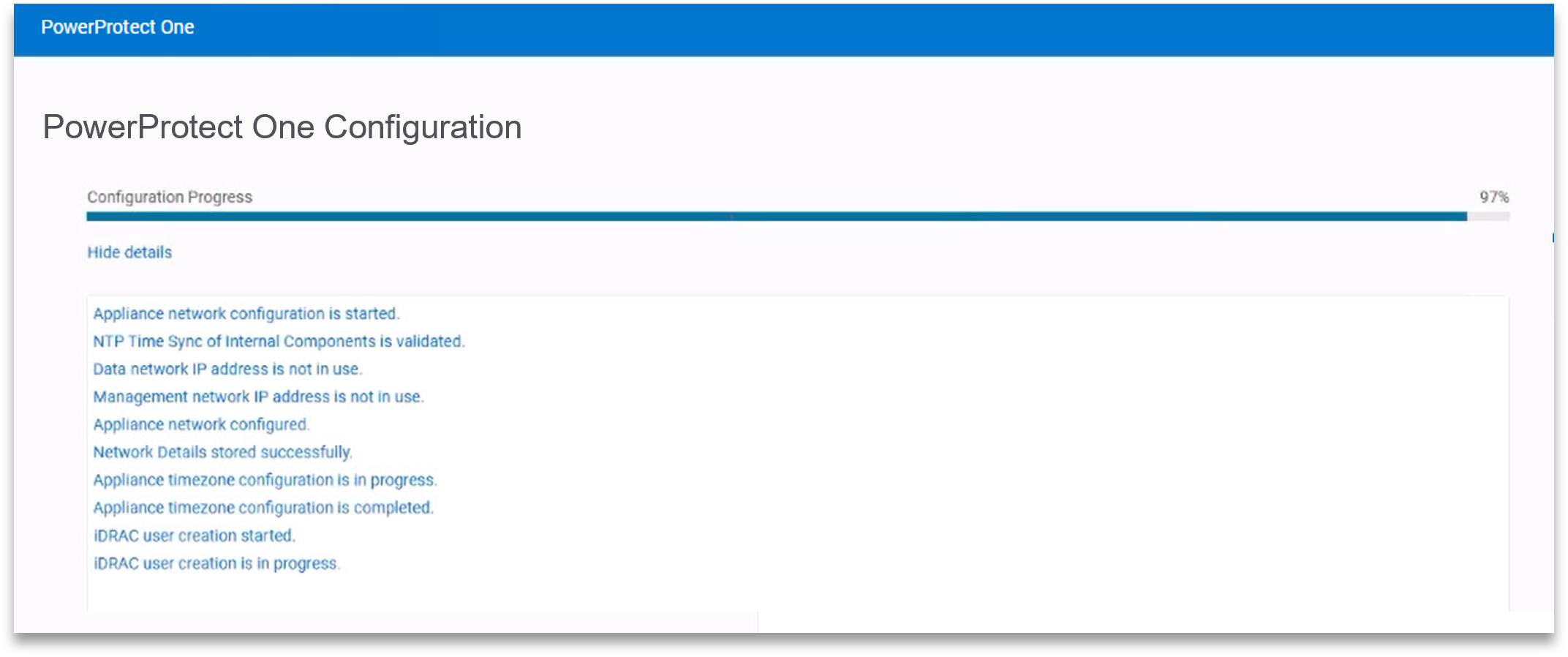
PowerProtect One Config screencap

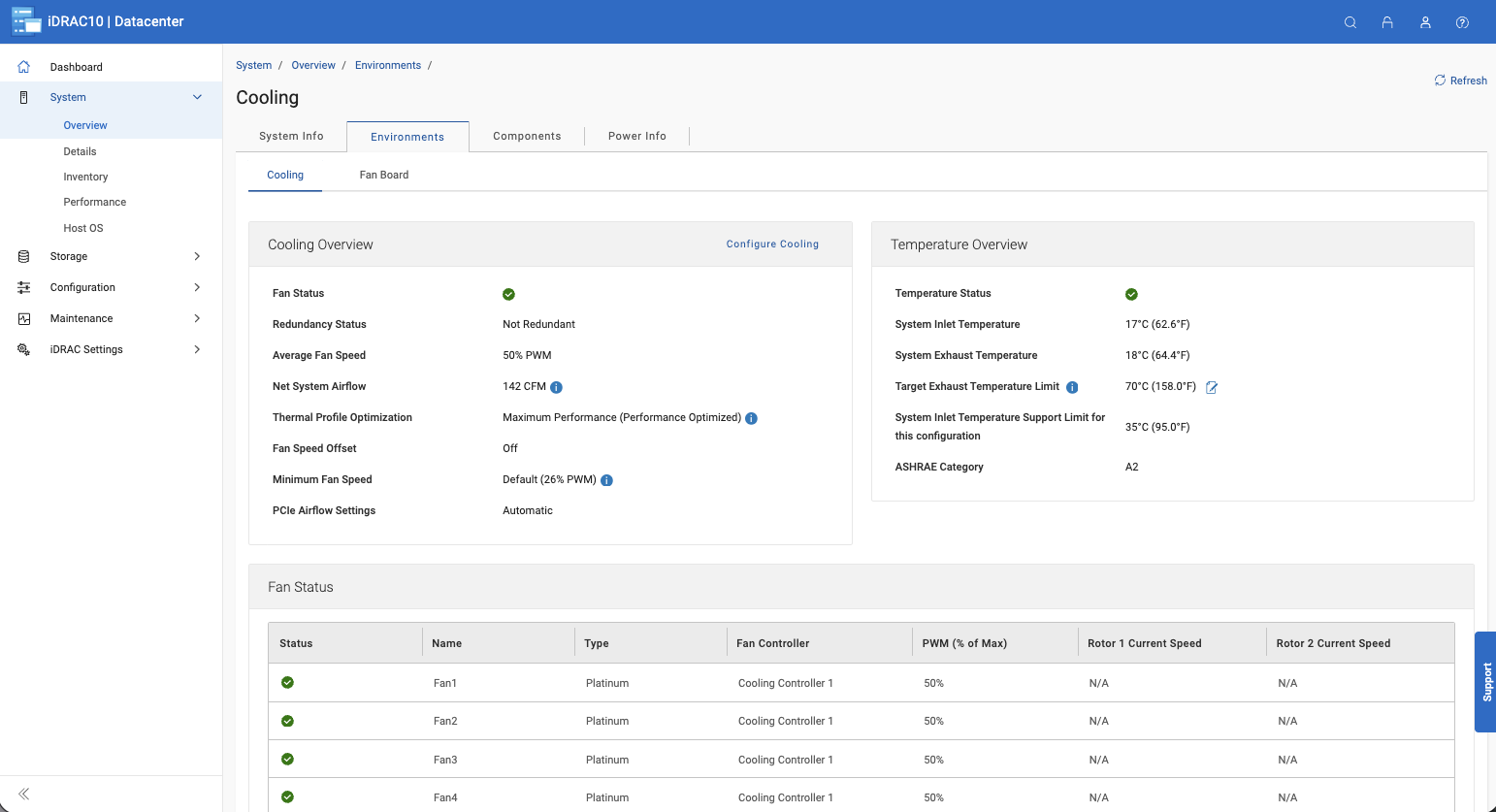
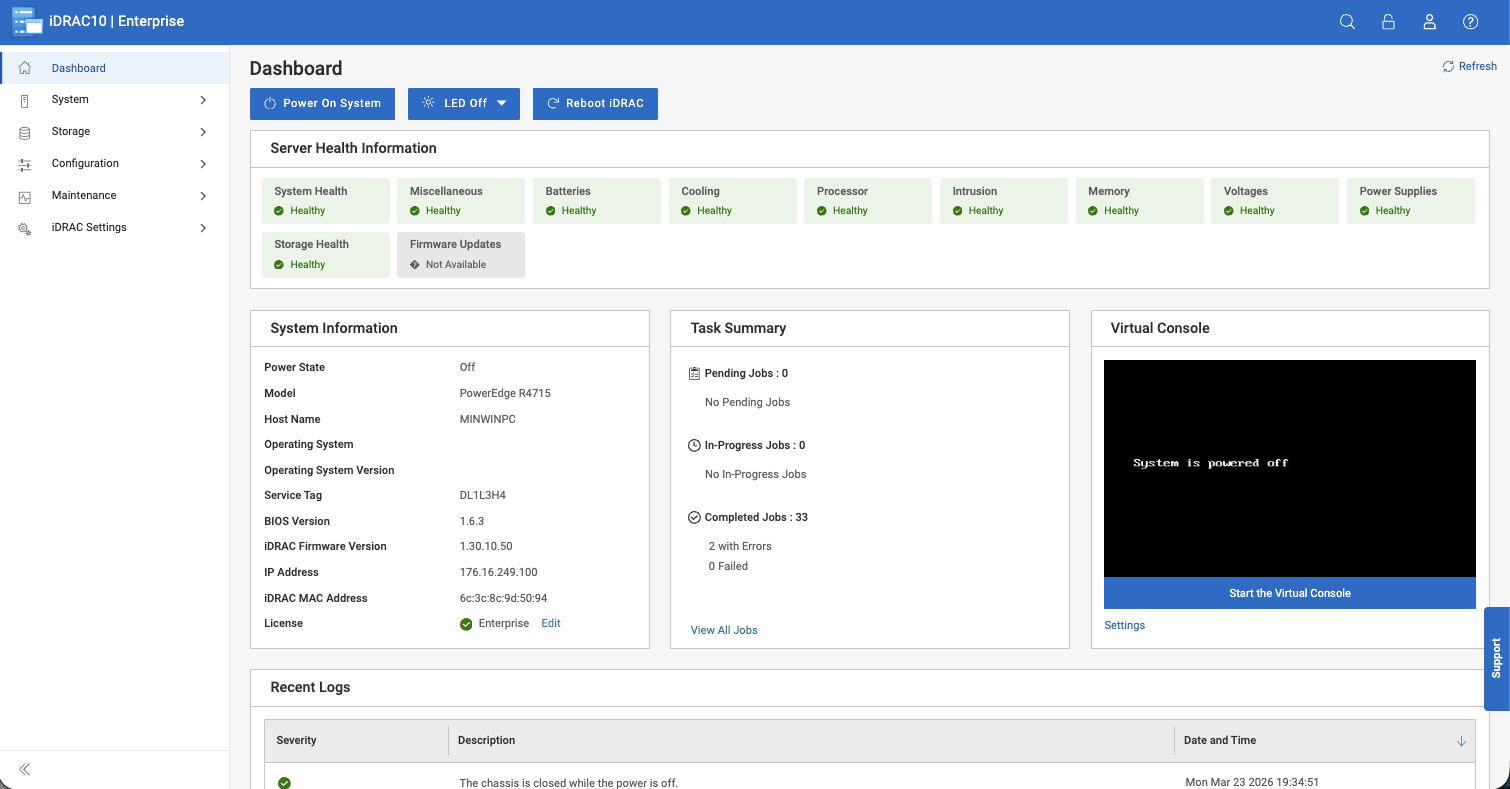
Early configuration includes host networking, time settings, and iDRAC access for the underlying hardware. Dell includes a read-only iDRAC account, which we found useful in practice. It provides visibility into hardware health and alerts without introducing the risk of accidental changes or shutdowns, something that becomes more important in environments that manage a fleet of Dell systems.

On first login, the platform presents the user with a “Get Started” workflow. This walks through email notifications, AutoSupport, security settings, and licensing. While these can all be configured later, having them front-loaded at the start helps users avoid critical omissions and quickly get the appliance into a production-ready state.
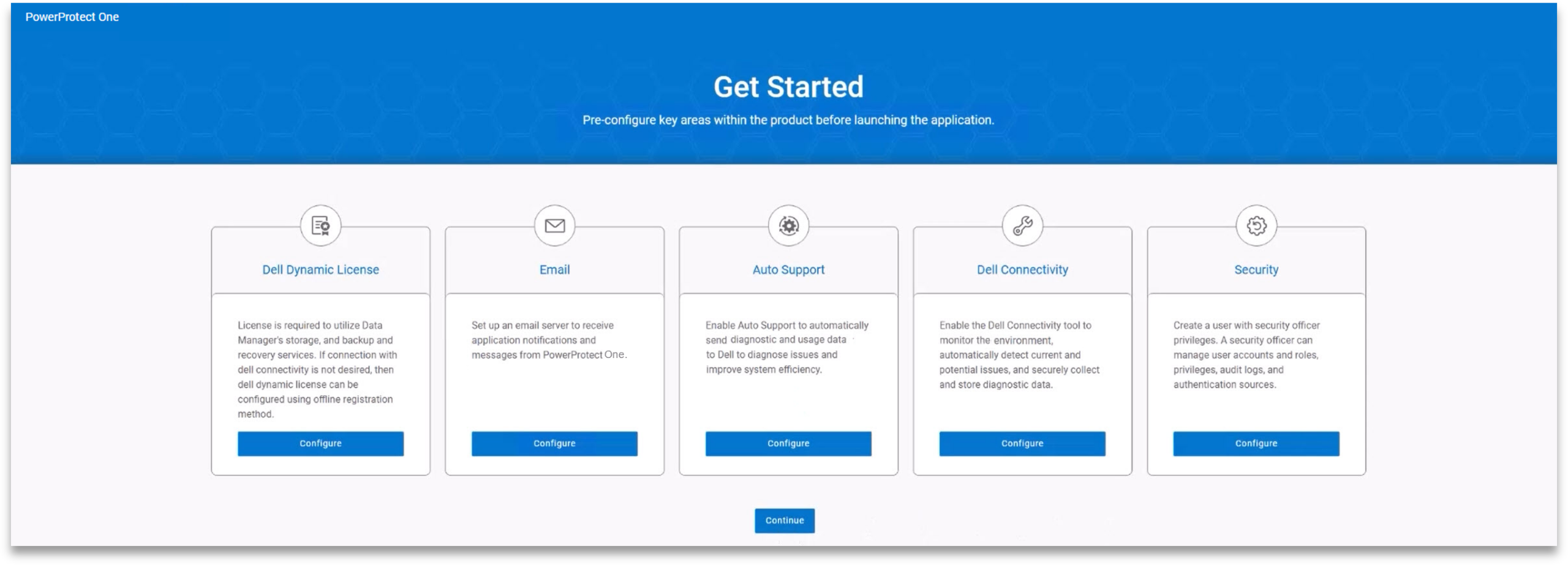
PowerProtect One Get Started screencap

Day 2: Operations

Unified Dashboard 

Day-to-day operations are centered around what Dell calls a Unified Dashboard. From here, PowerProtect One can manage numerous registered systems, giving administrators visibility into and control over all connected systems across the entire environment.

In practice, the dashboard surfaces the most important system information you’re likely to check first. Job activity is clearly displayed across all systems, including running, completed, and failed backups. System health is broken down into services, protection, storage, and security, which makes it easier to spot issues without digging through multiple menus.
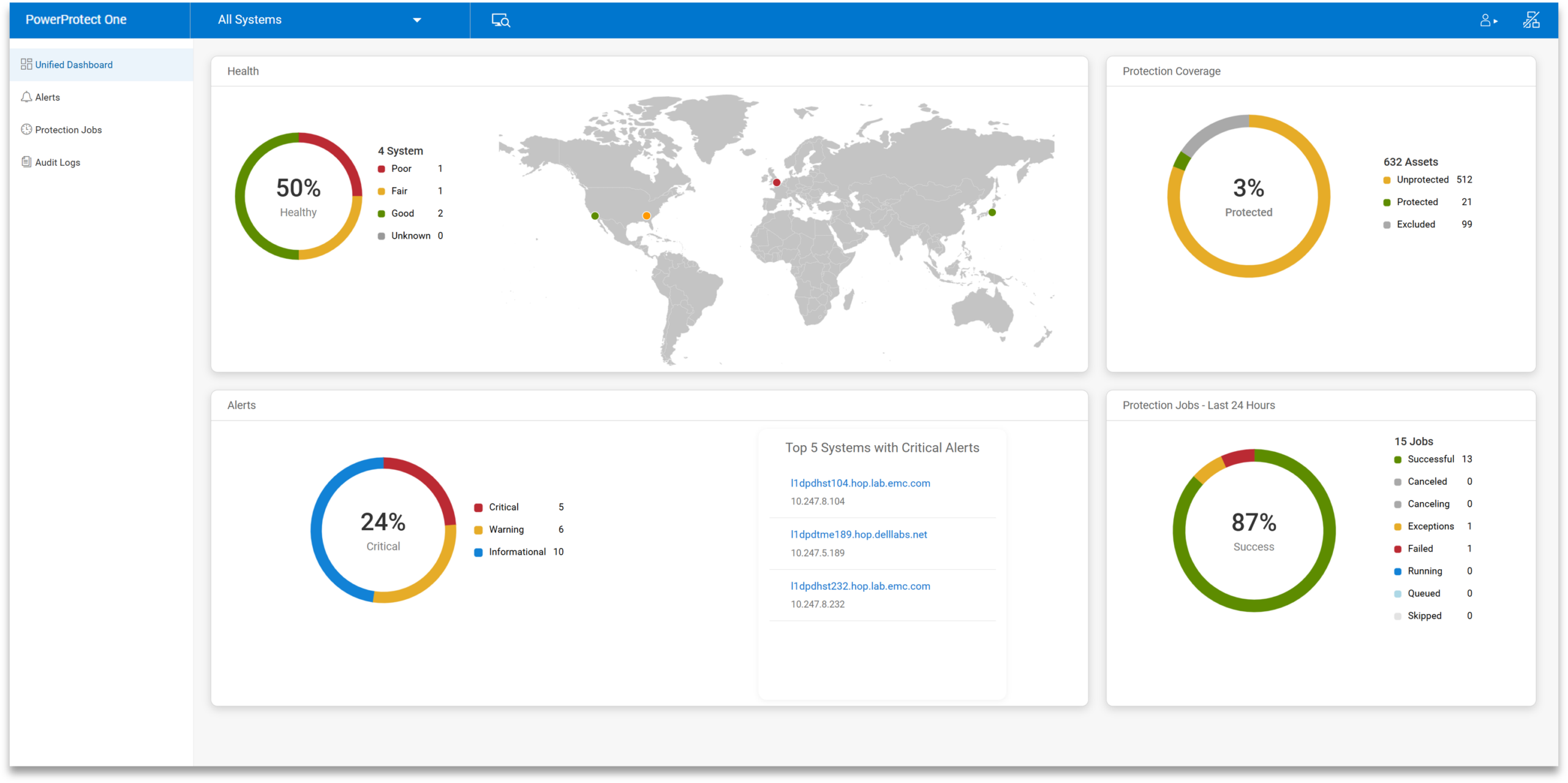
PowerProtect One Unified Dashboard screencap

Capacity is also easy to track, with active tier usage and available space presented up front. The dashboard also shows total protected assets, recent anomalies, and data reduction efficiency, which provide rich context on how the systems in an environment behave day to day.

Navigation uses a nested tree layout on the left side. In use, this keeps things predictable. When drilling into a specific system or alert, it takes only a few clicks to switch between views without losing your place.

Storage Unit Creation

Storage in PowerProtect One is built around storage units, which serve as the primary containers for backup data under different policies. Storage units are created directly from the Infrastructure tab and incur little overhead.

Each storage unit can be configured with soft and hard quotas, as well as stream limits, to control throughput. Retention lock is available and straightforward to apply, allowing backups to remain immutable for a defined period. In our testing, this was easy to enable and didn’t add complexity to the workflow.
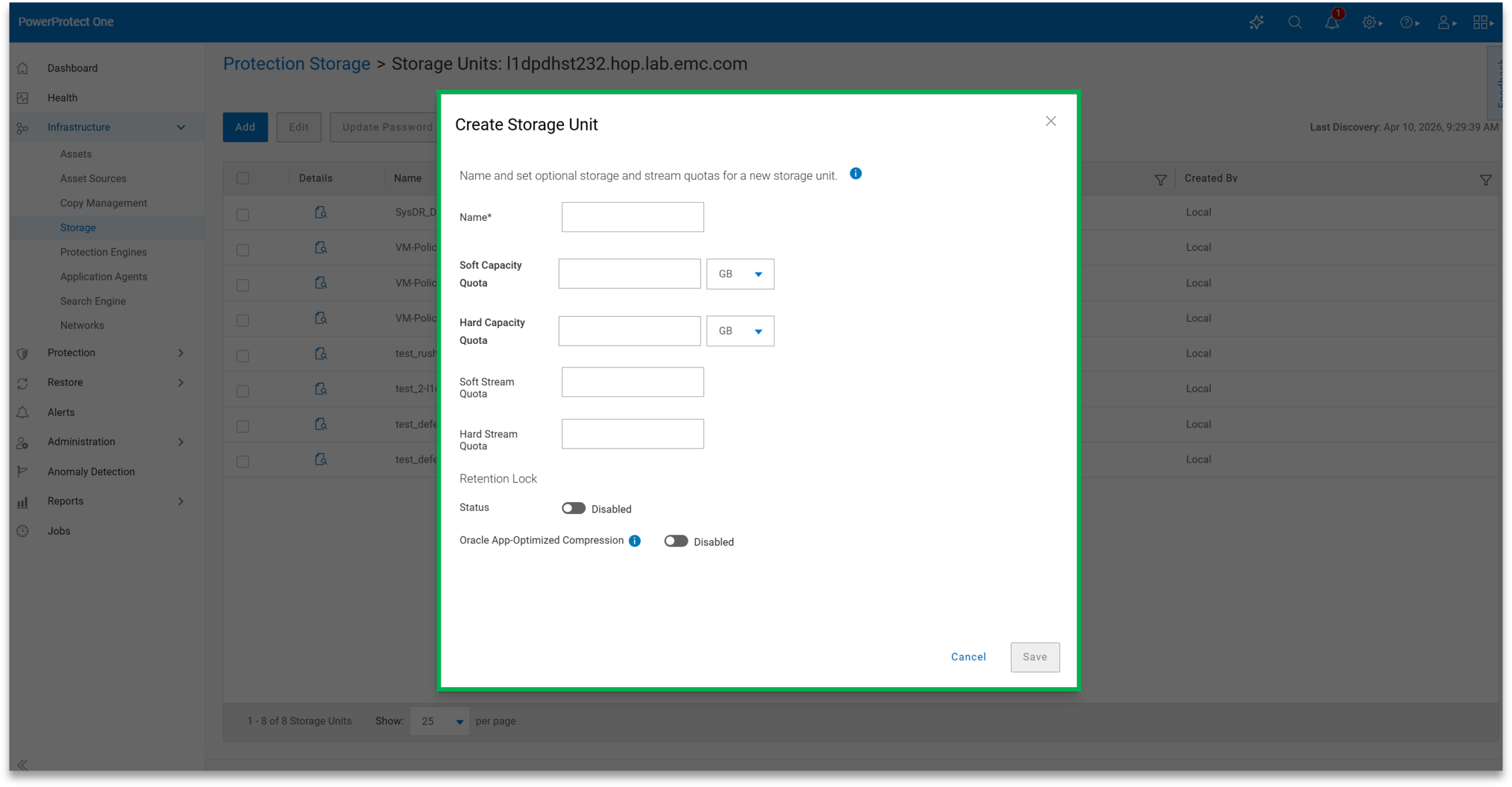
powerProtect One storage Creation screencap

There are also workload-specific optimizations, such as tuning for Oracle environments. Storage units can be used for internal backup jobs or exposed externally via integrations such as DD Boost. PowerProtect One supports active and cloud storage tiers, allowing data to be stored locally or extended to cloud storage as needed.

Policy Creation

Policy creation is handled under the Protection tab and follows a simple workflow. Once assets are added to the system, they can be assigned to a policy and given a defined backup objective.

By default, creating a policy also creates a new storage unit, though existing units can be selected if needed. Retention lock can be applied at this stage, ensuring that backups remain unchanged until the retention period expires.

Backup frequency and type are configurable, including synthetic full schedules and defined execution windows. Retention periods can be adjusted depending on requirements. Additional options such as replication, vaulting, cloud tiering, and archiving are available within the same policy configuration.

Once a policy is created, its progress can be monitored through the job view. In practice, this makes it easy to confirm that policies are running as expected without needing to jump between multiple sections of the interface.

Smart Scheduling

Scheduling is flexible without adding unnecessary complexity. Administrators can define when backups run, how often synthetic fulls occur, and how long data is retained, all through a straightforward, easy-to-adjust workflow.
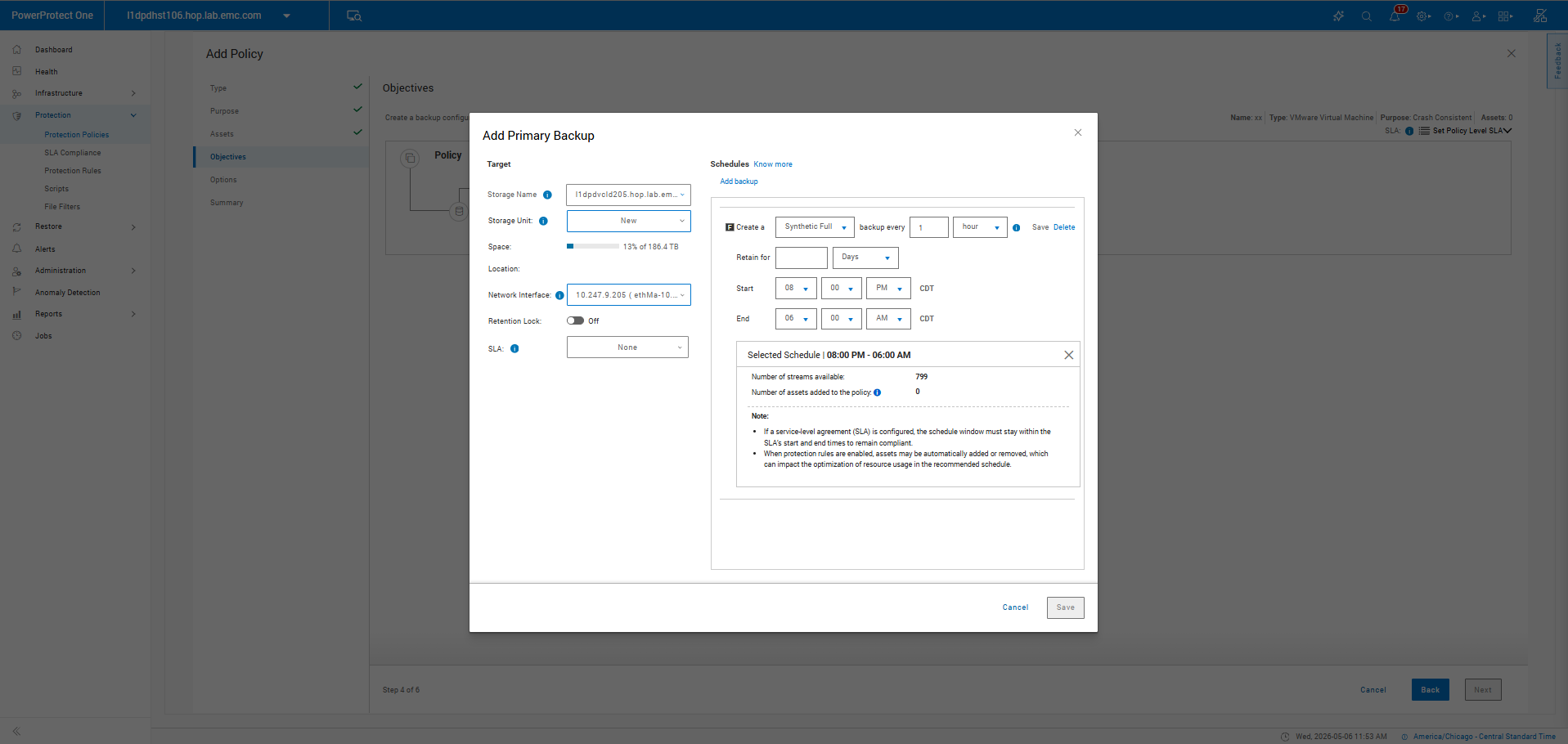
PowerProtect One smart scheduling screencap

Execution windows help avoid conflicts with production workloads, while optimization settings allow teams to favor performance or capacity depending on the use case. This flexibility also helps meet SLA requirements, in which backup jobs must be completed within specific timeframes. By tuning schedules and resource usage, administrators can better align backup operations with defined recovery objectives and business expectations.

Overall, the controls strike a balance between flexibility and simplicity, making it easy to adapt schedules without introducing unnecessary overhead.

Anomaly Detection

Anomaly Detection is built into the platform, adding an extra layer of visibility beyond standard job monitoring. When enabled, the system analyzes backup data for unusual patterns that could indicate corruption, misconfiguration, or potential ransomware activity.

Results are presented in a dedicated view where administrators can review flagged events, generate reports, and take action. This includes marking events as safe or isolating suspicious data. The system also allows for custom anomaly rules, helping reduce false positives and align more closely with the specific behavior of each environment.
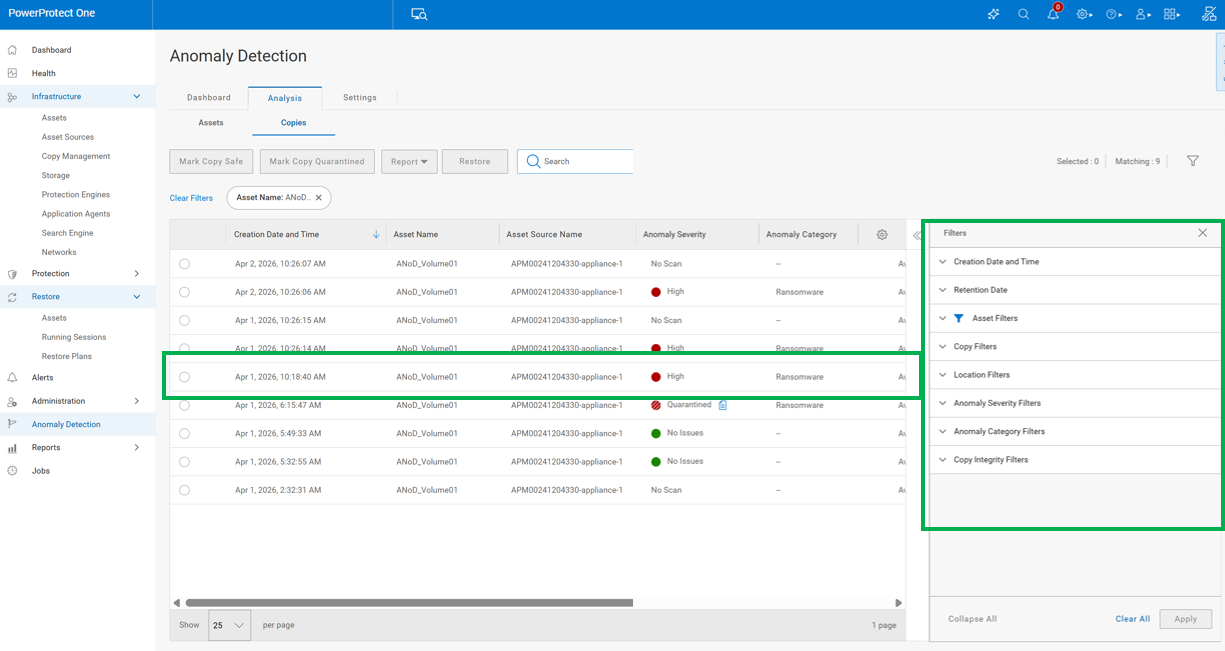
Dell PowerProtect One Anomaly Detection screencap

For organizations, this moves backup from a passive safety net to a more active part of the security and operations strategy. Instead of only confirming that jobs completed successfully, teams gain insight into whether the data itself looks consistent and trustworthy. This can help catch issues earlier, reduce recovery risk, and provide additional confidence that backups will be usable when needed.

It’s particularly valuable in larger environments where manually validating backup integrity across systems isn’t practical. By surfacing potential issues proactively, Anomaly Detection helps reduce time to identify problems and supports faster, more informed decision-making when something looks off.

AI Assistant

PowerProtect One includes an AI Assistant that allows administrators to query the system using natural language. It connects to a customer-provided LLM and pulls real-time operational data.

Rather than replacing the interface, it acts as a shortcut into it. Queries like “show me failed backups” or “what systems are unprotected” return relevant results without requiring navigation through multiple menus. Beyond surfacing information, the assistant can guide users directly to the appropriate areas of the interface to take action, whether that’s reviewing a failed job, adjusting a policy, or creating a new configuration.
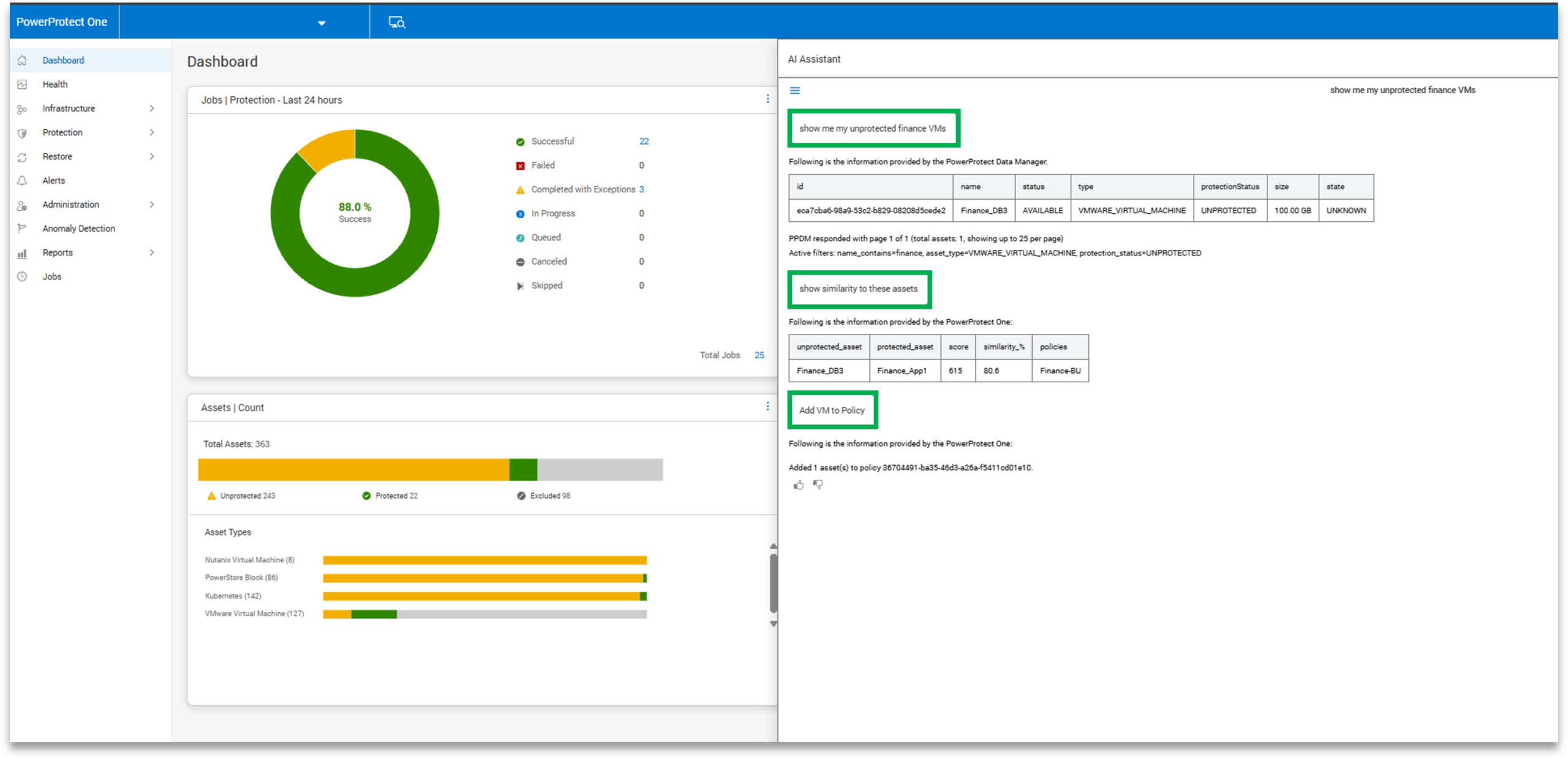
PowerProtect One AI Assistant screencap

This becomes especially valuable in environments with multiple systems or large-scale deployments. Instead of manually drilling into each system to gather status or job data, administrators can query across the environment in a single step. It also lowers the barrier for generalists or teams without deep storage expertise, allowing them to interact with the platform more intuitively and reduce time spent searching for information.

Setup is simple, requiring a base URL, API key, and model selection. Once configured, it provides an additional layer of accessibility to the platform, helping streamline routine checks, troubleshooting, and day-to-day operations.

Day 3: Management

Capacity Monitoring

Capacity monitoring is always visible from the dashboard. It shows how much space is in use, how much remains, and how effective data reduction is over time.
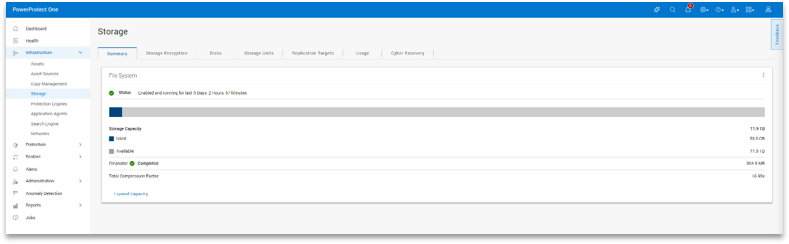
PowerProtect One Storage Usage screenshot

In practice, this makes planning easier. You don’t need to dig through multiple views to understand where you stand; trends are easy to spot in the main interface.

Licensing

Out of the box, the appliance includes a temporary license that supports up to 24TB for 90 days. This provides ample room to deploy and validate the system before applying the purchased permanent license to the unit.
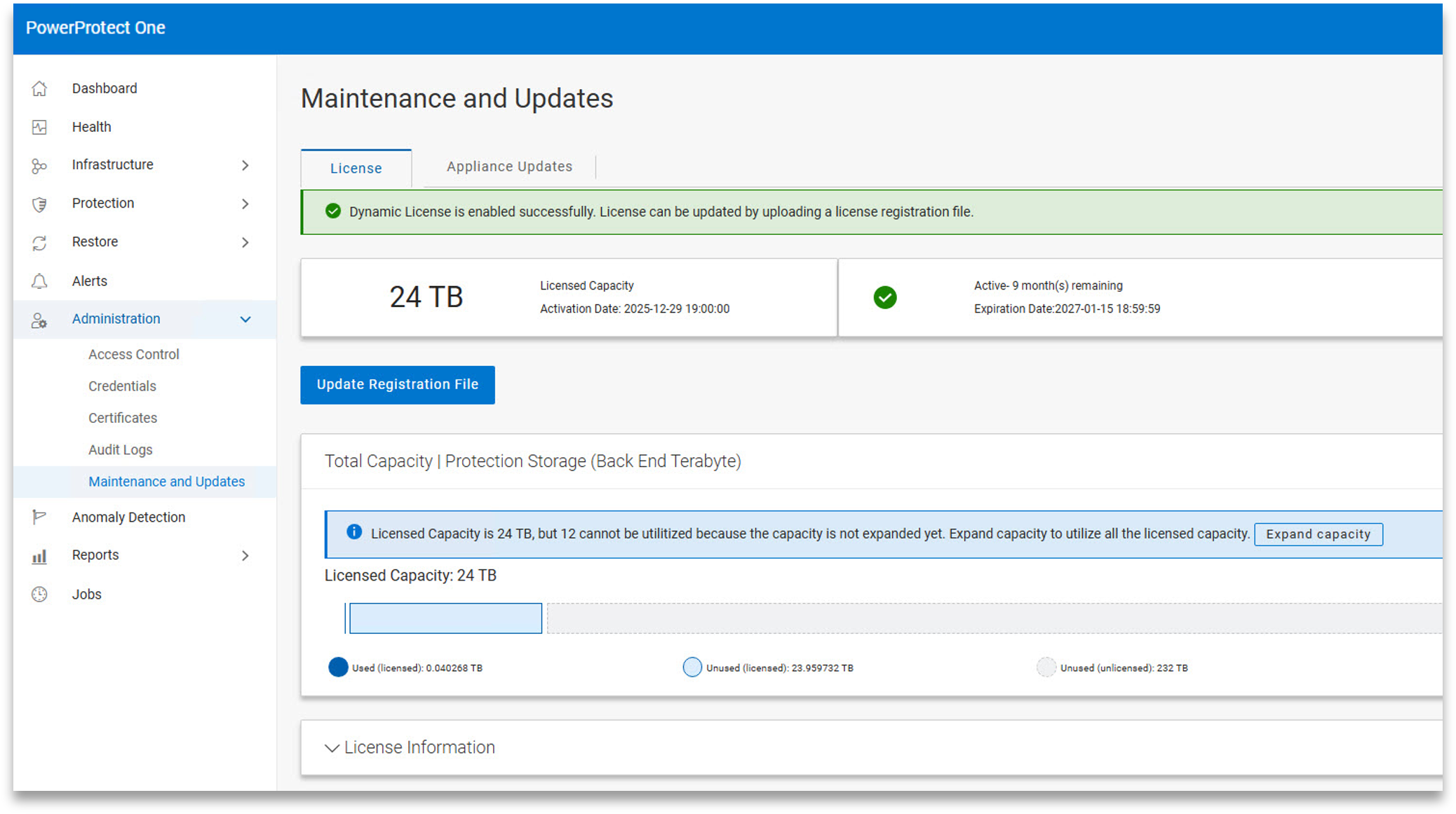
PowerProtect One licensing screencap

Licensing can be applied online or offline, depending on the organization’s requirements. Once installed, the system can be manually expanded to the new licensed capacity with a single click, without requiring extensive additional configuration. In testing, this process was straightforward and didn’t interrupt normal operations.

PowerProtect One Updates

Updates are handled through a simple workflow. The system can check for updates online directly from Dell or accept manually uploaded packages, and applying an update is a one-click process.
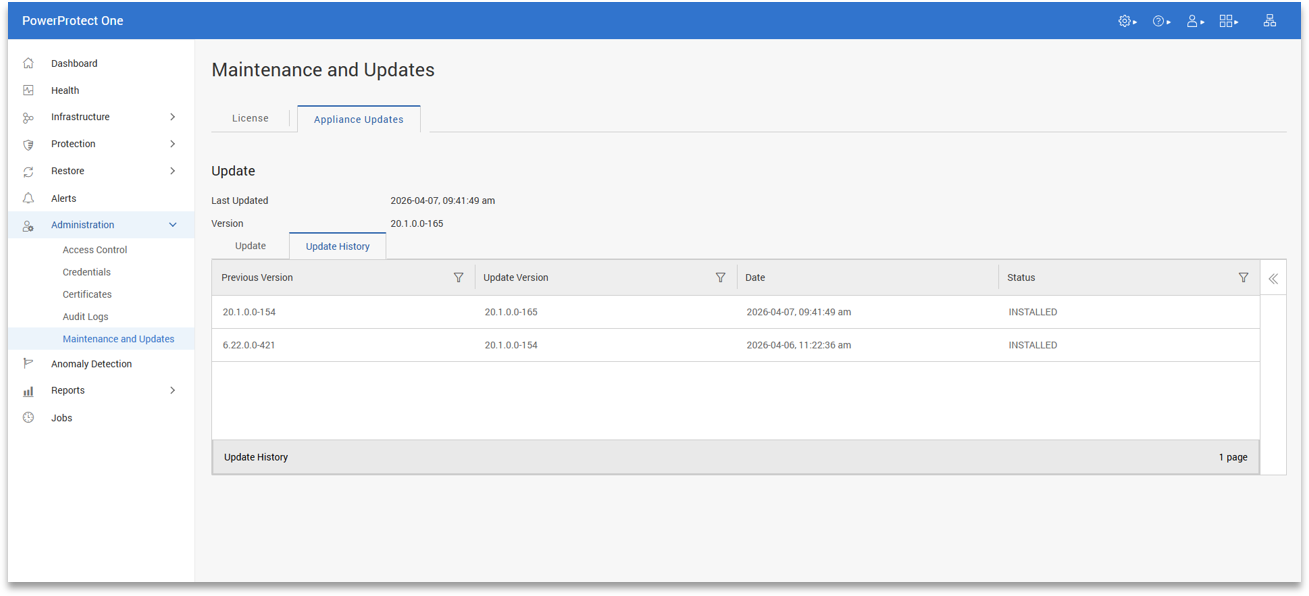
PowerProtect One Maintenance and Updates screencap

This keeps ongoing maintenance straightforward. In practice, it reduces the time and effort required to keep the system current, which is important in environments where updates often get delayed or forgotten due to complexity.

Key Takeaways

PowerProtect One represents a shift in how Dell delivers cyber resilience. The protection storage architecture, deduplication engine, broad workload catalog, and DD Boost ecosystem are all carried forward from the Data Manager and Data Domain foundation that Dell customers have been deploying for years. PowerProtect One consolidates these capabilities into a single, unified platform, tailored to address the operational challenges faced by cyber resilience teams today.
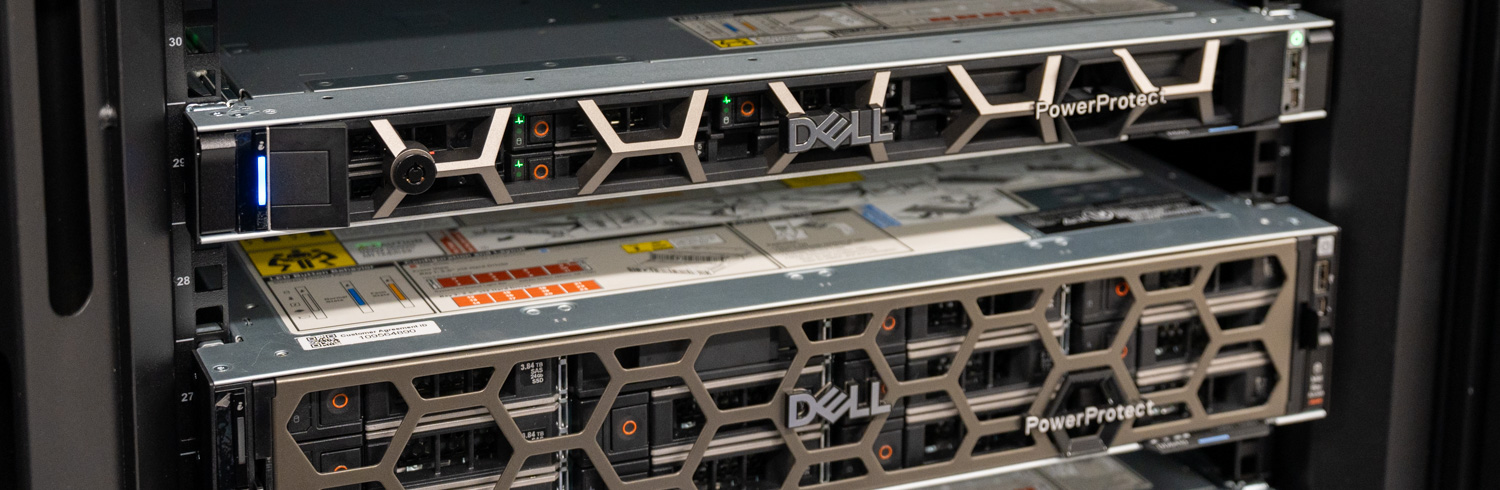
dell powerprotect one with data domain

The approach matters as the long-standing balance between open ecosystems and integrated management has shaped organizational strategies for cyber resilience. PowerProtect One sets aside that tradeoff. Customers can keep the third-party backup tools their teams already know, expose PowerProtect One as a target for those tools via DD Boost, and gain unified management, AI-assisted operations, and platform-level cyber-resilience capabilities without changing the rest of the environment. The open ecosystem story is embedded in the product’s architecture.

PowerProtect One does not require organizations to rebuild their cyber resilience strategy. The backup applications, DD Boost integrations, protection storage architecture, and operational workflows that most Dell customers already rely on remain intact. What changes is the management model around them. Dell has consolidated backup software, protection storage, cyber-resilience tooling, and operational oversight into a single platform that is easier to deploy, manage, and scale.

That shift matters because backup infrastructure is now judged less by whether backups complete successfully and more by how quickly organizations can identify problems, validate recovery points, and restore clean data after an attack. PowerProtect One is designed around those operational realities. The platform keeps the flexibility of an open ecosystem while simplifying the day-to-day experience of managing protection infrastructure across increasingly large and complex environments.

Product Page – Dell PowerProtect One


This report is sponsored by Dell Technologies. All views and opinions expressed in this report are based on our unbiased view of the product(s) under consideration.

The post Dell PowerProtect One: Open, Integrated, and Intelligent Cyber Resilience appeared first on StorageReview.com.
NVIDIA DGX Spark Cluster Review: Distributed Inference on Dell, GIGABYTE, and HP

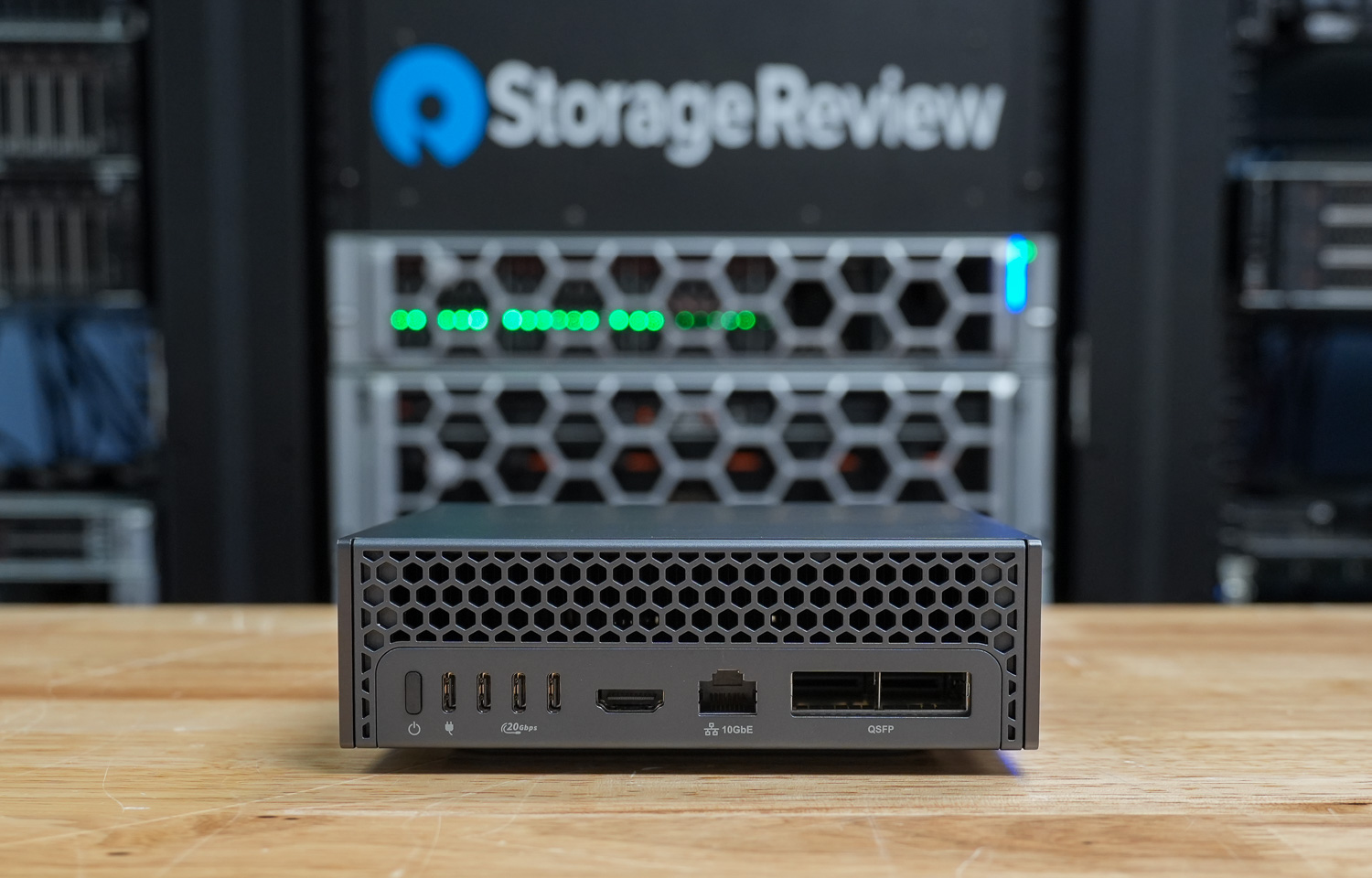
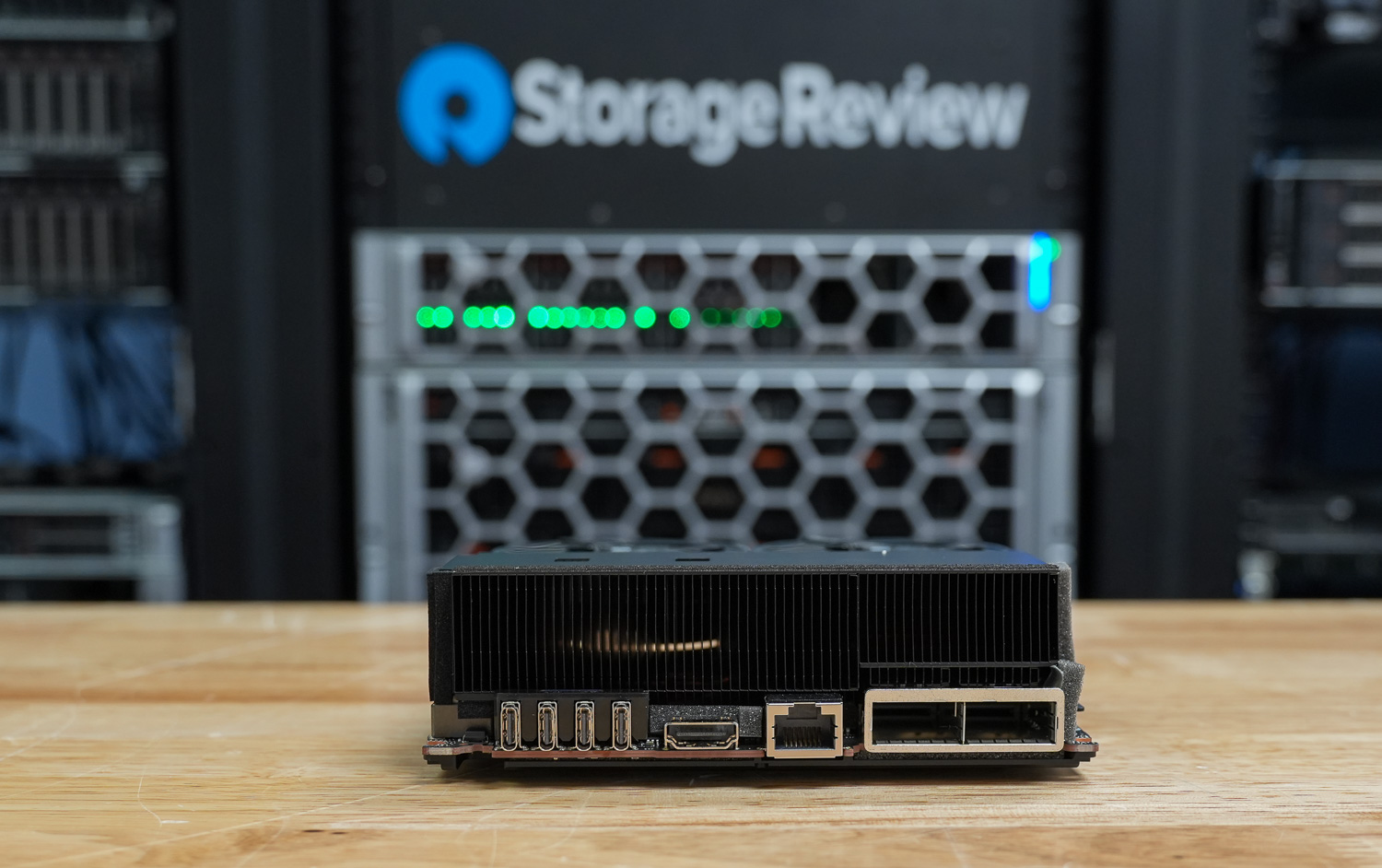
Two things tend to come up first whenever the conversation turns to the NVIDIA DGX Spark. The first is the headline spec: 128 GB of unified memory in a roughly $4,000 desktop box, a number that would have seemed implausible to put on an engineer’s desk even two years ago. The second is the 200 GB network on the back of the unit. The presence of a real datacenter-class fabric on a desktop appliance is what makes people lean forward, because it implies something more than a faster single-box workstation. It implies the ability to connect Sparks and replicate physically, the kind of multi-node setup that used to live exclusively in a rack.

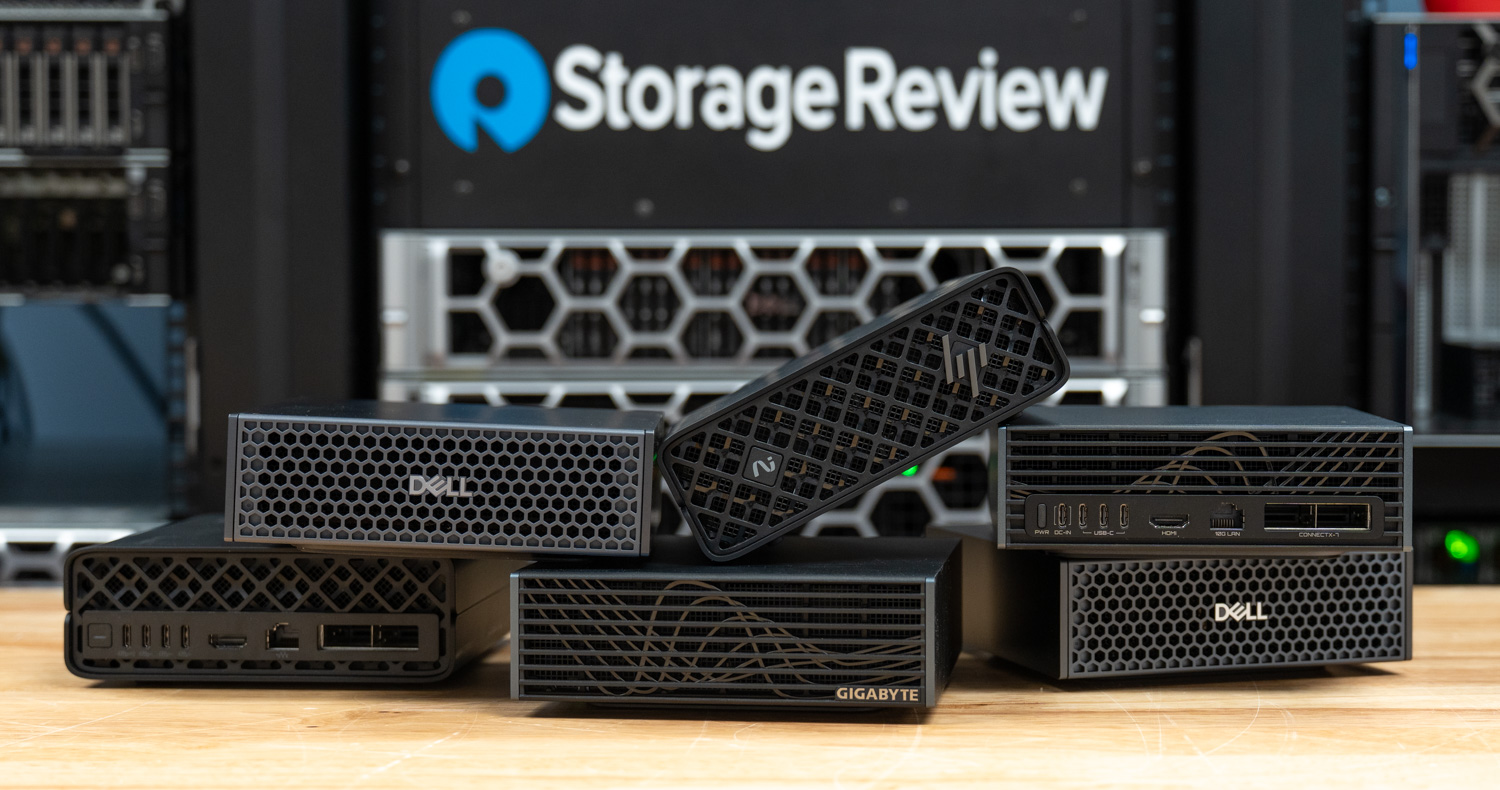
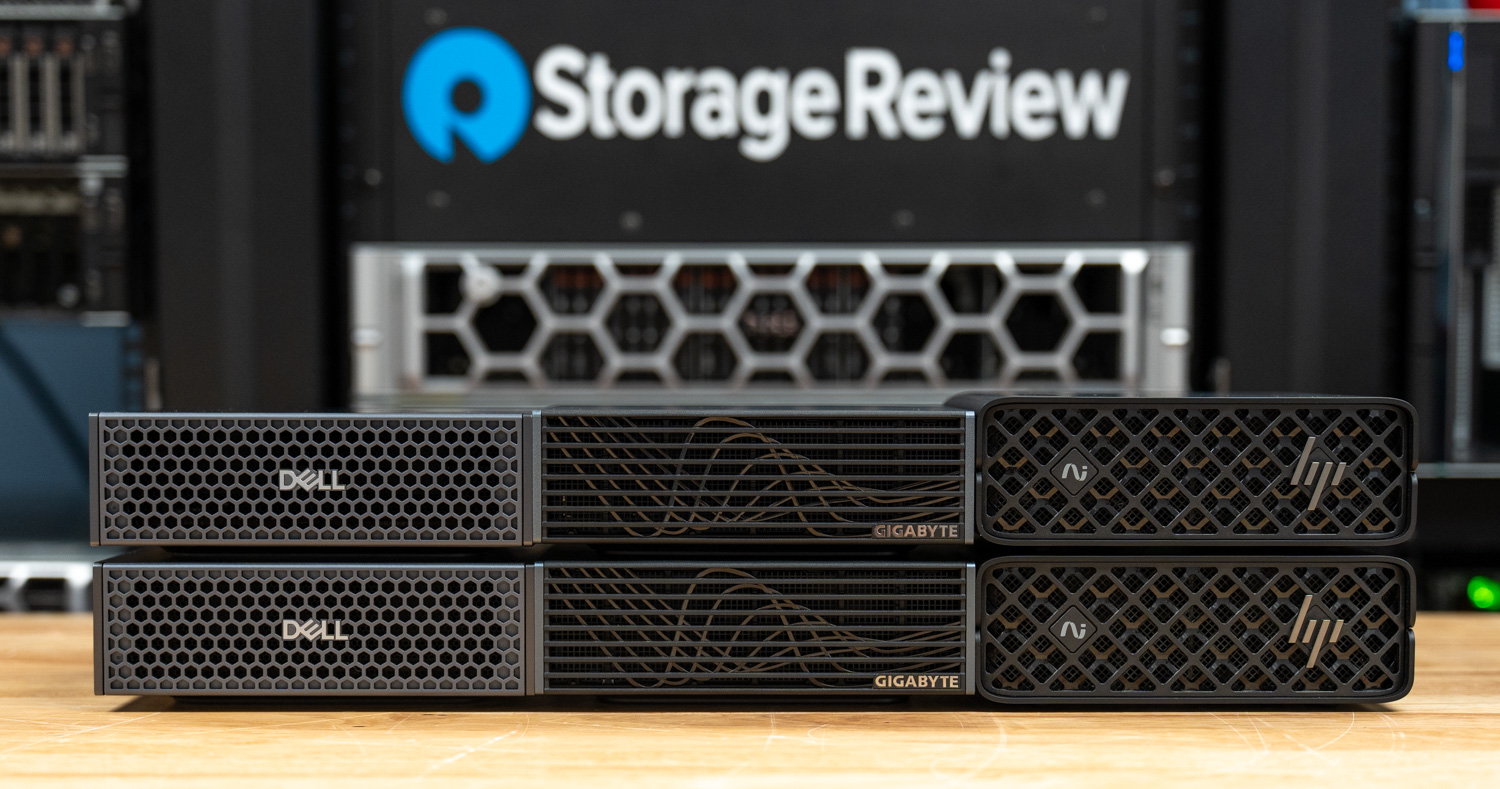
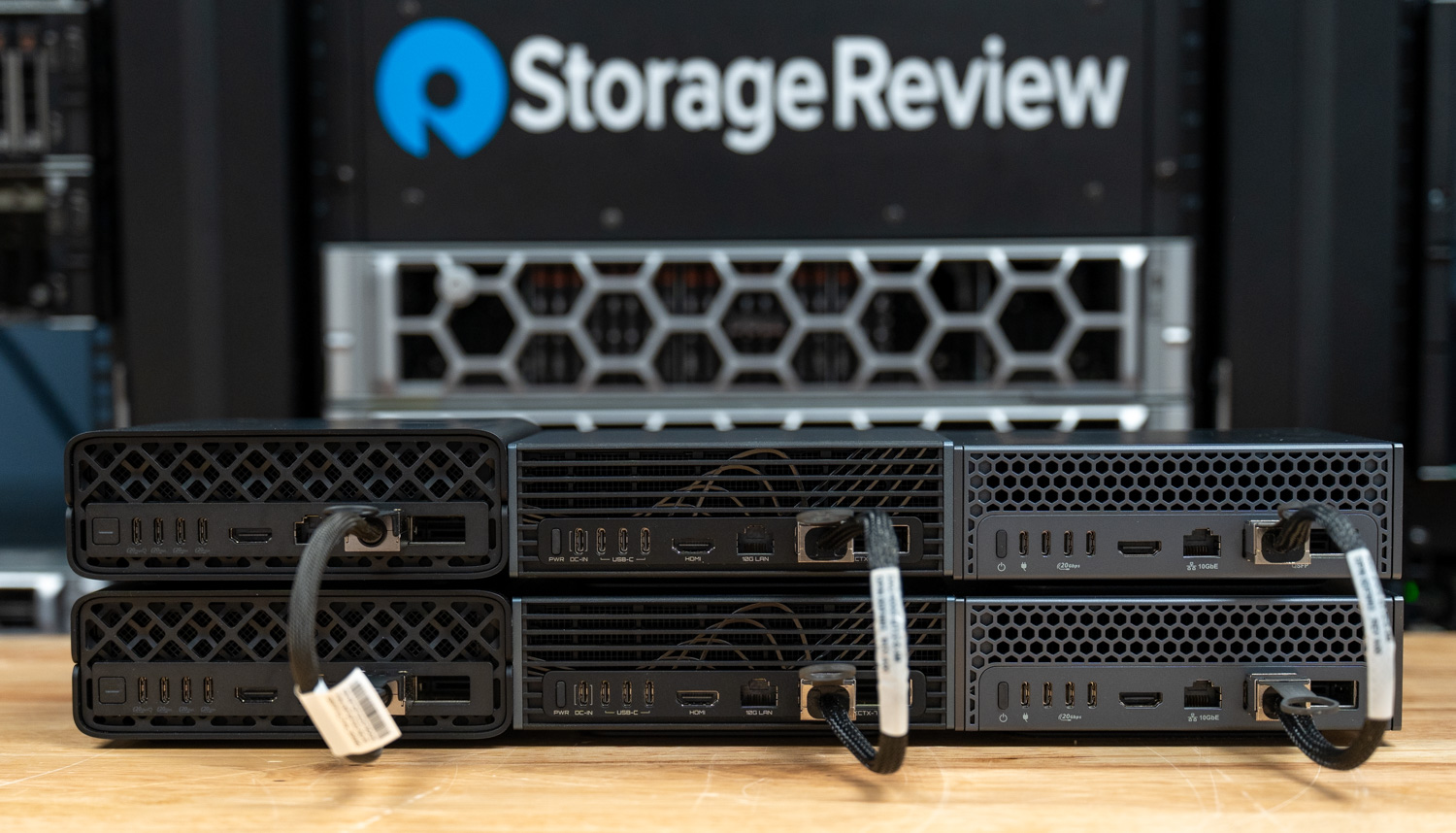
DGX Spark cluster Front of Dual Spark Units.

This review examines that capability. We benchmark distributed inference across all three OEM Spark implementations we have on hand, paired into two-node clusters connected over the 200 Gb fabric, and swept across model variants and three workload shapes. We also make a deliberate methodological choice about how the model is split between the two boxes that diverges from NVIDIA’s default recommendation, and we defend it with data. Before any of that, though, two pieces of context shape everything that follows: the network that makes clustering possible in the first place, and the reasons a person might or might not want to use it.

The 200 GB Fabric

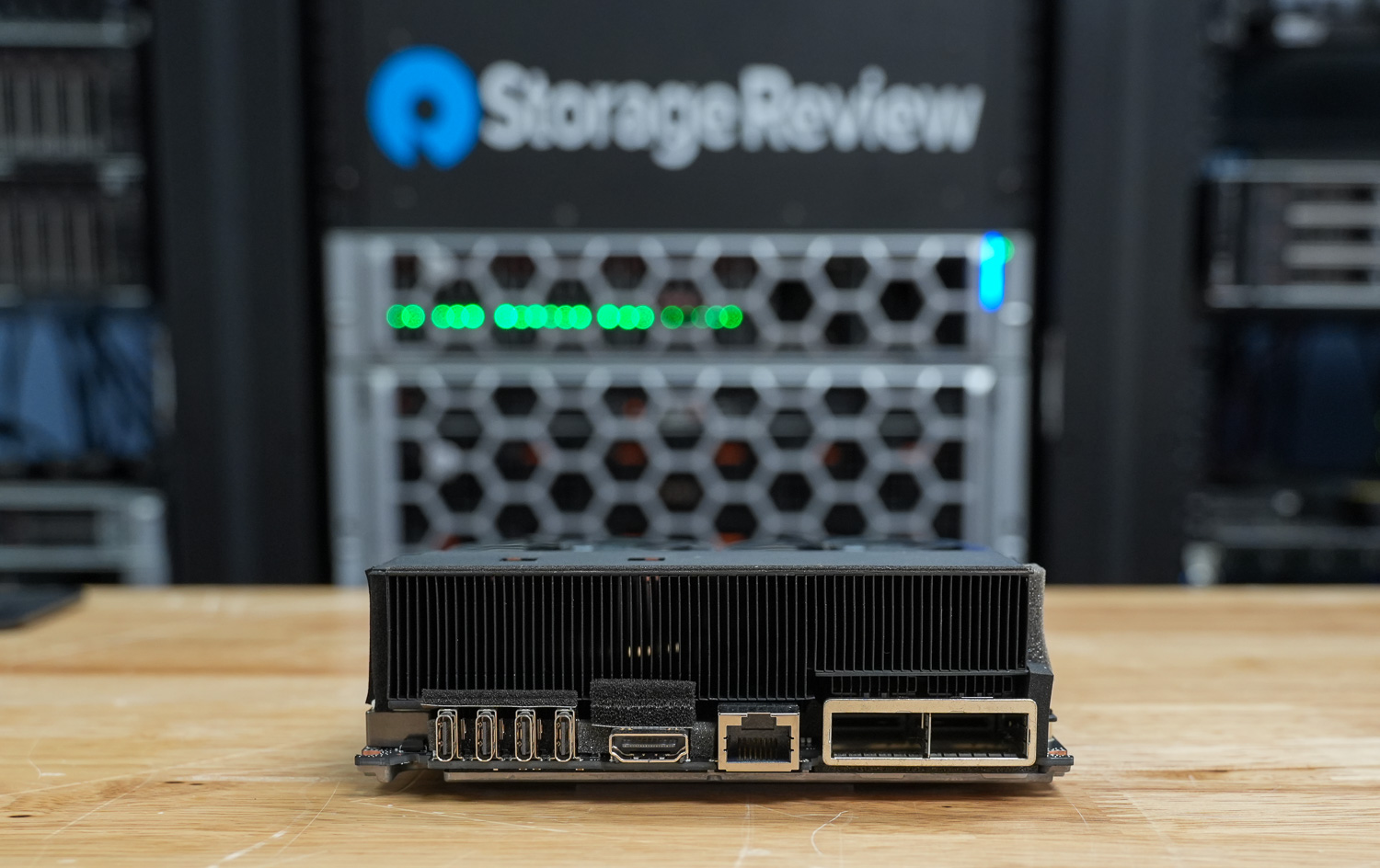
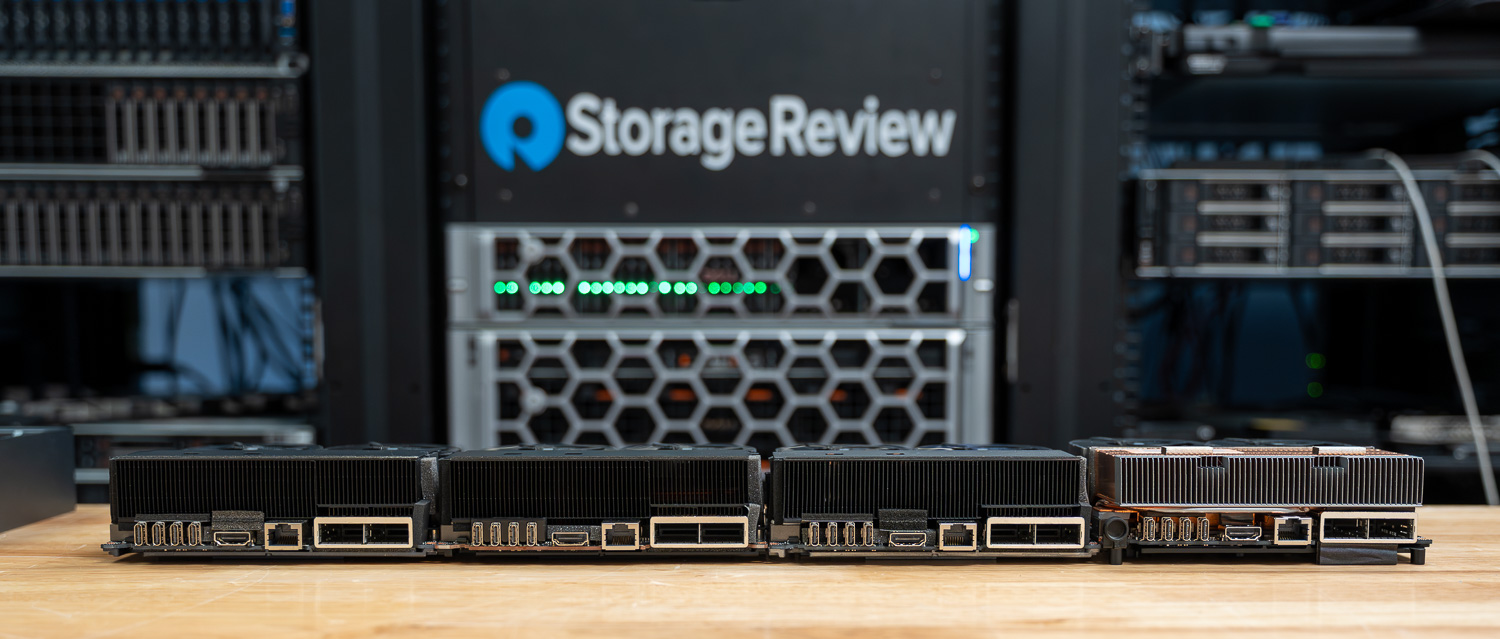
We covered the networking implementation in detail in our original DGX Spark review, but the basics are worth restating because everything in this review depends on them. The back of every Spark carries two QSFP56 cages driven by an integrated NVIDIA ConnectX-7 SmartNIC. On paper, the two cages suggest 400 GB of aggregate connectivity, but PCIe is the real ceiling: the ConnectX-7 lives behind a pair of Gen5 x4 links, and the platform tops out at 200 GB of usable bandwidth, no matter how the cages are wired. A single populated QSFP56 cage already gives you the full 200 Gb the box supports, so the second port is there for topology flexibility rather than additional throughput.


That flexibility shows up in three common configurations. The simplest is a single 200 GB port used as a direct Spark-to-Spark link, which is what NVIDIA’s validated two-node setup specifies and what we used for this review. The second is two 100 Gb ports setting up a ring-like topology between Sparks to cluster without a switch. The third is a split-role configuration where one cage goes to a peer Spark for clustering and the other goes to high-speed storage over NVMe-oF, which is useful when the working dataset will not fit on the Spark’s internal NVMe.

NVIDIA sells the Spark in three configurations that map directly to how that network gets used. A single Spark for individual desktop work, a validated two-Spark cluster directly connected over the 200 Gb fabric for stretched models, and, as of GTC this year, a four-unit configuration that NVIDIA demonstrated publicly in response to user demand to push past the two-node limit. The dual-Spark configuration is the one NVIDIA actively markets, the one most readers will actually deploy, and the one we believe represents the sensible upper bound for production-style inference on this hardware. It is also the one this review benchmarks end-to-end.

Why Cluster Sparks in the First Place

The obvious reason to cluster Sparks is the same as for any cluster: a single 128 GB box cannot hold every model that matters. Stretching a 120B-parameter model across two boxes opens up a class of workloads that would otherwise not fit. That is the headline use case, and it is the one that gets demoed the most.

DGX Spark cluster netowrking

The less obvious reason, and arguably the more important one for NVIDIA’s actual customer base on this platform, is learning. NVIDIA positions the Spark as an entry point. Their official documentation, sample notebooks, and partner playbooks treat the box as a teaching appliance. They include first-class guides for everything from spinning up a pre-built model behind a local chat interface to running a coding assistant against a hosted endpoint to fine-tuning small models to building end-to-end applications in PyTorch and JAX. The pitch is that someone who has never written a CUDA kernel in their life can get from zero to a working AI workflow at their desk in a weekend, and the same applies to engineers in a non-ML field who want a self-contained sandbox they fully control. A two-Spark cluster extends that teaching surface into multi-node territory: the same person can now also learn how tensor parallelism, pipeline parallelism, and collective communication libraries actually behave, with a network that is real enough to expose real bottlenecks.

What is conspicuously absent from any of NVIDIA’s own positioning, though, is a claim that the Spark is for production inference serving. Jensen has talked about hardware-software co-design in nearly every keynote for the last several years, and the principle applies here. Every NVIDIA platform is optimized for a specific workload shape, and Spark is optimized for individual exploration and learning, not for serving traffic. Our previous Spark reviews have already shown that the platform is heavily memory-bandwidth-bound on most inference tasks, and the network only sharpens that constraint as soon as you cluster. A single 200 Gb link, while impressive for a desktop, is meaningfully slower than a PCIe Gen5 x16 connection within a single chassis, and collective communication patterns that work cleanly across an NVLink-bridged pair of datacenter GPUs do not transplant to a 200 Gb fabric without incurring real latency penalties.

That is the real reason NVIDIA limited the officially supported configuration to two Sparks for so long, and why the four-unit demonstration at GTC was a response to user demand rather than an organic product expansion. Nothing prevents the software stack from running on four or eight nodes, and several users and outlets have published results from larger clusters. The performance numbers from those experiments are generally not flattering: the inter-node fabric becomes the dominant cost, and the collective performance degrades sharply, and to add to that, the per-user throughput at the tail end of those configurations can drop into the single-digit tokens per second range for any model large enough to justify the cluster in the first place. At that point, the setup is functionally a learning lab rather than a serving platform.

None of that is meant as a dismissal. Clustering Sparks is a genuinely excellent way to develop an intuition for distributed inference and training that is otherwise locked behind hundreds of thousands of dollars of datacenter hardware, and the educational value of being able to actually see pipeline bubbles, all-reduce bottlenecks, and parallelism trade-offs on a system you own is significant. Our own follow-up plan was to take this further by training a small 1B-parameter or sub-1 B model from scratch across a dual-Spark cluster, with a setup chosen to mirror as closely as possible the conditions under which a real distributed pre-training run operates, so we could show exactly where this class of cluster does and does not make sense. That project is currently on the back burner while we work through other coverage you may have already seen and wait for the optics for our new 800 Gb lab core switch to arrive. We expect to revisit it once the lab build settles.

What follows focuses on the use case for which the dual-Spark configuration is most defensible: distributed inference of models large enough to require both boxes, benchmarked across all three OEM implementations we have on hand. Before getting to the per-model numbers, the next section explains why we are reporting those numbers under a pipeline-parallel configuration rather than the tensor-parallel configuration that NVIDIA’s own documentation tends to default to.

Performance Testing

Why We Report Pipeline Parallel, Not Tensor Parallel

NVIDIA’s published DGX Spark guides and most of their reference material rely on tensor parallelism (TP) to describe how to scale a model across two Spark boxes. TP splits every matrix multiplication across both GPUs, so each layer runs on both devices simultaneously, and the partial results are combined through an all-reduce after every attention and MLP block. Pipeline parallelism (PP) takes a different route: it cuts the model in half by layer, places the first half on one box and the second half on the other, and then streams activations between them. Each request still flows through the full model, but at any given instant, only one box is doing the math for a given token while the other is working on the next microbatch.

The trade-off comes down to what travels over the wire. A dual-Spark stack connects the two systems via a ConnectX-7 200 GbE link, which is fast for a network link but slow compared to the memory bandwidth within a single Spark. TP’s all-reduce fires twice per transformer layer, so an 80-layer model running TP=2 generates 160 cross-box exchanges for every single token of output, with every one of those exchanges blocking the next computation. PP=2 only hands off activations once per token, at the seam between the model’s two halves. On a 200 GbE link with non-trivial latency, that difference dominates everything else.

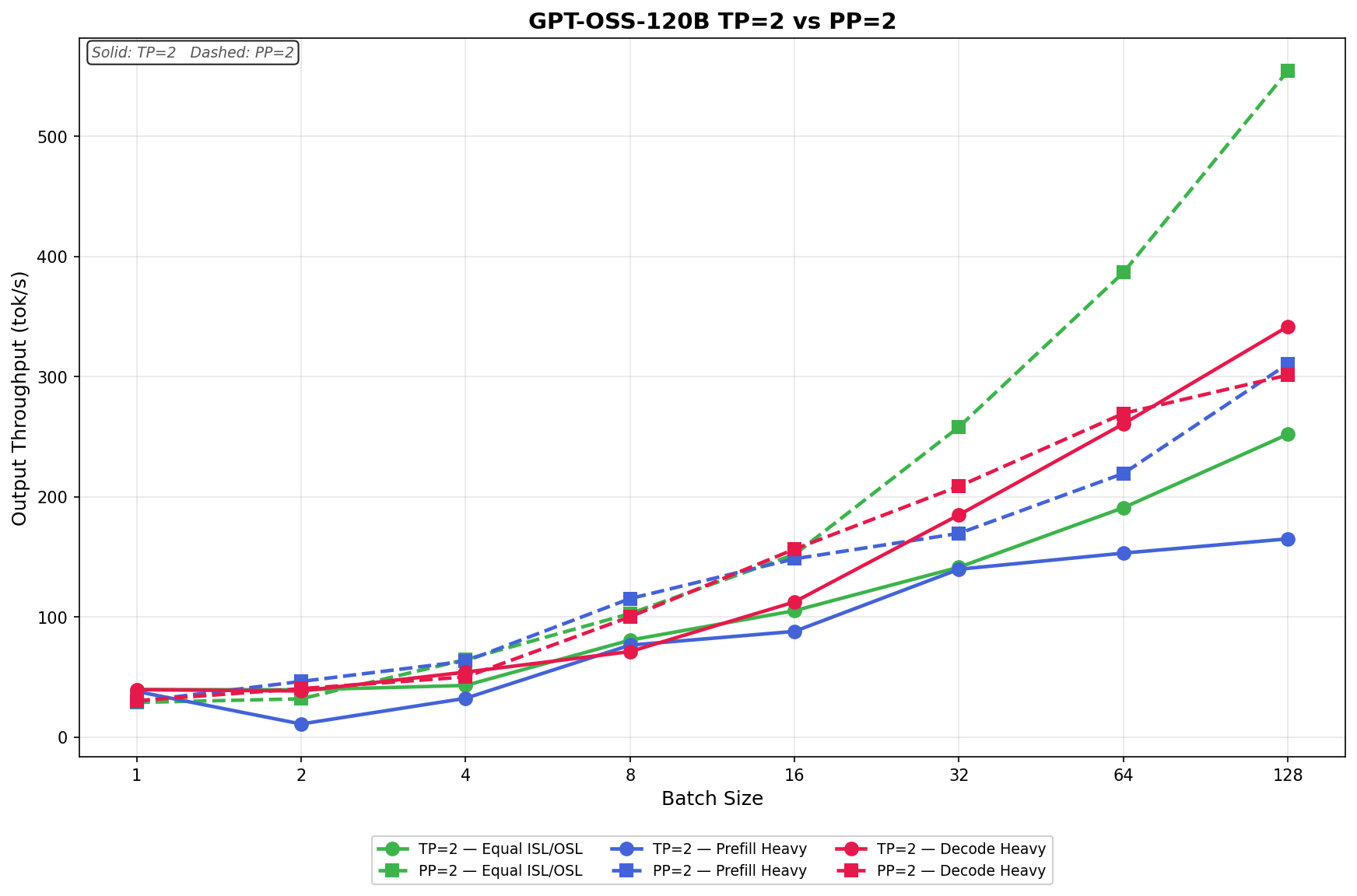
Our GPT-OSS-120B measurements clearly bear this out. Outside of batch size 1, where the workload is too thin to hide either strategy’s overhead, PP=2 takes the lead and maintains it as concurrency grows. In the Equal ISL/OSL workload, TP=2 reaches 252.01 tok/s at a batch size of 128, while PP=2 climbs to 554.69 tok/s on the same hardware, a 2.20x advantage. Prefill Heavy shows the same shape, with PP=2 finishing at 310.63 tok/s versus TP=2 at 164.99 tok/s. The Decode Heavy scenario is the closest of the three, but PP=2 still leads from batch size 8 through batch size 64, only handing back a modest lead at batch size 128, where the long 8K output amplifies pipeline bubble cost.

TP=2 does have a narrow window where it wins. At batch size 1 in every scenario, TP delivers a small but real edge: 39.55 tok/s vs 28.79 tok/s in Equal, 37.97 vs 29.60 in Prefill Heavy, and 39.42 vs 30.28 in Decode Heavy. With one request in flight, there is no second microbatch to keep the idle pipeline stage busy, so PP pays for an empty slot every step while TP gets to use both GPUs on the only token that exists. This is the regime NVIDIA’s TP guidance is built for: interactive single-stream serving where latency on the first and only request matters more than aggregate throughput. If a deployment is genuinely chat-style, with one user per box and tight TTFT targets, TP=2 is the right call, and this also aligns with how NVIDIA views the Spark.

For workloads that serve infrastructure at scale, with batched inference and many concurrent requests, Pipeline parallelism is the better fit when scaling across boxes, especially when strategies like Expert Parallelism are not in play. The 200 GbE fabric cannot sustain TP’s per-token all-reduce traffic without leaving compute idle, and once the batch size is 4 or 8, PP’s bubble cost vanishes into the steady-state stream. That is why every per-model number in the rest of this article is reported with TP=1 and PP=2. It is the configuration that actually represents what a dual-Spark deployment can deliver when asked to do real work.

We deliberately chose GPT-OSS-120B as the headline TP vs PP chart because it shows the widest gap. However, we also want to show that this does not hold for all models, and that these parameters depend on the model’s parameters. Llama-3.1-8B-Instruct at BF16 tells a much more conservative story. The model is small enough that each layer’s computation is fast and TP’s all-reduce traffic is correspondingly modest. In contrast, PP’s per-step coordination cost is fixed regardless of model size. The result is that TP=2 holds the lead across nearly the entire batch sweep. In Equal ISL/OSL, TP=2 leads from batch size 1 (23.2 vs 13.4 tok/s) through batch size 32 (388.7 vs 349.3 tok/s), and only loses the top at batch size 64 (524.8 vs 638.2 tok/s) and batch size 128 (679.2 vs 1,047.1 tok/s). Prefill Heavy follows the same pattern, with TP=2 ahead through batch size 32 before PP=2 takes over at 64 and 128. Decode Heavy is the most decisive: TP=2 wins at every single batch size, finishing at 366.7 tok/s versus 330.5 tok/s for PP=2 at batch size 128.

This counterexample reinforces, rather than contradicts, the underlying mechanics. PP=2 only wins once batch sizes are high enough to fill the pipeline and fully amortize the bubble cost, and when the model itself is small enough that TP’s per-layer all-reduce is cheap; that crossover point gets pushed further out. The Decode Heavy result is also consistent: longer output sequences mean more decode steps, more pipeline bubbles paid back back-to-back, and a smaller window for PP to make up the difference. In other words, the same physics that hands PP a 2.20x win on GPT-OSS-120B at batch size 128 also explains why it only wins the top two batch sizes on an 8B model and never wins the decode-heavy sweep.

GPT-OSS-120B

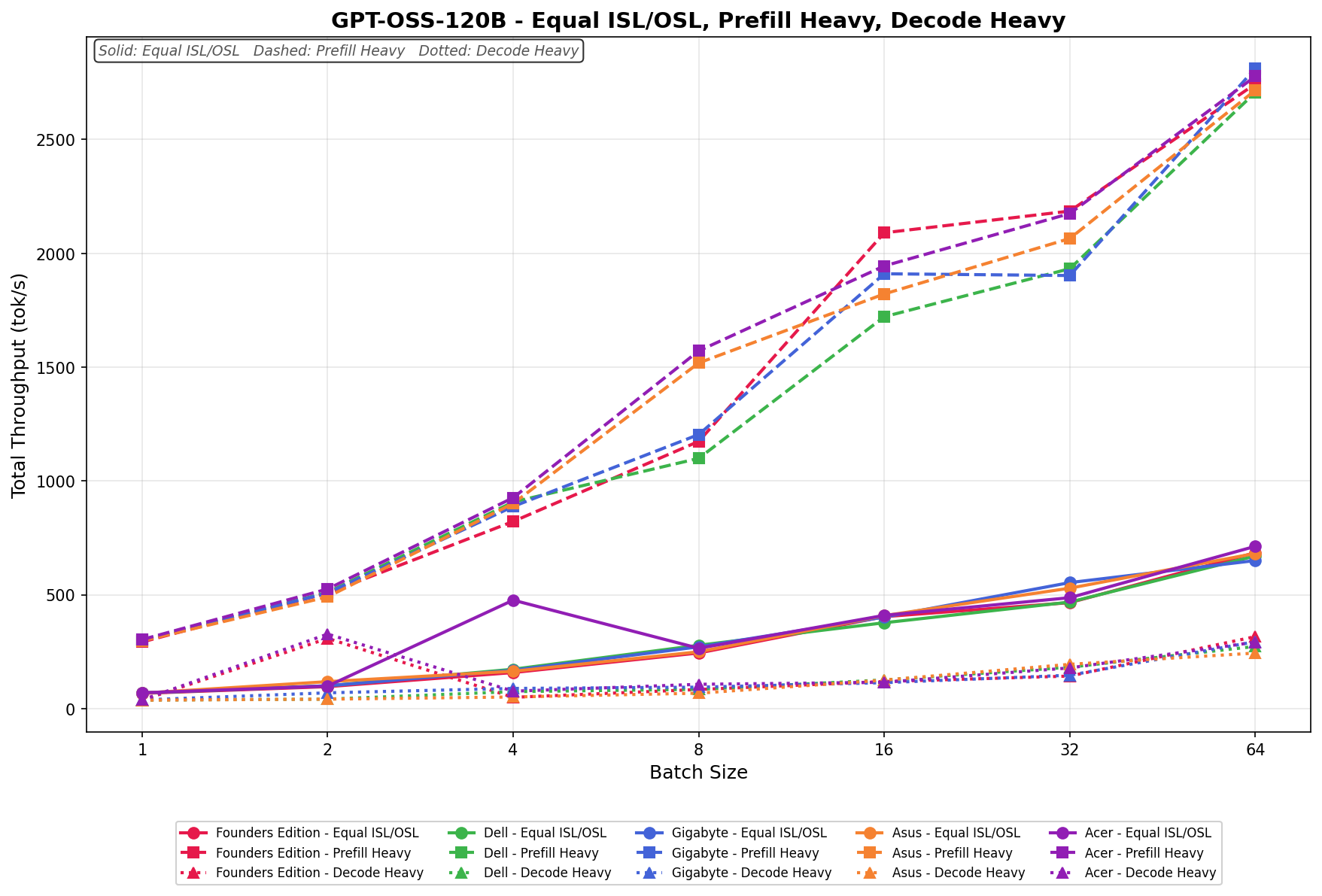
In Equal ISL/OSL, Dell starts at 67.06 tok/s and scales up to 927.93 tok/s with a batch size of 64. GIGABYTE begins slightly lower at 65.77 tok/s but finishes stronger at 994.53 tok/s, while HP leads the group at the top end with 1,009.75 tok/s. The spread remains tight through most of the sweep, with HP pulling ahead from batch size 32 onward.

In Prefill Heavy, throughput increases much more aggressively across the board. Dell scales from 164.42 tok/s to 2,097.80 tok/s, GIGABYTE moves from 162.96 tok/s to 2,086.72 tok/s, and HP posts the strongest result, climbing from 165.95 tok/s to 2,208.16 tok/s. HP leads at nearly every batch size, while Dell and GIGABYTE remain tightly grouped, especially at batch sizes 32 and 64.

In Decode Heavy, overall performance is lower, as expected for the decode workload. Dell ranges from 41.20 tok/s to 563.98 tok/s, GIGABYTE scales from 40.83 tok/s to 617.96 tok/s, and HP moves from 41.63 tok/s to 593.56 tok/s. GIGABYTE has the strongest finish at a batch size of 64, while HP leads in the mid-range, and Dell remains close but trails slightly at higher concurrency.

GPT-OSS-20B

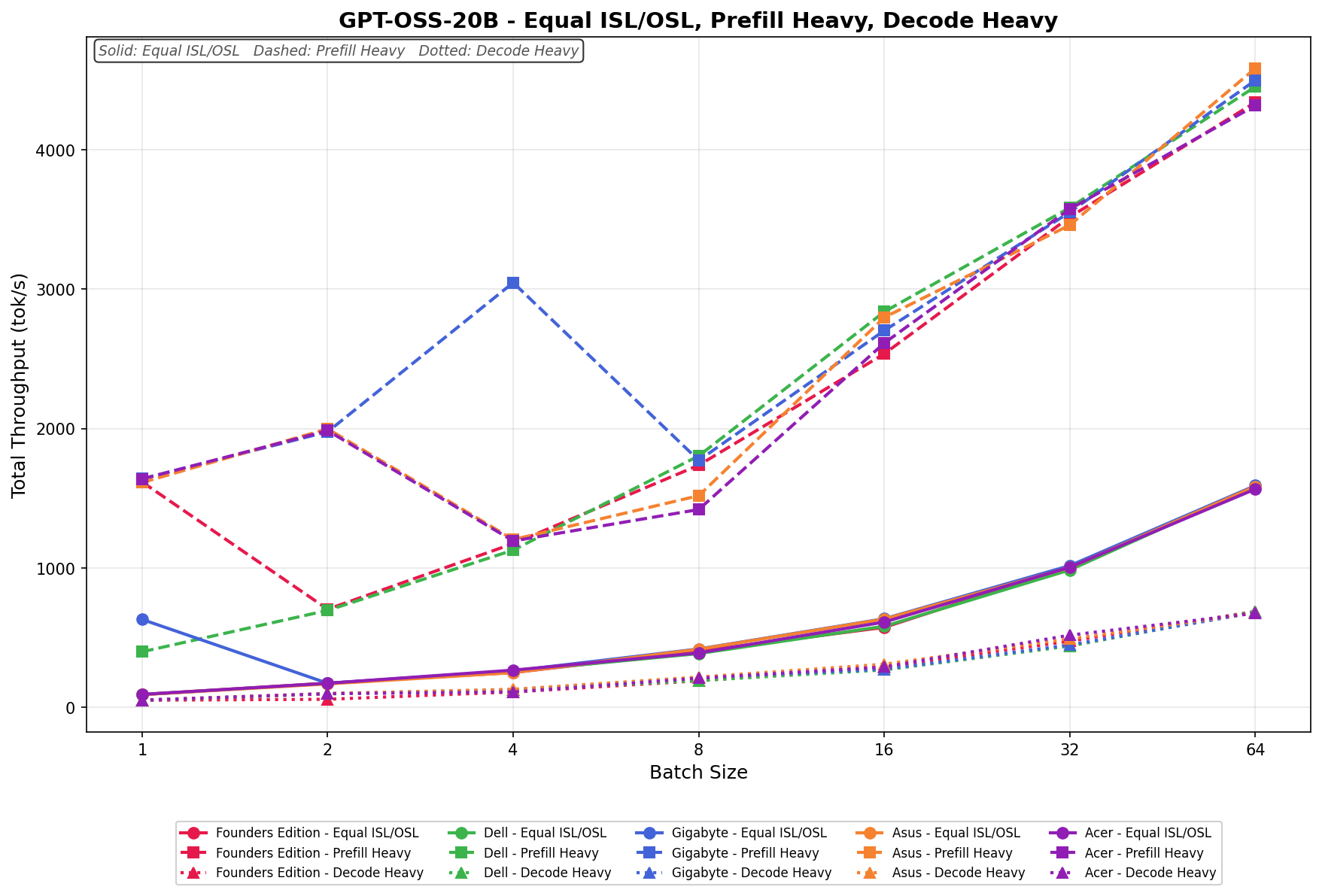
In Equal ISL/OSL, Dell leads most of the sweep, scaling from 88.73 tok/s at batch size 1 to 1,953.55 tok/s at batch size 64. GIGABYTE follows closely, increasing from 88.42 tok/s to 1,904.62 tok/s, while HP ranges from 83.49 tok/s to 1,831.45 tok/s. Dell maintains the strongest upper-end scaling overall, particularly from batch size 16 onward.

In Prefill Heavy, throughput ramps aggressively across all three systems. Dell delivers the highest result in this test, scaling from 216.05 tok/s to 4,261.96 tok/s at a batch size of 64. GIGABYTE follows at 4,011.86 tok/s, while HP reaches 3,785.25 tok/s. The three systems remain tightly grouped at smaller batch sizes, but Dell begins to separate itself at batch size 16 and extends its lead through the remainder of the sweep.

In Decode Heavy, scaling is more gradual but remains strong across all platforms. Dell ranges from 54.88 tok/s to 1,173.31 tok/s, GIGABYTE scales from 55.24 tok/s to 1,181.94 tok/s, and HP increases from 53.20 tok/s to 1,082.23 tok/s. GIGABYTE narrowly edges out Dell at the highest batch size, while HP trails both systems at higher concurrency levels.

Llama 3.1 8B Instruct Base

In Equal ISL/OSL, Dell scales from 27.69 tok/s to 1,376.38 tok/s at batch size 64, narrowly ahead of GIGABYTE, which ranges from 27.23 tok/s to 1,372.27 tok/s. HP trails slightly throughout the sweep, scaling from 26.89 tok/s to 1,235.32 tok/s. All three systems track very closely through a batch size of 16 before Dell begins to open a small lead at higher concurrency levels.

In Prefill Heavy, throughput increases aggressively as batch sizes rise. Dell grows from 68.60 tok/s to 2,575.25 tok/s, while GIGABYTE ultimately posts the strongest result, scaling from 67.49 tok/s to 2,694.25 tok/s at batch size 64. HP reaches 2,315.15 tok/s, remaining competitive but consistently behind Dell and GIGABYTE at higher batch sizes. GIGABYTE takes the lead at the upper end, particularly for batch sizes of 64 or more.

In Decode Heavy, scaling remains steady across the sweep. Dell ranges from 17.19 tok/s to 726.22 tok/s, GIGABYTE scales from 16.96 tok/s to 720.57 tok/s, and HP moves from 16.79 tok/s to 663.31 tok/s. Dell and GIGABYTE remain nearly identical throughout most of the test, with Dell holding a narrow advantage at the highest concurrency levels. At the same time, HP falls slightly behind at larger batch sizes.

Llama 3.1 8B Instruct FP4

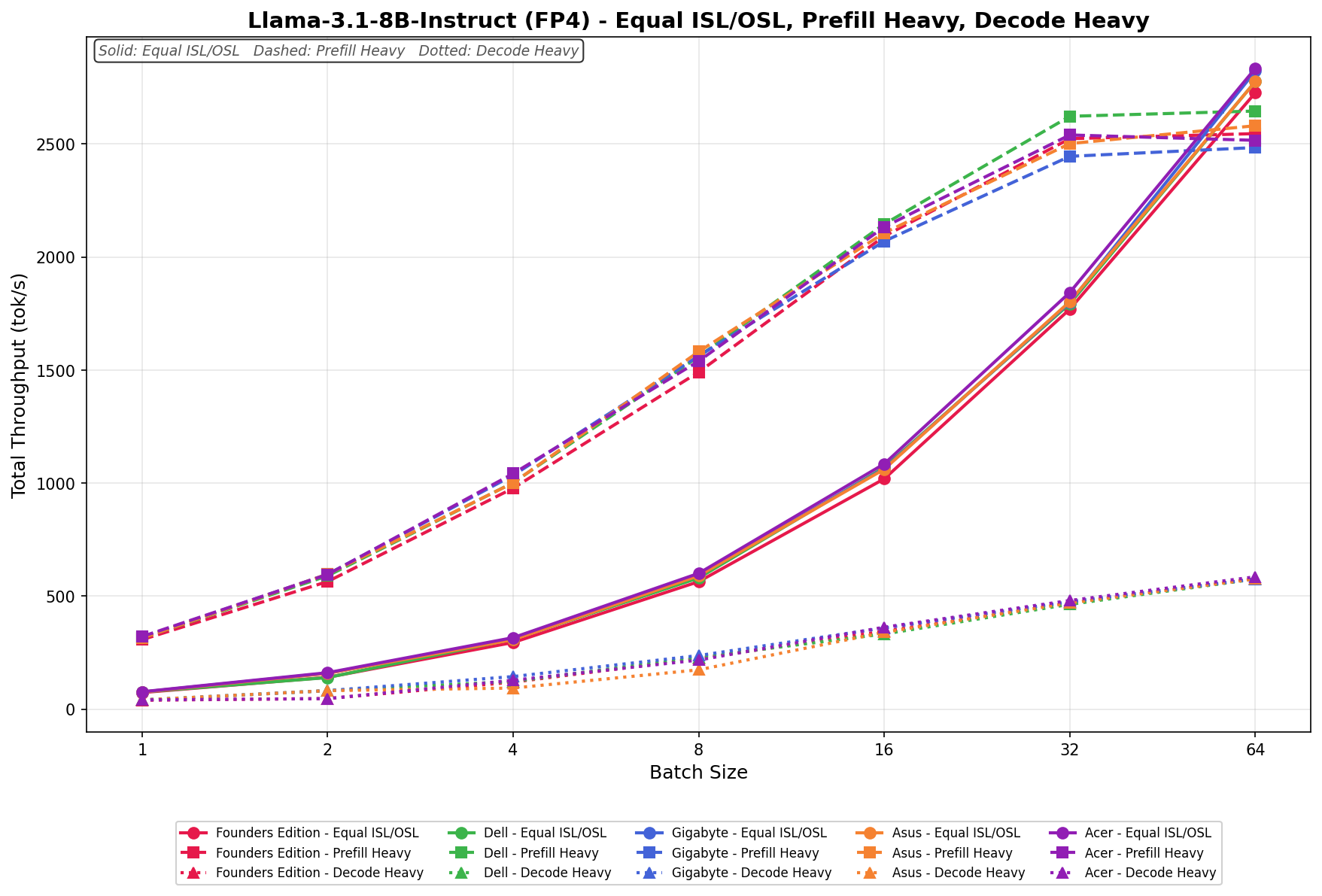
In Equal ISL/OSL, Dell scales from 69.71 tok/s to 2,849.20 tok/s at batch size 64, while GIGABYTE edges slightly ahead, growing from 70.92 tok/s to 2,912.03 tok/s. HP remains competitive, ranging from 69.52 tok/s to 2,821.50 tok/s. The three systems stay tightly grouped across the entire workload, with only a small separation appearing at higher concurrency levels.

In Prefill Heavy, scaling becomes much more aggressive, particularly at larger batch sizes. Dell increases from 170.09 tok/s to 4,417.65 tok/s, while GIGABYTE posts the strongest result of the group, climbing from 173.55 tok/s to 4,767.43 tok/s at batch size 64. HP scales from 170.12 tok/s to 4,214.57 tok/s. GIGABYTE begins to separate from the field after a batch size of 32, delivering the strongest upper-end throughput on this workload.

In Decode Heavy, all three systems again remain closely aligned through most of the sweep. Dell ranges from 43.19 tok/s to 1,260.24 tok/s, GIGABYTE scales from 43.53 tok/s to 1,258.05 tok/s, and HP increases from 42.54 tok/s to 1,178.74 tok/s. Dell and GIGABYTE effectively trade the lead depending on batch size, while HP trails slightly behind both systems at the largest concurrency levels.

Llama 3.1 8B Instruct FP8

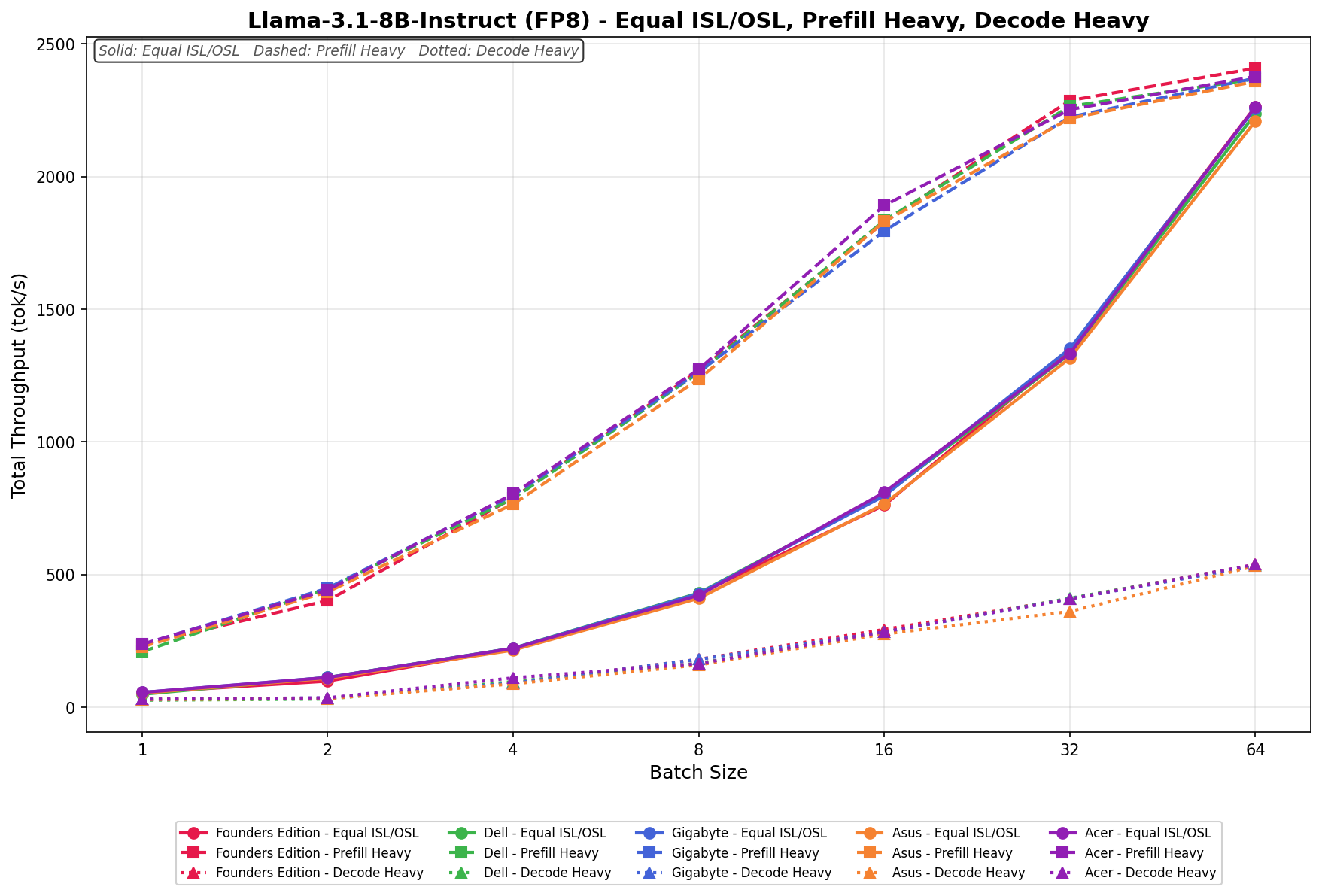
In Equal ISL/OSL, Dell scales from 46.93 tok/s to 2,206.52 tok/s at batch size 64, while GIGABYTE ranges from 46.16 tok/s to 2,175.44 tok/s. HP follows closely behind, increasing from 46.40 tok/s to 2,149.15 tok/s. The overall spread remains narrow throughout the test, with all three systems maintaining nearly identical scaling behavior through batch size 32.

In Prefill Heavy, throughput ramps more aggressively as concurrency increases. Dell grows from 115.85 tok/s to 3,794.52 tok/s, while GIGABYTE posts the strongest overall result, scaling from 113.34 tok/s to 4,133.76 tok/s at batch size 64. HP reaches 3,624.73 tok/s. GIGABYTE begins to establish a more pronounced lead at higher batch sizes, particularly from batch size 32 onward.

In Decode Heavy, the three systems remain tightly grouped at low concurrency levels before small separations emerge at high concurrency. Dell ranges from 29.11 tok/s to 1,077.07 tok/s, GIGABYTE scales from 28.64 tok/s to 1,068.92 tok/s, and HP increases from 28.68 tok/s to 1,000.20 tok/s. Dell maintains a narrow lead through most of the workload, with GIGABYTE tracking extremely close behind, while HP trails slightly at larger batch sizes.

Mistral Small 3.1 24B

In Equal ISL/OSL, Dell scales from 10.41 tok/s to 498.56 tok/s at batch size 64, while GIGABYTE slightly edges ahead at the upper end, growing from 9.76 tok/s to 509.18 tok/s. HP trails modestly behind both systems, ranging from 9.25 tok/s to 477.25 tok/s. The gap between systems remains relatively small throughout the workload, particularly at lower and mid-range concurrency levels.

In Prefill Heavy, scaling improves substantially across all three systems. Dell increases from 25.91 tok/s to 1,079.19 tok/s, while GIGABYTE scales from 24.25 tok/s to 1,071.07 tok/s. HP reaches 988.82 tok/s with a batch size of 64. Dell and GIGABYTE remain nearly identical through most of the sweep, with Dell holding a slight advantage at the highest concurrency level.

In Decode Heavy, throughput remains significantly lower overall, as expected for the decode-focused workload on a larger model. Dell ranges from 6.49 tok/s to 297.82 tok/s, GIGABYTE scales from 6.10 tok/s to 297.23 tok/s, and HP increases from 5.77 tok/s to 276.55 tok/s. Dell and GIGABYTE are neck and neck throughout the test, while HP consistently trails slightly behind both systems at larger batch sizes.

Qwen3 coder 30B A3B Base

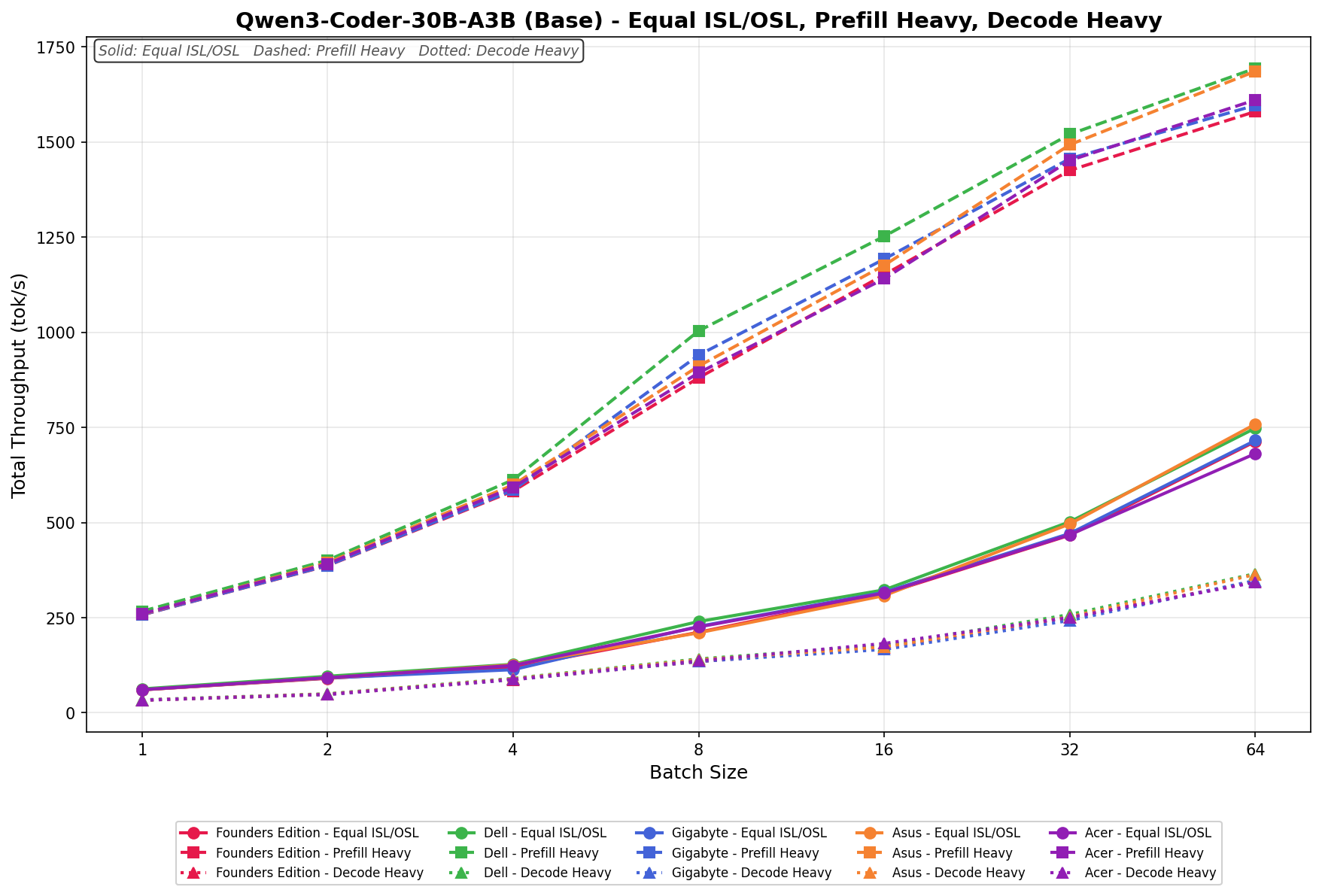
In Equal ISL/OSL, Dell scales from 59.05 tok/s to 817.82 tok/s at batch size 64, while GIGABYTE ranges from 59.81 tok/s to 809.88 tok/s. HP trails slightly behind both systems, increasing from 56.51 tok/s to 780.21 tok/s. Performance between Dell and GIGABYTE remains nearly identical through most of the sweep, with only small variances appearing at higher batch sizes.

In Prefill Heavy, throughput ramps significantly as concurrency increases. Dell grows from 144.81 tok/s to 1,756.99 tok/s, while GIGABYTE posts the strongest overall scaling, increasing from 147.55 tok/s to 1,862.40 tok/s at batch size 64. HP reaches 1,751.17 tok/s, remaining competitive but slightly behind the other two systems at the upper end. GIGABYTE establishes a modest lead beginning around batch size 32 and extends it through the final stage of the test.

In Decode Heavy, the three systems again remain closely aligned through most of the workload. Dell ranges from 36.69 tok/s to 427.48 tok/s, GIGABYTE scales from 36.92 tok/s to 417.42 tok/s, and HP increases from 35.30 tok/s to 403.32 tok/s. Dell maintains a small advantage at the highest batch sizes, while HP trails slightly behind both Dell and GIGABYTE across the decode-focused workload.

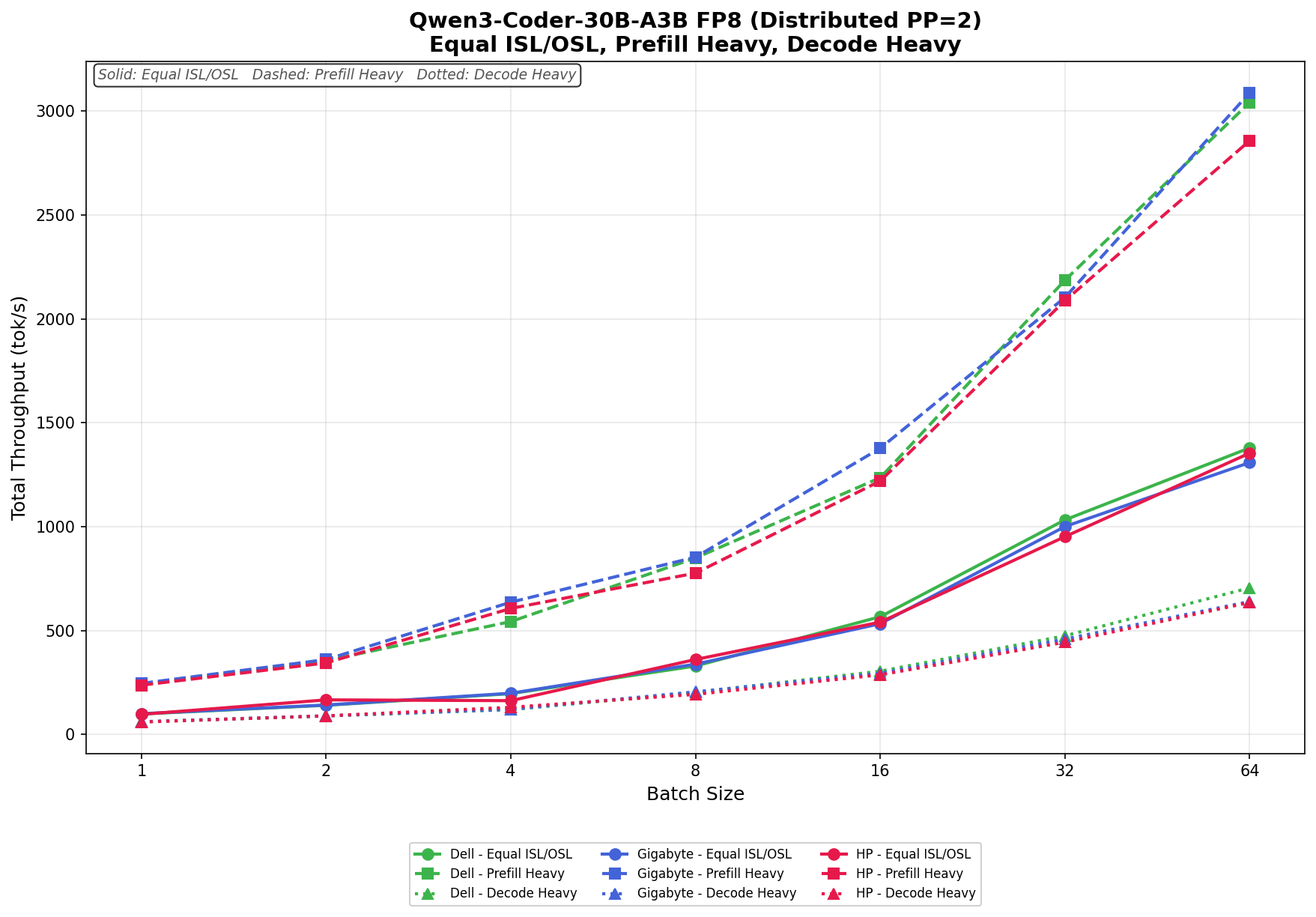
Qwen3 coder 30B A3B FB8

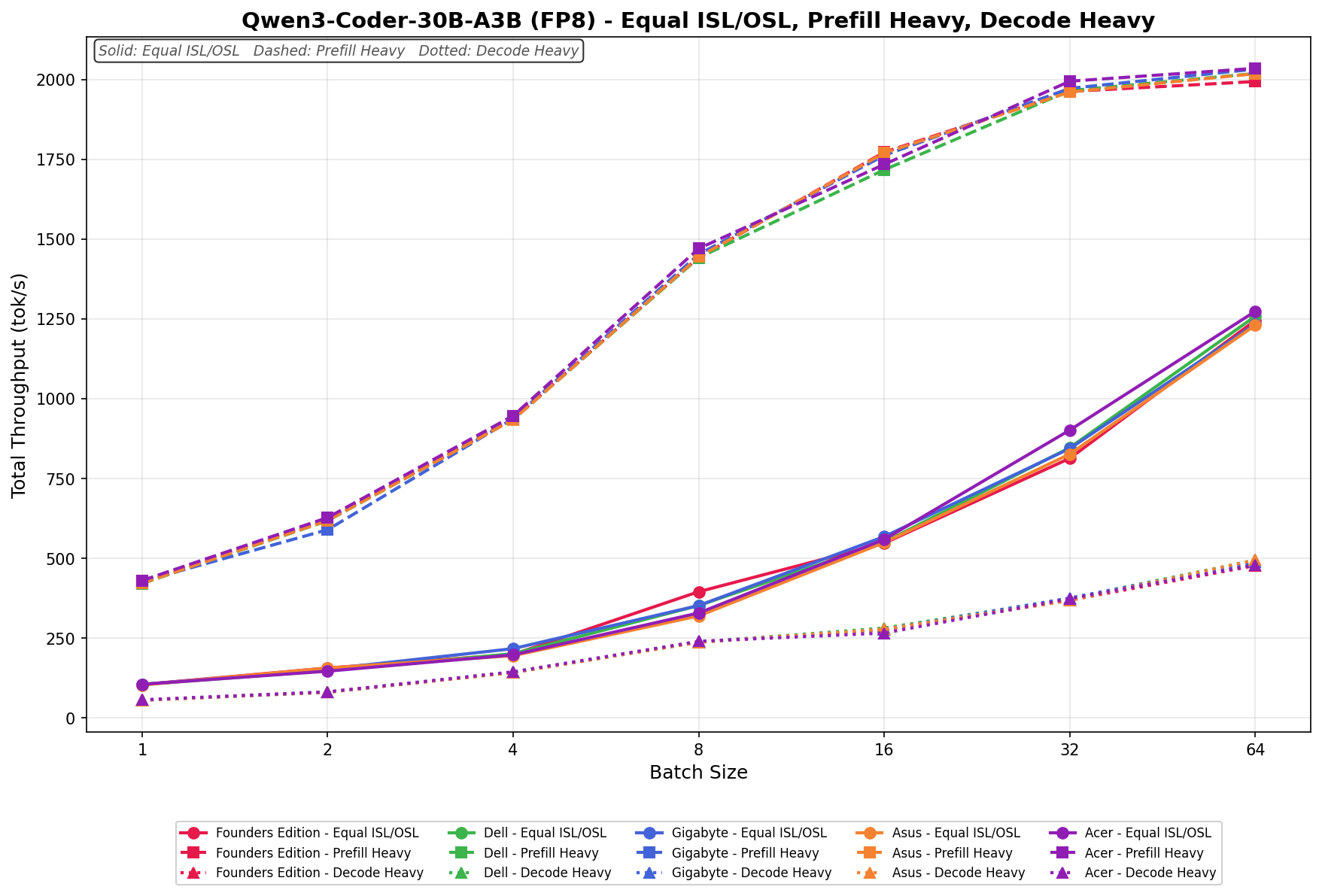
In Equal ISL/OSL, Dell scales from 98.65 tok/s to 1,379.26 tok/s at batch size 64, while GIGABYTE ranges from 100.20 tok/s to 1,308.79 tok/s. HP remains competitive throughout, increasing from 97.06 tok/s to 1,354.23 tok/s. HP briefly leads at several lower and mid-range batch sizes, though Dell finishes with the strongest overall upper-end throughput.

In Prefill Heavy, throughput scales aggressively across all three systems. Dell grows from 240.43 tok/s to 3,041.72 tok/s, while GIGABYTE posts the strongest overall result, scaling from 245.92 tok/s to 3,088.62 tok/s at batch size 64. HP reaches 2,857.80 tok/s. GIGABYTE establishes a noticeable lead beginning at batch size 4 and maintains it through the remainder of the sweep.

In Decode Heavy, Dell holds the strongest upper-end scaling overall. Dell ranges from 60.91 tok/s to 705.77 tok/s, while GIGABYTE scales from 61.53 tok/s to 639.80 tok/s, and HP increases from 59.85 tok/s to 635.25 tok/s. HP briefly leads at smaller batch sizes, but Dell pulls ahead at larger concurrency levels, finishing with the strongest decode throughput of the group.

Dual Spark Systems Peak Output Summary

The table below summarizes the peak token output throughput observed during Distributed PP=2 testing across the Dell, GIGABYTE, and HP dual-Spark systems. Each value represents the highest measured output throughput (tok/s) achieved for that workload scenario at the tested batch size. Bolded figures indicate the top-performing system within that specific workload scenario.

Model Scenario (BS – 64) Dell Peak Output GIGABYTE Peak Output HP Peak Output
GPT-OSS Models
GPT-OSS-120B Equal ISL/OSL 463.97 tok/s 497.26 tok/s 504.88 tok/s
GPT-OSS-120B Prefill Heavy 419.56 tok/s 417.34 tok/s 441.63 tok/s
GPT-OSS-120B Decode Heavy 451.18 tok/s 494.37 tok/s 474.85 tok/s
GPT-OSS-20B Equal ISL/OSL 976.77 tok/s 952.31 tok/s 915.72 tok/s
GPT-OSS-20B Prefill Heavy 852.39 tok/s 802.37 tok/s 757.05 tok/s
GPT-OSS-20B Decode Heavy 938.65 tok/s 945.55 tok/s 865.78 tok/s
Llama Models
Llama-3.1-8B-Instruct Equal ISL/OSL 689.53 tok/s 687.48 tok/s 618.87 tok/s
Llama-3.1-8B-Instruct Prefill Heavy 515.45 tok/s 539.27 tok/s 463.39 tok/s
Llama-3.1-8B-Instruct Decode Heavy 581.43 tok/s 576.91 tok/s 531.07 tok/s
Llama-3.1-8B-FP4 Equal ISL/OSL 1427.39 tok/s 1458.86 tok/s 1413.51 tok/s
Llama-3.1-8B-FP4 Prefill Heavy 884.22 tok/s 954.23 tok/s 843.57 tok/s
Llama-3.1-8B-FP4 Decode Heavy 1008.98 tok/s 1007.23 tok/s 943.73 tok/s
Llama-3.1-8B-FP8 Equal ISL/OSL 1105.42 tok/s 1089.85 tok/s 1076.68 tok/s
Llama-3.1-8B-FP8 Prefill Heavy 759.50 tok/s 827.40 tok/s 725.51 tok/s
Llama-3.1-8B-FP8 Decode Heavy 862.33 tok/s 855.81 tok/s 800.78 tok/s
Mistral and Qwen Models
Mistral-Small-3.1-24B Equal ISL/OSL 249.77 tok/s 255.09 tok/s 239.09 tok/s
Mistral-Small-3.1-24B Prefill Heavy 216.01 tok/s 214.38 tok/s 197.92 tok/s
Mistral-Small-3.1-24B Decode Heavy 238.44 tok/s 237.97 tok/s 221.41 tok/s


Conclusion

The most useful finding from this round of testing has little to do with which OEM came out ahead on which workload. Across all models and workload shapes we tested, the three Spark implementations from Dell, GIGABYTE, and HP performed within a narrow band. Small leads emerged at specific batch sizes, but no platform won outright, and no platform consistently trailed. Buyers choosing among the three should base their decision on chassis design, thermal behavior, warranty terms, and support relationship rather than on benchmark deltas, which are close to the run-to-run variance any desktop-class system produces under sustained load.

DGX Spark cluster - Multiple Spark units stacked

The more interesting result is methodological. On the 200 GbE fabric connecting two Sparks, the choice between tensor parallelism and pipeline parallelism matters more than any difference between the three OEMs, and for batched inference at any reasonable concurrency, pipeline parallelism is the better fit. TP=2’s per-layer all-reduce traffic does not survive the trip across a ConnectX-7 link without leaving compute idle, and PP=2’s pipeline bubble cost amortizes into the steady-state stream as soon as the batch fills the pipeline. NVIDIA’s documentation defaults to TP for a defensible reason: their primary positioning for Spark is interactive single-stream serving with tight TTFT, which is the one regime where TP=2 wins outright. The moment the workload looks like serving infrastructure rather than a chat interface, the calculus inverts.

That inversion reinforces what the Spark is and is not. A two-node Spark cluster is a development and learning platform that lets a single engineer see distributed inference behavior firsthand on a network fast enough to mimic a real datacenter fabric, yet constrained enough to expose the bottlenecks that production deployments work around at scale.

Larger Spark configurations are worth examining on their own terms, with workloads and parallelism strategies suited to that scale, and we have that work on the roadmap. Separately, the next experiment queued behind this one shifts from inference to training: a sub-1B-parameter model trained from scratch on a dual-Spark cluster, configured to mirror the distributed pre-training conditions of much larger systems. That work is paused while we wait for the optics for our new 800 Gb lab core switch, and we expect to publish it once the new core is online.

Past Spark Unit Reviews:

Dell Pro Max with GB 10

Gigabyte AI TOP ATOM

HP ZGX Nano G1n

The post NVIDIA DGX Spark Cluster Review: Distributed Inference on Dell, GIGABYTE, and HP appeared first on StorageReview.com.
AMD Ryzen 9 9950X3D2 Dual Edition Review: 3D V-Cache on Both CCDs

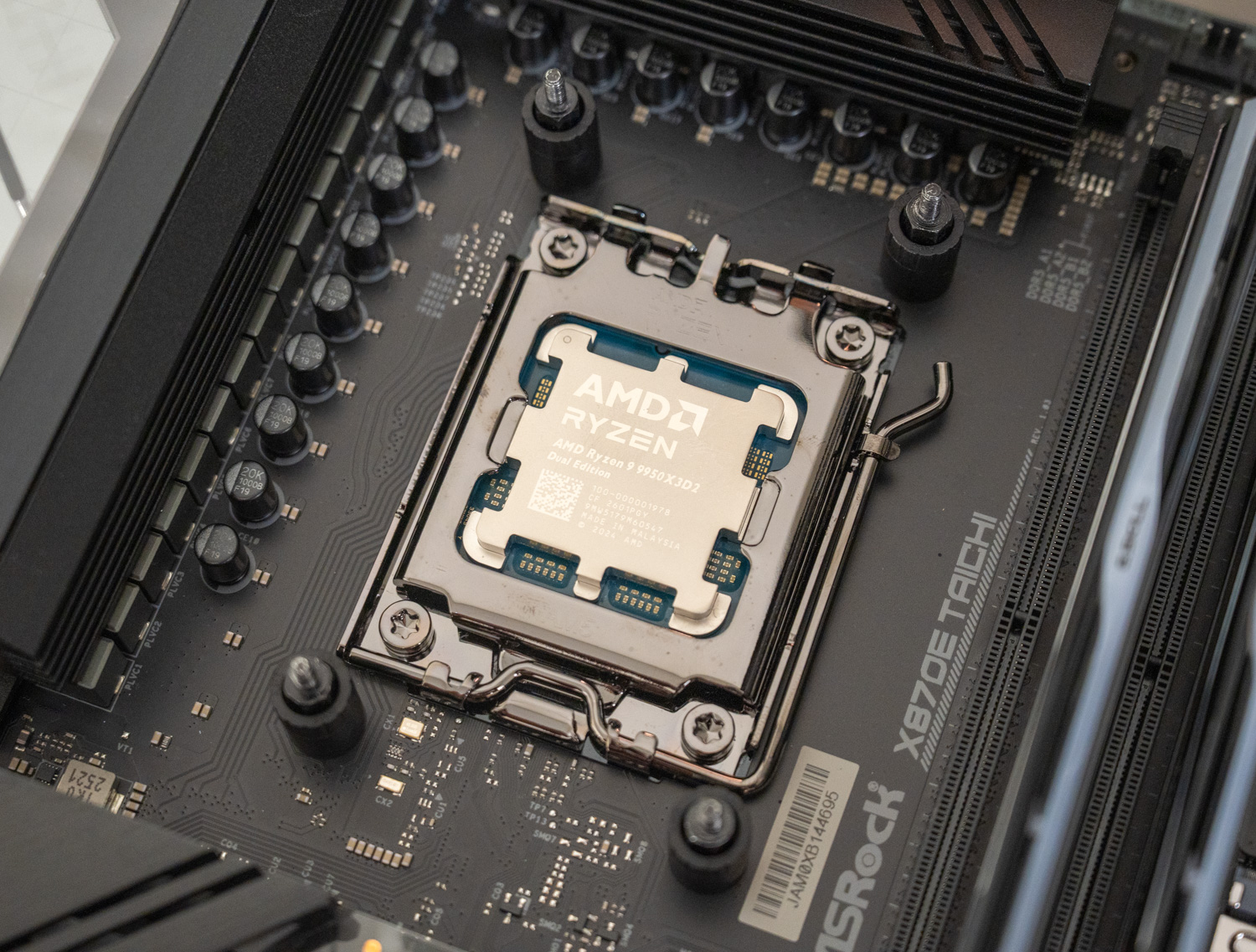
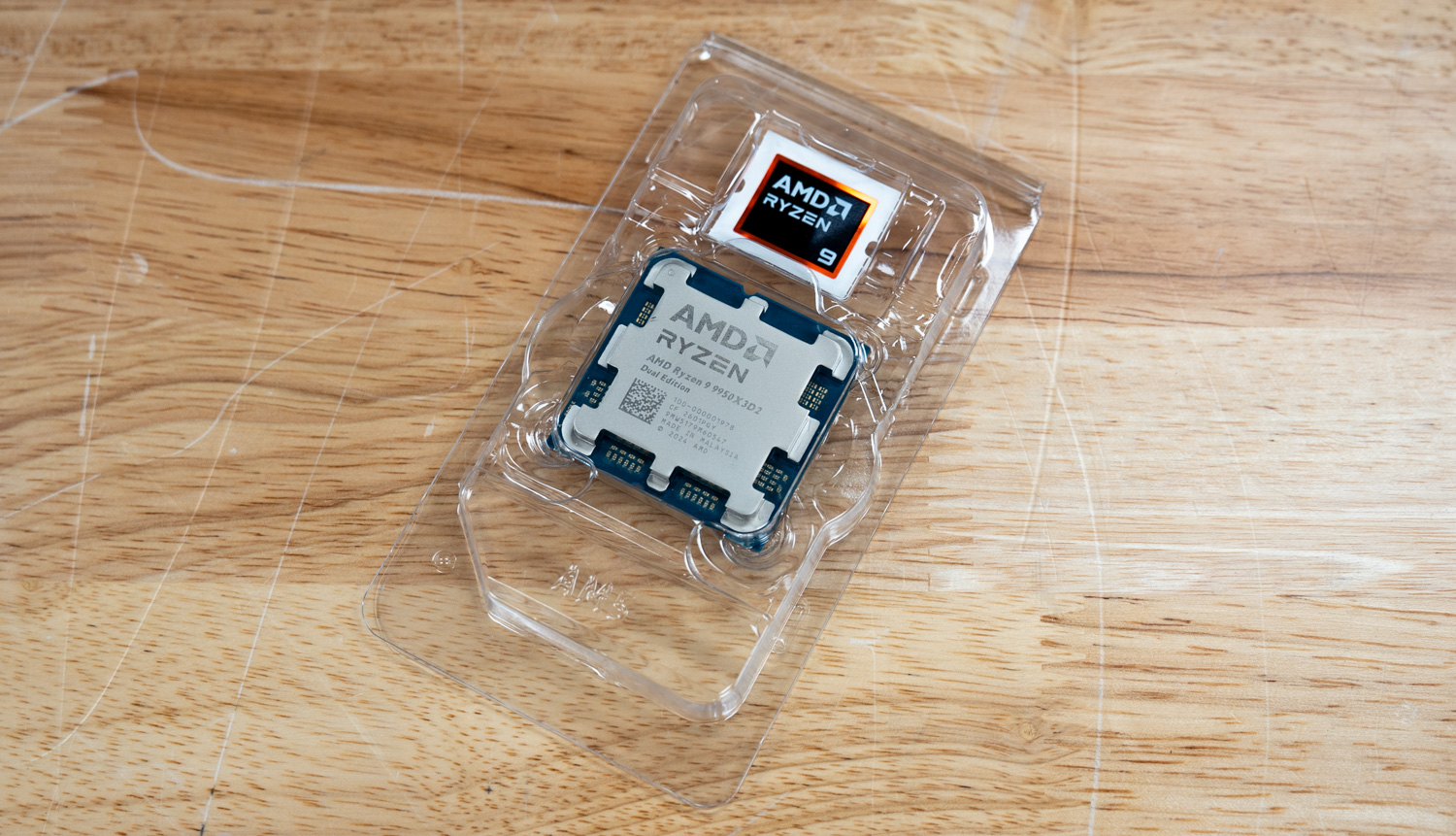
AMD Ryzen 9950X3D2 in the cpu socket AMD Ryzen 9950X3D2 in the cpu socket

AMD is once again pushing the boundaries of the high-performance desktop market with the Ryzen 9 9950X3D2 Dual Edition, which launches at an MSRP of $899. When we reviewed the Ryzen 9 9950X3D in March 2025, it made a compelling case as the first 16-core X3D processor, with thermal and TDP constraints no longer forcing a meaningful trade-off between gaming and productivity. It brought 3D V-Cache to a 16-core design, including full overclocking support, and raised the TDP ceiling to deliver sustained performance that earlier X3D chips couldn’t match. The 9950X3D2 builds on that foundation, extending 3D V-Cache across both CCDs for the first time and increasing the total L3 cache from 128MB to 192MB. AMD provided us with a sample for evaluation against the full 9000-series X3D stack.

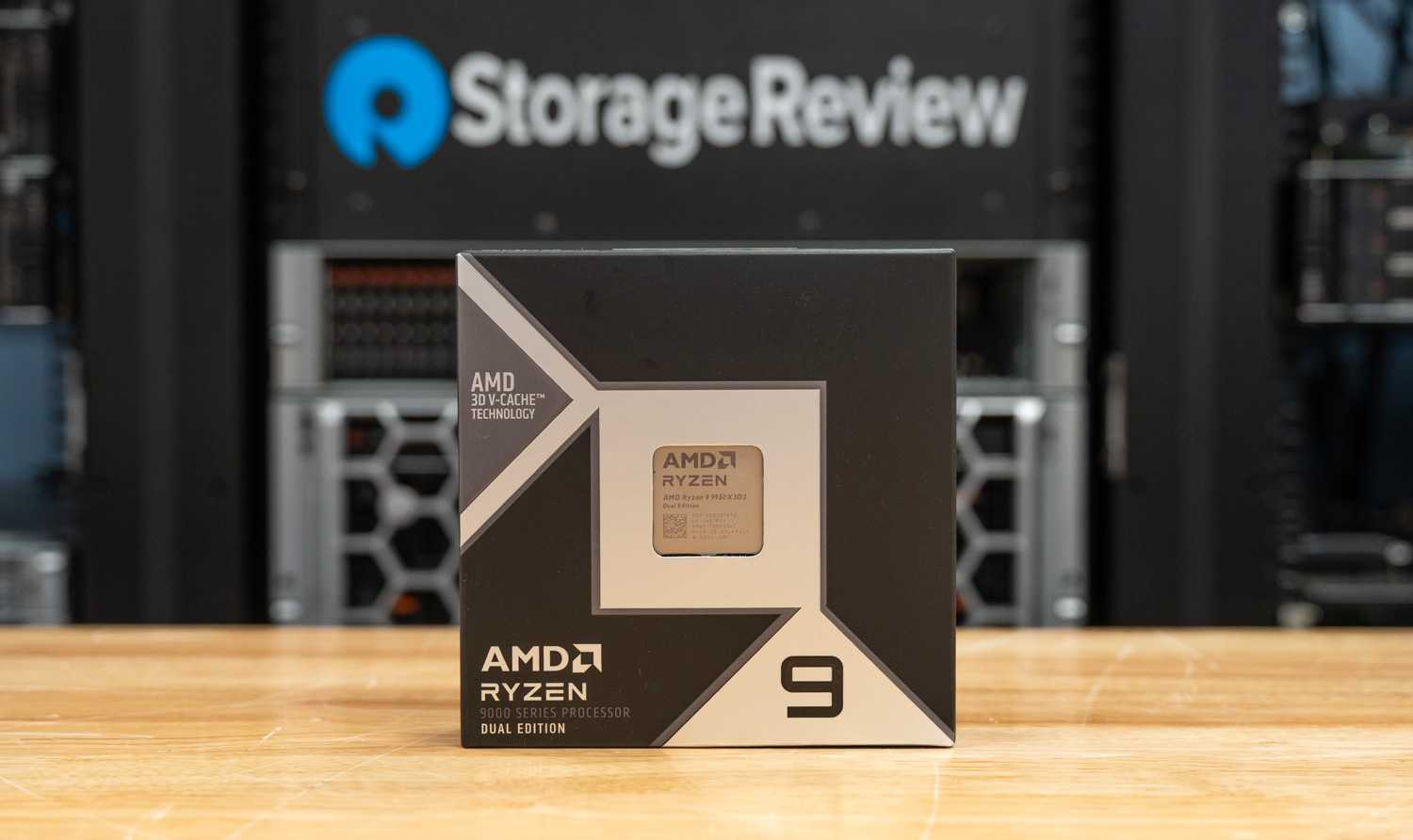
AMD Ryzen 9950X3D2 in its box

AMD Ryzen 9 9950X3D2: Solving the Asymmetry Problem

The core problem the 9950X3D2 solves is one the 9950X3D never fully escaped. Because the 9950X3D applied 3D V-Cache to only one of its two CCDs, threads migrating between dies during normal Windows load balancing would periodically lose access to the cache-rich CCD, causing unpredictable latency spikes. AMD’s chipset drivers helped manage this, but the asymmetry remained. The 9950X3D2 eliminates it. Each CCD combines 32MB of traditional 2D L3 cache with a 64MB 3D V-Cache stack, giving both CCDs an identical 96MB L3 pool and all 16 cores symmetrical, low-latency access to a combined 192MB total. For workloads sensitive to memory latency, particularly high-FPS gaming, this is a meaningful architectural improvement rather than a simple spec bump.

The underlying 2nd Gen 3D V-Cache design is the same as the under-die architecture introduced with the 9800X3D and carried through to the 9950X3D, with cache placed beneath the compute cores to keep the primary heat source close to the cooling solution. What changes with the 9950X3D2 is scope: that design now covers both CCDs, and the TDP rises from 170W to 200W to support the additional sustained throughput. Total on-chip cache reaches 208 MB across L2 and L3, up from 144 MB on the 9950X3D.

AMD Ryzen 9 9950X3D2 Specifications

Specifications AMD Ryzen 9 9950X3D2 AMD Ryzen 9 9950X3D AMD Ryzen 9 9900X3D AMD Ryzen 7 9850X3D AMD Ryzen 7 9800X3D
Cores/Threads 16/32 16/32 12/24 8/16 8/16
Platform AM5 AM5 AM5 AM5 AM5
Max Boost / Base Clock 5.6 / 4.3GHz 5.7 / 4.3GHz 5.5 / 4.4GHz 5.6 / 4.7GHz 5.2 / 4.7GHz
L2 Cache 16MB 16MB 12MB 8MB 8MB
L3 Cache 192MB 128MB 128MB 96MB 96MB
Total Cache 208MB 144MB 140MB 104MB 104MB
Architecture Zen 5 Zen 5 Zen 5 Zen 5 Zen 5
PCIe Gen5 Gen5 Gen5 Gen5 Gen5
DRAM DDR5 DDR5 DDR5 DDR5 DDR5
TDP / Default Socket Power (PPT) 200W / 270W 170W / 230W 120W / 230W 120W / 162W 120W /162W
Graphics Radeon Radeon Radeon Radeon Radeon
AMD Recommended Cooler Liquid cooler Liquid cooler Liquid cooler Liquid cooler Liquid cooler

Platform and Compatibility

The 9950X3D2 slots into the AM5 ecosystem without requiring a platform change. Like the 9950X3D, it supports existing A620, B650/B650E, X670/X670E, X870/X870E, B840, and B850-class motherboards with a BIOS update, making it a straightforward upgrade for users already invested in the platform. The higher 200W TDP does demand more from the cooling side, however. While the 9950X3D can be managed with a capable 240mm AIO, AMD recommends a 360mm liquid cooler for the 9950X3D2 to maintain sustained boost performance under heavy workloads.

AMD Ryzen 9950X3D2 in the cpu socket

AMD Ryzen 9 9950X3D2 Performance

To evaluate overall performance, we compared the AMD Ryzen 9 9950X3D2 against the AMD Ryzen 9 9950X3D, Ryzen 7 9850X3D, and Ryzen 7 9800X3D. While all four processors feature AMD’s 3D V-Cache design, the two Ryzen 9 models sit in a higher-performance tier, sharing a 16-core, 32-thread configuration. The Ryzen 7 chips, with 8 cores and 16 threads, sit a step below, with performance differences becoming more apparent in heavily threaded workloads while remaining relatively close in lighter tasks. All testing was conducted at stock settings (no overclocking) to ensure a consistent baseline across the stack.

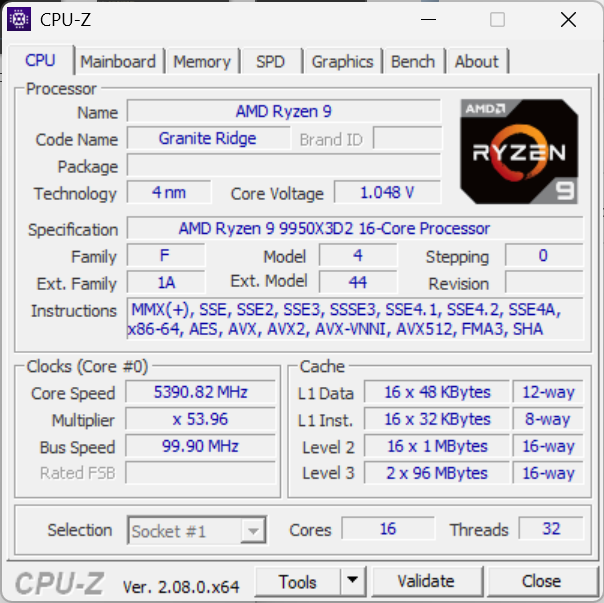
AMD Ryzen 9 9950X3D2 CPU-Z

AMD Consumer Test Platform

To keep the testing environment as consistent as possible, all CPUs have been tested across X870E-based motherboards at stock settings. The only changes above stock settings have been the same DDR5 memory and EXPO configuration. Here’s a full rundown of our testing rig in this review:

  • Motherboard:  ASRock X870E Taichi (provided by AMD)
  • Memory: G.SKILL Trident Z5 Royal Series DDR5-6000 (2x16GB), running on EXPO 1
  • Cooling: NZXT Kraken Elite 360
  • Operating System: Windows 11 Pro

3DMark CPU Profile

The 3DMark CPU Profile measures CPU performance across different workloads by testing 1, 2, 4, 8, 16, and max threads. It highlights how the CPU handles single-threaded tasks, gaming workloads, and multithreaded applications such as 3D rendering. The benchmark minimizes GPU impact, offering a clear view of the CPU’s performance in various scenarios.

In the 3DMark CPU Profile benchmark, the Ryzen 9 chips most clearly separate themselves as thread counts increase. The 9950X3D2 tops the chart with 17,672 points in the Max Threads test, about 6% ahead of the 9950X3D, while the 9950X3D still holds a sizable lead over the Ryzen 7 9850X3D and 9800X3D by roughly 63% and 67%, respectively. That gap narrows quickly under lighter workloads, when all four chips are much closer together, but the ranking still favors the two Ryzen 9 processors overall.

3DMark CPU Profile (higher is better) AMD Ryzen 9 9950X3D2 AMD Ryzen 9 9950X3D AMD Ryzen 7 9850X3D AMD Ryzen 7 9800X3D
Max Threads 17,672 16,690 10,261 10,018
16 Threads 16,956 15,983 10,285 10,034
8 Threads 9,141 9,070 8,611 8,269
4 Threads 4,980 4,846 4,867 4,646
2 Threads 2,508 2,521 2,487 2,394
1 Threads 1,274 1,264 1,267 1,213

y-cruncher

y-cruncher is a popular benchmarking and stress-testing application that launched in 2009. This test is multithreaded and scalable, computing Pi and other constants up to the trillions of digits. Faster is better in this test.

In y-cruncher, both Ryzen 9 chips show a clear advantage in this long-running computational workload. The 9950X3D2 completes the 1-billion-digit test in 12.605 seconds, roughly 31% faster than the 9950X3D, which itself is about 12% faster than the 9850X3D and 31% faster than the 9800X3D. As the workload grows, the lead widens further, with the 9950X3D2 completing the 5 billion run about 41% faster than the 9950X3D, reinforcing its stronger sustained compute performance.

y-cruncher (lower time is better) AMD Ryzen 9 9950X3D2 AMD Ryzen 9 9950X3D AMD Ryzen 7 9850X3D AMD Ryzen 7 9800X3D
1 Billion 12.605 s 16.450 s 18.503 s 21.487 s
2 Billion 34.925 s 48.047 s 52.589 s 64.273 s
5 Billion 77.370 s 109.343 s 115.581 s 143.891 s

y-cruncher BBP

This y-cruncher benchmark uses the Bailey-Borwein-Plouffe (BBP) formulas to compute a large number of hexadecimal digits of Pi, measuring the CPU’s total computation time, utilization, and multi-core efficiency.

Looking at the y-cruncher BBP test, the Ryzen 9 9950X3D2 again sets the pace, completing the 100 BBP run in 47.07 seconds, about 7% faster than the 9950X3D. The non-D2 9950X3D still maintains a major lead over both Ryzen 7 chips, finishing that same workload about 66% faster than the 9850X3D and 66% faster than the 9800X3D. Across the full sweep, the order stays consistent, with the two Ryzen 9 processors comfortably ahead.

y-cruncher BBP (lower time is better) AMD Ryzen 9 9950X3D2 AMD Ryzen 9 9950X3D AMD Ryzen 7 9850X3D AMD Ryzen 7 9800X3D
1 BBP 0.384 s 0.426 s 0.669 s 0.671 s
10 BBP 4.173 s 4.538 s 7.501 s 7.497 s
100 BBP 47.070 s 50.291 s 83.719 s 83.345 s

Maxon Cinebench

Cinebench is a widely used benchmarking tool that measures the performance of CPUs and GPUs by rendering with Maxon Cinema 4D. It provides a score that allows you to compare the performance of different systems and components. We ran R23 and R24, both popular Cinebench versions, so you can compare the results with those on popular online leaderboards.

In Cinebench, the separation between the Ryzen 9 and Ryzen 7 parts is immediately clear in multi-core performance, while single-core results remain much tighter across the stack. In Cinebench R23, the Ryzen 9 9950X3D2 leads with a score of 42,555, about 6% ahead of the 9950X3D, while both Ryzen 9 chips nearly double the performance of the Ryzen 7 models, holding roughly an 87–99% advantage in multi-core workloads. Cinebench R24 shows the same trend, with the 9950X3D2 reaching 2,508, about 12% ahead of the 9950X3D and again maintaining a significant 80%+ lead over the Ryzen 7 parts.

Single-core results tell a different story. In R23, all three newer chips cluster closely, with the 9950X3D2 holding only about a 2% lead over the 9950X3D and effectively tying the 9850X3D. R24 tightens even further, where the 9950X3D2 and 9850X3D are nearly identical, and the 9950X3D trails slightly. This consistency highlights that lightly threaded performance is broadly similar across the lineup, with only small gains at the top end.

Cinebench R23

Cinebench R23 (higher is better) AMD Ryzen 9 9950X3D2 AMD Ryzen 9 9950X3D AMD Ryzen 7 9850X3D AMD Ryzen 7 9800X3D
Multi-Core 42,555 39,993 21,382 22,718
Single-Core 2,248 2,200 2,216 2,089

Cinebench R24

Cinebench R24 (higher is better) AMD Ryzen 9 9950X3D2 AMD Ryzen 9 9950X3D AMD Ryzen 7 9850X3D AMD Ryzen 7 9800X3D
Multi-Core 2,508 2,246 1,366 1,338
Single-Core 143 134 142 130

7-Zip Compression

The 7-Zip Compression Benchmark evaluates CPU performance during compression and decompression, measuring GIPS (Giga Instructions Per Second) and CPU usage. Higher GIPS and efficient CPU usage indicate superior performance.

In 7-Zip, the 9950X3D2 achieves the highest overall score, with a total rating of 233.09 GIPS, about 9% ahead of the 9950X3D. The non-D2 9950X3D still holds a commanding advantage over the Ryzen 7 chips, outperforming the 9850X3D by roughly 64% and the 9800X3D by about 69% in total rating. Compression and decompression follow the same general pattern, with the two Ryzen 9 processors well out in front.

7-Zip Compression AMD Ryzen 9 9950X3D2 AMD Ryzen 9 9950X3D AMD Ryzen 7 9850X3D AMD Ryzen 7 9800X3D
Compressing
Current CPU Usage 2,736% 2,737% 1,394% 1,387%
Current Rating/Usage 7.132 GIPS 6.565 GIPS 8.864 GIPS 8.488 GIPS
Current Rating 195.145 GIPS 179.648 GIPS 123.563 GIPS 117.745 GIPS
Resulting CPU Usage 2,717% 2,727% 1,390% 1,393%
Resulting Rating/Usage 7.186 GIPS 6.531 GIPS 8.852 GIPS 8.466 GIPS
Resulting Rating 195.272 GIPS 178.094 GIPS 123.073 GIPS 117.895 GIPS
Decompressing
Current CPU Usage 3,148% 3,034% 1,564% 1,570%
Current Rating/Usage 8.674 GIPS 8.207 GIPS 8.821 GIPS 8.365 GIPS
Current Rating 273.103 GIPS 248.987 GIPS 137.919 GIPS 135.527 GIPS
Resulting CPU Usage 3,134% 3,036% 1,567% 1,564%
Resulting Rating/Usage 8.643 GIPS 8.242 GIPS 8.820 GIPS 8.663 GIPS
Resulting Rating 270.917 GIPS 250.233 GIPS 138.223 GIPS 135.448 GIPS
Total Rating
Total CPU Usage 2,926% 2,882% 1,479% 1,478%
Total Rating/Usage 7.915 GIPS 7.387 GIPS 8.836 GIPS 8.564 GIPS
Total Rating 233.094 GIPS 214.163 GIPS 130.648 GIPS 126.671 GIPS

UL Procyon

UL Procyon AI Inference is designed to gauge a workstation’s performance in professional applications. It should be noted that this test does not leverage multiple CPU capabilities. Specifically, this tool benchmarks the workstation’s ability to handle AI-driven tasks and workflows, providing a detailed assessment of its efficiency and speed in processing complex AI algorithms and applications.

UL Procyon shows a tighter spread, but the overall hierarchy still favors the Ryzen 9 chips. The 9950X3D2 posts the top overall AI Computer Vision score at 271, about 23% ahead of the 9950X3D, while the 9950X3D itself remains 5% ahead of the 9850X3D and 17% ahead of the 9800X3D. Model-level results are more mixed, particularly in lighter tasks like MobileNet V3. Still, the two Ryzen 9 parts pull further apart in heavier inference workloads such as YOLO V3 and REAL-ESRGAN.

UL Procyon (higher score & lower ms is better) AMD Ryzen 9 9950X3D2 AMD Ryzen 9 9950X3D AMD Ryzen 7 9850X3D AMD Ryzen 7 9800X3D
Overall AI Computer Vision Score 271 220 209 188
MobileNet V3 0.97 ms 0.94 ms 0.70 ms 0.61 ms
ResNet 50 3.76 ms 5.33 ms 5.95 ms 7.01 ms
Inception V4 13.90 ms 17.12 ms 19.34 ms 22.28 ms
DeepLab V3 19.26 ms 21.70 ms 20.40 ms 23.98 ms
YOLO V3 24.93 ms 35.27 ms 48.17 ms 56.07 ms
REAL-ESRGAN 1,593.81 ms 2,037.51 ms 2,348.97 ms 2,728.62 ms

PCMark10

PCMark 10 evaluates CPU performance by simulating real-world office productivity tasks like word processing, web browsing, video conferencing, and spreadsheet calculations. The benchmark combines workloads that reflect the demands of modern workplaces, providing a comprehensive assessment of how a CPU handles day-to-day applications.

PCMark 10 compresses the gap more than any of the heavier compute-focused tests. Interestingly, the non-D2 Ryzen 9 9950X3D actually posts the highest overall score at 10,849, edging out the 9950X3D2 by about 1.8%. Even so, both Ryzen 9 chips remain ahead of the Ryzen 7 9850X3D and 9800X3D, showing that everyday productivity performance is broadly strong across the stack with only small differences at the top.

PCMark10 (higher is better) AMD Ryzen 9 9950X3D2 AMD Ryzen 9 9950X3D AMD Ryzen 7 9850X3D AMD Ryzen 7 9800X3D
Overall Score 10,650 10,849 10,461 10,250

SPECworkstation 4.4.0

SPECworkstation 4 specializes in benchmarks designed to test all key aspects of workstation performance. It uses over 30 workloads to test CPU, graphics, I/O, and memory bandwidth. The workloads fall into broader categories, including Media and Entertainment, Financial Services, Product Development, Energy, Life Sciences, and General Operations. We will list each broad-category result instead of the individual workloads. The results are averages of all individual workloads in each category.

In SPECworkstation 4.4.0, the 9950X3D2 leads most categories, but the non-D2 9950X3D remains firmly in second and well ahead of the Ryzen 7 parts in most professional workloads. In AI & Machine Learning, the 9950X3D2 scores 3.96, about 20% ahead of the 9950X3D, while the 9950X3D still leads the 9850X3D by roughly 12%. Some categories tighten considerably, such as Media & Entertainment and Life Sciences, but the overall pattern still puts the two Ryzen 9 chips ahead.

SPECworkstation 4.4.0 (higher is better) AMD Ryzen 9 9950X3D2 AMD Ryzen 9 9950X3D AMD Ryzen 7 9850X3D AMD Ryzen 7 9800X3D
AI & Machine Learning 3.96 3.30 2.95 2.92
Energy 3.22 2.66 2.20 2.13
Financial Services 2.63 2.48 1.42 1.42
Life Sciences 2.62 2.71 2.11 2.15
Media & Entertainment 3.39 3.34 2.56 2.57
Product Design 2.75 2.43 2.14 2.08
Productivity & Development 1.39 1.28 1.14 1.12

Conclusion

The AMD Ryzen 9 9950X3D2 is not just an iteration; it is the point where AMD fully resolves the trade-offs that defined earlier X3D designs. By eliminating the asymmetric cache layout and extending 3D V-Cache across both CCDs, AMD has transformed what was once a situational advantage into a consistent, system-wide benefit. Every core now has equal access to a massive 192MB L3 pool, removing scheduling penalties and delivering the predictability high-end workloads demand.

The 9950X3D2 led in nearly every benchmark. Whether in heavily threaded compute like y-cruncher, rendering in Cinebench, or compression in 7-Zip, the 9950X3D2 repeatedly edges ahead of the 9950X3D. The gains span across nearly every category, reinforcing that this refinement meaningfully improves sustained performance rather than chasing peak numbers.

AMD Ryzen 9950X3D2 in cpu tray

At the platform level, it also represents the ceiling of what AM5 can currently deliver. With drop-in compatibility, it gives existing users a clear upgrade path to the most balanced high-end desktop CPU AMD has produced to date. The higher 200W TDP and cooling requirements are the only real trade-offs, but they are proportional to the level of performance it offers.

Ultimately, the 9950X3D2 earns its place not by redefining the category, but by perfecting it. It takes the hybrid identity of X3D processors, part gaming chip, part workstation CPU, and removes the friction between those roles. For users who want top-tier gaming performance without sacrificing multithreaded capability, or vice versa, this is the first X3D processor to truly deliver on both fronts.

AMD Ryzen 9 9950X3D2 – Product Page

The post AMD Ryzen 9 9950X3D2 Dual Edition Review: 3D V-Cache on Both CCDs appeared first on StorageReview.com.
Comino Grando RTX PRO 6000 Review: 768GB of VRAM in a Liquid-Cooled 4U Chassis

Comino recently sent us the latest version of the Comino Grando for review, configured with eight NVIDIA RTX PRO 6000 Blackwell cards, each with 96GB of VRAM, for a total of 768GB of GPU memory. We reviewed the Comino back in in 2024, configured with 6x RTX 4090s, offering 144GB of total GPU memory, as well as a version with NVIDIA H100’s. This latest update marks a substantial generational leap in both raw memory capacity and the range of workloads the platform can address. 

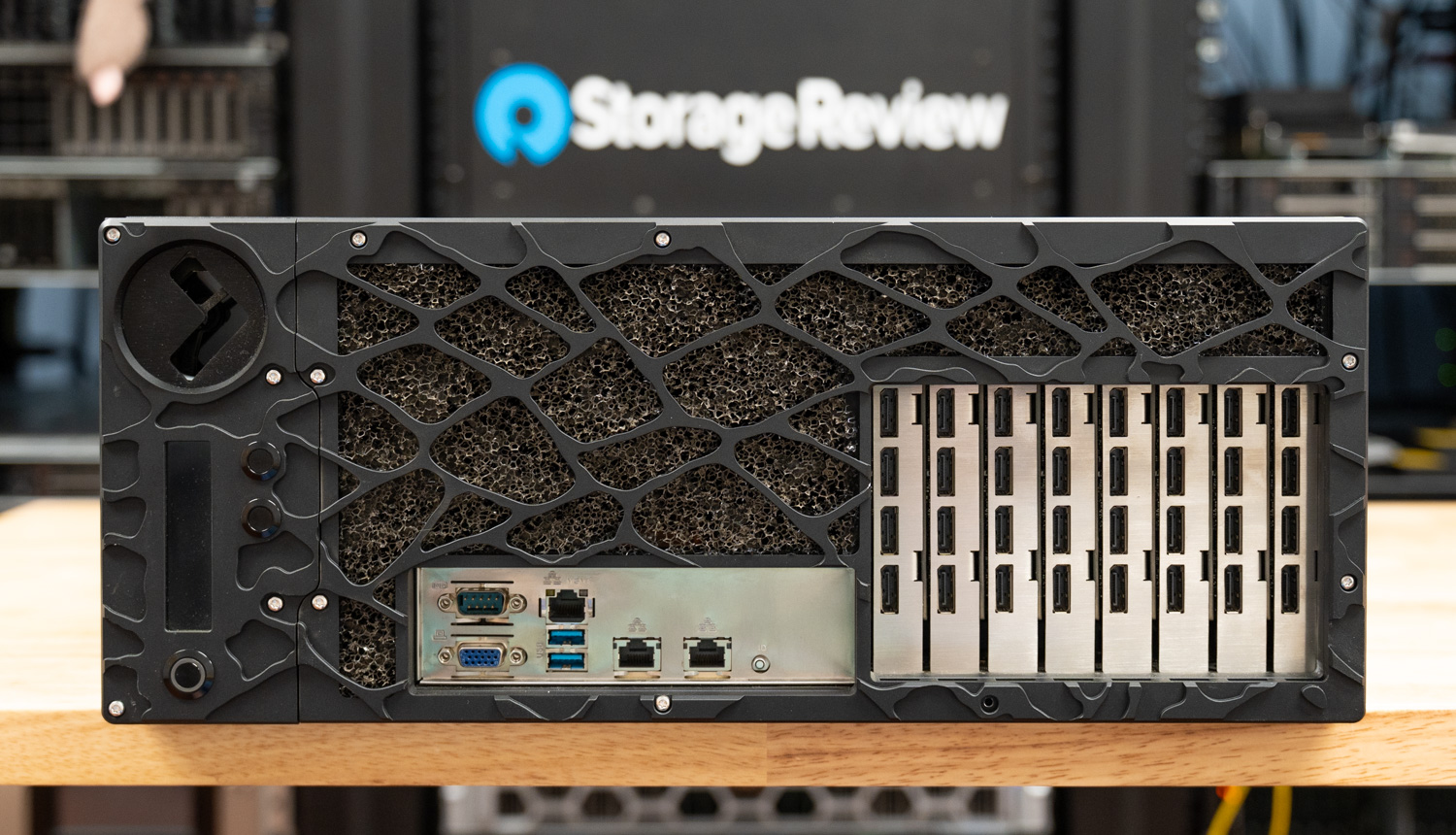
Comino Grando RTX PRO 6000 full front bezel and GPU I/O

The Grando is a purpose-built 4U platform designed to resolve the critical conflict between high-density GPU compute and thermal management. While standard air-cooled chassis crumble under the sustained 600W+ TDP demands of modern professional cards, the Grando takes a fundamentally different approach, built from the ground up around a liquid-cooled architecture capable of dissipating a massive 6.5kW of continuous heat. This is not a retrofit or an afterthought; the entire chassis, from its inverted motherboard layout to its color-coded quick-disconnect manifold system, has been engineered around the cooling loop.

The result is a platform that can sustain eight full-TDP professional GPUs in a single 4U chassis, running 24/7 in ambient environments of 3-38°C, without thermal throttling, without the acoustic assault of high-RPM air cooling, and without compromising serviceability. For organizations deploying AI inference, machine learning training, or high-performance simulation workloads at scale, the Grando offers something genuinely rare: a server that does not ask you to choose between density, thermals, and reliability.

Comino Grando Specifications

The table below shows the physical specifications and supported hardware configurations for the Comino Grando platform.

Specification / Feature Comino Grando
Comino Grando Server & Rackable Workstation
Cooling Capacity 6.5kW (Maximum 6 500 W @ 20°C intake air T)
Motherboards Up to EATX & EBB
GPUs (Server) Up to 8;
NVIDIA: RTX A6000, RTX 6000 ADA, RTX PRO 6000, A40, L40, L40S, A100, H100, H200
GPUs (Rackable Workstation) Up to 6;
NVIDIA: 3090, 4090, 5080, 5090, RTX A6000, RTX 6000 ADA, RTX PRO 6000, A40, L40, L40S, A100, H100, H200;
AMD: W7800, W7900
CPUs Up to 2;
Single Socket: Intel Xeon W-2400/2500 & 3400/3500, Intel Xeon Scalable 4th Gen, 5th Gen, XEON 6, AMD Threadripper PRO 5000WX, 7000WX, 9000WX, AMD EPYC 9004/9005
Dual Socket: Intel Xeon Scalable 4th Gen, & 5th Gen, XEON 6, AMD EPYC 9004/9005
RAM Up to 2TB
M2 drives Up to 8x NVME
Storage Back panel hot swap cages: up to 4x hot swap SSDs (4x 7mm or 2x 15mm) and up to 4 more (4x 7mm or 2x 15mm) instead of 4th PSU;
Internal 3.5″ cage up to 4x 3.5″ or 4x 2.5″ 15mm or 12x 2.5″ 7mm;
Internal 2.5″ slots: up to 4x 2.5″ SSD 7mm
Power Supply & Operating Voltage Up to 4x 2000W Hot Swap CRPS @ 180-264V
Up to 4x 1000W Hot Swap CRPS @ 90-140V
Redundancy modes: 4+0, 3+1, 2+2
Noise level 39dB-70dB
Lan Up to 2x 10 Gbit/s on the MoBo and up to 400Gbit/s in PCIe
OS Ubuntu / Windows 11 (Pro/Home) / Windows Server
Physical & Cooling Specifications
Liquid cooling CPU with VRM and GPU with GDDR and VRM
Reservoir Comino custom 450ml with integrated pumps
Fans 3x Ultra High Flow 6200RPM (high noise level) or
3x High Flow 3000RPM (low noise level)
Installation 19″ rack-mountable or standalone as a Workstation
Required rack space 4U
Size 439 x 681 x 177mm (without handles and protruding parts)
Weight 4 GPUs: 49kg (net), 67kg (gross)
6 GPUs: 52kg (net), 70kg (gross)
8 GPUs: 55kg (net), 72kg (gross)
Operating & storage temperature range Storage: -5..50°C / 23..122°F
Operating: 3..38°C / 38..100°F
Comino Monitoring System (CMS)
Overview Controller Board with Sensors & Software for Real-Time Monitoring
Key Advantages Cooling System & CPU/GPU Monitoring, Web Interface, Cooling System Log, Centralized Monitoring for Workgroups
Sensors & Connected Devices Temperature (air and coolant), % Humidity, Voltage, Coolant flow, Reservoir coolant level, Fans, Pumps, Motherboard, Display, and buttons
Integration Possibilities Establish monitoring via a REST API and push sensor data to monitoring software (e.g., Zabbix, Grafana) or databases (e.g., InfluxDB).
CMS Technical Requirements
OS Windows 11/10
Ubuntu 22.04/20.4 (Dependency for Ubuntu: the target system must have nvidia-smi and sensors utilities installed)
Web Browsers Mozilla Firefox, Google Chrome, Chromium, Apple Safari, Microsoft Edge (Attention: Internet Explorer 11 is not supported)
Hard disk drive 300MB
Controller firmware version 1.0.6 or newer
Controller PCB version 2.xx.xx

Design, Build, and GPU Density

Chassis Layout and Deployment

The Grando Server is a masterclass in space optimization, measuring 17.3 x 26.8 x 6.97 inches (4U). Unlike traditional servers, it places the motherboard’s rear at the front of the chassis, inverting the conventional internal layout. This ensures that air-cooled components, such as RAM modules and VRMs, receive the coldest possible intake air before it reaches the liquid-cooling radiator at the rear.

The chassis itself is built to the same exacting standard, featuring solid steel construction with a matte black powder-coat finish applied inside and out. This deliberate choice extends to the tubing, cables, radiator, and PCB solder mask, reflecting a clear intention for a clean, professional aesthetic throughout. Furthermore, the system supports versatile deployment, functioning seamlessly as either a 19-inch rack-mountable unit or a standalone desktop unit. Depending on the configuration, it weighs between 148 and 159 lbs.

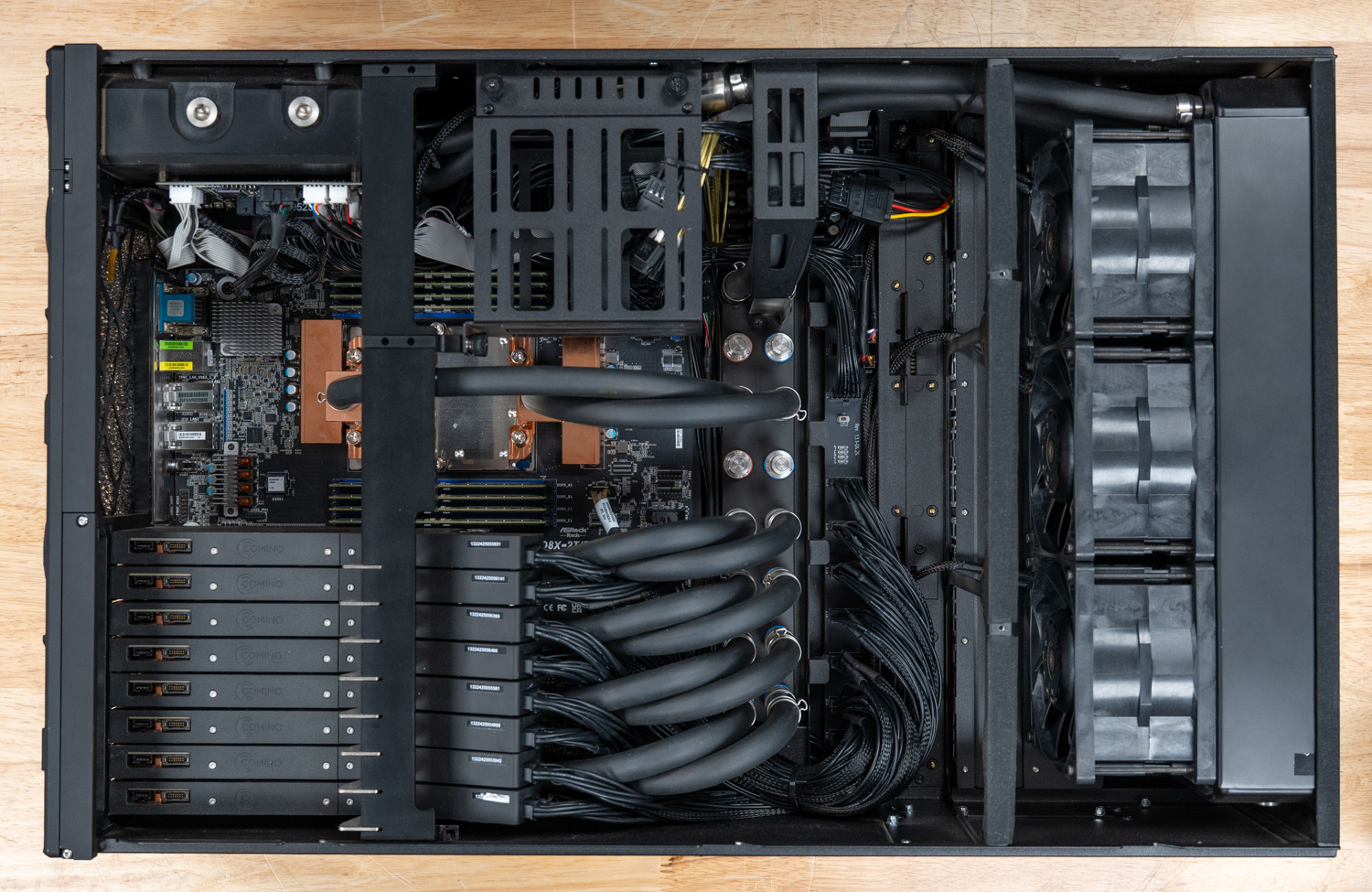
Comino Grando RTX PRO 6000 top down view

GPU Cold Plates and Water Blocks

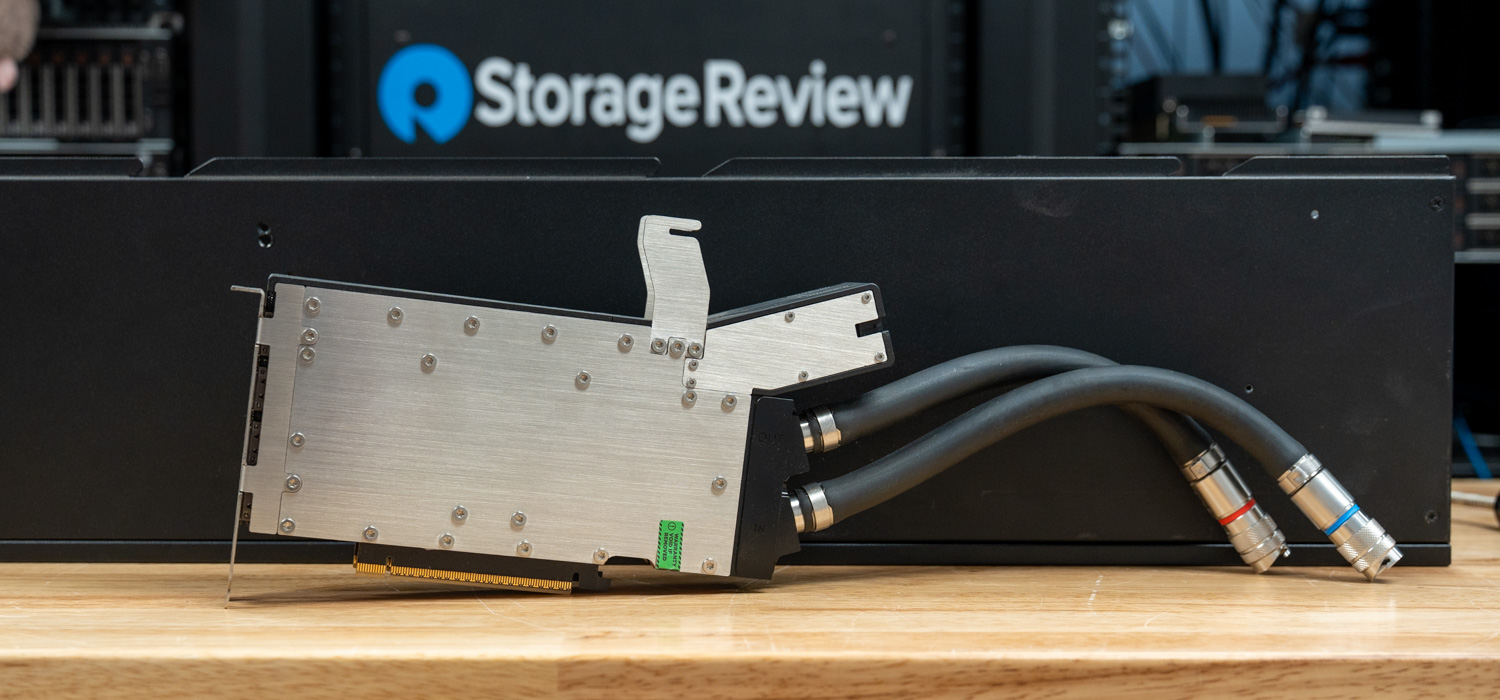
The proprietary copper water blocks form the core of the Grando’s density, cooling not only the GPU die but also the other components like memory and voltage regulators. Each GPU ships as an off-the-shelf card, on which Comino mounts a custom cold-plate assembly. In practice, this thin-profile design reduces each card to a single-slot footprint, allowing six or even eight professional GPUs to sit side by side within a single 4U chassis. Our review unit shipped with eight NVIDIA RTX PRO 6000 Blackwell cards, each with a TDP of 600W, resulting in a total cooling requirement of 4,800W under full load.

Comino Grando NVIDIA RTX PRO 6000 Pair cooler side profile

Achieving the Comino’s 8 single slot GPU density would be nearly impossible with air cooling, since stock NVIDIA RTX PRO 6000 cards each occupy two slots and require substantial airflow. In contrast, these custom-cooled cards occupy just one slot each. The cold plates are built solidly, adding noticeable weight to each card, but that weight reflects the quality and cooling performance required at this level.

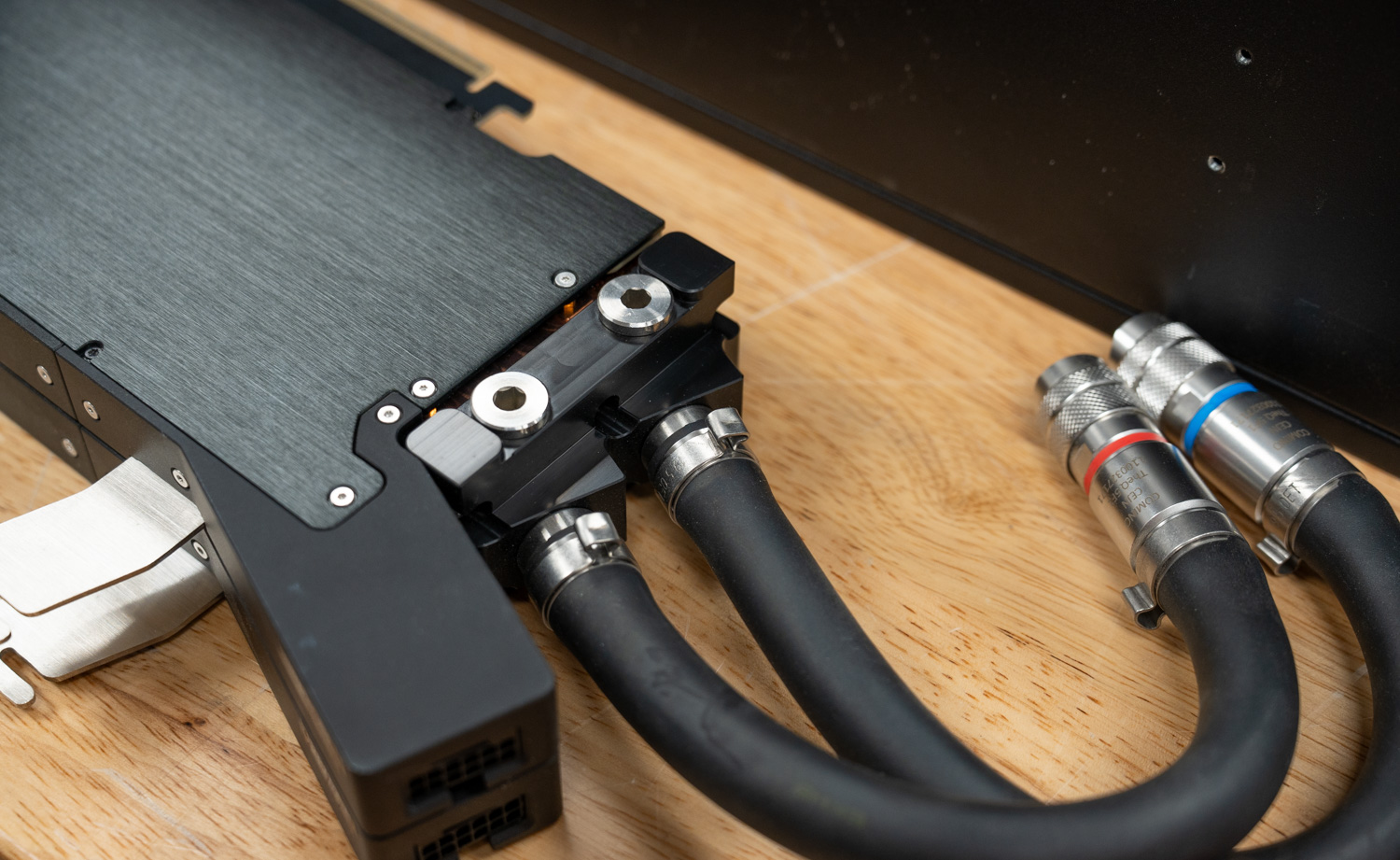
Each pair of GPUs is plumbed through a dedicated sub-manifold that consolidates both cards into a single inlet and outlet connection to the main coolant manifold. This paired approach simplifies the overall loop architecture, reduces the number of connections at the main manifold, and allows a technician to disconnect a single pair of quick-disconnect couplings to remove two cards at once, further streamlining maintenance.

Comino Grando connected pair of GPU cards tubing and quick connect fittings

Water Distribution and Manifold

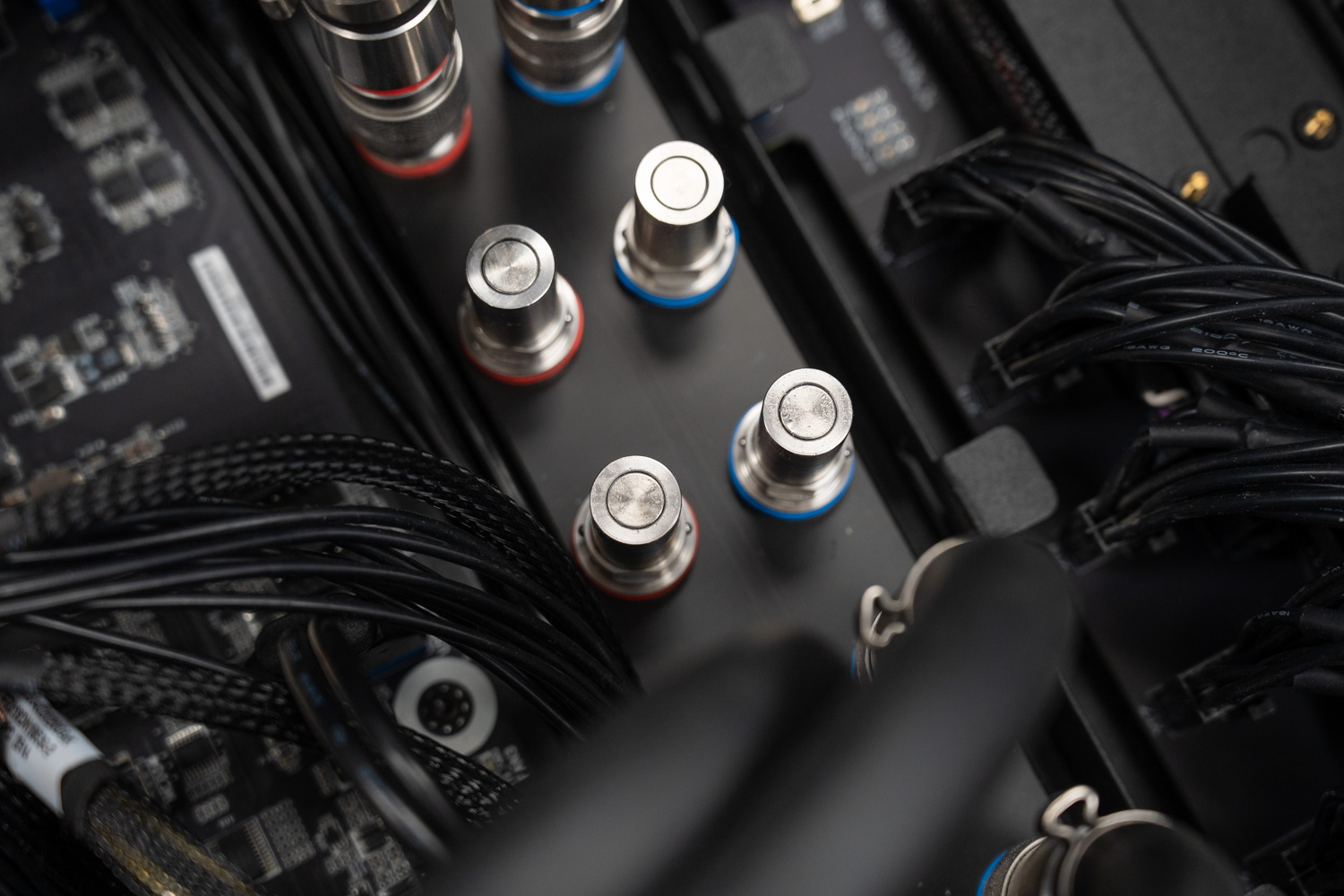
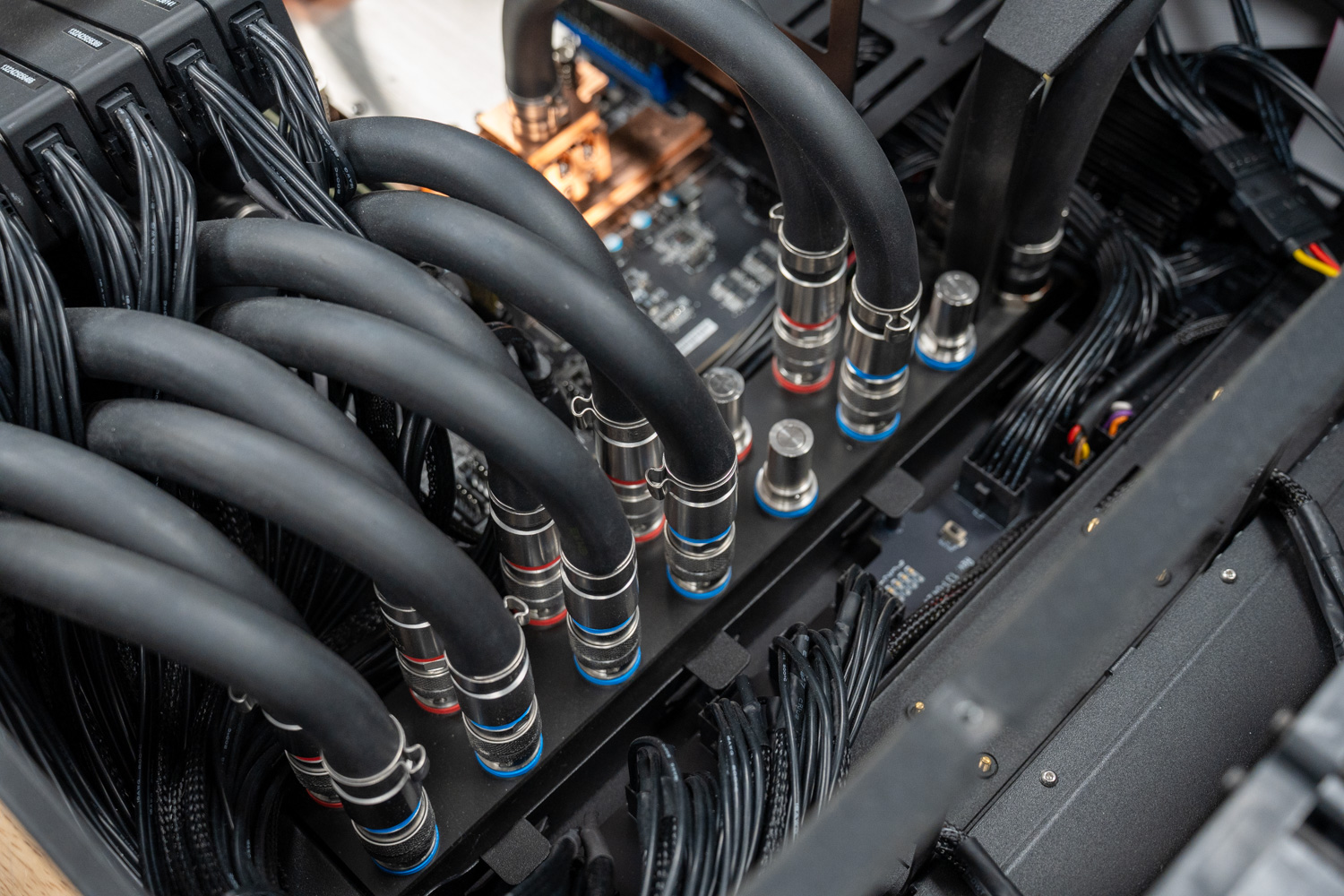
At the center of the system sits a large water distribution manifold that supplies cool liquid to each GPU and CPU cold plate and provides the return path to the radiator. All connections between the manifold and the GPU’s and CPU use Comino’s “TheQ” Quick Disconnect Couplings. These stainless steel dripless fittings are color-coded with red and blue rings to clearly identify the hot and cold sides of the loop, removing any ambiguity during installation or servicing.

Comino Grando TheQ Quick Disconnect Couplings close up

They leave minimal residue on the mating surface when disconnected, allowing technicians to remove or replace individual GPUs or the CPU without draining the 450ml reservoir or the rest of the loop. In this way, the Grando brings the maintenance simplicity of air-cooled systems to a high-performance liquid-cooled platform.

CPU Cooling and Memory

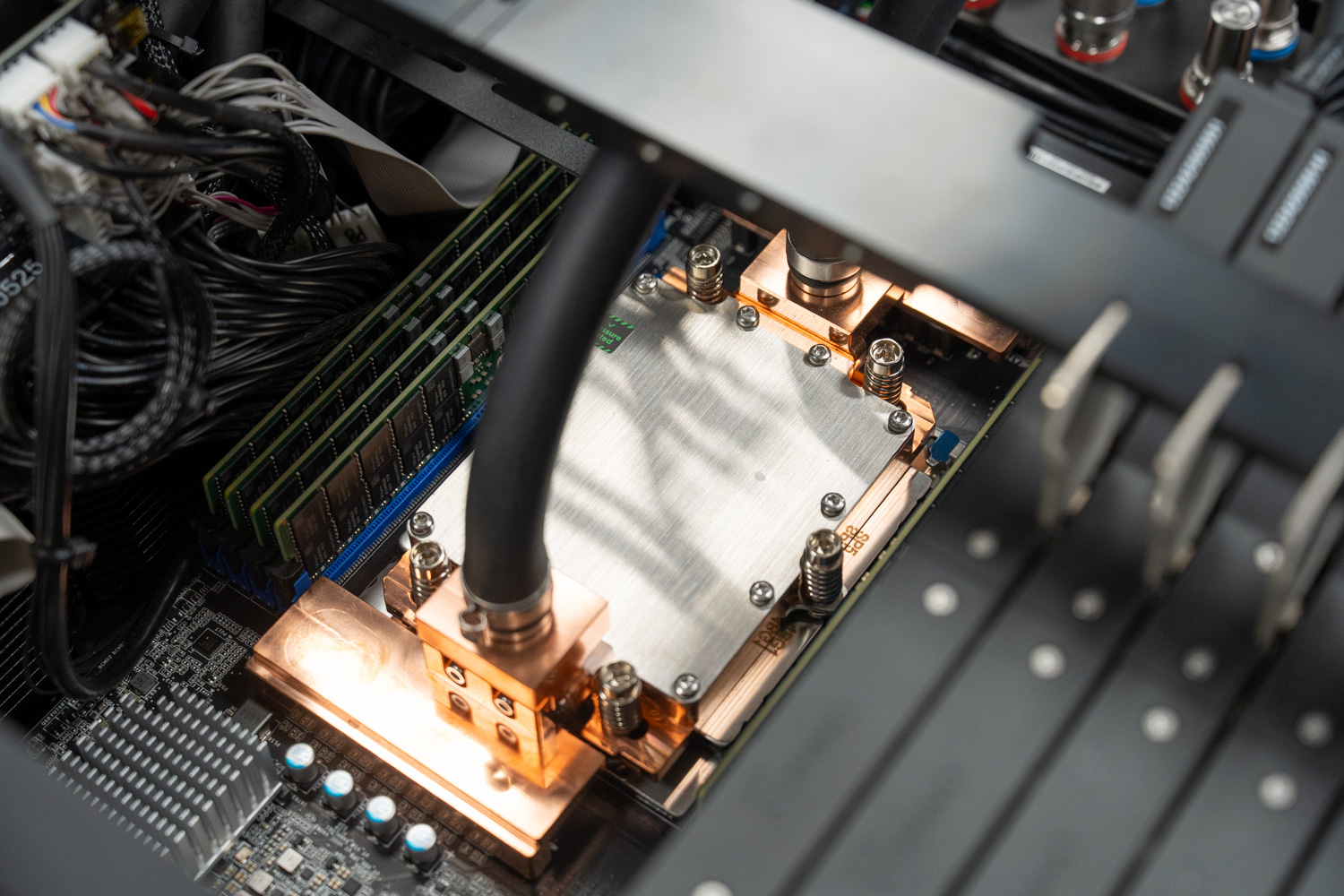
The CPU and its voltage regulators also benefit from a dedicated cold plate connected directly to the coolant loop, preventing the processor from becoming a bottleneck during intense multi-GPU workloads. Our review unit shipped with an AMD Turin/Genoa board featuring a single AMD EPYC 9474F 48-core processor. The cold plate mirrors the quality of the card cold-plates, machined from solid copper and secured with stainless-steel hardware.

Comino Grando CPU waterblock

Flanking the CPU on both sides are eight fully populated DRAM slots that support configurations up to 2TB of RAM. Our review unit came equipped with 512GB of DDR5 RAM. A support bar spans above the GPU and CPU area of the chassis, perpendicular to them, securing sensitive components like the GPU’s and maintaining chassis rigidity during transport.

Radiator and Fans

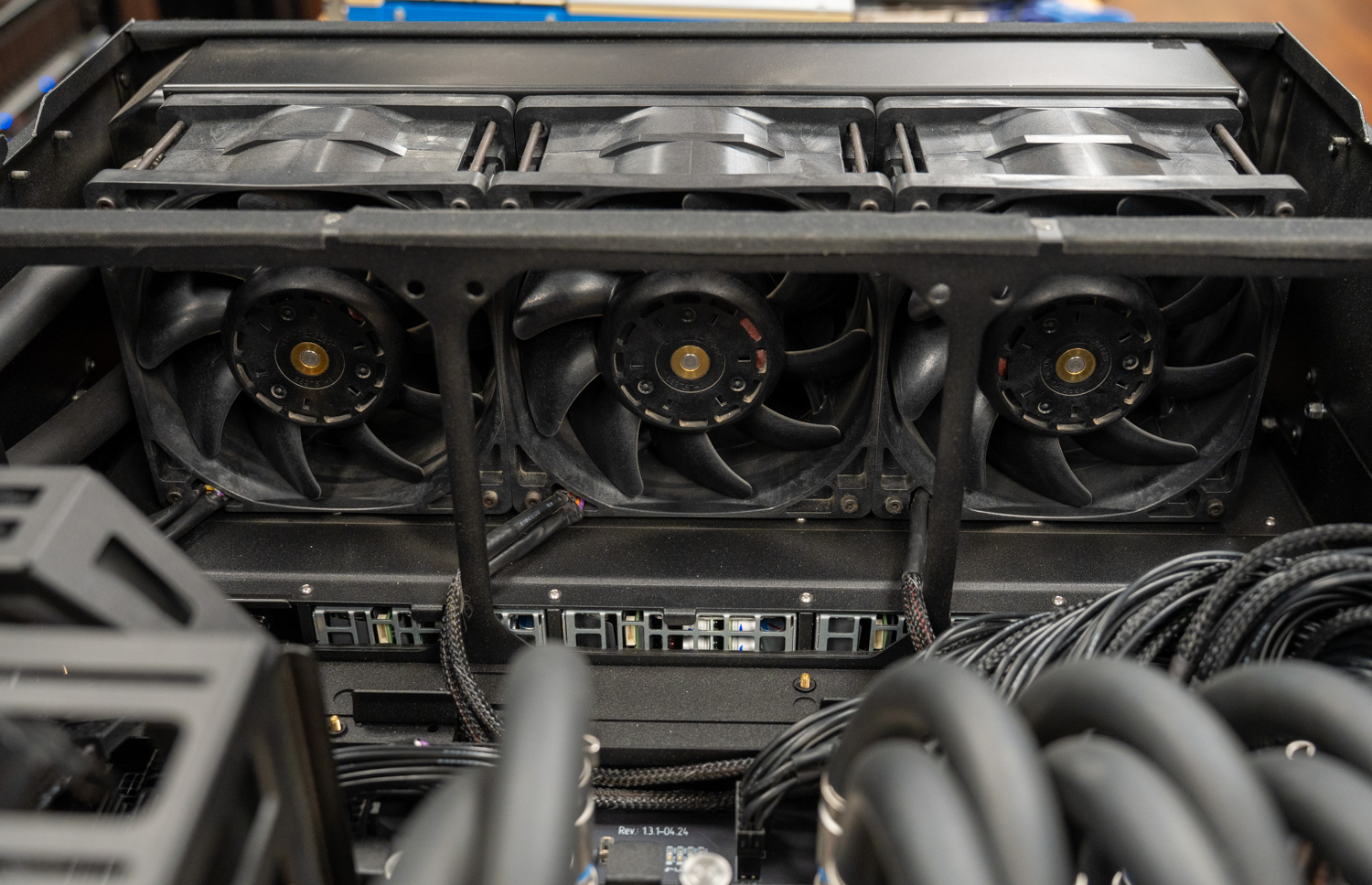
Cooling is handled by a large triple 140mm radiator mounted at the rear of the chassis, paired with three high-speed 140mm fans capable of reaching 6,200 RPM and moving up to 1,000 m³/h of airflow. The dense fin stack provided by the thick radiator underscore the thermal headroom designed into the platform, which is built to dissipate up to 6.5kW of sustained heat in our configuration.

What is perhaps most surprising is that despite that workload and those fan speeds, the unit manages to stay within a tolerable noise envelope, with sound levels sitting 70+ dB at full tilt. That is loud by workstation standards but notably restrained for a system dissipating the thermal output of a small electric furnace, which speaks to how effectively the Comino’s liquid loop transfers heat away from the components.

Comino Grando radiator and fans

Front Panel and Telemetry Display

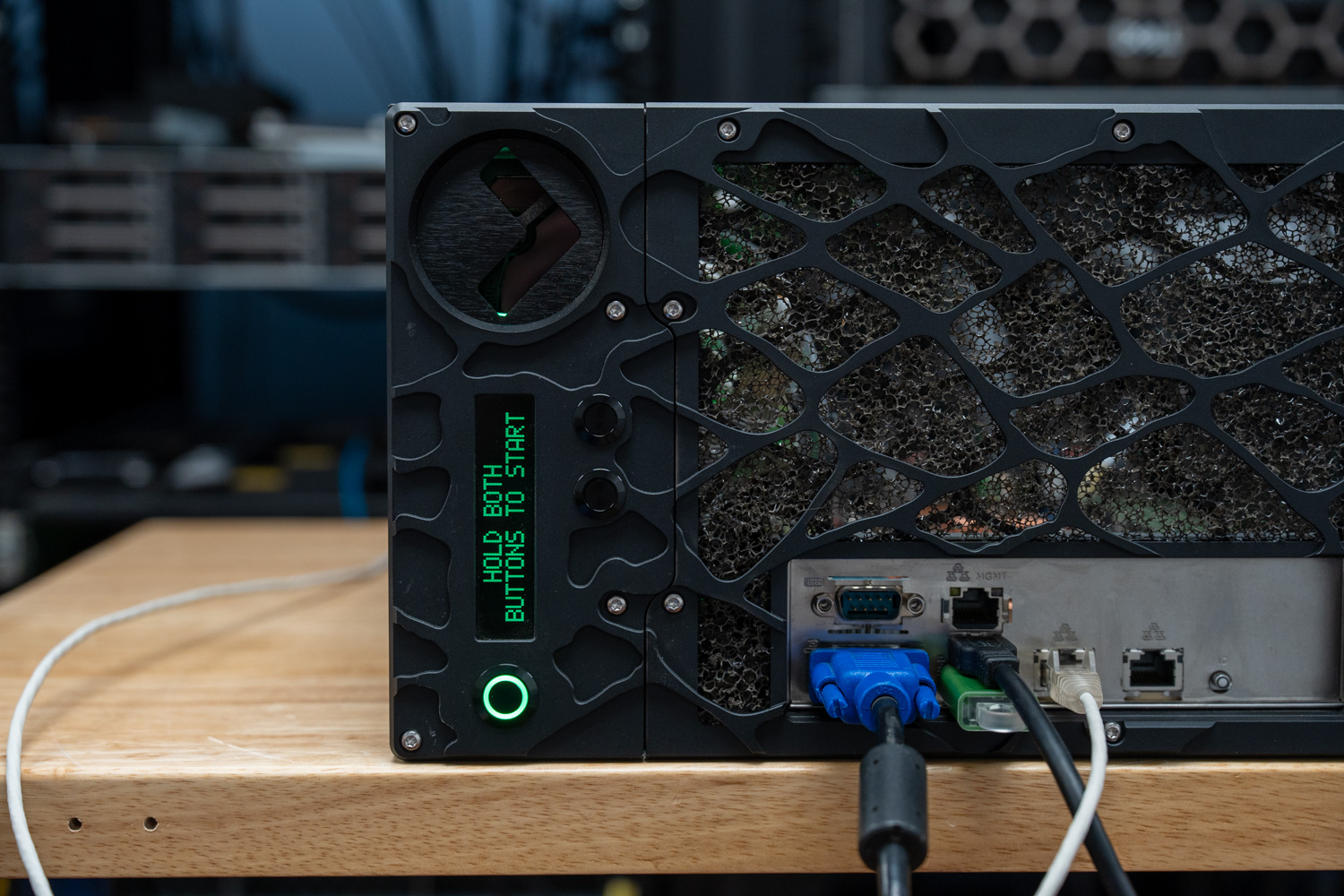
On the front panel, an LED display provides a live readout of key telemetry data, including pump status, ambient air temperature, coolant temperature, and fan speed. Users navigate the menu using illuminated buttons on the cooling module, with short presses to scroll through available data. A long press on the PB2 button opens additional menu branches, including Commands, Service settings, and an Event Log. In addition, the front I/O panel includes a VGA port for display output, alongside a serial port, multiple USB ports, and network connections for peripheral and device connectivity.

Comino Grando front I/O and Power button with LCD

Power and Storage Architecture

Power Delivery and Redundancy

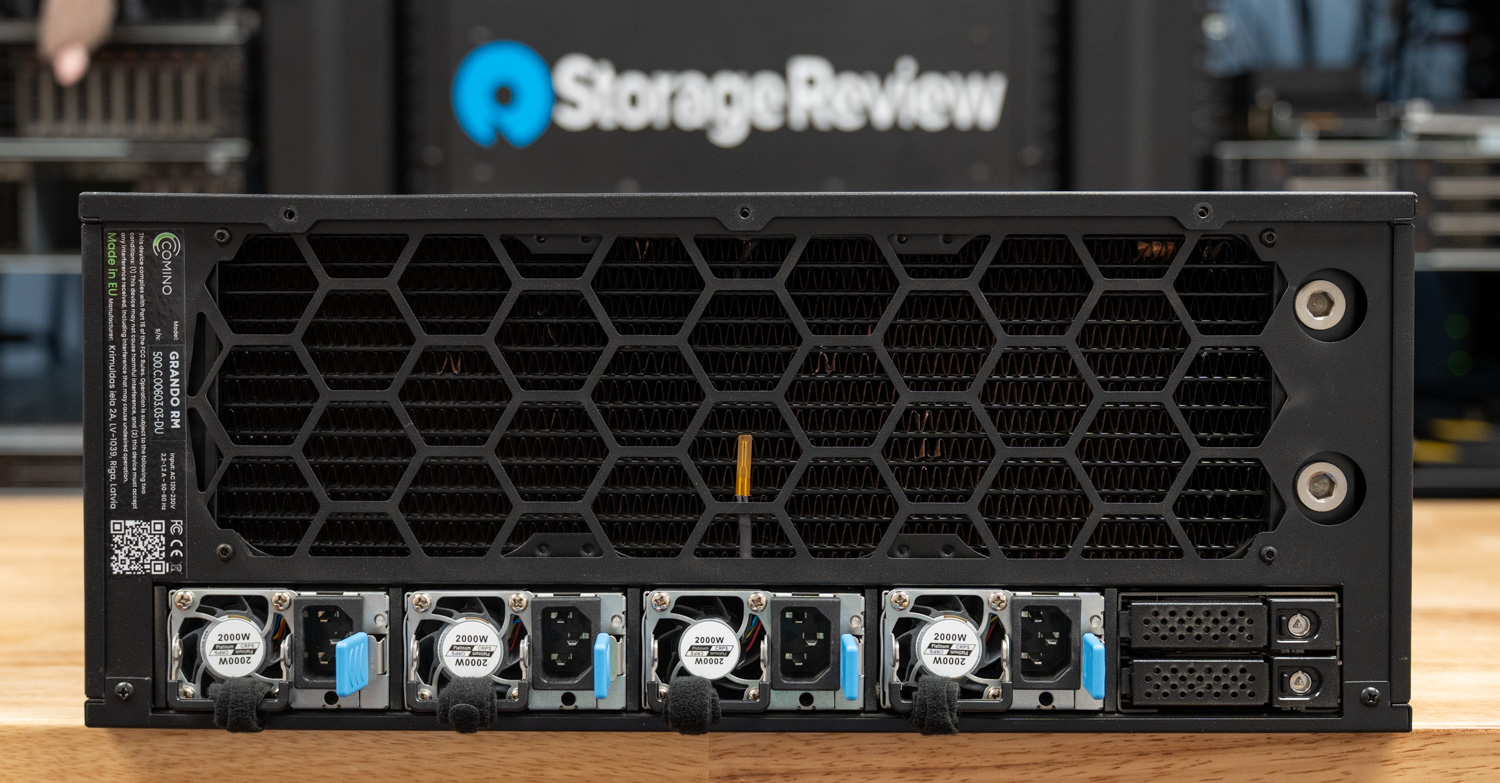
Supporting this level of compute requires equally robust power delivery. The Grando supports up to four hot-swap 1000W or 2000W CRPS modules in a redundant configuration, delivering up to 8.0kW at 180–264V. With support for 4+0, 3+1, and 2+2 redundancy modes, the system can tolerate PSU failures while maintaining continuous operation for 24/7 AI and HPC workloads.

Comino Grando RTX PRO 6000 rear power and storage.

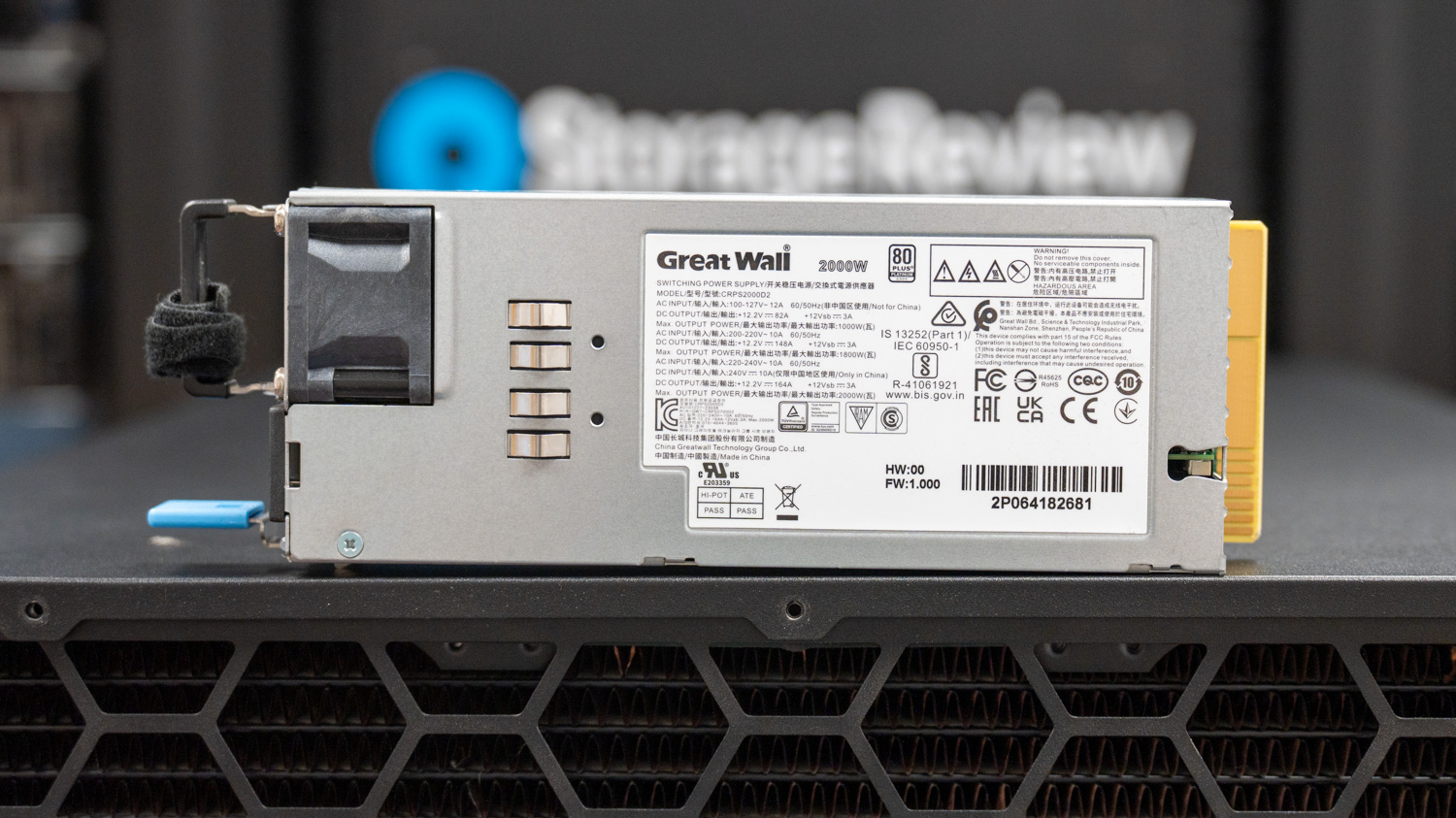
Our review unit shipped with four Great Wall 2000W 80 Plus Platinum hot-swap power supplies, forming the full 8.0kW configuration.

Comino Grando single hot-swap 2000w PSU

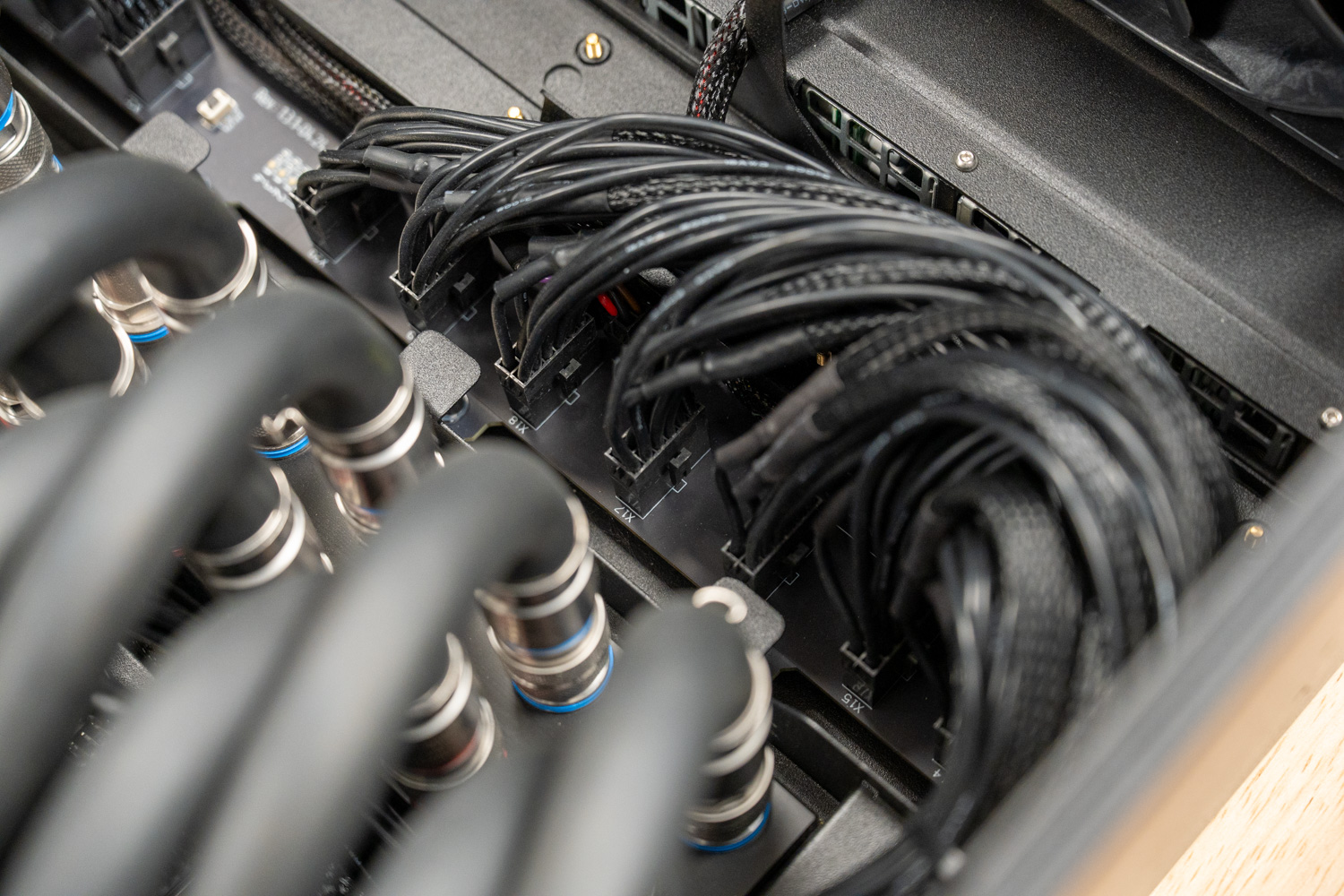
Power delivery to each GPU runs through a centralized 12-pin power distribution board mounted between the GPU array and the main cable run. The Grando uses this distribution board to consolidate incoming power feeds and then branch them to each GPU in an organized, space-efficient manner.

Comino Grando GPU power breakout and cables

PCIe, Storage, and Networking

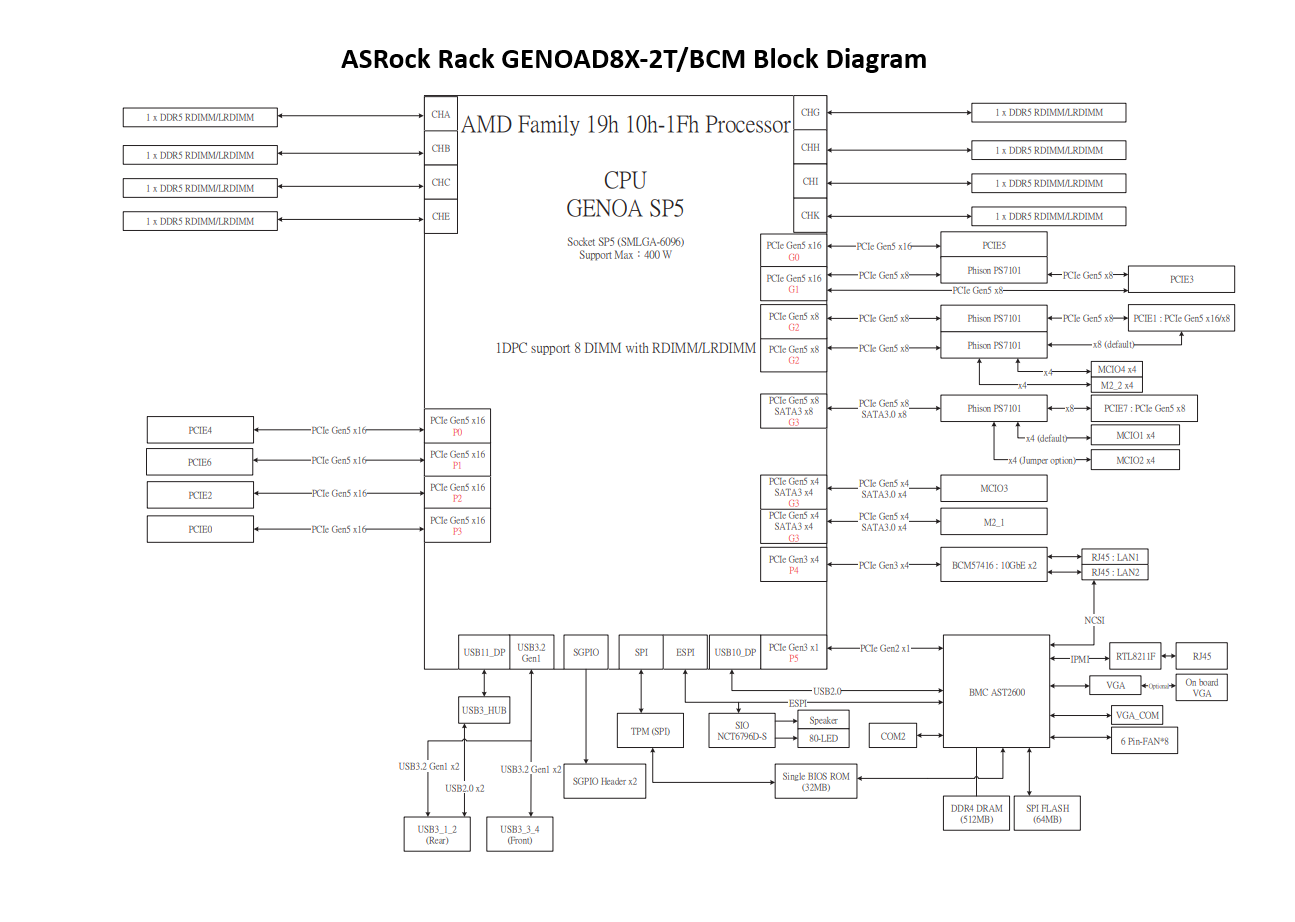
The Grando comfortably supports six GPUs without compromising slot bandwidth, and the chassis scales to a full eight-card configuration for maximum density. The Comino’s ASRock Rack GENOAD8X-2T/BCM motherboard provides seven x16 and one x8 PCIe Gen 5 slots, meaning seven of the eight GPUs run at full x16 bandwidth with the eighth card operating at x8. This is a trade-off between the number of PCIe lanes a single-socket CPU can support and Comino’s reluctance to add the size, cost, and complexity of a PCIe switch plate. Moving to a dual-socket motherboard would provide more PCIe lanes but offer even fewer slots, since the 2nd socket would occupy space otherwise used by PCIe slots in the space-constrained form factor.

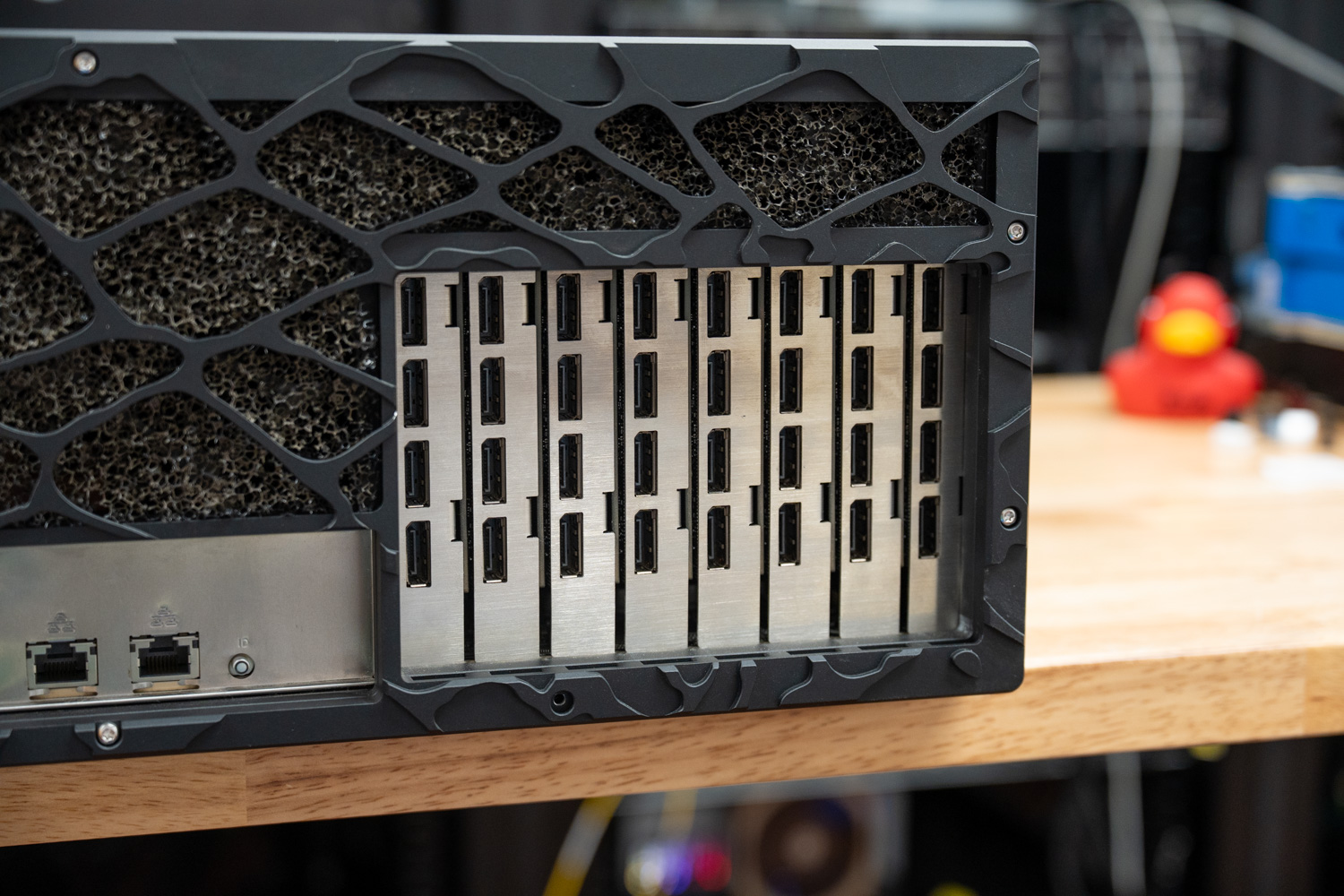
Comino Grando GPU display connectivity.

Running eight GPUs in a single-socket system consumes the lion’s share of available PCIe lanes, and that comes with trade-offs. Our review unit, based on AMD Genoa, has 128 PCIe Gen 5 lanes available in total. With eight GPUs consuming 120 of those lanes, the remaining 8 lanes are split x4 to each M.2 SSD slot, so it is not possible to simultaneously run eight GPUs and a full complement of NVMe drives in the rear of the chassis connected via the two MCIO connectors. In our full 8-GPU configuration, only 2 M.2 slots were available for storage. Administrators who need additional NVMe capacity alongside maximum GPU density should be aware that adding rear hot-swap NVMe storage via the back-panel cages will consume additional PCIe lanes and disable some GPU capacity in their system.

Comino Grando Single Socket motherboard block diagram

ASRock Rack GENOAD8X-2T/BCM motherboard block diagram showing CPU, PCIe Gen 5 slots, DIMM channels, M.2 slots, BMC, USB, SATA, and networking connections.

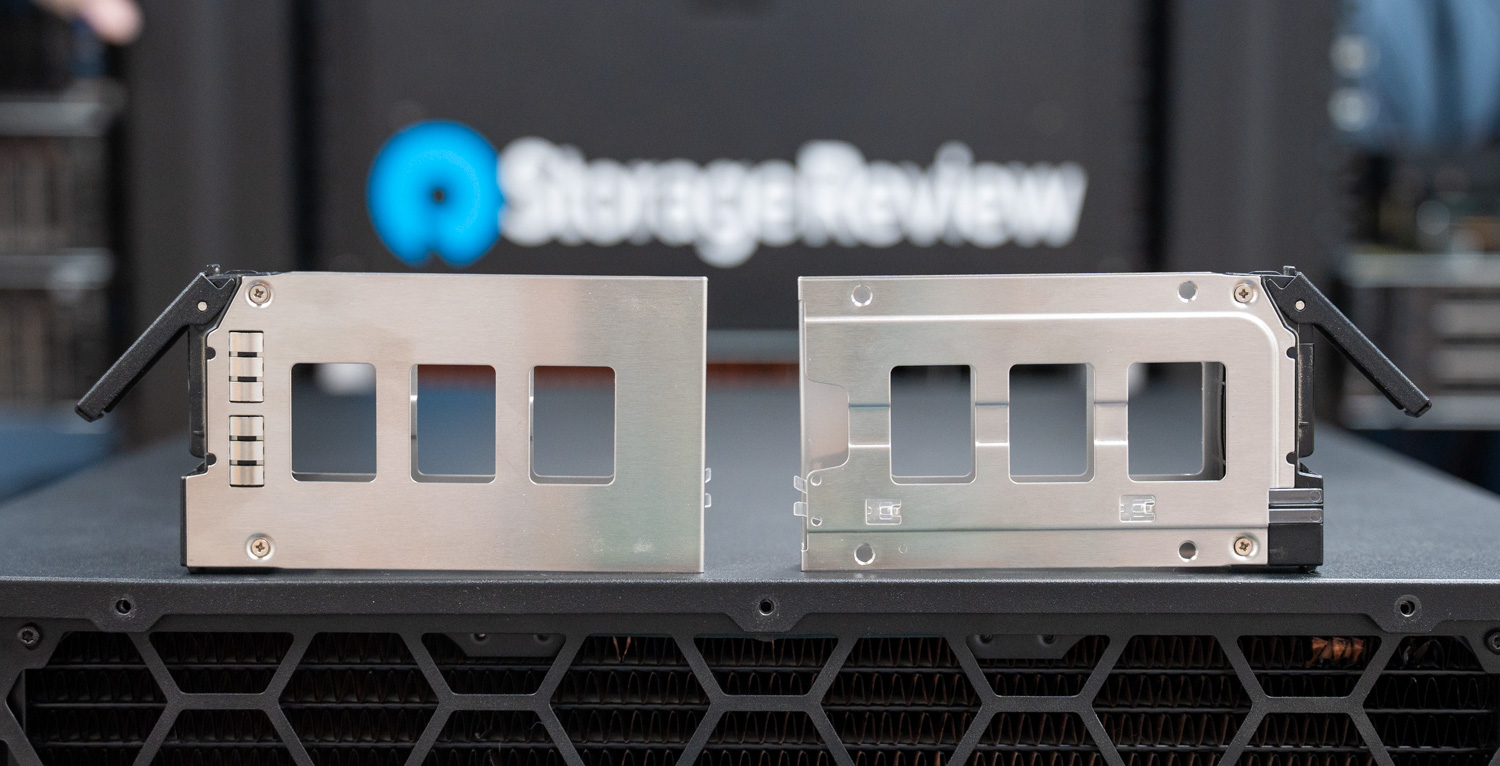
With that said, storage is equally modular and expansive, though the configuration does affect the PCIe lane budget for GPUs, which is worth planning around for the intended use case. The rear panel of our review unit features a 2.5″ drive cage that supports up to four 2.5-inch SSDs in either 4x 7mm or 2x 15mm configurations, with an optional second set of up to four available in place of the fourth PSU slot. Because our review unit required all four power-supply bays to support the full 8-GPU configuration, we had access only to the first of the two hot-swap bays. Internally, the chassis can support a 3.5-inch cage that accommodates up to four 3.5-inch drives, four 2.5-inch 15mm drives, or up to twelve 2.5-inch 7mm drives, plus four additional internal 2.5-inch 7mm SSD slots if configured.

Comino Grando 2.5" SSD Trays

For networking, two onboard RJ45 10 Gb/s ports powered by the Broadcom BCM57416 are standard on the motherboard, alongside a dedicated Gigabit Ethernet IPMI management port. Administrators can further increase bandwidth by installing PCIe NICs that support up to 400 Gb/s for high-bandwidth fabric connectivity, though note that additional PCIe NICs occupy GPU slots, reducing the maximum number of GPUs the system can host.

Comino Grando view of card tubes and M.2 storage

Remote Management and System Intelligence

To safeguard the hardware and optimize performance, the system includes the Comino Monitoring System (CMS). A separate, autonomous controller board drives the CMS and serves as the server’s “brain,” independent of the main operating system. In practice, this controller reads a comprehensive array of sensors that track air and coolant temperatures, humidity levels, coolant flow rates, and reservoir levels in real time. Crucially, this autonomous design enables the CMS to perform self-diagnosis and trigger emergency shutdowns upon detecting a leak or a pump failure, protecting the expensive internal hardware from damage.

A web-based GUI handles day-to-day management, providing administrators with clear visibility into cooling performance, uptime, and real-time energy consumption for the CPU and GPUs. For enterprise-scale deployments, the CMS also connects to centralized monitoring tools via REST APIs, such as Zabbix, Grafana, and InfluxDB. Together, these capabilities help administrators maintain a 3-year interservice period and keep the server running at peak efficiency without thermal throttling, even in high-ambient environments.

Beyond AI: Creative and Engineering Applications

While our testing focused on AI inference workloads, the Grando serves an equally practical role for creative professionals and engineers who need substantial local GPU compute. The 768GB of aggregate VRAM across eight RTX PRO 6000 cards unlocks capabilities that conventional workstation configurations cannot match.

FX artists and motion graphics professionals can render complex scenes with massive texture sets entirely in VRAM, eliminating the disk-swapping bottlenecks that plague productions using 8K footage or high-polygon environments. CAD engineers running computational fluid dynamics or structural simulations can tackle assemblies of unprecedented complexity without partitioning their models into multiple runs. Video editors working with multi-stream 8K RAW timelines, colorists applying ML-based noise reduction at full resolution, and 3D artists rendering path-traced finals locally rather than waiting for cloud farm availability all benefit from this density of GPU memory and compute.

The Grando does not require a full eight-GPU configuration. Comino offers the platform in four-GPU, six-GPU, and eight-GPU configurations, with all variants available for immediate shipment. Smaller studios, independent creators, and engineering teams can right-size their investment to current needs while retaining a clear upgrade path as workloads grow.

Platform Trade-offs: Density vs. Expandability

The Grando’s compact design delivers exceptional GPU density and thermal management within a standard 4U footprint, but that density involves architectural trade-offs worth understanding before deployment.

The chassis accommodates motherboards with EATX and EEB form factors, but not extended server boards found in traditional dual-socket platforms. This limits the total number of PCIe lanes available for peripherals beyond the GPU array. In our eight-GPU configuration, the AMD EPYC processor’s 128 PCIe Gen 5 lanes are almost entirely consumed by the GPUs, leaving little bandwidth for additional NVMe storage or high-speed networking beyond the onboard 10GbE ports.

This contrasts with the eight-GPU platforms we have reviewed from Dell, HPE, and Supermicro. Those systems use larger chassis, dual-socket configurations, and PCIe switch topologies to support significantly more peripheral connectivity. They typically accommodate four to eight additional NICs or DPUs alongside the full GPU complement, plus eight or more hot-swap NVMe bays, making them well-suited for distributed inference workloads that require high-bandwidth fabric interconnects.

However, that expanded capability comes at a substantial cost. Power draws exceed 8kW. Thermal loads require dedicated data center cooling infrastructure. Noise floors preclude deployment outside purpose-built machine rooms. And lead times frequently stretch six to eighteen months due to persistent supply constraints on enterprise GPU platforms.

The Grando occupies a different position. For organizations that prioritize rapid deployment, manageable operating environments, and inference or creative workloads over large-scale distributed training, the trade-offs are often favorable. Teams that need their hardware now, in an environment they can actually work with, may find the Grando’s approach to density more practical than waiting in a queue for a platform they cannot realistically deploy once it arrives.

Comino Grando Performance Testing Results

Comino Grando top view water cooling manifold

System Configuration

  • Chassis: Comino Grando
  • Motherboard: ASRock Rack GENOAD8X-2T/BCM
  • CPU: AMD EPYC 9474F 48C
  • Memory: 512GB DDR5
  • GPU: 8 x NVIDIA RTX PRO 6000
  • Storage: M.2 SSD

Claude Code Serving – MiniMax M2.5

Beyond traditional raw LLM inference benchmarks, we wanted to evaluate how well this hardware performs in an agentic coding workflow, specifically by serving multiple concurrent Claude Code sessions using a locally hosted model. This use case maps directly to development team productivity: how many engineers can simultaneously use an AI coding assistant served from a single node before the experience degrades?

To test this, we built a benchmark harness that generates a dataset of moderately difficult coding problems (such as implementing an LRU cache, building a CLI todo application, writing a markdown converter, and constructing a REST API) and runs each Claude Code session in a separate Docker container against the local vLLM server. A transparent proxy sits between the sessions and the inference endpoint, capturing per-request metrics for each Claude Code instance. The model used was MiniMax M2.5, served via vLLM on the system’s eight NVIDIA RTX PRO 6000 GPUs. While not the top-ranked coding model on public leaderboards, M2.5 is a capable model that many users, including our developer friends, run locally.

For a baseline reference point, we use Anthropic’s Claude Opus 4.6 average output throughput via OpenRouter.ai, one of the most popular routing services for production API access. That baseline comes in at approximately 37 tokens per second per API request.

We measured two key metrics: the average output tokens per second per Claude Code session (what each developer experiences) and the aggregate output tokens per second across all sessions (the total work the server produces).

Based on the results, a single concurrent Claude Code session delivers 67.3 tok/s per user and an aggregate output of 64.7 tok/s. At two sessions, per-instance throughput drops modestly to 57.4 tok/s, while aggregate output climbs to 95.1 tok/s as vLLM’s batching begins to amortize overhead. Four concurrent sessions maintain 49.2 tok/s per user, still a highly responsive experience for interactive coding workflows, while aggregate throughput reaches 177.2 tok/s. Eight sessions represent the sweet spot for aggregate output, peaking at 206.7 tok/s total, while per-instance throughput settles at 38.7 tok/s, a level that remains comfortable for real-time code generation and iteration.

At 16 concurrent sessions, the system exhibits the classic batching trade-off: per-instance throughput drops to 31.1 tok/s, and aggregate output falls to 105.8 tok/s. This suggests that, at this concurrency level, the 230B MiniMax M2.5 model is pushing the limits of what eight GPUs can sustain without introducing meaningful latency for each user. The aggregate dip from 8 to 16 sessions reflects the memory-bandwidth demands of a large MoE architecture under heavy simultaneous decode load, rather than a scheduling inefficiency.

For organizations evaluating self-hosted AI infrastructure for developer tooling, the Grando makes a strong case. Running a frontier-class 230B model, it can comfortably serve up to eight simultaneous Claude Code sessions at throughput levels that feel genuinely interactive, with per-user speeds exceeding 38 tok/s at peak aggregate output. Teams of four to eight engineers can operate at near-optimal throughput without perceptible degradation in responsiveness.

The liquid-cooled architecture also makes this level of compute practical in environments where traditional GPU servers cannot operate. The system runs quietly enough to sit in a startup office, a small machine room, or a dedicated corner of an open workspace. Air-cooled systems with similar GPU density typically reach 90 dB or higher, which is loud enough to require dedicated data center space or, at a minimum, a closed server closet with serious acoustic treatment. The Grando can coexist with the team that uses it. Combined with full data locality, no per-token API costs, and complete control over model selection, it offers a self-hosted path that scales with a growing development team without requiring datacenter infrastructure or lockstep cost increases.

vLLM Online Serving – LLM Inference Performance

vLLM is one of the most popular high-throughput inference and serving engines for LLMs. The vLLM online serving benchmark evaluates the real-world serving performance of this inference engine under concurrent requests. It simulates production workloads by sending requests to a running vLLM server, with configurable parameters such as request rate, input and output lengths, and the number of concurrent clients. The benchmark measures key metrics, including throughput (tokens per second), time to first token, and time per output token (TPOT), helping users understand how vLLM performs under different load conditions.

We tested inference performance across a comprehensive suite of models spanning various architectures, parameter scales, and quantization strategies to evaluate throughput under different concurrency profiles.

Summary Of Results

Model Precision Equal (256/256) Prefill-Heavy (8k/1k) Decode-Heavy (1k/8k)
Comino Grando w/ 8× RTX PRO 6000 Blackwell — vLLM Inference Results (tok/s, peak at BS=256)
GPT-OSS 20B ep_dp1 17,280 32,061 11,187
GPT-OSS 120B ep_dp1 11,726 21,636 7,570
Llama 3.1 8B Instruct FP8 12,109 20,137 7,353
Llama 3.1 8B Instruct FP4 11,954 20,206 7,239
Llama 3.1 8B Instruct BF16 11,752 17,346 6,155
Qwen3 Coder 30B A3B FP8 10,985 16,659 4,907
Qwen3 Coder 30B A3B BF16 10,588 16,680 4,829
Mistral Small 3.1 24B BF16 8,925 11,846 4,975
MiniMax M2.5 (230B) ep_dp1 5,753 7,357* 2,555
All values in tok/s, peak throughput at BS=256. *MiniMax M2.5 prefill-heavy peaked at BS=128 (7,357 tok/s); BS=256 was 7,141 tok/s.

GPT-OSS 120B and 20B

The GPT-OSS model family was tested in both 120B and 20B configurations on the Comino Grando.

GPT-OSS 120B

Under equal workload (256/256), the 120B model delivers 268.85 tok/s at BS=1, reaches 6,666.23 tok/s at BS=64, and peaks at 11,726.04 tok/s at BS=256. Prefill-heavy (8k/1k) starts at 1,375.69 tok/s, climbs to 16,374.19 tok/s at BS=64 and 17,944.55 tok/s at BS=128, and peaks at 21,636.41 tok/s at BS=256. Decode-heavy (1k/8k) grows from 196.28 tok/s at BS=1 to 7,569.97 tok/s at BS=256, with latency well-controlled at lower concurrency levels.

GPT-OSS 20B

The 20B model delivers 334.80 tok/s at BS=1 under equal workload, reaches 10,303.56 tok/s at BS=64, and peaks at 17,280.12 tok/s at BS=256. Prefill-heavy starts at 2,007.90 tok/s, climbs to 24,990.46 tok/s at BS=64 and 26,866.25 tok/s at BS=128, peaking at 32,060.72 tok/s at BS=256, the highest absolute prefill throughput recorded across both model sizes. Decode-heavy grows from 286.08 tok/s at BS=1 to 11,187.36 tok/s at BS=256, delivering roughly 1.5× the decode throughput of the 120B at peak concurrency while maintaining tighter latency throughout.

Qwen3 Coder 30B A3B Instruct and FP8 Instruct

The Qwen3-Coder-30B-A3B-Instruct model was tested with both BF16 and FP8 precision.

Qwen3-Coder-30B-A3B-Instruct (BF16)

Under an equal workload (256/256), the BF16 model delivers 1,902.32 tok/s at BS=8, reaches 6,683.58 tok/s at BS=64, and peaks at 10,587.56 tok/s at BS=256. Prefill-heavy (8k/1k) starts at 1,256.03 tok/s at BS=1, climbs to 14,400.57 tok/s at BS=64 and 15,308.35 tok/s at BS=128, and peaks at 16,679.52 tok/s at BS=256. Decode-heavy (1k/8k) grows from 169.19 tok/s at BS=1 to 4,828.82 tok/s at BS=256, with latency well-controlled at lower concurrency levels.

Qwen3-Coder-30B-A3B-Instruct (FP8)

The FP8 model delivers throughput comparable to BF16 across most scenarios, with equal workload reaching 6,478.54 tok/s at BS=64 and peaking at 10,984.61 tok/s at BS=256, a slight improvement over BF16 at peak concurrency. Prefill-heavy starts at 987.48 tok/s at BS=1, climbs to 14,036.46 tok/s at BS=64 and 15,156.69 tok/s at BS=128, and peaks at 16,658.98 tok/s at BS=256. Decode-heavy grows from 130.70 tok/s at BS=1 to 4,906.51 tok/s at BS=256, marginally outpacing BF16 at peak concurrency while the two configurations remain closely matched throughout the rest of the concurrency range.

Mistral Small 3.1 24B Instruct 2503

Under an equal workload (256/256), the model delivers 1,598.79 tok/s at BS=8, reaches 4,713.84 tok/s at BS=64, and scales strongly to 8,925.12 tok/s at BS=256. Prefill-heavy (8k/1k) starts at 897.84 tok/s at BS=1, climbs to 9,632.58 tok/s at BS=64 and 11,488.13 tok/s at BS=128, peaking at 11,846.15 tok/s at BS=256. Decode-heavy (1k/8k) grows from 124.98 tok/s at BS=1 to 2,653.82 tok/s at BS=64, then accelerates noticeably at higher concurrency levels, reaching 4,262.53 tok/s at BS=128 and peaking at 4,975.06 tok/s at BS=256, reflecting the model’s ability to sustain strong decode throughput as concurrency scales.

Llama 3.1 8B Instruct

The Llama-3.1-8B-Instruct model was tested across three precision configurations on the Comino, providing a clear view of how quantization affects throughput for this model size.

Llama 3.1 8B Instruct BF16

Under an equal workload (256/256), the BF16 model delivers 2,776.42 tok/s at BS=8, reaches 7,369.01 tok/s at BS=64, and peaks at 11,751.56 tok/s at BS=256. Prefill-heavy (8k/1k) starts at 1,645.29 tok/s at BS=1, climbs to 14,990.47 tok/s at BS=64 and 17,140.71 tok/s at BS=128, and peaks at 17,345.80 tok/s at BS=256. Decode-heavy (1k/8k) grows from 234.78 tok/s at BS=1 to 6,154.73 tok/s at BS=256.

Llama 3.1 8B Instruct FP8

FP8 quantization delivers a meaningful uplift across all scenarios. The equal workload reaches 7,530.39 tok/s at BS=64 and peaks at 12,108.98 tok/s at BS=256. Prefill-heavy climbs to 16,546.53 tok/s at BS=64 and 19,306.49 tok/s at BS=128, peaking at 20,137.35 tok/s at BS=256, roughly a 16% gain over BF16 at peak concurrency. Decode-heavy peaks at 7,353.40 tok/s at BS=256, approximately 19% ahead of BF16.

Llama 3.1 8B Instruct FP4

FP4 delivers throughput that is closely competitive with FP8 at higher concurrency levels, though it falls slightly behind at lower batch sizes. The equal workload peaks at 11,954.40 tok/s at BS=256, and prefill-heavy reaches its highest point at 20,205.57 tok/s at BS=256, narrowly edging out FP8 at peak concurrency. Decode-heavy peaks at 7,239.29 tok/s at BS=256, remaining within a few percent of FP8 throughout, making FP4 a compelling option when memory efficiency is a priority without a meaningful sacrifice in throughput.

MiniMax M2.5

The MiniMax-M2.5 230B, tested on the Comino Grando, was the largest and most demanding model we used.

Under an equal workload (256/256), the model starts at 16.35 tok/s at BS=1, reaches 2,751.25 tok/s at BS=64, and scales strongly at higher concurrency, peaking at 5,753.24 tok/s at BS=256. Prefill-heavy (8k/1k) starts at 606.97 tok/s at BS=1, climbs steadily to 5,351.02 tok/s at BS=32 and 6,557.92 tok/s at BS=64, reaching its peak at 7,357.26 tok/s at BS=128 before slightly tapering to 7,140.74 tok/s at BS=256, suggesting the model approaches saturation in prefill throughput beyond BS=128. Decode-heavy (1k/8k) grows consistently from 82.21 tok/s at BS=1 to 1,485.28 tok/s at BS=64, peaking at 2,554.87 tok/s at BS=256, reflecting the expected memory bandwidth demands of a 230B MoE architecture under sustained decode workloads.

Conclusion

The Comino Grando is best understood as a system purpose-built to unlock the full potential of eight NVIDIA RTX PRO 6000 GPUs. Every major design decision, from the inverted motherboard layout to the cooling loop and integrated monitoring stack, is intended to ensure those GPUs can operate continuously at full 600W TDP without thermal or power constraints.

Comino Grando RTX PRO 6000 GPUs

What makes the Grando compelling is not any single feature in isolation but the way the entire system coheres. The liquid cooling is not a bolt-on addition; it is the architecture. The power delivery is redundant, hot-swappable, and scaled to the 4,800W load of eight 600W cards with headroom to spare. The monitoring system goes beyond reporting temperatures; it autonomously protects the hardware when something goes wrong. Nothing here feels like an afterthought.

The performance numbers reinforce that cohesion. Across a diverse suite of models, from Llama 3.1 8B to the 230B MiniMax M2.5, the Grando delivered throughput figures that hold up well for a self-hosted platform. Claude Code concurrency testing put a finer point on the practical value: eight engineers can run simultaneous agentic coding sessions against a locally hosted 230B model at interactive speeds, with per-user throughput exceeding 38 tok/s at peak aggregate output. Teams of four to eight can operate at near-optimal throughput without perceptible degradation.

The value of this configuration extends beyond AI inference. With 96GB of VRAM per GPU and dense multi-GPU scaling, the platform is equally well suited for high-end creative and engineering workloads, including VFX rendering, large-scale simulation, and complex CAD pipelines. The system scales down to four-GPU and two-GPU configurations, making this level of performance accessible to smaller studios and teams that still require workstation-class density.

Where the Grando differs most from the enterprise eight-GPU platforms we have reviewed is in deployment practicality. Those systems offer more PCIe lane headroom, more NIC slots, and deeper storage connectivity, but they also require dedicated data center infrastructure, draw well over 8kW, and have lead times that can stretch beyond a year. The Grando trades some of that peripheral expandability for a system that runs quietly enough to share a room with its users, dissipates less heat into the surrounding environment, and ships now. For organizations that prioritize rapid deployment and manageable operating environments over maximum fabric connectivity, the trade-off is favorable.

Product Page – Comino Grando
Comino Configurator – Page

The post Comino Grando RTX PRO 6000 Review: 768GB of VRAM in a Liquid-Cooled 4U Chassis appeared first on StorageReview.com.
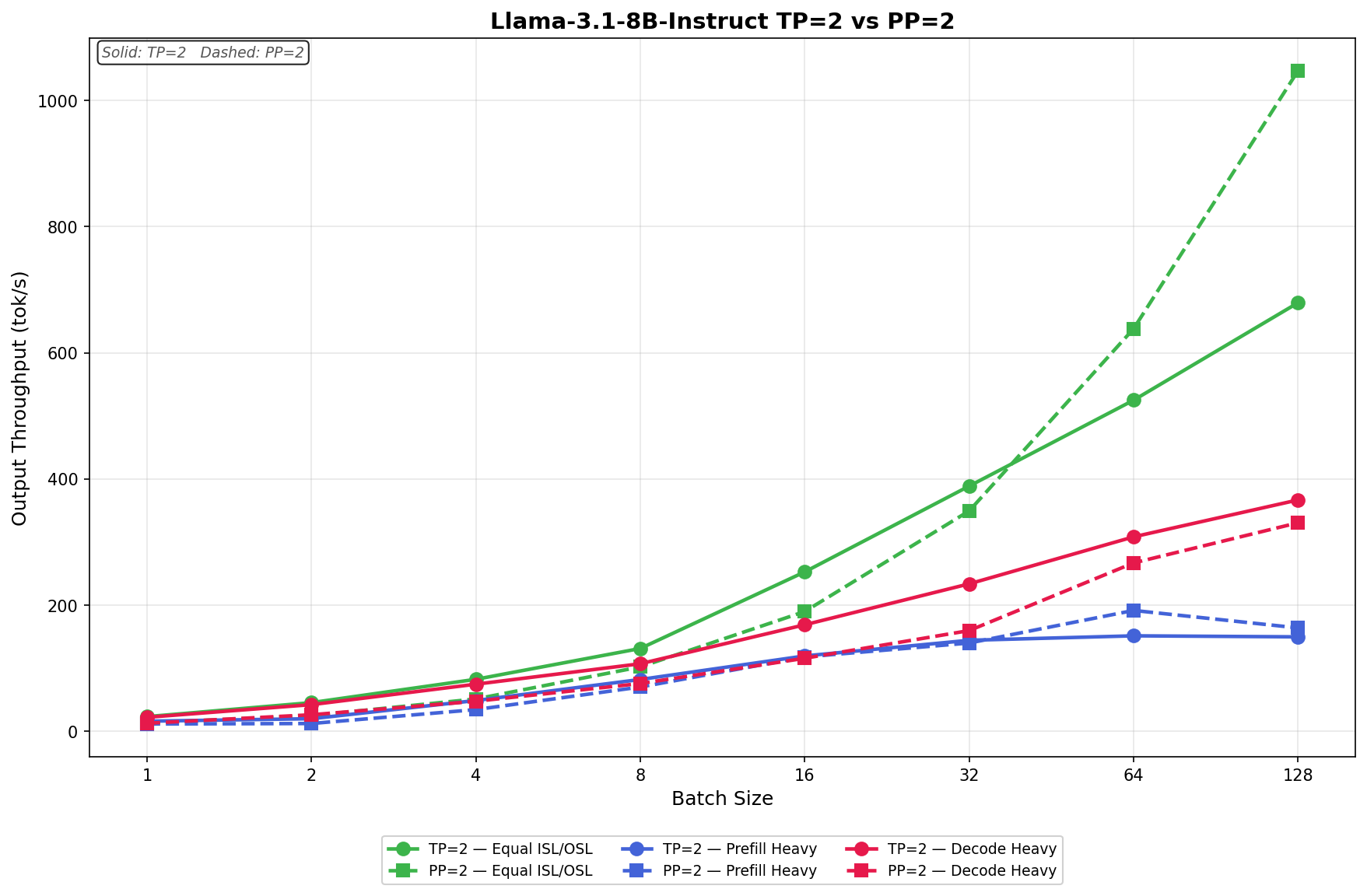
Dell PowerEdge R770AP Review: Dell’s Purpose-Built Answer for Latency-Sensitive Workloads

The Dell PowerEdge R770AP is not a general-purpose server, and that is entirely the point. Where most 2U dual-socket platforms chase flexibility, the R770AP strips it away, trading GPU support, mixed storage options, and raw memory capacity for the highest core density, memory bandwidth, and execution determinism available in Dell’s current Intel lineup. It is a server built around a specific processor architecture for a particular class of workloads, and it makes no excuses for what it omits.

Dell PowerEdge R770AP Front with Bezel

To understand why it exists, start with the platform it sits alongside. Dell’s PowerEdge R7x0 line has historically been the company’s most versatile 2U Intel server, with the AMD-powered PowerEdge R7725 filling an equivalent role on the EPYC side. The PowerEdge R770 carries that Intel tradition forward with support for both Xeon 6 P-core and E-core processors, GPU accelerators, mixed SAS/SATA/NVMe storage, up to 8 TB of memory across 32 DIMM slots, and enough PCIe Gen5 expansion to cover everything from virtualization to AI inference.

The PowerEdge R770AP is not that server.

The “AP” designation stands for Advanced Performance, but the name undersells how different this machine is. While the R770 uses Intel’s Granite Rapids-SP silicon on the LGA 4710 socket with 8 memory channels and up to 86 P-cores, the R770AP moves to the Granite Rapids-AP platform on the LGA 7529 socket, delivering up to 128 P-cores per socket (120 cores in our test configuration) and 12 DDR5 memory channels. This is the same distinction Intel draws across its entire Xeon 6 6900-series strategy: the 6900P parts on the AP platform represent Intel’s highest-performance server silicon, purpose-built for workloads where per-core performance, memory bandwidth, and execution determinism matter more than overall server configuration flexibility.

Dell PowerEdge 770AP LGA 7529 socket

Intel’s new Granite Rapids-AP LGA 7529 Socket

Intel’s broader Xeon 6 architecture splits the data center into two lanes. E-core processors target density and power efficiency for cloud-native, scale-out workloads like microservices and content delivery. P-core processors target compute-intensive work where consistent per-thread performance is critical: HPC simulations, real-time analytics, large in-memory databases, and latency-sensitive financial compute. The 6900P series sits at the top of that P-core stack, pairing the highest available core counts with 12-channel memory bandwidth, up to 96 PCIe Gen5 lanes per socket, up to 6 UPI 2.0 links, and L3 cache pools that reach 504MB on top SKUs like the Intel Xeon 6978P. The architectural goal is not just raw throughput but predictable throughput, minimizing scheduling jitter and memory-access variability that erode performance in timing-critical environments.

The R770AP is Dell’s chassis expression of that philosophy. It strips away everything the Granite Rapids-AP platform doesn’t need: GPU support is gone entirely, SAS and SATA storage options are removed in favor of NVMe-only configurations (up to 16x 2.5-inch Gen5 NVMe or up to 32x E3.S Gen5 NVMe, configuration dependent), memory capacity tops out at 3 TB across 24 DIMM slots (12 per socket, 1DPC for maximum per-channel speed), and PCIe expansion is trimmed to five Gen5 x16 slots plus dual OCP NIC 3.0. What remains is a 2U dual-socket platform optimized for compute density, memory bandwidth, and the deterministic behavior demanded by workloads such as high-frequency trading, real-time risk analysis, and massively parallel simulation.

kevin with intel

Kevin holding the R770AP Heatsink with the Intel 6900 Series chip

Our review unit pairs two Intel Xeon 6978P processors, each with 120 P-cores running at a 2.1 GHz base and 3.2 GHz all-core turbo, with 3TB of DDR5-6400 memory across all 24 DIMM slots. Compared to the R770, which is equipped with dual Xeon 6787P processors (86 cores each, 8 memory channels, 2 TB DDR5), the R770AP offers 39.5% more cores and 50% more memory channels. The question is whether those architectural advantages translate into proportional real-world gains, and whether the platform trade-offs are worth it for the workloads Dell and Intel are targeting.

Dell PowerEdge R770AP Specifications

The table below highlights the physical and supported configuration specifications for the Dell PowerEdge R770AP Platform.

Specification Dell PowerEdge R770AP
Processor
Processor Two Intel® Xeon® 6 6900-series processors with P-Cores, up to 128 Cores each
Memory
DIMM Slots 24 DDR5 DIMM slots
Maximum Memory 3 TB
Memory Speed Up to 6400 MT/s
Memory Type Registered ECC DDR5 RDIMMs only
Storage
Storage Controllers (RAID) PERC H975i DC-MHS front (internal)
Internal Boot BOSS-N1 DC-MHS: HWRAID 1, 2x M.2 NVMe SSDs or USB
Front Drive Bays Up to 16x 2.5-inch G5 x4 NVMe SSD (max 245.76 TB)
Up to 16x 2.5-inch G5 x2 NVMe SSD (max 245.76 TB)
Up to 32x EDSFF E3.S Gen5 NVMe SSD (max 491.52 TB)
Rear Drive Bays N/A
Power
Power Supplies 1500 W Titanium, 100-120 LLAC or 200-240 HLAC, 240 VDC, hot swap redundant
1800 W Titanium, 200-240 HLAC, 240 VDC, hot swap redundant
2400 W Titanium, 100-120 LLAC or 200-240 HLAC, 240 VDC, hot swap redundant
3200 W Titanium, 200-220 HLAC or 220.1-240 HLAC, 240 VDC, hot swap redundant
3200 W Titanium, 277 Vac & HVDC, hot swap redundant*
Cooling & Fans
Cooling Options Air cooling
Fans Up to 6 hot swappable fans
Form Factor & Dimensions
Form Factor 2U rack server
Height 86.8 mm (3.42 inches)
Width 482 mm (19.0 inches)
Depth (with bezel) 802.40 mm (31.59 inches)
Depth (without bezel) 801.51 mm (31.56 inches)
Bezel Optional metal bezel
Networking & Expansion
OCP Network Options Up to two OCP NIC 3.0 cards
Slot 4: 1×8 or 1×16 Gen5 OCP 3.0
Slot 10: 1×16 Gen5 OCP 3.0
Embedded NIC 1 Gb dedicated BMC Ethernet port
PCIe Slots Up to 5 Gen5 PCIe slots (x16 connectors)
Slot 2: 1×16 Gen5, full height, half length
Slot 3: 1×16 Gen5, full height/low profile, half length
Slot 5: 1×16 Gen5, full height, half length
Slot 7: 1×16 Gen5, full height, half length
Slot 9: 1×16 Gen5, full height/low profile, half length
GPU Options N/A
Ports
Front Ports 1x USB 2.0 Type-C
Rear Ports 1x Dedicated BMC Ethernet port
2x USB 3.1 Type-A
1x VGA
Internal Ports 1x USB 3.1 Type-A
Management
Embedded Management iDRAC10, iDRAC Direct, iDRAC RESTful API with Redfish, RACADM CLI, iDRAC Service Module
Security
Security Features Cryptographically signed firmware, Data at Rest Encryption (SEDs with local or external key mgmt), Secure Boot, Secured Component Verification (hardware integrity check), Secure Erase, Silicon Root of Trust, System Lockdown (requires iDRAC10 Enterprise or Datacenter), TPM 2.0 FIPS/CC-TCG certified, Chassis Intrusion Detection
Operating Systems & Hypervisors
Supported OS / Hypervisors Canonical Ubuntu Server LTS, Red Hat Enterprise Linux, SUSE Linux Enterprise Server, VMware vSAN / VMware ESXi*, Microsoft Windows, Microsoft Windows Server, Microsoft Windows Server Datacenter

Design and Build

The Dell PowerEdge 770AP is a 2U rack server in Dell’s 17th Generation PowerEdge lineup, sharing the same aesthetic design language as the R770 we reviewed. It measures 3.42 inches tall, 19.0 inches wide, and 31.59 inches deep. The front bezel is optional. The front ear houses iDRAC Direct access, a USB 2.0 Type-C port, a power button, and a system ID button.

Dell PowerEdge 770AP front power button and I/O

Storage

The 770AP supports three storage configurations. The unit shipped with up to 16x 2.5-inch Gen 5 x4 NVMe SSDs, with a maximum capacity of 245.76 TB. Also available are up to 16x 2.5-inch Gen 5 x2 NVMe SSDs, capping at 245.76 TB, and up to 32x EDSFF E3.S Gen 5 NVMe SSDs, which scale up to 491.52 TB. In the 16-bay configurations, Dell divides the drives into two banks of eight, left and right of the server, with the middle being an intake for airflow.

Dell PowerEdge R770AP front storage bays

Looking further back into the chassis, the 770AP features a clean, direct NVMe cabling layout. The cables run straight from the storage backplane to the front edge of the motherboard, keeping the signal path short and the interior organized.

Dell PowerEdge R770AP backplane and nvme direct cabling.

Rear I/O and Networking

Two redundant 2400W PSUs anchor the rear of the 770AP on either end. The BOSS-N1 module handles boot duties and houses two 480GB drives for the OS.

For expansion, the server offers up to five Gen 5 PCIe slots across slots 2, 3, 5, 7, and 9, all using x16 connectors in full-height configurations. OCP 3.0 networking is handled by up to two cards: slot 4 supports x8 or x16 Gen 5, and slot 10 provides a dedicated x16 Gen 5 connection. Our unit shipped with a 200GbE OCP card alongside multiple 100GbE cards, leaving no shortage of network bandwidth.

Standard rear I/O includes a dedicated BMC Ethernet port, two USB 3.1 Type-A ports, and a VGA port.

Dell PowerEdge R770AP rear PCIe , storage , power and I/O

A closer look at the BOSS-N1 module reveals the two 480GB boot drives side by side, both hot-swappable and quick to access and replace when needed.

Dell PowerEdge R770AP boss drives

With the top cover and airflow shrouds removed, the R770AP’s interior layout is clean and well organized. Six hot-swappable fans push air across the large heatsinks, cooling the Xeon 6900 series processors, with the dual-CPU and memory configuration laid out symmetrically across the board. Also visible are the blue tabs throughout the chassis, which serve as disassembly guides for cable removal and component access.

Dell PowerEdge R770AP top down view

Processor

With the CPU removed, the sheer size of the Intel Xeon 6900 series chip is immediately apparent. The R770AP uses the LGA 7529 socket, and our review unit shipped with two Intel Xeon 6978P processors. Each chip carries a 500W TDP and 120 cores, bringing the total core count to 240 across both sockets.

Dell PowerEdge R770AP heatsink and cpu

Cooling and Memory

To manage 1000W of CPU thermal output through air cooling alone, Dell engineered a deliberate heatsink design. The front and rear heatsinks use horizontal fins with heat pipes to move heat efficiently. At the same time, the center section features a vertical fin stack that increases airflow dwell time and surface area, giving the fans more opportunity to pull heat away before it exits the chassis. Nestled among the coolers are 24 DIMM slots in total, with each CPU flanked by 12 slots split six per side.

Dell PowerEdge R770AP memory and heatsinks

Power

The R770AP supports four PSU options, all 80 Plus Titanium-rated and hot-swap redundant: 1500W, 1800W, 2400W, and 3200W. With up to 1000W consumed by the CPUs alone, the 1500W baseline leaves little headroom once drives and expansion cards are factored in. Our unit shipped with the 2400W units, rated at 96% efficiency, which is the practical minimum for a fully loaded storage configuration.

Dell PowerEdge R770AP hot swap redundant 2400w PSU

iDRAC 10 Management

Remote management for the R770AP is handled by iDRAC10, the same platform Dell ships as standard across its entire 17th-generation PowerEdge lineup, including the PowerEdge R770 and PowerEdge R7725 we previously reviewed. The interface is consistent across the portfolio, so administrators already familiar with iDRAC on other PowerEdge platforms will feel right at home.

The iDRAC10 dashboard provides a full, at-a-glance health summary of every major subsystem: System Health, Processor, Memory, Cooling, Storage, Voltages, Power Supplies, Batteries, and Intrusion Detection. The review unit shows that all subsystems were reporting as healthy at the time of testing. System information and firmware version details are displayed directly on the dashboard alongside license status, which, on the review unit, is confirmed as Enterprise. The Task Summary panel tracks pending, in-progress, and completed jobs, with the review unit showing completed jobs from an initial provisioning cycle, including a small number with errors and one failed, typical of a fresh deployment.

Drilling into the System Environments section reveals cooling details, including individual fan status, PWM speeds, thermal profile settings, and inlet temperature readings, all in real time. This is especially useful for validating airflow in dense rack configurations or troubleshooting thermal issues without needing physical access to the server.


Power visibility follows the same pattern. The Power Info section breaks down PSU health, current draw, and capacity utilization alongside a rolling historical trend graph. Administrators can quickly see average and peak wattage over time, which is valuable for capacity planning and identifying workload-driven power spikes without needing a separate power monitoring tool.

Together, these views make iDRAC10 a capable out-of-band management solution that covers the full operational lifecycle of the R770AP, from initial deployment through day-to-day monitoring, all accessible remotely via browser or the RESTful Redfish API.

Dell PowerEdge R770AP Performance

To evaluate the R770AP, we compared it directly against the R770. The R770AP is equipped with dual Intel Xeon 6978P processors, each with 120 cores, for a total of 240 cores and 3 TB of DDR5 memory. The R770, by contrast, runs dual Intel Xeon 6787P processors, for a total of 172 cores and 2 TB of DDR5 memory.

Dell PowerEdge R770AP cooling shroud for memory and CPU's

To stress the CPUs across both systems, we used a focused set of compute benchmarks. y-cruncher was used to evaluate raw arithmetic throughput and multithreaded floating point performance. Blender provided a real-world rendering workload that scales with available cores and memory bandwidth. Phoronix Test Suite rounded out the benchmark set with a broader collection of CPU-bound workloads, giving a more complete picture of sustained compute performance across both platforms.

Test System Specifications

  • Platform: Dell PowerEdge R770AP
  • CPU: Dual Intel Xeon 6978P, 120 cores
  • Memory: 3 TB DDR5
  • Storage: Boss RAID1

y-cruncher

y-cruncher is a popular benchmarking and stress-testing application that launched back in 2009. This test is multithreaded and scalable, computing Pi and other constants up to the trillions of digits. Faster is better in this test. This software has been fantastic for testing high-core-count platforms and demonstrating compute advantages between single- and dual-socket platforms.

In the y-cruncher benchmark, the R770AP consistently outperformed the R770 across all test sizes. At the 1-billion-digit run, the R770AP completed in 2.692 seconds, compared to 2.753 seconds on the R770. At 10 billion digits, the R770AP finished in 30.399 seconds compared to 34.873 seconds on the R770. At 50 billion digits, the R770AP turned in 192.128 seconds against 221.255 seconds on the R770. The gap widened at the largest workload, with the 100-billion-digit run completing in 430.208 seconds on the R770AP compared to 491.737 seconds on the R770, a difference of roughly 61 seconds and an approximately 12.5% performance advantage for the R770AP.

Y-cruncher (lower duration is better) Dell PowerEdge R770 (2x Intel Xeon 6787P | 2TB RAM) Dell PowerEdge R770AP (2x Intel Xeon 6978P | 3TB RAM)
1 Billion 2.753 seconds 2.692 seconds
2.5 Billion 7.365 seconds 6.747 seconds
5 Billion 16.223 seconds 14.235 seconds
10 Billion 34.873 seconds 30.399 seconds
25 Billion 99.324 seconds 86.298 seconds
50 Billion 221.255 seconds 192.128 seconds
100 Billion 491.737 seconds 430.208 seconds

Blender

An open-source 3D modeling application. This benchmark was run using the Blender Benchmark utility. The score is samples per minute, with higher being better.

In the Blender 4.3 benchmark, the R770AP outperformed the R770 across all three scenes. On the Monster scene, the R770AP scored 2,200.116 samples per minute compared to 1,706.002 on the R770. The Junkshop scene saw the R770AP turn in 1,565.643 samples per minute, compared to 1,169.370 on the R770. In the Classroom scene, the R770AP scored 1,076.122 samples per minute, compared to 791.475 on the R770, representing roughly a 36% performance advantage on that workload.

Blender 4.3 CPU Benchmark (higher samples per minute is better) Dell PowerEdge R770 (2x Intel Xeon 6787P | 2TB RAM) Dell PowerEdge R770AP (2x Intel Xeon 6978P | 3TB RAM)
Monster 1,706.002 samples/min 2,200.116 samples/min
Junkshop 1,169.370 samples/min 1,565.643 samples/min
Classroom 791.475 samples/min 1,076.122 samples/min

Phoronix Benchmarks

Phoronix Test Suite is an open-source, automated benchmarking platform that supports over 450 test profiles and 100+ test suites via OpenBenchmarking.org. It handles everything from installing dependencies to running tests and collecting results, making it ideal for performance comparisons, hardware validation, and continuous integration. We will focus on comparing the R770AP and R770 against Stream, 7-Zip, Linux kernel build, Apache, and OpenSSL tests.

Stream

In the Stream memory bandwidth test, the R770AP delivered a substantial leap over the R770, scoring 869,965.3 MB/s compared to 472,135.6 MB/s. This nearly doubles the memory bandwidth of the baseline system, reflecting the R770AP’s larger and faster memory configuration.

7-Zip

In the 7-Zip compression benchmark, the R770AP scored 806,375 MIPS, compared to 628,206 MIPS on the R770, a solid uplift driven by the higher core count of the 6978P processors.

Kernel Compile

In the Linux kernel compile test, where a lower time is better, the R770AP completed the allmod build in 176.391 seconds compared to 188.793 seconds on the R770, shaving roughly 12 seconds off the compile time.

Apache

The Apache test was the one area where the R770 edged out the R770AP, scoring 60,258.5 requests per second versus 48,729.63 on the R770AP. This is worth noting, as web-serving workloads do not always scale linearly with core count and can be influenced by memory latency and I/O characteristics.

OpenSSL

In the OpenSSL verification test, the R770AP scored 2,515,270,390,853 verify/s compared to 2,216,883,554,350 verify/s on the R770, a meaningful gain in cryptographic throughput that highlights the compute efficiency of the 6978P at scale.

Phoronix Benchmarks Dell PowerEdge R770 (2x Intel Xeon 6787P 86C) Dell PowerEdge R770AP (2x Intel Xeon 6978P | 3TB RAM)
Stream 472,135.6 MB/s 869,965.3 MB/s
7-ZIP 628,206 MIP/s 806,375 MIP/s
Kernel Compile (allmod) (lower is better) 188.793 Seconds 176.391 Seconds
Apache (requests per second) 60,258.5 R/s 48,729.63 R/s
OpenSSL 2,216,883,554,350 Verify/s 2,515,270,390,853 Verify/s


Dell PowerEdge R770AP: High-Frequency Trading and Deterministic Performance

While our standard benchmark suite focuses on compute throughput, memory bandwidth, and general workload scaling, the R770AP’s design priorities extend into territory we don’t typically test: microsecond-level execution determinism. To illustrate what this platform can do for its most demanding target audience, Dell published a technical brief in partnership with Metrum AI that evaluates the R770AP specifically for high-frequency trading workloads. We did not conduct this testing, nor did we independently audit the results. Still, we’re including a summary here because it provides the most direct demonstration of why this server is a distinct product from the R770.

The Metrum AI methodology centers on a custom tool called jitter-c, which measures per-core wake-up latency jitter, essentially how consistently a thread scheduled to execute at a precise moment actually begins running. This metric isolates CPU scheduling variability from network, memory, and application-level factors, making it a clean point of comparison across processor generations. Using an R770AP with dual Xeon 6980P processors (256 total cores) against a prior-generation R760 with dual Xeon Platinum 8592+ processors (128 total cores), the study found that the Granite Rapids-AP architecture reduced p99 wake-up jitter to approximately 1 microsecond, roughly half that of the older platform, while simultaneously doubling core density. Those jitter profiles were then injected into a backtesting simulation engine to model the financial impact, with the results summarized below.

Metrum AI HFT Backtest Results Dell PowerEdge R760 (2x Xeon 8592+, 128 cores) Dell PowerEdge R770AP (2x Xeon 6980P, 256 cores)
p99 Wake-Up Jitter ~2 µs ~1 µs
Mean Reversion: Total Trades 5,175 6,229 (+20.4%)
Mean Reversion: Trades/sec 819 991 (+21.1%)
Market Making: Total Trades 21,765 32,491 (+49.3%)
Market Making: Trades/sec 2,067 3,072 (+48.6%)


As Dell’s Seamus Jones framed it in his commentary on the study, the value proposition is not about being fast but about being predictably fast, because in trading, a system that is quick but inconsistent is a source of risk. In contrast, a deterministic system is a strategic asset.

Conclusion

The Dell PowerEdge R770AP occupies a purposeful, narrow position within the 17th-generation PowerEdge lineup. It is not a replacement for the R770, and Dell is not positioning it as one. The R770 remains the versatile, broadly configurable 2U Intel platform it has always been, with GPU support, mixed SAS/SATA/NVMe storage, E-core and P-core processor options, and up to 8TB of memory across 32 DIMM slots. For organizations running general virtualization, mixed enterprise applications, or workloads that benefit from that flexibility in configuration, the R770 is still the right call.

Dell PowerEdge R770AP in dell lab with SR sloth

The R770AP exists for the workloads that the R770 was never optimized to serve. By moving to the Granite Rapids-AP platform, with its 12-channel memory architecture, up to 128 P-cores per socket, and 504 MB of L3 cache, Dell has built a 2U system that prioritizes compute density, memory bandwidth, and execution determinism over versatility. Our benchmarks reflect that focus: STREAM bandwidth nearly doubled, Blender rendering improved 29-36%, and y-cruncher scaling widened consistently as working sets grew beyond cache. The Apache regression is worth noting, as it demonstrates that the R770AP’s NUMA topology requires workload awareness to extract full performance, and not every application will benefit from the platform shift without tuning.

The Metrum AI testing Dell published alongside this platform puts a finer point on the determinism story. Cutting p99 scheduling jitter in half while doubling core density is a meaningful architectural improvement for firms running high-frequency trading, real-time risk engines, large-scale in-memory analytics, and massively parallel simulations. For those workloads, the R770AP is a well-executed, purpose-built platform. For everything else, the R770 and R7725 remain the better-suited options in the mainstream PowerEdge portfolio.

Product Page – Dell PowerEdge R770AP

The post Dell PowerEdge R770AP Review: Dell’s Purpose-Built Answer for Latency-Sensitive Workloads appeared first on StorageReview.com.
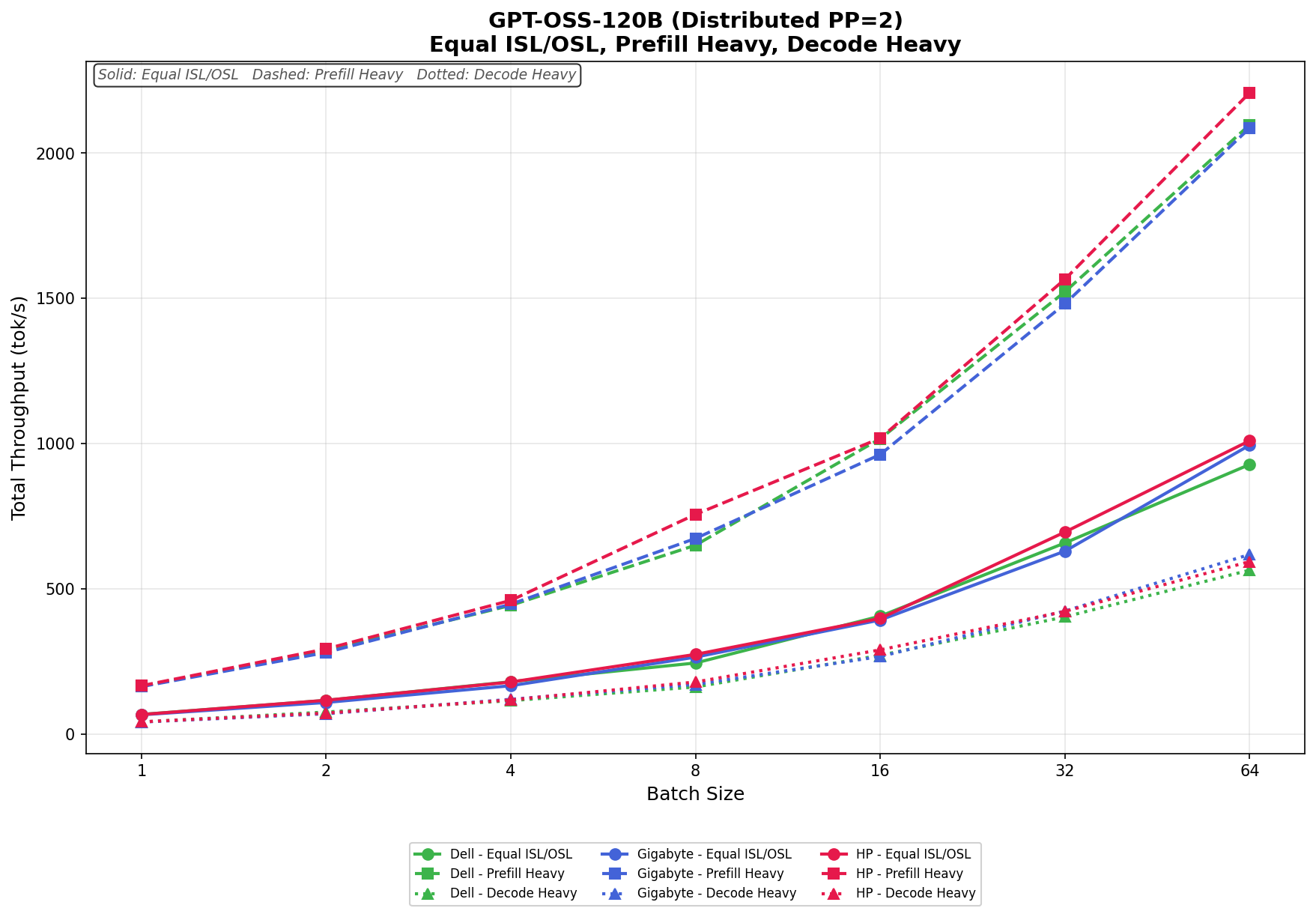
Brady M511 Review: We Finally Labeled Our Lab

StorageReview has been testing enterprise storage and infrastructure hardware for over 25 years. During that time, we have reviewed petabytes of data across drives, dozens of all-flash arrays, countless switches, servers, and networking gear. We have benchmarked hardware that costs more than most people’s houses. What we have never done, not once, is properly label any of it.

This is not something we are especially proud of. For years, the StorageReview lab has operated on a system best described as “whoever plugged it in probably remembers where it goes.” Cables have been traced by feel. Ports have been identified largely by educated guessing. New team members have received the time-honored orientation of “just follow the cable and see where it ends up.” It has mostly worked, like a lot of things do until they suddenly don’t.

Recently, we started a major lab refresh. New Dell switches to support 800GbE connectivity, more powerful GPU systems, faster storage, retirement of old gear, the kind of upgrade that makes you look at your existing cable management situation and feel a special sort of organizational shame. At some point during the planning process, someone said sensible words that changed our plan: “We should probably label some of this.” And so here we are.

Brady label maker from DCWBrady has been on our radar since Data Center World last year, when we covered the company’s large-format label-printing systems designed for high-volume data center operations. When Brady reached out about the M511, a more compact and portable Bluetooth label printer aimed at smaller facilities, remote sites, and teams that need to move around a space rather than print from a fixed station, it felt like the data center universe was sending a message specifically to our unlabeled lab.

Launched in September 2023, the M511 emerged directly from customer feedback following Brady’s 2022 introduction of the M211, with users asking for wider labels, edge-to-edge printing, and the ability to share the printer across a team. For a lab environment like ours, where multiple people work across the same racks and infrastructure, that multi-user angle is exactly what makes the M511 relevant rather than just a bigger version of its smaller sibling.

The M511 prints up to 1.5″ wide labels from edge to edge at 300 dpi, connects via Bluetooth 5.0 with a 65-foot range to up to five devices simultaneously, and runs on an internal Li-Ion battery rated for 8+ hours or roughly 1,000 labels per charge. It carries MIL-STD-810G durability ratings, surviving 6-foot drops (which we inadvertently tested), 250-pound crushes, and blowing sand and dust, which is more punishment than our lab will ever dish out, but we appreciate the commitment. Print speed is 1.3 inches per second, and an auto label cutter holds each finished label in place until you’re ready to pull it.

Brady M511 mobile label maker

Brady sent us the M511-KIT configuration, which bundles the printer with a hard case, an indoor/outdoor vinyl label cartridge, self-laminating cable wraps, a nylon cloth label cartridge, an AC adapter, a mounting magnet, a utility hook, a power brick, and Brady Workstation Design and Print Pro software with the Product and Wire ID suite. Essentially, everything needed to walk into a facility and start labeling from scratch, which, as it turns out, describes our situation exactly.

Along with the kit’s included starter materials, we asked Brady to send a selection of label types specific to our needs. They provided four additional cartridges: M4C-375-595-WT-BK, an all-weather permanent adhesive vinyl continuous tape in 3/8″ width for general asset and rack identification; M4-1425-FP, a P-Flag polypropylene flag label designed for cable identification with strong solvent resistance; M4-214-483, Brady’s QuickFlag tapered polyester flag labels that wrap cables neatly without mismatched edges; and M4-48-417, a high-adhesion self-laminating vinyl wrap-around label built specifically for wire ID in challenging environments like high humidity and with newer wire jacketing materials such as Teflon and silicone. We detail each of these in our testing experiences.

Label design can be handled via the Express Labels mobile app over Bluetooth on a phone or tablet, or via Brady Workstation on a PC. Recent updates to the app added BradyVoice, a voice-dictation labeling assistant, and an Image-to-Text feature that uses the phone’s camera to convert printed text or handwritten notes directly into label content. The latter is particularly useful for anyone needing to replicate existing labels in a hurry without manually retyping everything.

The standalone M511 printer is priced at $399.99 direct from Brady. At the same time, our M511-KIT review unit comes in at $551.99 and includes the hard case, three label cartridges, mounting accessories, power brick, and Brady Workstation Product and Wire ID software.

Specifications

Specification Brady M511 Portable Bluetooth Label Printer Kit
Key Characteristics
Trade Name M511
UPC 888434620557
Color Black, Yellow
Dimensions
Height 3.6 in
Width 6 in
Depth 6.4 in
Weight 2.646 lb
Power & Battery
Battery Type Internal, not removable, Rechargeable Lithium-ion
Battery mAh Rating 2450 mAh
Shipped With Battery Yes – shipped with battery installed
Recharge Time 2.5 hours
Power Supply Voltage 110 – 240 V
Port Type USB-C
Auto Shut-Off / Power Conserve Yes, User Configurable
Connectivity & Interface
Connectivity Bluetooth® 5 Low Energy (Class II)
Device Connectivity Mobile device connected, PC connected
User Interface Mobile device, PC
Memory Via connected mobile device
Device Indicators Bluetooth indicating lights: pulsing blue = broadcasting signal; solid blue = device connected or paired; LEDs indicating battery life
Durability
Drop Test & Durability Resistant to 6-foot drops, Resistant to 250-lb crushes, Resistant to military-grade shocks (MIL-STD-810G), Sand & Dust
Printing Specifications
Print Technology Thermal Transfer
Print Resolution 300 dpi
Maximum Print Speed 1.33 in/s
Color Printing Capability Single Color
Maximum Label/Tape Width 1.5 in
Maximum Print Width 1.44 in
Minimum Label Length 0.240 in
Maximum Printed Label Length 39 in
Maximum Labels per Charge 1000
Cutter Type Auto Cutter
Calibration Automated through Smart Cell
Label Retention Feature Yes
Font Sizes 4 – 150 pt
Barcode Symbologies — 2D Data Matrix, PDF417, QR Code, More through Brady Workstation, More through software
Barcode Symbologies — Linear Code 128, Code 128A, Code 128B, Code 128C, Code 39, Code 39 Full ASCII, Code 93, Code 93 Full ASCII, EAN-13, EAN-13 Extension 2, EAN-13 Extension 5, EAN-8, EAN-8 Extension 2, EAN-8 Extension 5, GS1-128, HIBC, Interleaved 2 of 5, JAN-13, JAN-8, UPC-A, UPC-E
Built-In Label Wizards Breaker Box, Flags, General, Patch Panel, Pipe Marker, Safety, Sleeves, Slide, Terminal Block, Tube, Vial, Wire Wrap
Compatibility
Compatible Media M4-, M4C-, M5-, M5C-
Label Material Types BradyGrip® Polyester, FreezerBondz™ Polyester, Heat-shrink Polyolefin, Metalized Polyester, Nylon Cloth, Polyester, Polypropylene, Reflective Tape, Self-laminating Polyester, Self-laminating Vinyl, StainerBondz™ Polyester, Tamper-resistant Vinyl, Vinyl, Vinyl Cloth, Water Dissolvable Paper
Materials Supported Continuous, Die-cut
Phones & Tablets Supported Android devices with Android OS 6+, iPhone 5S or newer with iOS 10+
Software Compatibility Brady Workstation, Express Labels Mobile App, Windows-based driver for 3rd-party software use
Applications
Application Asset Tracking, Circuit Board Labeling, Component and Equipment Labeling, Data and Telecommunications Labeling, Electrical Labeling, Facility Identification, General Identification, Inventory and Inspection Labeling, Laboratory Labeling, Lean and 5S Labeling, Safety Identification, Warehouse Marking, Wire and Cable Labeling

Hands On, Labels Out

With the M511 kit unpacked and the Brady Express app installed, we put it straight to work on our first real task: a new batch of cables for our 800G networking deployment. In high-density environments, keeping breakouts organized by speed and strand numbering is not optional. It is the difference between a clean install and a troubleshooting nightmare down the road.

Brady P-Flag label on fiber cable.

Example of a Brady P-Flag label applied to a cable.

The first step was installing the Brady Express mobile app, available on both iOS and Android. On iOS, the pairing process was about as simple as it gets. Power on the M511. The Bluetooth indicator lights up blue and blinks, showing it is waiting to pair. Open the app, and the printer is immediately detected and ready to connect; then the light goes solid. No digging through settings, no manual pairing codes, no driver installs. From unboxing to first print took only a few minutes.

Once connected, the app automatically detects the installed label cartridge and adjusts accordingly. Before getting into labels, though, the app prompts you on first launch to select your trade. Brady offers four options: Electrical/Datacom, Lab, Maintenance/Mechanical, and Custom. This is a small but thoughtful touch. By selecting your trade upfront, the app reorganizes the dashboard to surface the label categories most relevant to your work and trims out the ones you are unlikely to need. For a lab or data center environment, selecting Electrical/Datacom keeps the clutter down and puts the right category types front and center.

For Electrical/Datacom, which we focused on specifically, Brady breaks the dashboard into 7 label categories: blank, label layouts, breaker box, flags, patch panel, sleeves, terminal blocks, and cable wraps. Each category is tailored to the types of labeling jobs common to that trade, so rather than browsing through a generic list, you are working from a focused set of options that actually map to what you are doing in the field or in the rack.

How We Labeled the Cables

For this deployment, we focused on three label types: flags, wraps, and blank tape. Each breakout in the batch received two labels. The trunk got a self-laminating wrap label identifying it as a 4x100G cable, and each breakout strand got a durable flag label identifying it as A-100G, B-100G, C-100G, or D-100G. This gives anyone pulling cables in the rack immediate context on both the cable type and the specific strand without having to trace anything back to a patch panel or documentation.

Brady M511 with labeled breakout cable.

Example breakout cable with flags A-D, with speeds and cable wraps.

Selecting a label category in the app automatically prompts you to use the installed cartridge material, preventing you from accidentally designing something that does not match the loaded material. From there, you get a live view of the printable area and full control over the layout.

Designing in the App

The design toolset in Brady Express is more capable than the compact hardware would suggest. You can add and format text, insert images, place barcodes, add dates, draw shapes, build sequences for batch numbering, and import data from a spreadsheet or scan from an external scanner. For repetitive labeling jobs like cable runs, the sequence and import features alone save significant time compared to designing labels one at a time.

Brady preloads 20+ barcode types, 85+ fonts, and 1,400+ symbols directly in the app, and if the built-in library does not cover your needs, you can upload your own fonts as well. The app also supports 35 languages, making it a practical option for teams operating across different regions or facilities. None of it requires an internet connection or a separate design tool to put together a professional label.

When you back out of a label design, the app prompts you to save it as a template. In practice, this proved more useful than expected. Working through multiple cycles of cables, having a saved template meant we could pull up the same design each time without rebuilding it or remembering which font size and styling were used in the previous batch. It keeps the labeling uniform throughout the entire run and reduces the small decisions that slow you down mid-job.

Brady Express also includes a feature called Brady Voice, which lets you speak to create labels instead of typing everything manually. For longer text strings or repetitive label content, this saves a noticeable amount of time. In a busy lab environment where your hands may already be occupied, it is a practical addition that offers more than novelty.

Compatibility and Multi-Device Printing

The Brady Express app works across a solid lineup of Brady printers, including the M211, M610, M611, M511, M710, S3700, i4311, i5300, and i7500. Connectivity varies by model. The M211, M610, and i7500 support one connected device at a time; the i4311 supports up to four; and the M511 sits in the top tier alongside the M611, M710, S3700, and i5300, supporting up to five simultaneous connected devices.

Brady M511 with Brady Express Labels mobile app.

That last point matters in a lab or data center setting. With five devices connected at once, multiple technicians can have the app open and queued to the same printer without anyone having to disconnect and reconnect. For a team working through a large batch of cables, that kind of parallel workflow adds up quickly.

Conclusion

The Brady M511 is one of those tools that is hard to appreciate until you actually have it in your hands and a real job in front of you. On paper, it is a compact Bluetooth label printer. In practice, it is the thing that finally gave the StorageReview lab a labeling workflow that we will actually use in day-to-day operation.

Durability is not a concern. MIL-STD-810G ratings, a battery good for 1,000+ labels per charge, and a material lineup covering vinyl, polyester, self-laminating wraps, nylon cloth, heat shrink, and more mean the M511 travels well beyond a lab setting. Remote sites, field deployments, warehouse floors, it handles them all. The 65-foot Bluetooth range and simultaneous connectivity for up to 5 devices reinforce its value as a shared team tool rather than something that gets passed around from person to person.

The experience from first pairing to finished labels is frictionless. The Brady Express app is well thought out; the trade-based setup keeps the interface focused, and features like template saving, Brady Voice, and sequence printing noticeably speed up your workflow. For larger or more complex labeling projects, Brady Workstation on the desktop extends that further with deeper design control, batch printing, and the full Product and Wire ID suite for teams that need to manage labeling at scale. For our 800G cable deployment, having a consistent, readable labeling system across every breakout strand is the kind of detail that pays off every time someone works in that rack. And with rack labeling, server identification, and asset tagging all on the roadmap as the lab projects continue, the M511 will stay busy.

On price, the standalone M511 at $399.99 is a straightforward buy for any facility serious about infrastructure organization. The M511-KIT at $551.99 is the most valuable entry point for most users, bundling a hard case, multiple label cartridges, a battery bank, mounting accessories, and Brady software. For a team starting from scratch, it covers everything needed in one purchase, and at that price point, the value is hard to argue with.

After 25 years of “just follow the cable and see where it ends up,” the StorageReview lab is finally labeled. It only took an 800GbE refresh and a little organizational shame to get us here.

Product Page – Brady M511 Portable Bluetooth Label Printer

The post Brady M511 Review: We Finally Labeled Our Lab appeared first on StorageReview.com.
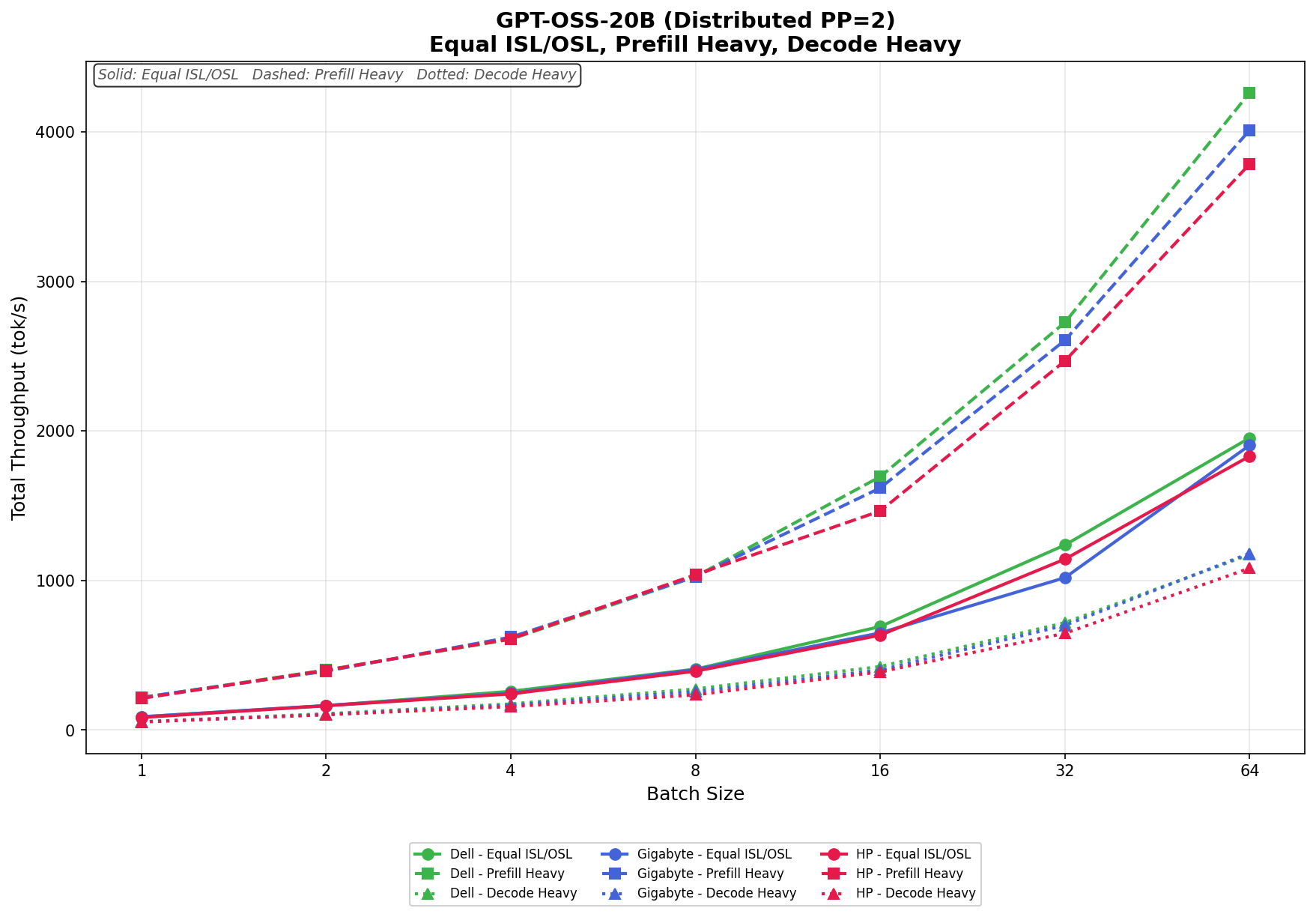
Dell PowerEdge R5715 Review: 2U Single-Socket AMD EPYC for Storage-Forward Workloads

The PowerEdge R5715 is the second part of Dell’s SMB-focused extension to the 17th Generation PowerEdge family, starting with different priorities than its 1U sibling. Where the R4715 optimizes for compute density and core-per-rack-unit efficiency, the R5715 is built around storage capacity and I/O expandability in a 2U single-socket footprint. Readers coming from our R4715 review will find the platform fundamentals familiar: the same 5th Generation AMD EPYC processor family, the same 24-slot DDR5 memory architecture, and the same iDRAC 10 management stack. What changes slightly is the task the R5715 is asked to perform.

Dell PowerEdge R5715 front with bezel.

Our review unit was configured with a single AMD EPYC 9015, the 8-core entry in the Turin lineup, paired with 384GB of DDR5 and a BOSS RAID1 boot configuration. The R5715’s 12-bay 3.5-inch storage backplane was the focus of our testing, which is exactly where the 9015 makes sense. Workloads like file serving, backup targets, and retail video surveillance don’t need 32 cores; they need drive density, sustained throughput, and a reliable management story. The 9015 keeps power consumption and licensing costs low, while the platform delivers up to 288TB of raw storage capacity in a single 2U node.

The R5715 also increases the PCIe Gen5 slots to four, up from the R4715’s three, and adds support for an extra OCP 3.0 networking slot, providing more room to grow as I/O demands rise. Both platforms support 100 GbE and 400 GbE via PCIe AIC, making them a capable fit for environments with high-bandwidth networking requirements; however, neither platform officially supports Fibre Channel connectivity. Also neither platform supports GPUs or DPUs. They run on the same 800W and 1100W PSU options in Platinum or Titanium efficiency grades, with fault-tolerant redundancy supported and air cooling throughout.

Dell PowerEdge R5715 Specifications

The table below highlights the physical and hardware specifications for the Dell PowerEdge R5715 platform.

Specification Dell PowerEdge R5715
Processor
Processor One 5th Generation AMD EPYC 9005 Series processor, up to 32 cores
Form Factor 2U rack server
Memory
DIMM Slots 24 DDR5 DIMM slots
Maximum Memory 1.5 TB (up to 64 GB per DIMM)
Memory Speed Up to 5200 MT/s
Memory Type Registered ECC DDR5 RDIMMs only
Storage
Internal Controllers (RAID) PERC H365i, H965i
Internal Boot BOSS-N1 DC-MHS
External HBAs N/A
Front Drive Bays 12x 3.5-inch SAS/SATA
16x 2.5-inch SAS/SATA
Power
Power Supplies Platinum 800 W, 1100 W
Titanium 800 W, 1100 W
FTR supported
Cooling & Fans
Cooling Options Air cooling
Fans Up to six hot plug fans
Dimensions
Height 86.8 mm (3.41 inches)
Width 482.0 mm (18.97 inches)
Depth (with bezel) 802.4 mm (31.59 inches)
Depth (without bezel) 801.51 mm (31.55 inches)
Bezel Optional metal bezel
Networking & Expansion
OCP Network Options 2x OCP NIC 3.0 (optional), 1GbE, 10GbE, 25GbE
Slot 4: 1×16 Gen5 OCP 3.0
Slot 10: 1×16 Gen5 OCP 3.0
Embedded NIC 1 Gb dedicated BMC Ethernet port
PCIe AIC NIC 100 GbE and 400 GbE; NDR VPI (400 GbE)
PCIe Slots Up to 4 Gen5 PCIe slots (x16 connectors)
Slot 2: 1×16 Gen5 Full Height
Slot 3: 1×16 Gen5 Full Height
Slot 7: 1×16 Gen5 Full Height
Slot 9: 1×16 Gen5 Full Height
GPU Options N/A
Ports
Front Ports 1x USB 2.0 Type-A (optional LCP KVM)
1x USB 2.0 Type-C (HOST/BMC Direct)
1x MiniDisplayPort (optional LCP KVM)
Rear Ports 2x USB 3.1 Type-A
1x VGA
1 Gb dedicated BMC Ethernet port
Internal Ports 1x USB 3.1 Type-A
Management
Embedded Management iDRAC10, iDRAC Direct, iDRAC RESTful API with Redfish, RACADM CLI, Quick Sync 2 wireless module
OpenManage Software OpenManage Enterprise (OME), OME Power Manager, OME Services, OME Update Manager, OME APEX AIOps Observability, OME Integration for VMware vCenter, OME Integration for Microsoft System Center, OpenManage Integration for Windows Admin Center
Tools IPMI
Integrations OpenManage Integrations: Red Hat Ansible Collections, Terraform Providers
Change Management Dell Repository Manager, Dell System Update, Enterprise Catalogs, Server Update Utility (SUU)
Security
Security Features Cryptographically signed firmware, Data at Rest Encryption (SEDs with local or external key mgmt), Secure Boot, Secured Component Verification (hardware integrity check), Secure Erase, Silicon Root of Trust, System Lockdown (requires iDRAC10 Enterprise or Datacenter), TPM 2.0 FIPS/CC-TCG certified, Chassis Intrusion Detection, AMD Secure Encrypted Virtualization (SEV), AMD Secure Memory Encryption (SME)
Operating Systems & Hypervisors
Supported OS / Hypervisors Canonical Ubuntu Server LTS, Microsoft Windows Server with Hyper-V, Red Hat Enterprise Linux, SUSE Linux Enterprise Server, VMware ESXi

The Dell PowerEdge R5715 is a 2U single-socket rack server built around AMD’s 5th Generation EPYC 9005 Series platform. Positioned as a storage-forward platform for organizations that need high capacity and solid I/O without the cost overhead of a dual-socket design, the R5715 targets workloads such as databases, file shares, backup targets, and virtualization, where a single powerful EPYC processor can handle the load more efficiently than a pair of older-generation CPUs. With support for up to 288 TB of raw storage and four PCIe Gen5 expansion slots, the R5715 punches well above its price class

Exterior and Front Panel

The R5715 ships with an optional metal bezel featuring Dell’s signature hexagonal mesh pattern. The bezel snaps cleanly onto the chassis and exposes the front-panel controls on the right-hand side: a power button, a USB 2.0 Type-C port for direct BMC access, an iDRAC Direct port, and a system ID button. The chassis itself measures 3.41 inches tall, 18.97 inches wide, and 31.55 inches deep without the bezel, fitting standard 2U rack positions. Build quality is enterprise-grade throughout, with tool-less drive-bay latches and blue retention clips used consistently across internal components to enable quick-release access.

Dell PowerEdge R5715 front right ear.

Storage Configuration

The review unit comes with a 12x 3.5-inch SAS/SATA front-bay setup, featuring four bays filled with 20 TB SATA 6 Gb/s 7.2k large-form-factor HDDs and eight bays left empty for future upgrades. An alternative 16x 2.5-inch SAS/SATA backplane configuration is also available, depending on workload requirements. RAID duties are managed by either the PERC H365i or the higher-tier PERC H965i internal controller. Boot is handled separately through a dedicated rear BOSS-N1 DC-MHS module, isolating the OS from the data pool. This clean design choice prevents the common mistake of running OS and workload storage on the same array.

Dell PowerEdge R5715 front drive bays.

Processor and Cooling

The R5715 is a single-socket platform built around AMD’s EPYC 9005 Series, supporting up to 32 cores. The large heatsink is a finned tower cooler with embedded copper heat pipes, mounted via six captive screws to the SP5 socket. Cooling is all-air; up to six hot-plug fans move airflow front-to-back through the chassis. Liquid cooling is not available on this platform.

Dell PowerEdge R5715 top overview lid off.

Memory

The R5715 carries 24 DDR5 DIMM slots arranged in two banks flanking the CPU socket. The platform is RDIMM-only; no support for UDIMMs or LRDIMMs. Maximum capacity tops out at 1.5 TB using 64 GB RDIMMs per slot, running at up to 5200 MT/s. The review unit ships with several slots populated, leveraging EPYC’s multi-channel memory architecture to deliver high aggregate bandwidth across the memory subsystem.

Dell PowerEdge R5715 heatsink and memory.

PCIe Expansion and Networking

The R5715 offers up to four full-height PCIe Gen5 x16 slots across slots 2, 3, 7, and 9, distributed across five labeled riser positions (Risers 1 through 5) visible throughout the chassis interior. Two additional OCP NIC 3.0 slots (slots 4 and 10, Gen5 x16) support 1GbE, 10GbE, or 25GbE OCP network adapters. For high-bandwidth connectivity, PCIe AIC NICs support up to 100 GbE and 400 GbE, with NDR VPI (400 GbE). A dedicated 1 Gb BMC Ethernet port is embedded on the rear panel for out-of-band iDRAC management. There are no GPU options on the R5715; this is a storage and compute platform, not an accelerator chassis.

Dell PowerEdge R5715 riser 3 OCP slot.

iDRAC10 Management

Remote management for the R5715 is handled by iDRAC10, the same platform Dell ships as standard across its entire 17th-generation PowerEdge lineup, including the PowerEdge R770 and PowerEdge R7725 we previously reviewed. The interface is consistent across the portfolio, meaning administrators already familiar with iDRAC on other PowerEdge platforms will feel at home immediately.

The iDRAC10 dashboard provides a full, at-a-glance health summary of every major subsystem: System Health, Processor, Memory, Cooling, Storage, Voltages, Power Supplies, Batteries, and Intrusion Detection. The review unit shows that all subsystems were reporting as healthy at the time of testing. System information and firmware version details are displayed directly on the dashboard alongside license status, which, on the review unit, is confirmed as Enterprise. The Task Summary panel tracks pending, in-progress, and completed jobs, with the review unit showing completed jobs from an initial provisioning cycle, including a small number with errors and one failed, typical of a fresh deployment.

Drilling into the System Environments section reveals cooling details, including individual fan status, PWM speeds, thermal profile settings, and inlet temperature readings, all in real time. This is especially useful for validating airflow in dense rack configurations or troubleshooting thermal issues without needing physical access to the server.

Power visibility follows the same pattern. The Power Info section breaks down PSU health, current draw, and capacity utilization alongside a rolling historical trend graph. Administrators can quickly see average and peak wattage over time, which is valuable for capacity planning and identifying workload-driven power spikes without needing a separate power monitoring tool.

Together, these views make iDRAC10 a capable out-of-band management solution that covers the full operational lifecycle of the R5715, from initial deployment through day-to-day monitoring, all accessible remotely via browser or the RESTful Redfish API.

Dell PowerEdge R5715 Performance

For performance testing of the Dell PowerEdge R5715, we paired it against its 1U sibling, the Dell PowerEdge R4715. The two platforms share identical memory configurations and the same overall PowerEdge architecture, making them a natural point of comparison. The key differentiator between the two review units is processor selection. The R4715 shipped with an AMD EPYC 9335 32-core processor, while the R5715 arrived with an AMD EPYC 9015 8-core processor.

It is worth noting that both platforms support the same EPYC 9005 Series processor lineup and can be configured with either chip depending on workload requirements. The core count delta between these two units will be reflected in the numbers, but the results reflect how each platform performs as shipped rather than a ceiling comparison between platforms.

Dell PowerEdge R5715 and R4715.

To stress the CPUs across both systems, we used a focused set of compute benchmarks. y-cruncher was used to evaluate raw arithmetic throughput and multithreaded floating point performance. Blender provided a real-world rendering workload that scales with available cores and memory bandwidth. Phoronix Test Suite rounded out the benchmark set with a broader collection of CPU-bound workloads, giving a more complete picture of sustained compute performance across both platforms.

Test System Specifications

  • Platform: Dell PowerEdge R5715
  • CPU: Single AMD EPYC 9015
  • Memory: 384GB DDR5
  • Storage: Boss RAID1

y-cruncher

y-cruncher is a multithreaded, scalable program that can compute Pi and other mathematical constants to trillions of digits. Since its launch in 2009, it has become a popular benchmarking and stress-testing application for overclockers and hardware enthusiasts.

The R5715 tracked predictably against the R4715 across all workload sizes. At 1 billion digits, the R5715 finished in 14.537 seconds against 5.305 seconds on the R4715, and the gap extended consistently from there. At 50 billion digits, the R5715 reached 1,273.734 seconds while the R4715 finished in 445.440 seconds, with the R4715 completing runs roughly 2.8 to 2.9 times faster across the full 1 billion to 50 billion range. Despite running only 8 cores, the EPYC 9015 is purpose-built server silicon with significantly higher memory bandwidth and larger cache than a typical desktop CPU, and it still runs well ahead of what most consumer processors can sustain on the same workloads.

Y-cruncher (lower duration is better) Dell PowerEdge R4715 (AMD EPYC 9335 32-Core | 384 GiB RAM) Dell PowerEgde R5715 (AMD EPYC 9015 8-Core | 384 GiB RAM)
25 Million 0.11 seconds 0.25 seconds
50 Million 0.23 seconds 0.51 seconds
100 Million 0.46 seconds 1.08 seconds
250 Million 1.22 seconds 3.00 seconds
500 Million 2.49 seconds 6.60 seconds
1 Billion 5.30 seconds 14.53 seconds
2.5 Billion 14.58 seconds 41.32 seconds
5 Billion 32.38 seconds 92.99 seconds
10 Billion 71.54 seconds 202.87 seconds
25 Billion 203.40 seconds 576.87 seconds
50 Billion 445.44 seconds 1,273.73 seconds

Blender 4.5

Blender 4.5 is an open-source 3D modeling application. This benchmark was run using the Blender Benchmark CLI utility. The score is measured in samples per minute, with higher values indicating better performance.

The Blender results follow a similar pattern to y-cruncher, with the R4715’s core-count advantage translating directly into rendering throughput. On the Monster scene, the R4715 posted 523.29 samples per minute against 135.21 on the R5715. The Junkshop scene came in at 355.43 versus 88.61, and Classroom landed at 264.70 against 68.48 on the R5715. Across all three scenes, the R4715 delivered roughly 3.8 to 4 times the rendering throughput of the R5715, a slightly wider margin than in Y-Cruncher, reflecting how heavily Blender’s CPU renderer scales with core count when parallelizing ray-tracing workloads across a scene.

Blender 4.5 CPU Benchmark (higher samples per minute is better) Dell PowerEdge R4715 (AMD EPYC 9335 32-Core | 384 GiB RAM) Dell PowerEdge R5715 (AMD EPYC 9015 8-Core | 384 GiB RAM)
Monster 523.29 samples/min 135.21 samples/min
Junkshop 355.43 samples/min 88.61 samples/min
Classroom 264.70 samples/min 68.48 samples/min

Phoronix Benchmarks

Phoronix Test Suite is an open-source, automated benchmarking platform that supports over 450 test profiles and 100+ test suites via OpenBenchmarking.org. It handles everything from installing dependencies to running tests and collecting results, making it ideal for performance comparisons, hardware validation, and continuous integration. We will focus on comparing the R5715 and R4715 against Stream, 7-Zip, Linux kernel build, Apache, and OpenSSL tests.

In Apache web serving throughput, the R4715 reached 177,839.86 requests per second, compared to 123,710.75 on the R5715, one of the closest results across the entire suite. Apache’s ability to achieve reasonable performance even with a lower core count, given sufficient memory bandwidth, keeps the gap narrower here than in more heavily parallelized workloads.

OpenSSL transfer rate showed a wider margin, with the R4715 posting 533,318,299,283 bytes per second compared to 148,168,050,733 bytes per second on the R5715. Cryptographic throughput is one of the workloads that scales most aggressively with thread count, and the separation clearly reflects that.

The Linux kernel compile test produced one of the most pronounced gaps in the suite, with the R4715 finishing in 379.53 seconds compared to 1,244.86 seconds on the R5715. Kernel compilation is among the more direct measures of how many threads a system can bring to bear simultaneously.

7-Zip compression came in at 260,124 MIPS on the R4715 versus 98,555 MIPS on the R5715, consistent with results across the rest of the suite.

Stream memory throughput was 370,228.9 MB/s on the R4715, compared to 230,123.6 MB/s on the R5715.

Phoronix Benchmarks Dell PowerEdge R4715 (AMD EPYC 9335 32-Core | 384 GiB RAM) Dell PowerEdge R5715 (AMD EPYC 9015 8-Core | 384 GiB RAM)
Apache Requests Per Second 177,839.86 123,710.75
OpenSSL Transfer Rate (byte/s) 533,318,299,283 148,168,050,733
Kernel Compile Time Taken (seconds) (lower is better) 379.531 1,244.86
7-ZIP MIPS 260,124 98,555
Stream Throughput (MB/s) 370,228.9 230,123.6

Conclusion

The Dell PowerEdge R5715 is a well-executed storage-focused 2U platform that makes a clear case for single-socket design in the right workload context. Organizations running file services, backup targets, video surveillance, or database workloads that prioritize drive density and I/O expandability over raw compute headroom will find the R5715 a compelling fit. The 12-bay 3.5-inch backplane supporting up to 288 TB of raw capacity, paired with four PCIe Gen5 slots and dual OCP NIC 3.0 support, gives the platform meaningful room to grow without requiring a move to a more expensive dual-socket chassis.

Dell PowerEdge R5715 with Dell 17th gen servers.

The performance results tell a straightforward story. Tested as shipped with the EPYC 9015, the R5715 trails the 32-core R4715 by a predictable margin across every benchmark, but that comparison is somewhat beside the point. The R5715 is not positioned as a compute workhorse, and the EPYC 9015 is not the processor Dell expects most customers to pair with this chassis. Configuring the R5715 with a higher-core-count EPYC 9005 processor significantly closes that gap, and the platform architecture is fully capable of supporting it.

Where the R5715 consistently delivers is in the areas that matter most for its target use cases: storage density, expansion flexibility, power efficiency, and management. iDRAC10 Enterprise provides a mature and consistent out-of-band management experience that carries over directly from the broader 17th-generation PowerEdge portfolio, reducing operational overhead for teams already invested in Dell’s management stack.

For SMB and midmarket buyers looking to consolidate storage workloads into a right-sized single-socket platform without overbuying compute, the R5715 is a strong choice and a natural complement to the R4715 in Dell’s current AMD-based lineup.

Product Page – Dell PowerEdge R5715

The post Dell PowerEdge R5715 Review: 2U Single-Socket AMD EPYC for Storage-Forward Workloads appeared first on StorageReview.com.
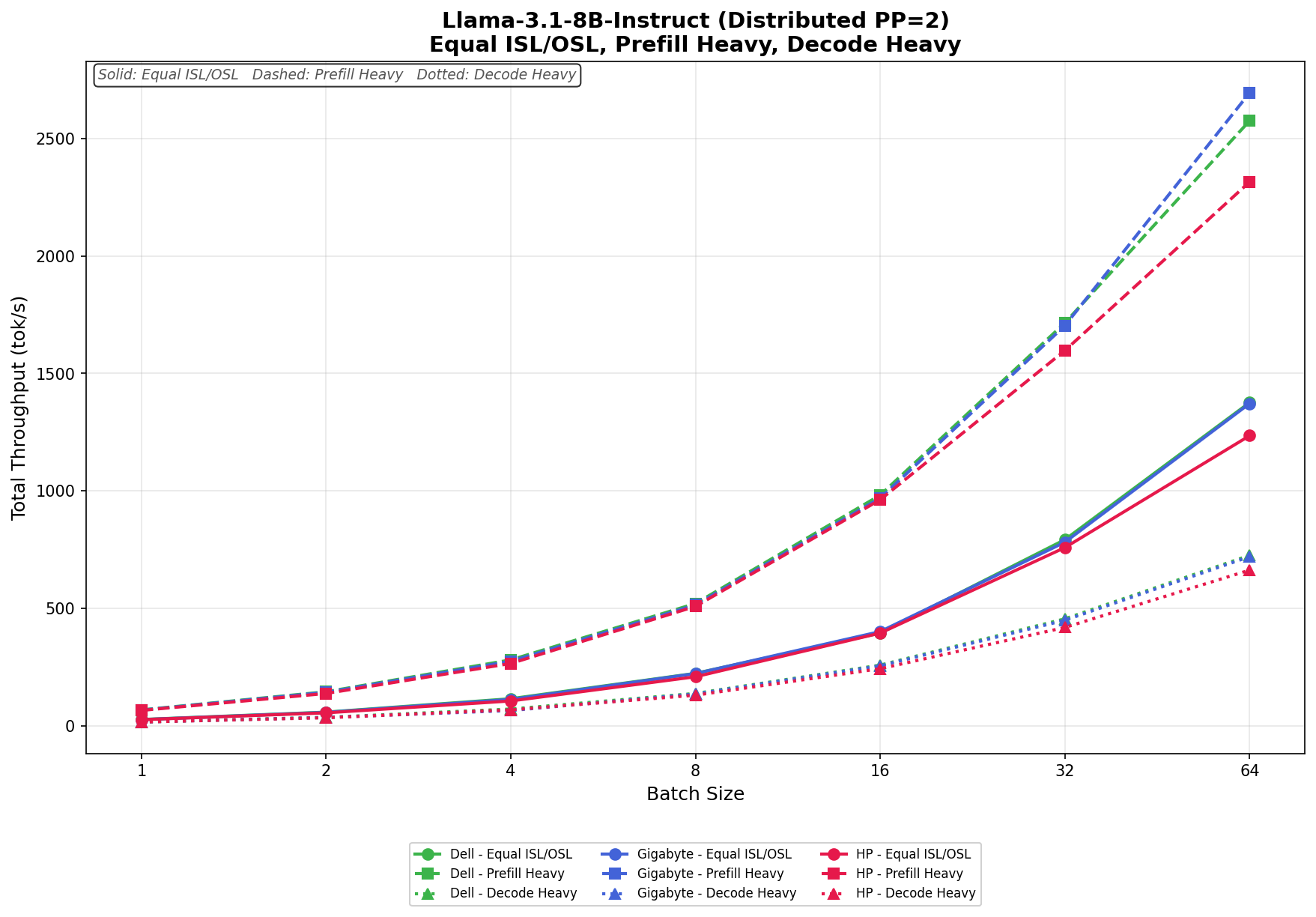
Dell PowerEdge R4715 Review: 1U AMD EPYC Built for the Midmarket

Dell’s 17th Generation PowerEdge family is already well-established, and with the R4715 and R5715, the lineup now targets the SMB and midmarket segments more intentionally than before. Both servers are single-socket platforms built on the same 5th Generation AMD EPYC foundation as the broader 17th Gen family. They are tuned for organizations where right-sized core counts, licensing efficiency, and operational simplicity take priority over maximum throughput. The R4715 is a denser 1U model designed for virtualization, scale-out databases, and edge deployments. The R5715 moves to a 2U form factor, offering more drive bays and PCIe expansion, suitable for setups where storage capacity and I/O performance are key concerns.

Dell PowerEdge R4715 front

The R4715 server is positioned for organizations running virtualization, scale-out databases, and edge compute workloads where licensing efficiency and operational simplicity matter. Our review unit arrived with a single AMD EPYC 9335, the 32-core top-of-stack option for this platform, paired with 384GB of DDR5 and a BOSS RAID1 boot configuration. In addition to its 32 cores, the 9335 provides 128 MB of L3 cache and a 210W TDP. Buyers who don’t need the core count can step down to the 24-core EPYC 9255, 16-core EPYC 9135, or 8-core EPYC 9015.

A few things worth establishing up front about the platform scope: the R4715 does not support GPUs or DPUs. These are not oversights. This platform is purpose-built for CPU-centric workloads, and Dell made deliberate tradeoffs to keep the bill of materials and operational footprint in check. For workloads requiring accelerators, the R6715 and R7715 are the more appropriate models.

What the R4715 offers is a dense, air-cooled chassis with up to three PCIe Gen5 slots, 24 DDR5 RDIMM slots, and flexible 3.5-inch and 2.5-inch storage options, including U.2 NVMe. Additionally, the R4715 includes iDRAC10 with OpenManage Enterprise, and hardware-rooted security via silicon root of trust. Networking options include 25 GbE via OCP 3.0, 100 GbE and 400 GbE via PCIe AIC, Broadcom, Intel, and NVIDIA round out the NIC ecosystem; notably, no Fibre Channel connectivity is officially supported. It runs on 800W or 1100W PSUs in either Platinum or Titanium efficiency grades and supports fault-tolerant redundancy. For a value-tier server, the enterprise management and security story is largely intact.

Dell PowerEdge R4715 Specifications

The table below highlights the physical and hardware specifications for the Dell PowerEdge R4715 platform.

Specification Dell PowerEdge R4715
Processor
Processor One 5th Generation AMD EPYC 9005 Series processor, up to 32 cores
Form Factor 1U rack server
Memory
DIMM Slots 24 DDR5 DIMM slots
Maximum Memory 1.5 TB (up to 64 GB per DIMM)
Memory Speed Up to 5200 MT/s
Memory Type Registered ECC DDR5 RDIMMs only
Storage
Internal Controllers (RAID) PERC H365i, H965i
Internal Boot BOSS-N1 DC-MHS
External HBAs N/A
Front Drive Bays 4x 3.5-inch SAS
8x 2.5-inch SAS/SATA
8x U.2 NVMe G4
Power
Power Supplies Platinum 800 W, 1100 W
Titanium 800 W, 1100 W
FTR supported
Cooling & Fans
Cooling Options Air cooling
Fans Up to four sets (dual fan module) hot-plug fans
Dimensions
Height 42.8 mm (1.68 inches)
Width 482.0 mm (18.97 inches)
Depth (with bezel) 816.921 mm (32.16 inches)
Depth (without bezel) 815.141 mm (32.09 inches)
Bezel Optional metal bezel
Networking & Expansion
OCP Network Options 2x OCP NIC 3.0 (optional), 1GbE, 10GbE, 25GbE
Slot 2: 1×16 Gen5 OCP 3.0
Slot 5: 1×16 Gen5 OCP 3.0
Embedded NIC 1 Gb dedicated BMC Ethernet port
PCIe AIC NIC 100 GbE and 400 GbE; NDR VPI (400 GbE)
PCIe Slots Up to 3 Gen5 PCIe slots (x16 connectors)
Slot 1: 1×16 Gen5 Full Height or Low Profile
Slot 2: 1×16 Gen5 Low Profile or 1×16 OCP3.0
Slot 4: 1×16 Gen5 Full Height or Low Profile
GPU Options N/A
Ports
Front Ports 1x USB 2.0 Type-A (optional LCP KVM)
1x USB 2.0 Type-C (HOST/BMC Direct)
1x MiniDisplayPort (optional LCP KVM)
Rear Ports 2x USB 3.1 Type-A
1x VGA
1 Gb dedicated BMC Ethernet port
Internal Ports 1x USB 3.1 Type-A
Management
Embedded Management iDRAC10, iDRAC Direct, iDRAC RESTful API with Redfish, RACADM CLI, Quick Sync 2 wireless module
OpenManage Software OpenManage Enterprise (OME), OME Power Manager, OME Services, OME Update Manager, OME APEX AIOps Observability, OME Integration for VMware vCenter, OME Integration for Microsoft System Center, OpenManage Integration for Windows Admin Center
Tools IPMI
Integrations OpenManage Integrations: Red Hat Ansible Collections, Terraform Providers
Change Management Dell Repository Manager, Dell System Update, Enterprise Catalogs, Server Update Utility (SUU)
Security
Security Features Cryptographically signed firmware, Data at Rest Encryption (SEDs with local or external key mgmt), Secure Boot, Secured Component Verification (hardware integrity check), Secure Erase, Silicon Root of Trust, System Lockdown (requires iDRAC10 Enterprise or Datacenter), TPM 2.0 FIPS/CC-TCG certified, Chassis Intrusion Detection, AMD Secure Encrypted Virtualization (SEV), AMD Secure Memory Encryption (SME)
Operating Systems & Hypervisors
Supported OS / Hypervisors Canonical Ubuntu Server LTS, Microsoft Windows Server with Hyper-V, Red Hat Enterprise Linux, SUSE Linux Enterprise Server, VMware ESXi

Dell PowerEdge R4715 Build and Design

The R4715 is a 1U rack server measuring 1.68 inches tall, 18.97 inches wide, and 32.09 inches deep without the optional metal bezel (32.16 inches with the bezel). The front panel provides a power button, a system ID button, a USB 2.0 Type-A port (used with the optional LCP KVM module), a USB 2.0 Type-C port for iDRAC Direct access, and an optional MiniDisplayPort for the same KVM configuration. Drive bay latches are tool-less throughout the chassis.

Dell PowerEdge R4715 front bezel and power button

Storage Configuration

The R4715 ships with three front-bay configurations: 4x 3.5-inch SAS, 8x 2.5-inch SAS/SATA, or 8x U.2 NVMe Gen4. The latter two share the same 8-bay, 2.5-inch form factor, with the backplane option determining drive-protocol support. Internal RAID is managed by either the PERC H365i or the higher-tier PERC H965i controller. OS boot utilizes a dedicated BOSS-N1 DC-MHS module, which keeps the boot volume completely separate from the data storage pool and removes the need to carve out OS space from an active array.

Dell PowerEdge R4715 storage bays

The review unit shipped with a single 480 GB SATA SSD and two 1.92 TB NVMe U.2 drives.

Dell PowerEdge R4715 with SSDs

Processor and Memory

The R4715 supports one 5th Generation AMD EPYC 9005 Series processor with up to 32 cores. Memory is managed by 24 DDR5 DIMM slots that support RDIMMs only – no UDIMMs or LRDIMMs. The maximum capacity is 1.5 TB using 64 GB DIMMs per slot, with speeds up to 5200 MT/s.

Dell PowerEdge R4715 top view lid off

Cooling

The R4715 is solely air-cooled. The processor is equipped with a heatsink featuring five heat pipes and a tall fin stack that extends into the usually empty space beside the socket, increasing the surface area for heat dissipation from the CPU. Fan duty is handled by eight hot-plug high-performance fan modules arranged in sets, pushing airflow front-to-back through the chassis. There is no liquid cooling option available on this platform.

Dell PowerEdge R4715 memory and heatsink

Power

The R4715 supports redundant hot-plug PSUs with two wattage options – 800W and 1100W – each available in 80 PLUS Platinum or Titanium efficiency ratings. FTR (Flex Titanium Rating) is also supported across the PSU lineup.

Dell PowerEdge R4715 power supply

PCIe Expansion and Networking

The R4715 provides up to three PCIe Gen5 slots with x16 connectors. Slot 1 supports full-height or low-profile cards, Slot 2 supports low-profile or OCP 3.0, and Slot 4 supports full-height or low-profile cards. Two OCP NIC 3.0 slots (Slots 2 and 5, Gen5 x16) cover 1 GbE, 10 GbE, and 25 GbE adapter options. For higher bandwidth requirements, PCIe AIC NICs support up to 100 GbE and 400 GbE, with NDR VPI (400 GbE). Out-of-band management runs over a dedicated 1 Gb BMC Ethernet port, keeping management traffic entirely off the data plane. No GPU support is available on this platform.

Rear Panel

Rear I/O includes two USB 3.1 Type-A ports, one VGA port, and a dedicated 1 Gb Ethernet BMC port for iDRAC management. One additional USB 3.1 Type-A port is available internally.

Dell PowerEdge R4715 rear IO and storage

iDRAC10 Management

Remote management for the R4715 uses iDRAC10, the same platform Dell ships as standard across its entire 17th-generation PowerEdge lineup, including the PowerEdge R770 and PowerEdge R7725 previously reviewed. The interface is consistent across the lineup, so administrators familiar with iDRAC on other PowerEdge servers will feel comfortable right away.

The iDRAC10 dashboard provides a comprehensive health overview of all key subsystems: System Health, Processor, Memory, Cooling, Storage, Voltages, Power Supplies, Batteries, and Intrusion Detection. The review unit shows all subsystems reporting as healthy at the time of testing. System information and firmware version details are displayed directly on the dashboard alongside the license status, which on the review unit is confirmed as Enterprise. The Task Summary panel tracks pending, in-progress, and completed jobs, with the review unit showing completed jobs from an initial provisioning cycle, including a small number with errors and one failure, typical of a new deployment.

Drilling into the System Environments section reveals cooling details, including individual fan status, PWM speeds, thermal profile settings, and inlet temperature readings, all in real time. This is particularly useful for verifying airflow in dense rack setups or for troubleshooting thermal issues without physical access to the server.

Power visibility follows the same pattern. The Power Info section breaks down PSU health, current draw, and capacity utilization alongside a rolling historical trend graph. Administrators can quickly see average and peak wattage over time, which is useful for capacity planning and spotting workload-driven power spikes without needing a separate power monitoring tool.

Together, these views make iDRAC10 a capable out-of-band management solution that covers the full operational lifecycle of the R4715, from initial deployment through daily monitoring, all accessible remotely via browser or the RESTful Redfish API.

Dell PowerEdge R4715 Performance

For performance testing of the Dell PowerEdge R4715, we compared it to its 2U counterpart, the Dell PowerEdge R5715. Both platforms share identical memory configurations and the same overall PowerEdge architecture, making them a natural comparison. The primary difference between the two review units lies in the processor choice. The R4715 came with an AMD EPYC 9335 32-core processor, while the R5715 featured an AMD EPYC 9015 8-core processor.

Dell PowerEdge R4715 and Dell PowerEdge R5715

It is worth noting that the two servers support the same EPYC 9005 Series processor lineup and can be configured with either chip depending on workload requirements. The core count delta between these two units will be reflected in the numbers, but the results reflect how each platform performs as shipped rather than a ceiling comparison between platforms.

To stress the CPUs across the systems, we used a targeted set of compute benchmarks. y-cruncher measured raw arithmetic throughput and multi-threaded floating-point performance. Blender offered a real-world rendering workload that scales with available cores and memory bandwidth. The Phoronix Test Suite complemented the benchmark set by adding a wider variety of CPU-bound workloads, providing a more complete view of sustained compute performance across both platforms.

Test System Specifications

  • Platform: Dell PowerEdge R4715
  • CPU: Single AMD EPYC 9335
  • Memory: 384GB DDR5
  • Storage: Boss RAID1

y-cruncher

y-cruncher is a multithreaded, scalable program that can compute Pi and other mathematical constants to trillions of digits. Since its launch in 2009, it has become a popular benchmarking and stress-testing application for overclockers and hardware enthusiasts.

The R4715 consistently outperformed the R5715 across all workload sizes, completing runs roughly 2.8 to 2.9 times faster over the full range from 1 billion to 50 billion digits. At 1 billion digits, the R4715 finished in 5.305 seconds, compared to 14.537 seconds on the R5715, and the gap held steady as the workload scaled. At 50 billion digits, the R4715 reached 445.440 seconds while the R5715 required 1,273.734 seconds. The result is a direct reflection of the core count difference – the EPYC 9335 brings 32 cores against the 8-core EPYC 9015 in the R5715.

y-cruncher (lower duration is better) Dell PowerEdge R4715 (AMD EPYC 9335 32-Core | 384 GiB RAM) Dell PowerEgde R5715 (AMD EPYC 9015 8-Core | 384 GiB RAM)
25 Million 0.11 seconds 0.25 seconds
50 Million 0.23 seconds 0.51 seconds
100 Million 0.46 seconds 1.08 seconds
250 Million 1.22 seconds 3.00 seconds
500 Million 2.49 seconds 6.60 seconds
1 Billion 5.30 seconds 14.53 seconds
2.5 Billion 14.58 seconds 41.32 seconds
5 Billion 32.38 seconds 92.99 seconds
10 Billion 71.54 seconds 202.87 seconds
25 Billion 203.40 seconds 576.87 seconds
50 Billion 445.44 seconds 1,273.73 seconds

Blender 4.5

Blender 4.5 is an open-source 3D modeling program. This benchmark was conducted using the Blender Benchmark CLI utility. The score is based on samples per minute, with higher values indicating better performance.

The R4715 delivered roughly 3.8 to 4 times the rendering throughput of the R5715 across all three scenes, a slightly larger margin than in y-cruncher, reflecting how aggressively Blender’s CPU renderer scales with core count when parallelizing ray-tracing workloads. On the Monster scene, the R4715 achieved 523.29 samples per minute compared to 135.21 on the R5715. Junkshop scored 355.43 versus 88.61, and Classroom reached 264.70 against 68.48.

Blender 4.5 CPU Benchmark (higher samples per minute is better) Dell PowerEdge R4715 (AMD EPYC 9335 32-Core | 384 GiB RAM) Dell PowerEdge R5715 (AMD EPYC 9015 8-Core | 384 GiB RAM)
Monster 523.29 samples/min 135.21 samples/min
Junkshop 355.43 samples/min 88.61 samples/min
Classroom 264.70 samples/min 68.48 samples/min

Phoronix Benchmarks

The Phoronix Test Suite is an open-source, automated benchmarking platform that supports over 450 test profiles and more than 100 test suites through OpenBenchmarking.org. It manages everything from installing dependencies to running tests and collecting results, making it perfect for performance comparisons, hardware validation, and continuous integration. We will focus on comparing the R4715 and R5715 against Stream, 7-Zip, Linux kernel build, Apache, and OpenSSL tests.

Apache web serving throughput was among the closest results in the suite, with the R4715 reaching 177,839.86 requests per second compared to 123,710.75 on the R5715. Apache can maintain reasonable throughput with fewer cores when there is sufficient memory bandwidth, resulting in a smaller gap here than with more heavily parallelized workloads.

OpenSSL transfer rate showed a wider margin, with the R4715 posting 533,318,299,283 bytes/s compared to 148,168,050,733 bytes/s on the R5715. Cryptographic throughput scales aggressively with thread count, and the separation reflects that directly.

The Linux kernel compile test produced one of the most pronounced gaps in the suite. The R4715 finished in 379.53 seconds against 1,244.86 seconds on the R5715 – kernel compilation being one of the more direct measures of how many threads a system can bring to bear simultaneously.

7-Zip compression came in at 260,124 MIPS on the R4715 versus 98,555 MIPS on the R5715, tracking consistently with the rest of the suite.

Stream memory throughput measured 370,228.9 MB/s on the R4715, compared to 230,123.6 MB/s on the R5715.

Phoronix Benchmarks Dell PowerEdge R4715 (AMD EPYC 9335 32-Core | 384 GiB RAM) Dell PowerEdge R5715 (AMD EPYC 9015 8-Core | 384 GiB RAM)
Apache Requests Per Second 177,839.86 123,710.75
OpenSSL Transfer Rate (byte/s) 533,318,299,283 148,168,050,733
Kernel Compile Time Taken (seconds) (lower is better) 379.531 1,244.86
7-ZIP MIPS 260,124 98,555
Stream Throughput (MB/s) 370,228.9 230,123.6

Conclusion

The Dell PowerEdge R4715 is a well-executed 1U platform that makes a clear case for a single-socket design for mainstream SMB workloads. Organizations running virtualization, scale-out databases, and edge deployments where licensing efficiency and operational simplicity take priority will find the R4715 a strong fit. The 1U footprint, three PCIe Gen5 slots, 24 DDR5 RDIMM slots, and flexible 2.5-inch and 3.5-inch storage options give the platform solid versatility without the cost overhead of a dual-socket chassis.

The performance results show what the platform is meant to do. When tested as shipped with the EPYC 9335, the R4715 consistently outperformed the R5715 across all benchmarks, with the core-count advantage most noticeable in heavily parallelized workloads such as kernel compilation, OpenSSL, and Blender. Buyers who don’t need 32 cores can choose the 24-core EPYC 9255, 16-core EPYC 9135, or 8-core EPYC 9015, selecting a processor that matches their workload and budget.

Dell PowerEdge R4715 with 17th gen servers

It’s important to clarify what the R4715 is not. It doesn’t support GPU or DPU, which are intentional tradeoffs to keep the cost and operational footprint manageable. For workloads that need accelerators, the AMD-based R6715 and R7715 are the suitable models in this lineup. Faster networking is available via PCIe AIC, supporting 100 GbE and 400 GbE options.

The R4715 consistently excels in the areas that matter most for its target use cases. These include compute density in a 1U chassis, power efficiency across 800W and 1100W Platinum and Titanium PSU options, flexible NVMe and SAS/SATA storage configurations, and a mature iDRAC10 Enterprise management experience that seamlessly integrates with the broader 17th-generation PowerEdge lineup. For SMB and midmarket buyers seeking a right-sized single-socket compute platform without overspending on storage or expansion headroom, the R4715 is an excellent choice and a natural complement to the R5715 in Dell’s current AMD-based lineup.

Product Page – Dell PowerEdge R4715

The post Dell PowerEdge R4715 Review: 1U AMD EPYC Built for the Midmarket appeared first on StorageReview.com.
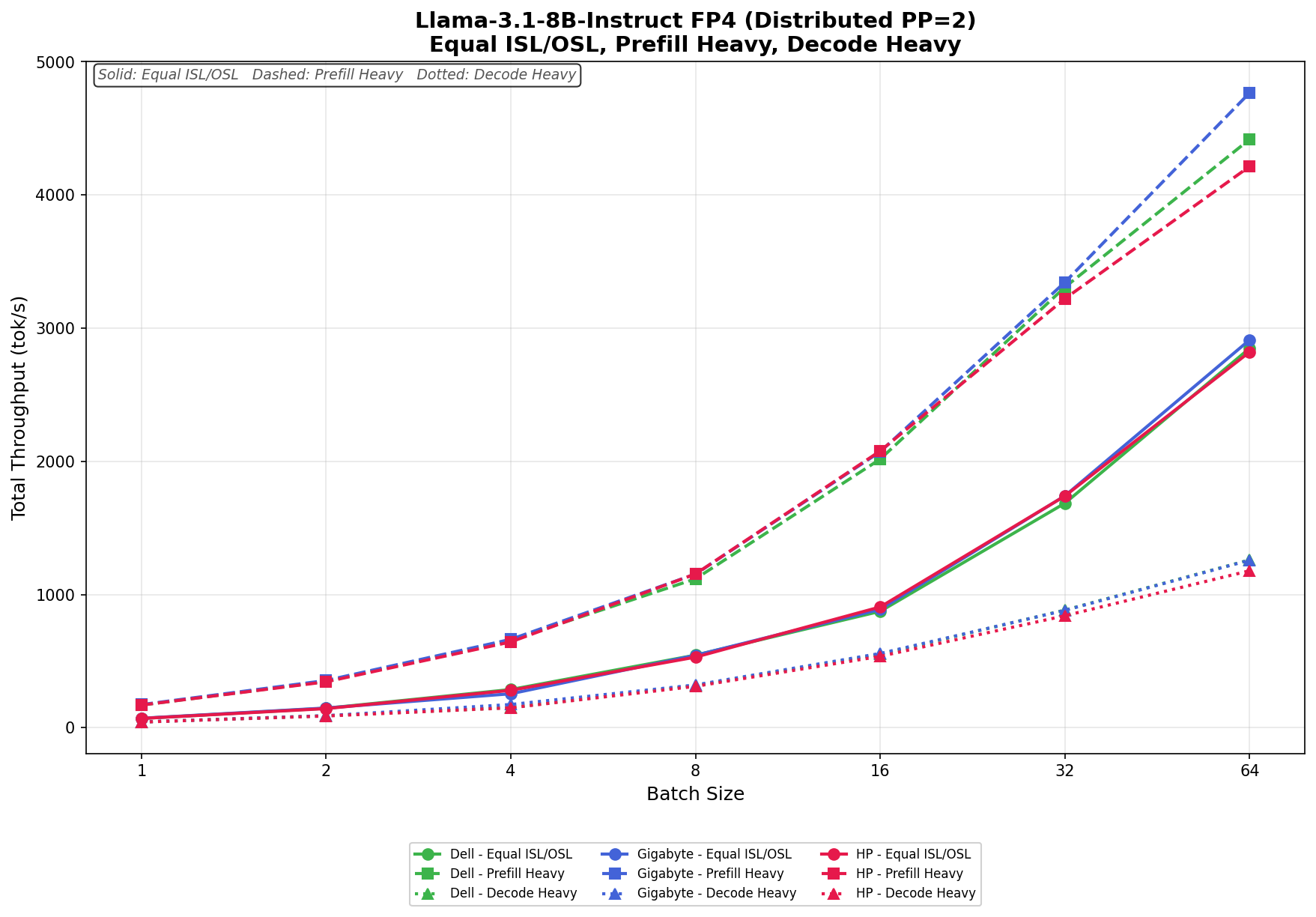
Dell Precision 7875 Review: Threadripper PRO 9995WX Meets Dual RTX PRO 6000 Blackwell GPUs

Following our most recent review of the Dell Precision 7875 tower workstation, which explored its 96-core AMD Threadripper PRO foundation, expansive memory and storage support, and dual professional GPUs, this updated review focuses on the latest iteration of the platform. This version takes full advantage of NVIDIA RTX PRO 6000 Blackwell Max-Q Workstation GPUs and Threadripper PRO 9000WX Series CPUs to push professional visualization, AI, and compute workloads even further. While the core architecture and performance DNA of the Precision 7875 remain consistent with our previous test, this configuration’s substantial GPU and CPU upgrades bring a new level of performance density for graphics-intensive tasks and advanced AI workflows.

Dell Precision 7875 Front

The Precision 7875 is engineered for the upper echelon of professional workflows, targeting larger corporations, engineering firms, and AI labs that require top-of-the-line processing power. By leveraging the AMD Ryzen Threadripper Pro platform, this workstation is a workhorse, designed for 3D rendering, local AI processing, and heavy data-intensive simulations. Our specific configuration features the flagship AMD Threadripper PRO 9995WX, a 96-core titan that pushes the boundaries of multithreaded performance. Combined with NVIDIA’s cutting-edge RTX PRO 6000 Blackwell GPUs, the 7875 provides the graphical and computational headroom needed to handle today’s most demanding creative and scientific tasks.

Specification Dell Precision 7875
Processor Options (AMD Ryzen Threadripper PRO 9000WX Series)
Flagship Model 9995WX: 96 cores, 192 threads, 2.5GHz to 5.4GHz, 384MB L3 cache, 350W TDP
High-Core Options 9985WX: 64 cores, 128 threads, 3.2GHz to 5.4GHz, 256MB L3 cache, 350W TDP
9975WX: 32 cores, 64 threads, 4.0GHz to 5.4GHz, 128MB L3 cache, 350W TDP
Performance Options 9965WX: 24 cores, 48 threads, 4.2GHz to 5.4GHz, 128MB L3 cache, 350W TDP
9955WX: 16 cores, 32 threads, 4.5GHz to 5.4GHz, 64MB L3 cache, 350W TDP
9945WX: 12 cores, 24 threads, 4.7GHz to 5.4GHz, 350W TDP
Memory & Storage
System Memory 8 DIMM slots; Up to 2 TB DDR5 4800 MT/s to 5200 MT/s ECC RDIMM
Total Storage Capacity Up to 56 TB
Internal NVMe Slots Two M.2 2230/2280 slots (PCIe NVMe Gen4)
Front FlexBays Two externally facing M.2 PCIe NVMe Gen4 storage flex bays (swappable)
SATA Support Two 2.5-inch/3.5-inch SATA 3.0 bays; One SATA slot for Optical Drive
Graphics (NVIDIA RTX PRO Blackwell Series)
GPU Architecture NVIDIA Blackwell (5th Gen Tensor Cores, 4th Gen RT Cores)
Max-Q Specs (RTX PRO 6000) 96 GB GDDR7 with ECC; 1792 GB/s bandwidth; 300W TBP; 24,064 CUDA cores
Multi-GPU Scalability Supports up to two dual-width, full-height graphics cards (300W each)
I/O & Networking
Front Ports 2x USB 3.2 Gen 1 (5Gb/s) Type-A
1x USB 3.2 Gen 2 (10Gb/s) Type-C with PowerShare
1x USB 3.2 Gen 2 (10Gb/s) Type-C
Universal audio jack; SD card reader
Rear Ports 3x USB 3.2 Gen 2 (10Gb/s) Type-C
3x USB 3.2 Gen 1 (5Gb/s) Type-A (2 standard, 1 with Smart Power On)
Audio line-out; Serial and PS/2 ports (optional)
Networking 1x RJ45 1GbE; 1x RJ45 10GbE (Onboard)
Optional Wi-Fi 6E (Intel AX1675)
Certifications & Software
ISV Certifications Tested and certified for professional apps (3ds Max, Catia, Maya, Solidworks, etc.)
Dell Optimizer for Precision AI-based software for system optimization, battery, audio, and network tuning
Sustainability & Efficiency ENERGY STAR certified; EPEAT registered; 41% post-consumer recycled plastic
Physical Specifications
Dimensions (H x W x D) 17.42 in x 6.79 in x 18.30 in (442.7 mm x 172.6 mm x 465 mm)
Weight Min: 40.39 lb (18.34 kg) / Max: 56.34 lb (25.57 kg)
Power Supply 1000W or 1350W Platinum internal PSU

Design and Build

The Precision 7875 chassis architecture features an advanced thermal design with a “honeycomb” front grill that delivers outstanding airflow, essential for cooling high-wattage 350W processors and massive GPUs. Independent Software Vendor (ISV) certifications and the inclusion of Error Correcting Code (ECC) memory further bolster reliability. Furthermore, to prevent system-halting crashes, Dell uses its Reliable Memory Technology (RMT) Pro software to identify and isolate memory errors before they cause problems.

Dell Precision 7875 Font panel

Physically, the tower feels incredibly rigid and professional, prioritizing airflow and internal accessibility. To preserve the integrity of the internal components, Dell engineered the cooling solution to maintain system stability even during 24/7 rendering or simulation cycles. Predictably, these certifications and thermal solutions make the entire system feel bulletproof.

Security and Upgradability

In high-stakes professional environments, physical and digital security remain just as critical as raw horsepower. For those handling sensitive data that cannot remain in the office overnight, Dell offers front-accessible “FlexBays.” These lockable, removable storage bays allow users to easily extract their M.2 NVMe or SATA drives. Additionally, a dedicated TPM 2.0 security chip (ControlVault) reinforces digital security by processing and storing end-user credentials. Meanwhile, SafeBIOS and off-host BIOS/firmware verification ensure no one has tampered with the system before it boots. The chassis includes a lock and an integrated intrusion-detection sensor that alerts administrators if someone opens the side panel without authorization. For additional data protection, the system supports self-encrypting drives (SEDs) and various enterprise encryption software suites, such as Dell Encryption Enterprise.

Dell Precision 7875 with side panel off

The 7875 also stands out as a champion of long-term upgradability, designed to scale with your workloads over several years. The motherboard features eight DIMM slots that users can populate with up to 2TB of DDR5 ECC memory, enough to handle massive datasets that would choke a standard desktop. Storage expansion is equally impressive, with support for up to 56TB of total capacity. You achieve this through a combination of internal M.2 2280 PCIe Gen4 slots, standard 3.5-inch or 2.5-inch SATA bays, and the aforementioned externally facing storage FlexBays.

Dell Precision 7875 Front flexbays

I/O and Expansion

The port selection and internal expansion capabilities of the Precision 7875 are clearly tailored for high-level production environments. On the front panel, you have immediate access to a 3.5mm audio jack, two USB 3.2 Gen 1 (5 Gb/s) Type-A ports, one USB 3.2 Gen 2 (10 Gb/s) Type-C port, and a second USB 3.2 Gen 2 Type-C port with PowerShare for charging your mobile devices. Conveniently, the front also houses an SD card slot for quick media offloads.

Dell Precision 7875 front flexbays with covers

However, the rear of the machine is where the workstation truly flexes its muscle. It features three additional USB 3.2 Gen 2 Type-C ports and three USB 3.2 Gen 1 Type-A ports, one of which supports “Smart Power On.” Dual RJ45 ports handle networking—one standard 1GbE and one high-speed 10GbE for moving massive project files over a local network. For those working with legacy industrial equipment, optional serial and PS2 ports are also available.

Dell Precision 7875 rear

Internal expansion is where the 7875 stands apart from its competition, offering six full-height PCIe slots. This includes a top-tier Gen5 PCIe x16 slot and a Gen4 PCIe x16 slot for dual-GPU configurations. Additionally, there is a Gen5 PCIe x8 slot, two Gen4 PCIe x8 slots, and one Gen4 x8 slot wired for x4 electrical performance. This massive array of lanes allows you to populate the system with high-end graphics cards, dedicated RAID controllers, or high-speed fiber-optic networking cards without hitting a bandwidth bottleneck.

Dell Precision 7875 inside PCie slots

Fan Tray

The Precision 7875 uses a modular dual-fan tray assembly secured behind a metal mesh guard. The entire unit pulls free from the chassis without tools, making it straightforward to service or swap out without disturbing surrounding components. This design reflects Dell’s broader philosophy of keeping critical cooling infrastructure accessible during maintenance, which is particularly important in 24/7 workstation deployments where downtime must remain minimal.

Dell Precision 7875 fan tray

CPU Cooler

Handling thermals for the 350W AMD Ryzen Threadripper PRO processor is a substantial tower-style heatsink with copper heatpipes running from the base up through tightly packed aluminum fins. The cooler sits directly over the socket, with the heat pipes drawing heat away from the die and dispersing it across the fin stack, working in tandem with the fan tray airflow moving through the chassis. With all eight DDR5 DIMM slots populated, the internal layout is dense, but Dell’s component placement keeps the airflow path clear and the heatsink fully unobstructed.

Dell Precision 7875 CPU cooler

Integrated Sensors

Under the hood, the tower features a suite of sensors to manage health and security. Specifically, thermal sensors work with the advanced cooling design to dynamically adjust fan speeds based on workload. Regarding physical security, an integrated chassis intrusion sensor alerts you if the side panel opens, while additional locking mechanisms monitor the status of the removable storage bays. These sensors ensure the system remains both physically secure and thermally stable during high-intensity operations.

Graphics and Audio

Elite graphics options drive the visual power of the 7875. Our review unit sports Dual NVIDIA RTX PRO 6000 Blackwell Max-Q cards, featuring a massive 96GB of GDDR7 memory. Because the 7875 lacks integrated graphics, a discrete graphics card is required for any display output. Consequently, these cards provide the massive bandwidth necessary for real-time 3D ray tracing and massive AI datasets.

Dell Precision 7875 GPU 12 vhpwr cables

On the other hand, audio performance is surprisingly robust for a workstation, featuring a Realtek ALC3246 controller and an internal speaker. This ensures that basic system alerts or communication remain somewhat audible, though most users should probably use the universal audio jack for high-fidelity or louder sound.

ISV Certifications

NVIDIA’s RTX professional GPUs benefit from exclusive software certifications for the world’s leading creative, engineering, scientific, and 3D design tools, providing highly optimized, tested, and stable experiences across workflows such as animation, CAD, simulation, rendering, and high-resolution video editing. That co-validation between GPU manufacturers and software developers shows up in the details: crashes, glitches, and redraw bugs are far less common with certified hardware.

Dell’s ISV certification portal lets you verify compatibility directly. The Precision 7875 supports over 2,800 applications and version combinations, depending on the GPU and OS. For Autodesk and Adobe workflows, certified drivers mean stable, validated performance without the glitches and instability that uncertified hardware can introduce. For SOLIDWORKS users, certification goes further. RealView Graphics and Order Independent Transparency are only enabled on certified professional graphics cards, features you paid for in the software, unlocked by the GPU certification. The Precision 7875 delivers all of it.

Review Unit Specifications

Our Dell Precision 7875 Tower review unit arrived with the following high-end specifications:

  • CPU: AMD Threadripper PRO 9995WX (96 cores, 192 threads, up to 5.4GHz)
  • GPU: Dual NVIDIA RTX PRO 6000 Blackwell Max-Q (96GB GDDR7 memory)
  • RAM: 512GB DDR5 ECC (8x64GB) 8-channel, 5200MHz
  • Storage: RAID 0 with 2 x 4TB Performance 2280 Class 40 SSDs
  • Wireless: Qualcomm WCN6856-DBS (Wi-Fi 6E + Bluetooth 5.3)

Dell Precision 7857 with Dell UltraSharp 52 monitor

Procyon AI Computer Vision

The Procyon AI Computer Vision Benchmark measures AI inference performance across CPUs, GPUs, and dedicated accelerators using a range of state-of-the-art neural networks. It evaluates tasks such as image classification, object detection, segmentation, and super-resolution using models that include MobileNet V3, Inception V4, YOLO V3, DeepLab V3, Real ESRGAN, and ResNet 50. Tests are run on multiple inference engines, including NVIDIA TensorRT, Intel OpenVINO, Qualcomm SNPE, Microsoft Windows ML, and Apple Core ML, providing a broad view of hardware and software efficiency. Results are reported for float- and integer-optimized models, providing a consistent, practical measure of machine vision performance for professional workloads.

The Dell Precision 7875 demonstrates a massive disparity between CPU-only inference and GPU-accelerated performance. While the AMD Threadripper PRO 9995WX is a powerhouse, the GPU-accelerated results show a roughly 10x increase in overall score (1,619 vs. 157).

For professionals working in machine learning, the sub-1ms inference times on MobileNet V3 and ResNet 50 in the accelerated test indicate that this system is capable of real-time video analysis and object detection without dropping frames. The CPU results, while slower, show that the 9995WX is still capable of handling fallback inference tasks, particularly in heavier models like DeepLab V3, where it maintains respectable latency.

CPU Results Dell Precision 7875 (AMD 9995WX 96C)(512GB RAM | 2x NVIDIA RTX PRO 6000)
CPU Results
AI Computer Vision Overall Score 157
MobileNet V3 5.74 ms
ResNet 50 6.52 ms
Inception V4 20.42 ms
DeepLab V3 47.75 ms
YOLO V3 21.97 ms
REAL-ESRGAN 1288.54 ms
GPU Results
AI Computer Vision Overall Score 1,619
MobileNet V3 0.45 ms
ResNet 50 0.82 ms
Inception V4 2.16 ms
DeepLab V3 6.60 ms
YOLO V3 3.48 ms
REAL-ESRGAN 47.33 ms

Blender 4.5

Blender is an open-source 3D modeling application. This benchmark was run using the Blender Benchmark utility. The score is measured in samples per minute, with higher values indicating better performance.

The Precision 7875 achieved a Blender CPU score of 1039.121 samples per minute in the Monster test, 744.601 samples per minute in Junkshop, and 574.705 samples per minute in Classroom.

Blender CPU (samples per minute; higher is better)  Dell Precision 7875 (AMD 9995WX 96C)(512GB RAM | 2x  NVIDIA RTX PRO 6000)
Monster 1039.121
Junkshop 744.601
Classroom 574.705

However, the GPU scores confirm where the true speed lies. Scoring 7259.413 on the Monster test, the dual NVIDIA 6000 PRO setup offers nearly 7x the CPU’s throughput. For 3D artists, this means near-instant feedback in the viewport and significantly shorter wait times for final frame exports, even in complex scenes such as the “Classroom” benchmark.

Blender GPU (samples per minute; higher is better)  Dell Precision 7875 (AMD 9995WX 96C)(512GB RAM | 2x NVIDIA RTX PRO 6000 )
Monster 7259.413
Junkshop 3943.343
Classroom 3665.272

PCMark 10

PCMark 10 is an industry-standard benchmark that measures overall system performance in modern office environments. It features updated workloads for Windows 10 or 11 and evaluates everyday tasks such as productivity, web browsing, video conferencing, and content creation. The benchmark is easy to run, delivers multi-level scoring (from high-level overall scores to detailed workload scores), and includes dedicated battery-life and storage tests. While UL Solutions now recommends Procyon for newer application-based testing, PCMark 10 remains a reliable and widely used tool for assessing overall PC performance.

With an overall score of 11,433, the Precision 7875 effectively maxes out the PCMark 10 general productivity score. This benchmark is often constrained by burst speed rather than core count, meaning the high score reflects excellent single-core IPC (Instructions Per Clock) and system responsiveness.

For the user, this confirms that despite being tuned for heavy server-grade workloads, the workstation will not feel sluggish during “daily driver” tasks. Web browsing, video conferencing, and application startup times will be instantaneous, ensuring that the overhead of a workstation-class OS and drivers does not impact general usability.

PCMark10  (higher is better)  Dell Precision 7875 (AMD 9995WX 96C)(512GB RAM | 2x NVIDIA RTX PRO 6000)
Overall Score 11,433

Blackmagic RAW Speed Test

The Blackmagic RAW Speed Test is a performance benchmarking tool that measures a system’s ability to handle video playback and editing with the Blackmagic RAW codec. It evaluates how well a system can decode and play back high-resolution video files, providing frame rates for both CPU- and GPU-based processing.

This is a critical benchmark for video editors. The CPU result of 158 FPS at 8K is the headline feature here. Most workstations rely entirely on the GPU for 8K playback, but the 96-core Threadripper PRO has enough raw horsepower to decode 8K streams in software in real-time.

This provides a massive safety net for editors: if GPU VRAM fills up during complex color grading or when using fusion effects, the CPU can take over playback without stuttering. The GPU score of 276 FPS ensures that, even with heavy noise reduction and multiple nodes applied, 8K footage will scrub significantly more smoothly than standard 24fps or 60fps timelines require.

Blackmagic RAW (Higher FPS is better)  Dell Precision 7875 (AMD 9995WX 96C)(512GB RAM | 2x NVIDIA RTX PRO 6000)
8K CPU 158
8K GPU 276

Blackmagic Disk Speed Test

The Blackmagic Disk Speed Test evaluates storage performance by measuring read and write speeds, providing insights into a system’s ability to handle data-intensive tasks, such as video editing and large file transfers.

The system is equipped with high-speed storage, PCIe Gen 4 NVMe, or a RAID 0 configuration, delivering symmetrical Read/Write speeds over 9,000 MB/s.

In a production environment, this completely eliminates the storage bottleneck. You can stream multiple angles of uncompressed 8K RAW footage simultaneously (multicam editing) without dropping frames. It also means that the massive scratch files generated by applications like Adobe After Effects or Nuke will be written to and read from almost instantly, keeping RAM free for active computations.

DiskSpeedTest (higher is better)  Dell Precision 7875 (AMD 9995WX 96C)(512GB RAM | 2x NVIDIA RTX PRO 6000)
Read 9,111.4 MB/s
Write 9,292.0 MB/s

3DMark CPU

The 3DMark CPU Profile evaluates processor performance across six threading levels: 1, 2, 4, 8, 16, and max threads. Each test runs the same boid-based simulation workload to assess how well the CPU scales under different thread counts, with minimal GPU involvement. The benchmark helps identify single-threaded efficiency and multithreaded potential for tasks such as gaming, content creation, and rendering. Scores on 8 threads often align with modern DirectX 12 gaming performance, while 1–4-thread results reflect older or esports scenarios.

The 3DMark CPU Profile perfectly illustrates the AMD Threadripper PRO 9995WX’s scaling capabilities. The jump from 1,237 (1 thread) to 27,670 (Max threads) demonstrates near-linear scaling, which is rare in consumer hardware.

The strong 16-thread score (15,378) also suggests that the system maintains high clock speeds even under moderate load, which is ideal for gaming development workflows or running virtual machines.

3DMark CPU (higher is better)  Dell Precision 7875 (AMD 9995WX 96C)(512GB RAM | 2x NVIDIA RTX PRO 6000)
Max Threads 27,670
16 Threads 15,378
8 Threads 8,477
4 Threads 4,701
2 Threads 2,378
1 Threads 1,237

3DMark Storage

The 3DMark Storage Benchmark tests your SSD’s gaming performance by measuring tasks like loading games, saving progress, installing game files, and recording gameplay. It evaluates how well your storage performs in real-world gaming and supports the latest storage technologies, providing accurate performance insights.

In the 3DMark Storage benchmark, the Dell Precision 7875 delivered a solid overall score of 3,221, reflecting strong storage responsiveness across common gaming-style workloads such as game loading, installs, and save operations.

3DMark Storage (higher is better)  Dell Precision 7875 (AMD 9995WX 96C)(512GB RAM | 2x NVIDIA RTX PRO 6000)
Overall Score 3,221

LuxMark

LuxMark is a GPU benchmark that uses LuxRender, an open-source ray-tracing renderer, to evaluate a system’s performance on highly detailed 3D scenes. This benchmark is relevant for assessing the graphical rendering capabilities of servers and workstations, especially for visual effects and architectural visualization applications, where accurate light simulation is crucial.

In LuxMark, the Dell Precision 7875 demonstrates strong GPU rendering capability thanks to its dual RTX PRO 6000 GPUs. The system achieved 41,981 in the Food scene and 101,808 in the Hall scene, highlighting its ability to efficiently handle complex ray-traced workloads. These results reflect the workstation’s suitability for demanding rendering tasks such as visualization, simulation, and content creation, where GPU acceleration is critical.

LuxMark (higher is better)  Dell Precision 7875 (AMD 9995WX 96C)(512GB RAM | 2x NVIDIA RTX PRO 6000)
Food 41,981
Hall 101,808

Geekbench 6

Geekbench 6 is a cross-platform benchmark that measures overall system performance.

Geekbench 6 highlights the balanced compute capabilities of the Dell Precision 7875 across both CPU and GPU workloads. The system posted a single-core score of 3,240 and a multi-core score of 28,618, reflecting strong single-thread responsiveness alongside the massive parallel compute available from the 96-core AMD 9995WX processor. On the graphics side, the dual RTX PRO 6000 GPUs delivered impressive results, achieving 330,765 in OpenCL and 309,146 in Vulkan, demonstrating substantial GPU compute throughput for workloads such as rendering, simulation, and AI-accelerated tasks.

GeekBench (higher is better)  Dell Precision 7875 (AMD 9995WX 96C)(512GB RAM | 2x NVIDIA RTX PRO 6000)
CPU Single Core 3,240
CPU Multi-Core 28,618
GPU OpenCl 330,765
GPU Vulkan 309,146

y-cruncher

y-cruncher is a multithreaded and scalable program that can compute Pi and other mathematical constants to trillions of digits. Since its launch in 2009, it has become a popular benchmarking and stress-testing application for overclockers and hardware enthusiasts.

In the y-cruncher benchmark, the Dell Precision 7875 showcases the raw computational strength of the 96-core AMD 9995WX processor under heavy multithreaded workloads. The system completes the 250-million-digit test in 2.369 seconds and the 100-billion-digit test in 844.503 seconds, maintaining consistent progress as the workload size increases.

y-Cruncher (lower duration is better)  Dell Precision 7875 (AMD 9995WX 96C)(512GB RAM | 2x NVIDIA RTX PRO 6000)
250 Million 2.369 s
500 Million 4.281 s
1 Billion 7.617 s
2.5 Billion 15.188 s
5 Billion 29.795 s
10 Billion 61.572 s
25 Billion 169.289 s
50 Billion 371.039 s
100 Billion 844.503 s

7-Zip Compression

The 7-Zip Compression Benchmark evaluates CPU performance during compression and decompression, measuring GIPS (Giga Instructions Per Second) and CPU usage. Higher GIPS and efficient CPU usage indicate superior performance.

In the 7-Zip Compression Benchmark, the Dell Precision 7875 demonstrates strong multithreaded CPU performance driven by the 96-core AMD 9995WX. During compression, the system reached a resulting rating of 49.108 GIPS, while decompression climbed slightly higher to 51.181 GIPS. Combined, the platform achieved a total rating of 50.145 GIPS, reflecting the workstation’s ability to efficiently handle heavily threaded workloads, including large archive operations, data processing, and other CPU-intensive tasks.

7-Zip Compression Benchmark (higher is better)  Dell Precision 7875 (AMD 9995WX 96C)(512GB RAM | 2x NVIDIA RTX PRO 6000)
Compression
Current CPU Usage 6,445%
Current Rating/Usage 6.949 GIPS
Current Rating 48.392 GIPS
Resulting CPU Usage 701%
Resulting Rating/Usage 7.010 GIPS
Resulting Rating 49.108 GIPS
Decompression
Current CPU Usage 728%
Current Rating/Usage 6.801 GIPS
Current Rating 49.526 GIPS
Resulting CPU Usage 749%
Resulting Rating/Usage 6.832 GIPS
Resulting Rating 51.181 GIPS
Total Rating
Total CPU Usage 725%
Total Rating/Usage 6.921 GIPS
Total Rating 50.145 GIPS

Topaz Video AI

Topaz Video AI is a professional application for enhancing and restoring video using advanced AI models. It supports tasks such as upscaling footage to 4K or 8K, sharpening blurry content, reducing noise, improving facial details, colorizing black-and-white footage, and interpolating frames for smoother motion. The suite includes an onboard benchmark that measures system performance across its various video-enhancing algorithms, providing a clear view of how well hardware platforms handle demanding AI video-processing workloads.

In the Topaz Video AI benchmark, the Dell Precision 7875 shows strong performance across a wide range of AI-driven video enhancement models, leveraging its dual RTX PRO 6000 GPUs to accelerate demanding workloads. Models such as Iris (52.63 fps) and Nyx Fast (50.42 fps) demonstrate excellent throughput for real-time or near–real-time enhancement tasks. In comparison, heavier upscale operations like Artemis 4X (6.53 fps) and Proteus 4X (6.40 fps) maintain solid performance given the computational intensity of high-resolution AI upscaling.

The system also performs well in specialized workloads, including Gaia (14.71 fps at 1X) for high-quality enhancement and Nyx (22.90 fps) for strong denoise performance. In slow-motion generation tests, results remain consistently strong: 4X Apollo reached 37.51 fps, CHFast peaked at 38.86 fps, and the more demanding 16X Aion test achieved 37.29 fps.

Test / Model 1X 2X 4X
Benchmark results
Artemis 46.87 fps 22.99 fps 06.53 fps
Iris 52.63 fps 20.24 fps 06.53 fps
Proteus 48.19 fps 23.67 fps 06.40 fps
Proteus Natural 13.16 fps
Gaia 14.71 fps 10.36 fps 06.04 fps
Nyx 22.90 fps 18.81 fps
Nyx Fast 50.42 fps
Nyx XL 03.66 fps
Rhea 05.71 fps
RXL 05.84 fps
Hyperion HDR 28.57 fps
Slomo Test Result
Slow Motion Benchmarks
4X Slowmo – Apollo 37.51 fps
4X Slowmo – APFast 34.78 fps
4X Slowmo – Chronos 33.00 fps
4X Slowmo – CHFast 38.86 fps
16X Slowmo – Aion 37.29 fps

V-Ray

The V-Ray Benchmark measures rendering performance on CPUs, NVIDIA GPUs, or both, using the advanced V-Ray 6 engines. It uses quick tests and a simple scoring system to help users evaluate and compare their systems’ rendering capabilities. It’s an essential tool for professionals seeking efficient performance insights.

In the V-Ray benchmark, the Dell Precision 7875 achieved a score of 30,356, demonstrating strong rendering throughput in ray-traced workloads.

V-Ray (higher is better)  Dell Precision 7875 (AMD 9995WX 96C)(512GB RAM | 2x  NVIDIA RTX PRO 6000)
Score 30,356

Dell Precision 7875 vLLM Performance Testing

To evaluate the Dell Precision 7875, we tested configurations using the vLLM Online Serving benchmark, one of the most widely adopted high-throughput inference and serving engine for large language models. The vLLM online serving benchmark simulates real-world production workloads by sending concurrent requests to a running vLLM server and measuring key metrics, including total token throughput (tokens per second), time to first token, and time per output token, under varying load conditions.

Our testing spanned a range of models, from dense architectures to micro-scaling data types. The tests evaluated performance across three workload scenarios: Equal ISL/OSL, Prefill Heavy, and Decode Heavy. These scenarios represent distinct real-world serving patterns, from balanced input and output loads to compute-intensive prompt processing and memory-bandwidth-bound token generation.

Dell Precision 7875 with 2 NVIDIA RTX PRO 6000 GPU's

To understand how the Dell Precision 7875 scales with additional GPU resources, we benchmarked single-GPU (1x NVIDIA RTX PRO 6000 Blackwell) and dual-GPU (2x NVIDIA RTX PRO 6000 Blackwell) configurations, quantifying the throughput gains and latency improvements achievable by moving from a single accelerator to a dual-GPU setup

GPT-OSS-120B

Equal ISL/OSL (256/256): The 1x started at 284 tok/s vs the 2x at 355. Through batch 32, the gap widened, 2,744 vs 4,409. At batch 256, the 1x peaked at 8,190 tok/s, while the 2x hit 11,848 tok/s, a 45% advantage for the dual-GPU setup.

Prefill Heavy (1024/256): The 1x opened at 1,384 vs 1,781 for the 2x. Both climbed through batch 32, with the 1x at 7,359 and the 2x at 11,995. But then the 1x stalled and actually dropped at batch 64 to 5,483, eventually peaking at 5,941 tok/s at batch 256. The 2x kept climbing to 18,954 tok/s, more than 3x higher.

Decode Heavy (256/1024): The 1x started at 198 vs 261 for the 2x. By batch 32, the 1x was at 1,259 vs 2,161. The 1x plateaued hard after batch 64, finishing at 1,569 tok/s at batch 256. The 2x reached 5,275 tok/s, more than 3x the single GPU result.

GPT-OSS-20B

Equal ISL/OSL (256/256): The 1x started at 373 tok/s vs 425 for the 2x. By batch 32, the gap was already notable, 5,856 vs 8,514. Both peaked at batch 256, with the 1x at 19,228 tok/s and the 2x at 22,034 tok/s, giving the dual GPU about a 15% advantage.

Prefill Heavy (1024/256): The 1x opened at 1,938 tok/s vs 2,351 for the 2x. At batch 32, the gap widened considerably, 13,904 vs 20,120. Both peaked at batch 256 with the 1x at 22,019 tok/s and the 2x at 31,982 tok/s, a 45% lead for the 2x.

Decode Heavy (256/1024): The 1x started at 275 tok/s vs 340 for the 2x. At batch 32, the 2x pulled ahead more clearly, 4,204 vs 2,602. Both peaked at batch 256 with the 1x at 6,638 tok/s and the 2x at 9,985 tok/s, roughly 50% higher for the dual GPU.

Qwen3 Coder 30B

Equal ISL/OSL (256/256): Both started nearly at zero, 20 vs 19 tok/s at batch 1. By batch 32, the 2x pulled ahead, 4,600 vs 3,830. Both peaked at batch 256, with the 1x at 12,027 tok/s and the 2x at 13,577 tok/s, giving the dual GPU about a 13% advantage.

Prefill Heavy (1024/256): This one tells an interesting story. The 1x opened at 1,091 tok/s vs 1,177 for the 2x. At batch 32, the 1x hit its peak of 7,438 tok/s, then dropped off, finishing at just 6,080 at batch 256. The 2x had no such drop, climbing steadily to its peak of 13,661 tok/s at batch 128. That’s nearly double the 1x peak.

Decode Heavy (256/1024): The 1x started at 146 tok/s vs 157 for the 2x. At batch 32, the gap grew, 2,107 vs 1,412. The 1x peaked at 1,841 tok/s at batch 128, then flattened. The 2x setup kept climbing to 3,464 tok/s at batch size 256, nearly twice the single-GPU result.

Mistral Small 24B

Equal ISL/OSL (256/256): Both starting even, 16 vs 17 tok/s. By batch 32, the 2x was already well ahead, 2,833 vs 1,605. Both peaked at batch 256, with the 1x at 5,357 tok/s and the 2x at 8,261 tok/s, a 54% advantage for the dual-GPU.

Prefill Heavy (1024/256): The 1x opened at 250 tok/s vs 471 for the 2x. The 1x peaked early at 2,339 tok/s in batch 16, then plateaued, finishing at 2,146 in batch 256. The 2x peaked at 6,627 tok/s in batch 64, then dropped to 4,522 tok/s in batch 256. Both configs hit their ceilings and fell back, but the 2x peaked nearly 3x higher.

Decode Heavy (256/1024): The 1x started at just 32 tok/s vs 61 for the 2x. At batch 32, the gap was clear: 1,192 vs 553. The 1x peaked at just 687 tok/s at batch 64 and flatlined. The 2x peaked at 1,831 tok/s in batch 128 before a slight dip, still nearly 2.7x the single-GPU result.

Llama 3.1 8B

Equal ISL/OSL (256/256): The two configs were locked together at 19 tok/s apiece at batch 1. The 2x started separating through the mid-range, hitting 6,234 at batch 32 vs 4,205 for the 1x. Both kept climbing all the way to batch 256, with the 1x peaking at 11,346 tok/s and the 2x at 13,789 tok/s, a 21% edge for the dual GPU.

Prefill Heavy (1024/256): The 2x came out stronger at batch 1, 1,182 vs 721 tok/s. By batch 32, the gap was significant, 10,177 vs 6,079, which was actually the 1x GPU’s ceiling. The 1x fell back from there to 5,049 at batch 256. The 2x held its gains and peaked at 11,639 tok/s at batch 128, nearly double what the single GPU managed.

Decode Heavy (256/1024): The 2x carried a consistent 2x lead throughout the entire run. At batch 32, it was 2,227 vs 1,259, and both peaked at batch 128 with the 1x at 1,598 tok/s and the 2x at 3,225 tok/s. The 1x flattened after that, while the 2x finished at 2,985 at batch 256, still nearly double.

Llama 3.1 8B (FP4)

Equal ISL/OSL (256/256): The 2x had a stronger footing at batch 1, 345 vs 239 tok/s. Through the mid-range at batch 32, the 2x led, 7,873 vs 6,568. Then something interesting happens, the 1x kept climbing aggressively and overtook the 2x, finishing at 20,791 tok/s at batch 256 vs 17,621 for the dual GPU. The single GPU actually wins this test at high batch sizes.

Prefill Heavy (1024/256): The 2x held a consistent lead throughout. It came in at 1,499 vs 1,010 at batch 1, widened to 15,798 vs 11,478 at batch 32, and while the 1x peaked at 14,138 tok/s at batch 128, the 2x kept scaling to 19,941 tok/s at batch 256, a 41% advantage at peak.

Decode Heavy (256/1024): The 2x maintained roughly a 1.5-1.7x lead across the whole range, 3,426 vs 2,215 at batch 32. The 1x peaked at 3,347 tok/s at batch 128 before tailing off, while the 2x climbed to 5,589 tok/s at batch 256, its best result of the run.

Llama 3.1 8B (FP8)

Equal ISL/OSL (256/256): The 2x had the stronger opening at 427 vs 302 tok/s and led through the mid-range, 8,341 vs 7,178 at batch 32. As with the FP4 results, the 1x overtook the 2x at the high end, finishing at 17,349 tok/s vs 16,833 tok/s for the dual-GPU at batch 256. Again, the single-GPU setup edges out the 2x setup when the batch size gets large enough.

Prefill Heavy (1024/256): The 2x pulled ahead early at 1,803 vs 1,233 tok/s and maintained a consistent lead throughout. At batch 32, it was 15,552 vs 11,067, and while the 1x peaked at 12,906 tok/s at batch 128 before leveling off, the 2x kept climbing to its peak of 18,822 tok/s at batch 256, a 46% advantage.

Decode Heavy (256/1024): The 2x data starts at batch 2 rather than batch 1 here. From batch 32 onward, the gap was steady, 3,558 vs 2,316. The 1x peaked at 3,224 tok/s at batch 128, then tailed off to 3,084. The 2x climbed all the way to 5,429 tok/s at batch 256, nearly 1.7x the single GPU result.

Conclusion

The Dell Precision 7875 with the AMD Threadripper PRO 9995WX and dual NVIDIA RTX PRO 6000 Blackwell GPUs represents the current high-water mark for a self-contained workstation. The chassis reflects that ambition at every level, from the tool-less fan tray and front-accessible FlexBays to the lockable storage bays. This is a machine built for environments where uptime, security, and serviceability matter as much as raw performance.

The internal layout reinforces that philosophy. Six full-height PCIe slots, eight DIMM slots supporting up to 2TB of ECC memory, and storage expansion up to 56TB give the platform genuine long-term headroom. Dell’s ISV certifications and Reliable Memory Technology software add another layer of confidence for studios and labs running mission-critical workloads around the clock. It does not feel like a desktop stretched to meet professional demands. It was designed from the start to carry them.

Dell Precision 7875 internal view with airflow baffle installed.

On the GPU configuration question, the answer depends entirely on what you are running. For smaller models, a single RTX PRO 6000 is not just sufficient; it can actually outperform a dual-GPU setup at high batch sizes and certain stages of the workload, where the overhead of splitting the model across two cards outweighs the added capacity. The calculus shifts dramatically with larger models. A single GPU stalls and flattens under memory pressure, while the dual-GPU setup continues to scale. The 192GB of combined GDDR7 becomes the deciding factor, and the performance gap widens considerably on prefill-heavy and decode-heavy workloads. For teams running production inference on frontier-class open-weight models, the second card is not a luxury. It is the capability tier.

The Precision 7875 is not a machine you buy speculatively. It targets professionals with specific, demanding workloads, and for those users, it delivers.

Product Page – Dell Precision 7875

The post Dell Precision 7875 Review: Threadripper PRO 9995WX Meets Dual RTX PRO 6000 Blackwell GPUs appeared first on StorageReview.com.
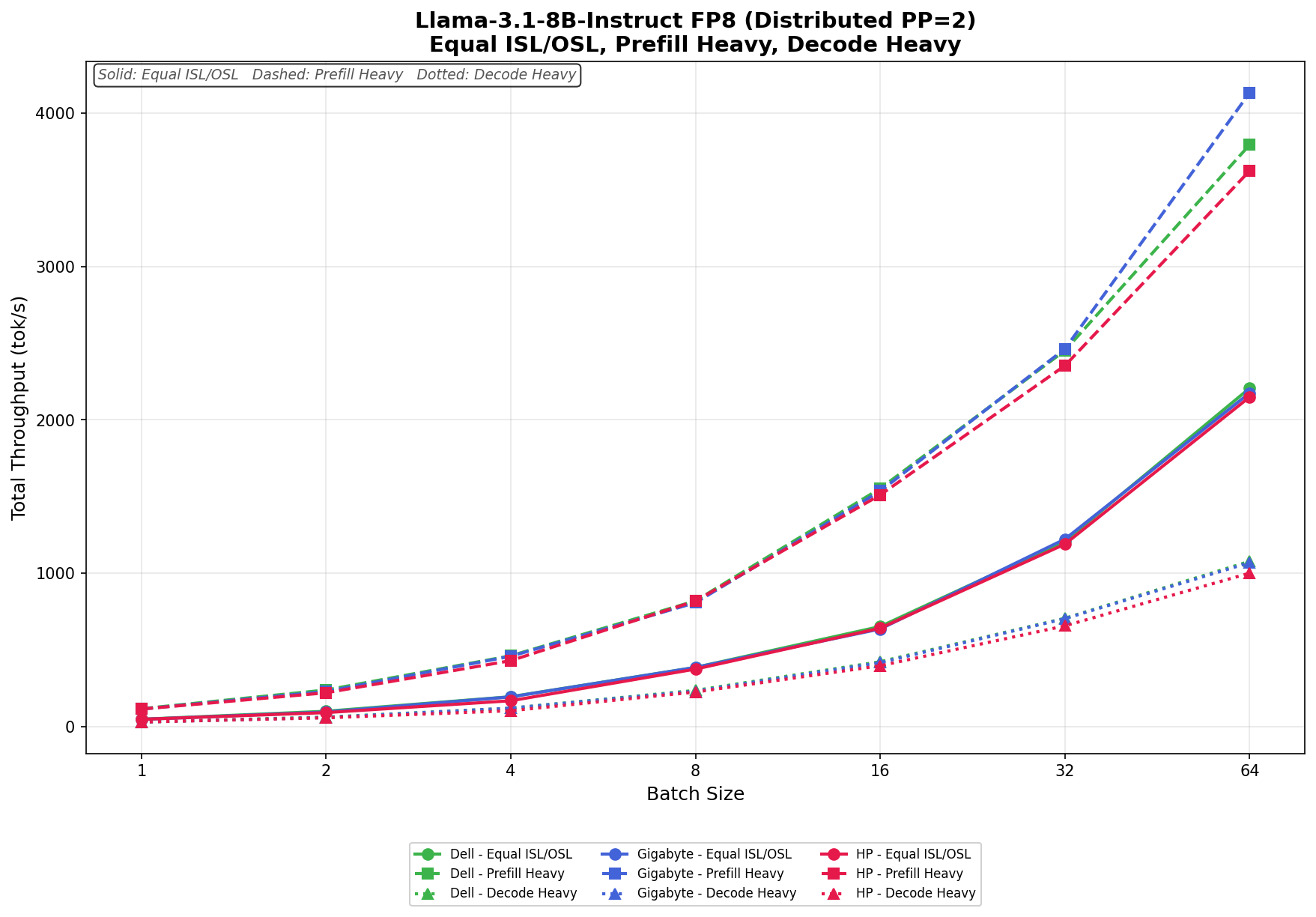
Acer Veriton GN100 Review: A Standout in the NVIDIA Spark Ecosystem

The Acer Veriton GN100 AI Mini Workstation is one of several Spark-based systems we are evaluating, all built around NVIDIA’s GB10 Grace Blackwell Superchip. Like the others, the GN100 is designed to bring datacenter-class AI compute into a compact desktop form factor, enabling developers and researchers to run and refine models locally rather than relying entirely on cloud infrastructure.

Acer Veriton GN100 AI Front

In this configuration, the GN100 pairs the 20-core Arm-based GB10 processor with integrated Blackwell graphics, delivering up to 1 petaFLOP of FP4 AI performance. It is equipped with 128GB of LPDDR5x unified memory and a 4TB PCIe Gen5 NVMe SSD, providing the memory bandwidth and storage throughput needed for large language models, generative AI workflows, and data-heavy experimentation.

As with the other Spark systems in this group, the GN100 supports local AI execution while allowing system-to-system expansion via the integrated NVIDIA ConnectX-7 SmartNIC. Two units can be linked to support larger model workloads beyond a single appliance.

The system ships with NVIDIA DGX OS and the full AI software stack preinstalled, making it ready for immediate deployment in development and research environments.

Acer Veriton GN100 AI Specifications

        Specification         Acer Veriton GN100 AI (GB10)
Dimensions & Weight
Height 2 in
Width 5.9 in
Depth 5.9 in
Weight 2.65 lb
Processor
Processor Type NVIDIA GB10 (Grace Blackwell Superchip) (20 Cores)
Integrated Graphics NVIDIA Blackwell GPU (integrated)
Memory
Memory Type LPDDR5x (Unified System Memory)
Memory Configuration 128 GB LPDDR5x, unified system memory
Memory Bandwidth 273 GB/s (8533 MT/s)
Operating System
Supported OS NVIDIA DGX OS
External Ports & Slots
Network Ports One RJ45 (10GbE)
NVIDIA ConnectX-7 NIC (200G × 2 QSFP)
USB Ports Three USB 3.2 Gen 2×2 Type-C (20Gbps)
One USB 3.2 Gen 2×2 Type-C with PD in
Video Port(s) One HDMI 2.1a
Power Adapter Port USB Type-C (PD IN)
Security Slot One Kensington Lock
Wireless
WiFi WiFi 7 (AW-EM637, 2×2)
Bluetooth Bluetooth 5.4
Storage
Storage Options Up to 4 TB NVMe SSD (PCIe Gen5)
Power Adapter
Type 240 W external adapter (USB Type-C)

Acer Veriton GN100 AI Build And Design

The front of the Veriton GN100 is dominated by a wall of vertical slats that span the width of the chassis. A horizontal accent line cuts across the grille, giving it a unique look compared to the other Spark-based systems we’ve looked at.

Acer Veriton GN100 AI rear

All primary I/O is located at the rear of the system. Acer includes four USB 3.2 Type-C ports, one of which supports power delivery, along with an HDMI 2.1b port for display output. Networking features an RJ-45 Ethernet port and an NVIDIA ConnectX-7 Smart NIC, allowing high-bandwidth connectivity and system linking. Wireless support includes Wi-Fi 7 and Bluetooth 5.1 or later. A Kensington lock slot is available for physical security.

Acer Veriton GN100 AI rear cover off

Here, you can see the metal shielding and structural plate that spans the entire chassis, acting as both a reinforcement frame and a heat spreader. In the lower left is an easily accessible M.2 2242 NVMe SSD slot, secured with a single screw and partially tucked beneath the metal plate.

To access the bottom section of the Acer unit, remove the perimeter screws to lift the lower panel away cleanly. Once inside, the layout is straightforward and well organized, providing direct visibility into the cooling assembly, storage area, and mainboard components. The bottom plate itself feels substantial and contributes to the overall rigidity of the chassis.

Acer Veriton GN100 AI bottom storage area

Compared to the other Spark systems we have evaluated, Acer takes a slightly different approach here. Instead of the more refined painted-metal bottom plate we have seen on the Founders Edition and several OEM implementations, Acer uses a raw, unfinished cast-metal bottom plate. The finish is less polished, with visible casting texture, but it remains thick and structurally sound. Functionally, it still serves the same purpose as a reinforcement frame and secondary heat spreader, though the manufacturing choice clearly reflects a different design and cost philosophy.

Acer Veriton GN100 AI Thermals Testing

To test the Acer Veriton GN100 AI thermals, we compared them against the Founders Edition and OEMs such as Dell, ASUS, and GIBABYTE. We did a deeper dive on this in our Spark Thermal Testing paper.

Acer Veriton GN100 AI with OEM Sparks

Across the stack, we monitored components over a given timeframe with three stages to the workload, ramping up utilization over roughly an hour. This allowed us to see the device in extended use and various workload stages. We monitored CPU, GPU, network, NVMe temps, and total power consumption.

CPU Temperature

During CPU thermal testing, the Acer system reached a peak temperature of 74.7°C during burst-heavy Prefill activity. This represents one of the lowest maximum CPU temperatures observed in the comparison group, indicating a notably conservative or efficient thermal implementation.

As the workload transitioned to Equal ISL/OSL and sustained Decode Heavy phases, CPU temperatures remained well-controlled without aggressive ramping. Rather than climbing into the upper 80°C range seen in some competing systems, Acer maintained a lower sustained operating band, reflecting strong cooling headroom under extended compute load.

At the low end, the CPU recorded a minimum temperature of 37.8°C during idle or light-load conditions. This baseline aligns with the broader stack and reinforces that Acer’s cooling solution remains effective both at rest and under load.

Overall, Acer delivered one of the coolest CPU thermal profiles in the group across both burst and sustained phases.

NVIDIA DGX Spark Thermal CPU Temps

GPU Temperature

GPU thermals followed a similar pattern of moderation. During Prefill Heavy acceleration, the GPU reached a maximum temperature of 69°C, which is significantly lower than that of several competing implementations during burst activity.

As workloads progressed into Equal ISL/OSL and Decode Heavy phases, the GPU stabilized in a controlled range without notable thermal spikes. The system demonstrated consistent behavior under sustained decoding, maintaining a wide margin below upper operating limits.

The minimum GPU temperature recorded was 35°C during lighter phases, representing one of the lowest idle baselines in the stack.

Taken together, Acer exhibited one of the coolest overall GPU implementations under both burst and sustained workloads.

NVIDIA DGX Spark Thermal GPU Temps

NVMe Temperature

Storage thermals remained well within specification throughout testing. The NVMe drive peaked at 56.8°C during heavier-workload phases, staying comfortably below common throttling thresholds and aligning with the group’s more moderate storage results.

At idle or light utilization, the NVMe temperature dropped to 36.8°C, indicating that the storage subsystem is not thermally constrained under low load.

Overall, Acer maintained competitive NVMe thermals, pairing low sustained temperatures with stable baseline behavior.

NVIDIA DGX Spark Thermal SSD Temps

NIC Temperature

NIC thermals peaked at 61°C during heavier workload stages. This represents one of the lower maximum NIC temperatures observed in the comparison group, suggesting effective airflow or component placement within the chassis.

The minimum NIC temperature recorded was 39°C during lighter phases, again reflecting strong baseline thermal behavior.

Throughout testing, the network controller tracked proportionally with workload demand without excessive scaling.

GPU Power Consumption

GPU power draw peaked at 69.18W during Prefill Heavy transitions. This places Acer slightly below the highest power ceilings observed within the GB10 stack.

The lower peak power allocation correlates directly with Acer’s cooler GPU thermal profile. Rather than aggressively pushing toward the upper limit of the power envelope, Acer appears to balance performance and thermal efficiency, resulting in consistently lower component temperatures during burst phases.

During sustained Decode workloads, power consumption stabilized in line with workload demand and remained predictable.

Thermal Summary

Across CPU, GPU, NVMe, and NIC monitoring, the Acer GB10 demonstrated the coolest overall thermal profile in the comparison group. CPU peaked at 74.7°C and GPU at 69°C during burst-heavy transitions, while NVMe remained under 57°C and NIC peaked at 61°C. GPU power draw topped out at 69.18W, slightly below the highest observed values in the stack.

Overall, Acer’s implementation prioritizes thermal efficiency and sustained stability, maintaining substantial headroom during aggressive workload transitions while delivering consistent performance under extended load.

Acer Veriton GN100 Performance Testing

To evaluate the Acer Veriton GN100, we tested Spark units using the vLLM Online Serving benchmark, the most widely adopted high-throughput inference and serving engine for large language models. The vLLM online serving benchmark simulates real-world production workloads by sending concurrent requests to a running vLLM server, measuring key metrics, including total token throughput (tokens per second), time to first token, and time per output token, across varying load conditions.

Our testing spanned a range of models, from dense architectures to micro-scaling data types. The tests evaluated performance across three workload scenarios: Equal ISL/OSL, Prefill Heavy, and Decode Heavy. These scenarios represent distinct real-world serving patterns, from balanced input and output loads to compute-intensive prompt processing and memory-bandwidth-bound token generation.

In addition to the Acer Veriton GN100, we benchmarked the NVIDIA Founders Edition Spark as a reference point, alongside OEM systems from ASUS, Dell, and GIGABYTE. This allowed us to place Acer’s results within the broader competitive landscape and understand where it leads, keeps pace with the pack, or trails across different models and workload types.

GPT-OSS-120B

In Equal ISL/OSL, the Acer scales from 69.65 to 713.18 tok/s across the batch sweep. Throughput shows some variability at lower batch sizes before stabilizing and growing consistently from batch 8 onward through batch 64.

Prefill Heavy begins at 303.61 tok/s and climbs to 2,777.56 tok/s by batch size 64. Scaling is strong and progressive throughout, with particularly aggressive growth through batch 8 and continued gains at larger batch sizes.

Decode Heavy ranges from 38.38 to 292.41 tok/s, with gradual and consistent scaling across the batch sweep. Lower batch sizes show some variability before throughput stabilizes and grows steadily from batch 16 onward.

GPT-OSS-20B

In Equal ISL/OSL, the Acer scales from 91.91 to 1,565.62 tok/s with strong and consistent gains across the full batch sweep. Throughput approximately doubles from batch 1 through batch 4, then continues climbing through batches 32 and 64.

Prefill Heavy begins at 1,637.72 tok/s and climbs to 4,317.73 tok/s as the batch size increases to 64. Growth is strong through batch 2, moderates through the mid-range, then accelerates again at batch 32 and 64.

Decode Heavy ranges from 50.55 to 674.26 tok/s, with gradual and consistent scaling across the batch sweep.


Qwen3 coder 30B A3B FB8

In Equal ISL/OSL, the Acer scales from 104.64 to 1,273.47 tok/s, with steady, consistent growth across the full batch sweep. Throughput approximately doubles at each step through batch 16, then continues to climb through batches 32 and 64.

Prefill Heavy begins at 429.86 tok/s and grows to 2,034.76 tok/s by batch size 64. Scaling is strong through batch 8, then moderates as the workload approaches a plateau at batch 32 and 64.

Decode Heavy ranges from 55.94 to 478.59 tok/s, with gradual and consistent scaling across the batch sweep.

Qwen3 coder 30B A3B Base

In Equal ISL/OSL, the Acer scales from 60.71 to 681.18 tok/s, delivering a meaningfully lower throughput than the FP8 variant across all batch sizes. Growth is steady through the sweep, though the gap to FP8 widens at higher batch sizes.

Prefill Heavy begins at 260.11 tok/s and climbs to 1,610.56 tok/s by batch size 64. Scaling is consistent across the sweep, though throughput sits well below the FP8 counterpart at every batch size.

Decode Heavy ranges from 33.31 to 342.79 tok/s, with lower output than the FP8 variant throughout the sweep. Growth is gradual and consistent across all batch sizes.

Llama 3.1 8B Instruct FP4

In Equal ISL/OSL, the Acer scales from 77.15 to 2,834.70 tok/s, delivering a clear throughput advantage over the FP8 variant across all batch sizes. Scaling is smooth and linear through batch 32, with continued strong gains at batch 64.

Prefill Heavy begins at 321.54 tok/s and climbs to 2,539.85 tok/s at batch 32 before plateauing slightly at 2,516.13 tok/s at batch 64. The FP4 model maintains higher throughput than its FP8 counterpart across mid- and upper-batch sizes.

Decode Heavy ranges from 41.21 to 585.63 tok/s, with notably higher output than the FP8 variant across all batch sizes. Growth is consistent across the full sweep.

Llama 3.1 8B Instruct FP8

In Equal ISL/OSL, the Acer scales from 55.93 to 2,262.73 tok/s across the batch sweep, with steady and consistent gains at every step. Throughput nearly doubles from batch 1 through batch 8 and continues climbing through batch 32 and 64 with no signs of saturation.

Prefill Heavy begins at 237.62 tok/s and grows to 2,376.88 tok/s by batch size 64. Scaling is strong and progressive throughout, with throughput growing consistently across the full batch sweep.

Decode Heavy ranges from 30.39 to 538.18 tok/s, with consistent growth across the batch sweep.

GPU Direct Storage

One of the tests we conducted on the Spark was the MagnumIO GPU Direct Storage (GDS) test. GDS is a feature developed by NVIDIA that allows GPUs to bypass the CPU when accessing data stored on NVMe drives or other high-speed storage devices. Instead of routing data through the CPU and system memory, GDS enables direct communication between the GPU and the storage device, significantly reducing latency and improving data throughput.

Acer uses the 4TB Samsung PM9E1 Gen5 SSD inside the Veriton GN100 AI, which to date is the fastest 2242 M.2 drive we’ve seen on the market.

How GPU Direct Storage Works

Traditionally, when a GPU processes data stored on an NVMe drive, the data must first travel through the CPU and system memory before reaching the GPU. This process introduces bottlenecks because the CPU acts as a middleman, adding latency and consuming valuable system resources. GPU Direct Storage eliminates this inefficiency by enabling the GPU to access data directly from the storage device via the PCIe bus. This direct path reduces data movement overhead, enabling faster and more efficient data transfers.

AI workloads, especially those involving deep learning, are highly data-intensive. Training large neural networks requires processing terabytes of data, and any delay in data transfer can lead to underutilized GPUs and longer training times. GPU Direct Storage addresses this challenge by ensuring that data is delivered to the GPU as quickly as possible, minimizing idle time and maximizing computational efficiency.

In addition, GDS is particularly beneficial for workloads that involve streaming large datasets, such as video processing, natural language processing, or real-time inference. By reducing the reliance on the CPU, GDS accelerates data movement and frees up CPU resources for other tasks, further enhancing overall system performance.

GDSIO Read Throughput 16k

Looking at GDSIO Read Throughput 16K, the Acer begins at 0.07 GiB/s at 1 thread and scales linearly through 2 threads (0.13 GiB/s), 4 threads (0.26 GiB/s), and 8 threads (0.57 GiB/s). Throughput continues to climb at 16 threads (1.16 GiB/s), 32 threads (2.16 GiB/s), and 64 threads (4.34 GiB/s). At 128 threads, throughput reaches 6.91 GiB/s, the highest observed result in the sweep, with no clear saturation point indicating the platform continues to scale at small I/O sizes.

GDSIO Read Average Latency 16K

Looking at GDSIO Read Average Latency (16K), the Acer starts at approximately 0.22ms at 1 thread and remains remarkably stable across the sweep: 0.23ms at 2 threads, 0.24ms at 4 threads, and 0.22ms at 8 threads. Latency stays similarly flat at 16 threads (0.21ms), 32 threads (0.23ms), and 64 threads (0.22ms), before rising slightly to 0.28ms at 128 threads. This near-flat latency profile across all thread counts reflects the continued scaling behavior seen in throughput.

GSDIO Write Throughput 16K

Looking at GDSIO Write Throughput 16K, the Acer begins at 0.07 GiB/s at 1 thread and scales through 2 threads (0.14 GiB/s), 4 threads (0.28 GiB/s), and 8 threads (0.55 GiB/s). Growth accelerates at 16 threads (1.13 GiB/s), 32 threads (2.81 GiB/s), and 64 threads (5.23 GiB/s). At 128 threads, throughput reaches 6.60 GiB/s, the peak of the sweep, again showing no clear saturation and continued scaling at small block sizes.

GDSIO Write Average Latency 16K

Looking at GDSIO Write Average Latency (16K), the Acer starts at approximately 0.22ms with 1 thread and remains stable at 2 threads (0.21ms), 4 threads (0.22ms), and 8 threads (0.22ms). Latency dips slightly to 0.17ms at 32 threads before rising modestly to 0.19ms at 64 threads. At 128 threads, latency climbs to 0.30ms, still relatively low compared to the 1M results, consistent with the continued scaling behavior at this smaller I/O size.

GDSIO Read Throughput 1M

Looking at GDSIO Read Throughput 1M, the Acer begins at 2.64 GiB/s on 1 thread, scales to 5.10 GiB/s on 2 threads, and 9.80 GiB/s on 4 threads. By 8 threads, throughput reaches 11.23 GiB/s, after which the platform effectively saturates. Performance remains consistent at 16 threads (11.22 GiB/s), 32 threads (11.21 GiB/s), and 64 threads (11.15 GiB/s), showing a stable plateau. At 128 threads, throughput holds steady at 11.19 GiB/s, confirming the saturation ceiling across the full sweep.

GDSIO Read Average Latency 1M

Looking at GDSIO Read Average Latency (1M), the Acer starts at approximately 0.37ms at 1 thread and remains similar at 2 threads (0.38ms) and 4 threads (0.40ms). Latency increases with concurrency, rising to 0.70ms at 8 threads, 1.39ms at 16 threads, and 2.79ms at 32 threads. The upward trend continues at 64 threads (5.60ms) and reaches 11.17ms at 128 threads, corresponding with peak concurrency levels, while throughput remains largely sustained.

GDSIO Write Throughput 1M

Looking at GDSIO Write Throughput 1M, the Acer begins at 2.79 GiB/s on 1 thread and scales strongly to 5.84 GiB/s on 2 threads and 10.72 GiB/s on 4 threads. By 8 threads, throughput reaches 12.20 GiB/s, and the platform effectively saturates. Performance remains consistent at 16 threads (12.25 GiB/s), 32 threads (12.24 GiB/s), and 64 threads (12.23 GiB/s), showing a stable plateau. At 128 threads, throughput drops notably to 8.94 GiB/s, suggesting contention or resource exhaustion at the highest concurrency level.

GDSIO Write Average Latency 1M

Looking at GDSIO Write Average Latency (1M), the Acer starts at approximately 0.35ms with 1 thread and remains low at 2 threads (0.33ms) and 4 threads (0.36ms). Latency rises with higher concurrency, reaching 0.64ms at 8 threads, 1.28ms at 16 threads, and 2.55ms at 32 threads. The upward trend continues at 64 threads (5.11ms) and climbs sharply to 13.98ms at 128 threads, consistent with the throughput degradation observed at maximum concurrency.

Conclusion

The Acer Veriton GN100 posted the coolest overall thermal profile in our Spark comparison. During burst-heavy Prefill transitions and sustained Decode workloads, it consistently maintained lower peak CPU and GPU temperatures than the rest of the group. Rather than operating in the upper 80°C range under load, it remained within a more controlled operating band throughout extended runs, indicating effective airflow design and balanced power tuning.

Acer Veriton GN100 AI side cover off

Storage performance was another clear strength. Equipped with the 4TB Samsung PM9E1 Gen5 SSD, the GN100 delivered the strongest small-block GPU Direct Storage scaling in the group. At 16K block sizes, read and write latency remained remarkably flat across thread counts while throughput scaled cleanly to the top of the chart. At 1M transfers, the platform reached saturation quickly and sustained competitive ceilings through mid-level concurrency before tapering at the highest thread counts.

In vLLM inference testing, performance remained tightly grouped with the broader Spark ecosystem, as expected given the shared GB10 foundation. The separation emerged not in raw compute output, but in thermals and storage behavior under load.

Across the Spark lineup, architectural consistency keeps inference performance closely aligned. What distinguishes the GN100 in this round is its cooler sustained operating profile paired with strong Gen5 NVMe performance, making it one of the more thermally efficient and storage-forward implementations we have tested so far.

Product Page – Acer Veritron GN 100 AI

The post Acer Veriton GN100 Review: A Standout in the NVIDIA Spark Ecosystem appeared first on StorageReview.com.
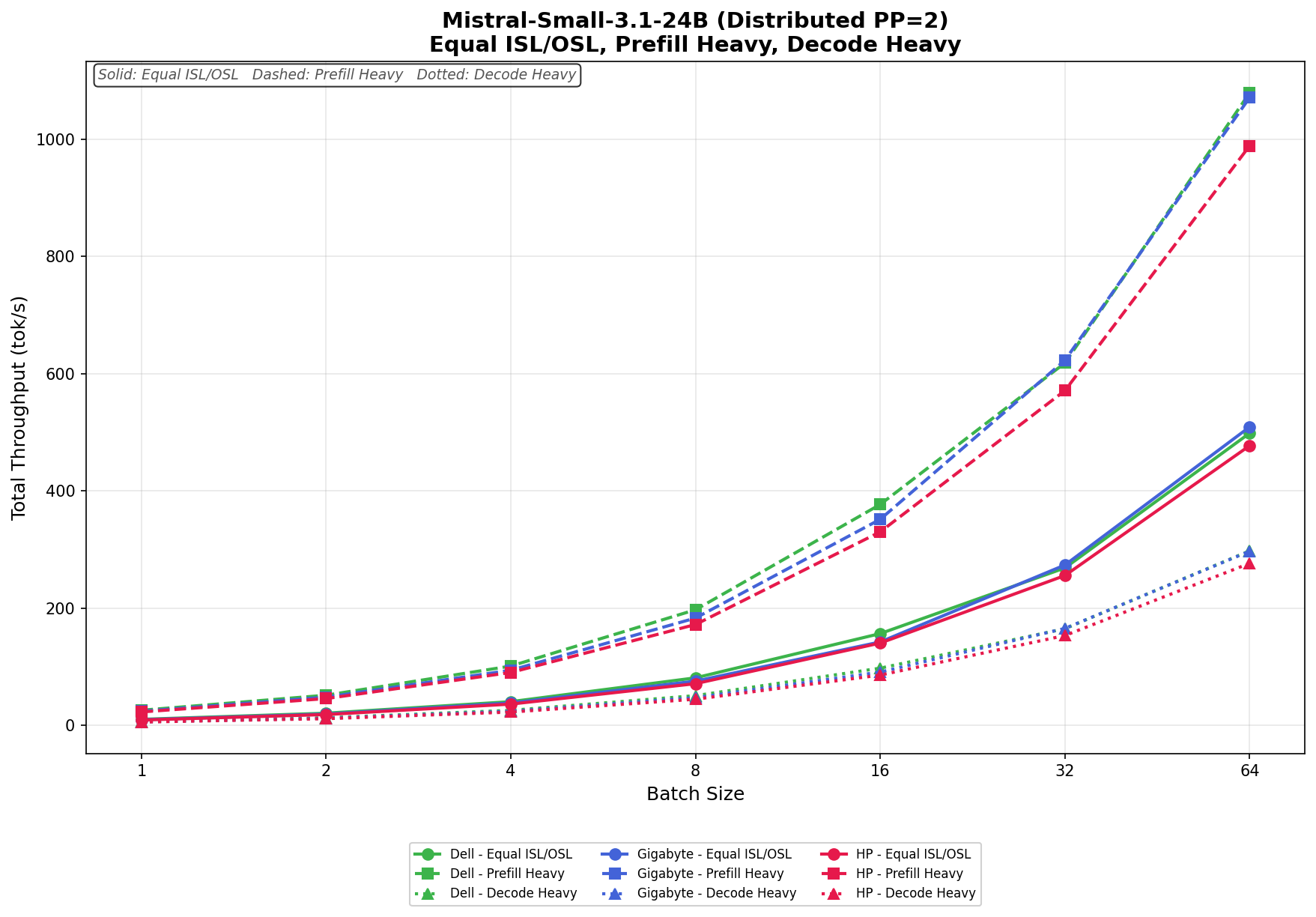
Dell Pro Max with GB10 Review

When we first got our hands on the NVIDIA DGX Spark back in October, it was clear that NVIDIA was serious about shrinking datacenter-class AI down to something that could live on a desk. Our initial Founders Edition sample gave us an early look at what the Grace Blackwell-based GB10 platform could do in a compact, self-contained appliance.

Dell Pro Max GB10 Front View

Since then, the ecosystem has matured with OEM designs. We recently received two Dell Pro Max with GB10 in the lab for review. We placed them alongside our other Spark systems to evaluate performance consistency, thermals, and overall design differences across vendor implementations.

Where the original Spark focused on reference hardware, Dell brings its own flair to the platform. The Pro Max with GB10 features Dell’s L6 chassis design, with a more refined industrial look and desktop-friendly aesthetics, giving it a distinct identity while retaining the same GB10 foundation. It feels less like a developer kit and more like a finished product meant for a professional workspace.

As of this writing, the 1TB configuration is listed on Dell’s store for $4,061.34, positioning it as a premium desktop AI appliance. In this review, we’ll examine how Dell’s take on the GB10 platform compares with the other Spark systems we’ve tested, focusing on real-world performance and thermal behavior under sustained workloads.

Dell Pro Max with GB10 Specifications

The table below outlines the available storage configurations and build options for the Dell Pro Max with GB10.

Specification Dell Pro Max with GB10
Dimensions & Weight
Height 2 in
Width 5.9 in
Depth 5.9 in
Weight 2.69 lb
Processor
Processor Type NVIDIA GB10 (Grace Blackwell Superchip) (20 Cores)
Integrated Graphics NVIDIA Blackwell GPU (integrated)
Memory
Memory Type LPDDR5x (Unified System Memory)
Memory Configuration 128 GB LPDDR5x, unified system memory
Memory Bandwidth 273 GB/s (8533 MT/s)
Operating System
Supported OS NVIDIA DGX OS
External Ports & Slots
Network Ports One RJ45 (10GbE)
NVIDIA ConnectX-7 NIC (200G × 2 QSFP)
USB Ports Three USB 3.2 Gen 2×2 Type-C (20Gbps)
One USB 3.2 Gen 2×2 Type-C with PD in
Video Port(s) One HDMI 2.1a
Power Adapter Port USB Type-C (PD IN)
Security Slot None
Wireless
WiFi WiFi 7 (AW-EM637, 2×2)
Bluetooth Bluetooth 5.4
Storage
Storage Options M.2 Gen4 NVMe: 1TB / 2TB / 4TB (Opal 2.0 varies)
Power Adapter
Type 280 W external adapter (USB Type-C)

Dell Pro Max with GB10 Build and Design

Overall, Dell took a different design approach from its Pro series desktops, adding a front honeycomb bezel that gives it an enterprise server aesthetic despite its mini 1L chassis. The overall build is impressive. The gunmetal gray metal case gives it a solid, well-built feel in the hand, making it both portable and durable on the go, whether on a busy desk or in a lab. Dell also includes an LED power indicator in their GB10 design, which we’ve only seen on it and one other version in the market.

Dell Pro Max GB10 Rear View with faceplate

The GB10 measures 1.80 inches in height at the front and rear, with a peak height of 2.0 inches. The compact 5.90-inch-square footprint takes up minimal space and weighs between 2.69 and 2.96 pounds, depending on configuration.

On the rear of the device, you will find one RJ45 10GbE Ethernet port, two QSFP 200 Gbps ports (Realtek RTL8127-CG; NVIDIA ConnectX-7), three USB 3.2 Gen 2×2 (20 Gbps) Type-C ports with DisplayPort 1.4a alt-mode and power delivery, one HDMI 2.1a port, and Dell differentiates itself from the Founders Edition and other OEM designs by including a larger 280W USB Type-C power adapter commonly used in its portable workstation portfolio, providing ample power headroom for sustained workloads.

Dell Pro Max GB10 rear, no faceplate

Inside, the GB10 features the AzureWave AW-EM637 wireless module, providing WiFi connectivity for flexible deployment scenarios. Storage is handled by a single M.2 2230/2242 slot supporting PCIe Gen 4 SSDs for fast boot times and rapid data access. Memory is a highlight with 128GB of LPDDR5X RAM running at 8533 MT/s, delivering the high bandwidth needed for demanding AI workloads.

Dell Pro Max GB10 underside with drive section

At the core is the NVIDIA GB10 chip, purpose-built for AI inference and edge computing. The system ships with NVIDIA DGX OS pre-installed, which is NVIDIA’s optimized Linux distribution that includes pre-configured drivers, CUDA libraries, and popular AI frameworks like TensorFlow and PyTorch. This allows users to deploy AI applications immediately without extensive system setup.

Dell Pro Max GB10 Side with cover off

Dell Pro Max with GB10 Thermals Testing

To test the thermals of components within the Dell Pro Max with GB10, we compared them against the Founders Edition and OEMs such as ASUS, Acer, and Gigabyte. We did a deeper dive on this in our Spark Thermal Testing paper.

Dell Pro Max GB10 with OEM Sparks

Across the stack, we monitored components over a given timeframe with three stages to the workload, ramping up utilization over roughly an hour. This allowed us to see the device in extended use and various workload stages. We monitored CPU, GPU, network, NVMe temps, and total power consumption.

CPU Temperature

During CPU thermal testing, the Dell Pro Max with GB10 ran toward the upper tier of the group during burst-heavy phases. In Prefill Heavy, Dell recorded a peak temperature of approximately 87.7°C around the 1500-second mark, placing it among the warmest systems during this workload transition.

In the Equal ISL/OSL phase, Dell tracked closely with the upper-middle systems, ramping steadily into the 62–75°C range alongside ASUS and the Founders Edition. Gigabyte operated noticeably cooler during this phase, while Acer maintained the lowest overall CPU temperatures.

Under Prefill Heavy, Dell’s temperature curve climbed more aggressively than most of the field, peaking near 88°C before transitioning into Decode Heavy. Once in sustained Decode workloads, the system stabilized at 80–83 °C. While this positioned Dell toward the warmer side of the group, it demonstrated consistent thermal control under extended load rather than continued escalation.

Acer remained the coolest overall implementation throughout testing, holding in the mid-60°C range during sustained phases. Gigabyte also maintained a more moderate thermal envelope compared to Dell.

Overall, the Dell Pro Max with GB10 posted one of the highest peak CPU temperatures in the group during burst workloads but settled into competitive sustained-load thermals once the workload normalized.

NVIDIA DGX Spark Thermal CPU Temps

GPU Temperature

GPU thermals followed a similar pattern. During Prefill Heavy, Dell reached a peak temperature of approximately 80°C, placing it in the upper range of the stack during burst conditions.

In Equal ISL/OSL, Dell ramped quickly into the mid-60°C range, closely tracking ASUS and the Founders Edition. Gigabyte and Acer both operated at lower temperatures during this phase.

Once transitioning into Decode Heavy, Dell stabilized between 68–71°C. While still warmer than Acer and Gigabyte, the separation narrowed compared to the burst phase. The Founders Edition and ASUS tracked in a similar thermal band to Dell during sustained decoding.

Taken together, the Dell system exhibited higher burst GPU temperatures but demonstrated stable and predictable behavior under sustained workloads.

NVIDIA DGX Spark Thermal GPU Temps

NVMe Temperature

Storage thermals were where the Dell configuration diverged most clearly from the field. During Prefill Heavy, the NVMe drive peaked at approximately 63–64°C, placing it at the higher end of the comparison group.

In Equal ISL/OSL, Dell began in the low-to-mid 40°C range and climbed steadily, trending slightly warmer than most competitors throughout the phase. During sustained Decode workloads, the drive stabilized between 59–61°C.

While these temperatures remain within standard NVMe operating specifications, they indicate comparatively tighter airflow or storage placement relative to Acer and Gigabyte, both of which maintained lower sustained NVMe temperatures during the same phases.

NVIDIA DGX Spark Thermal SSD Temps

NIC Temperature

NIC thermals showed a similar but less pronounced pattern. Dell peaked in the low 70°C range during Prefill Heavy and settled into the upper 60°C band during Decode Heavy.

Throughout testing, Dell tracked in the warmer half of the group but did not demonstrate extreme deviation from ASUS or the Founders Edition. Acer again maintained the lowest temperatures overall.

GPU Power Consumption

GPU power behavior aligned more closely with the middle of the group. Dell peaked at approximately 70W during the Prefill Heavy phase, around the 1,400–1,600 second mark. This briefly approached the Founders Edition’s 74W ceiling but remained slightly lower overall.

During Equal ISL/OSL, Dell ramped from roughly 27W into the mid-40W range, largely in step with the rest of the systems. In Prefill Heavy, it briefly touched 70W before settling back down. In Decode Heavy, Dell stabilized between 40–45W, running slightly above Acer and ASUS but below the Founders Edition, which maintained the highest sustained GPU power draw through the remainder of the benchmark.

From a power perspective, Dell does not appear to be aggressively overdriving the GPU. Instead, its higher thermals relative to some competitors likely stem more from chassis airflow and internal layout decisions than from excess power allocation.

Thermal Summary

Across CPU, GPU, NVMe, and NIC monitoring, the Dell Pro Max with GB10 generally operated toward the warmer end of the group during burst-heavy Prefill workloads. However, under sustained Decode conditions, temperatures stabilized into competitive ranges without runaway escalation.

Acer consistently maintained the coolest overall thermal profile, with Gigabyte also operating on the cooler side relative to Dell. The Founders Edition and ASUS typically tracked more closely with Dell’s thermal behavior.

Ultimately, the data suggests Dell’s implementation prioritizes compact design and workstation-style packaging, with thermal behavior remaining stable under load but exhibiting tighter headroom during aggressive workload transitions compared to the coolest-performing chassis in the stack.

Dell Pro Max GB10 Performance Testing

To evaluate the Dell Pro Max with GB10, we tested Spark units using the vLLM Online Serving benchmark, the most widely adopted high-throughput inference and serving engine for large language models. The vLLM online serving benchmark simulates real-world production workloads by sending concurrent requests to a running vLLM server and measuring key metrics, including total token throughput (tokens per second), time to first token, and time per output token, across varying load conditions.

Our testing spanned a range of models, including dense architectures and micro-scaling data types, and evaluated performance across three workload scenarios: Equal ISL/OSL, Prefill Heavy, and Decode Heavy. These scenarios represent distinct real-world serving patterns, from balanced input and output loads to compute-intensive prompt processing and memory-bandwidth-bound token generation.

In addition to the Dell Pro Max with GB10, we benchmarked the NVIDIA Founders Edition Spark as a reference point, alongside OEM systems from ASUS, Acer, and Gigabyte. This allowed us to place Dell’s results within the broader competitive landscape and understand where it leads, tracks with the pack, or trails across different models and workload types.

GPT-OSS-120B

In Equal ISL/OSL, Dell scales from 68.57 to 670.83 tok/s, tracking in the middle of the field throughout the batch range. Prefill Heavy begins at 298.60 tok/s and scales to 2,707.15 tok/s by batch size 64, placing Dell at the top tier at larger batch sizes despite a more modest starting point. Decode Heavy ranges from 37.74 to 273.54 tok/s, with scaling remaining limited relative to the other workload types.

GPT-OSS-20B

Equal ISL/OSL scales from 90.76 to 1,585.28 tok/s with steady growth across batch sizes. Prefill Heavy reaches 4,453.55 tok/s at a batch size of 64, representing Dell’s highest absolute throughput across the tested models. Decode Heavy ranges from 49.88 to 687.17 tok/s, scaling consistently across the batch spectrum.

Qwen3 coder 30B A3B FB8

Equal ISL/OSL scales from 103.76 to 1,258.08 tok/s, with vendors closely grouped across batch sizes. Prefill Heavy grows to 2,018.58 tok/s at a batch size of 64, with minimal separation between systems at higher batch sizes. Decode Heavy ranges from 54.69 to 493.82 tok/s, maintaining similar clustering across vendors.

Qwen3 coder 30B A3B Base

Equal ISL/OSL runs from 62.74 to 748.04 tok/s across batch sizes. Prefill Heavy scales from 266.80 to 1,693.68 tok/s, remaining near the upper band across mid- and higher-batch sizes. Decode Heavy ranges from 34.11 to 365.68 tok/s across the workload spectrum.

Llama 3.1 8B Instruct FP4

Equal ISL/OSL scales from 76.03 to 2,776.30 tok/s across batch sizes. Prefill Heavy places Dell in the mid-band at larger batch sizes, with throughput increasing alongside the rest of the stack. Decode Heavy ranges from 40.87 to 575.50 tok/s, scaling progressively with batch size.

Llama 3.1 8B Instruct FP8

Equal ISL/OSL scales from 24.50 to 1,079.44 tok/s, with vendors closely aligned throughout the batch range. Prefill Heavy reaches 245.35 tok/s at a batch size of 64, with separation increasing among vendors at higher batch sizes. Decode Heavy ranges from 23.60 to 464.12 tok/s, with scaling consistent across the group.

GPU Direct Storage

One of the tests we conducted on the Spark was the MagnumIO GPU Direct Storage (GDS) test. GDS is a feature developed by NVIDIA that allows GPUs to bypass the CPU when accessing data stored on NVMe drives or other high-speed storage devices. Instead of routing data through the CPU and system memory, GDS enables direct communication between the GPU and the storage device, significantly reducing latency and improving data throughput.

Dell uses the Phison ESL04TBTLCZ 4TB Gen4 SSD inside the Pro Max GB10. While this matches the capacity of other 4TB models, it is a Gen4 model, with lower read and write speeds.

How GPU Direct Storage Works

Traditionally, when a GPU processes data stored on an NVMe drive, the data must first travel through the CPU and system memory before reaching the GPU. This process introduces bottlenecks because the CPU acts as a middleman, adding latency and consuming valuable system resources. GPU Direct Storage eliminates this inefficiency by enabling the GPU to access data directly from the storage device via the PCIe bus. This direct path reduces data-movement overhead, enabling faster, more efficient data transfers.

AI workloads, especially those involving deep learning, are highly data-intensive. Training large neural networks requires processing terabytes of data, and any delay in data transfer can lead to underutilized GPUs and longer training times. GPU Direct Storage addresses this challenge by ensuring that data is delivered to the GPU as quickly as possible, minimizing idle time and maximizing computational efficiency.

In addition, GDS is particularly beneficial for workloads that involve streaming large datasets, such as video processing, natural language processing, or real-time inference. By reducing the reliance on the CPU, GDS accelerates data movement and frees up CPU resources for other tasks, further enhancing overall system performance.

GDSIO Read Throughput 16k

Looking at GDSIO Read Throughput 16K, the Dell starts at about 0.50 GiB/s at 1 thread and scales to 1.34 GiB/s at 8 threads, where it clearly outperforms ASUS at roughly 0.95 GiB/s. That advantage continues at 16 threads, with Dell delivering 2.26 GiB/s compared to ASUS at about 1.58 GiB/s, and again at 32 threads, where Dell posts 3.32 GiB/s versus ASUS at 2.55 GiB/s.

Even at 64 threads, Dell maintains the edge at 4.35 GiB/s, ahead of ASUS at approximately 3.68 GiB/s. It is only at 128 threads that Dell levels off around 4.30 GiB/s, while other platforms scale higher. Across the core scaling range, Dell consistently leads and outperforms the ASUS system by a clear margin.

GDSIO Read Average latency 16K

Looking at GDSIO Read Average Latency (16K), Dell delivers the lowest latency across most of the scaling curve. It starts at approximately 0.03ms at 1 thread, closely matching ASUS, but quickly separates itself at 2 threads (0.09ms vs. 0.13ms) and 4 threads (0.112ms vs. 0.118ms). Dell maintains its advantage at 8 threads (0.092ms vs. 0.13ms), 16 threads (0.108ms vs. 0.155ms), and 32 threads (0.148ms vs. 0.193ms).

At 64 threads, Dell remains competitive at roughly 0.222ms, slightly lower than ASUS at 0.267ms. It is only at 128 threads that latency rises sharply to around 0.45ms, closely matching ASUS at the same level. Overall, Dell demonstrates consistently lower latency across low to mid concurrency levels before converging at the highest thread count.

GSDIO Write Throughput 16K

Looking at GDSIO Write Throughput (16K), Dell starts strong at approximately 0.35 GiB/s at 1 thread and quickly separates itself at lower concurrency, reaching about 0.75 GiB/s at 2 threads and 1.55 GiB/s at 4 threads, clearly ahead of ASUS at those same points (0.58 and 0.65 GiB/s). Dell continues scaling to 2.33 GiB/s at 8 threads and peaks around 2.88–2.90 GiB/s at 16 and 32 threads, where it leads the group.

However, beyond 32 threads, Dell plateaus and slightly declines, holding around 2.90 GiB/s at 64 threads and dipping to roughly 2.75 GiB/s at 128 threads, while Acer, Gigabyte, and the Founders Edition accelerate sharply past 5 GiB/s at 64 threads and reach roughly 6.5 GiB/s at 128 threads. Overall, Dell dominates the low-to-mid thread range but does not scale into the higher concurrency levels like the top-performing systems.

GDSIO Write Average Latency 16K

Looking at GDSIO Write Average Latency (16K), Dell delivers the lowest latency across nearly the entire scaling curve. It begins at roughly 0.045ms on 1 thread and remains very low at 0.05ms on 2 threads and 0.04ms on 4 threads, significantly below ASUS, which measures about 0.06ms and 0.10ms, respectively. At 8 threads, Dell comes in around 0.055ms, compared to ASUS at approximately 0.20ms. The gap widens further at 16 threads, where Dell posts about 0.085ms versus ASUS at roughly 0.35ms, and at 32 threads, Dell remains controlled at about 0.17ms while ASUS climbs to nearly 0.68ms.

Even at 64 threads, Dell holds around 0.34ms, whereas ASUS spikes to approximately 1.51ms. Only at 128 threads does Dell rise more sharply to around 0.71ms, but it remains dramatically lower than ASUS, which surges past 3.10ms. Overall, Dell demonstrates significantly better write latency control as concurrency increases than ASUS.

GDSIO Read Throughput 1M

Looking at GDSIO Read Throughput (1M), Dell begins at approximately 2.6 GiB/s on 1 thread, scales to 4.3 GiB/s on 2 threads, and reaches about 5.6 GiB/s on 4 threads. From there, performance largely plateaus, holding around 5.6 GiB/s at 8 threads, 5.4 GiB/s at 16 threads, 5.4 GiB/s at 32 threads, and 5.5 GiB/s at 64 threads, before finishing near 5.5 GiB/s at 128 threads.

While Dell delivers strong early scaling and stable performance, Acer and Gigabyte continue to climb beyond 11 GiB/s at higher thread counts, and the Founders Edition approaches 10 GiB/s, positioning Dell solidly in the mid-tier for large-block read throughput.

GDSIO Read Average Latency 1M

Looking at GDSIO Read Average Latency (1M), Dell starts at roughly 0.35ms with 1 thread, increases to about 0.45ms with 2 threads, and reaches approximately 0.70ms with 4 threads. Latency continues rising in a controlled manner through 8 threads (1.50ms) and 16 threads (3.00ms), then moves to around 5.90ms at 32 threads and 12.40ms at 64 threads, before finishing near 25.40ms at 128 threads.

While Dell scales more efficiently than ASUS, which reaches nearly 29.60ms at 128 threads, it remains higher than Acer and Gigabyte at peak concurrency, both of which stay closer to the 11ms range at 128 threads. Overall, Dell maintains mid-pack latency behavior for large block reads, outperforming ASUS but trailing the lowest-latency platforms at the highest thread counts.

GDSIO Write Throughput 1M

Looking at GDSIO Write Throughput (1M), Dell begins at approximately 2.6 GiB/s on 1 thread, increases to about 3.2 GiB/s on 2 threads, and reaches roughly 3.3 GiB/s on 4 threads. From there, performance flattens, holding around 3.2–3.3 GiB/s from 8 through 64 threads, before dipping slightly to about 3.1 GiB/s at 128 threads.

While Dell delivers steady and consistent large-block write performance, it does not scale with higher concurrency like Acer and Gigabyte, which climb above 12 GiB/s between 8 and 64 threads, or even the Founders Edition, which sustains roughly 8.7 GiB/s across the mid-range. Overall, Dell remains stable but clearly trails the top-performing systems in high-concurrency 1M write throughput.

GDSIO Write Average Latency 1M

Looking at GDSIO Write Average Latency (1M), Dell starts at roughly 0.6ms with 1 thread, increasing gradually to about 0.8ms with 2 threads and 1.2ms with 4 threads. Latency continues climbing to approximately 2.5ms at 8 threads, 5.0ms at 16 threads, and 9.5ms at 32 threads, before reaching around 19.0ms at 64 threads and finishing near 40.0ms at 128 threads.

While Dell scales more smoothly than ASUS, which spikes dramatically past 100ms at 64 threads, it still trails Acer and Gigabyte at higher concurrency, both of which remain closer to the 14ms range at 128 threads. Overall, Dell maintains controlled, but mid-tier large-block write latency as thread counts increase.

Conclusion

The Dell Pro Max with GB10 packages NVIDIA’s standardized GB10 Spark platform into Dell’s Pro Max chassis, maintaining the same underlying compute foundation seen across the ecosystem. In vLLM testing, sustained AI inference performance remained tightly grouped with the rest of the Spark systems, with strong Prefill scaling and predictable behavior across Equal and Decode workloads.

Dell Pro Max GB10 bottom with magnetic cover off

Thermally, Dell operated toward the warmer end of the group during burst-heavy Prefill transitions, including elevated NVMe temperatures relative to some peers. Under sustained Decode workloads, however, temperatures stabilized within competitive ranges, with no signs of instability or throttling. GPU power behavior remained within the expected envelope for the platform.

In GPU Direct Storage testing, Dell performed well on 16K read throughput scaling and demonstrated strong write latency control at lower to mid-concurrency levels. At larger 1M transfers, throughput plateaued earlier than Acer and Gigabyte at higher thread counts, a behavior that appears tied to the specific Gen4 SSD configuration rather than any limitation of the GB10 architecture itself. Unfortunately, Dell made a series of disappointing storage decisions with their GB10 implementation, with no Gen5 SSD options. Additionally, their 2TB offering uses a Gen4 QLC SSD, which is likely to perform worse than the results in this review.

Across the Spark lineup, core AI throughput remains tightly grouped. Differences are found in implementation choices, not raw processing power.

Product Page – Dell Pro Maxwith GB10

The post Dell Pro Max with GB10 Review appeared first on StorageReview.com.
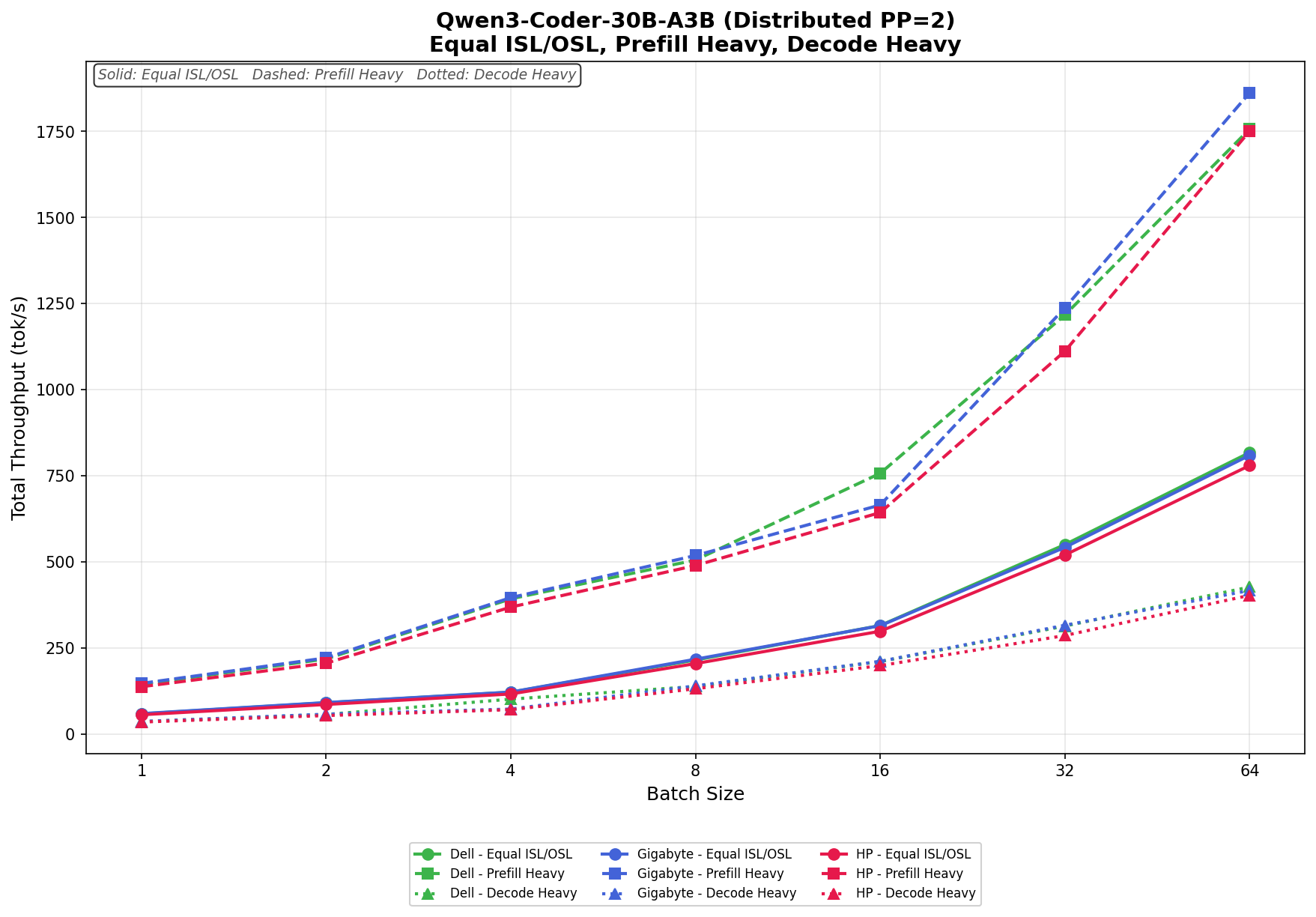
❌